If you are wondering why does my robot vacuum keep getting stuck, the answer is usually one of five things: cords and small objects on the floor, hair wound around a brush or wheel, dirty cliff sensors, a threshold or rug edge above the robot’s climbing height, or furniture too low to back out from. Clear the cords and clutter, wipe the sensors clean, and set no-go zones in the app. Most cases take five minutes to diagnose.
The annoying part is that a robot stuck on the same spot every single run feels like a hardware fault, when nine times out of ten it is a floor problem: a floor vent, a lip where hardwood meets tile, a chair gap, a bunched rug edge. Diagnose before you buy anything.
Table of Contents
- What You Need
- Step-by-Step: Why Does My Robot Vacuum Keep Getting Stuck
- 1. Identify where the robot vacuum gets stuck
- 2. Check wheels, brush, and underside for trapped debris
- 3. Clear sensors, charging contacts, and navigation openings
- 4. Remove floor-level obstacles and hair traps
- 5. Check the app, mapping, and robot settings
- 6. Test the vacuum on a clean, open floor
- Common Mistakes That Make It Keep Getting Stuck
- Frequently Asked Questions
- Can a low robot vacuum battery cause it to get stuck?
- How do I remove hair tangled around a robot vacuum brush?
- What should I do if one robot vacuum wheel spins but the other does not?
- Why does my robot vacuum avoid the same area after getting stuck?
- Is it safe to clean robot vacuum sensors with a damp cloth?
- When should I contact support instead of fixing a robot vacuum myself?
- Conclusion
What You Need
Gather a few things before you turn the vacuum over, because halfway through a job with a flashlight in your teeth is miserable.
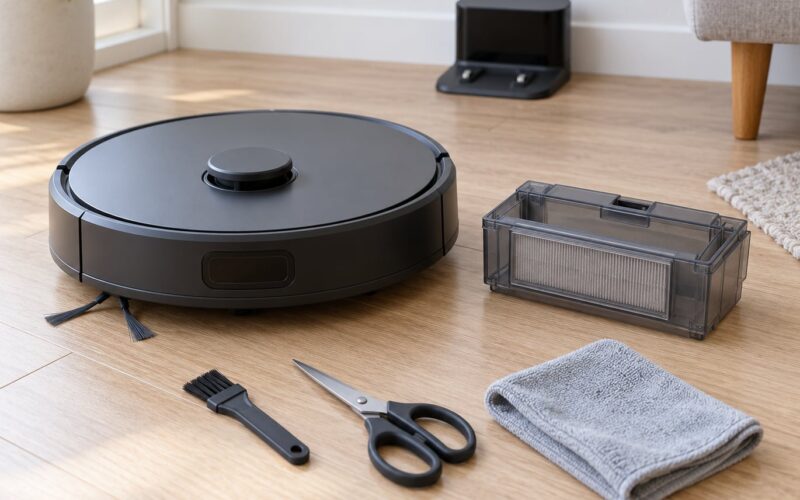
- The manual or the brand’s support page for your exact model. Numbers like sensor location, battery reset procedure and error codes are model specific.
- A flashlight. For looking under furniture and at the underside without moving things twice.
- Measuring tape. You need the clearance under the sofa, recliner or cabinet and the height of the threshold strip.
- A soft dry brush or an old toothbrush, plus a lint-free cloth. Sensors get wiped dry, never wet.
- Scissors, or the brush cutter that came with the robot. Cutting hair out of the roller beats pulling at it.
- Access to the app and the dock. You will want the charge level and the map in front of you.
Before anything else, end the current run from the app and turn the vacuum off with the power button on the underside rather than yanking the battery. Lift it from the front edge or the sides, not by the lidar turret or the bumper, so you do not crack a sensor cover. Then locate the parts you will be checking: the dustbin and its filter, the main roller and side brush underneath, the two drive wheels plus the small caster, the cliff sensors along the bottom edge, and the charging contacts on the underside and on the base.
Step-by-Step: Why Does My Robot Vacuum Keep Getting Stuck
1. Identify where the robot vacuum gets stuck
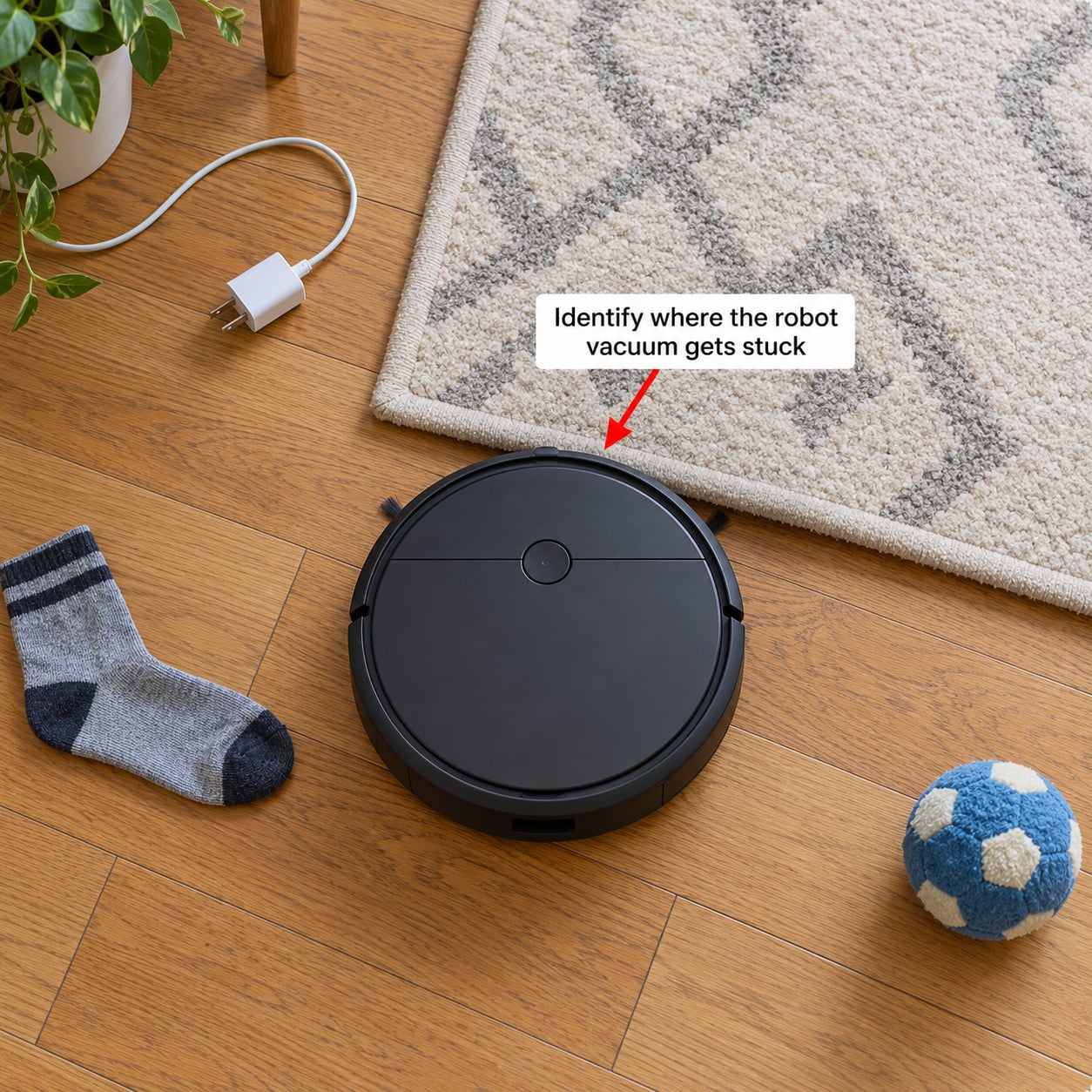
Most of the time, getting stuck in the same place means something specific is in the same place. Watch one full run from the doorway instead of rescuing it blind, and note four things: the room, the floor transition it crossed to get there, whatever it touched, and whether it stalled, spun in circles, or reversed repeatedly.
That single note does more diagnostic work than anything else in this guide. A stall under a couch is a clearance or bumper problem. Spinning in an open spot with no obstacle usually points at a wheel. Repeatedly backing away from nothing usually points at a sensor.
Pull up the map in the app afterwards. Most apps show where the robot stopped or where it recorded a trap, which turns a guess into a fact.
2. Check wheels, brush, and underside for trapped debris
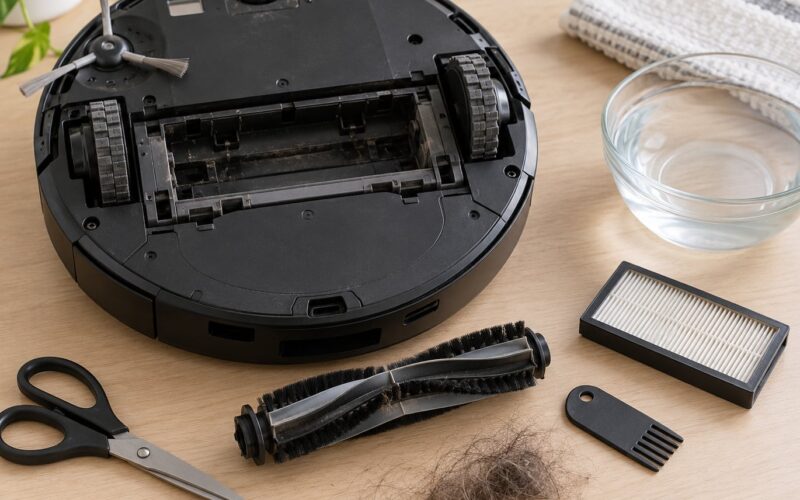
Flip it over and pull the main roller free using the release catch or the end cap. Hair wraps around the roller and the side brush bearings and cinches down until the drive wheels slip or lock. Cut along the roller with scissors or the brush cutter, working from the outside in, and peel the hair off in one piece rather than yanking strands one by one.
Then spin each drive wheel and the caster with your fingers. They should roll smoothly. A wheel that feels gritty, does not spin freely, or has a stiff or worn rubber tread is a mechanical fault, not a cleaning job. Check the caster bearing too; that small swivel wheel jams more often than people expect.
Hair around a brush gets cut. Hair wound into a wheel bearing or a motor mount gets pulled out, and if the wheel still does not spin freely after that, it needs a part.
3. Clear sensors, charging contacts, and navigation openings
Cliff sensors are the small dark windows along the bottom edge that detect drops. When they are coated with dust, wax or dried mop residue, the robot can decide a rug edge is a cliff, panic, stop and refuse to move. Wipe them with a dry cloth or a dry soft brush, and do the same to the infrared window on the front bumper and the bumper lip itself, where grit jams the mechanism so the bumper cannot retract.
If the robot has a camera or an optical navigation window on top, wipe that too. A scratched or smeared window causes phantom obstacles and phantom stuck alerts.
Clean the charging contacts on the underside and on the base with a dry cloth. Owners in the iRobot and Roomba communities describe cleaning both sets of contacts every couple of weeks, because grime on a contact mimics a charging fault and a robot that thinks it is out of power stops where it is. No water, no solvent, and skip the sensors entirely while they are charging.
How you confirm it worked: run a short cycle and see whether the false alerts stop. Sensors cleaned, alerts still firing? Look at the dark glossy flooring in that room next.
4. Remove floor-level obstacles and hair traps
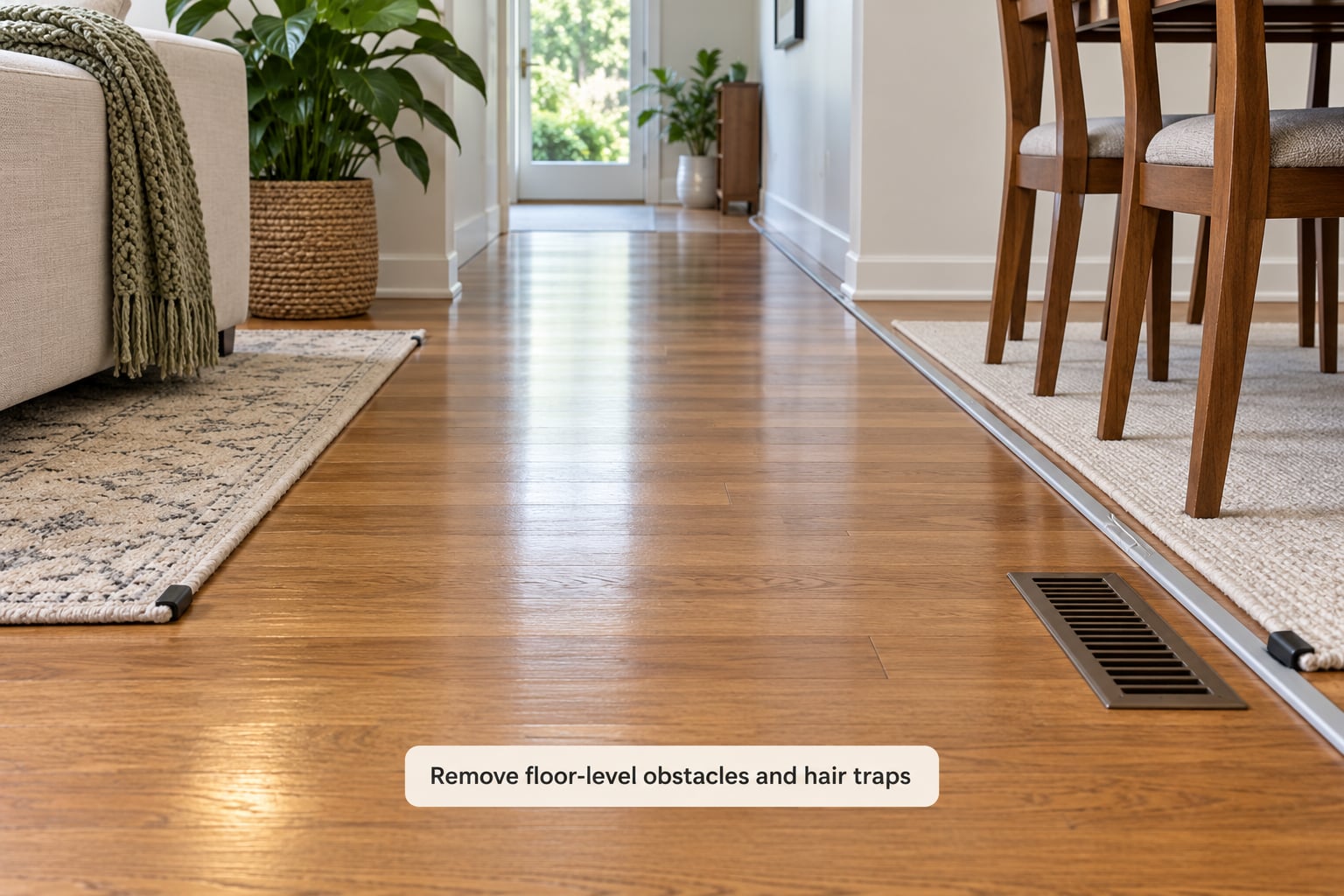
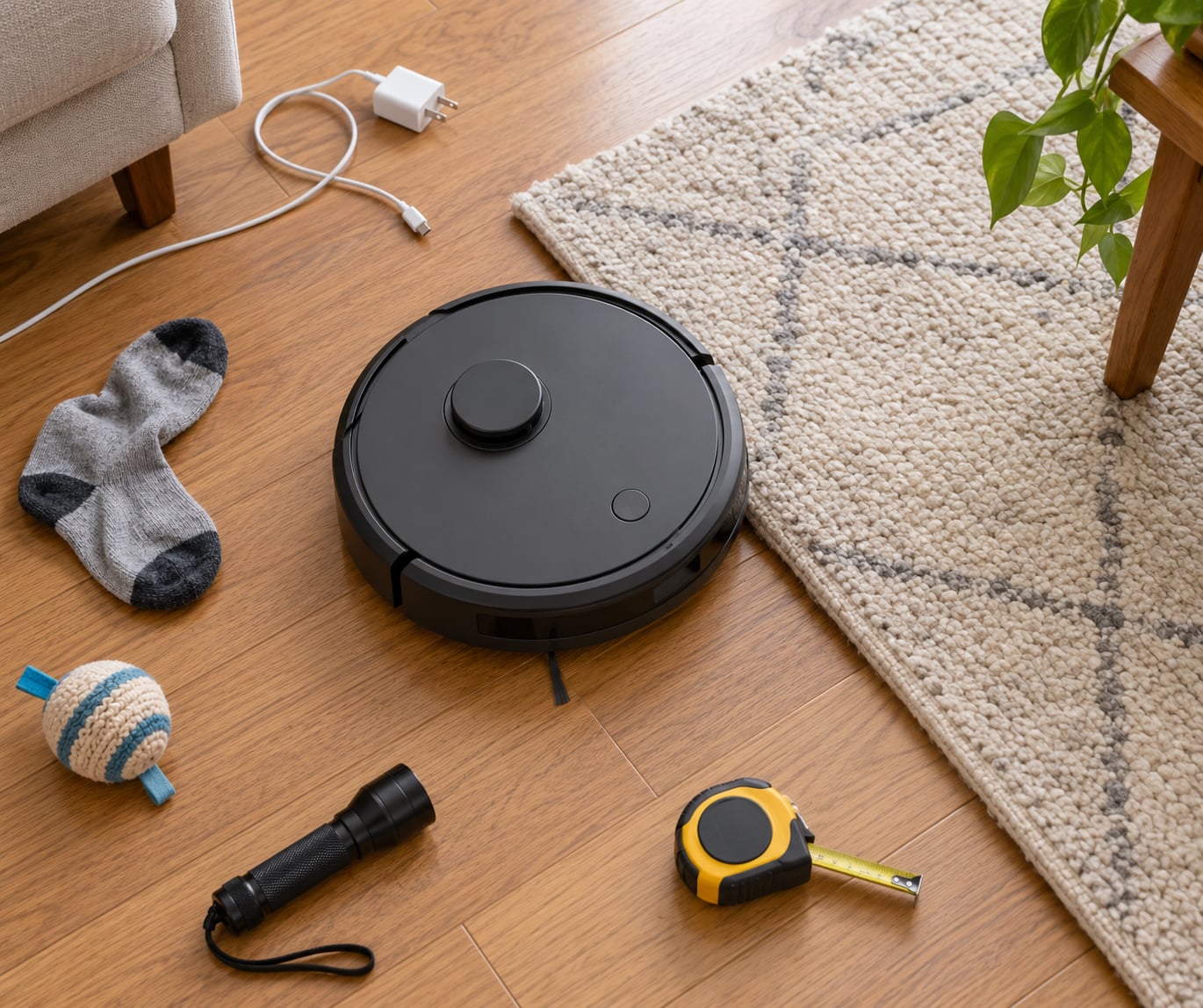
Now walk the route the robot actually takes and clear it like a path. Cords get wrapped around the brush and the side brush, socks and small toys get swallowed, tassels off a rug fringe pull the roller loose, and pet bowls tip. Lift charging cables off the floor with a channel or a clip, move the pet bowl onto a tray, and pin rug edges flat.
Then handle the fixed traps that the room itself creates.
- Floor vents and heating registers. Owners on r/iRobot and r/roomba report iRobot machines catching on these repeatedly. A low-profile trim plate over the register, or a magnetic strip laid across it, stops the catch without blocking airflow.
- Hardwood-to-tile lips and door thresholds. Measure the step. Anything above the model’s rated obstacle crossing height needs a threshold ramp, not a second attempt.
- Chair legs at the dining table. Push chairs in and leave them in. A tight ring of four legs is a corner the robot cannot solve.
- Recliners, sofa frames and low cabinets. Measure clearance before you commit. Raise the furniture on risers or set a no-go zone, and if the gap is under about an inch and a half, plan to leave that space alone permanently.
- Stairs. A cliff sensor should stop the robot, but never test it at the top of a staircase. Block the room in the app first.
Confirm the floor is fixed by watching the same run again. If it still dies in the same square metre, the problem is inside the machine or the map, not the room.
5. Check the app, mapping, and robot settings
Menu names differ by brand and by app version, so match the idea rather than the exact label. In the Xiaomi Home app used by many Xiaomi robot vacuums, no-go zones and virtual boundaries are edited on the map editor; Roborock’s app calls them no-go zones and virtual walls; iRobot Home labels rooms and lets you set keep-out areas per room; Ecovacs and Dreame apps both use no-go zone and no-mop zone under map editing.
Four settings cause more stuck runs than most people expect:
- A stale map. After moving furniture, edit or delete and re-map the room. An old map still shows the old layout, and the robot drives confidently into a chair that used to be somewhere else.
- Cliff or sensitivity sliders set high. Lowering cliff sensitivity stops false cliff alarms on rugs and dark floors.
- Do Not Disturb mode. When it is on, the robot pauses on a schedule to let you unpick a base station that also holds your phone. Notifications about a missed run show up instead of a stuck alert.
- Missing firmware updates. Update when the app prompts, because navigation fixes ship in updates. Check the release notes before blaming the hardware.
Set a no-go zone around the trap you found in step 1 while you are in there. It takes twenty seconds and it is the only fix that works without moving anything.
6. Test the vacuum on a clean, open floor
Put the robot in the middle of a clear, open room and run a short cycle from the app or the physical button. Watch two things: that it turns and changes direction normally instead of circling, and that the brush and both wheels sound the same at the start and the end of the run.
Then send it back to the original trap area. This is the step most people skip, and skipping it is how a fixed problem comes back a week later. One clean pass through the problem spot, no alert, no rescue, means the diagnosis was right.
If it still fails there, go back to step 1 with a sharper eye: the map, the sensor and the wheel are now the only suspects left.
Common Mistakes That Make It Keep Getting Stuck
These are the habits that turn a five-minute fix into a repeat rescue.
Cutting hair around the brush instead of out of it. Snipping the loose strands leaves a tight band still wrapped around the roller. Pull the whole wrap off with a comb while the brush is out.
Cleaning sensors with a damp cloth. Water gets into the window and the robot reads it as an obstacle or a cliff. Sensors are wiped dry, and nothing else.
Assuming the robot will learn the room. It will not learn a floor vent out of existence. Physical traps get a physical fix, and a virtual no-go zone is a complement, not a substitute.
Testing after it has been running for weeks. A tired battery shows up as short runs and stalled starts. Put it on the dock, let it reach a full charge, then test. If it barely lasts a short cycle, the battery is the finding.
Blaming hardware right after an update. Owners on r/RobotVacuums reported a wave of more frequent stops that lined up with an app release rather than a fault in the machines. Check your app and firmware version against release notes before you start ordering parts.
Fitting spare parts that do not match the model. Bumper strips, side brushes, mop pads and filter cartridges are model specific. Wrong parts can sit slightly proud and create a brand new snag point.
Leaving the map stale after rearranging. Fix the map in the app before moving furniture, not the week after.
A five-minute weekly routine prevents most of it. Empty and wipe the dustbin and filter, pull hair off the roller, glance at the cliff sensors and charging contacts, and walk the main rooms for cords, socks and rug edges. Pet households should do the brush every few days; long hair tangles twice in one run otherwise.
Frequently Asked Questions
Can a low robot vacuum battery cause it to get stuck?
Yes, indirectly. A tired battery shortens the run, so the robot reaches a low-power threshold in the middle of a room and either docks early or stalls wherever it is, which reads as stuck. Older batteries also charge poorly, so a robot that sits at the dock for hours and still dies in twenty minutes needs replacing. Always test on a full charge before diagnosing anything else.
How do I remove hair tangled around a robot vacuum brush?
Take the roller out first, then use the scissors or brush cutter that came with the robot to slice along the roller in one continuous motion, and peel the wrap off as a single band. Pulling individual strands just tightens the wrap. Repeat on both ends and on the side brush bearings, then run the roller under your thumb to check nothing is left gripping it.
What should I do if one robot vacuum wheel spins but the other does not?
Lift the robot and spin both drive wheels by hand. If one turns freely and the other is locked, pull hair and thread out of the axle and check that the wheel cap is seated properly. If the wheel is stiff, scuffed or cracked after cleaning, it is a worn wheel or a failing wheel motor. Clean first, since a hair-packed bearing looks exactly like a dead motor.
Why does my robot vacuum avoid the same area after getting stuck?
Most robots mark the spot in the map as a trap after a stuck event and route around it for a while. Some also refuse to enter a zone where a sensor registered a cliff, a strong obstacle or a bump. If the area is now clear but the robot still avoids it, delete that zone or re-map the room so the stored trap data is discarded.
Is it safe to clean robot vacuum sensors with a damp cloth?
Not really. Cliff sensors, the infrared bumper window and navigation lenses read light, and any moisture on or inside them throws the readings off and causes phantom obstacles and false stuck alerts. Use a dry lint-free cloth or a soft dry brush, wipe gently, and give the sensors a few minutes to air before powering back on.
When should I contact support instead of fixing a robot vacuum myself?
Contact support when cleaning changes nothing and the fault is inside the machine: a wheel that will not spin freely, a sensor that will not respond after a dry wipe, a brush motor that runs but does not turn the roller, or a battery that drains in one cycle. Take your model number, the app version and the error code or beep pattern with you, since those three details usually settle the case.
Conclusion
Start where this guide starts. Note the exact spot where the robot dies, flip it over and clear the wheels and main brush, walk the route and remove cords, socks, rug edges and pet bowls, wipe the cliff sensors and bumper lip dry, then send it back to that same spot and watch it.
Most repeat failures stop there. If the same trap survives a clean roller, a dry sensor and a cleared floor, you are looking at a worn wheel, a failed sensor or a mapping fault that a factory reset and a re-map will not clear, and at that point it is worth a support call with your model number and error code ready. Which question are you stuck on? Tell me the room and what the robot touched, and I can help you narrow it down.