Yes, smart cameras can be reached by strangers. The fix is not one setting but a chain: change every factory password, keep firmware current, turn on multi-factor authentication, put the camera on its own network, and cut off remote access you do not use. Budget about an hour for the full pass, plus ten minutes every couple of months to check nothing has quietly changed.
Mirai showed the scale of this in 2016, when a botnet built largely from hijacked IP cameras took major sites offline. Nobody had to pick your house. An internet scanner found a camera with the default password still on it, logged in, and put it to work. That is still how most camera compromises happen, and the reasons have not really changed.
Attackers want three things from a camera: the video feed, a foothold inside your home network, and the device itself as computing capacity for spam, cryptocurrency mining, or a denial-of-service attack. The feed is sold or used for stalking, the foothold is used to reach your phone or laptop, and the hardware is rented out in bulk. Most owners notice none of it.
Nobody sells a firewall for your front door, so people fall for the cheapest camera with the best sensor and leave the settings alone for two years. Here is what to fix, in the order that closes the most risk per minute of your time.
One thing I get asked constantly: can someone hack into your home security camera without being near the house? Yes, routinely, and it takes under a minute once the credentials are weak. The camera sits behind your router on a private address, but its vendor app opens a hole through your router to reach it, and that hole is reachable from anywhere in the world. The camera is effectively on the public internet even though your laptop is not.
Table of Contents
- What You Need
- Step-by-Step: How to Secure Smart Cameras
- 1. Audit the Camera and Its Connected Accounts
- 2. Change Every Default Password and PIN
- 3. Update Camera Firmware and App Software
- 4. Enable Multi-Factor Authentication
- 5. Secure the Home Wi-Fi Network
- 6. Put Smart Cameras on an Isolated or IoT Network
- 7. Restrict Remote Access and Sharing
- 8. Enable Alerts, Logs, and Privacy Controls
- 9. Test the Camera and Prepare a Recovery Plan
- Common Mistakes
- Frequently Asked Questions
- Can someone hack into my home security camera remotely?
- Do security cameras really need to be on a separate Wi-Fi network?
- How do I tell if my security camera has been hacked?
- What should I do if I think my camera is compromised?
- Should I turn off remote access on my security camera?
- Which security cameras are least likely to be hacked?
- Conclusion
What You Need
Before you change anything, gather six things. Without them you will spend half the job hunting for menu names.
- Your camera model number, which is on a sticker on the base or back of the unit.
- Router administrator access, meaning the password on the label or in the router app, plus the ability to reach its settings page from your phone.
- The camera app on your Android phone or tablet, with the account you actually use.
- The manufacturer’s current support page for that exact model, so you get the right firmware rather than a file for a sibling model.
- A password manager, since you are about to generate a dozen unique credentials.
- Access to your Wi-Fi and account settings, including the email address the camera account was created with.
Menu names move between brands and between app versions. Some apps call it Security, others Login protection, others Two-step verification, and a few older cameras have no multi-factor option at all. Treat the paths below as a map and use the manufacturer’s instructions for your model as the authority. If a setting is genuinely missing, that is a purchasing signal for next time rather than a dead end.
Step-by-Step: How to Secure Smart Cameras
Work through these in order. Each one assumes the last is done, and skipping ahead leaves a gap somebody will eventually find.
1. Audit the Camera and Its Connected Accounts
Open the camera app and write down who has access. Most apps hide a full member list behind something like Household, Family, Shared users, or Access permissions, and shared access is where a lot of camera accounts quietly leak: a neighbour helping you set up, a relative you added once, an old phone that still holds a session.
Also check three other places in the same sitting. The account settings of any connected service, such as a smart assistant or a video doorbell, because permissions granted there persist after you revoke them in the camera app. The home Wi-Fi, where you want an unfamiliar device to be obvious. And the storage, whether a cloud subscription or a microSD card, because someone with a shared account may be able to see recordings you never share live.
How you know it worked: every person and device on the account is one you recognise, and you can say out loud what each one has access to.
2. Change Every Default Password and PIN
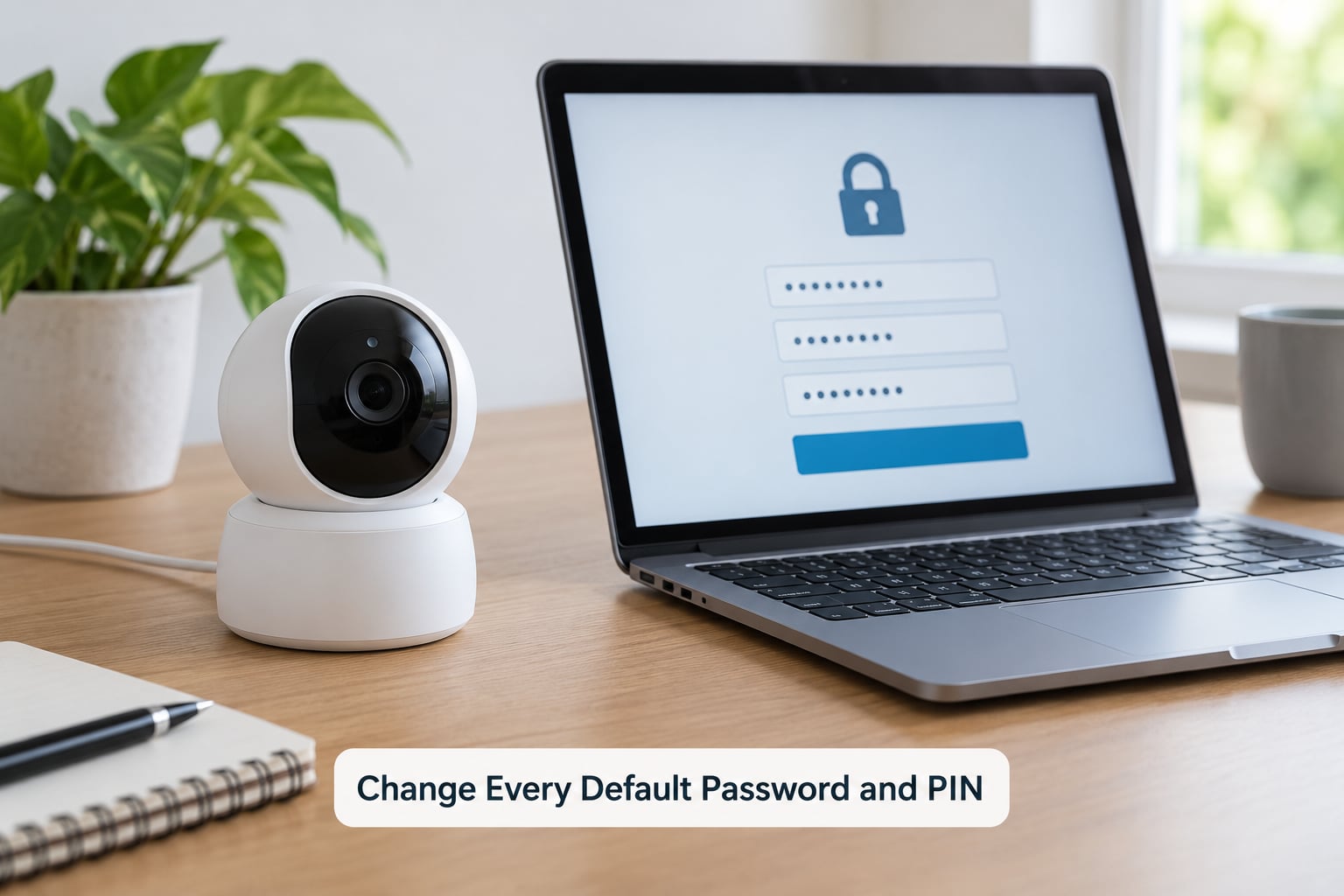
This is the single highest-value action on the page. Factory credentials are published in support documents and hard-coded into scanner lists, so a camera that still has admin with a default password is a camera anyone can log into. Change the camera’s own password, the app account password, the PIN used to open the live view, the Wi-Fi password, and any access code for a doorbell or keypad.
Make each one unique. Credential stuffing takes a password leaked from one site and tries it against a thousand others, and a reused password is the reason your camera can fall to an attack aimed at your email account.
Use a generated password of at least 16 characters for the camera and app account, stored in your password manager, and a longer passphrase for the Wi-Fi network itself since you type that one on guest devices. Do not put any of them on a sticky note by the router. Do not reuse the password from another service.
How you know it worked: the old password no longer opens the live view, and every credential lives in one place you can actually find.
3. Update Camera Firmware and App Software
Firmware is the camera’s internal software, and vendors ship updates that patch known vulnerabilities. An out-of-date camera is an unpatched one, and unpatched is exactly what automated scanners look for. On the manufacturer’s support page, enter your model number and install the newest firmware, then update the app itself from the Play Store so you get current fixes on the phone side too.
Then switch on automatic firmware updates if the app offers that toggle. It is often under Settings, Device settings, Firmware update, or Update, and it is sometimes off by default because vendors expect a manual action to cut server load. If your model has not had an update in more than a year, check whether the company still supports it at all.
How you know it worked: the support page shows your model with no newer version pending, and the app is on its current store version.
4. Enable Multi-Factor Authentication
Multi-factor authentication, or MFA, means your password is only half the login. You want an authenticator app or a hardware security key, not a text message, since phone numbers get ported and SIM swaps are a known technique. TOTP codes from a free authenticator app are the sensible middle ground for most households.
Where to look depends on the app. Common paths are Profile, then Account, then Security or Login protection; or Settings, then Account security, then Two-step verification. Turn on 2FA for the camera account and for the email address that account sends password resets from, since an attacker with email access can otherwise reset the camera password regardless of how strong it is.
Save the recovery codes somewhere offline. If you lose your phone and cannot get back into the account, those codes may be the only way in, and support usually will not regenerate them for you.
How you know it worked: signing in from a new device prompts for a second factor, and the recovery codes are written down somewhere safe.
5. Secure the Home Wi-Fi Network
Your router is the front door, and the usual break-in is a password that shipped in a factory sticker on the bottom of the box. Change the router administrator password first, because that one controls everything else. Then set the Wi-Fi encryption to WPA3 if your router and phones support it, or WPA2-AES if they do not, and give the wireless network its own long passphrase.
Turn off WPS, the push-button pairing feature that has a long history of being used to bypass the password entirely. Change the network name if you have not already, mainly so nobody can identify your home from the list of visible networks. And check for a remote administration setting: it should be off, or limited to your own network, so the router settings page cannot be opened from the public internet.
Routers need their own firmware updates, often more often than cameras do. A small business or a shared building is where this matters most, because anyone on that network can otherwise scan for open ports and guess device credentials.
How you know it worked: the router admin password is new, WPS is off, and reaching the router settings page from outside your home is impossible.
6. Put Smart Cameras on an Isolated or IoT Network
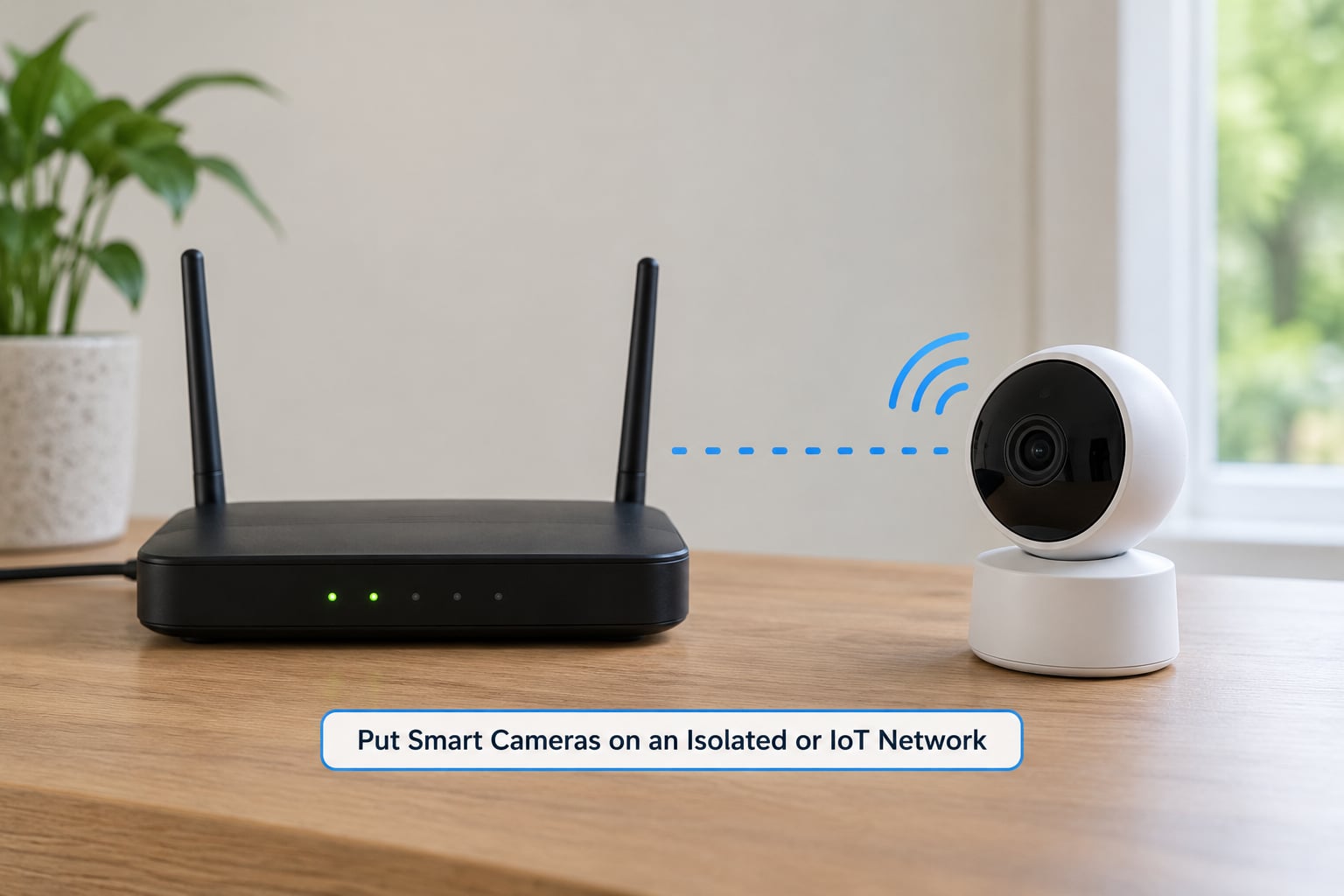
This is the step that limits a bad day. If a camera sits on the same network as your phone, laptop, NAS, and smart plugs, anyone who gets into it can move sideways. Put it on a separate network and a compromised camera only has a compromised camera to talk to.
Three ways to do it, cheapest first. A guest network, which most modern routers have built in, isolates clients from the main LAN automatically and is a two-minute change. A separate IoT VLAN, which is more thorough and available on many mid-range and prosumer routers, where you assign specific devices to a VLAN. Or a firewall rule, which the tech-support crowd recommends and which is the most precise: create a rule that denies the camera all internet access, then permit only the traffic it actually needs to reach your phone or a local NVR.
The trade-off is honest. Cutting a camera off the internet breaks remote viewing, and with it any cloud recording or remote notification. If you only check the feed at home, that is a fair price. If you need alerts while out, keep the internet access and rely on the camera’s own authentication plus MFA rather than blocking it. Some cheap cameras have no setting to restrict WAN access at all, and if yours is one of them, a guest network is the only lever you have.
How you know it worked: the camera appears on the guest or IoT network, and it cannot reach your laptop, phone, or storage device on the main network.
7. Restrict Remote Access and Sharing
Use only the manufacturer’s own app or service for viewing the feed outside your home. Third-party dashboards, browser plugins, and viewer apps for camera feeds are a well-worn way to plant a credential stealer, and some exist only to do that.
Never hand out a shared live-view link. If a family member needs access, give them a separate account with its own password, and revoke the old one. Turn off integrations you did not set up yourself, including voice assistant linking, third-party automations, and anything exposed through UPnP, since UPnP lets a device on your network open a route to itself from the internet without asking. On the router, remove any port forwarding rules that point at the camera unless you deliberately created them.
For a camera in a rental, a guest room, or anywhere you will hand the keys back, plan for how you will unbind it from your account before it leaves.
How you know it worked: each person has their own login, no live links exist outside your sessions, and the port forwarding list has no entries for the camera.
8. Enable Alerts, Logs, and Privacy Controls
Turn on login and new-device notifications, which is how most people discover a breach. The confirmation email you get when a new device signs in, or a password change you did not make, is one of the most reliable signals available. Enable motion and activity alerts too, so you know when the feed is being watched rather than only when something moves in front of it.
Review the device activity log in the app and in your router, looking for logins at hours you were asleep, connections from outside your own country, or traffic you cannot explain. Set a recording schedule that matches when you are actually out, rather than recording every hour of the day for no reason.
Then handle the audio and the neighbours. Turn off the microphone if you do not need two-way talk, since a camera that can hear is far more useful to someone listening in. Use privacy zones or masking so the lens does not cover a neighbour’s window, an upstairs hallway, or a private room. It is both the courteous thing to do and it reduces what a thief can get if they do get in.
How you know it worked: alerts arrive for logins and motion, the log is clean on review, the schedule matches your routine, and privacy zones are set.
9. Test the Camera and Prepare a Recovery Plan
Now prove the hardening holds. Try the old password on the live view and confirm it is rejected. Sign in remotely from a browser using the official app’s web portal and confirm it works when it should. Check the camera still shows on the expected network, and that it did not quietly reappear on the main LAN after a reboot. Test the app on a second device if more than one person uses it.
Write down your recovery plan while it all works: the model number, the firmware version, which app and account the camera is bound to, the email used for recovery, the location of the recovery codes, and the factory reset procedure. That last one matters more than people expect, because resetting a camera is often the only way to fully unbind it from an account, and nobody wants to be reading support threads at midnight looking for a button.
Before giving a camera away, selling it, or returning it, factory reset it, unbind it from your cloud account, and confirm you have removed the microSD card. A reset camera still holding the previous owner’s cloud binding is a security problem you hand to someone else.
How you know it worked: the old credentials are dead, approved remote access still works, and the reset procedure is written down offline.
A quick reference for the whole job:
| Hardening action | Where it lives | What it blocks |
|---|---|---|
| Unique passwords for camera, app, Wi-Fi, router | Camera settings, app account settings, router admin page | Default-credential logins and credential stuffing from a leaked password |
| Multi-factor authentication | Account, then Security or Two-step verification | Replay of a stolen password, including after a password reset |
| Firmware and app updates | Manufacturer support page and Play Store | Known vulnerabilities in camera software |
| Guest network or IoT VLAN | Router admin page, wireless settings | Attackers moving from the camera to your phone, laptop, or storage |
| Deny-rule firewall rule | Router firewall or parental controls | Outbound command-and-control traffic and abuse of the camera as a bot |
| Remote access and sharing controls | App, shared users, and router port forwarding | Unauthorised viewing through a shared link or a forwarded port |
| Login alerts and activity log | App notifications and router log | Silent, long-running access, by telling you it is happening |
Common Mistakes
Almost every camera problem I hear about comes down to one of these seven.
Reusing a password from another account. The camera login gets folded into a breach of some unrelated site. Fix: generate a fresh 16-character password per camera and store it in a manager.
Leaving a default or shared account active. The factory login, or the “viewer” account someone else was given, is still valid months later. Fix: delete every user you do not recognise, then re-add the ones you need with their own passwords.
Never installing an update. The camera worked, so it was left alone. Fix: check the model page now, switch on automatic updates, and put a reminder in your calendar for twice a year.
Exposing the router over port forwarding. Someone opened a port to reach the camera from outside, and left it there for years. Fix: delete forwarding rules you do not understand, keep remote viewing on the vendor’s encrypted service instead, and turn off remote administration.
Leaving cameras on the main network. The camera, the laptop, the NAS, and the smart plugs share one subnet. Fix: move the cameras to a guest network or IoT VLAN, which costs a few minutes and caps the damage of any future compromise.
Sharing one login across the household. Nobody knows who changed the settings or pulled the recording. Fix: one account per person, with the owner able to see who did what in the activity log.
Selling or discarding a camera without resetting it. The new owner receives a device still bound to your account, or an unformatted card full of your footage. Fix: factory reset, unbind from the cloud account, remove storage, then wipe.
Two more that get overlooked. Turning off the microphone if you never use two-way audio removes an entire attack surface at no cost. And buying a camera from a brand with no firmware history at all, which is not really a security setting but tends to be the decision that makes every other one on this list impossible.
Frequently Asked Questions
Can someone hack into my home security camera remotely?
Yes. Most remote camera compromises use stolen or default credentials rather than any clever exploit, and the camera is reachable from anywhere because the vendor app opens a route through your router. A scanner can find and log into an exposed camera in under a minute. Unique passwords, multi-factor authentication, current firmware, and network isolation close off the paths that make this work.
Do security cameras really need to be on a separate Wi-Fi network?
Not strictly, but it limits the damage when something goes wrong. On a separate guest network or IoT VLAN, a compromised camera cannot reach your laptop, phone, NAS, or smart plugs, so a bad credential turns into one bad device rather than a whole-house problem. The cost is that remote viewing and cloud recording usually stop working, which is a fair trade for a camera you only check at home.
How do I tell if my security camera has been hacked?
Look for unfamiliar logins and new devices in the app and router logs, settings you did not change, confirmation emails for password resets you did not request, the camera panning on its own, and audio playing from a device that should be silent. Sudden drops in image quality or constant reconnection loops also point to someone pulling the feed. A locked-out account or unknown device on your network is a strong signal to act immediately.
What should I do if I think my camera is compromised?
Unplug it first, so whoever is watching loses access immediately. Change the camera, app, and email account passwords from a device you trust, enable multi-factor authentication, revoke all active sessions and shared users, and remove any port forwarding rules pointing at the camera. Then factory reset the camera, restore it onto an isolated network, and contact the vendor if your credentials were exposed rather than guessed.
Should I turn off remote access on my security camera?
If you only ever view the feed while at home, yes, and you can block the camera from the internet entirely with a firewall rule while keeping it on a local network. If you need alerts and viewing while away, keep remote access but protect it with a unique password, multi-factor authentication, and firmware updates instead. Decide deliberately rather than leaving it on by default from the day you installed the camera.
Which security cameras are least likely to be hacked?
The ones from companies that keep shipping firmware updates years after sale, publish security advisories when flaws are found, support multi-factor authentication, and let you disable cloud features you do not use. Avoid no-name hardware, second-hand cameras you cannot factory reset, and any model whose maker has gone quiet. A mid-range camera from a company with a visible update history beats a cheap one with no support.
Conclusion
If you do nothing else this week, do these four things: update the camera firmware, change every default password and PIN, switch on multi-factor authentication for the camera and email accounts, then move the camera onto a guest network or IoT VLAN. That sequence closes the paths behind almost every real-world camera compromise.
Use your manufacturer’s current instructions for your exact model, since menu names differ between brands and app versions. And if you suspect a compromise already, revoke unfamiliar sessions, change credentials from a device you trust, and treat a factory reset as the starting point rather than the last resort.