Local storage vs cloud storage for security cameras comes down to one question: who keeps your footage, and for how long. Local systems record to an SD card, a drive inside an NVR, or a NAS inside your house, and they keep recording when the internet drops. Cloud systems stream every clip to the camera maker’s servers over your upload speed, which buys you remote access and off-site copies but adds a monthly bill and an account dependency. Most households end up splitting the difference.
I’ve set up both kinds for neighbors and small shops, and the honest answer is that neither one wins everywhere. What matters is your camera count, how long you need to hold footage, whether the internet at that address is dependable, and how much you care about a stranger being able to pull up your driveway video.
Below is how local storage vs cloud storage for security cameras compares section by section, followed by a decision framework you can run in about two minutes.
Table of Contents
- Local Storage vs Cloud Storage for Security Cameras at a Glance
- How Local Storage for Security Cameras Works
- What each local option actually costs you in effort
- How Cloud Storage for Security Cameras Works
- What the subscription model actually gives you
- Privacy and Security: Which Option Controls Your Footage Better?
- The compromise on camera theft
- Cost Comparison: One-Time Hardware vs Monthly Cloud Plans
- How local storage vs cloud storage costs compare over five years
- Working out how much footage you actually need
- Remote Access, App Features, and Multi-Camera Support
- Getting remote access with local storage
- Which Storage Option Is Best for Your Security Cameras?
- Choose local storage if
- Choose cloud storage if
- Choose hybrid when
- Frequently Asked Questions
- Is local storage better than cloud storage for security cameras?
- Can I use local and cloud storage at the same time?
- Do security cameras keep recording when the internet is down?
- How long can local security camera footage be stored?
- Is cloud storage worth the monthly subscription fee?
- What happens to my recordings if I cancel a cloud plan?
- Conclusion: Choose the Storage That Fits Your Priorities
Local Storage vs Cloud Storage for Security Cameras at a Glance
| Factor | Local storage | Cloud storage | Hybrid |
|---|---|---|---|
| Where footage lives | SD card, NVR drive or NAS inside the building | Servers operated by the camera vendor | Both, usually local as the primary copy |
| Works without internet | Yes, recording continues | No, recording stops when the connection drops | Local keeps recording, cloud catches up later |
| Ongoing cost | None after hardware, plus drive replacement | Monthly subscription per camera or per account | Subscription on a small number of cameras only |
| Retention control | Whatever capacity the drive holds, overwritten in a loop | Fixed window set by the plan, often short on cheap tiers | Long local window plus short cloud window |
| Remote access | Needs VPN, port forwarding or an RTSP app | Built into the vendor app, sign in anywhere | Full app access, local footage too |
| Privacy exposure | Your hardware, your network, nobody else | Vendor holds the data and the keys | Depends on how much you upload |
| Hardware to maintain | Drives, cards, a hub, occasional firmware | Almost none | Both, so more to keep an eye on |
| Scales to 16 cameras | Well, with enough bays and a good switch | Poorly, since plans get expensive fast | Fine |
| Best fit | Privacy-minded homes, rentals, 6+ cameras | One to three cameras, renters, frequent travelers | Almost everyone else |
Short version: local wins on privacy, cost and outage survival. Cloud wins on convenience. Hybrid is what most people end up with after one camera fails at the worst possible moment.
How Local Storage for Security Cameras Works
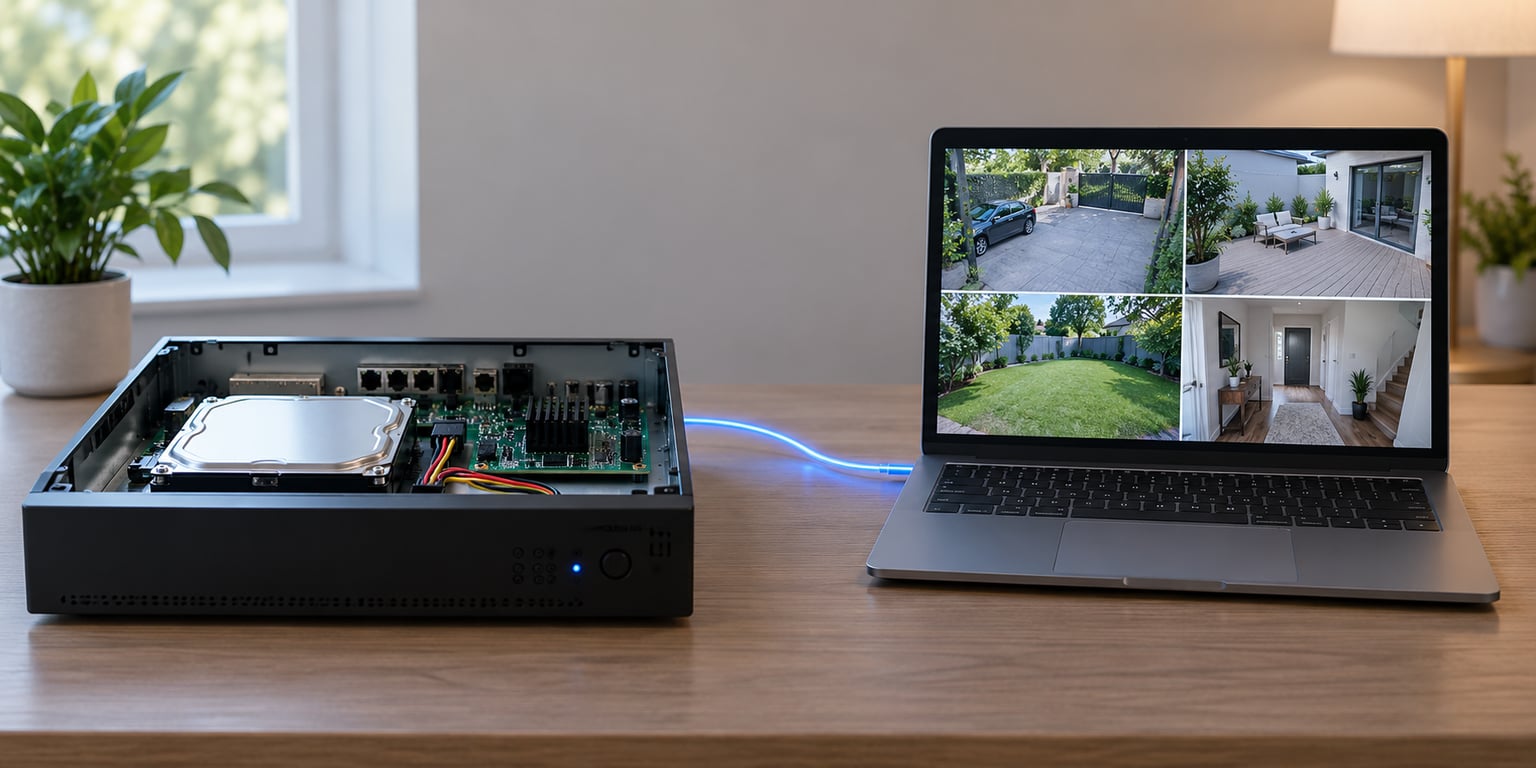
Local storage means the recording never leaves the property. A camera with a microSD slot writes clips straight to the card. A camera feeding into an NVR or DVR writes to a hard drive inside the recorder. A NAS setup writes to a box on your network that any computer can reach.
You still get live view, motion alerts and AI detection, because those features run on the camera or the recorder itself rather than on someone else’s server. What you give up is instant access from anywhere without a little network work.
What each local option actually costs you in effort
- MicroSD card — cheapest to start, easiest to install, and the first thing to fail. Cheap cards wear out in months of continuous writing, so budget for replacements.
- NVR or DVR with an internal drive — the workhorse for four to sixteen cameras. Surveillance-rated drives are built for constant writing, and the unit usually handles remote access through a vendor app.
- NAS — more setup, more flexibility, and you can point multiple camera brands at one box. Good if you already run a home server.
- Local hub or base station — a small dedicated box from the camera maker. Simple, but it locks you into that maker’s cameras.
The one behavior that catches new owners out: retention on local storage is a loop, not an archive. When the drive fills, the oldest footage is overwritten. If you need to keep a specific clip for an insurance claim, you have to export it before the next day rolls around.
Power and internet failures behave very differently here. Cut the internet and an NVR keeps recording without complaint. Cut the power and everything stops, obviously, but most recorders come back on their own once power returns.
How Cloud Storage for Security Cameras Works
Cloud storage means your cameras continuously upload to the vendor. The camera streams video up your internet connection, the vendor writes it to their storage, and you watch it back through their app or a browser. That works from any network in the world, which is the entire appeal.
Plans usually bundle recording, playback and AI features into a single monthly fee per camera or per account. The retention window is what your money buys: a few days on entry tiers, a couple of weeks in the middle, longer on the expensive ones. Event-only recording is often included alongside continuous recording.
What the subscription model actually gives you
- Recording and playback from anywhere without touching your own network
- Off-site copies that survive a break-in, a fire or a stolen camera
- Shared access for family members, a sitter or a neighbour without handing over passwords
- AI detection and video search that run on the vendor’s hardware, so your phone stays cool
- Almost no hardware to maintain, since the vendor handles drives and capacity
The catch is that everything above depends on an account. The vendor decides the retention window, decides what counts as an event, and can change both after you buy the hardware. Forum threads on r/arlo and r/homedefense keep circling the same frustration: features that shipped free get moved behind a paywall a year later, and older cameras lose cloud support altogether.
There is also a bandwidth ceiling people underestimate. Continuous upload from several cameras can saturate a modest upload speed, which is why the average American connection of roughly 15 Mbps upload becomes the limiting factor on an eight-camera system.
Privacy and Security: Which Option Controls Your Footage Better?
Local storage gives you tighter control of your footage, because the only copy sits on a drive in your house behind your own password. Nobody else has a login. That answer changes the moment a cloud provider is breached, or a vendor turns over data in response to a legal request, and there is no technical way for you to verify what happens to it.
Cloud storage’s counterargument is resilience rather than privacy. If someone breaks into the house and steals the camera or the NVR, local footage may go with it. Off-site copies survive that. The 2020 Eufy breach pushed that conversation into the open and plenty of people changed their minds about handing video to a third party.
The compromise on camera theft
Cloud-only footage of a theft is useless, since the camera left with the thief. Local-only footage dies with the recorder in some setups. The mitigation that actually works is to keep the recorder physically separate from the cameras it serves, on a different shelf or in a different room, and to enable encrypted recording where the vendor supports it.
A compromised home network is a local-storage problem too, not just a cloud one. Anyone who walks into your Wi-Fi can reach a local NVR unless you set a camera-specific password, keep cameras on a guest network or VLAN, and change the default credentials.
Cost Comparison: One-Time Hardware vs Monthly Cloud Plans
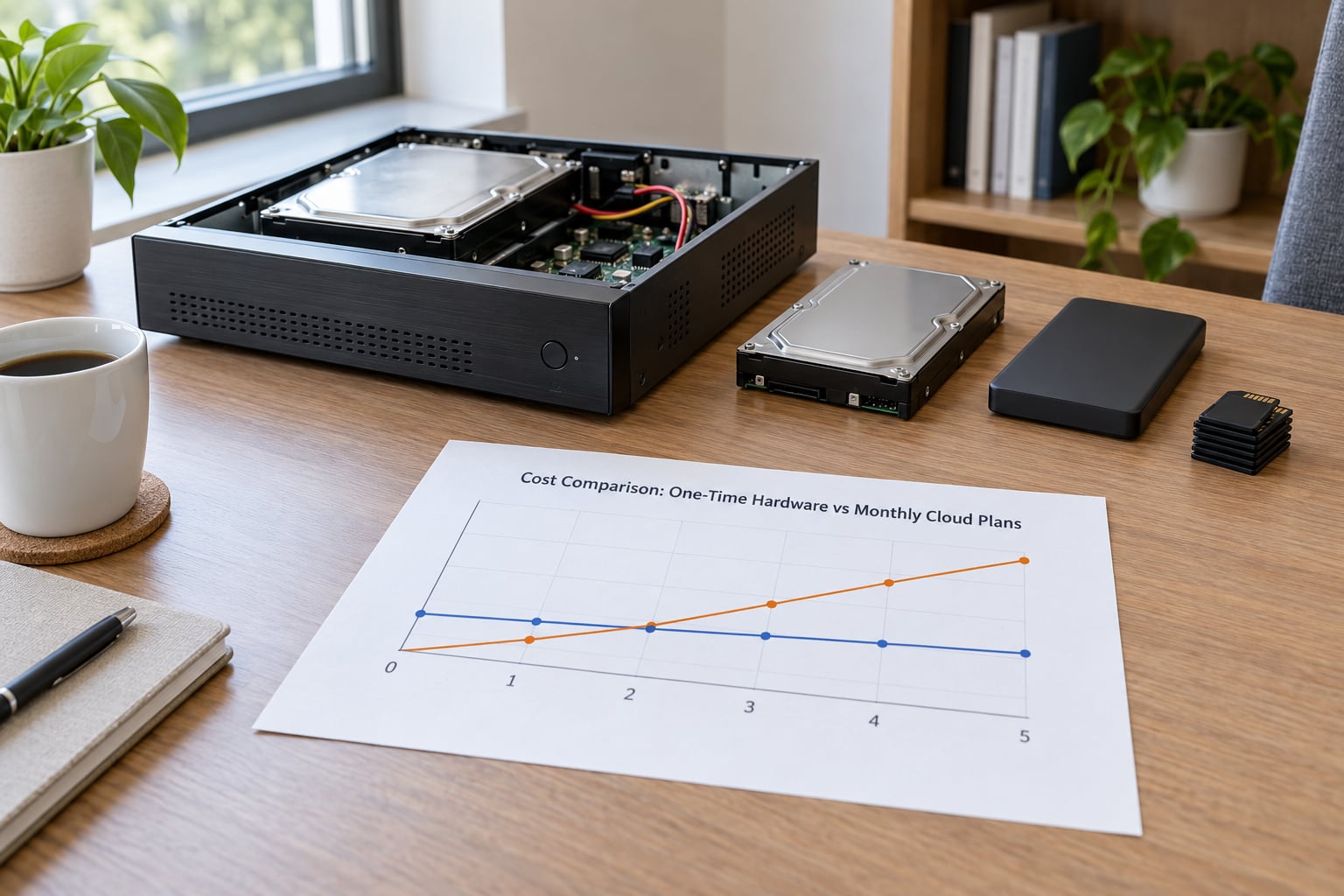
Neither option is cheap, but the shape of the spending is completely different. Local storage moves the whole bill to the front: cards, drives, a recorder, maybe an electrician for PoE cabling. Cloud storage moves it to a small recurring monthly payment that keeps going as long as you want the footage.
The rule of thumb that has held up for me: below roughly four cameras, cloud can be the cheaper path in total because you avoid hardware and maintenance entirely. Past that, local hardware usually wins on total cost of ownership, especially if you would have paid a per-camera fee for several years.
How local storage vs cloud storage costs compare over five years
- Local — one upfront outlay, then ongoing electricity and a hard drive replacement every three to five years. No per-user or per-camera fees.
- Cloud — no hardware beyond the cameras, but a monthly charge per camera that scales with count, plus occasional fees for extended retention or extra users.
- Hybrid — local hardware for everything, plus a cloud plan on one or two priority cameras. Keeps the recurring cost small and the storage cheap.
Two hidden costs to keep in mind. Cloud can require an upload-speed increase from your internet provider, which is a real monthly expense of its own. And local hardware has a hidden labour cost: someone has to check that the drive is healthy, and confirm that the thing you need is still on it.
Working out how much footage you actually need
Camera manufacturers state a bitrate, and storage per day follows from it. Divide the bitrate by 8 for bytes per second, multiply by 86400 for a full day, then divide by 1024 twice to get gigabytes per camera per day.
A 2 Mbps stream works out to roughly 21 GB per camera per day, so four cameras running continuously eat about 2.9 TB every single week. A 4 Mbps 2K camera roughly doubles that. Multiply your per-camera daily figure by camera count and retention days, and you know exactly which drive size to buy.
Motion-only recording cuts all of those numbers sharply on a quiet street. That is worth checking in the app before you size any hardware around worst-case continuous recording.
Remote Access, App Features, and Multi-Camera Support
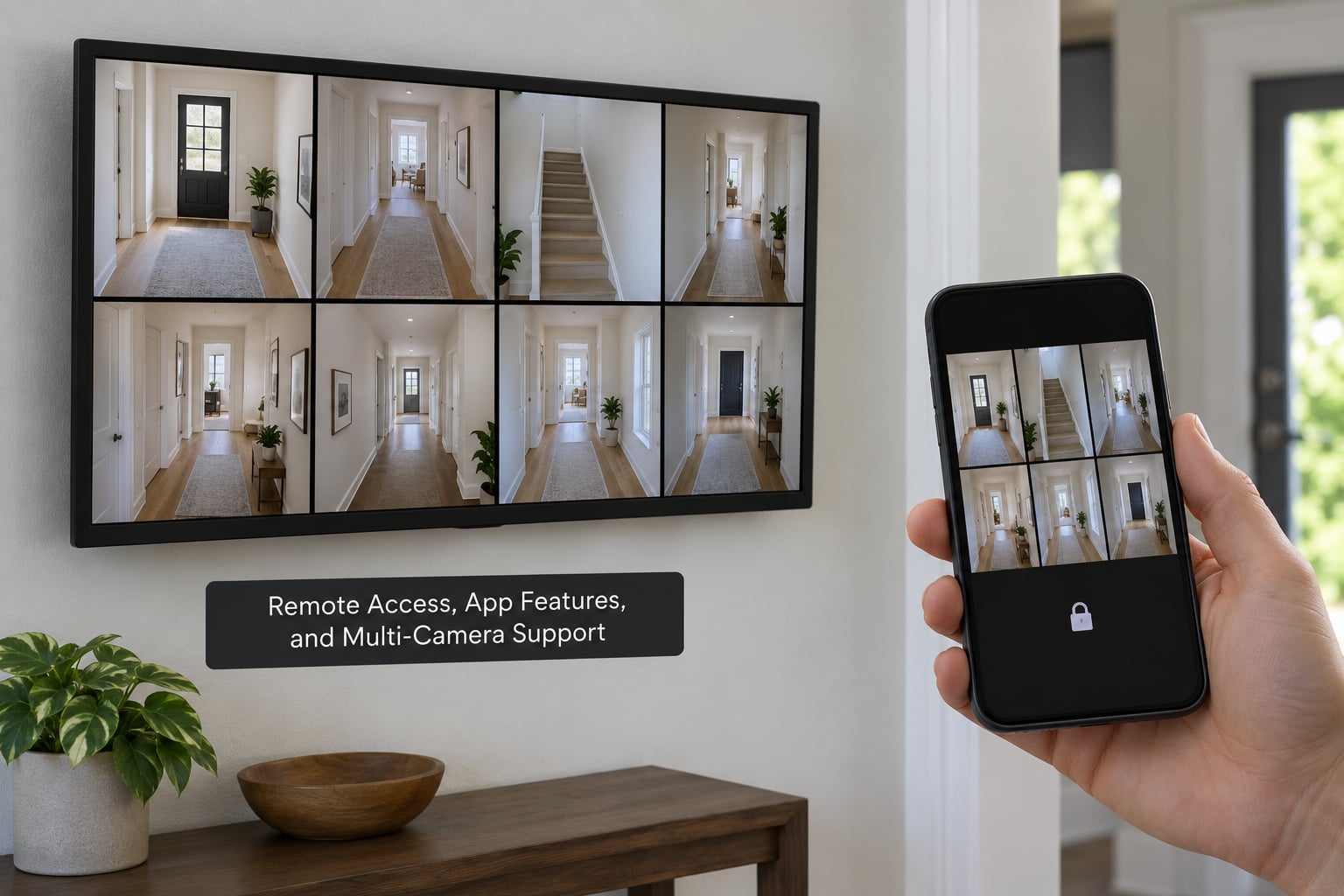
Cloud systems give the smoothest remote experience: sign in anywhere and the cameras are there. Local systems can do the same, but it takes setup, and how well it works depends on the brand.
Getting remote access with local storage
- Vendor app over the internet — many NVR makers provide relay servers so you can reach your recorder from outside without touching your router. The easiest route by far.
- VPN into your home — install a VPN on your phone, connect from outside, then open the local interface. More secure, slightly more setup.
- Port forwarding with RTSP or a third-party viewer app — works with almost anything, including a NAS, but you should not expose a recorder interface to the open internet without strong credentials and isolation.
Where local setups often win is features that run on the recorder itself. Local AI video search on an NVR can index faces and vehicles without uploading anything, and search results come back instantly rather than after a round trip to a data centre.
Where cloud wins is latency. Live view through a cloud relay typically arrives in a second or two, whereas a poorly configured local stream can lag behind reality badly enough that you cannot tell what a person at the door is doing.
Multi-camera support is where the split is sharpest. Six to sixteen cameras on a single recorder is routine hardware work. The same count on a per-camera cloud plan multiplies your monthly bill by sixteen, which is why r/k12sysadmin users advising on school and office deployments keep pointing people toward local infrastructure.
Which Storage Option Is Best for Your Security Cameras?
Picking between local storage vs cloud storage for security cameras comes down to your camera count and your tolerance for maintenance and recurring cost.
Choose local storage if
- You run six or more cameras, or expect to
- Footage must keep recording through internet outages
- You want no subscription at all, ever
- Privacy is the main reason you own cameras
- You already have a NAS, a home server or cabling runs
- You need long retention windows on a fixed budget
Choose cloud storage if
- You have one to three cameras and no interest in hardware
- You travel often and want effortless access from anywhere
- You are renting and cannot install a recorder
- Off-site backup after a break-in matters more than raw capacity
- You want someone else to handle drive failures
Choose hybrid when
Hybrid fits most people. Run everything to local storage for capacity and outage resilience, then add a cloud plan on the one or two cameras that cover entry points, and keep short remote clips you actually want to check from your phone.
Two situations deserve extra thought. For a small business or rental portfolio spread across multiple addresses, the deciding factor is usually bandwidth and who maintains the equipment, not storage itself. For a monitored system with compliance requirements, check the retention minimums your industry sets before choosing hardware, because they rarely fit inside a cheap cloud tier.
Frequently Asked Questions
Is local storage better than cloud storage for security cameras?
Local storage is better for privacy, outage resilience and long-term cost, especially with four or more cameras. Cloud storage is better for convenience, off-site backup and homes with only one to three cameras. Neither is universally better. If you cannot get a dependable internet connection at the property, or you refuse recurring subscription fees, local wins. If you travel often and want to check cameras from anywhere with no setup, cloud wins.
Can I use local and cloud storage at the same time?
Yes, and this is the most common setup in real homes. Most cameras with an SD slot will write to the card continuously and still upload clips to the vendor’s cloud when a subscription is active. Many NVRs also offer optional cloud backup of specific events. The practical pattern is to run full continuous recording locally and keep short cloud clips for the cameras you want remote access to.
Do security cameras keep recording when the internet is down?
Local systems do. A camera or NVR recording to an SD card or internal drive keeps writing through an internet outage, because nothing needs to be uploaded. Cloud-only systems stop recording when the connection drops, because the footage has nowhere to go, and some also stop sending you notifications. Any alerts generated during an outage are usually lost unless the camera buffers to local storage first.
How long can local security camera footage be stored?
It depends on capacity, camera count and bitrate rather than on a fixed limit. A drive records in a loop, so retention equals total capacity divided by daily data use. One 2 Mbps camera at roughly 21 GB per day fills a 2 TB drive in about three months on continuous recording, and a week on motion-only recording. Longer retention means larger drives, lower bitrates, or event-based recording.
Is cloud storage worth the monthly subscription fee?
It is worth it when you have few cameras and value remote access and off-site backup more than privacy or capacity. With one to three cameras the fee is usually manageable and you avoid buying any storage hardware. With six or more cameras, the per-camera charge adds up faster than a single recorder and drive. Many owners also switch plans after buying the cameras, once they see how little they actually open the app.
What happens to my recordings if I cancel a cloud plan?
Existing clips are commonly kept for a limited grace period, sometimes 30 to 90 days, after which you lose access to them through the app. Policies vary by vendor, so check the terms before cancelling rather than assuming. Some makers offer a one-off download of your archive. Local footage on an SD card or recorder drive is unaffected, which is the strongest practical argument for keeping a local copy.
Conclusion: Choose the Storage That Fits Your Priorities
Start with four checks. How many cameras you actually run, how long you need to keep a clip, how reliable the internet is at that address, and whether you are willing to maintain a drive. Answering those four settles local storage vs cloud storage for security cameras almost every time.
If the answer is six cameras or more, or the property must keep recording through outages, go local. If it is one to three cameras and you want zero hardware, go cloud. If you are somewhere in between, run local storage as the backbone and add cloud for the few cameras you want to check from your phone, which gives you the coverage and privacy of local storage with the convenience of cloud where it counts.