Most of the time, a smart device that keeps going offline is stuck in one of four places: it is on the wrong Wi-Fi band, it is too far from the router, its IP address keeps changing, or the hub that feeds it has dropped. The quickest way to work out how to fix a smart device that keeps going offline is to read the pattern first — one device, all devices, or all devices at the same hour — because that single observation tells you whether to look at the device, the router, or the cloud.
Here is the short version. Confirm the device has power and a solid 2.4 GHz signal, then restart it, the router and the app in that order. Check the app, account and device settings, update the firmware, and confirm the manufacturer’s cloud is actually up before you touch anything destructive. Re-pair last, and factory reset only when everything above has failed.
The table below is the fastest way to narrow it down before you change a single setting.
| What you see | Most likely cause | First thing to try |
|---|---|---|
| One device offline, everything else fine | Weak signal at that spot, or a band the device cannot use | Check the signal reading in the app, move the device closer to the router |
| Several devices offline at the same moment | Router reboot, hub power blip, or a cloud outage | Check the manufacturer status page, then power-cycle the router and hub |
| Only one brand offline (e.g. all Xiaomi) | App, account or firmware problem, not your network | Force-close the app, sign out and back in, check for an app update |
| Goes offline at about the same time every day | A schedule: DHCP lease expiry, a router reboot timer, or a hub sleep window | Set a DHCP reservation for the device and remove any scheduled router reboot |
| Offline only after a router or extender change | Band steering or a second bridged network the device cannot follow | Turn off band steering, split the 2.4 GHz and 5 GHz names, re-pair |
Table of Contents
- What You Need
- Step-by-Step: Fix a Smart Device That Keeps Going Offline
- 1. Check Whether the Device Has Power and Wi-Fi
- 2. Restart the Device, Router, and App
- 3. Confirm the App, Account, and Device Settings
- 4. Update the Firmware and Troubleshoot Cloud Access
- 5. Reset and Reconnect the Device
- 6. Use Factory Recovery Only as a Last Resort
- Common Mistakes That Keep Devices Offline
- Frequently Asked Questions
- Why does my smart device keep going offline even when the Wi-Fi works?
- Does a smart device need to be on a 2.4 GHz Wi-Fi network?
- How do I stop a Xiaomi smart device from disconnecting repeatedly?
- What does it mean when the device is offline in the app but its light is on?
- Will resetting a smart device remove its automations and settings?
- What should I check if the device goes offline again after a factory reset?
- Conclusion
What You Need
You need very little: the device itself, its original power adapter, a phone or tablet with the manufacturer’s app, the password for your home network, and access to the account that owns the device. The original adapter matters more than people expect — a USB plug or a phone charger that drops voltage under load produces a device that reboots itself and shows as offline.
You also need access to your router’s settings page, usually at an address like 192.168.0.1 or 192.168.1.1, with the admin password printed on the router or set by your internet provider. If your provider supplied the router, they may have locked most of the options behind an app.
One warning before you start: menu names move between versions. Xiaomi Home and Mi Home are different apps with different labels, TP-Link calls the same setting something different in Kasa and Tapo, and SmartThings buries it under a different heading again. The steps below describe where these settings usually live — treat the label as a starting point, not a promise.
Step-by-Step: Fix a Smart Device That Keeps Going Offline
1. Check Whether the Device Has Power and Wi-Fi
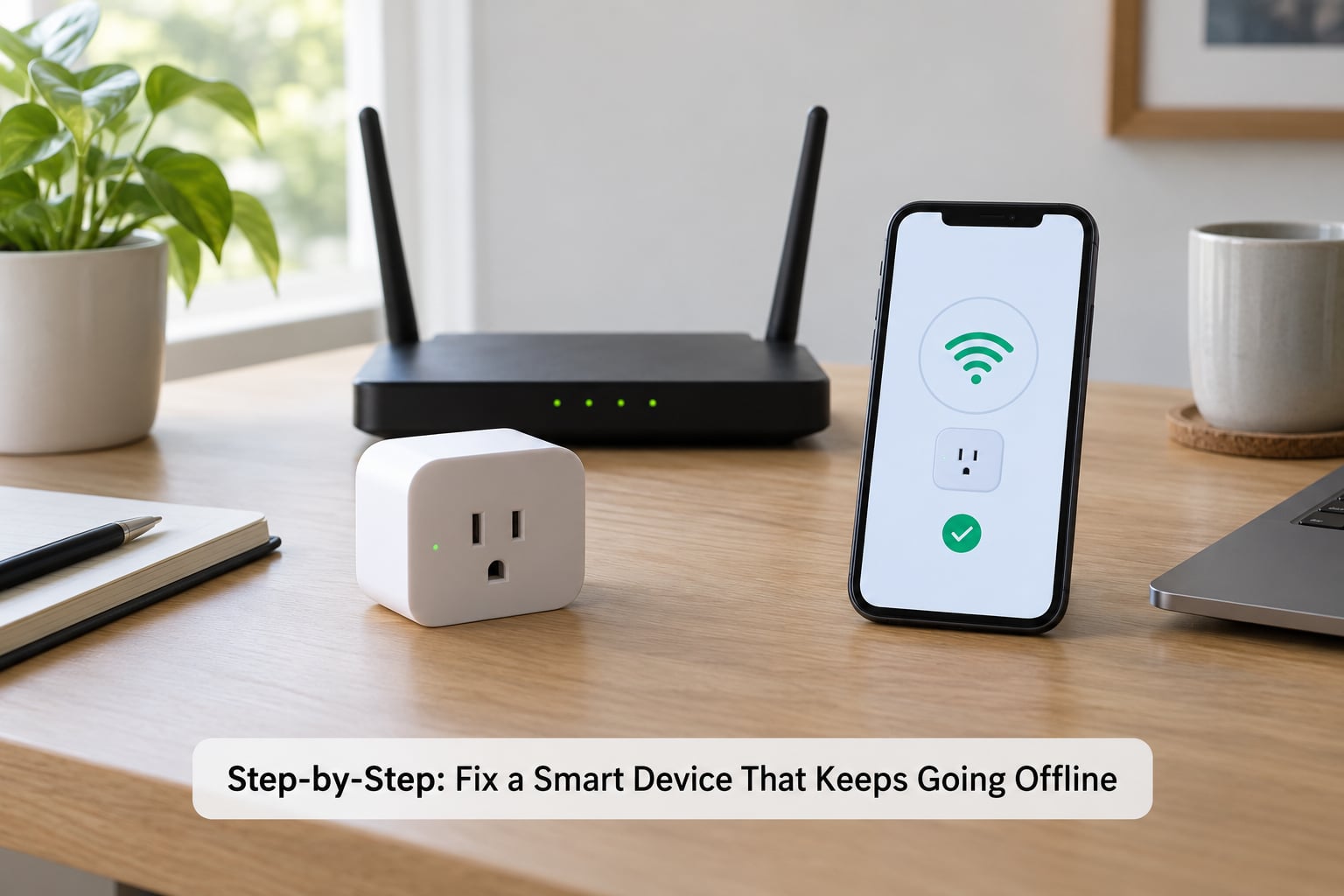
Start at the wall. Confirm the adapter is fully seated, the device’s status light is on, and the outlet itself is live — a switch that has been bumped off, a power strip with a cut, or a smart plug feeding another smart plug will all produce the same “offline” message. For battery devices, check the cell before anything else; a Zigbee sensor usually reports offline well before the app warns you the battery is low.
Next, confirm the device and the router agree on a band. Most smart plugs, bulbs, cameras and locks support 2.4 GHz only, or 2.4 GHz plus 5 GHz on a specific chipset. If your router puts both bands under one name and steers devices between them, a cheap device can end up on 5 GHz and never come back. In Kasa and Tapo the signal reading lives under Device Settings, then Device Info. In Mi Home and Xiaomi Home it sits on the device’s detail screen, under network or signal information. SmartThings shows it on the device page, and Home Assistant surfaces the same value on the network diagnostics view.
Read the number like this:
| Signal reading | What it means | What to do |
|---|---|---|
| Stronger than -50 dBm | Same room or very close to an access point | Leave it; signal is not your problem |
| -50 to -70 dBm | Usable, but thin through walls | Watch for drops at night when the router is busier |
| Weaker than -70 dBm | Marginal; the device will drop under load | Move it, add a mains-powered node, or re-pair at the router |
While you are in the router, three settings cause a surprising share of dropouts. Band steering and Smart Connect, sometimes called Whole-Home Wi-Fi, move clients between bands on their own. Wi-Fi Optimizing and channel optimization push a weak device off a crowded channel. And most consumer routers have a client device limit — count every phone, TV, tablet, camera, doorbell and plug against it, because crossing that ceiling makes new devices fail to get an address at all, which the app reports as offline. If a weak reading turns out to be the cause, a DHCP reservation that pins the device to one address stops it losing its settings every time the lease expires. If a device cannot join any 2.4 GHz network at all, skip the router work and check for a VPN, a guest network or a separate IoT VLAN that keeps the phone’s traffic isolated from it.
2. Restart the Device, Router, and App
Restart in a fixed order, and give each stage time to settle. Unplug the smart device first so it is not competing for a connection while the network is down. Then power-cycle the router: unplug it, leave it without power for about 30 seconds, plug it back in, and wait until the internet light stops blinking — usually two to three minutes. Reconnect the smart device last, and wait another minute for it to associate.
Then force-close the manufacturer’s app and reopen it. On Android, swipe it away from the recent apps list; on iOS, swipe up from the app switcher. Reopening matters more than it sounds, because the app often caches an offline state and shows it until it re-checks.
Check the result before moving on. If the light comes on solid and the device appears online in the app, the problem was a stuck session. If the light blinks or the device is still missing, the device never rejoined, and the next step is where the real cause lives.
3. Confirm the App, Account, and Device Settings
Check that you are in the right app and the right account. Xiaomi sold different hardware in different regions, and a device bound to one regional app or one Mi account can show as unreachable in another. The same trap catches SmartThings users who signed into a new account after a reinstall, and SmartThings does not share devices between accounts unless someone deliberately shared them.
Inside the app, confirm the device is under the home you are currently viewing — Xiaomi Home and SmartThings both let you switch between homes, and a device in the second home reads as offline from the first. Then check permissions: Bluetooth and location are needed for pairing on Android, local network access is needed on iOS, and background activity is what lets the app notice a drop at all. A revoked location permission is a common reason a device still works physically but never shows up in the app.
Finally, open the device’s network settings and look at the saved Wi-Fi details. If you changed your router, your network password, or the network name, the stored credentials are now wrong and the device will keep trying to join a network that no longer exists. Menu labels differ: Mi Home and Xiaomi Home keep network information on the device detail page with an edit option, Kasa and Tapo put it under Device Settings, and SmartPlaces and SmartThings both keep it in the device’s settings panel. The path is the point, not the exact wording.
4. Update the Firmware and Troubleshoot Cloud Access
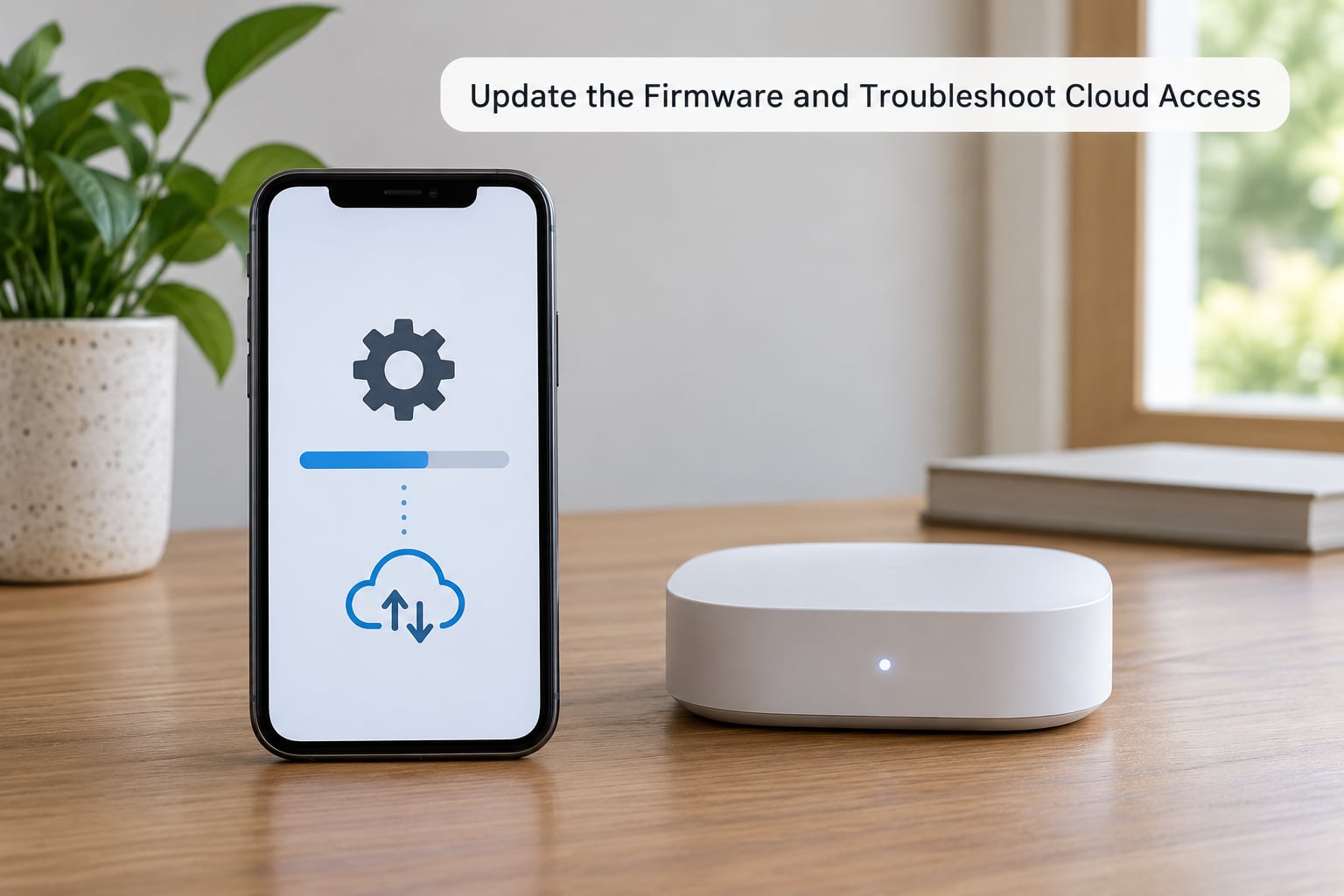
Outdated firmware is a real cause, not a throwaway step. Devices get patched for cloud protocol changes, and unpatched firmware can fail to authenticate and simply sit there unreachable. Check for a device update in the app’s settings or update section, and update the app itself at the same time — app releases frequently fix the offline-state display even when the hardware is fine.
Then separate the two kinds of offline. A device that is on your local network but cannot reach the manufacturer’s cloud behaves completely differently from a device that has vanished from the network. If your phone on the same Wi-Fi can load pages, but the device stays offline with a solid light, the local link is fine and the cloud is the suspect. Check the manufacturer’s status page or social account first, and try the device on a phone hotspot; if it works on the hotspot, the problem is your network’s path to the cloud, not the device.
Do this check before any reset. A cloud outage makes a factory reset pointless, and you lose every automation for nothing.
5. Reset and Reconnect the Device
When re-pairing, remove the device from the app first where the app allows it, then put the device into pairing mode — usually a button press of five to ten seconds, or a specific click pattern on a smart plug held for a few seconds. Delete the old entry rather than adding a duplicate, because a leftover entry pointing at a MAC address that no longer exists will show as offline forever. Put your phone on the 2.4 GHz network before you start, since most apps provision the new device onto whatever band the phone is using.
Zigbee, Z-Wave and Thread devices need a different recovery order: hub first, then the devices. Unplug the hub, remove the batteries from the battery-powered sensors, and leave everything unpowered for about 15 minutes before rebuilding. A quick power cycle fixes a hung hub; a full discharge is what clears a jammed mesh table. If your hub is a Thread border router, reboot the controller and the hub together, since a controller update that changes border routing can leave every Thread device offline until the pair is re-established. Battery-powered devices cannot relay for other devices, so a gap in the mesh stays a gap until you add a mains-powered repeater.
| Protocol | Needs a hub? | Common offline cause | Fix |
|---|---|---|---|
| Wi-Fi (2.4 GHz) | No | Weak signal, band steering, DHCP lease change | Improve signal, disable band steering, add a DHCP reservation |
| Zigbee / Z-Wave | Yes | Hub powered off, dead battery relay, mesh gap | Reboot the hub first, discharge everything 15 minutes, add a mains repeater |
| Thread | Yes, a border router | Controller or border router update changed routing | Reboot controller and hub, re-add the device if it does not rejoin |
| Matter over Wi-Fi | No | Same as Wi-Fi, plus vendor pairing mismatches | Fix the network first, then re-pair into the new controller |
On Xiaomi hardware specifically, note that a Wi-Fi device talks to the app directly, while a Zigbee device talks to a Xiaomi gateway first. If the gateway is the thing showing offline, nothing you do to the sensor will help — power-cycle the gateway, check that its indicator light is steady, and confirm the gateway itself is on the same 2.4 GHz network. Many Mi Home users also find that clearing the app cache, then signing in again, clears a device that is genuinely online.
6. Use Factory Recovery Only as a Last Resort
A factory reset is justified when the device has rejoined the network, the app and firmware are current, the cloud is healthy, and it still drops. It removes everything stored on the device: saved Wi-Fi credentials, local schedules, calibrations, paired remotes, and its link to your account. Automations that live in the hub or the app usually survive; automations stored on the device itself do not.
The control is nearly always physical — a recessed button, a hole on the base, or a press-and-hold pattern on the plug or switch. Check the manufacturer’s instructions for the exact hold time, because holding for five seconds and holding for thirty seconds often trigger different things. After the reset the device reappears as new and needs a full pairing again, which is exactly why it should be step six and not step one.
If the device goes offline again after a clean factory reset, stop troubleshooting the device and document the problem instead. Note the LED colour and blink pattern at failure, the MAC address from the router’s connected-client list, the router model, whether you run a mesh or an extender, and how often the drops happen. Support will ask for all five, and having them ready turns a week of back-and-forth into one conversation. If the same device fails repeatedly while others hold steady, it is probably faulty rather than badly configured — check the warranty before buying a replacement.
Common Mistakes That Keep Devices Offline
- Changing the Wi-Fi after setup. A device does not follow a renamed network or a new password. Re-pair it on the new network instead of waiting for it to find its way back.
- Pairing on 5 GHz. Most apps hand the new device the band the phone is on. Put the phone on 2.4 GHz first.
- Putting smart devices on a guest network or IoT VLAN. Those networks are isolated from the main one on purpose, so local control breaks even though internet access works. If you have a separate IoT network, keep every smart device on it rather than splitting them up.
- A VPN on the phone. A phone on VPN often cannot reach a device on the local network, and pairing attempts fail with no useful error.
- Reading a blink code as a fault. Many devices blink once for connecting, twice for a saved network that no longer exists, and steadily for connected. Check the manual for the pattern before assuming the hardware has died.
- Resetting before removing the app binding. The reset clears the device, but the old entry stays in your app and keeps showing offline. Delete the entry too.
- Adding a range extender to fix signal. A single-band extender can create a second network name and bridge two bands, which produces new dropouts while pretending to solve the old ones. A tri-band mesh system or a mains-powered mesh node is the better tool.
- Unplugging everything at once. Cutting power to a hub and its sensors together can leave the hub’s mesh table stale. Follow the hub-first, devices-after order.
Frequently Asked Questions
Why does my smart device keep going offline even when the Wi-Fi works?
Because the Wi-Fi being up does not mean the device reached it. It may be on the 5 GHz band it cannot use, sitting at a weak signal reading, holding a stale address after a DHCP lease change, or blocked by a guest network or IoT VLAN. It may also be online on your local network and failing to reach the manufacturer cloud. Check the signal reading in the app first, then confirm the device appears in your router’s connected-client list.
Does a smart device need to be on a 2.4 GHz Wi-Fi network?
Most smart plugs, bulbs, cameras and locks support 2.4 GHz only, so a 5 GHz-only network will never accept them. Newer dual-band devices support both. The trouble is a router that combines both bands under one name and steers clients between them, which can push a weak 2.4 GHz-only device onto a band it cannot use. If a device joins once and then drops, turn off band steering or split the two bands into separate names.
How do I stop a Xiaomi smart device from disconnecting repeatedly?
Separate Wi-Fi devices from gateway devices first, because a Zigbee sensor drops when its gateway drops, not when the sensor has a problem. Power-cycle the Xiaomi gateway and confirm its indicator stays steady and it sits on the same 2.4 GHz network as your phone. For Wi-Fi devices, check the signal value on the device detail screen in Mi Home or Xiaomi Home, turn off band steering on the router, and add a DHCP reservation. Clearing the app cache and signing in again resolves a share of phantom offline states.
What does it mean when the device is offline in the app but its light is on?
It usually means the device is on your local network and the failure is between it and the manufacturer’s cloud, or the app is showing a cached state. Check your router’s connected-client list — if the device has an IP address, local connectivity is fine. Then confirm the manufacturer’s status page shows no outage, update the app, and force-close and reopen it. A solid light with no app entry often points to an account or home mismatch rather than a network fault.
Will resetting a smart device remove its automations and settings?
It removes everything stored on the device: saved Wi-Fi credentials, local schedules, calibrations, paired remotes and the link to your account. Automations and scenes that live in the app, hub or controller usually survive, but any rule stored on the device itself is lost. Reset also means a full pairing again, so keep the old entry deleted from your app as well, or you will have a reset device and a stale record both claiming the same spot.
What should I check if the device goes offline again after a factory reset?
Stop resetting and start documenting. Record the LED colour and blink pattern at the moment it fails, the MAC address from the router’s client list, your router model, whether you use a mesh or an extender, and how often the drops happen. Confirm a DHCP reservation exists, that band steering is off, and that the signal reading is not marginal. If one device keeps failing while every other device is stable, treat it as a hardware fault and check the warranty before buying a replacement.
Conclusion
Start with the pattern, not the settings. One device means power, band and signal. Everything at once means the router, the hub or the cloud. The same hour every day means a schedule, usually a lease or a reboot timer. Work down the ladder in order, and save the factory reset for the end, where it belongs.
Some of these problems are not on your side at all. If the device is fine on a hotspot and fails on your network, or the manufacturer reports an outage, resetting will not help — it will only cost you the settings you had. Check the status page first and you will not throw away a working device chasing a problem that is not yours.