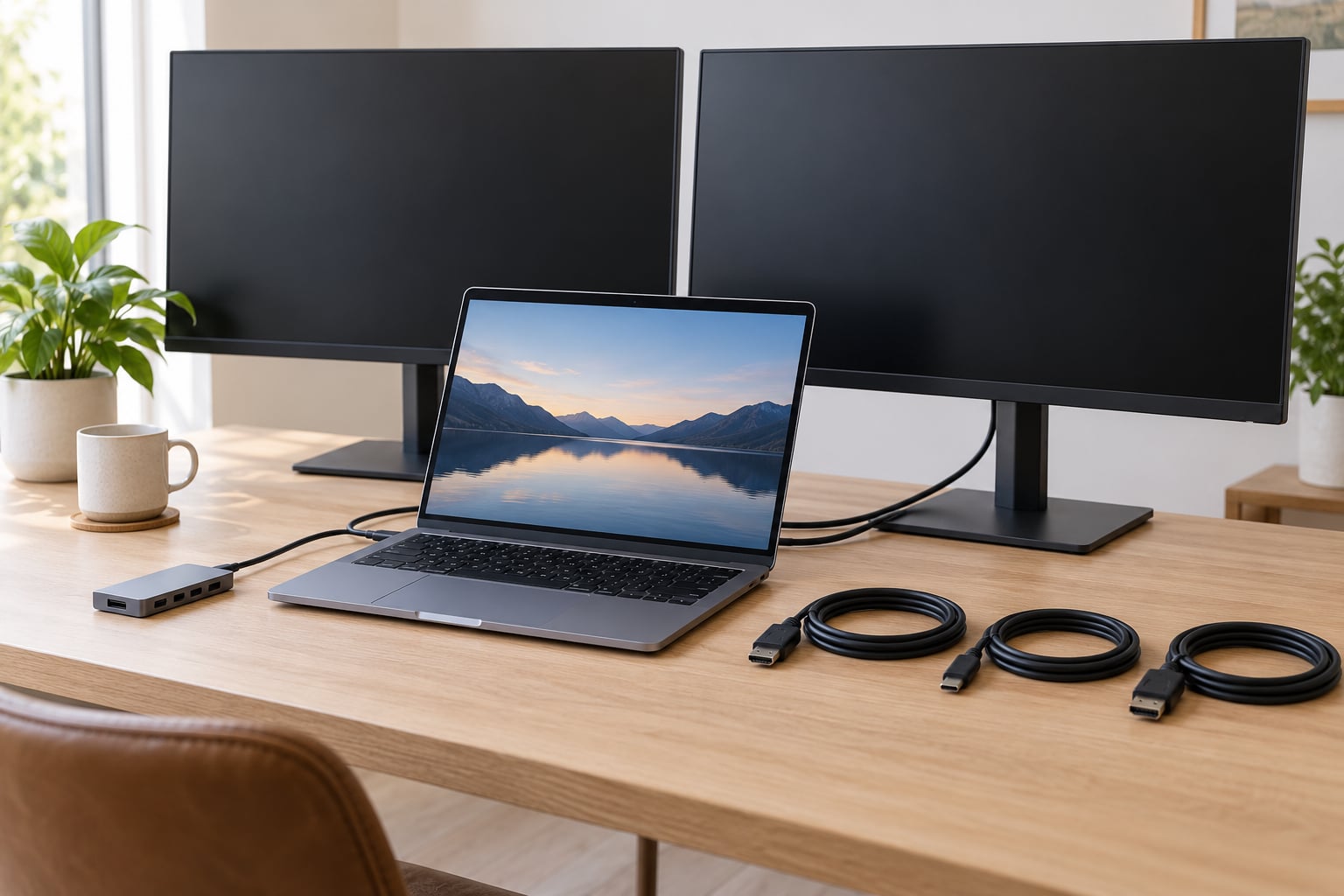
To set up dual monitors on a laptop, plug each monitor into a separate video output, then tell Windows to extend the desktop across both. You connect them with two cables directly, through a multi-port USB-C hub, or through a docking station, and the whole job takes about ten minutes.
The part that trips people up is not the plugging in. It is working out whether your laptop has enough video outputs in the first place, and whether the USB-C port on the side actually carries a picture. Get that right and the rest is settings menus.
Table of Contents
- What You Need
- How do I tell if a USB-C port carries video?
- How to set up dual monitors on a laptop, step by step
- How to connect the first monitor
- How to connect the second monitor
- How to extend the displays in Windows
- How to arrange, calibrate, and test the monitors
- Common Mistakes
- The second monitor is not detected at all
- Black screen or “no signal” on one monitor
- Both screens show the same desktop
- Flickering or a display that drops out
- Text is the wrong size, or windows look blurry
- A splitter was used and the second screen just copies the first
- Frequently Asked Questions
- Can you hook up two monitors to a laptop with one HDMI port?
- Does an HDMI splitter extend to two monitors or only mirror?
- Can you run two monitors off one USB-C port?
- How do I know if my laptop supports two external monitors?
- Why is my laptop not picking up the second monitor?
- Conclusion
What You Need
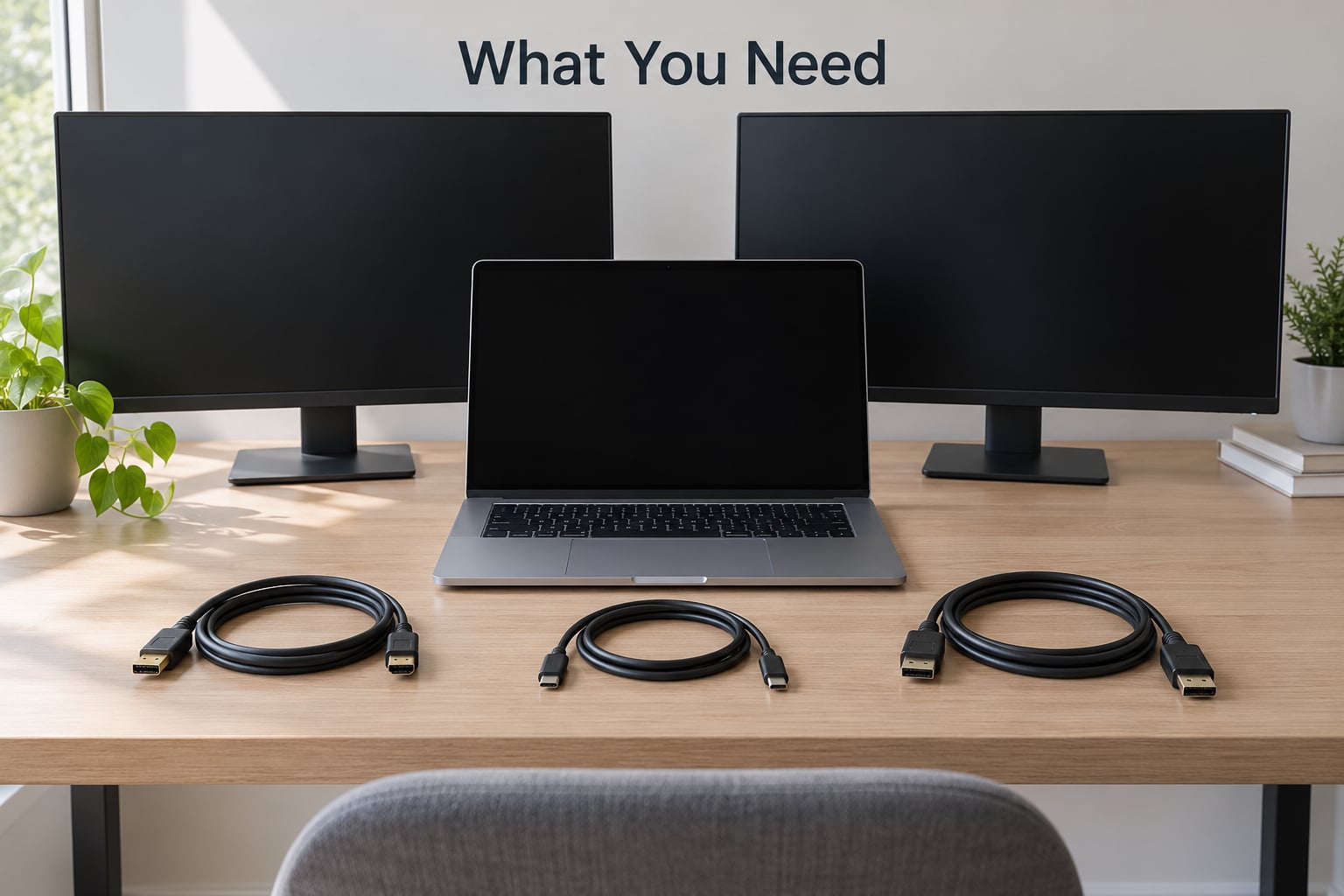
Grab these four things before you start, and check the first one properly. It decides whether you need to buy anything at all.
- Your laptop’s video output ports. Look along the sides and back for HDMI, DisplayPort, or USB-C. On most laptops the HDMI port is a wide trapezoid slot, DisplayPort often shares a shape with HDMI but has one flat edge, and USB-C is the small rounded rectangle.
- The right cables. Two HDMI cables if your laptop and monitors are HDMI. One HDMI plus one DisplayPort cable if the ports don’t match. A USB-C to DisplayPort or USB-C to HDMI cable if you are going through the USB-C port.
- A USB-C hub or docking station, only if the laptop has one video port, or none you can use.
- Desk space and monitor stands. Two monitors plus a laptop is a wide desk. A monitor arm on a clamp that grips the desk edge saves the most space of anything I have tried.
How do I tell if a USB-C port carries video?
Some USB-C ports on a laptop only charge. Look next to the port for a small symbol: a rectangle with a line through it, which means data only, or a lightning bolt over a display shape, which means DisplayPort Alt Mode, meaning the port can output a picture. A Thunderbolt logo also means video.
If you see neither symbol, assume it is charge-only. That is the single most common reason someone’s second monitor never appears, and the fix is a different port, not a different cable.
How to set up dual monitors on a laptop, step by step
How to connect the first monitor
Start with the port you trust most. If the laptop has a full-size HDMI port, use it with one end of an HDMI cable into the laptop and the other into the monitor’s HDMI input.
Power the monitor on, and check that it has picked the right input. Nearly every monitor has an Input or Source button on the underside or the back, and it will sit on the last-used input rather than the one you just plugged into. Press it until HDMI comes up.
You should see the desktop extended onto that screen straight away. If Windows mirrored the laptop screen instead, press Windows key plus P and choose Extend.
How to connect the second monitor
Use a completely separate video output for the second screen, never a splitter. Splitters take one signal and copy it to two identical screens. That is mirroring, not extending, and no setting in Windows will turn two copies into two independent desktops.
Plug the second monitor into the laptop’s other video port, or into the hub or dock if you are using one. On a USB-C hub, the monitors go into the hub’s HDMI and DisplayPort outputs, and only one USB-C cable runs back to the laptop. Match the cable end to the monitor: a DisplayPort-shaped end goes in the DisplayPort socket, not HDMI.
If the second screen comes on but shows the same thing as the first, the dock or adapter is mirroring rather than extending. Some cheap adapters use DisplayLink, which needs its own driver and often defaults to mirroring.
How to extend the displays in Windows
Windows should detect both monitors by itself. When it does not, open the display panel and press Detect.
On Windows 11: press Windows key, type display, open System > Display. Set Multiple displays to Extend these displays, then press Detect under Rearrange your displays.
On Windows 10: right-click the desktop, choose Display settings, then Display 1 and Display 2. Select each display in turn and change the multiple displays setting to Extend these displays.
Next, sort the screens out. Press Identify and a large number appears on each screen so you know which is which. Drag the two boxes so their arrangement matches where the monitors physically sit, with the screen to the left of the laptop marked as left. Windows uses this layout for window snapping, so getting it wrong feels broken later.
Select each display and set its resolution and orientation. Orientation is worth checking even if both screens are horizontal, because a second monitor set to portrait turns into a tall narrow column of desktop, which some people want for documents and others find useless. Refresh rate sits in the same panel on Windows 11, under Advanced display. If a high refresh rate is listed but the screen looks stuttery, pick the rate listed on the monitor’s own spec sheet rather than the highest number Windows offers.
How to arrange, calibrate, and test the monitors
Choose which screen is primary. On Windows 11, click the display you want to make primary and tick Make this my main display. On Windows 10 the same option appears under Display settings. The Start button, taskbar clock and notification pop-ups follow the primary screen, and by default that should be the one directly in front of you, not the one off to the side.
Match the scale next. Two 27-inch monitors at the same scaling look identical. A 13-inch laptop screen next to a 32-inch monitor will make text look tiny on the big screen if you leave the default. Set each display’s scale and layout separately, and if nothing at the listed percentages looks right, pick Scale and then a custom percentage. Windows will warn that some apps may look blurry at custom values, which is usually worth it for text-heavy work.
Brightness is set in the monitor’s own menu, not in Windows. A monitor at 100 percent next to a phone-style panel at 40 percent is the usual complaint. Drag the brightness slider on each screen until they look equal to your eyes in the room you are actually in.
Then test it properly. Drag a browser window from one screen to the other and check the cursor does not jump or stick at the boundary. Play a video full-screen and confirm it fills its own screen rather than spanning both. Open a full-screen app, which is where extension problems show up first, because a game or a video call may still be set to Duplicate from an earlier session.
Finally, decide whether the taskbar should appear on both screens. On Windows 11 it is under Settings > Personalization > Taskbar > Taskbar behaviours, where Show my taskbar on all displays is a toggle. Turn it off if you want one clean taskbar on the main screen only.
Common Mistakes
Work down this list cheapest fix first. Most detection problems are physical, and most of them cost nothing to solve.
The second monitor is not detected at all
Unplug the cable at both ends and push it firmly back in. Loose HDMI and DisplayPort connectors are the most common cause, and they usually show up after the cable has been moved or the desk has been rearranged.
Next, test each monitor on its own. Plug monitor one straight into the laptop, confirm it works, then swap in monitor two. That single test tells you whether the fault is the monitor, the cable, the dock or the laptop.
Then press Windows key plus Control plus Shift plus B. The screen flashes and the graphics driver restarts, which revives a setup that worked yesterday and stopped after a Windows update.
If it still fails, confirm the USB-C port carries video, check the manufacturer’s spec sheet for the maximum number of external displays, and try the setup without the dock. If nothing on the laptop’s own ports works, the machine may only support one external screen.
Black screen or “no signal” on one monitor
Check the monitor’s input source first, then the cable. If the picture appears after a wiggle at the connector, it is a seating problem rather than a hardware failure.
Both screens show the same desktop
Set multiple displays to Extend. If you are deliberately mirroring for a presentation, that is correct behaviour and this fix does not apply.
Flickering or a display that drops out
Try a different cable, ideally a certified one rated for the resolution and refresh rate you are running. Cheap lead-free cables fail at higher refresh rates and produce exactly this symptom. On a docking station, power-cycle it and replug the host cable, because docks lose the video handshake after sleep and wake more often than people expect.
Text is the wrong size, or windows look blurry
Set each display’s scale separately, then use a custom percentage if the presets do not fit. Blurriness after a resolution change usually means Windows picked a resolution the monitor does not actually support, so pick the native resolution from the list.
A splitter was used and the second screen just copies the first
That is what splitters do. They are the wrong tool for extending a desktop and the right tool only for mirroring one screen to two or three places. Replace it with a hub or a docking station, or use the laptop’s second video port.
Frequently Asked Questions
Can you hook up two monitors to a laptop with one HDMI port?
Yes, but not with a splitter. An HDMI splitter copies one signal to two screens, so both show the same picture and you cannot work across them separately. To get two independent desktops from one HDMI port, run an HDMI cable to the first monitor and either use a second video port on the laptop or a DisplayPort output through a USB-C dock or hub for the second. Many USB-C adapters sit in the laptop port rather than the HDMI port, leaving HDMI free for one monitor.
Does an HDMI splitter extend to two monitors or only mirror?
An HDMI splitter only mirrors. It takes one video signal and duplicates it across every monitor plugged into it, so all screens show an identical desktop. Extending means each screen shows its own separate part of the desktop, and that requires a separate video signal for each monitor. If you have only one output and want two independent screens, you need a multi-port hub or a docking station that sends one cable to the laptop and splits it internally.
Can you run two monitors off one USB-C port?
Usually yes, provided that port supports DisplayPort Alt Mode or Thunderbolt. One USB-C cable to a hub or dock can then feed two monitors through the hub’s own HDMI and DisplayPort outputs. Check the port for a DisplayPort or Thunderbolt symbol first, because charge-only USB-C ports cannot output a picture at all. Resolution and refresh rate on both screens are limited by what the laptop’s graphics can drive, so check the manufacturer specifications before buying.
How do I know if my laptop supports two external monitors?
Check the manufacturer specifications for your exact model, which usually lists the maximum number of external displays. In Windows, open Settings, then System, then Display, then Advanced display to see what the graphics adapter reports as active. Bear in mind that the laptop’s built-in screen usually counts as one of the available displays on many machines, so two external monitors may mean switching the built-in panel off. Disabling it in display settings frees that output for a second external screen.
Why is my laptop not picking up the second monitor?
Start physical: unplug and firmly reseat the cable at both ends, then confirm the monitor is set to the correct input source. Next, test each monitor on its own to isolate whether the fault is the screen, the cable, the dock or the laptop. Then press Windows key plus Control plus Shift plus B to reset the graphics driver, which often fixes a setup that broke after an update. If you use a dock, power-cycle it and replug the host cable before reinstalling drivers.
Conclusion
Start by counting your laptop’s real video outputs and checking that the USB-C port carries video. If you have two working ports, plug each monitor into its own, press Windows key plus P and choose Extend, then set the resolution and the primary display on each.
Reach for a hub or docking station only when the ports are missing, are HDMI-only, or you want one cable back to the laptop so you can undock and move. Skip the splitter entirely unless you want one screen mirrored to two.