To pick a mini PC for home office work, start from the heaviest program you actually use, buy the cheapest processor tier that runs it, add memory and storage headroom for a multi-year hold, and check the port list against the gear already sitting on your desk. That sequence takes about fifteen minutes and avoids the two mistakes people regret most: a machine that stutters with thirty browser tabs open, and one without enough USB ports for the printer.
Most buyers do it the other way round. They open a spec sheet, chase core counts, and end up with a processor their workday never touches. Workload first, specs second. Everything below follows that order.
Table of Contents
- How to Pick a Mini PC for Home Office Work
- What Software Does Your Home Office Need?
- Email, documents and browsing
- Video calls and screen sharing
- Spreadsheets on two monitors
- Creative tools and development
- How Much RAM and Storage Do You Need?
- Which Processor Should You Choose?
- What Ports and Connectivity Should You Check?
- Port checklist: how to pick a mini PC for home office work without buying adapters
- How Do Size, Noise and Cooling Affect Your Choice?
- How Much Should You Spend on a Mini PC for Home Office Work?
- What to Check Before Buying
- Frequently Asked Questions
- Is a mini PC good for office work?
- What is the best mini PC for working from home?
- What is the downside to a mini PC?
- Can a mini PC run Microsoft Office?
- What is the best mini PC for an office setting?
- What to consider when buying a mini PC?
- Conclusion
How to Pick a Mini PC for Home Office Work
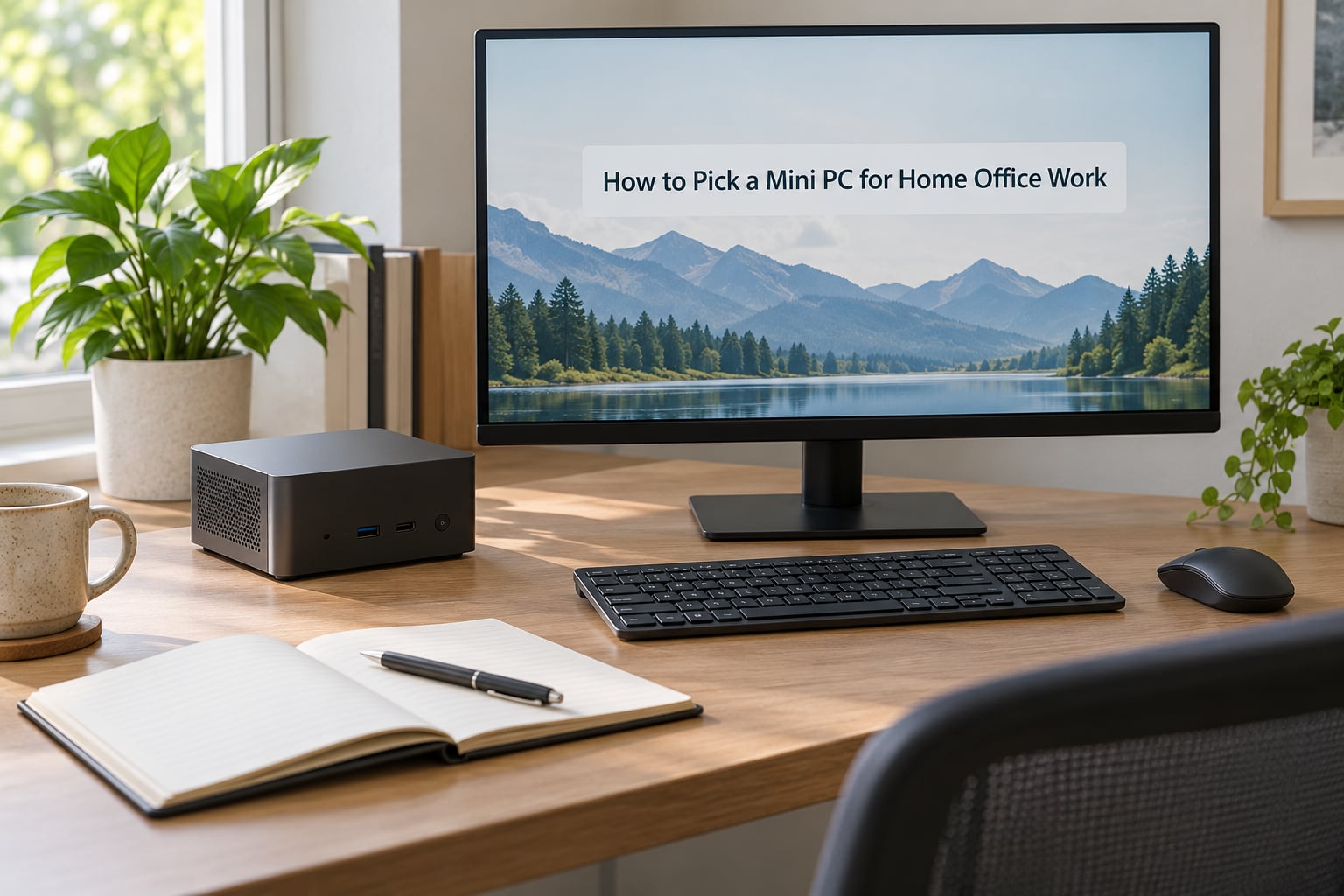
- Name your heaviest daily app. Not the one you like, the one that would actually stall the machine: Excel with a 40,000-row sheet, a browser with 40 tabs, Photoshop, or a video call while you share your screen.
- Pick the cheapest processor tier that runs it. Almost all home-office work needs four to eight cores, not a flagship chip with a marketing name attached.
- Treat 16GB of RAM as the floor. 8GB runs today and labours after a year of accumulated apps. Buy the 16GB version and add memory later if the slots allow it.
- Start storage at a 512GB NVMe SSD. A 256GB drive fills with mail archives and shared documents inside two years.
- Confirm the RAM and SSD sit in replaceable slots. Two SO-DIMM sockets and an M.2 2280 bay matter more than whatever capacity ships in the box.
- Count the peripherals already on your desk. Keyboard, mouse, printer, webcam, speakers, monitor, and a second monitor if you run one.
- Match the display outputs to your monitors. One HDMI for a single screen; HDMI plus DisplayPort, or USB-C with video alternate mode, for two.
- Check whether Wi-Fi is included. Many rooms have no Ethernet run, and a machine missing its AX200 or AX210 module needs a part bought separately plus an antenna screwed inside the case.
- Decide barebone or with Windows. Barebone costs less and leaves the licence to you. Windows 11 also needs TPM 2.0 and Secure Boot, so check that on the spec sheet.
- Read the warranty and the noise level. Warranty length and access to replacement parts say more about longevity than the price sticker ever will.
If a listing cannot answer those ten questions on its own spec page, move on. The information exists, just usually not on the first tab.
The short version: workload, processor tier, 16GB of memory, a 512GB drive, two display outputs, Wi-Fi included, Windows licensed. That specification covers the large majority of home offices, and the rest of this guide is about knowing when your situation differs.
What Software Does Your Home Office Need?
The programs you open every day set the processor tier, and how many of them run at once sets the memory. Describe the workload honestly and the hardware choice gets obvious.
Email, documents and browsing
A mail client, a browser with a realistic number of tabs, Word or Writer, a PDF reader and a spreadsheet or two. This is the lightest common workload, and it is what the entry tier exists for. Four efficient cores and 16GB of RAM keep it smooth all day.
Video calls and screen sharing
Calls are less demanding than they look; the encoder is hardware, not software. What matters is that you leave headroom for the call plus your other windows, so a 16GB machine beats an 8GB one when you share your screen from a second monitor.
Spreadsheets on two monitors
Large workbooks punish weak integrated graphics and thin memory more than they punish processor speed. If your job involves pivot tables across two screens, treat the mainstream processor tier and 32GB of memory as the sensible starting point.
Creative tools and development
Light photo editing, vector work and design tools run fine on a mainstream machine. Local development environments, virtual machines and video editing do not; those belong in the specialist tier, and no amount of port checking will change that.
One useful reality check from home-server builders on r/MiniPCs: a GMKtec N150 with 12GB of RAM and a 256GB drive was running Home Assistant with more than 60 devices and dozens of automations at roughly 1 to 2 percent CPU and 1 to 2GB of RAM. If your office workload feels light, it probably is.
How Much RAM and Storage Do You Need?
Buy for the years you will keep the machine, not for the week you will use it. Most home-office mini PCs last five years or more, and the component people regret not upgrading early is memory.
- 8GB is the bare minimum. Fine for a single browser window and a document, painful with two monitors.
- 16GB is the practical floor for a working professional and the sweet spot for most homes.
- 32GB is justified for heavy browser use, big spreadsheets, creative tools or several virtual machines.
- 512GB NVMe is the sensible storage starting point; 1TB if you keep media or large project files locally.
Look for two memory sockets, not one soldered stick. Single-channel memory is a real performance limit in integrated graphics, and a machine with one slot means an extra memory stick later costs more because you may have to replace rather than add. DDR5 runs cooler and holds more per module; DDR4 sticks are cheaper and perfectly fine for office work if the drive supports it.
Storage deserves a short list of deal breakers: a soldered drive, one tiny M.2 slot, or a second bay advertised but not accessible. None of those stop you working today, all of them hurt in year three.
Which Processor Should You Choose?
Three processor families cover almost every home office, and the naming gets confusing fast. Read the model number, not the family name.
- Intel N100 or N150 — four efficient cores, no fan in many designs, a few watts of draw. Comfortable for documents, browsing, calls and light multitasking. Overkill for a second screen, not enough for creative work.
- Intel Core i5 or AMD Ryzen 5 — six to eight cores with integrated graphics, and the tier most home offices belong in. Handles big spreadsheets, many tabs, screen sharing and light photo editing without fan noise becoming a problem.
- Intel Core i7, AMD Ryzen 7 or Ryzen 9 — worth considering for video editing, virtual machines, local development or a second job running in the background all day.
Clock speed matters more than raw core count for office work, and integrated graphics matter more than most buyers expect because they drive your displays. A dedicated GPU is unnecessary unless you game or render video. Claims about 8K output, Thunderbolt 4 and RGB lighting are marketing filler for this workload; ignore all three.
What Ports and Connectivity Should You Check?
This is where home-office buyers get burned, and it is the single most repeated question in buying threads about these machines: will what I already own plug into it. Check it before you fall for anything else on the listing.
Port checklist: how to pick a mini PC for home office work without buying adapters
- USB-A — your keyboard, mouse, printer, external drive and webcam all use these. Count the ports on the case and keep two spare for charging and a backup drive.
- USB-C — for a phone, an external SSD or a dock. A USB-C port only carries video if the spec sheet says display alternate mode.
- HDMI 2.1 and DisplayPort 1.4 — two different standards means two monitors without a dock. Confirm maximum resolution and refresh rate for the panel you own.
- 3.5mm audio — many mini PCs have a single combined headphone and microphone jack and no separate mic input. Check this before buying a headset or a USB microphone for calls.
- Gigabit Ethernet — costs nothing to include and beats Wi-Fi for a machine that never moves.
- Wi-Fi 6 or 6E and Bluetooth 5.x — confirm the module is in the box. Adding one later is cheap, but it can mean opening the case and fitting antennas.
- VESA mount — the plate and screws should be in the box if you want the machine behind the monitor instead of beside the keyboard.
A dock solves a missing port only if the machine has a USB-C port that supports display output. Check that before planning around one.
How Do Size, Noise and Cooling Affect Your Choice?
A mini PC fits behind a monitor or under a shelf, which is the whole point in a room where you also work and take calls. Size alone does not decide quality, but it forces trade-offs worth understanding.
Fanless designs run completely silent and suit a shared or quiet room. They need clear airflow around every vent, and a fanless model with a powerful processor throttles if you tuck it into a closed cupboard. Fan-cooled models are louder under load, and anything above roughly 40dB becomes obvious during a call. Most office-ready machines settle at a low fan speed that you stop hearing within a few minutes.
Power draw is the quiet advantage. A mini PC running 10 to 15 watts for eight hours a day, 250 days a year, is roughly 25 to 30 kWh annually. A full desktop tower drawing 150 watts under the same schedule uses roughly 300 kWh, and it needs a room to stand in.
Where it loses to a laptop: battery life and the built-in keyboard, screen and camera. Where it wins: a desktop-class processor, upgradeable memory, and a price that leaves room in the budget for a good monitor. Most people end up pairing one with the display they already own.
How Much Should You Spend on a Mini PC for Home Office Work?
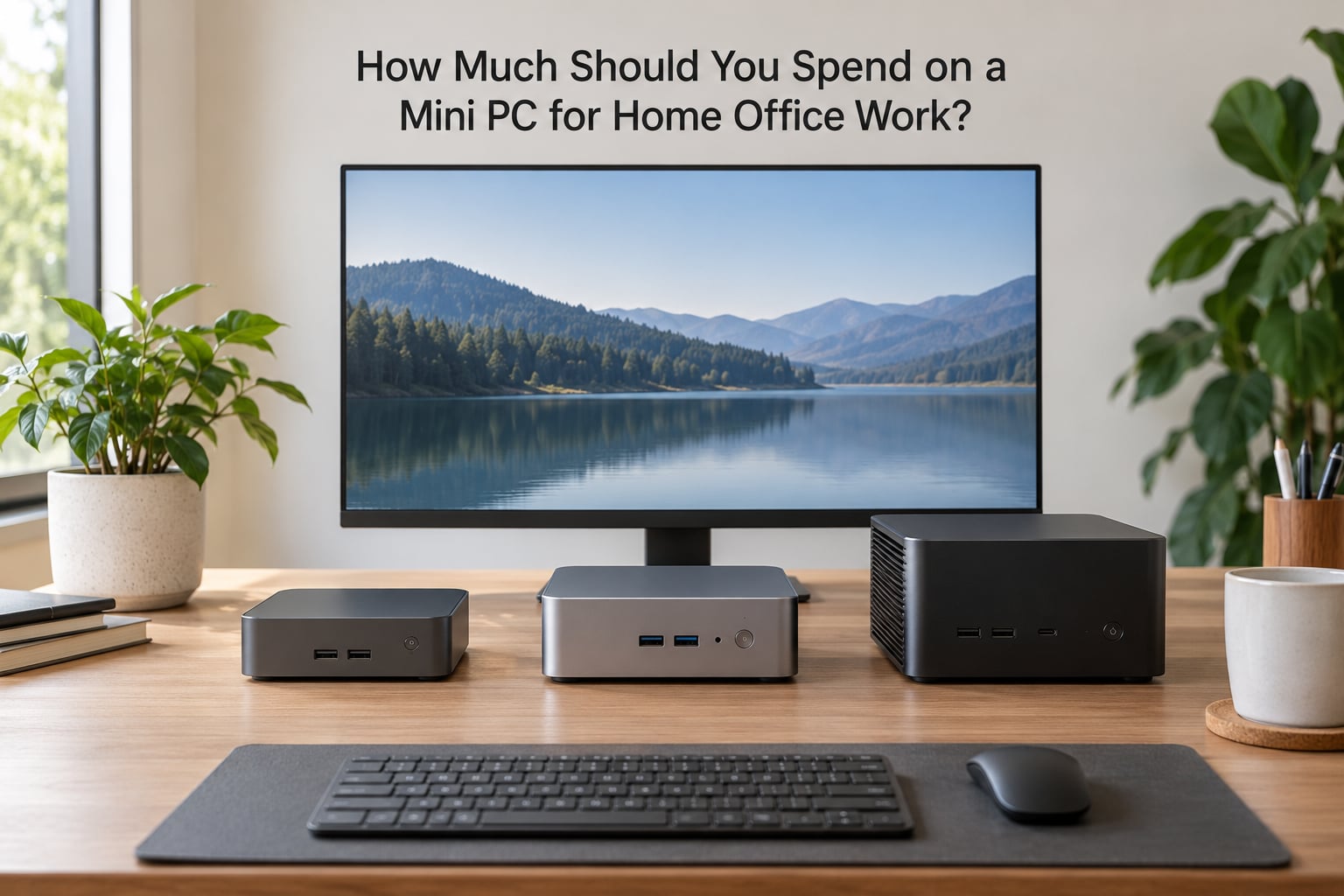
Treat spending tiers as a map of what the money buys rather than a shopping list, because figures move constantly and vary by region. What stays true is which specifications sit at each level.
| Tier | Processor | Memory | Storage | Display and ports | Best suited for |
|---|---|---|---|---|---|
| Basic productivity | Intel N100 or N150 class | 16GB | 512GB NVMe | One display output, 2 to 3 USB-A, Wi-Fi 6 | Email, documents, browsing, video calls, one monitor |
| Mainstream | Intel Core i5 or AMD Ryzen 5 | 16GB with upgrade slots | 512GB or 1TB NVMe | Two display outputs, USB-C, Ethernet, Wi-Fi 6E | Two monitors, heavy browsing, spreadsheets, light creative work |
| Advanced | Intel Core i7 or AMD Ryzen 7 class | 32GB or more | 1TB plus a second M.2 drive | Three display outputs, USB-C docking, better cooling | Video editing, virtual machines, local development, several monitors |
Spending more is justified by four things: replaceable memory slots, a second storage bay, a proper cooling system, and a warranty with real parts behind it. Everything else is decoration.
What quietly reduces value: 8GB of memory, a 256GB drive, one soldered memory slot, Wi-Fi that is not included, a barebone unit with no plan for the licence, and a listing whose main feature is lighting.
What to Check Before Buying
Compatibility first. Re-run the port checklist against your own desk, not the render on the product page. Confirm the resolution and refresh rate of each monitor you own, because a second screen at the wrong refresh rate is the most common complaint after setup.
Windows 11 support. The operating system needs TPM 2.0 and Secure Boot. Check that the processor supports Windows 11 out of the box, because buying for a parent or an older household member raises the question of whether the machine will still be supported in several years.
What is in the box. Power brick and cable, VESA plate and screws if the listing says so, and the licence terms for the operating system. Barebone units ship without an operating system or a licence, and the difference has to come out of your budget somewhere.
Warranty and repair. Warranty length matters, but so does access to parts. An IT community thread on Spiceworks recommended HP or Dell mini desktops over Lenovo specifically for replacement-part availability, and noted that consumer brands are harder to service. For a machine meant to last a decade, that is a fair warning.
Refurbished business lines are worth considering. Dell OptiPlex Micro, HP Pro Mini and Lenovo ThinkCentre Tiny units are built for service rooms rather than desks. Check the exact model number, confirm the Windows licence transfers with the machine, note the warranty length, and make sure the external power adapter is included. They usually cost less than a new consumer unit of similar specification.
Independent evidence. Look for reviews that show the workloads you care about, not a marketing render and a burst score. Return policy is worth reading too, because a machine that shows lag with your exact applications in week one is far easier to return than to live with.
Frequently Asked Questions
Is a mini PC good for office work?
Yes, for documents, email, browsing, spreadsheets and video calls, a mini PC is genuinely good office hardware. It runs quietly, draws very little power and takes almost no desk space. The only workloads it struggles with are video editing, gaming and heavy virtual machines. For ordinary office use the decision comes down to memory and ports, not processor power.
What is the best mini PC for working from home?
The best mini PC for working from home is the one whose processor tier clears your heaviest application and whose memory you can add to later. Most people land on a mainstream model with a Core i5 or Ryzen 5, 16GB of RAM in two sockets, a 512GB NVMe drive, two display outputs and Wi-Fi included. Entry-tier machines suit a single screen and light work.
What is the downside to a mini PC?
The main downsides are limited upgrade paths and, on cheaper models, memory or storage soldered to the board. Small cases also restrict cooling, so a powerful fanless model may throttle in a closed space. Repairs can be harder on consumer brands than on business lines, and some models ship without a Wi-Fi module or an operating system licence.
Can a mini PC run Microsoft Office?
Yes. Word, Excel, Outlook and PowerPoint run comfortably on any current mini PC processor. Large workbooks and many open browser tabs are what strain these machines, and the fix is memory rather than processor speed. For heavy spreadsheet work, choose 16GB of RAM or more and a mainstream processor tier instead of an entry model.
What is the best mini PC for an office setting?
For a fixed office desk, look for gigabit Ethernet, two display outputs, at least three USB-A ports and a Windows licence included. Refurbished business units such as the Dell OptiPlex Micro and HP Pro Mini are popular there because parts and service are easy to find. A mainstream consumer model works too, provided it has the ports you already own peripherals for.
What to consider when buying a mini PC?
Consider seven things: your heaviest application, the processor tier that runs it, 16GB of RAM with replaceable slots, a 512GB NVMe drive with a second bay, the port list against your existing peripherals, display output support for your monitors, and whether Wi-Fi and an operating system licence are included. Warranty length and noise level decide between otherwise equal models.
Conclusion
Start with the program that would actually slow the machine down, then buy the cheapest processor tier that runs it. Add memory and storage for two to three years of growth, verify the ports and monitor support against what is already on your desk, and buy the best-supported model your budget allows. Get those four things right and the how to pick a mini PC for home office work question answers itself.