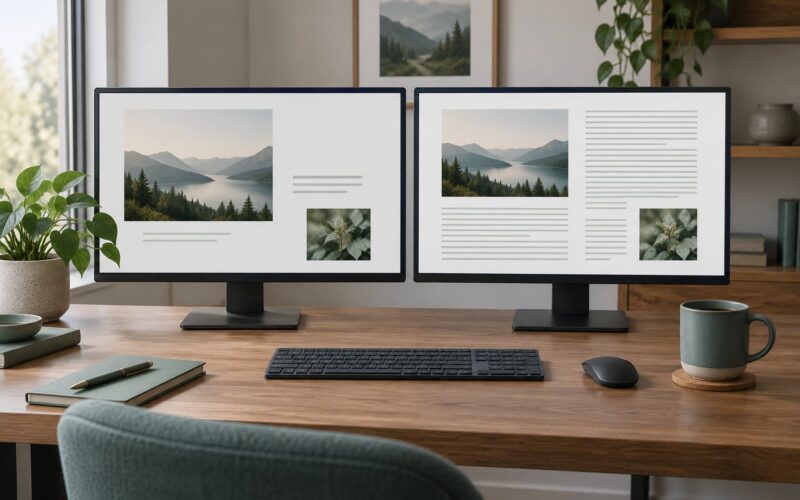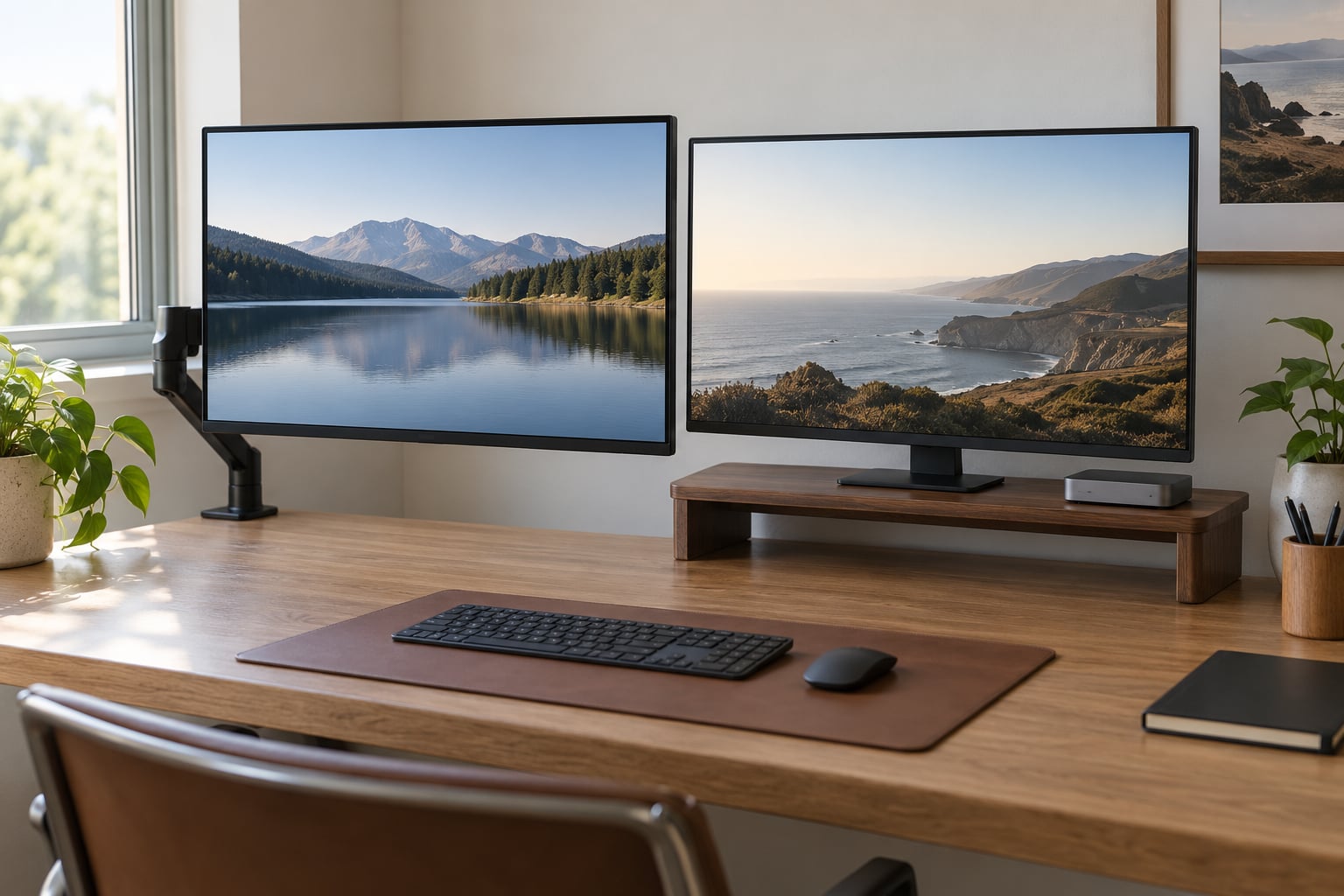
If your desk is small, a monitor arm frees noticeably more surface area than a stand does, because the display hangs in the air and the whole footprint returns to you. A monitor stand does something different and worth knowing about: it puts a shelf under the screen, so the space you gain is storage rather than open desk. So the honest answer to monitor arm vs stand which is better for desk space is not one winner. It depends on whether you need room to work or room to put things.
I have moved between both setups more times than I can count, usually in rooms where the desk was whatever fit in the corner. The switch that surprised me most was a cheap gas spring arm on a clamped desk edge: roughly six inches of usable surface came back, and the laptop dock and keyboard went underneath with room to spare. The switch that disappointed me was a wide riser on a deep desk, where the base ate more space than the screen had ever occupied.
Table of Contents
- Monitor Arm vs Stand Which Is Better for Desk Space at a Glance
- Desk Space and Footprint
- Monitor Arm vs Stand Which Is Better for Desk Space in a Compact Setup
- Adjustability and Ergonomics
- Stability and Monitor Compatibility
- Installation, Cables and Desk Compatibility
- Portability, Appearance and Maintenance
- Price and Value Over Time
- Which Should You Choose?
- Frequently Asked Questions
- Do monitor arms actually save desk space?
- What desk thickness is needed for a monitor arm clamp?
- Is a monitor arm better for an ultrawide monitor?
- Should I use a clamp mount or a grommet mount?
- Are monitor arms stable enough for gaming?
- Is a monitor stand better if I move between desks?
- Conclusion
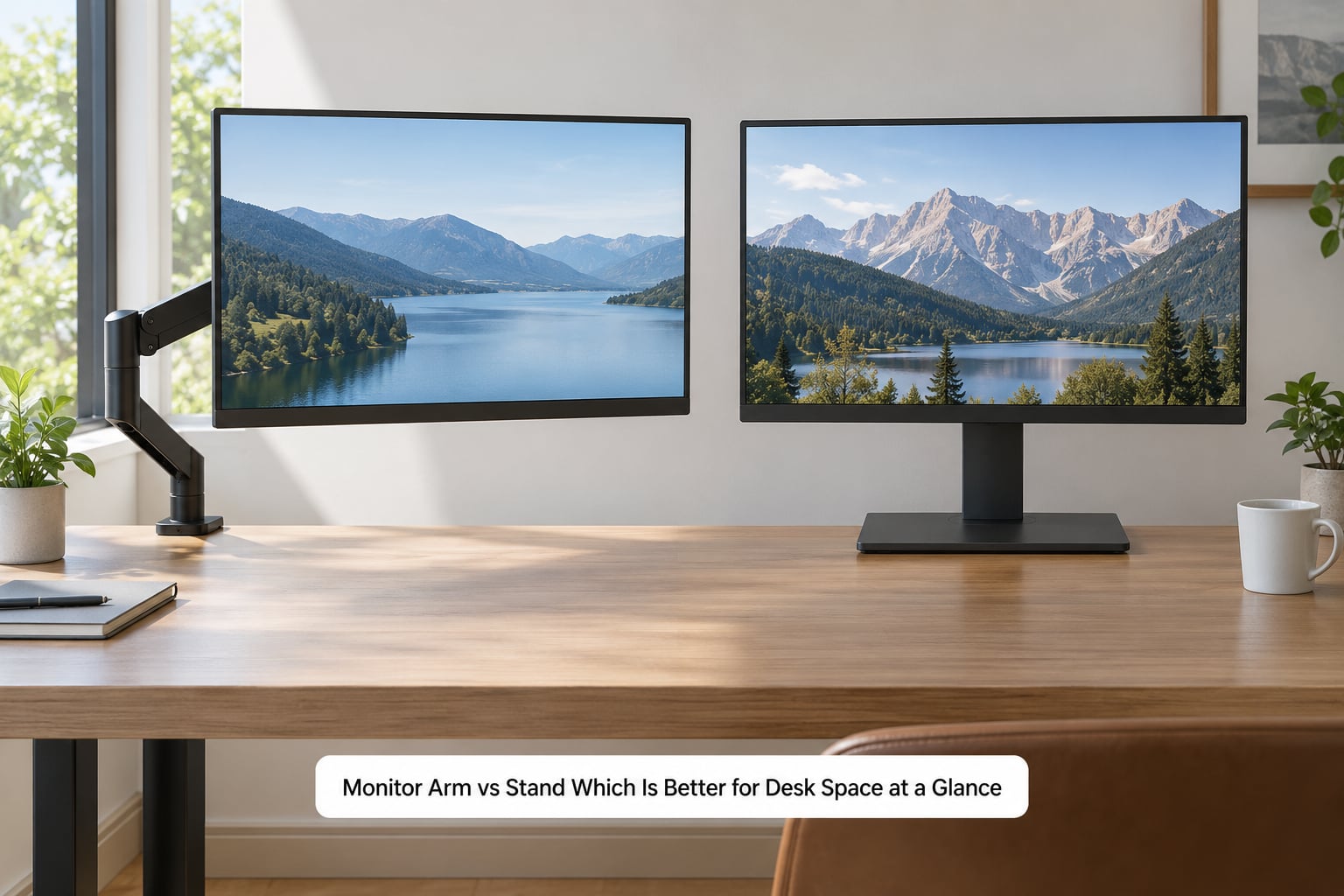
Monitor Arm vs Stand Which Is Better for Desk Space at a Glance
| Criterion | Monitor arm | Monitor stand or riser |
|---|---|---|
| Desk surface reclaimed | The full base area, usually 5 to 8 inches of depth across the width of the panel | None. The base stays on the desk, but it creates a shelf below |
| What you can put underneath | Anything: keyboard, dock, mini PC, notebook, headphone hook | Flat items only: the keyboard, a slim laptop, papers, chargers |
| Height adjustment | Continuous on gas spring arms, a fixed drop on basic models | Whatever the riser gives you, often nothing at all |
| Tilt, swivel and rotation | Full range including portrait mode on most articulated arms | Usually tilt only, sometimes a fixed angle |
| Stability | Good on a solid desk, amplifies desk shake because it acts as a lever | Excellent. Weight spreads across two legs and nothing moves |
| Installation | Clamp to the desk edge, bolt through a grommet, or a freestanding base | Unpack and place. No tools, no desk modification |
| Reversible on a rental | Clamp and grommet mounts leave no permanent mark | Always reversible |
| Moving to another desk | Unclamp and carry it, or leave it bolted where it is | Pick it up and go |
| Cable routing | Channel clips on the arm, but you often need longer cables | All cables stay behind the screen where they were |
| Best for | Small desks, sit-stand desks, dual monitors, portrait workflows | Wobbly desks, glass tops, renters, ultralight and non-VESA screens |
That table is the whole argument in one place. An arm trades stability and a bit of setup effort for surface area and movement. A stand trades surface area for steadiness and zero commitment.
Desk Space and Footprint
The number that matters about desk space is not the size of your monitor, it is the size of what holds it up. A typical stock base for a 27 inch panel is a wide plate that eats most of the depth between the screen and your keyboard tray. Lift that same panel onto an arm and the entire rectangle underneath becomes yours again.
How it works mechanically is simple. A C-clamp grips the rear edge of the desk, a vertical pole rises from the clamp, and a VESA plate at the end of the arm screws into the four mounting holes on the back of the display. Nothing touches the desktop. A grommet mount skips the clamp entirely: one bolt passes through a hole in the desk and locks a shaft underneath, which is the cleanest option if your desk already has a cable hole.
There is a real caveat here, and users on r/Workspaces raise it constantly. Some riser bases run 12 inches wide front to back, which swallows the space the whole setup was meant to protect. If you go the stand route, measure the base depth before you buy and buy the narrowest shelf that still holds your screen.
Monitor Arm vs Stand Which Is Better for Desk Space in a Compact Setup
Choose an arm when reclaiming surface area is the priority, especially on a desk under about 48 inches wide or one shared between a laptop and a monitor. Choose a stand when portability, low effort or a screen position that changes often matters more than an empty stretch of desk.
For a bedroom desk in a rental, I lean toward the arm if the desk has a solid edge to clamp and a VESA-compatible monitor. If the desk is glass, hollow-core budget board, or the monitor has no mounting holes, the stand is the only sensible answer and no amount of tidying changes that.
Adjustability and Ergonomics
Adjustability is where the arm wins without much argument. A good gas spring arm moves through a range of height, pull, push, swivel and tilt with one finger, and it holds position without drift. Fixed-post arms lift the screen clear of the desk once and stay there, which is still a real improvement over a stock base but is a one-time change rather than an adjustable tool.
Stands divide into two camps. A plain riser is a shelf at a fixed height. An adjustable riser uses risers or a lever to give you a few inches of travel, which is usually enough to put the top third of the screen at eye level while your elbows stay at 90 degrees.
That top-third rule is the practical target for both. Sit or stand, keep your eyes level with the upper edge of the screen at roughly 20 to 40 inches of viewing distance. If your neck is bending forward or looking down by the end of the day, the height is wrong, and neither option fixes that on its own.
Portrait mode is worth mentioning. An arm that rotates to vertical is the cheapest way to read long documents, code sidebars or spreadsheets. A stand rarely rotates at all, which is why developers and designers who rotate often usually end up with an arm.
Stability and Monitor Compatibility
Stands do not wobble. The base rests flat, the screen sits still, and a knock to the desk moves both halves together.
Arms can wobble, and the physics explains why. An arm is a lever: the monitor sits at the end of it, so any movement at the desk surface gets amplified at the screen. On a solid desk this is a non-issue. On a cheap sit-stand converter or a flimsy board, r/StandingDesk users report keeping the stock base specifically because clamp mounts made their screens shake while typing.
Sag is a different problem. When your display weight approaches or exceeds the arm’s rated load, or the spring fatigues, the head drifts downward over weeks. Most arms have a tension screw you reach with an Allen key, and turning it usually restores the original position. Match the class to the screen instead: single arms commonly cover up to about 25 pounds, heavy duty ultrawide arms run to roughly 44 pounds, and dual mounts vary widely, often landing between 7 and 20 pounds per arm.
Curved and super ultrawide panels need a wide quick release plate and a genuinely heavy duty head, or the corners will flex when you adjust. Small portable displays are the opposite problem, so light they can drift upward on a stiff arm, which is also a tension screw fix.
Installation, Cables and Desk Compatibility
Arms come in four mounting styles. Clamp mounts grip the rear edge and need roughly three quarters of an inch of thickness to bite properly. Grommet mounts run a bolt through a cable hole and are the most secure. Hole mounts bolt to the underside of the desktop for a permanent install. Freestanding base arms clamp to the monitor’s own VESA plate and stand on the desk, which is the answer for glass tops and for anyone who cannot touch the desk at all.
Desk material matters more than most listings admit. Solid wood clamps well but can warp. Thick MDF and particle board hold, though cheap hollow-core boards can crush at the clamp point. Glass cannot be clamped at all without drilling, and drilling a rented apartment is not a decision worth making for an accessory.
Cables are the hidden cost of arms. Once the screen is pushed back on its pole, the cable that came in the box is often too short, and you are buying a longer HDMI or DisplayPort run. Most arms include clips or a channel along the arm, which tidies the run nicely. Stands leave your cables exactly where the manufacturer put them, so nothing changes there.
Portability, Appearance and Maintenance
A stand is one object. You lift it, carry it, and it works on any desk. An arm has a clamp to open, bolts to thread and a display to unhook, and you will want the desk edge free to reach it.
Visually the split is obvious. An arm leaves a clean plane of desktop with a single column at the back, which suits minimalist setups. A stand adds a horizontal line across the middle of the desk. Plenty of people keep the stock plastic base anyway and use it as a low shelf for a dock or a keyboard in the hybrid build, which gets you most of both benefits.
Maintenance is minor either way. Arms need an occasional Allen key turn when a new weight goes on them and a wipe of the joint dust. Stands need nothing beyond unplugging cables when you move them.
Price and Value Over Time
Neither option has a meaningful cost gap at the entry level. Basic risers and entry clamp arms both sit at the cheap end of the accessory market, and mid tier arms with better springs and cable routing cost a moderate step up. Premium gas spring arms, heavy duty ultrawide heads and multi monitor mounts are where the price climbs, and Ergotron style mounts sit at the top of that range.
Whether an arm earns its money comes down to what you do with the freed surface. Across the typical five year life of a monitor, an arm that lets you dock a laptop, retire a second keyboard and hide a mini PC pays for itself in utility. A stand earns its price the moment it fixes a screen that sat too low. Budget brands like VIVO, HUANUO and North Bayou come up constantly in owner threads as dependable at the low end.
Which Should You Choose?
Choose a monitor arm if the desk is small, you run a laptop alongside the monitor, you work on a sit-stand desk, you use two screens or rotate to portrait, or your stock base leaves the screen too low. Choose a stand if the desk wobbles, the top is glass, you rent and cannot clamp, your monitor has no VESA holes, or you move between desks weekly.
Gamers generally land on an arm, since a single clamp frees the width needed for a keyboard and a mouse side by side. Shared and hot desk spaces often land on a stand, because it is faster to hand over. Creators with long document workflows want the rotation an arm gives.
Before buying anything, do three checks. Flip the monitor over and confirm four mounting holes in a square, usually 75 by 75mm or 100 by 100mm. Measure your desk thickness and the free depth behind it. Weigh the screen or find the figure on the spec sheet and compare it with the arm’s rating.
Frequently Asked Questions
Do monitor arms actually save desk space?
Yes. An arm takes the display off the desktop entirely, returning the rectangle the stock base occupied, typically 5 to 8 inches of depth across the panel width. A stand keeps its base on the desk and only adds a shelf below. If you are working in inches of reclaimed surface, the arm is the clear winner.
What desk thickness is needed for a monitor arm clamp?
Most C-clamp mounts need roughly 0.75 inches of thickness at the rear edge to grip without slipping. Thinner tops require a padded or universal clamp, and very thin boards can crush under the jaw. Glass and hollow-core budget desks are hard blockers, and a freestanding base mount is the workaround.
Is a monitor arm better for an ultrawide monitor?
It suits an ultrawide well, but only with a head rated for the weight. Wide curved and super ultrawide panels run heavier than standard screens and flex at the corners on a narrow plate. Look for a heavy duty arm rated around 40 pounds or more, with a wide quick release plate and enough reach to place the panel at eye level.
Should I use a clamp mount or a grommet mount?
Use a clamp if the desk edge is solid and at least 0.75 inches thick and you want to leave no trace. Use a grommet if the desk already has a cable hole, since it locks more securely and takes up less rear space. Either is reversible, which is what makes arms renter friendly.
Are monitor arms stable enough for gaming?
On a solid desk, yes, especially with a heavy duty head sized for your panel. The common complaints come from cheap desk converters and thin boards, where the arm acts as a lever and magnifies typing shake. Tightening the tension screw and lowering the display height both reduce wobble noticeably.
Is a monitor stand better if I move between desks?
Usually, yes. A stand is a single object with no bolts to thread, so it moves in seconds and adapts to any surface, including glass and wobbly tables. An arm needs its clamp opened and takes up real effort to carry. If you change locations more than once a month, portability outweighs reclaimed desk area.
Conclusion
Monitor arm vs stand which is better for desk space comes down to one honest rule: an arm gives you open desk, a stand gives you storage. Measure the desk thickness, check the monitor weight, confirm four mounting holes on the back, then pick the arm for maximum space or the stand for simplicity and portability.