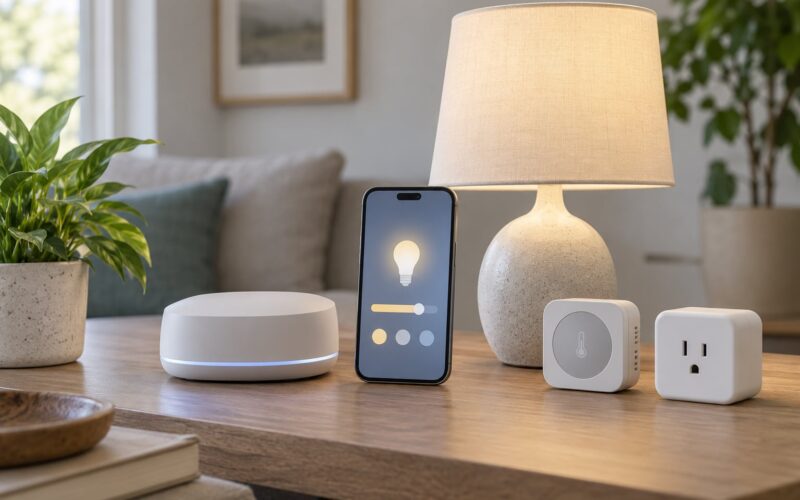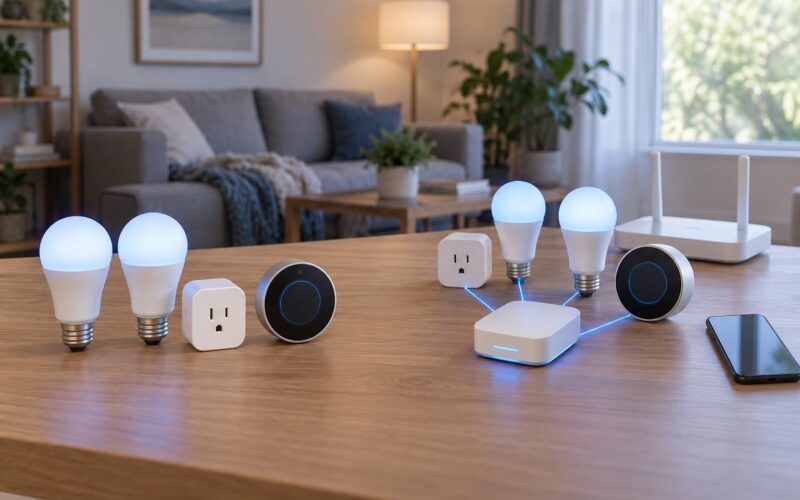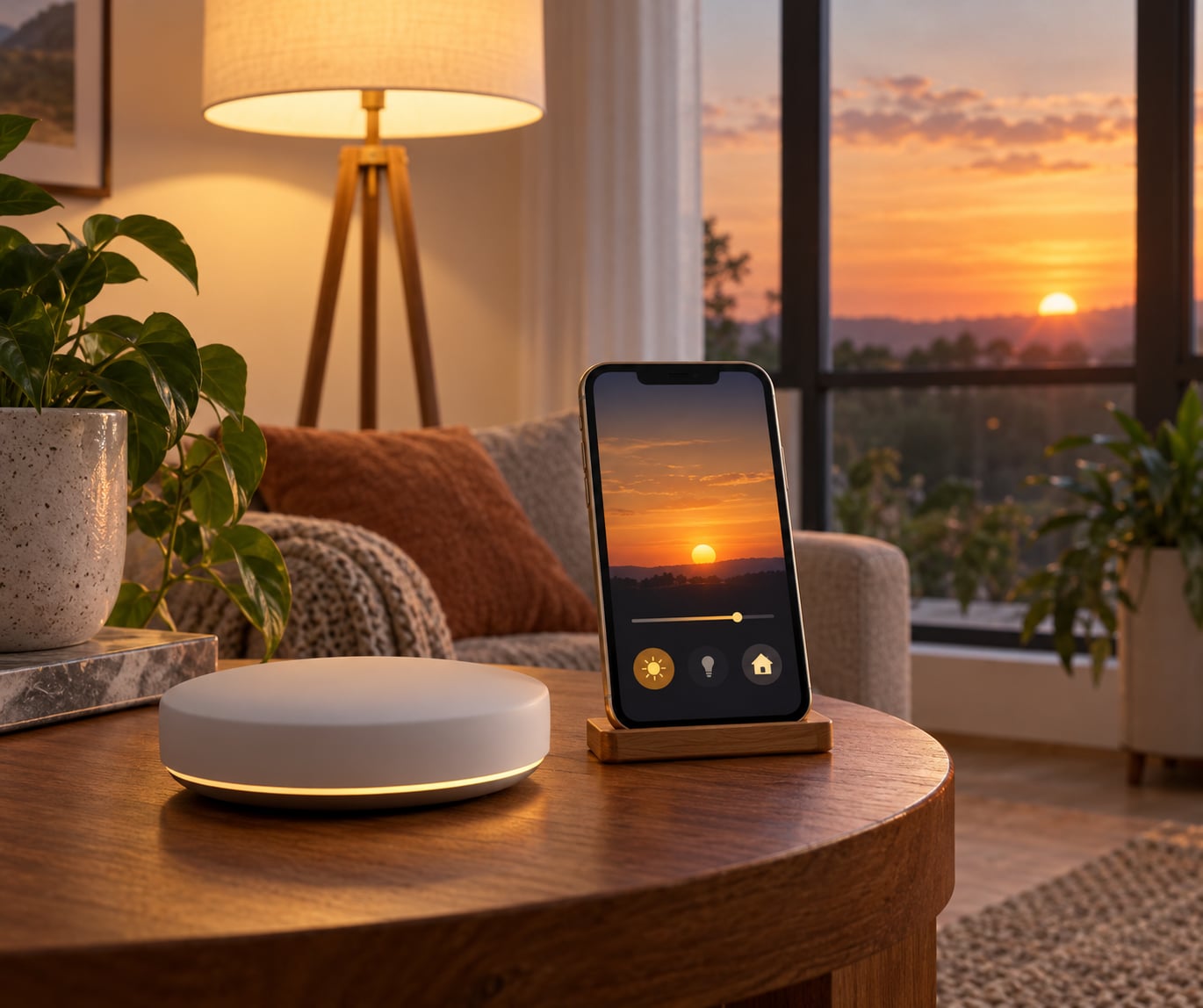
To automate lights by sunset, give your smart bulbs, switches or plugs a real sunset trigger instead of a fixed clock time. Amazon Alexa, Apple Home, SmartThings and Home Assistant all have one built in. Google Home needs a bridge service. A sun trigger recalculates every single day from your location, so it stays correct through every season and daylight saving change.
A fixed timer is the reason most people give up on this. Set it for 6:30 pm in January and by June the porch is already in daylight when the light fires. Set it for 8:00 pm in July and you are sitting in a dark room in January.
Table of Contents
- What You Need
- Step-by-Step: How to Automate Lights by Sunset
- Amazon Alexa: How to Automate Lights by Sunset with a Routine
- Google Home: What the Routine Builder Does and Does Not Offer
- Apple Home: Build a Sunset Automation
- SmartThings or Home Assistant: Set a Flexible Sunset Trigger
- Common Mistakes
- Frequently Asked Questions
- Do I need a smart hub to automate lights by sunset?
- Will sunset lighting still work if the internet goes down?
- How do I shift a sunset trigger by 15 or 30 minutes?
- How can I automate several rooms at sunset?
- Why do my sunset routines stop working?
- Can a smart switch control ordinary bulbs to turn on at sunset?
- Conclusion
What You Need
Before anything else, work out what kind of light you are automating and what app already controls it. Most people need one of four things, and in every case a phone plus the manufacturer’s account is the only real prerequisite.
- A smart light source. A bulb, a smart switch at the existing wall switch, or a smart plug for a lamp or string lights.
- An app that can write routines. Alexa, Google Home, the Apple Home app, SmartThings or Home Assistant.
- A hub, sometimes. Required for Apple Home to run automations when nobody is home, and required for Zigbee or Z-Wave devices to join your network at all.
- A correct location. Every platform looks up sunset using a city, postcode or coordinates you set. Get this wrong and the lights fire at the wrong hour all year.
- A working Wi-Fi connection and, for cloud platforms, an internet connection that is up when the routine is due to run.
Check the protocol before you buy anything. Wi-Fi bulbs join directly to your router. Zigbee and Z-Wave bulbs need a hub or bridge. Matter and Thread devices work across several platforms, but only if the hub actually supports them. A bulb that only speaks one brand’s app will not slot into a routine in another app.
Here is how the five main platforms compare before you pick a route.
- Amazon Alexa — sunset trigger built in, offset in minutes before or after sunset, no hub needed for Wi-Fi devices, and cloud execution so it needs internet.
- Apple Home — sunset trigger built in, no numeric offset (you set a time window by hand), a hub needed for reliable unattended running, and it keeps working offline through the hub.
- SmartThings — sunset trigger built in, offset plus relative time, hub strongly recommended, and local execution through the hub.
- Home Assistant — sunset trigger built in, offset with an explicit before or after type, the hub is Home Assistant itself, and it runs fully local.
- Google Home — no native sunset trigger, offset depends on whatever bridge service you use, no hub for Wi-Fi devices, and cloud execution.
Step-by-Step: How to Automate Lights by Sunset
Whichever route you take, the shape of the job is the same. Pick the light, pick the sunset trigger, decide what the light should do, then test it before you trust it with a whole winter.
1. Set your location. Open your platform’s settings and confirm the city or coordinates it uses for sunrise and sunset. Do this first, because everything else depends on it.
2. Name the light. Give the bulb or switch a name you will recognise later, such as Hall Lamp, rather than leaving it with its factory label.
3. Create a routine or automation. Choose the sunset trigger offered by the platform. If your app only offers times of day, you need a different platform or a bridge service.
4. Add the action. Tell it to turn the light on, set brightness, or run a scene. Decide whether it goes full power or a low warm level.
5. Test it. Each platform has a way to run the routine immediately without waiting for evening. Do this now, not tomorrow.
6. Watch the first real sunset. Note the time the light came on and compare it with local sunset. Adjust the offset by 10 or 15 minutes if it feels early or late.
Amazon Alexa: How to Automate Lights by Sunset with a Routine
Alexa has the most straightforward version of this, because sunset sits in the routine builder as a plain trigger next to time and device triggers. Open the Alexa app, tap More, then Routines and Scenes, then Create routine. Pick When this happens, choose Sun, and pick Sunset. The app works out the time for your location and shows it back to you, which is a quick way to confirm your location is set correctly.
Then choose Then do this, select your light from the device list, and pick Turn on. The brightness field sets the level directly, so setting it to 40 gives you a dim hallway lamp without needing a separate scene.
Alexa also lets you add an offset without leaving the trigger. If you want the porch light on before the sun drops, set the sun trigger to 15 minutes before sunset. This is the field people miss, and it is the reason some routines feel slightly late.
To test it, open the routine and tap Run. That fires the actions immediately. It does not prove the sunset trigger itself works, so check the first real sunset too.
Google Home: What the Routine Builder Does and Does Not Offer
Google Home routines take a time of day, a sunrise or sunset offset in minutes, but not a sunset event on its own. That means a routine set to turn lights on at sunset cannot be built directly in the Google Home app. If your household runs on Google, you have two sensible options.
The first is a bridge service. Services such as IFTTT can watch a weather feed, wait for the sunset time for your area, then send a command to Google Home. It works, and it costs nothing for a couple of lights, but each recipe sends one device command, so a routine that turns on six lights needs several recipes.
The second option is honest and simpler: pick up a light or switch that has its own app with a native sunset trigger, and let that device do it. Several TP-Link Kasa, Govee and Philips Hue bulbs have a dusk or sunset schedule inside their own app, and they work without any routine in Google Home at all.
If you want scenes, dimming and conditions like only when someone is home, Home Assistant or SmartThings will give you more control in less time than you would spend fighting a bridge service.
Apple Home: Build a Sunset Automation
Apple Home has sunset built in, and it works nicely when the iPhone is nearby. Open the Home app, tap the house at the top, scroll to Automations and tap the plus button. Choose Time of Day as the trigger, then choose Sunset. Pick From and To and set them to sunset itself, or set a narrow window around it. If you want the light a little earlier, set From to an earlier time and To to sunset, and the automation will run at the first moment inside that window.
Under Choose what happens, add an action and select your light, then set Turn On and pick a brightness or colour. Apple Home has no numeric offset field like Alexa, so the window approach is the practical substitute.
The setting that causes the most frustration is at the bottom of the trigger card: Run Immediately or Run When Confirming. With Run Immediately, the automation needs to be executed by the iPhone or iPad nearby or by a HomePod, Apple TV or HomePod mini acting as a home hub. Without one of those, it will not fire when you are out. For the 30-minutes-before version, a Philips Hue or Lifx bulb added to Home handles this well too.
SmartThings or Home Assistant: Set a Flexible Sunset Trigger
These two are the hub-based options, and they are where the reliability lives. SmartThings users open the app, tap Routines, then the three dots in the corner and Add Routine. Set the trigger to Time, then pick When the sun sets, and set an offset with a number and a direction. Add an action that turns on the light. If your SmartThings device is Z-Wave or Zigbee, the routine runs on the hub, not in the cloud, so it keeps working when your internet drops.
Home Assistant gives you the same trigger with more control. Go to Settings, then Automations and scenes, then Create automation. Choose Triggers and pick Sun, then Sunset. Under the trigger you get an Offset field and an Offset type of Before or After. Set the offset to minus 30 with the type set to Before and the light comes on half an hour early. The same automation in YAML looks like this:
triggers:
  - trigger: sun
    offset: "-0:30:00"
    offset_type: before
actions:
  - action: light.turn_on
    target:
      entity_id: light.hall_lamp
    data:
      brightness: 120
The minus sign in front of the offset is what makes it before rather than after. Leave it out and you get half an hour late instead of half an hour early. Home Assistant works out sunrise and sunset from your home location in the configuration, so that has to be right before any of this fires.
To test a Home Assistant automation without waiting, open Developer Tools, go to Actions, and run the light.turn_on action against your entity. That confirms the action. The most recent sunset time is shown on the Sun entity, which is a good way to check your location is set correctly.
Common Mistakes
The routine fires at the wrong time of day. Usually an offset applied in the wrong direction, or no condition telling the automation which side of sunset you are on. In SmartThings set the offset with an explicit direction. In Home Assistant use offset_type before or after, never both.
The routine works for lights but also fires in the morning. An after-sunset automation with no before or after condition can trigger again after sunrise. Add a second condition that the sun is below the horizon, or add a time window to the trigger.
Nothing happens at all after a power cut. The light comes back but the routine does not run. This is usually a cloud platform waiting on an internet connection that has not finished reconnecting, or an Apple Home automation set to Run Immediately with no hub to execute it.
Cloud routines freeze the sunset time. On the Aqara forum, users report Z-Wave switch routines that recalculated each day while a cloud Wi-Fi outlet stayed locked to the sunset offset set on the day it was created. If a routine has not moved with the seasons, it is being scheduled by the cloud. Local execution on a hub is the fix.
Apple Home automations stop after an iOS update. There are recurring threads in the Apple Home community about sunrise and sunset automations breaking after updates. The usual cause is a permission that got reset, so check Automation access in the Home app settings rather than rebuilding the whole automation.
The app cannot find the light. Either the bulb was removed from the account, or the room assignment is wrong. Re-add the device and check it still shows in the correct room.
Two things that make a bigger difference than people expect. On overcast days, sunset happens on schedule but it is still too dark to see by the time the sun drops, so add a light-level sensor as a second trigger if you notice it. And set a sensible brightness, not full power. A dim warm light at sunset reads as evening; a ceiling light at full brightness reads as someone left home in a hurry.
Frequently Asked Questions
Do I need a smart hub to automate lights by sunset?
Not for Wi-Fi bulbs in Alexa or Google Home, because the routine runs in the cloud. You do need a hub for Zigbee or Z-Wave devices, for Apple Home if you want the automation to fire while everyone is out, and for any setup that has to keep working through an internet outage. Home Assistant is itself the hub.
Will sunset lighting still work if the internet goes down?
Cloud-based routines will not. Alexa, Google Home and Apple Home automations all pass through the vendor’s servers, so no connection means no trigger. Local execution is different: a SmartThings hub or a Home Assistant install runs the routine on the hub itself and keeps going. If your lights stop firing after a storm, this is usually why.
How do I shift a sunset trigger by 15 or 30 minutes?
In Alexa, open the routine and set the sunset trigger to 15 or 30 minutes before or after. In SmartThings, set the offset on the sunset trigger with a direction. In Home Assistant, type minus 30 in the Offset field and set Offset type to Before. Apple Home has no offset field, so use the From and To window on the trigger instead.
How can I automate several rooms at sunset?
Put them in one routine rather than several. In Alexa and SmartThings you can add multiple actions inside a single trigger. In Home Assistant add more entities under the light.turn_on action as a list. Apple Home allows only one action per automation, so a light group or a scene is the practical route for more than one room.
Why do my sunset routines stop working?
Check four things in order. Location first, because an unset or wrong city means the trigger fires at the wrong hour. Then permissions for the app and for the automation, since updates can reset them. Then power, since a light that reboots often needs re-pairing. Last, check whether the routine is running locally or in the cloud, because cloud routines can freeze their timing.
Can a smart switch control ordinary bulbs to turn on at sunset?
Yes, and it is often the better choice. A smart switch or smart in-wall dimmer keeps your existing bulbs and fits behind the same wall switch, which suits fixtures where you cannot reach a bulb. Pair it with the platform you already use and give it a sunset routine the same way as a smart bulb. Keep it on a dimmable bulb if you use the dimmer.
Conclusion
Start with the ecosystem your phone or speaker already uses, because the routine is only a few taps once the light is paired. Use a real sunset trigger rather than a clock time, so it keeps tracking daylight through the year. Test the routine straight away and watch one genuine sunset before you walk away. Add a small offset only if the room still feels bright when the light comes on, and check that the offset direction is right so it does not fire in the morning too.