Most wrong speed test results come from the setup, not the connection. To learn how to run an internet speed test correctly, pause everything else that uses bandwidth, test over Ethernet if you can, let the nearest server pick itself, run it twice, and compare both numbers with the speed on your bill. Ten minutes of prep turns a meaningless number into evidence you can act on.
That matters more than it sounds. A test run while a TV is buffering 4K, a console is downloading a game and a cloud backup is syncing measures all of that traffic, not your line. On a phone, adding two rooms of walls and a 2.4 GHz band to the mix makes it worse. The tool is only the last two minutes of the process.
This guide covers the whole process in 2026: what to prepare, the seven-step routine, how to read the four numbers that come back, and what to do when the result comes back low. It works the same whether you’re on fibre, cable, 5G fixed wireless or a phone hotspot.
Table of Contents
- What You Need
- Step-by-Step: how to run an internet speed test correctly
- 1. Pause downloads, streaming and cloud backups
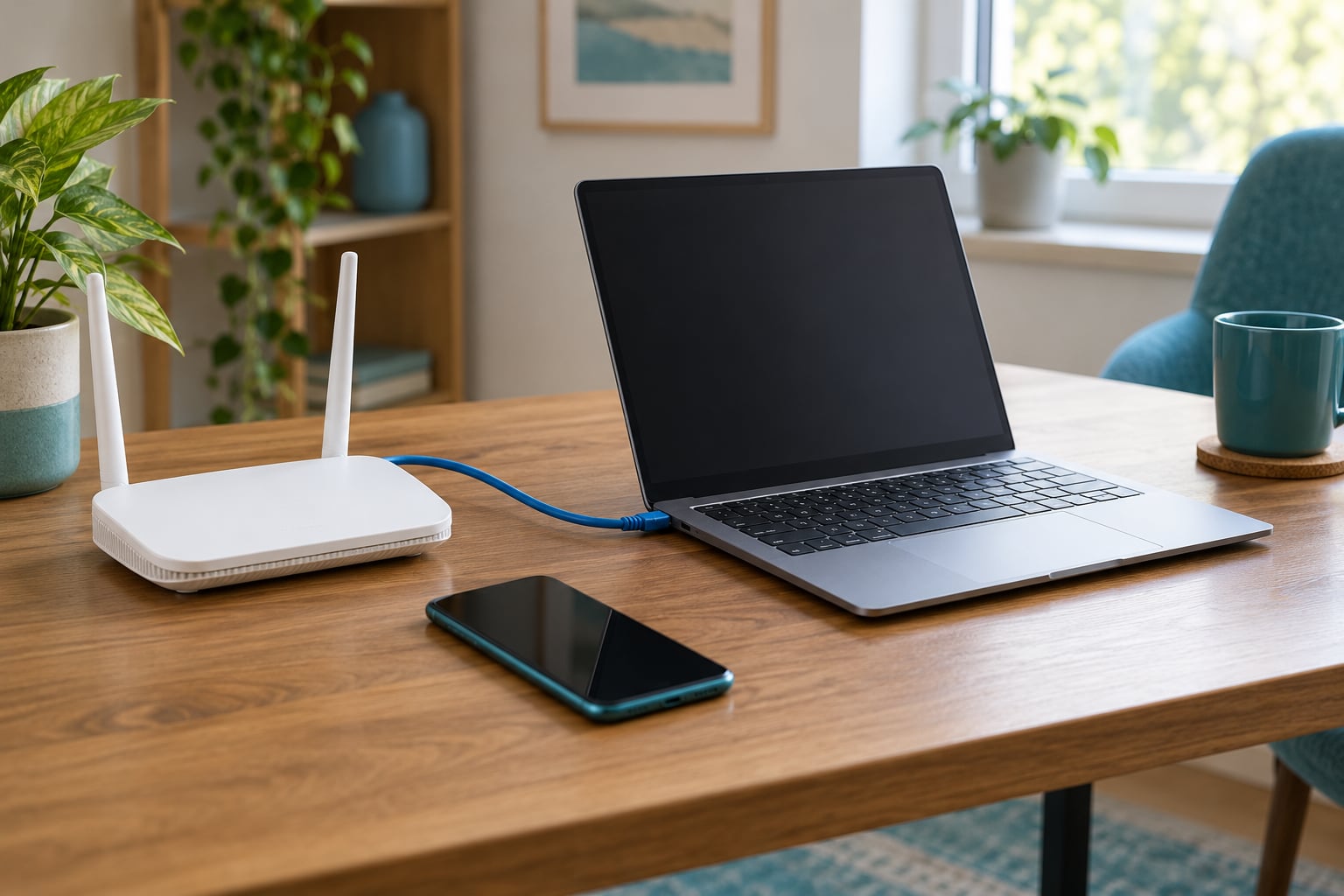
- 2. Connect the test device directly to the router
- 3. Open a reputable internet speed test page in your browser
- 4. Choose the test server and start the measurement
- 5. Run a second test after a short wait, and when to run an internet speed test correctly
- 6. Read download speed, upload speed, ping and jitter correctly
- 7. Record the result and compare it with your plan
- Common Mistakes
- Frequently Asked Questions
- Should I run an internet speed test over Wi-Fi or Ethernet?
- Is Ethernet always more accurate for an internet speed test?
- What is the difference between Mbps and MB/s?
- When is the best time to run a speed test?
- What download speed is good for everyday internet use?
- Why is my measured internet speed lower than the speed in my plan?
- Conclusion
What You Need
Four things, and honestly none of them are exotic. You need a working connection, a device with a browser, a way to reduce Wi-Fi variables, and a speed test service to measure against.
- A stable connection. Your normal everyday connection is what you’re testing. There’s no point measuring a line you’re about to cancel.
- A modern browser or Android device. Any current version of Chrome, Firefox, Edge or Safari will do. An old browser with extensions piling up can throttle the connection before the test even starts.
- Wired Ethernet, or a clean Wi-Fi setup. A network cable into the router removes most of the guesswork. If you’re stuck on Wi-Fi, you need a strong signal and the 5 GHz or 6 GHz band.
- A speed test service. Speedtest by Ookla, Fast.com, Cloudflare or your ISP’s own tool all work. Pick one and use it twice before drawing conclusions.
One thing worth knowing up front: a single test can move 100 MB to 500 MB of data depending on how long it runs and how fast your line is. On a metered mobile plan, run one test rather than five, and skip the whole procedure on a phone hotspot if your data is tight.
Step-by-Step: how to run an internet speed test correctly
Pause other traffic, plug in over Ethernet or stand close to the router on 5 GHz, open a reputable test page in a clean browser tab, let it pick the nearest server, then run the measurement and repeat it after a minute. Compare the higher of the two results with the download and upload figures on your plan.
1. Pause downloads, streaming and cloud backups
This is the single biggest source of bad numbers. Speed is shared. If a laptop, TV, tablet and console are all online, the test measures whatever is left over after they take their share, and it looks like your line is slow when it is busy.
Before you start: stop video streams, pause game downloads, cancel or wait out cloud photo and file syncing, and shut down video calls. On a phone, close streaming apps and check that nothing is updating in the background. Most desktops also run cloud backup quietly all day without telling you.
Turning off a VPN matters too. Some VPNs route your traffic through a distant server, which drags the number down and tells you nothing about your line.
2. Connect the test device directly to the router
Wi-Fi is the least honest part of any speed test. Radio interference, walls, neighbours on the same channel and a phone sitting on a side table all shave off the result, and none of them are your provider’s fault. A cable removes all of them at once.
If you must test over Wi-Fi, move into the same room as the router, keep the device at roughly the same height as the router’s antenna rather than on the floor or against a wall, and connect to the 5 GHz or 6 GHz band. 2.4 GHz reaches further but is slower and more crowded, so it is the wrong band for a speed test.
One exception catches people out: Ethernet occasionally reads slower than Wi-Fi. That usually means a damaged patch cable, a port negotiating at the wrong speed, or a cheap cable rated for a lower category than the port. Swap the cable and try a different port before you blame the router.
3. Open a reputable internet speed test page in your browser
Open a new tab and go straight to the test site rather than clicking through from a search result, because some search ads wrap around an unrelated tool. Close every other tab first, especially any playing audio or video.
Some browsers ask for permission before the test can measure anything. Accept it, or the page will report an error rather than a result. If a VPN, antivirus or ad-blocking extension is running in that browser, pause it for the test.
4. Choose the test server and start the measurement
Most tools pick the nearest server automatically, and for a home test that is the right choice. If you do it manually, choose a server hosted by your own provider in your own city, because the provider’s route to its own servers is usually the shortest and least congested path.
A server three time zones away will read slow every time, and that says nothing about your line. This is the reason results from two different sites can disagree while your connection is completely healthy.
Once the test starts, it works in phases: it measures latency with small packets, then opens several parallel connections to pull large blocks of data for the download measurement, then reverses direction for upload. Short tests skip the warm-up, so anything under about 10 seconds gives a number that’s easy to overstate.
5. Run a second test after a short wait, and when to run an internet speed test correctly
Wait a minute or two, leave everything exactly as it was, and run it again. Two samples that agree are worth more than one lucky reading. If they disagree by a large margin, something is using the line and you haven’t found it yet.
Time of day matters as much as repeat count. Run once during your busiest evening hours, where network congestion on the provider’s side is at its worst, and once early morning. The gap between those two numbers is a more honest picture of your service than either result alone.
6. Read download speed, upload speed, ping and jitter correctly
Four numbers come back, and they describe different things. Download speed is how fast data reaches your device. Upload speed is how fast data leaves it. Ping, also called latency, is the round-trip time for a small packet in milliseconds, and lower is better. Jitter is the variation in that ping time, and a steady 30 ms beats an erratic 20 ms for anything real-time.
Packet loss shows up when packets simply never arrive, which shows up in practice as frozen video calls and audio that cuts out while your speed test still looks fine.
| What you do online | Download speed that handles it |
|---|---|
| Web browsing, email, docs | 10 Mbps is comfortable, 25 Mbps feels instant |
| Music and HD streaming on one screen | 25 Mbps |
| 4K streaming on two screens | 50 Mbps and up |
| Video calls with several people on camera | 10 Mbps upload matters more than download |
| Online gaming | Under 30 ms ping, low jitter, low loss |
| Household of 5+ devices at once | 100 Mbps or more |
Is 100 Mbps too slow? For a family streaming and gaming at once, no. For one person on a laptop, it’s generous. Upload speed is where most people get caught out, because plans advertise download figures and quietly leave upload at a small fraction of that.
7. Record the result and compare it with your plan
Write down the date, the time, the server used and both results. A number in a screenshot from three weeks ago is worth nothing; a log of ten results over two weeks is what turns a complaint into a case.
Providers advertise the maximum a line can carry under ideal conditions, so landing 5% to 15% under that figure on a wired test is normal. Landing at half means something is genuinely wrong.
| Wired result versus advertised speed | What it likely means |
|---|---|
| 90-100% | Your line is delivering what you pay for |
| 75-90% | Normal, especially on busy evening hours |
| 50-75% | Check router settings, cable and port before calling anyone |
| Below 50% | Worth an ISP call with your log attached |
| Over 100% | You were probably provisioned above your plan tier |
Then repeat the whole thing over Wi-Fi in the room where you actually work. The difference between the wired and wireless numbers tells you where your problem lives: if wired is fine and Wi-Fi isn’t, the router or the signal is the issue, not the provider’s line.
Common Mistakes
Six habits produce the numbers people end up arguing about online, and every one of them has a straightforward fix.
- Testing while other devices are streaming. Stop the streams first, wait about a minute for buffered video to drop, then test. This alone explains most “my ISP is throttling me” posts.
- Testing from the far end of the house. Move next to the router. Signal strength through walls is the difference between a 300 Mbps reading and a 40 Mbps one.
- Confusing Mbps with MB/s. They’re different units and they measure different things. 200 Mbps is 25 MB/s, so a download showing 25 MB/s on a 200 Mbps line is exactly right, not a discrepancy.
- Letting the tool pick a server on the other side of the world. Pick a nearby server, ideally one hosted by your own provider, or just accept the automatic choice.
- Restarting the test repeatedly in a panic. Each restart resets the warm-up and throws away a valid sample. Two clean runs beat five interrupted ones.
- Treating one result as proof. A single reading is a snapshot. Save several, spread over different times, before you conclude anything about your provider.
A few extras that regularly come up: turn off any VPN for the duration, check whether your router has QoS or bandwidth control switched on since those silently cap results, and if you want to be certain your line itself is healthy, connect a laptop directly to the modem and test there. Testing straight into the modem rules out the router entirely, though you then lose Wi-Fi, port forwarding and most of your network settings, so do it briefly.
Frequently Asked Questions
Should I run an internet speed test over Wi-Fi or Ethernet?
Run it over Ethernet whenever you can, because a cable removes radio interference, walls and band congestion from the measurement. That gives you a clean reading of what your line actually delivers. Test over Wi-Fi as a second pass, in the room where you use the connection most, since that is the speed you experience day to day. The two numbers together tell you whether a problem is the provider’s line or your own wireless network.
Is Ethernet always more accurate for an internet speed test?
Almost always, but not in every case. A damaged patch cable, a port negotiating at the wrong speed, or a cable rated below the port’s category can make a wired result slower than Wi-Fi. If your Ethernet number comes in lower than your wireless one, swap the cable and try a different port before investigating anything else. Repeating the test a second time also rules out a one-off reading.
What is the difference between Mbps and MB/s?
Mbps is megabits per second, the unit internet speed tests report. MB/s is megabytes per second, the unit most download managers show. There are 8 bits in a byte, so divide Mbps by 8 to get MB/s. A 200 Mbps connection moving data at 25 MB/s is performing exactly as expected, and the two numbers are not in conflict.
When is the best time to run a speed test?
Run it twice at least: once during your busiest evening hours, when provider networks are most congested, and once early in the morning when traffic is light. The lower evening figure is the one that reflects your actual experience, so that is the number worth comparing with your plan. Running at 3 pm on a quiet Tuesday rarely tells you anything useful about how your connection behaves when everyone is home.
What download speed is good for everyday internet use?
Around 25 Mbps is comfortable for one or two people browsing, streaming in HD and making video calls. A household of five or more devices, or two people watching 4K at once, is better served by 100 Mbps or more. For online gaming, raw speed matters less than ping, jitter and packet loss, so a steady 50 Mbps with low latency beats a spiky 200 Mbps connection.
Why is my measured internet speed lower than the speed in my plan?
The most common reasons are background traffic you did not stop, Wi-Fi distance, a congested test server, or evening network congestion. Providers also advertise the maximum a line can carry, so landing 5% to 15% under that on a wired test is normal. A wired result below half your advertised speed is worth a call to the provider, especially with a log of dated results attached.
Conclusion
Running an internet speed test correctly comes down to four habits: pause everything else that uses bandwidth, use the most stable connection you have, run the measurement twice and compare both readings, then check the numbers against the download and upload figures on your plan.
If the result still comes back short, start where the data points: compare your wired reading against your plan, then re-test over Wi-Fi in the room you actually use. Wired slow means look at the cable, port and provider. Wired fine but Wi-Fi slow means the router and signal are your problem. And if you do call your provider, bring the dated log, not one screenshot.
Last updated: October 2026.