Most home Wi-Fi break-ins never look like a movie. They start with the password still printed on the sticker underneath your router, or a setting nobody ever opened. Learning how to secure your home wifi router takes about twenty minutes in the settings page and no networking experience: change the administrator password, set WPA3 or WPA2-AES, turn off WPS, UPnP and remote management, install the firmware update, and move smart-home gadgets onto a guest network.
Your router is the single doorway between everything in your house and the internet. Phones, laptops, a smart TV, a doorbell camera, a work laptop on VPN. Anything that gets into the router, or anything that persuades it to open a port, can reach all of it at once.
That is why router hardening works better than chasing individual apps. Menu names move between models and firmware versions, and this walkthrough was checked against current settings in 2026, but the settings themselves have been stable for years. CISA and NSA guidance point at the same short list.
Table of Contents
- What You Need to Secure Your Home Wi-Fi Router
- Step-by-Step: Locking Down Your Router
- 1. Access the Router Administration Panel
- 2. Change the Router Administrator Password
- 3. Set a Strong Wi-Fi Password and Network Name
- 4. Update the Router Firmware
- 5. Disable Remote Administration and Unused Features
- 6. Separate Guests and Smart-Home Devices
- 7. Test the Secured Network
- Common Mistakes That Undo All of This
- Frequently Asked Questions
- What is the most important step when learning how to secure your home wifi router?
- How do I find the IP address of my home router?
- Should I use WPA2 or WPA3 for my home Wi-Fi?
- Is it safe to use a guest network for smart-home devices?
- Should I change the default administrator password on my router?
- How often should I update my router firmware?
- Conclusion
What You Need to Secure Your Home Wi-Fi Router
Four things, and you probably already have three of them:
- A device already connected to the network. A laptop works best for a full settings walkthrough; an Android phone handles most modern apps fine.
- The administrator credentials. Flip the router over and look for a sticker with a management URL, a username like admin, and a password. Photograph it before you change anything.
- The official app or a web browser. ISP-supplied routers are often managed through the carrier’s app; retail units usually open in a browser at a local address.
- A password manager. You are about to set two separate long passwords plus a Wi-Fi passphrase, and losing the admin one means a factory reset.
If the router came from your internet provider, the ISP may hold some firmware and remote access controls. You can still change the Wi-Fi password, the admin password, encryption and the guest network; a few options stay greyed out until you use your own router. That is normal, and worth knowing before you start.
Step-by-Step: Locking Down Your Router
Work in this order. Each step assumes you are already logged into the settings page, so change one thing and confirm it saved before moving on.
1. Access the Router Administration Panel
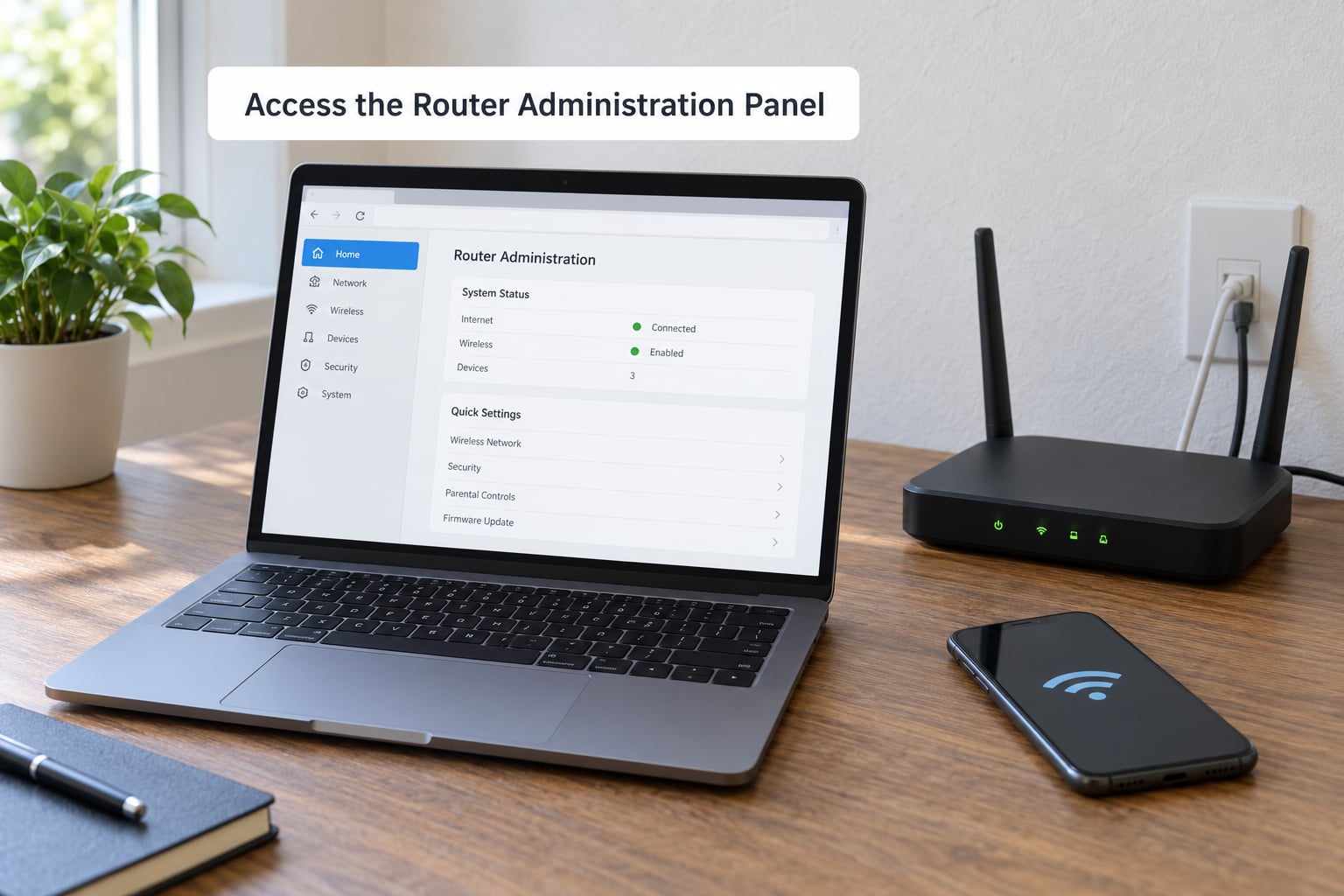
Type the router’s local IP address into the address bar of a browser on a device connected to that network. Most routers use 192.168.1.1 or 192.168.0.1, many mesh and ISP units use 10.0.0.1, and Xiaomi routers commonly use 192.168.31.1. The sticker on the base usually lists the exact address.
Sign in with the administrator username and password from the sticker. If the sticker is gone, check the ISP app, the box the router came in, or the manual in the manufacturer’s support app. Never try admin-panel changes over public Wi-Fi or a hotel connection, because that network can watch the unencrypted page load.
How to tell it worked: you are looking at a page with wireless, system and network sections, and any change you make sticks after you click Apply.
2. Change the Router Administrator Password
This is the most important step in the whole process, and the one most people skip. The admin password opens the settings page itself, which is far more valuable than the Wi-Fi password. Look under System, Administration, Management or Security, then change both the username and the password.
Use something long and generated by your password manager, and keep it different from the Wi-Fi password. If the router lets you leave the username as admin, change it too; it removes one more thing an automated scanner has to guess. This is the setting that quietly stops the most common attack against home networks.
3. Set a Strong Wi-Fi Password and Network Name
Set encryption to WPA3-Personal if your router and devices support it, otherwise WPA2 with AES. Never leave the network on the old WPA option or open with no password; both are cracked in minutes by anyone within range.
For the password itself, a passphrase of four or five unrelated words beats a short string of symbols, because you will actually remember it and can type it on a smart TV remote. Aim for sixteen characters or more, and skip anything found in a breach list. Do not reuse your email password.
The network name, or SSID, is broadcast to anyone nearby, so skip your street address, your surname and the router model. A name such as a short household word plus a number tells a passer-by nothing useful. Check that saving the new password did not knock your own devices offline: each one needs to rejoin with the new passphrase.
4. Update the Router Firmware
Firmware updates close the specific holes that attackers already know about, which is why an old router is a bigger problem than a weak password. Look for an Update Firmware, System Update or Device Update option in the settings page, or use the manufacturer’s app, which usually prompts you on first login.
Install only updates that come from the manufacturer’s own app or site, and let the router restart. Update before you change anything else when you have never touched the settings; some updates reset options to factory defaults anyway. ISP-supplied routers often update through the carrier app or overnight, in which case your job is only to allow automatic updates and stop ignoring the notification.
5. Disable Remote Administration and Unused Features
Three settings cause most of the trouble, and all three live in slightly different menus depending on the brand.
- Remote or WAN management. This lets the settings page be reached from the internet. Turn it off unless your brand’s app genuinely manages the router over your phone’s data connection. Remote access is the single highest-risk toggle here.
- UPnP (Universal Plug and Play). It lets any device on your network open a port on its own without asking. Malware on one cheap smart device uses it to hand itself a doorway. Turn it off; games and video calls may need manual port forwarding, which you can add deliberately instead.
- WPS (Wi-Fi Protected Setup). The push-button and eight-digit PIN methods exist so you can add a printer without typing a password. The PIN can be brute-forced from outside in a few hours. Turn it off and use the normal password.
Also check for Telnet, SSH, remote file sharing and a DMZ host setting, and switch off anything you do not recognise. If a smart TV, console or speaker stops connecting after one of these changes, re-enable that single setting first and check the rest later.
6. Separate Guests and Smart-Home Devices
Create a second network called Guest or IoT in the wireless settings, give it its own strong password, and move cameras, robot vacuums, smart plugs, thermostats, speakers and smart locks onto it. Guests use that network too, so visitors and untrusted devices end up in the same bucket, away from your laptop and phone.
Look for an isolation switch next to the guest network option and turn it on. Without it, a separate network name still leaves devices able to reach each other, which defeats the point.
The honest caveat: some smart-home ecosystems need local, direct access to devices, and those stop responding when you move them onto an isolated guest network. If that happens, move them back and rely on the other six steps, or check whether your brand supports a dedicated IoT network that allows local traffic. Routers that support VLANs give you proper segmentation, but that is a hardware feature rather than a settings toggle.
7. Test the Secured Network
Reconnect your Android phone, computers and smart-home devices one at a time and confirm each one still reaches the internet. Then check three things in the settings page: the wireless security mode reads WPA3 or WPA2-AES, remote management and WPS are both off, and the firmware page shows no pending update.
Open the connected devices list, usually under Device Management or Network Status. Every entry should be something you recognise, and matching a name to a MAC address or IP takes a minute when the labels are vague. An entry you do not recognise should be removed or blocked, then the Wi-Fi password changed, which forces that device to re-authenticate and locks it out. Repeat the device audit a week later; a stranger who cannot rejoin will not come back on its own.
Common Mistakes That Undo All of This
- Leaving the default administrator password. Fix: change the admin username and password first, before anything else, and store both in your password manager.
- Using one password for the Wi-Fi, the admin panel and email. Fix: generate three separate passwords; a leaked Wi-Fi password should never open your router.
- Leaving WPS on because it made the printer setup easier. Fix: disable WPS and add printers through the settings page with the normal password.
- Running an open network, or WEP, thinking a hidden symbol-heavy password protects it. Fix: use WPA3-Personal, or WPA2-AES if a device needs the older standard.
- Postponing firmware updates. Fix: install the current update this week and enable automatic updates where the router or ISP app offers them.
- Leaving remote management on “just in case” the app needs it. Fix: switch it off, test your app, and only re-enable it if the manufacturer requires it.
- Trusting every device on the main network. Fix: move cameras, speakers and other gadgets to the guest network with isolation enabled.
Two older pieces of advice deserve a plain verdict. Hiding your SSID and MAC address filtering both add friction without stopping anyone determined, and hiding the network name regularly breaks smart-home devices that scan for it. If you lock yourself out, the small reset pinhole on the back needs a ten-second press with a paperclip, and that factory reset erases your Wi-Fi name, both passwords, port forwarding rules and any ISP login details the router stored. Have those ISP credentials written down before you need them.
Frequently Asked Questions
What is the most important step when learning how to secure your home wifi router?
Changing the router’s administrator password, because it is the one setting most routers ship with printed on the sticker and the one that opens the settings page itself. Do it first, save it in a password manager, and make it different from your Wi-Fi password. The rest of the steps matter, but none of them protects you if someone can log in as admin.
How do I find the IP address of my home router?
Look at the sticker on the bottom or back of the router, which usually prints the management address under something like Management URL or Gateway. Common values are 192.168.1.1, 192.168.0.1, 10.0.0.1, and 192.168.31.1 on many Xiaomi routers. On an Android phone, the router address also appears under the connected network’s details in the Wi-Fi settings screen.
Should I use WPA2 or WPA3 for my home Wi-Fi?
Use WPA3-Personal when your router and your devices support it, since it is the stronger of the two. Fall back to WPA2 with AES rather than the older WPA or WEP options. If a smart-home gadget only speaks WPA2, run the router in mixed WPA2/WPA3 mode so the gadget keeps working while newer devices get the better option.
Is it safe to use a guest network for smart-home devices?
It is the practical option on most consumer routers, with one catch: turn on the guest network’s isolation switch, otherwise devices on it can still reach your computers and phone. Some ecosystems need local access and stop responding once isolated. If that happens, move those devices back to the main network and rely on the other security settings instead.
Should I change the default administrator password on my router?
Yes, without exception. The factory username and password are printed on the device and listed in manuals and databases, so anyone within reach of your Wi-Fi can try them. Changing it also protects the settings that control your passwords, firmware and port forwarding. Store the new one in a password manager, because forgetting it means a factory reset.
How often should I update my router firmware?
Check monthly, and install an update as soon as one appears, since patches fix vulnerabilities attackers already know about. Many routers and ISP apps check on their own, so enable automatic updates and only confirm them. A router you have never updated in over a year is the most urgent item on this whole list.
Conclusion
Do one thing tonight: open the admin panel and change the administrator password, then set WPA3 or WPA2-AES while you are already in there. Add the firmware update, switch off WPS, UPnP and remote management, and move your cameras and smart gadgets to an isolated guest network before bed.
Save both new credentials in your password manager, and run the connected-devices audit again a week later. Repeat the whole check after any router replacement or factory reset, since a fresh device arrives with factory settings all over again.