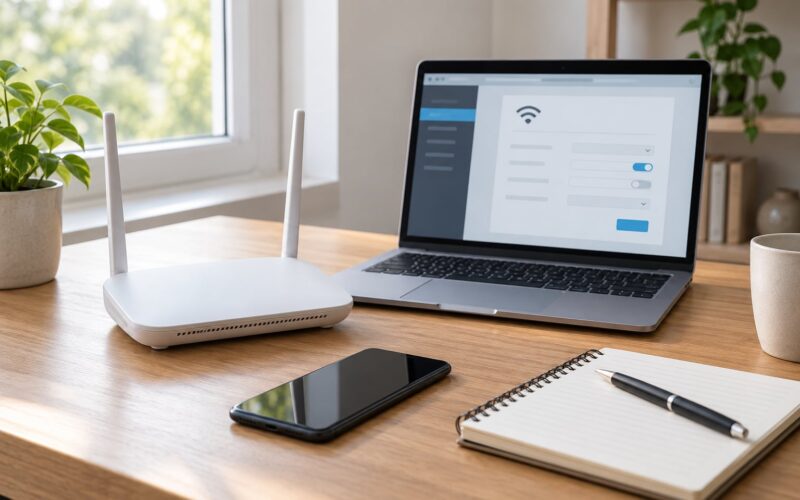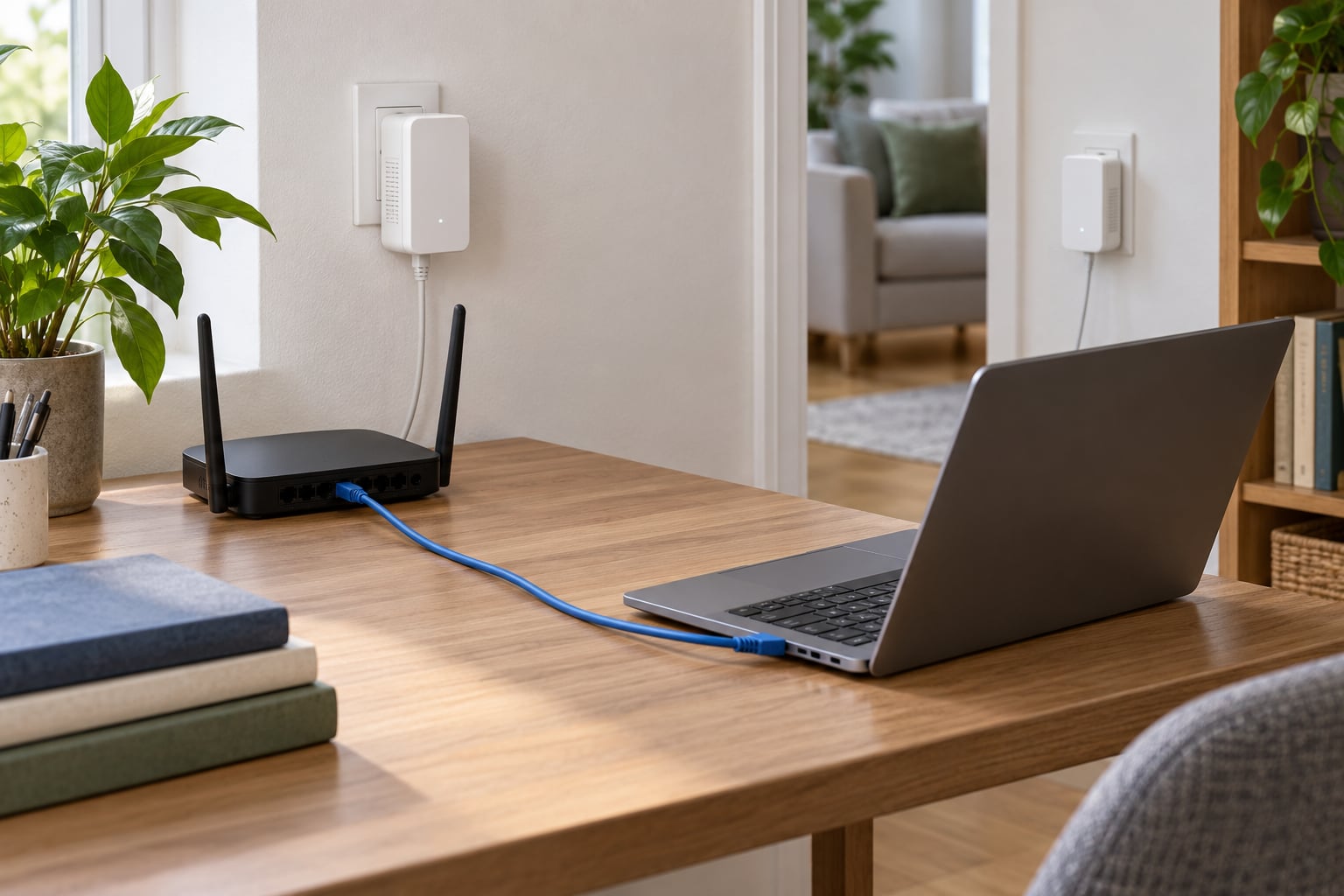
Ethernet over powerline adapters turn your existing electrical wiring into a network cable, so a room that is too far from the router for Wi-Fi can still get a wired connection. Plug one adapter into the router, plug another into the wall outlet next to your TV, game console or PC, and press the pairing button on both. The whole job takes about ten minutes and costs no drilling.
That is the honest headline. Powerline is brilliant for reaching a dead zone and mediocre for speed, and the gap between those two facts is where most frustration comes from. This guide walks through the setup, then through the wiring and interference problems that decide whether a link runs well or barely runs at all.
Table of Contents
- What You Need
- How to Use Ethernet Over Powerline Adapters: Step by Step
- 1. Check Your Network and Electrical Setup Before You Use Ethernet Over Powerline
- 2. Place the First Adapter Near the Router
- 3. Install the Second Adapter Near Your Device
- 4. Pair or Sync the Adapters
- 5. Confirm Ethernet Internet Access
- 6. Improve Coverage and Speed
- Common Mistakes and How to Fix Them
- Frequently Asked Questions
- Do powerline adapters work in any home?
- Why are my powerline adapter speeds lower than advertised?
- Can powerline adapters provide Wi-Fi throughout the house?
- Can I use powerline adapters across two different electrical circuits?
- Is it better to use powerline adapters or a mesh Wi-Fi system?
- Conclusion
What You Need
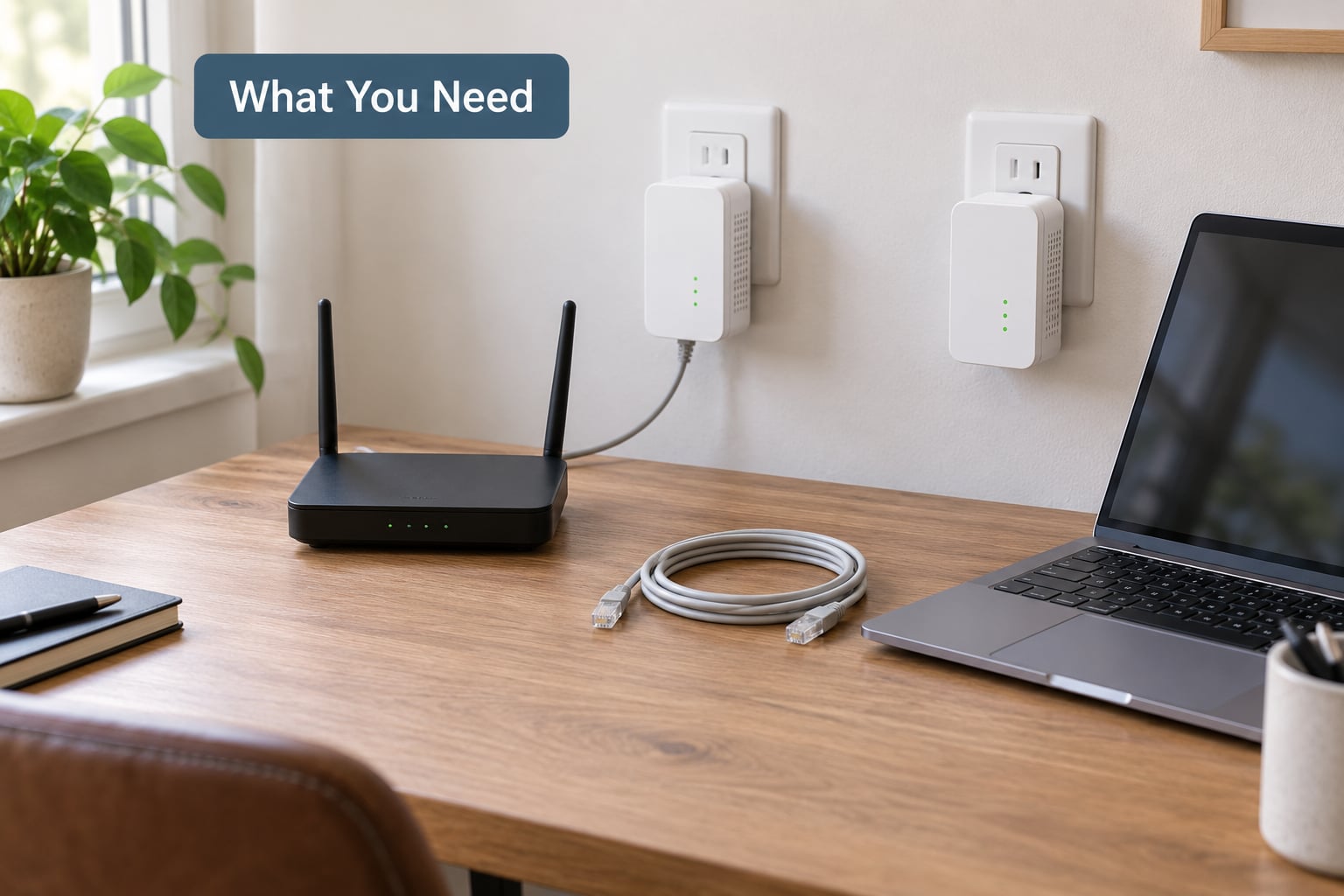
Start with a matched pair of adapters. Buy two units from the same manufacturer in the same speed class, not one leftover model from an earlier purchase.
- A pair of powerline adapters in the same range, such as a HomePlug AV2 or G.hn pair. Mixing standards caps the whole network at the slowest link.
- A router with a free Ethernet LAN port. Do not use the WAN/Internet port; that slot is for the cable from your modem.
- Two Ethernet cables, one for each adapter. Three metres is plenty for the first link.
- Two direct wall outlets on the same circuit, with nothing else sharing the socket.
- Optional extras: an extra adapter for each additional room, a small Ethernet switch if one room needs several wired devices, or an access point or mesh node if that room also needs Wi-Fi.
Powerline uses your AC wiring as a half-duplex shared medium, so extra adapters all share one connection back to the router rather than each getting their own. If a room needs three wired devices, buy one adapter and a cheap unmanaged switch, or plan around it. A passthrough model with a built-in socket is worth it in a kitchen or a room where the wall outlet is the only one available.
How to Use Ethernet Over Powerline Adapters: Step by Step
1. Check Your Network and Electrical Setup Before You Use Ethernet Over Powerline
Look at your consumer unit or fuse board and work out which breaker feeds the outlet near the router and which feeds the far room. Both adapters on the same circuit, on the same phase, is the setup that works reliably.
On a split-phase panel that means both sockets are on the same leg, either line 1 or line 2. Across two legs the link may still form, but it usually drops to a crawl. Two houses in the UK and Australia use ring mains, where sockets are daisy-chained in a loop rather than split into star branches, so any two sockets on the same ring can talk to each other. A spur socket on the same ring is fine. A socket on a completely separate ring or outbuilding supply is a different story.
Keep the pair off power strips, extension leads and surge protectors. Those add filtering and shared electronics between the adapter and the wire, and it is the single most common reason a working kit stops working once it moves from a desk to a real socket.
2. Place the First Adapter Near the Router
Plug the first adapter into a wall socket close to the router, then run a short Ethernet cable from that adapter into a free LAN port on the router.
Outlet first, cable second, and keep that cable under three metres. A long patch lead cannot improve anything here; the data is already going through your mains wiring. If the router sits in a hallway cupboard, put the adapter in the nearest socket inside the room rather than the one outside it.
3. Install the Second Adapter Near Your Device
Plug the second adapter into a wall socket in the room with the device you want to wire up, and run an Ethernet cable from it to the PC, television, console or NAS.
Wait about 30 seconds for the adapter to boot and read the power line. Most units show a solid or blinking network LED once they have locked onto a partner, and the pair usually finds each other on its own within a minute. If nothing happens after two minutes, move on to the pairing step.
4. Pair or Sync the Adapters
Press the Pair button on one adapter, then the other, usually within two minutes of each other. Hold each for about one second, watch both LEDs flash, and wait for them to settle.
Sequences differ by brand. Some units need a three-second hold on the base unit before you press the remote, some pair on first plug-in with no button press at all, and a few use a vendor app instead of a physical button. Follow the manual for the exact sequence.
Adding a third adapter later takes the same route: plug it into a wall socket, connect its Ethernet cable, press Pair on it and on any adapter that is already working. Ten to fifteen adapters is a normal ceiling for one powerline network, and a switch or access point is usually a better answer past three or four.
5. Confirm Ethernet Internet Access
Check that the device has picked up an IP address, then run a speed test on the wired connection and compare it with the number your broadband plan promises.
Three different speeds are easy to confuse. Your broadband plan sets the ceiling. The Ethernet link speed is what the cable and the device ports negotiate, usually 1 Gbps. The powerline rate is the estimated throughput across the mains wiring, shown in the adapter software, and it is always the most optimistic of the three. Realistic wired throughput through powerline lands somewhere around 150 to 350 Mbps on good wiring, against advertised rates of 1200 Mbps or more.
6. Improve Coverage and Speed
Move the far adapter one socket closer to the router and watch the reported powerline rate. In a good installation that single move can double the rate, because every extra socket adds wiring noise.
Update adapter firmware and router software, then keep noisy loads away from the pair. Vacuum cleaners, washing machines, fans and cheap USB chargers all push noise onto the line. If you need Wi-Fi as well as a wired link in the far room, plug a Wi-Fi access point or a mesh node into the second adapter’s Ethernet port, and it gets a wired backbone without Wi-Fi jumping between distant rooms.
Common Mistakes and How to Fix Them
Nothing happens when you plug in. An adapter in a power strip, extension lead or double socket with a lamp attached is the first thing to rule out. Move both units to bare wall outlets and try again. Forum readers report this constantly: a pair that links fine side by side on a desk and refuses to connect once split across two real rooms is telling you the wiring is the problem, not the hardware.
Adapters will not pair. Confirm they speak the same standard. A HomePlug AV2 unit and a G.hn unit will not form a network with each other even when they sit on the same socket. Then factory reset both: hold the Pair button for about ten seconds until the LED blinks rapidly, unplug for five seconds, and repeat the pairing sequence from scratch.
They pair, then drop after days. Something on the circuit is switching on. Check for GFCI or RCD-protected sockets, kitchen appliances on the same ring, and sockets with USB charger modules built in. One reader traced a collapse from a stable 30 to 40 Mbps down to 2 to 10 Mbps to a touch lamp sharing the outlet.
Speed is far below the number on the box. Expect roughly 30 to 35 percent of the advertised powerline rate as real throughput. Anything under 100 Mbps usually means a filter, a double socket or a very long wiring path. Move the remote adapter one socket closer and re-measure.
It works but Wi-Fi in that room is still bad. Powerline only carries the wired link. If the far room also needs wireless, connect an access point or mesh satellite to the adapter’s Ethernet port.
Change one variable at a time and re-test after each. Swapping sockets, then moving the remote unit, then swapping a surge protector for a wall outlet tells you which change actually mattered. Moving several things at once leaves you guessing.
Frequently Asked Questions
Do powerline adapters work in any home?
Usually yes, in most homes built with standard wiring. They rely on your existing AC wiring carrying data, so they work best in houses, flats and extensions wired in the last few decades. Older properties with very old rubber-insulated cable, rewired interiors or long satellite feeds can perform poorly. Powerline also struggles where sockets sit on separate supply rings or opposite legs of a split-phase panel.
Why are my powerline adapter speeds lower than advertised?
The number on the box is a powerline rate, not internet speed. Around 30 to 35 percent of that rate becomes real throughput, so a 1200 Mbps unit commonly delivers 150 to 350 Mbps. Power strips, extension leads, double sockets, RCD or GFCI devices, and noisy appliances on the same circuit all push the figure down further. Moving the far adapter one socket closer often makes the biggest difference.
Can powerline adapters provide Wi-Fi throughout the house?
Only if you add Wi-Fi hardware to them. The adapter itself gives you an Ethernet port, not a radio. The common setup is to plug a Wi-Fi access point or a mesh node into that port, which gives the wireless side a wired backbone. That combination works well in thick-walled or stone houses where wireless backhaul struggles.
Can I use powerline adapters across two different electrical circuits?
They can try, but results vary. On the same circuit and same phase the link is stable. Across different circuits it may still form at a much lower rate, or refuse to pair at all. On split-phase panels, keep both adapters on the same leg. Powerline devices designed for a fuse board or DIN rail are built specifically to bridge separate circuits.
Is it better to use powerline adapters or a mesh Wi-Fi system?
Mesh Wi-Fi is easier to set up and covers a whole home evenly. Powerline gives a wired link that stays steady and adds little latency, which matters for a console or desktop in a far room. If a cable run is possible, Cat6 is faster than either. Mesh wins for pure coverage; powerline wins when you want one device on a stable wired connection.
Conclusion
Start with the free test: plug a matched pair straight into two wall outlets on the same circuit, cable one to the router, and check whether a wired connection appears before you buy anything else.
Powerline earns its place when a room is unreachable by Wi-Fi and pulling cable is not realistic, and it makes a solid wired backbone for a mesh node or access point. Run Cat6 anyway if you can afford it, because a real cable still beats any adapter. For whole-home coverage with nothing to install in the walls, mesh Wi-Fi is the simpler buy.