The fastest way to see everything on your network is your router’s admin page: type the router’s local address into a browser, sign in, and open the connected devices or DHCP clients list. If that list is thin or unlabeled, a network scanner app like Fing will build a clearer one from your phone. Last checked October 2026.
That answer covers most people in about two minutes. The longer version matters when you find a name you don’t recognize and need to work out whether it’s a forgotten smart plug in a drawer or something that should not be there at all.
Table of Contents
- What You Need
- Step-by-Step
- How to Check Connected Devices in Your Router
- How to Find Devices Connected to Your Wi-Fi on Android
- How to Check Smart-Home Devices
- How to Identify an Unknown Connected Device
- Common Mistakes
- Frequently Asked Questions
- How do I log in to my router if I don’t know the password?
- Why doesn’t my router list a device that is clearly connected?
- Can I see what devices on my Wi-Fi are browsing?
- How do I check connected devices on a mesh Wi-Fi system?
- How do I identify an unknown device on my network?
- How do I block a device from my Wi-Fi network?
- Conclusion
What You Need
You need four things, and the first two live on the router itself.
- The router’s local address (its default gateway), usually 192.168.0.1 or 192.168.1.1.
- The administrator username and password, printed on a sticker on the bottom or back of the router. Change them if you have, and try the ISP’s default if you have not.
- An Android phone or computer already connected to the same Wi-Fi. A device that is not on the network cannot reach the router’s page.
- Your router or ISP app, plus any smart-home apps you use, for cross-checking names.
Two minutes of setup is worth it before you start guessing. If you cannot find the sticker, the label is often inside the router’s admin page under System Information or on the ISP’s support site.
Step-by-Step
Start with the router. It is the only source that shows the truth about the whole network, and it costs nothing. Everything below is ordered by how much detail you get.
How to Check Connected Devices in Your Router
Connect your phone or computer to the router’s Wi-Fi, open a browser, and enter the router’s local address. Type it in without http:// or https://, then sign in with the sticker credentials.
Not sure which address to type? Find the default gateway on the device you are using:
| Device | Where the gateway is | Common value |
|---|---|---|
| Windows | Command Prompt, type ipconfig, read Default Gateway | 192.168.0.1 or 192.168.1.1 |
| Android | Settings, Wi-Fi, tap your network, then IP settings | 192.168.0.1 or 10.0.0.1 |
| iPhone or iPad | Settings, Wi-Fi, tap the (i) next to your network, Router field | 192.168.1.1 |
| macOS | System Settings, Wi-Fi, Details, Router | 192.168.1.1 |
| ISP-supplied gateway | Varies by provider and region | 10.0.0.1 or 10.0.1.1 |
That page is a small local website served by the router itself, not something on the internet, so it works with the internet connection down. If the address loads nothing, make sure you are on the main Wi-Fi rather than cellular data, and try the value from your device’s network details instead of a value you found online. If the login page rejects the sticker password, the credentials were changed at setup.
Once you are in, the list of connected devices lives under a different label depending on the brand. The table below covers the models people search for most, and it is worth finding your own router’s label before you start clicking around:
| Router brand | Menu label for the device list |
|---|---|
| TP-Link | Attached Devices (often under Status or Wireless) |
| Netgear | Attached Devices, under Advanced or Administration |
| ASUS | Network Tools, then Client List |
| Xiaomi or Redmi | Device list in the router admin page, also shown in the Mi Home or Xiaomi app |
| Xfinity | Connected Devices, in the xFi gateway or app |
| Verizon FiOS | Devices, then Devices again |
Names shift between firmware versions, so if Connected Devices is not there, look for DHCP clients, client list, network status, lease table or LAN status. That is the same table wearing a different label.
Most lists show a device name, an IP address, a MAC address, sometimes a vendor and a connection type. Two things are worth knowing about that display. A device marked offline may simply be asleep: a phone with Wi-Fi on but the screen off often drops off the live list while still holding its lease. And an empty device name usually means the device never sent a hostname, so the router falls back to its MAC address.
You can count a busy network from the same list: read the number of active entries while everyone is home, then compare it later to see what appears overnight. This is the quickest way to answer how many devices are connected to my wifi router, and it takes one glance rather than a tool.
How to Find Devices Connected to Your Wi-Fi on Android
Android itself cannot list the whole network. The connection screen on your phone shows your phone’s own details, such as its IP address, gateway and MAC, not every other device.
What works from Android is the same router page, viewed on the phone. Open Chrome, type the gateway address, sign in, and open the device list. The layout is cramped on a phone, but it is complete.
Better options exist when the router has an app. Most current models ship with one, and it usually shows devices grouped by category, sometimes with friendly names like Living Room TV or Bedroom Camera. Xiaomi and Redmi routers surface their client list inside the Mi Home app; Tapo routers have their own app, as do ASUS, Netgear and most mesh systems. ISP apps from Xfinity, Verizon, Spectrum and AT&T also show a connected device list for their own gateway.
If you want a sorted view with vendor names attached, install a network scanner such as Fing, run a scan, and it sweeps your subnet from the phone and builds the list for you. It is the fastest route when you do not have the admin password and the router page is a dead end.
How to Check Smart-Home Devices
Smart-home apps give you a cleaner list than the router, because each device registers with its maker under a name you chose.
Open Xiaomi Home, Google Home, Amazon Alexa or Tapo and look at the device roster. Cameras, locks, bulbs, plugs, thermostats and speakers usually appear with the room name you gave them. This is the fastest way to match a mystery entry on the router list against something you own: if Alexa shows a camera you added last spring, the unknown device is that camera.
There is one catch. App records show devices you paired, including ones currently offline. A router client list shows who is connected right now. Comparing the two tells you something useful: a device in your app but not on the router’s live list is powered off or out of range, not deleted.
A full audit takes five minutes once the list is open: write down every registered device, then walk through the house and match it to a physical object. That walk-through is what turns up the entries people forget, such as a smart plug in a drawer they stopped using or a camera on the old broadband router. Since 2026, cheap smart bulbs and plugs have made those forgotten entries far more common.
How to Identify an Unknown Connected Device
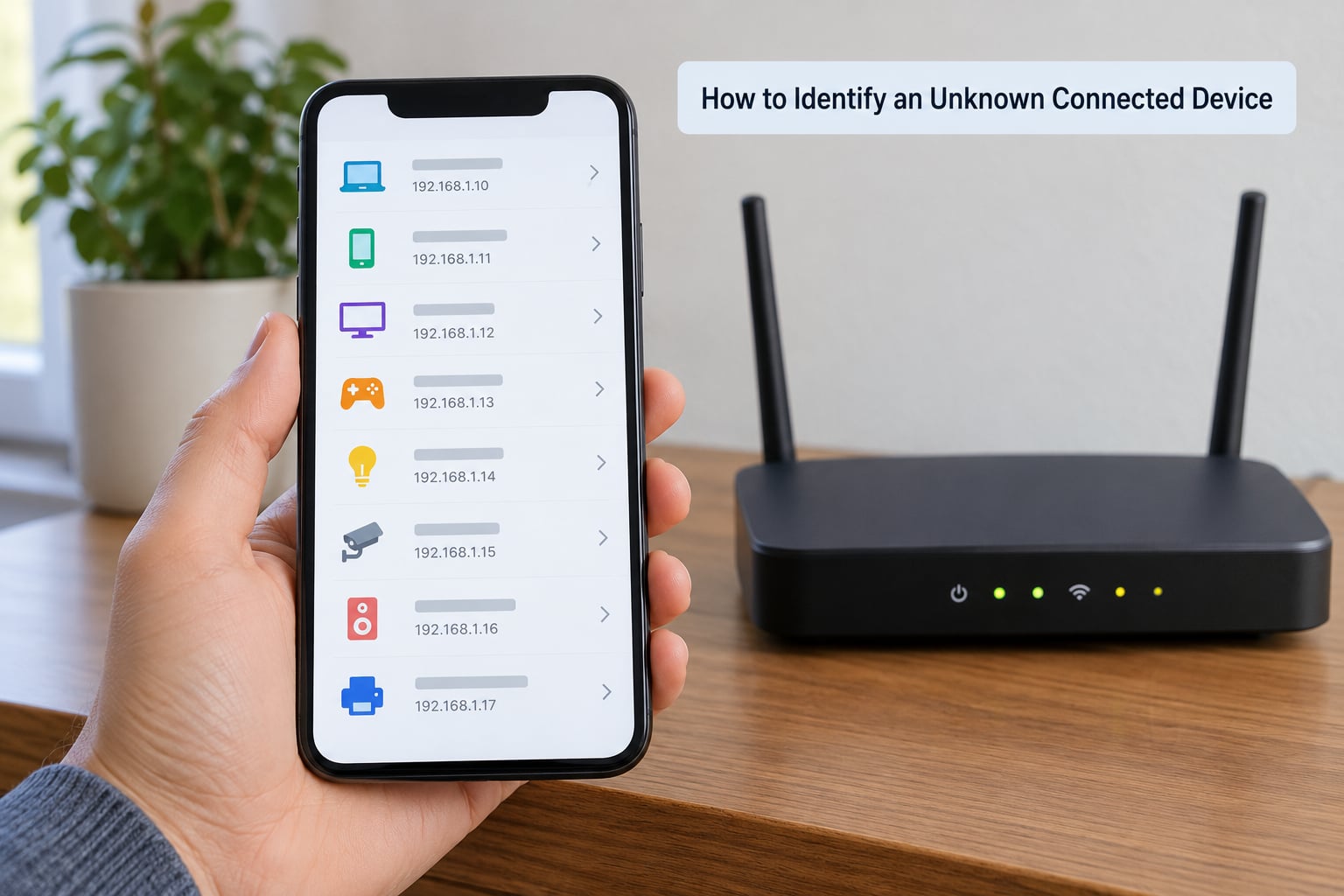
Work through the entry field by field instead of guessing from the name. Names like android-9f3a or ESP_12AB34 are auto-generated and tell you nothing; the MAC address tells you plenty.
A MAC address is twelve hex characters, and its first six identify the hardware maker. Look at those first six and search them in a MAC lookup database to get the vendor. Then compare the rest of the entry against what you actually own.
Here is the order that works for most households:
- Check for a friendly name. Anything a phone or computer registered, such as Johns-iPhone or Living-Room-TV, is almost always yours.
- Match the vendor prefix of the MAC address against the device type. A printer, a smart speaker and a camera all have recognizable vendors.
- Compare the IP address with what your own devices show. Many routers assign addresses in a consistent block by device type or by order of first connection.
- Look at the connection type. Wireless versus wired separates your desktop PC from the smart devices, which are almost always wireless.
- Check activity. Many routers show a throughput column or a last-seen time. A device pulling steady traffic at 3am is worth a closer look than one that appeared for two minutes.
If the entry has a hardware address you cannot place, check whether your phone is using a private Wi-Fi address. Modern Android and iPhones generate a random MAC per network by default, so your own handset can appear as an unfamiliar hardware address that changes when it reconnects. That single setting explains most of the panic in unknown-device posts. The list on your phone’s Wi-Fi details screen shows the randomized address currently in use.
One honest limit before you worry: a router shows you who is connected, not what anyone is browsing. Your ISP translates destination addresses on the way out, so traffic content is not available in a home router’s device list. If you need to see history, it has to be logged on the device itself.
Common Mistakes
These are the errors that make the list look wrong when the network is fine.
You are on the guest network. Guest networks are deliberately isolated, and most routers keep a separate client list for them. Connect to the main SSID and check again. A guest network is also why you can be streaming fine and still not see your smart plug online.
You are looking at the wrong band or the wrong node. On a mesh system or a setup with an extender, each node keeps its own client list. Check the mesh app rather than the main router page, and note that on r/HomeNetworking users have reported routers appearing not to see devices plugged into a switch on a LAN port, which is usually the extended or guest network reporting separately.
You typed the router’s IP address where a device address goes. The gateway is your router, and it always shows up in the list. To check which IP belongs to which device, put the address into a lookup tool or run nslookup followed by that address from a computer on the same network.
You are trusting device names. Names are self-declared and easy to fake or duplicate. The MAC address and connection type are harder to fake within a network, so use names as a hint and addresses as evidence.
The router firmware is old. Newer firmware shows vendor names, hostnames and last-seen times that older versions hide. Updating also fixes DHCP pool exhaustion, where a router stops handing out names because too many stale leases are held.
An inactive device is not automatically safe. A device shown as offline can reconnect the moment it wakes. If you do not recognize it, block it in the router’s access control or parental controls now, and give it a reason to stay off.
Blocking works in most admin pages under access control, parental controls or MAC filtering, and the entry is blocked from reaching the internet through your network. Changing the Wi-Fi password kicks everything off, including your own devices, so expect to reconnect the printers and smart displays. Moving guests to a guest network keeps them off your main devices without touching the password. A router restart clears the DHCP lease table and gives every device a fresh address, which also clears stale entries from the list.
Frequently Asked Questions
How do I log in to my router if I don’t know the password?
Check the sticker on the bottom or back of the router first, since most models print the administrator username and password there. If it has been changed and you have forgotten it, look for a small reset hole and hold it with a pin for about ten seconds while powered on. That restores factory settings, which means you set the Wi-Fi password again from scratch on your phone or computer.
Why doesn’t my router list a device that is clearly connected?
Three usual causes. The device may be asleep: a phone with the screen off often drops off the live list while keeping its lease. You may be on a separate guest or extended network with its own client list. Or the router’s DHCP pool is full of stale leases, so it stops naming new clients, and a firmware update clears this.
Can I see what devices on my Wi-Fi are browsing?
No. A home router’s device list tells you which devices are connected, their IP and MAC addresses, and often their traffic volume, but not the sites they visit. Your ISP resolves destination addresses on the way out, so page content is not available to the router. Browsing history has to be checked on the device itself, in its browser history or account activity.
How do I check connected devices on a mesh Wi-Fi system?
Use the mesh app rather than the main router page, because each node keeps its own client list and devices may show on the node they joined through. Most mesh apps present a combined view of every node in the system. If your mesh is an extender plugged into a LAN port, check the main router’s list as well, since the two networks can report separately.
How do I identify an unknown device on my network?
Start with the MAC address. Its first six characters identify the hardware vendor, and searching those characters in a MAC lookup database returns the manufacturer. Then compare the device name, IP address, connection type and activity against devices you own. If the vendor prefix changes on every reconnect, it is probably your own phone using a private Wi-Fi address.
How do I block a device from my Wi-Fi network?
Open the router’s admin page and look for access control, parental controls or MAC filtering, then add the device’s MAC address to the block list. To remove everyone at once, change the Wi-Fi password, which forces all devices, including printers and smart displays, to reconnect with the new one. A guest network keeps visitors off your main devices without changing anything.
Conclusion
Begin with the router’s connected device list, since it is the only view that covers everything at once. Cross-check any unfamiliar entry against your smart-home apps and the devices physically in your home, and read the MAC vendor prefix before you worry. If the access still is not recognized, block the device from the admin page or change the Wi-Fi password, then move guests onto a guest network so it does not happen again.