Monitor refresh rate is simply how many times per second your screen redraws the image, measured in hertz (Hz). A 60Hz monitor updates 60 times every second, a 120Hz monitor updates 120 times. For everyday work, anything above 60Hz feels noticeably smoother, and most people stop noticing improvements somewhere around 120Hz.
That’s the short version. The rest of this guide breaks the idea down into plain language, explains where the differences between 60Hz, 75Hz, 120Hz and 144Hz actually show up on screen, and tells you how to check what your own monitor is doing right now.
Table of Contents
- Monitor Refresh rate explained for non gamers: what it means
- What refresh rate is not
- What do 60Hz, 75Hz, 120Hz and 144Hz mean?
- How is refresh rate different from response time?
- How to read the spec
- Does a higher refresh rate matter for everyday computer use?
- Are 120Hz and 144Hz monitors worth it for non-gamers?
- Where you will not notice
- Diminishing returns
- What is variable refresh rate, and do you need it?
- How to choose the right refresh rate for your monitor
- 1. What does your computer output?
- 2. Which cable will you use?
- 3. How big is the screen and what resolution?
- 4. What do you actually do on it?
- 5. Panel type
- How to set or change your monitor refresh rate
- Frequently Asked Questions
- Is a 60Hz monitor still good for everyday use?
- Is 75Hz noticeably better than 60Hz for non-gamers?
- Can my computer run a monitor at 120Hz or 144Hz?
- Does a higher refresh rate use more electricity or affect laptop battery life?
- Should a non-gamer pay more for a monitor with a high refresh rate?
- What to do first
Monitor Refresh rate explained for non gamers: what it means
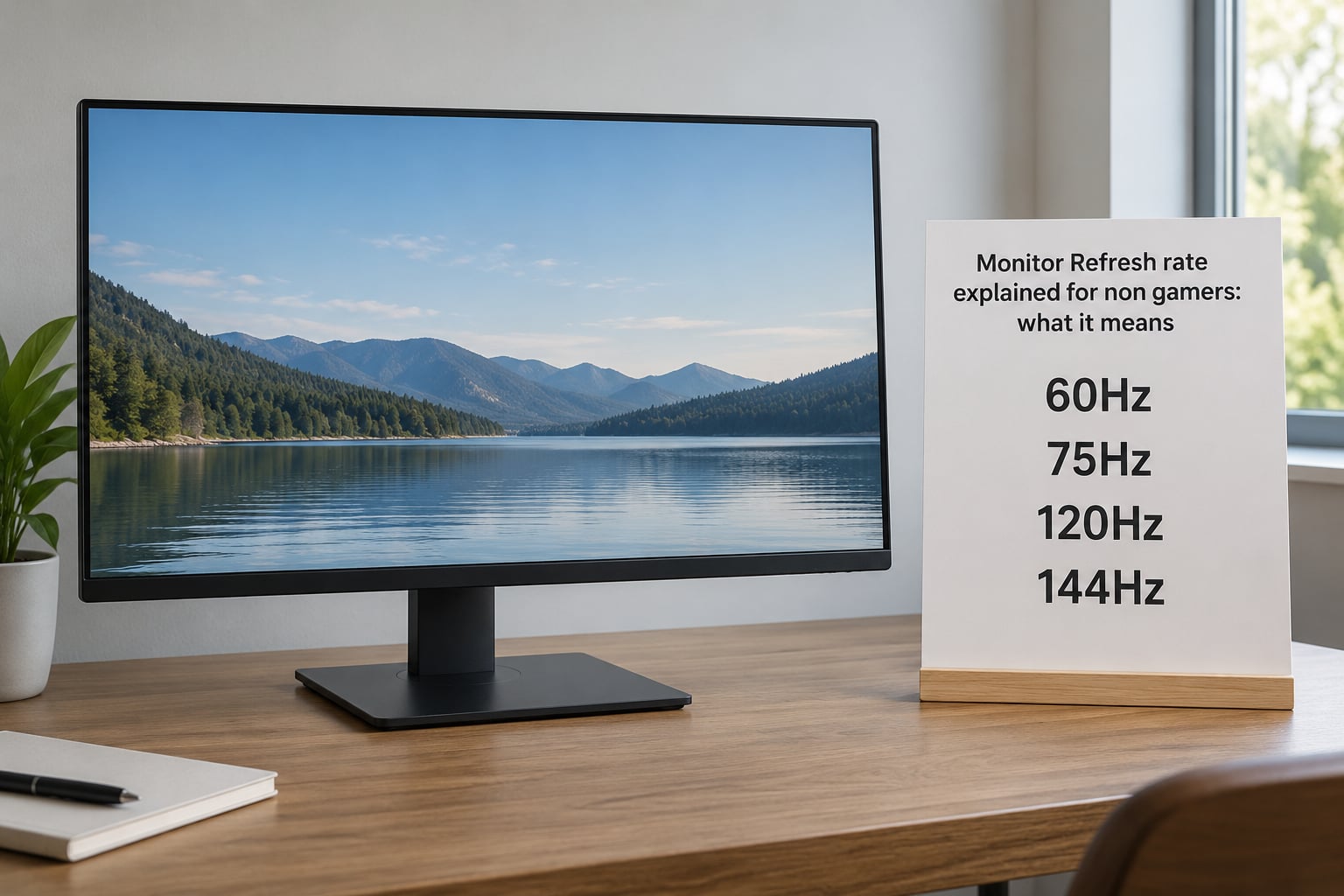
Refresh rate is a hardware specification of the display itself. It tells you how often the panel lights up its pixels to show a new image, and it stays the same no matter what you are doing on the computer.
The clearest way to picture it is a flip book. Someone drawing a flip book flips one page per beat, and the faster they flip, the smoother the movement looks. A 60Hz monitor flips 60 times a second, and a 144Hz monitor flips 144 times a second. Nothing about the drawing changes. The number of flips does.
That flip count is why a higher refresh rate leaves more time between frames. At 60Hz each frame lasts about 16.7 milliseconds. At 120Hz it lasts about 8.3 milliseconds. At 144Hz, about 6.9 milliseconds.
What refresh rate is not
Refresh rate is not the same thing as frames per second, which is what your graphics card produces. Your computer might be rendering new images at 60 frames per second while the monitor redraws the screen 144 times a second. The monitor cannot show more images than the computer sends it, but a fast monitor still makes everything it does show look cleaner.
Refresh rate is also not brightness, not sharpness, and not resolution. A 1080p monitor and a 4K monitor can share the same refresh rate and look completely different in text clarity.
What do 60Hz, 75Hz, 120Hz and 144Hz mean?
Each step up shortens the time between screen updates, and your eye picks up the difference most easily when something moves across the screen. Here is what each rate means in practice.
| Refresh rate | Time between updates | What it feels like | Worth considering for work? |
|---|---|---|---|
| 60Hz | 16.7 ms | Standard for decades. Fine for documents and video calls. | Yes, if it is all you need |
| 75Hz | 13.3 ms | A gentle step up from 60Hz. Movement is slightly cleaner. | Good budget upgrade |
| 90Hz | 11.1 ms | Comfortably past the point where most people notice a change. | Yes, often the value pick |
| 120Hz | 8.3 ms | Scrolling and window animations look distinctly smooth. | The sweet spot for most desks |
| 144Hz | 6.9 ms | Clear improvement over 120Hz for large scrolling and fast cursor work. | Worth it if you can use the difference |
| 240Hz and above | 4.2 ms or less | Designed for competitive play. Small gains for office work. | Rarely worth paying more for |
One practical warning. Phones and tablets advertise rates like 120Hz or 144Hz, so you may already have that smoothness on a small screen. Moving to a large 27-inch or 32-inch monitor at the same rate is a bigger perceived jump than the number suggests, because the screen is showing more content at once.
How is refresh rate different from response time?
Refresh rate is how often the screen updates, measured in times per second. Response time is how quickly a single pixel changes from one colour to another, measured in milliseconds. One controls how often new images arrive, the other controls how fast each pixel settles into place.
They work together. A 144Hz monitor with slow pixel response can still show a trail behind the cursor. A 5-millisecond pixel on a 60Hz monitor is quick, but the screen only presents 60 new images a second, so it never looks as fluid as a faster panel.
How to read the spec
When you see something like 1ms MPRT or 0.5ms GTG, that is response time. The GTG figure measures a typical grey-to-grey transition, while MPRT uses a moving test pattern that includes visible motion. Both are useful, and both are marketing-friendly numbers taken under controlled conditions.
For a non-gaming desk, look for response time in the 5ms GTG range or better on an IPS panel. That covers fast scrolling without the smearing you get from older TN panels.
Does a higher refresh rate matter for everyday computer use?
Yes, and most people underestimate how much. The difference shows up in anything where content slides across the screen, which on a work computer is most of the day.
- Scrolling — long documents, spreadsheets and web pages move more cleanly, with less blur between lines.
- Cursor movement — the pointer feels placed rather than dragged across the screen.
- Window animations — minimizing, snapping and dragging windows look crisp instead of steppy.
- Video calls — other people’s faces look steadier, especially on smaller tiles.
- Video playback — matters mostly at high frame rates; standard 24 or 30fps film looks the same on any panel.
Digital eye strain is the other angle. Screens that force your eye to track a stuttering pointer and a choppy scroll make long sessions more tiring, and several monitor makers now build eye comfort certification into their specs. TÜV Rheinland’s Eye Comfort rating requires a refresh rate of at least 120Hz alongside checks for low blue light and flicker-free operation.
None of that means a 60Hz monitor causes damage. It means 120Hz removes one more source of irritation from an already long day.
Are 120Hz and 144Hz monitors worth it for non-gamers?
120Hz is the point where most non-gamers notice something and most non-gamers stop. The jump from 60Hz to 120Hz is large and easy to describe. The jump from 120Hz to 144Hz is real but small, and you have to be the kind of person who watches their own cursor all day to enjoy it.
What tends to make 144Hz worth the extra money for a non-gamer is the rest of the panel, not the rate. A 144Hz monitor is usually a newer model with better colour accuracy, thinner bezels and more connection options than a budget 60Hz screen from three years ago.
Where you will not notice
Staring at a single static document, a spreadsheet with no scrolling, or a photo in an editor. Motion has to be on screen for a refresh rate to show itself. If your day is static content, extra refresh rate buys you nothing visible.
It also buys you nothing on video. A 24fps movie has 24 unique frames per second no matter what rate the display runs at. A 60Hz panel shows each of those frames twice; a 144Hz panel shows each one six times. The extra four showings are duplicates of the same image.
Diminishing returns
Improvements fade as the number climbs. Going from 60Hz to 120Hz doubles the update count. Going from 240Hz to 480Hz doubles it again, yet the visible change is far smaller, because your eye is already seeing less than a full new frame at 240Hz.
That is why 240Hz panels and above are built for competitive play, where a fraction of a millisecond between seeing an opponent move and reacting to it decides rounds. None of that applies to writing a report.
What is variable refresh rate, and do you need it?
Variable refresh rate lets a monitor change its update rate on the fly, dropping down when the computer is idle and rising when fast motion appears. The two common implementations are AMD FreeSync and NVIDIA G-Sync Compatible, which use the DisplayPort Adaptive Sync protocol.
Its main job is to match the screen to whatever the graphics card is producing and stop the two from disagreeing. When they disagree, you get stuttering during scrolling and visible tearing lines during motion.
For general productivity, variable refresh rate is a nice extra rather than a requirement. A stable 120Hz panel with a consistent frame rate feels perfectly smooth during office work. The benefit shows up in games where the frame rate swings wildly, which is a different conversation from the one non-gamers are having.
One exception is a mixed household. If someone else in the house plays games on the same computer, adaptive sync costs you very little and removes stutter for them without hurting anything for you.
How to choose the right refresh rate for your monitor
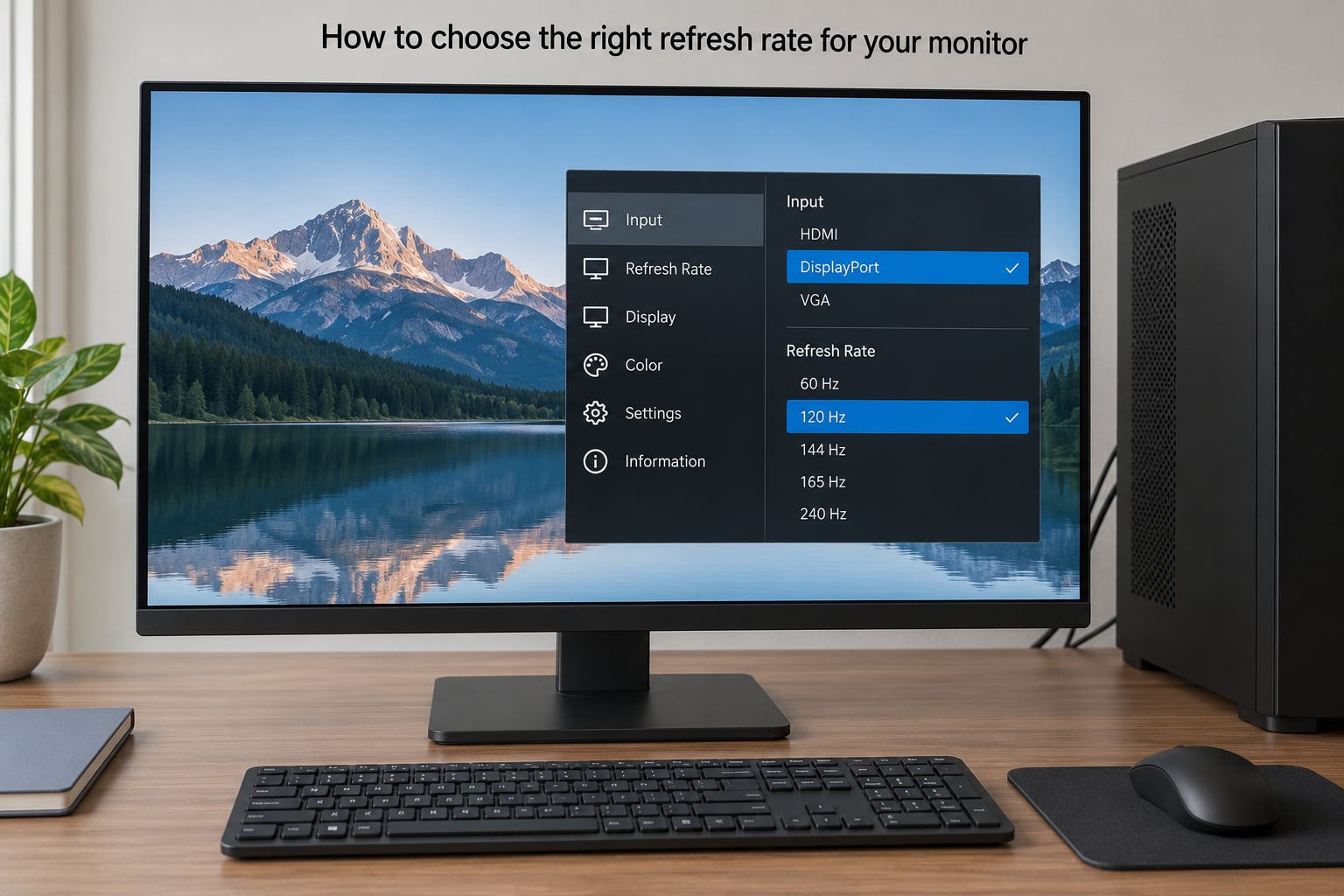
Work through these five questions in order and the number picks itself.
1. What does your computer output?
The monitor cannot exceed what the graphics output can send. Integrated graphics in most modern desktop processors and laptops will drive two monitors at 60Hz or 90Hz over HDMI, and reach 120Hz on a single display through DisplayPort or USB-C with DisplayPort alternate mode. Check the ports, not the marketing.
2. Which cable will you use?
This is where people get stuck. The cable often limits the refresh rate more than the hardware does.
- HDMI 2.0 — 1080p at 60Hz, 1440p at 60Hz, 4K at 60Hz.
- HDMI 2.1 — 1440p at 120Hz and higher, 4K at 120Hz on most modern monitors.
- DisplayPort 1.4 — 4K at 120Hz, 1440p at 144Hz and beyond.
- DisplayPort 1.2 — 1080p at 144Hz, 2560×1440 at 60Hz.
If your display lists a high rate in the manual, check which port and which cable version it requires before buying anything.
3. How big is the screen and what resolution?
Larger screens and higher resolutions use more of the cable bandwidth, which is why 4K monitors most often top out at 60Hz or 120Hz. A 27-inch 1440p screen at 144Hz is a comfortable pairing for desk work. Pushing 4K at 240Hz needs DisplayPort 2.1 or HDMI 2.1 bandwidth and a strong graphics output.
4. What do you actually do on it?
- Documents, email, browsing — 75Hz or 90Hz is plenty.
- Long spreadsheet sessions, data entry — 120Hz, because scrolling dominates the day.
- Video and photo editing — 120Hz for scrubbing timelines and dragging selection boxes.
- Coding with long file trees — 120Hz, since you scroll constantly.
- Casual games on the same machine — 144Hz gives you headroom.
5. Panel type
IPS gives accurate colour and wide viewing angles, which suits most desks. VA offers deeper blacks for media watching but can look smudged during fast scrolling. TN is the fastest and cheapest, with the worst colour and viewing angles. For a non-gaming monitor, IPS is the safe default.
How to set or change your monitor refresh rate
Windows frequently leaves a capable monitor running at 60Hz until you tell it otherwise, which is why people buy a fast screen and never see the difference. Changing it takes about a minute.
On Windows 11:
- Right-click an empty area of the desktop and choose Display settings.
- Scroll to Display resolution and pick the resolution your monitor is rated for.
- Select Advanced display from the related settings on the right.
- Find Choose a refresh rate and open the dropdown.
- Pick the highest rate the list shows above 60Hz and confirm.
- Repeat for each monitor in the top dropdown if you have more than one.
On macOS, open System Settings, then Displays. Every mode your monitor supports appears as a small row of thumbnails with the refresh rate underneath. Click the one you want, then confirm.
If a rate you expect is missing, the cause is almost always the cable, the port, or the graphics output rather than the monitor. Check the manual for the required port type and swap the cable before assuming the panel is faulty.
Frequently Asked Questions
Is a 60Hz monitor still good for everyday use?
Yes. A 60Hz monitor handles documents, browsing, spreadsheets and video calls without any real drawback, and it remains the baseline for most office displays. The difference only becomes obvious once you have used something faster. If you are buying for general work and want to keep costs down, 60Hz is a defensible choice, though 75Hz or 90Hz panels are often available for a modest step up.
Is 75Hz noticeably better than 60Hz for non-gamers?
Most people who switch from 60Hz to 75Hz notice a small improvement in scrolling and cursor movement rather than a dramatic one. The gap is real but modest, because you have moved from 16.7 milliseconds between updates to 13.3. It works well as a first upgrade when a full 120Hz step is out of reach, and plenty of casual users settle here permanently without wanting anything faster.
Can my computer run a monitor at 120Hz or 144Hz?
Often yes, but the port decides. Integrated graphics usually reaches 120Hz on a single display through DisplayPort or USB-C with DisplayPort alternate mode, while HDMI 2.0 caps out lower. A dedicated graphics card will handle higher rates more easily. The reliable test is to plug the monitor in and open Advanced display in Windows to see which rates appear in the dropdown.
Does a higher refresh rate use more electricity or affect laptop battery life?
It uses slightly more power because the panel and electronics are working twice as often, though the increase on a typical monitor is small, usually a few watts. On a laptop driving an external display, the effect is harder to measure because the machine is already drawing power for the screen. If battery life matters more than smoothness, run the external monitor at 60Hz when you are away from a desk.
Should a non-gamer pay more for a monitor with a high refresh rate?
Pay more for 120Hz if you scroll a lot, but not for 240Hz or beyond. The step from 60Hz to 120Hz is the one you will notice daily, and faster panels tend to ship with better colour accuracy and thinner bezels at the same time. Above 120Hz, extra money buys competitive gaming performance you will never use, so spend it on resolution or panel quality instead.
What to do first
Check what your current monitor is actually running at before you shop for anything. Open Advanced display in Windows, look at the refresh rate dropdown, and if it says 60Hz on a panel that promises more, change the cable or the port first. Then decide by activity: 75Hz or 90Hz for a light office budget, 120Hz if you scroll all day, and stay away from 240Hz unless someone in the house games seriously.