If your Bluetooth sound on Android sounds flat, hissy or quieter than the same headphones over a cable, the fix usually sits in the settings, not the hardware. Start by checking which codec your phone and earbuds actually negotiated, turn off the audio processing that mangles a stereo signal, and test away from crowded Wi-Fi. Most people fix it in under ten minutes without buying anything new.
The reason Bluetooth sounds worse than a wired connection is mostly arithmetic. A CD-quality track runs about 1,411 kbps, and the A2DP Bluetooth profile hands the encoder less than 1 Mbps to work with, so something has to be thrown away. The codec decides what gets thrown away, and Android often defaults to SBC, the least capable option available, because stability matters more to the phone than fidelity does.
Table of Contents
- What You Need
- Step-by-Step: Improve Bluetooth Audio Quality on Android
- 1. Reconnect your Bluetooth device
- 2. Check the Bluetooth codec in Developer Options
- 3. Disable Bluetooth audio adjustments and enhancements
- 4. Reduce Wi-Fi and Bluetooth interference
- 5. Set the correct audio output and volume balance
- 6. Update Android, firmware, and audio apps
- 7. Reset network settings if pairing is unreliable
- 8. Recognize when the hardware limits audio quality
- Which Bluetooth Codec Should You Choose?
- Common Mistakes
- Frequently Asked Questions
- Does changing the Bluetooth codec improve audio quality on Android?
- Why are there no Bluetooth codec settings in my Android Developer Options?
- Does Bluetooth use the phone’s media volume or call volume?
- Can a Bluetooth microphone sound worse than the phone microphone?
- Why does my Bluetooth audio keep cutting out on Android?
- Is Bluetooth audio quality limited by the version of my Android phone?
- Conclusion
What You Need
Before you change anything, make sure you can test properly. You need a compatible Android phone, a Bluetooth earbud or headphone set that actually pairs with it, and the latest firmware on both ends.
A full charge on both devices matters more than it sounds. Earbuds that are at 15 percent will negotiate a lower-power connection, and some of them silently drop to SBC when the battery dips.
Worth having handy: a second pair of earbuds, if you own one. Swapping devices is the fastest way to tell whether the problem lives in your phone or in your headphones.
Step-by-Step: Improve Bluetooth Audio Quality on Android
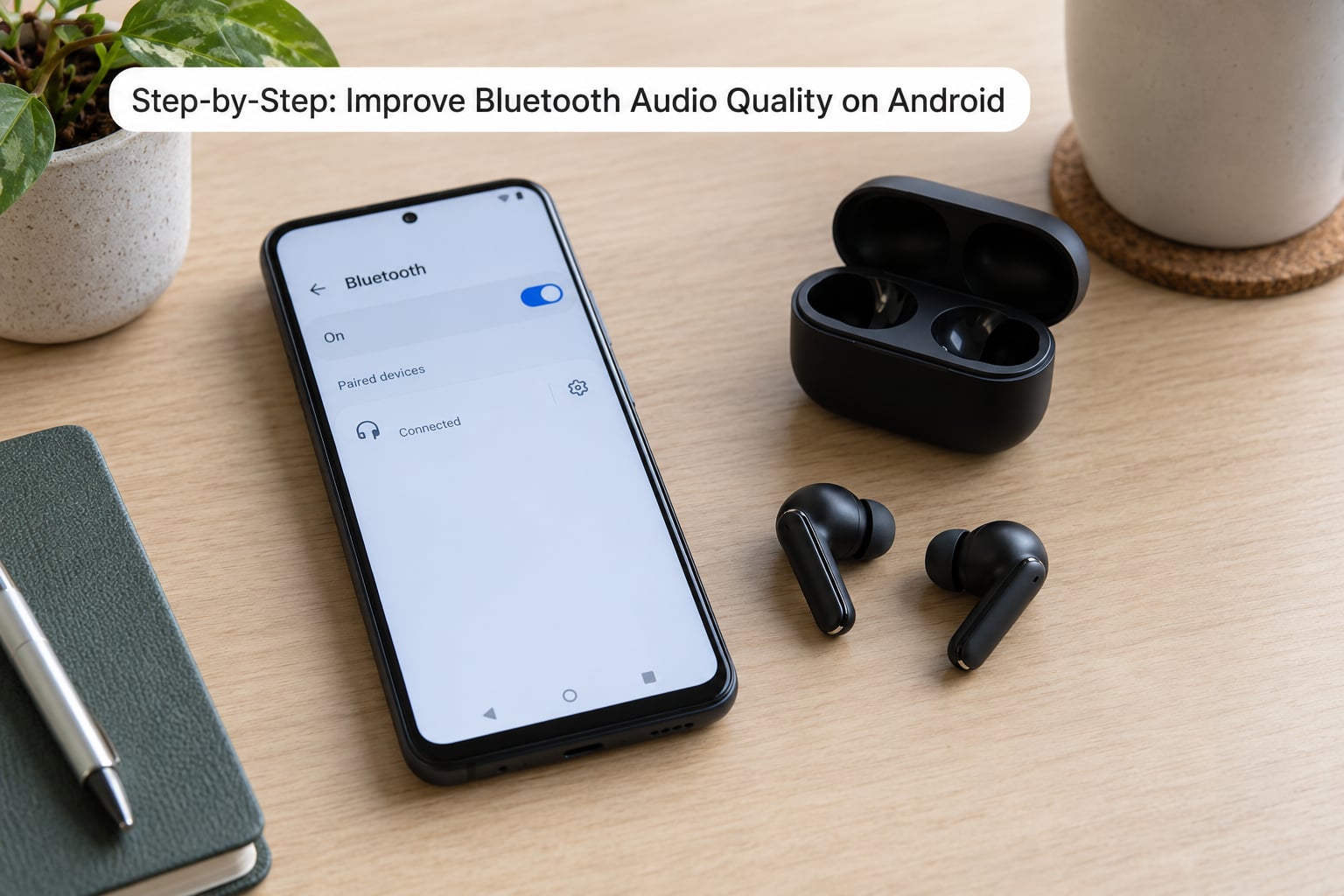
Work through these in order. Pairing and signal problems cause most of what people call bad audio, so fix those first, then move to codec and processing settings, and only then decide whether the hardware is the limit.
1. Reconnect your Bluetooth device
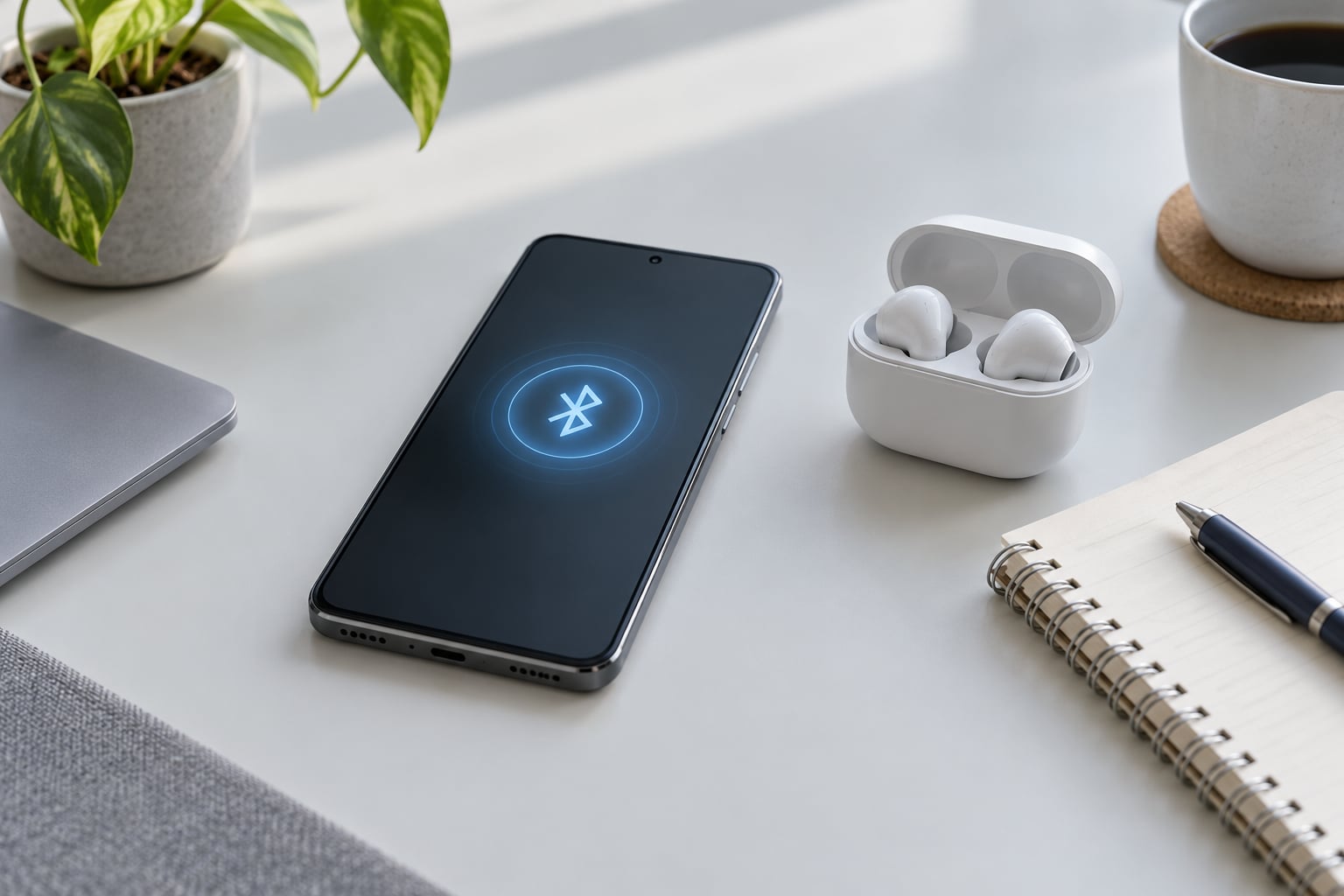
Go to Settings, then Connected devices or Bluetooth, tap the paired device, and choose Forget. Toggle Bluetooth off, restart the phone, turn Bluetooth back on and pair again.
Also reset the earbuds themselves: put them in the case, hold the pairing button for about 10 seconds until the light flashes rapidly, then pair. If the crackling, stuttering or one-sided audio disappears afterwards, the old pairing record was the culprit.
2. Check the Bluetooth codec in Developer Options
This is the setting that changes sound quality most, and most people never find it. Developer Options is hidden by default: open Settings, tap About phone, then Software information, then tap Build number seven times and enter your PIN. Developer Options now sits in the main Settings list.
Inside it, search for Bluetooth Audio Codec. You will see a list of what your phone supports, usually SBC, AAC, aptX, aptX HD, aptX Adaptive, LDAC or LHDC on flagship chipsets. Choose the highest one your headphones also support.
There is a second route that skips Developer Options entirely. In Settings, Bluetooth, tap the settings cog next to your paired earbuds and look for HD Audio, Audio codec or Bluetooth audio playback quality. Turning HD Audio on is often the whole job.
3. Disable Bluetooth audio adjustments and enhancements
Open Settings, Sound and vibration, then Sound effects or Audio effects. Turn off enhancements, virtual surround, Dolby Atmos, Dirac tuning and any automatic equalizer. These features process a signal the codec already compressed, and the result is usually a narrower soundstage and less detail in the mids.
Do the same inside your earbuds’ companion app. Bass boost, spatial modes and auto-EQ sliders are worth testing one at a time, but start with everything off so you hear the unprocessed stream.
4. Reduce Wi-Fi and Bluetooth interference
Bluetooth shares the 2.4 GHz band with Wi-Fi routers, microwave ovens and cordless phones. In a busy office or a flat with several routers, the link fights for the same air and audio stutters.
Test it: turn Wi-Fi off on the phone and play something locally, then repeat in a different room. If stuttering follows you out, congestion is the cause. Developer Options also has a Wi-Fi & Bluetooth scanning toggle, and turning that off reduces the phone pinging for networks while it streams.
5. Set the correct audio output and volume balance
In Sound and vibration, confirm Bluetooth is selected as the media output, and raise the media volume rather than the ring or call volume. Check the per-device volume slider too, since Android keeps separate levels for each paired accessory.
Bluetooth output is capped below the phone’s wired maximum on many devices, so quiet is not the same as degraded. If volume jumps inconsistently or clips at the top of the range, turn off absolute volume, sometimes called device volume sync, in the earbuds’ app. It is a troubleshooting switch, not a quality upgrade.
6. Update Android, firmware, and audio apps
System updates carry Bluetooth firmware and driver fixes, and they add codec support to phones that lacked it. Open Settings, System, System update and install anything pending.
Update the earbud app and your music or streaming app in the same sitting. App updates regularly change which codec gets requested first, which is why a working setup can suddenly sound worse.
7. Reset network settings if pairing is unreliable
Only do this when pairing fails repeatedly or audio cuts out constantly. Settings, System, Reset options, Reset Wi-Fi, mobile and Bluetooth resets every saved network and pairing.
You will have to re-enter Wi-Fi passwords and re-pair each accessory, so expect 10 to 15 minutes of setup afterwards. Check the codec again once everything reconnects, because preferences can revert to the default after a reset.
8. Recognize when the hardware limits audio quality
Older Bluetooth versions, missing codec licenses, worn earbud batteries and a tired phone all cause problems no setting can repair. A pair of earbuds with a degraded battery often drops to a lower codec or drops out near the end of a charge.
Streaming quality is the other ceiling. Compressed streaming at a standard setting is already lossy, and a better codec cannot restore detail the source never sent. If your service offers a lossless tier, try it with offline downloads enabled before blaming the phone.
Which Bluetooth Codec Should You Choose?
Pick the highest codec that both your phone and your headphones support, then step down one tier if the link becomes unstable. Bitrate and resolution are typical figures rather than guarantees, because the actual rate depends on signal conditions.
| Codec | Typical bitrate | Max resolution | Best for |
|---|---|---|---|
| SBC | 328 kbps | 44.1 kHz / 16-bit | The universal fallback every device supports |
| AAC | 256 kbps | 44.1 kHz / 16-bit | iPhones and iOS-matched accessories |
| aptX | 350 kbps | 48 kHz / 16-bit | Low-latency gaming and video |
| aptX HD | 576 kbps | 48 kHz / 24-bit | Music on mid-range Qualcomm phones |
| aptX Adaptive | 420-576 kbps | 48 kHz / 24-bit | Stable quality in busy wireless areas |
| LDAC | 330-990 kbps | 96 kHz / 24-bit | The highest ceiling, on a clean signal |
| LHDC | 400-900 kbps | 96 kHz / 24-bit | Lossless-class quality on newer flagships |
| LC3 (LE Audio) | Variable | Varies by device | Newer devices, better efficiency and sharing |
LDAC deserves its own warning. It is adaptive, so when the radio conditions get rough it can collapse to its lowest tier and sound worse than SBC did. If you hear crackling after enabling it, step down to aptX HD or AAC rather than assuming your headphones are faulty.
Where you tap depends on your phone’s skin. Names move between Android versions and manufacturers.
| Phone | Per-device codec route | Developer Options route |
|---|---|---|
| Stock Android and Pixel | Settings, Bluetooth, tap the cog next to the device | Settings, System, Developer options, Bluetooth Audio Codec |
| Samsung One UI | Settings, Connected devices, tap the device, Audio enhancements | Settings, About phone, Software information, Build number seven times |
| Xiaomi MIUI and HyperOS | Settings, Bluetooth, tap the arrow or cog beside the device | Settings, About phone, OS version tapped seven times, then Developer options |
Samsung phones also negotiate Samsung Seamless Codec with recent Galaxy earbuds, and users on Galaxy hardware have reported fixing poor Spotify playback by changing the per-device codec rather than the global one. On Xiaomi phones the per-device panel sometimes hides an HD Audio switch that Developer Options does not expose, so check both places.
Common Mistakes
The most common error is reaching for the equalizer first. Until the codec is right, an EQ moves the problem around instead of solving it.
Another habitual mistake is turning everything up. Raising the phone volume, the earbud volume and the app volume at once guarantees clipping long before it guarantees anything else audible.
People also reset the phone before they have actually tested a re-pair. A factory reset of network settings is a late step, not a first one, because it costs you every saved network.
And plenty of readers assume a codec option exists on every Android model. Budget phones often list only SBC and AAC because the licensing for LDAC and aptX is not included, and no setting will add a codec the hardware cannot run.
| Symptom | Likely cause | Fix |
|---|---|---|
| Hissing or dull sound | SBC fallback or enabled enhancements | Set a higher codec and turn off sound effects |
| Cutting out mid-song | 2.4 GHz congestion or a weak link | Move away from routers, step down a codec tier |
| Quiet even at full volume | Bluetooth output cap or absolute volume | Disable device volume sync in the earbud app |
| Audio behind the picture | Codec latency | Switch to aptX Low Latency or LE Audio mode |
| Clipping at high volume | Absolute volume double attenuation | Turn absolute volume off, then re-test |
| Plays in one ear only | Stale pairing or failed earbud | Forget the device and pair again |
A word on the fixes you will find online: forcing a 192 kHz sample rate resamples audio and adds artifacts rather than detail, switching to mono audio only removes a channel, and volume booster apps clip the signal. None of them improve fidelity.
Frequently Asked Questions
Does changing the Bluetooth codec improve audio quality on Android?
Yes, when both devices support a better codec than the one in use. Android defaults to SBC for stability, and switching to LDAC, LHDC or aptX HD preserves more of the original signal. You will hear the most difference on quiet, well-mastered tracks. If the higher codec causes crackling, step down one tier rather than forcing it.
Why are there no Bluetooth codec settings in my Android Developer Options?
Your phone’s chipset does not license those codecs, or the manufacturer removed the menu. Budget devices commonly list only SBC and AAC. Check the per-device settings cog next to your paired earbuds as well, since some Xiaomi and Samsung skins hide the codec switch there instead. A missing option means the hardware cannot run it.
Does Bluetooth use the phone’s media volume or call volume?
Playback uses the media volume stream, while calls use the call stream. They are separate sliders in the volume panel, and Android also keeps an independent level per paired accessory. If playback seems quiet, check the Bluetooth device’s own volume slider in Settings, Connected devices before touching anything else.
Can a Bluetooth microphone sound worse than the phone microphone?
Frequently, yes. Microphone audio uses a different codec and profile from playback, and that path is usually SBC or a narrowband profile with heavy compression. Wind, traffic and background noise make it worse again. If call quality matters, keep the phone on the table rather than on your ear, or switch to a wired call if your setup allows it.
Why does my Bluetooth audio keep cutting out on Android?
Usually interference or a weak link rather than a bad codec. Bluetooth shares the 2.4 GHz band with Wi-Fi routers and cordless phones, so crowded rooms cause stuttering. Re-pair the device, move away from routers, turn off Wi-Fi and Bluetooth scanning in Developer Options, and step down to a lower codec tier to see whether stability returns.
Is Bluetooth audio quality limited by the version of my Android phone?
In practice, yes, through the hardware underneath it. The Bluetooth version and chipset decide which codecs the phone can offer, and software updates can add support later. A phone limited to SBC will not benefit from an LDAC setting that does not exist on it. Check what your Bluetooth settings list before buying new earbuds to pair with it.
Conclusion
Reconnect the device first, then set the best codec both ends support, turn off audio enhancements, and test somewhere quieter. If it still sounds wrong after that, check the streaming source and the earbud battery before you reset anything. These steps cover how to improve Bluetooth audio quality on Android for most phones in 2026, and the ones that persist usually come down to hardware limits rather than settings.