Most monitor discomfort comes down to four things: how far away the screen sits, glare, the brightness gap between screen and room, and how long you stare without blinking. Fix those four and you can reduce eye strain from a monitor without buying a single accessory.
Doctors call it digital eye strain, or computer vision syndrome. It is the burning, dryness, blurred focus and end-of-day headache that shows up after hours in front of a display, and it is temporary — usually gone within a day or two of a screen-free evening.
The six steps below take about 30 minutes to set up and cost nothing. Work them in order, because each one only helps if the ones above it are right. If discomfort still lingers after a couple of weeks of good habits, book an eye exam.
Table of Contents
- What You Need
- Step-by-Step: How to Reduce Eye Strain From a Monitor
- 1. Set the monitor at the right distance and height
- 2. Reduce glare and improve ambient lighting
- 3. Adjust brightness, contrast, text size, and display scaling
- 4. Use the 20-20-20 rule and planned screen breaks
- 5. Blink more and keep the screen clean
- 6. Use ergonomic habits beyond the monitor
- Common Mistakes
- Frequently Asked Questions
- Why do my eyes get tired from my monitor?
- How long does eye strain from a monitor last?
- Do blue light glasses help with eye strain from screens?
- Is a bigger monitor better or worse for eye strain?
- Do contact lenses make monitor eye strain worse?
- When does monitor discomfort need a doctor’s attention?
- Conclusion
What You Need
None of this is required, but each item makes the steps easier to apply:
- A monitor you can move — any flat panel. Positioners and arms are nice, not essential.
- An adjustable desk or chair — you need to change the screen height relative to your eyes, and that usually comes down to moving the chair.
- Room lighting you can dim or aim — a desk lamp or ceiling light you control beats fighting a window.
- A microfibre cloth and a soft screen pen — for cleaning, and for a quick sharpness test you can do yourself.
- A timer or break reminder — most phones and desktops have one built in.
If your screen is a laptop, add a separate keyboard and mouse. Using a laptop at desk height forces you either to hunch or to look down, and both feed straight into the same ache.
Step-by-Step: How to Reduce Eye Strain From a Monitor
1. Set the monitor at the right distance and height
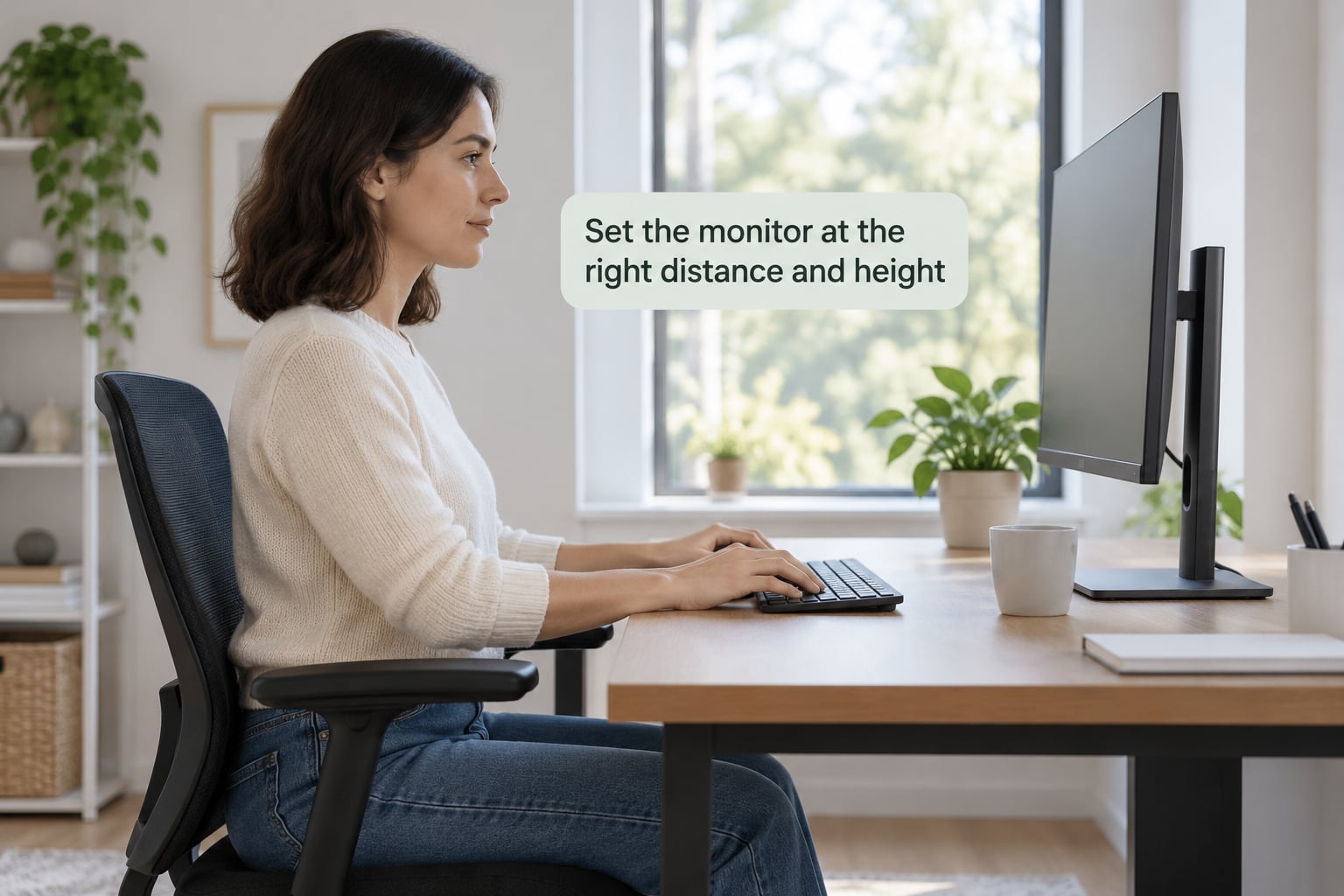
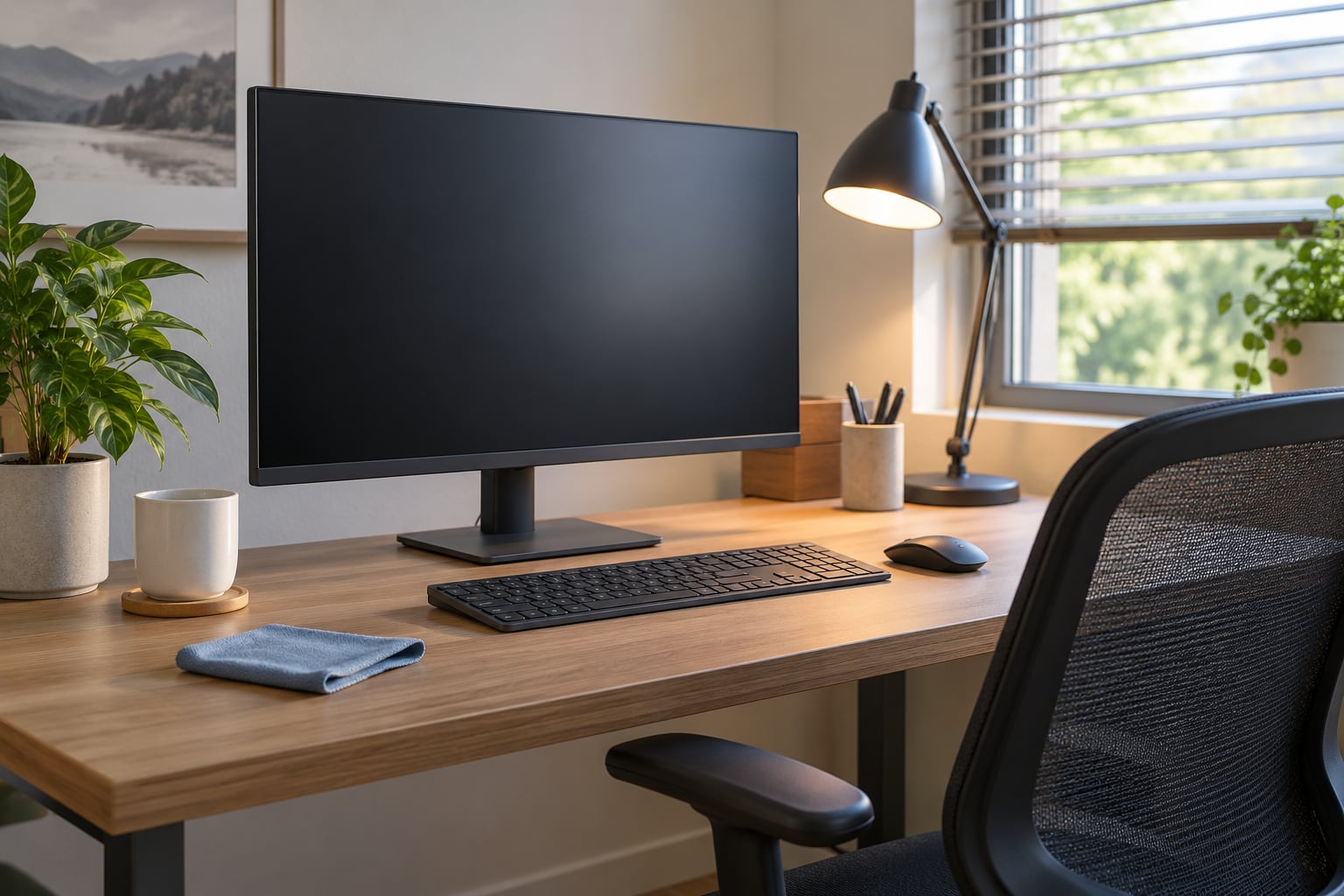
Start about an arm’s length back — roughly 20 to 28 inches (50 to 70 cm) from your face, and a little further for a large screen. Closer than that and your focusing muscles stay contracted the whole session, which is the single biggest driver of screen eye strain.
Then set the height: the top edge of the screen should sit at, or a touch below, eye level. You look slightly downward into the text, so your eyelids rest partly closed and stay moist. If the screen is too high, you hold your eyes wide open all day, and they dry out faster.
You rarely need new hardware. Most stands tilt and raise by 10 to 12 cm, and if yours will not move, a stack of sturdy books works for a week while you decide what to do.
| Screen size | Comfortable viewing distance | Note |
|---|---|---|
| 24 inch | 20 to 30 inches (50 to 75 cm) | Good for a small desk and long documents |
| 27 inch | 24 to 32 inches (60 to 80 cm) | The most common office size |
| 32 inch | 28 to 36 inches (70 to 90 cm) | Sit back further than instinct tells you to |
| 34 inch ultrawide | 30 to 40 inches (75 to 100 cm) | Check that text at the far edges stays sharp |
How to check it worked: stretch your arm toward the screen with your palm open. If you can touch the display comfortably, you are close enough. Squinting at anything other than small print means it is too far, not too near.
2. Reduce glare and improve ambient lighting
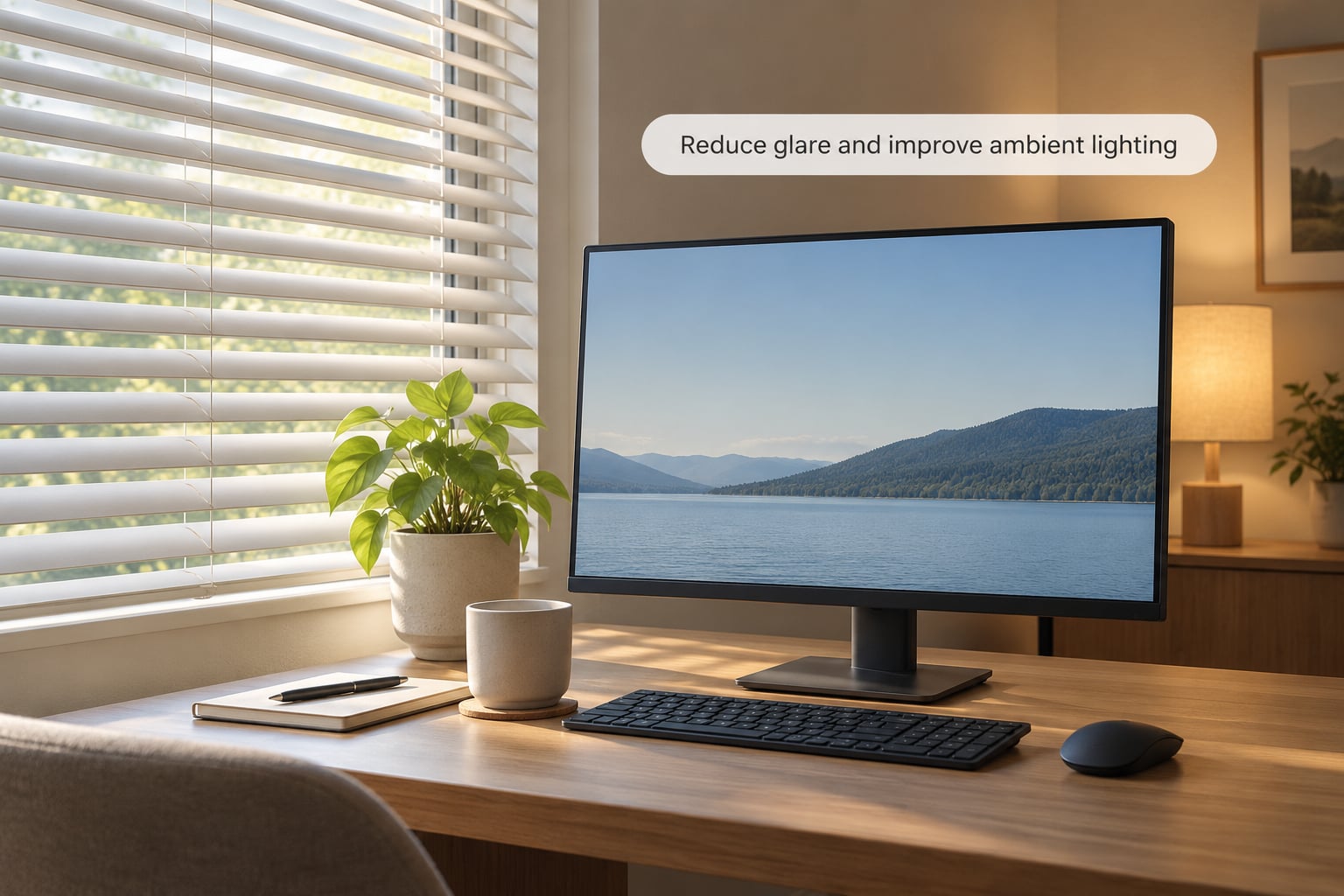
Turn the screen 90 degrees to any window rather than facing it or backing onto it. A window behind you reflects into your eyes; a window in front of you makes the screen compete with daylight, and your eyes keep adjusting between the two brightness levels.
If you cannot move the monitor, soften the light: a venetian blind angled to break up the reflection, a sheer curtain, or a matte anti-glare screen protector. Blinds beat a filter because they cost nothing and you can adjust them as the day moves.
Then add ambient light. A dim room plus a bright screen is the combination people complain about most, because the pupils are constantly widening and narrowing. Overhead lighting or a dimmable desk lamp aimed at your desk, not your face, usually fixes it in a minute.
How to check it worked: look at the screen with your eyes half closed. Bright patches, a wash of light from one side, or a mirrored ceiling lamp show up instantly. Keep adjusting until the panel looks evenly lit.
3. Adjust brightness, contrast, text size, and display scaling
Match screen brightness to the room, not to the maximum. In a normally lit office that usually lands somewhere between 40 and 60 percent. A screen that is clearly brighter than everything around it is the most common avoidable cause of end-of-day headaches.
Contrast next. Pure black text on pure white is harsh over a full day, so soften the background with a warm, off-white tint (often called eye comfort, reading or sepia mode). Dark mode helps some people in bright rooms and annoys others in dim ones, so treat it as a preference test, not a rule.
Text size is the setting people forget. If you lean in to read, the text is too small rather than your eyes being weak.
- Windows 11: Settings > System > Display > Scale, then Brightness. Night light sits under the same Display page. If text looks small on a 4K panel, move Scale up to 125 or 150 percent.
- macOS: Apple menu > System Settings > Displays for brightness and the True Tone toggle. Larger text is under Accessibility > Display > Zoom.
- Android tablets and phones: Settings > Display for dark theme, night light and the full-screen brightness slider.
- The monitor itself: the buttons or joystick on the lower bezel open an on-screen menu with brightness, contrast, colour temperature and usually an eye-care or low blue light mode.
Two spec details matter more than most buyers expect. Refresh rate affects motion smoothness rather than eye strain directly, but many people find a 120 Hz or 144 Hz panel calmer to use than a 60 Hz one, mainly because scrolling and cursor movement stop looking choppy. Panel dimming is subtler: some displays reduce brightness by pulsing the backlight rapidly, a behaviour called PWM dimming, and a small number of people find it genuinely uncomfortable or trigger migraines from it. Monitors labelled flicker-free use continuous dimming instead.
How to check it worked: leave the settings alone for an hour of normal work, then rate your eyes from 1 to 10. Anything more than a 2-point difference means a setting is wrong.
4. Use the 20-20-20 rule and planned screen breaks
The 20-20-20 rule is the most widely recommended break schedule: every 20 minutes, look at something about 20 feet (6 metres) away for at least 20 seconds. It works because it releases near focus and gives the surface of the eye a moment to re-wet.
Relying on memory is where it fails. Set a repeating reminder instead — Windows 11 has Focus assist sessions with break notifications, macOS has Screen Time, and most phones have a clock or timer app you can leave running on the desk. Forum threads on monitor setups keep landing on the same point: people who schedule breaks do them, people who rely on noticing do not.
Adapt it to your work rather than abandoning it. During gaming, pause in menus or loading screens. While reading long PDFs, take a full break at the end of each section instead of every 20 minutes. In deep coding sessions, a longer look away every 45 minutes toward a window beats a quick glance at a wall.
How to check it worked: if you reach the end of the day without the tired-eyes feeling, the schedule is working. If reminders feel relentless, stretch the interval rather than deleting them.
5. Blink more and keep the screen clean
Screen use cuts blinking sharply — eye-care sources commonly report drops of around 60 percent while people read or work at a display. Fewer blinks means a drier eye surface, which is why burning and stinging often show up before any ache does.
Make blinking deliberate during the breaks you already scheduled: a few slow, complete blinks, upper and lower lids meeting. Warm compresses over the closed eyes for five or ten minutes in the middle of the day help more than people expect. Preservative-free lubricating drops are the standard first step for screen-related dryness; ask a pharmacist or optometrist before using anything medicated.
Grime on the panel forces you to squint and lean closer to read, which quietly undoes step 1. Turn the monitor off, wipe with a dry microfibre cloth, and never spray cleaner straight onto the screen.
How to check it worked: if the gritty feeling disappears mid-session while the ache stays, that was dry eye, not strain. They feel different and respond to different fixes.
6. Use ergonomic habits beyond the monitor
A comfortable screen on an uncomfortable chair still produces neck, shoulder and back pain that people blame on their eyes. Sit back with lumbar support, keep both feet flat, and let your elbows rest near 90 degrees with the keyboard close enough that your wrists stay neutral.
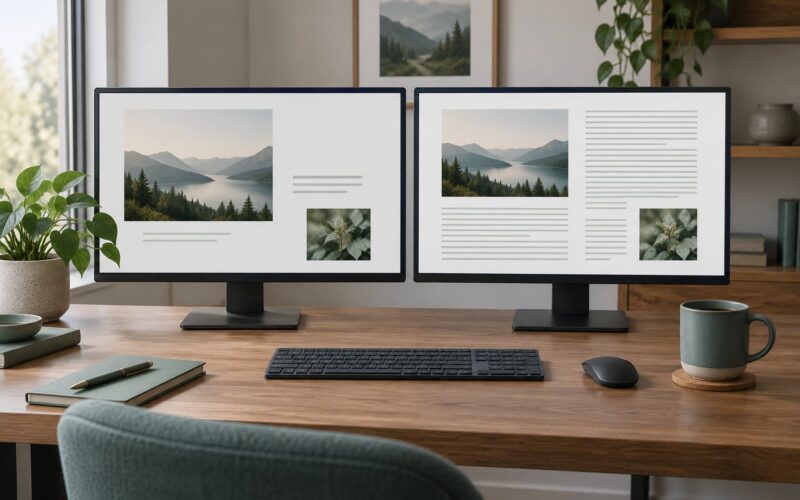
Position the keyboard and mouse on the same side as your dominant hand, and keep the mouse next to the keyboard rather than out to the side. On a dual monitor setup, use the main display straight ahead at your primary distance and angle the second one in, rather than placing both at full tilt.
Finally, treat persistent discomfort as a health question rather than a gear question. Someone who has adjusted distance, lighting, brightness and breaks and still ends the day with headaches or blurring should see an optometrist. Uncorrected distance vision, an outdated prescription, dry eye disease and problems with eye alignment all produce these exact symptoms, and none of them are fixed by a settings menu. Anyone with sudden vision change, flashes, floaters or eye pain should get checked promptly rather than waiting it out.
How to check it worked: end a week with your neck and shoulders as comfortable as your eyes. That is the honest measure of whether the setup is finished.
Common Mistakes
These show up again and again, and each has a fast fix:
- Sitting too close. Reaching forward to read is the tell. Push the screen back to an arm’s length and enlarge the text instead.
- Screen straight into a window. Turn it 90 degrees or use blinds. Reflections are one of the fastest symptoms to disappear once removed.
- Brightness at maximum. If your screen is the brightest object you can see from across the room, lower it until the difference nearly vanishes.
- Working in a dark room. A bright display in darkness makes pupils work constantly. Add one soft light above or beside the desk.
- Skipping breaks because they feel disruptive. Schedule them as calendar events or phone alarms instead of relying on noticing.
- Misting the screen or using household cleaner. Liquid and ammonia can damage the anti-glare coating. A dry microfibre cloth only.
- Buying gear before fixing habits. People who corrected distance and height first usually reported less pain than those who bought accessories. Start free.
A few smaller tips worth keeping: turn a second monitor off rather than leaving it live as a distraction, keep your font size at one level across all apps, and take your last screen break an hour before bed if evening work leaves you wired.
Frequently Asked Questions
Why do my eyes get tired from my monitor?
Prolonged near-focusing is the main reason. Your focusing muscles stay contracted for hours, blink rate drops by around 60 percent on screen, and glare or a brightness mismatch forces constant pupil adjustment. The result is aching, dry, blurry eyes and a headache by late afternoon. It is temporary rather than damaging, and it improves once distance, lighting and break habits improve.
How long does eye strain from a monitor last?
For most people, symptoms fade within hours of stopping screen work, or by the next morning. A bad week of ten-hour days can take a few days to fully clear. Strain that lasts more than a week after you have fixed your setup deserves an eye exam, because persistent blurring, dryness or headaches usually point to prescription or dry eye problems rather than habits.
Do blue light glasses help with eye strain from screens?
The evidence for blue light lenses easing eye strain is weak, and several major eye-care bodies say the strain comes from focus and blinking rather than blue light. Some people report feeling more comfortable with a tinted lens, which may be as much about reduced brightness as about colour. Built-in night light and eye-care modes cost nothing, so try those before spending money on glasses.
Is a bigger monitor better or worse for eye strain?
Bigger is not automatically better. A large screen only helps if you move further back and increase text size, and a huge screen you sit too close to makes strain worse. Roughly 24 to 32 inches from the screen suits most desks at arm’s length. If your eyes are tired on a new monitor, check the distance and scaling before blaming the panel size.
Do contact lenses make monitor eye strain worse?
They can, because contacts sit on a surface that needs steady blinking to stay moist, and screen use cuts blinking. Many people find symptoms noticeably better in glasses or with daily lenses swapped for glasses during long computer sessions. If you wear lenses and get persistent dryness, preservative-free lubricating drops and a midday break usually help. Talk to your optometrist about what suits your eyes.
When does monitor discomfort need a doctor’s attention?
Book an eye exam if discomfort continues for more than a week despite better lighting, distance and break habits, or if you notice blurring that does not clear when you look away from the screen. Get checked promptly for sudden vision changes, flashes, new floaters, double vision or actual eye pain. Uncorrected distance vision and dry eye disease produce the same symptoms as strain and need treatment, not settings changes.
Conclusion
If you change four things today, make them these: push the monitor back to an arm’s length with the top edge at or just below eye level, turn it 90 degrees away from any window, bring brightness down until the screen stops glowing brighter than the room, and set a repeating 20-minute reminder for a 20-second look at something far away.
Those four cover most of what causes monitor eye strain, and they cost nothing. Adjust blinking and add ambient light next, and the discomfort that has been building for weeks usually starts fading within days. If it does not, an eye exam is the right next step, not another accessory.