You can only find lost earbuds while they are switched on and broadcasting a Bluetooth signal. Check the charging case first, open the brand’s companion app or Google Find My Device, play a sound if the buds are nearby, and retrace your last hour if the apps come up empty. Most recoveries take about ten minutes.
That first sentence is the whole story. Earbuds have no GPS chip and no independent power source of their own. The moment a bud runs flat, or the moment it seats inside a closed charging case, it stops talking to your phone, and every digital method in this guide goes quiet with it.
So the work splits cleanly in two. When the earbuds are alive and nearby, an app or a ping sound will find them in seconds. When they are dead or out of range, you are searching a room, a car or a bag by hand. Start with the case, because more pairs are sitting in plain sight than most people expect.
Updated for 2026. Menu paths below follow current Android and app versions; brands shuffle their menus often, so if a label looks different, look for the closest equivalent.
Table of Contents
- What You Need
- Step-by-Step: How to Find Lost Earbuds in Order
- 1. Check the case, charging contacts, and nearby surfaces
- 2. Use the earbuds’ official companion app
- 3. Use Find My Device: How to Find Lost Earbuds on Android
- 4. Trigger a find or ping sound
- 5. Retrace your last known location
- 6. Use another device to narrow down the area
- 7. Reset the earbuds and plan the next search
- Common Mistakes
- Frequently Asked Questions
- Can I find only one lost earbud if the other one is still connected?
- Why does Find My Device not show my lost earbuds?
- Can I use a Windows laptop or Android tablet to play a sound on lost earbuds?
- How recent is the last-known location shown for lost earbuds?
- Should I reset lost earbuds before searching for them?
- Conclusion
What You Need
Gather these before you start searching, because most of them take less than a minute to line up.
- The charging case. Half of all “lost” pairs are in it, or one bud is.
- An Android phone with Bluetooth and location access enabled. Both permissions are required; either one off silently breaks every find feature.
- The earbuds’ companion app. Usually installed already if you paired the buds on this phone. Check your app drawer for the brand name before downloading anything.
- A flashlight. Earbud tips disappear against dark fabric and carpet.
- A charging cable. Useful for reviving a flat bud so it can broadcast again.
- A second phone or tablet, optional but helpful for the walk test later.
Step-by-Step: How to Find Lost Earbuds in Order
Work through these seven steps in sequence. The early ones take minutes and rule out the most common explanations before you start moving furniture around.
1. Check the case, charging contacts, and nearby surfaces
Open the case and look inside. A bud can sit in a cushion seam, under a car seat rail or inside a jacket pocket while the case looks empty, so check the case and your clothing in the same pass.
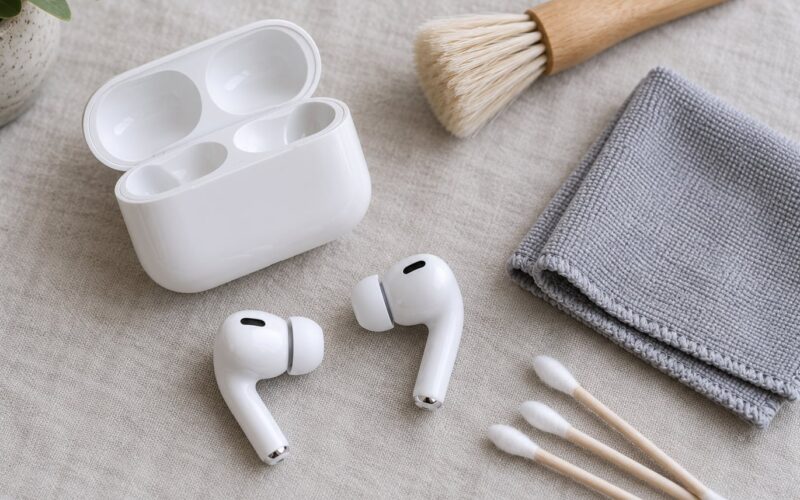
Next, seat both buds and watch the case’s own status light. A bud that is not charging is often just loose in its cradle or blocked by lint on the charging contacts. Wipe the metal pins inside the case and the pins on the buds with a dry cotton swab, then press each bud firmly back into place.
Success signal: the light comes on and stays on when you close the case, which tells you both buds are seated and charging. That also means a flat bud starts recovering right there.
Then sweep the surfaces you touched most recently. Couch and bed cushions swallow earbuds more often than anything else, and car seat gaps, gym bag pockets and coat hoods come next.
2. Use the earbuds’ official companion app
Most brands ship a free app that shows connection status, last known position and, on supported models, a play-sound control. Open it and look at what it reports before anything else.
Xiaomi and Redmi earbuds appear inside the Mi Earbuds or Xiaomi Earbuds companion app and in the Mi Home device list, where you can see connection state and trigger a find tone. Samsung Galaxy Buds live in the Galaxy Wearable app for controls and in SmartThings Find for location. Google Pixel Buds show up in Google Find My Device alongside your phone and watch.
Sony earbuds connect through the Sony | Sound Connect app, which includes a find-earbud tone. Shokz bone-conduction models expose a similar control in the Shokz app, though the location data is thinner than Apple’s. Jabra, Nothing and Soundcore each have their own app with connection status at minimum.
One thing to keep straight: a live Bluetooth connection is not the same as live location. Plenty of buds happily stay paired to your phone from a pocket with no location feature at all. If the app shows connected but has no map, you are limited to the ping sound and a physical search.
3. Use Find My Device: How to Find Lost Earbuds on Android
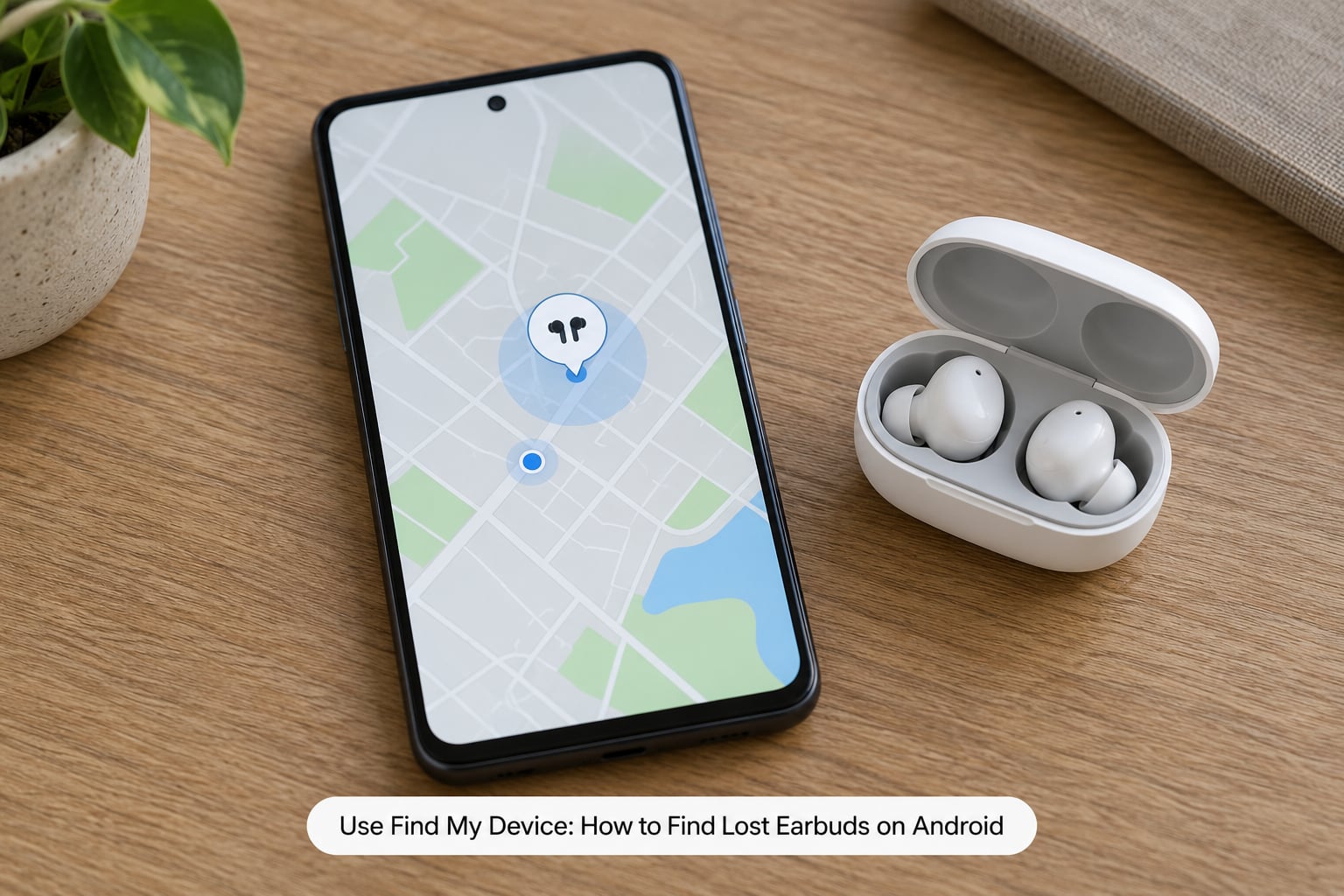
Google’s Find My Device is the one tool most Android phones already have built in, and it is free. Open Settings, then Apps, then Find My Device, or search for Find My Device in the settings search bar. You may need to enable it and sign in with the Google account on the phone.
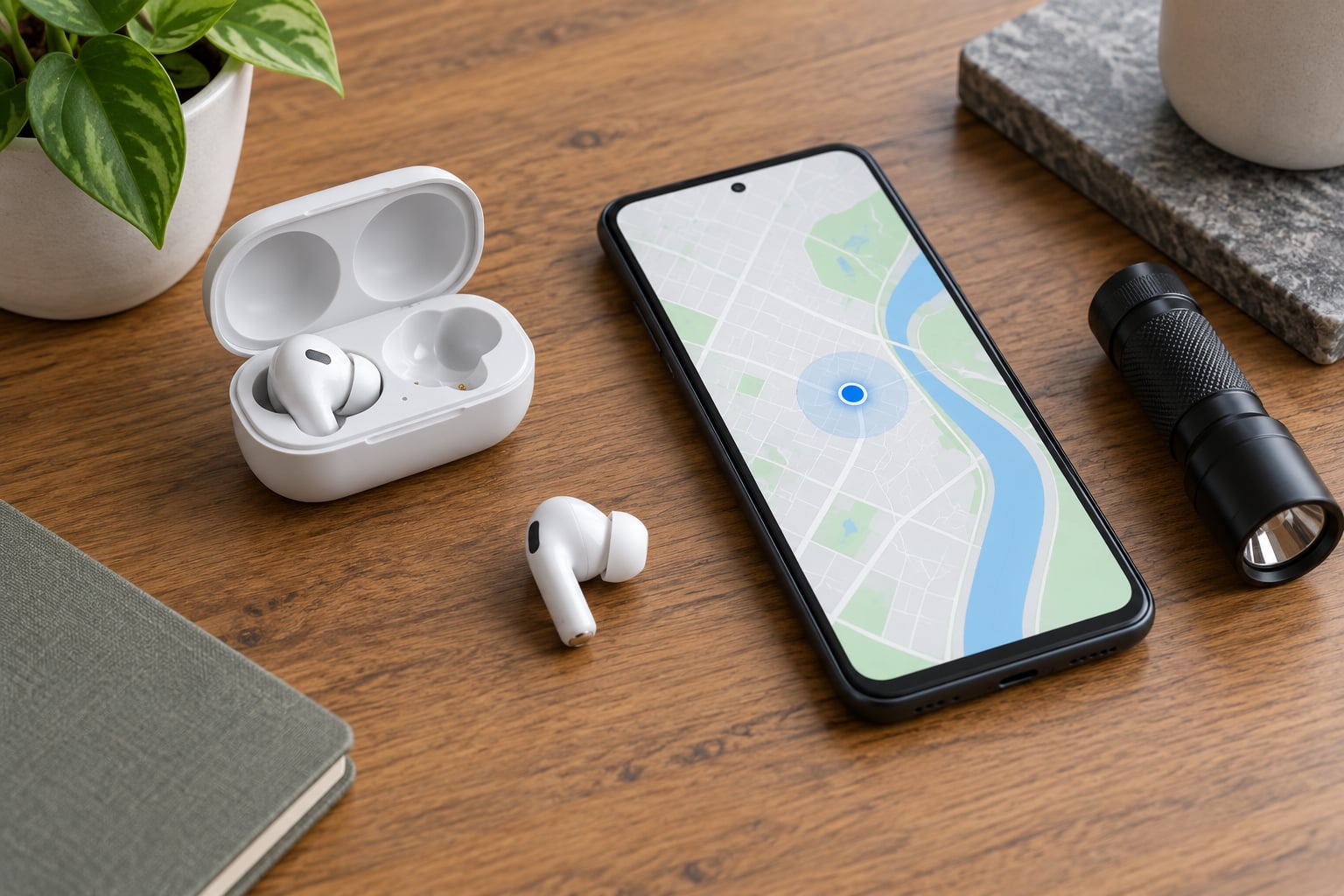
Tap your earbuds in the device list. If the buds were powered on and within Bluetooth range, they appear as connected, and you can use the Play Sound control. If they were out of range, the entry shows a timestamp and a position on the map, usually with a shaded accuracy circle around it.
That circle is the honest limit of the feature. One forum user described searching for a single tiny bud with a circle a hundred feet wide, which is not useful in a cluttered house full of other Bluetooth devices. Expect the pin to point at a room, not at the exact cushion.
Three caveats. Location Services must be on for Google apps, Bluetooth permission must be allowed, and Airplane Mode will stop everything finding-related. If no entry exists at all, the buds were probably never paired with this Google account or with this phone.
With only one bud connected, use a second phone: pair it to the other bud, then open Find My Device on both phones and compare what each shows. Two radios scanning the same room narrow the search area fast.
4. Trigger a find or ping sound
If the app shows a connection, play the sound. Samsung Galaxy Wearable has a Find My Earbuds button that plays a tone, and SmartThings Find offers the same. Sony’s app and Xiaomi’s companion app play a beep as well, usually from the bud that is still connected.
You can also ask the assistant on many Android phones to play the sound from your earbuds, and a paired smartwatch can often trigger it from the wrist. Try the assistant first if your hands are full, since it is one word and it works while the phone stays in your pocket.
If both buds sit in the case but play no sound, take them out one at a time and try again. Firmware sleep states and auto-pause quirks cause silent failures with no error message, which sends people hunting for a problem that does not exist.
Play the sound only when you are somewhere you are meant to be. A tone in a quiet office, a library or a train carriage announces the search to everyone around you.
5. Retrace your last known location
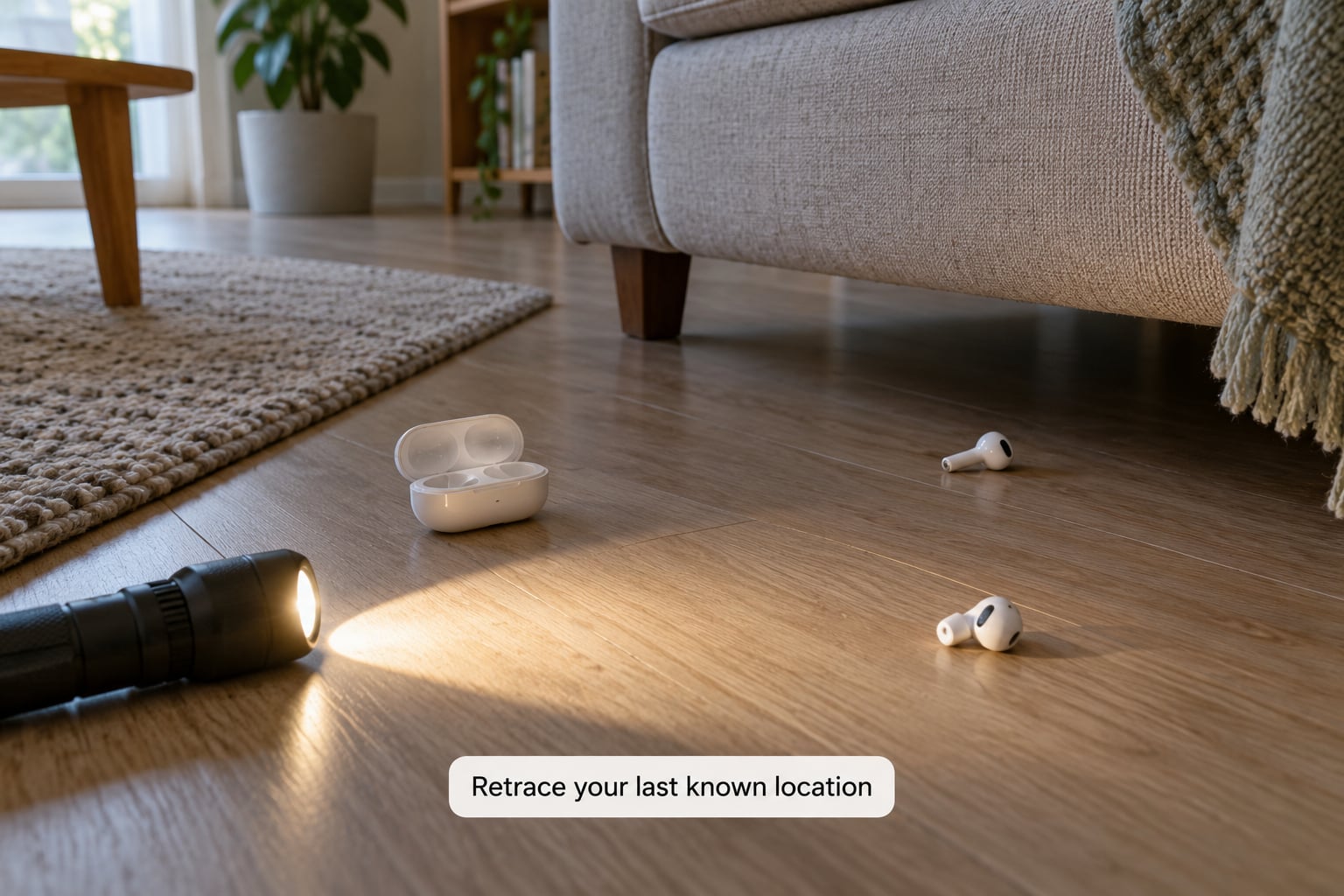
When the apps come up blank, work backwards through time. Open your phone’s location history or Maps timeline and mark the places you were in the last hour or two. Cross-reference it with photos, which carry timestamps and places, and with card or transit receipts if you were moving around.
Search in a deliberate order. Start high, on shelves, counters, desks and bed frames, because a dropped bud bounces and a bumped bud rolls further than you expect. Then work down through cushions, under rugs, behind furniture, into coat hoods and into the bag you carried.
Then hit the drop-prone places, which is where most cases end up: the car seat gap, the glovebox, a cup holder, a gym locker, a bike basket, or the outside pocket of a backpack you set down without thinking. If laundry ran in the last day, open the washing machine and dryer.
Keep the search polite. Looking through someone else’s bag or desk without asking is not a search technique, and outdoors, do not leave gates, fences or landscaping alone. Tell venue staff or lost-and-found instead.
6. Use another device to narrow down the area
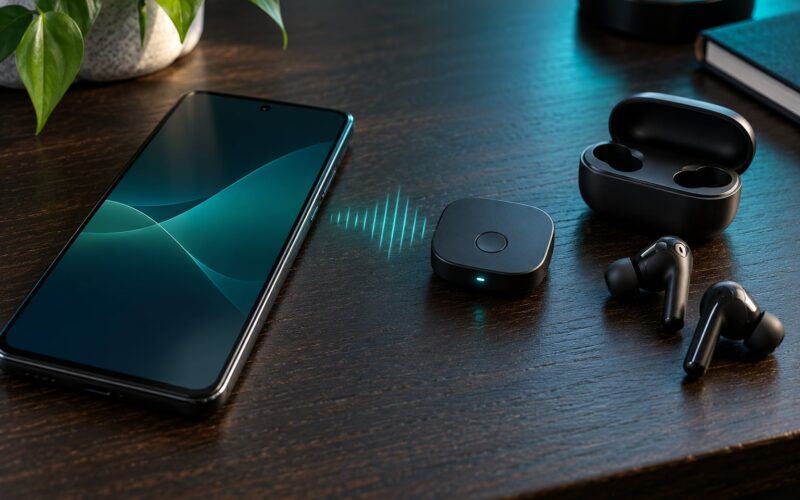
A second phone, a tablet or a laptop with Bluetooth turned on will tell you whether a single bud is still connected to something. Open its Bluetooth or device list and look for the earbud name. If it appears, the bud is powered and within about ten metres of that device.
From there, do a slow walk test. Hold the device at waist height, take small steps, and watch the signal strength reading climb as you approach. When the reading stops improving, stop, turn a full 360 degrees, and step again. The peak is usually one to two steps past the bud.
Bluetooth readings degrade around concrete, metal, body contact and squashed upholstery, so a weak number does not always mean a far device. Treat it as a direction, not a distance. Keep Bluetooth scanning brief, since it costs battery, and never scan for other people’s devices in shared spaces.
7. Reset the earbuds and plan the next search
Reset only after you have used the location history and searched the last known place. A reset clears pairing and can erase the record that told you where to look, so doing it early is how people lose the last useful clue.
To reset, put both buds in the case, hold the case button for about ten seconds until the light blinks several times, then hold both buds in the case until the light flashes again. On Samsung models, put the buds in the case and hold the touchpads together while the case is open, then close and reopen it. Sony and many Xiaomi models use a similar press-and-hold on the case button.
Pair one bud at a time afterwards, and expect the app to treat them as new devices for a short while.
Set a ten-minute routine for the rest of the search. Ten minutes of deliberate checking beats two hours of wandering. If they are genuinely gone, check whether your home or travel insurance covers lost personal electronics before contacting the manufacturer, and file a report either way. Support will confirm ownership, but recovery help is usually limited to lost-and-found.
Common Mistakes
These are the errors that cost people the most time, and each one has a straightforward fix.
Searching without opening the case. Both buds are often in there, or one is in there and one is not, which makes the search feel harder than it is. Open it before anything else.
Treating any Bluetooth scanner as a tracker. A scanner shows the name and signal strength of nearby devices. It does not show a map position, and in a busy room it will list your watch, your car and your neighbour’s headphones alongside your bud.
Ignoring permissions. Location Services off, Bluetooth permission denied or Airplane Mode on all produce the same confusing result: the bud never appears. Check the three settings before you check anything else.
Resetting too early. Reset wipes the connection history and sometimes the last location with it. Search first, reset last.
Searching only the last-seen pin. A map pin points at an area, not a spot, and it can be hours old. Search the whole room or vehicle around it.
Overlooking gaps, vehicles and shared spaces. Seat gaps, under-seat trays, lockers and the bag of the person who borrowed them are where recovery actually happens.
Prevention is dull and it works. Give the case one permanent home, keep it beside the door or in a bag pocket rather than loose on surfaces, name your Bluetooth devices something specific like Gym Buds so scanning in shared spaces is quick, and consider a small Bluetooth tag on the case itself, which is the only tracker that still works when the buds are flat.
Frequently Asked Questions
Can I find only one lost earbud if the other one is still connected?
Yes, and this is the easiest version of the problem. Open the brand app or Find My Device, pick the earbuds, and play the sound. Most models fire the tone from the single connected bud, which gives you audio to walk toward. If your app separates the two buds, select only the missing one. With a second phone paired to the other bud you can also compare which device sees a stronger signal.
Why does Find My Device not show my lost earbuds?
Usually one of four things. Location Services is off for Google apps, Bluetooth permission was denied, Airplane Mode is on, or the earbuds were never paired with that Google account. Google also hides accessories unless they have recently connected or are switched on. The fix is the same order every time: turn on location for Google apps, grant Bluetooth permission, leave Airplane Mode, then reopen the app.
Can I use a Windows laptop or Android tablet to play a sound on lost earbuds?
You can use them to detect a connection, but usually not to play the tone. Windows Bluetooth settings will list a nearby paired earbud in Devices, and an Android tablet can pair with it through its Bluetooth settings. The play-sound control lives inside the manufacturer’s phone app, so the reliable approach is to use the second device for the signal-strength walk test, then trigger the sound from your phone.
How recent is the last-known location shown for lost earbuds?
It is whatever the last time your phone connected to the buds. If they were in range when you last used them, that position updates to that moment. Once the buds are out of range or powered off, the timestamp freezes, and you may be looking at a pin from several hours or several days earlier. Always read the timestamp before you start walking, and treat the shaded circle as the real area to search.
Should I reset lost earbuds before searching for them?
No. Resetting clears the pairing history and can wipe the last known location that was guiding your search. Do it last, after the app search, the ping sound and a physical sweep of the last known location have all failed. Once the buds are home, a reset is worthwhile because it fixes the drifted connection that often causes buds to appear as connected without actually playing sound.
Conclusion
Here is the order that works. Open the case and confirm which bud is actually missing, then open the brand’s app or Google Find My Device and read the timestamp on the last known location. Play a sound while you are still near the last known place, because the tone only travels about ten metres. If nothing answers, retrace the last hour through Maps history, then search high surfaces before cushions, seat gaps and bags.
Save the reset for after all of that. And once the pair is back, give the case one fixed home so you never run through this again.