If you’re wondering what is Wi-Fi 7 and do you need it, the short answer is that Wi-Fi 7 (the IEEE 802.11be standard) is the newest generation of home Wi-Fi, and most households will not notice it until they own several Wi-Fi 7 devices and a fast enough internet plan to feed them.
It is not a new kind of internet connection. Your cable or fibre line stays exactly the same. What changes is the radio between the router and your devices, which can move more data per second and behave better when the air around you is crowded.
My own rule of thumb: if your current router is Wi-Fi 6 or Wi-Fi 6E and your speeds are fine where you sit, Wi-Fi 7 is a want, not a need. If you’re on a gigabit plan, fighting congestion in a shared apartment building, or replacing a router that’s five years old, the picture changes.
This guide walks through what actually changed in the standard, which homes gain the most, and the honest downsides nobody puts on the box.
Table of Contents
- What Is Wi-Fi 7 and Do You Need It?
- How Is Wi-Fi 7 Different From Wi-Fi 6 and Wi-Fi 6E?
- What 320 MHz channels actually change
- Why 4K-QAM is faster and more demanding
- What Multi-Link Operation does for congested homes
- Why the 6 GHz band decides what you actually get
- Does Wi-Fi 7 penetrate walls better?
- Is Wi-Fi 7 Faster Than Your Internet Connection?
- Who Should Upgrade to Wi-Fi 7?
- Who Can Skip Wi-Fi 7 for Now?
- What Devices Support Wi-Fi 7?
- How to check whether your phone supports Wi-Fi 7
- How to check a laptop, TV or desktop
- Do You Need a Wi-Fi 7 Router or a Mesh System?
- How Much Does Wi-Fi 7 Cost?
- What Are the Downsides of Wi-Fi 7?
- Is Wi-Fi 8 Coming Soon, and Should You Wait?
- How to Decide Whether Wi-Fi 7 Is Worth It
- Frequently Asked Questions
- Do I need a Wi-Fi 7 router to use Wi-Fi 7?
- Will Wi-Fi 7 make my internet faster?
- Is Wi-Fi 7 better than a mesh system for a large home?
- Can I use Wi-Fi 7 with an older Wi-Fi 6 router?
- Which devices should I buy before upgrading to Wi-Fi 7?
- Is Wi-Fi 7 worth it for a small apartment?
- Conclusion
What Is Wi-Fi 7 and Do You Need It?
Wi-Fi 7 is the IEEE 802.11be standard, the latest generation of Wi-Fi. It keeps the same 2.4 GHz, 5 GHz and 6 GHz bands as Wi-Fi 6E, then adds 320 MHz channels, Multi-Link Operation so a device can use two bands at once, and 4K-QAM modulation that packs more data into every signal.
That is the whole story. Nothing about your internet service changes, and nothing changes for a Wi-Fi 5 or Wi-Fi 6 device that never gets near the new features.
So do you need it? Here is the version I’d give a friend, unvarnished.
- Yes, upgrade if your internet plan is gigabit or faster, you already own Wi-Fi 6E devices that use the 6 GHz band, or your network is congested every evening with many devices active at once.
- Maybe, wait and see if your speeds are inconsistent rather than slow, your main problem is dead zones, or you are still deciding which phone or laptop to buy next.
- No, skip it for now if your plan is under roughly 300 Mbps, you have a handful of devices, your existing Wi-Fi 6 router covers the whole home, or your router is only a few years old.
The most common mistake is buying the router first. A Wi-Fi 7 box with zero Wi-Fi 7 clients on your network is a fast radio talking to slow phones, and you will see almost nothing.
One more framing that helps: Wi-Fi 7 mostly buys you headroom. If your pipeline is narrow, a wider pipe changes nothing. If your pipeline is wide and the pipe between router and device is narrow, then it matters a lot.
How Is Wi-Fi 7 Different From Wi-Fi 6 and Wi-Fi 6E?
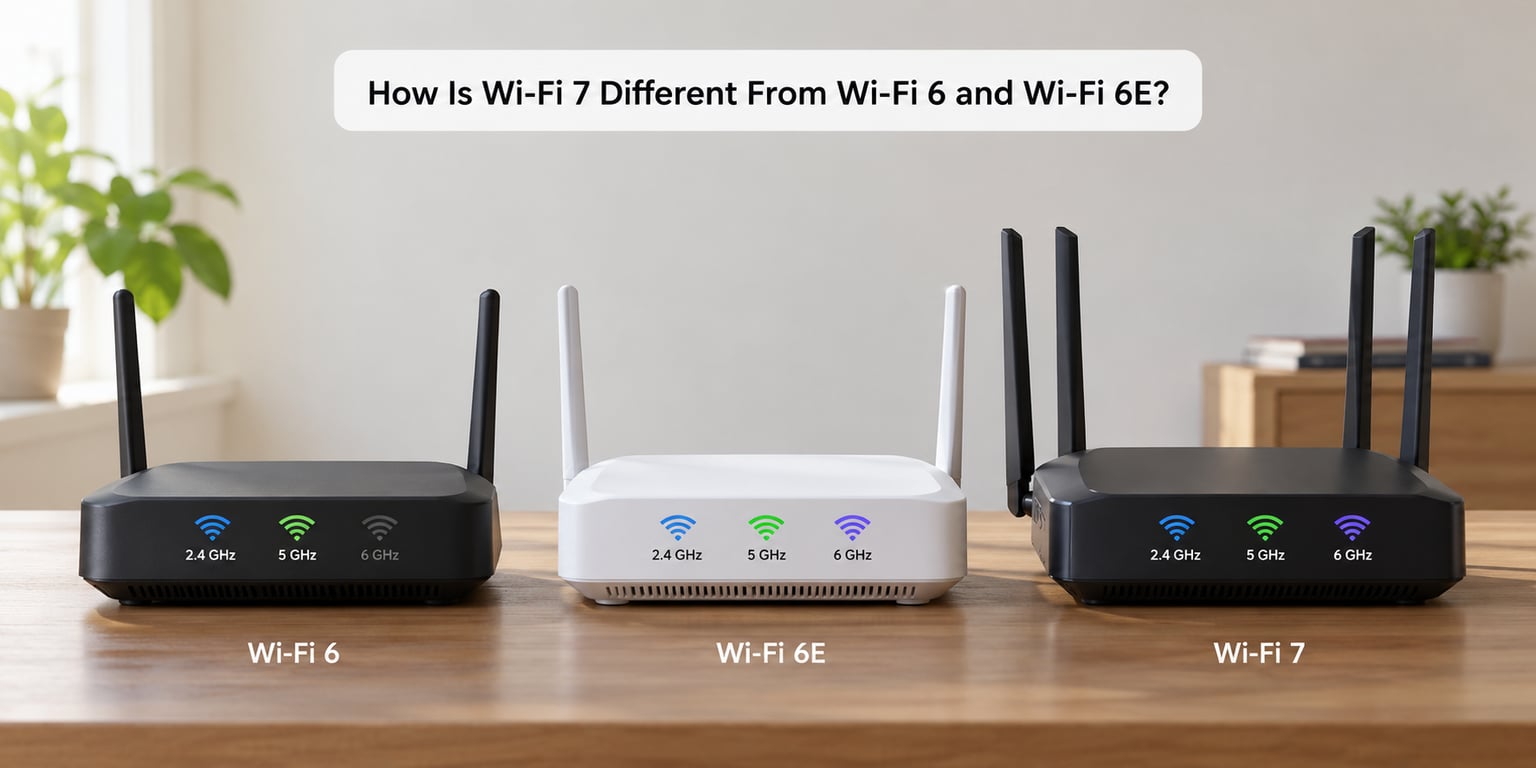
Wi-Fi 7 is an evolution of Wi-Fi 6E rather than a clean break. It uses the same bands and stays backwards compatible, so your older devices keep working on an older standard.
| Standard | Bands | Widest channel | Modulation | Max theoretical speed |
|---|---|---|---|---|
| Wi-Fi 5 | 2.4 and 5 GHz | 160 MHz | 256-QAM | about 3.5 Gbps |
| Wi-Fi 6 | 2.4 and 5 GHz | 160 MHz | 1024-QAM | about 9.6 Gbps |
| Wi-Fi 6E | 2.4, 5 and 6 GHz | 160 MHz | 1024-QAM | about 9.6 Gbps |
| Wi-Fi 7 | 2.4, 5 and 6 GHz | 320 MHz | 4K-QAM | about 46 Gbps |
That 46 Gbps figure is a laboratory ceiling across several bands under ideal conditions. It is not a number any home will see, and any page that suggests otherwise is selling you something.
What 320 MHz channels actually change
A wider channel is physically bigger. Wi-Fi 6 and Wi-Fi 6E top out at 160 MHz, while Wi-Fi 7 doubles that to 320 MHz on the 6 GHz band, so roughly twice as much data can travel in one go.
In practice, 320 MHz channels are hard to find clean. In dense cities, a wide channel overlaps with neighbours and your throughput can drop below what a tidy 160 MHz channel would deliver.
Why 4K-QAM is faster and more demanding
4K-QAM carries 12 bits per symbol compared with the 10 bits in Wi-Fi 6’s 1024-QAM, which is where the roughly 20 percent throughput gain in clean conditions comes from.
The catch is signal strength. Denser modulation needs a stronger, cleaner signal to hold, so the extra speed shows up at short range and fades faster at distance. It works against you through walls.
What Multi-Link Operation does for congested homes
Multi-Link Operation, or MLO, lets a compatible device transmit and receive across two bands simultaneously instead of picking one. A client can send on 5 GHz while listening on 6 GHz, which cuts latency and improves reliability when one band is busy.
MLO matters more in crowded environments than in an empty house. It is also the feature most often left switched off or half-implemented by early firmware, which is worth checking before you buy.
Why the 6 GHz band decides what you actually get
Here’s the trap most buyers walk into. The 6 GHz band is not mandatory in Wi-Fi 7. Plenty of dual-band Wi-Fi 7 routers ship with 2.4 GHz and 5 GHz only, and they still wear the Wi-Fi 7 badge.
Without 6 GHz, you lose 320 MHz channels and much of the headline throughput. Before buying, check that the spec sheet lists 6 GHz explicitly, and count the bands: two means no 6 GHz, three means you have it.
Does Wi-Fi 7 penetrate walls better?
No. It generally does the opposite. Both 320 MHz channels and 4K-QAM demand a cleaner signal than Wi-Fi 6E did, so Wi-Fi 7 is a speed upgrade, not a range upgrade.
If your problem is a dead zone behind a bedroom wall, mesh nodes or a better router position will help far more than a new standard. Some owners on forums report their Wi-Fi 7 router performing worse in distant rooms than the Wi-Fi 6 unit it replaced, which fits this explanation.
Is Wi-Fi 7 Faster Than Your Internet Connection?
Rarely, unless your plan is fast. Your internet speed is the ceiling; Wi-Fi determines how much of that ceiling reaches your device before distance and walls take their cut.
| Your internet plan | What a Wi-Fi 6 router can deliver | What Wi-Fi 7 adds |
|---|---|---|
| 300 Mbps | Already close to the plan speed in most homes | Nothing you will notice |
| 1 Gbps | Reaches the full gigabit on a good client in the same room | Headroom for phones that can go faster than your plan |
| 2 Gbps | Often limited by the router’s gigabit ports | Real gains, paired with 2.5 or 10 GbE ports |
| Multi-gig | Runs into port limits on most Wi-Fi 6 hardware | Only meaningful with multi-gig LAN ports and a matching client |
People often confuse the big number on the box with their own speed test. A Wi-Fi 7 router rated at 46 Gbps theoretical on a 1 Gbps line will still download at about 1 Gbps. It just has room to breathe when you add faster internet or faster devices.
There is one exception where Wi-Fi 7 helps on a slow plan: local transfers. Moving a large photo library from a NAS to a laptop at 5 GHz, or pushing an 8K video stream to a TV in the next room, can improve even if your download speed does not.
Also check the cable, not just the router. A modem or ONT with a single gigabit port will cap a multi-gig plan before any wireless standard gets a say.
Who Should Upgrade to Wi-Fi 7?
Upgrade when your bottleneck sits between the router and the device, not between the street and your house. These are the cases where it earns its place.
- You already own Wi-Fi 6E gear. Phones, laptops and tablets using the 6 GHz band get a genuine speed increase on a Wi-Fi 7 router, especially at close range.
- Your network is congested. Lots of neighbours on the same channels in an apartment block is exactly where MLO and wider channels help most.
- Many people use the network at once. Four adults working from home plus streaming in other rooms leaves little airtime on 5 GHz.
- You watch high-resolution video. Several 4K streams, or 8K where devices support it, push well past what a congested 5 GHz link can carry.
- You move large files. NAS transfers, photo libraries and console game downloads benefit from the extra throughput.
- Your smart home is growing. Dozens of cameras, sensors, locks and hubs competing for airtime reward the better handling of many simultaneous devices.
Forum consensus has one more condition worth repeating: Wi-Fi 7 setups often need multi-gigabit Ethernet ports and proper power delivery to hit the throughput that justifies the purchase. Cheap ports on an otherwise capable router quietly waste the upgrade.
Who Can Skip Wi-Fi 7 for Now?
Most people reading this can. Wi-Fi 6 and Wi-Fi 6E hardware is still perfectly capable, and buying the newest standard early is a trade you make with your wallet, not with your needs.
Skip it if your internet plan is well under gigabit, or if your main complaints are buffering on one TV in the back room and lag in the bedroom. Those are coverage problems, and a mesh node or a relocated router fixes them for a fraction of the cost.
Old devices are another reason. A Wi-Fi 5 television, a printer and a decade-old tablet will negotiate Wi-Fi 5 no matter how capable the router is. If most of your gear looks like that, the upgrade does nothing visible.
Small apartments with one main room also gain little. Coverage is easy when there are few walls between the router and everything else.
And if your current router is a recent Wi-Fi 6 unit placed sensibly, replacing it is usually a sideways move. Community threads on networking forums keep landing on the same verdict: the current generation is sufficient for most homes, and early Wi-Fi 7 firmware still needs time to settle.
What Devices Support Wi-Fi 7?
The device ecosystem is the real limit, and it is still filling in. Recent flagship Android phones are the most likely place to see it first, alongside newer laptops, some smart TVs, and routers and mesh systems from most major vendors.
Older devices are unaffected. Wi-Fi 7 routers broadcast Wi-Fi 6 and 6E alongside the new standard, so everything keeps working. The problem is the reverse: a Wi-Fi 7 router cannot make a Wi-Fi 6 phone faster.
How to check whether your phone supports Wi-Fi 7
- Open the phone’s settings and go to the Wi-Fi section, usually under Network and internet or Connections.
- Tap the connected network’s details or the information icon next to your network name.
- Look for the Wi-Fi generation shown next to the connection. Some Android skins show a label such as Wi-Fi 6 or Wi-Fi 7 in the connection details.
- Compare against your router’s manual: if the phone reports an older generation, it simply does not have Wi-Fi 7.
The quickest check on Android is the Wi-Fi details screen, since most current versions list the negotiated standard. Menu names differ slightly between manufacturers, so the wording may be a label rather than a generation number.
How to check a laptop, TV or desktop
On Windows, run netsh wlan show interfaces in Command Prompt and read the radio type line. On a Mac, hold Option while clicking the Wi-Fi icon in the menu bar and read the PHY Mode, where a value beginning with 802.11be means Wi-Fi 7.
For a TV or console, check the manufacturer’s specifications rather than the menus, since the wireless chipset is rarely listed on screen. For a desktop, look at the Wi-Fi card itself: on many motherboards it is an M.2 module you can replace, which is a cheap upgrade if your board supports the newer card.
Watch for one detail there. Some Wi-Fi cards fit the slot physically but are blocked by drivers or an incompatible CPU platform, so check the board manufacturer’s supported hardware list before buying the card.
Do You Need a Wi-Fi 7 Router or a Mesh System?
Choose based on coverage first and standard second. A Wi-Fi 7 router in the wrong room is a slower Wi-Fi 6 router in the right one.
| Situation | Better choice | Why |
|---|---|---|
| Flat home, one main room, few walls | Single Wi-Fi 7 router | One strong unit covers everything and avoids backhaul overhead |
| Two or three floors, thick walls | Mesh system | Nodes handle coverage; the standard matters far less |
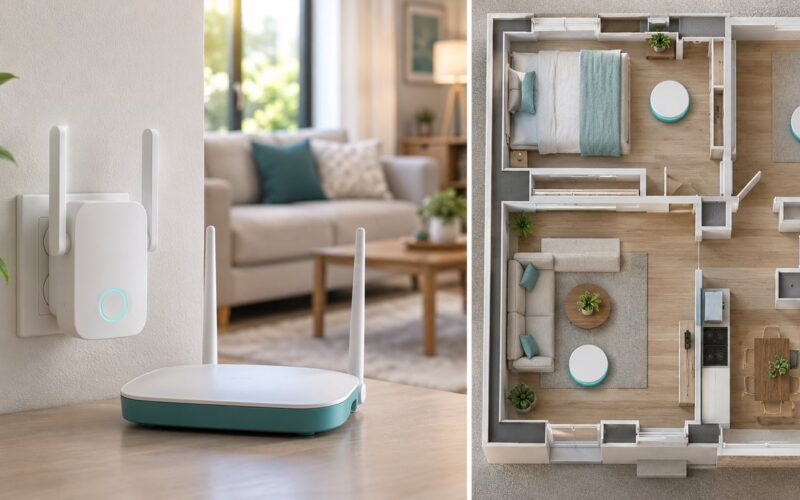
| Large home, many connected devices | Mesh with wired backhaul | Ethernet between nodes keeps wireless repeater losses out of the picture |
| Long single-story home, dead zones at the ends | Router plus one mesh node | Fewer nodes than a full pack, targeted at the weak rooms |
If you can run a cable between nodes, do it. Wireless backhaul eats the very throughput you bought the standard for, and forum users who switched to wired backhaul report the largest real-world gains of anyone in these discussions.
The test is simple. Move your current router to a central, elevated spot and walk around with a speed test app. If every room hits your plan speed, a mesh system is money you don’t need to spend.
How Much Does Wi-Fi 7 Cost?
Wi-Fi 7 hardware now exists in distinct tiers, and the gaps between them are wide. Prices are typical US ranges that vary by region and change over time, so treat them as positioning rather than a quote.
| Tier | What you get | Who it’s for |
|---|---|---|
| Entry dual-band | 2.4 and 5 GHz, no 6 GHz, few multi-gig ports | Cheapest way to say Wi-Fi 7, with least real benefit |
| Mid-range tri-band | Adds 6 GHz, 320 MHz channels, 2.5 GbE ports | Where the standard actually starts to pay off |
| High-end multi-gig | 10 GbE ports, stronger radios, better MLO support | Multi-gig plans, heavy local transfers, prosumer setups |
| Mesh packs | Two or three nodes, usually tri-band | Larger homes where coverage is the real problem |
Two costs sit outside the router, and they often decide the answer.
The first is client devices. Replacing several phones and laptops to get Wi-Fi 7 hardware typically costs more than the router itself. That’s why buying the router first is a mistake for most people.
The second is wiring. Multi-gig plans need a capable modem or ONT and cables that handle the speed, and mesh systems in bigger homes need a plan for backhaul. None of that is free.
Forum owners reach the same conclusion repeatedly: spend the money on placement or on one extra node before spending a premium on the newest badge.
What Are the Downsides of Wi-Fi 7?
It is worth being blunt, because the marketing number makes the standard look more settled than it is.
- The 46 Gbps figure is theoretical. Realistic home speeds are a fraction of it, and on most internet plans the connection is the limit anyway.
- Firmware is still maturing. Owners across networking forums report inconsistent behaviour between vendors, and features that were announced have shipped late or half-enabled.
- Client devices are scarce. Early on, plenty of households own exactly zero Wi-Fi 7 hardware.
- Some routers omit 6 GHz. A dual-band Wi-Fi 7 box gives up the biggest speed gains while keeping the label.
- Range can regress. Denser modulation and wider channels demand cleaner signal, so distant rooms may perform worse than they did.
- Smart-home dropouts are reported. A few owners on forums describe Wi-Fi 7 routers knocking video doorbells and similar 2.4 GHz devices offline, which usually traces back to compatibility rather than the standard.
None of these are fatal. They are reasons to buy deliberately rather than buy on a spec sheet.
Is Wi-Fi 8 Coming Soon, and Should You Wait?
Wi-Fi 8, working name 802.11bn, is being developed as the next generation, with real products expected toward the end of this decade rather than next year. That timeline is one reason current Wi-Fi 7 pricing will soften as hardware cycles mature.
Waiting is reasonable if your network already works and nothing forces your hand. It is not reasonable if you’re replacing a failing router this year anyway, because you will still want Wi-Fi 7 features you can use today.
How to Decide Whether Wi-Fi 7 Is Worth It
Run through this list before spending anything. If most answers point the same way, your decision is made.
- What standard is your current router? Wi-Fi 5 or older is a genuine upgrade case. Recent Wi-Fi 6 hardware usually is not.
- How fast is your internet plan? Under roughly 300 Mbps and Wi-Fi 7 is mostly theoretical. At gigabit and above it starts to matter.
- How many devices connect at once? Twenty-plus active devices or several simultaneous 4K streams is a strong case.
- Do any of your devices use 6 GHz? A few Wi-Fi 6E clients on a tri-band router is the clearest yes.
- Where are your dead zones? Coverage problems need mesh or placement, not a new standard.
- Is the network congested? Neighbouring networks on your channels point toward MLO and wider channels.
- Does the router you are considering list 6 GHz? If not, its Wi-Fi 7 badge buys you very little.
- Do you have multi-gig ports? Required if your plan or your local transfers exceed one gigabit.
Then look at the settings that actually matter, because a badly configured Wi-Fi 7 router underperforms a well configured older one.
- Set 2.4 GHz to a 20 MHz channel width. Wider channels cause interference in this band, and smart-home devices rely on it.
- Set 5 GHz to 80 MHz in a crowded area, or 160 MHz where the spectrum is clean.
- Set 6 GHz to 160 MHz. Going wider only helps if the channel is genuinely clean.
- Confirm Multi-Link Operation is enabled, and check whether your client supports the mode you selected.
- Run a speed test in the same spot after every change so you can tell what helped.
One useful comparison: Wi-Fi 7 against 5G home internet. Both are fast, and on paper similar. 5G runs over the cellular network and needs a good signal, while Wi-Fi 7 gives you stable local performance and low latency with no data cap discussion. If you already have good broadband, Wi-Fi 7 improves a service you own rather than adding another bill.
Frequently Asked Questions
Do I need a Wi-Fi 7 router to use Wi-Fi 7?
You need both sides. A Wi-Fi 7 router only delivers its benefits to devices that support Wi-Fi 7, and a Wi-Fi 7 device only gains speed when it connects to a Wi-Fi 7 router on a suitable band. Older devices still connect fine, but they keep using Wi-Fi 6 or older. If you own no Wi-Fi 7 hardware, the router upgrade alone will feel like nothing changed.
Will Wi-Fi 7 make my internet faster?
Only if your internet plan is the bottleneck. Wi-Fi 7 improves the link between your router and your devices, not the connection from your provider. On a gigabit or multi-gig plan, especially with Wi-Fi 7 client devices and a 6 GHz band, you can see genuine gains. On a plan under roughly 300 Mbps, your speed will stay exactly where it was.
Is Wi-Fi 7 better than a mesh system for a large home?
Coverage wins in large homes. Wi-Fi 7 makes a strong signal faster; mesh adds signal where none exists. If dead zones are your complaint, a mesh system with wired backhaul solves it and the Wi-Fi 7 generation barely matters. Choose a Wi-Fi 7 mesh system only when you want both, and run Ethernet between nodes so you do not lose the speed you paid for.
Can I use Wi-Fi 7 with an older Wi-Fi 6 router?
Wi-Fi 7 is backwards compatible, so a Wi-Fi 6 router and Wi-Fi 6E gear keep working normally. The catch is that you only get Wi-Fi 7 when a Wi-Fi 7 client talks to a Wi-Fi 7 router. Mixing generations is fine for everyday use, but if you want the new features you need Wi-Fi 7 hardware at both ends of the connection.
Which devices should I buy before upgrading to Wi-Fi 7?
Start with whatever you will replace soon: your phone, then a laptop, then a TV. Prioritise devices that use the 6 GHz band, since those gain the most. For desktops, a compatible M.2 Wi-Fi card is a cheap way to test the standard before committing to a router. Buy the client first when you can, because that is usually the larger part of the cost.
Is Wi-Fi 7 worth it for a small apartment?
Usually not. In a small flat with one main room, a recent Wi-Fi 6 router usually reaches your full internet speed everywhere, and the extra throughput has nothing to feed it. Wi-Fi 7 becomes worthwhile in an apartment mainly when the building is congested and many neighbouring networks compete for the same channels. Otherwise, spend the money on better placement instead.
Conclusion
Choose Wi-Fi 7 when your internet is gigabit or faster, you already run several Wi-Fi 6E devices on 6 GHz, or your network is crowded enough that airtime is the problem. In those cases the standard earns its keep.
Otherwise, keep the router you have. A recent Wi-Fi 6 or 6E unit in a central spot delivers the same speeds in most homes, and improving placement or adding one mesh node beats a new badge every time.
Your first action is free: write down how many devices connect, note your plan speed, run a speed test in the room that annoys you most, and check whether your phone supports Wi-Fi 7. That four-minute audit tells you whether to spend money at all, and on what.