If your phone crawls while your laptop sails on the same network, the router is usually not the problem. Most of the time the phone joined the 2.4 GHz band, is working with smaller antennas and a slower Wi-Fi radio, and is quietly sharing its slice of bandwidth with cloud backups, app updates and a VPN. Here is how to work out which one is holding you back, in the order that takes the least effort.
The whole thing is fixable at home, and almost none of the fixes cost anything. Give it about twenty minutes.
Table of Contents
- What You Need
- Step-by-Step
- Why Is My WiFi Slower on My Phone Than My Laptop?
- Check Which Wi-Fi Band Your Phone Is Using
- Move Closer to the Router and Remove Interference
- Restart Wi-Fi and Reset Network Settings
- Check for Phone-Specific Limits
- Test on Another Network and Contact Your Provider
- Common Mistakes
- Common Mistakes and Quick Fixes
- Frequently Asked Questions
- Why is my WiFi slower on my phone than my laptop?
- Should I use 2.4 GHz or 5 GHz on my phone?
- How far does 5 GHz WiFi reach?
- Is it using my mobile data instead of WiFi?
- Are iPhones slower than Android phones on WiFi?
- When is it the router or the provider’s fault?
- Conclusion
What You Need
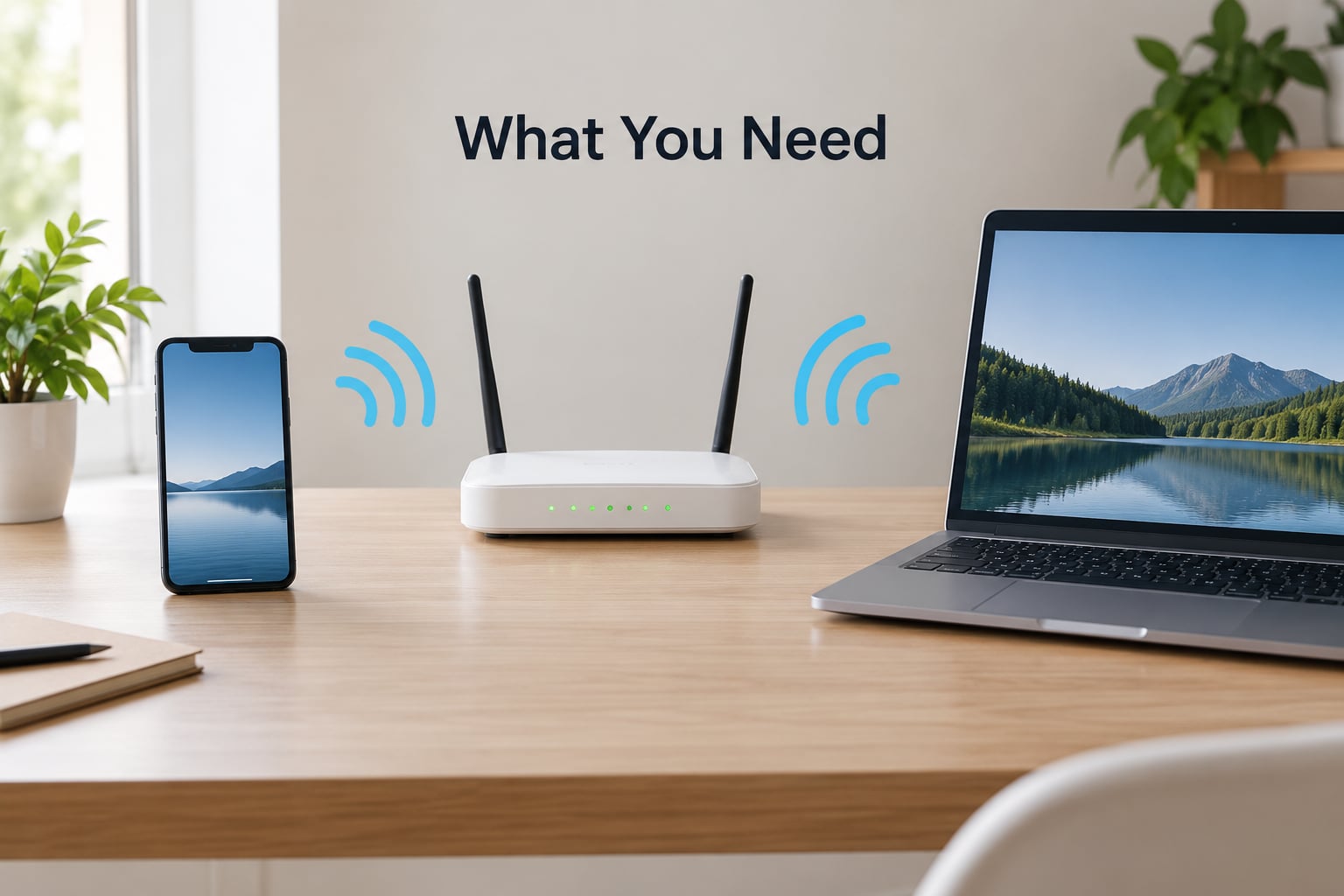
You need three things, and you probably already own all of them:
- Your phone and its charger, so nothing throttles mid-test.
- Your laptop, or any second trusted device, used as the comparison point.
- Access to the router admin page, which is usually a web address you type into a browser after signing in.
- A speed test you can run in a browser, plus a Wi-Fi analyzer app if you want channel numbers.
A Wi-Fi analyzer app is the one optional extra. Android has several free ones that show signal strength in dBm and the channel your network sits on. iOS does not expose that detail in Settings, so an analyzer app or a speed test app is the only way to see it on an iPhone.
Step-by-Step
Work through these in order. Each step rules out a specific cause, and each one ends with something you can check to confirm it worked.
Why Is My WiFi Slower on My Phone Than My Laptop?
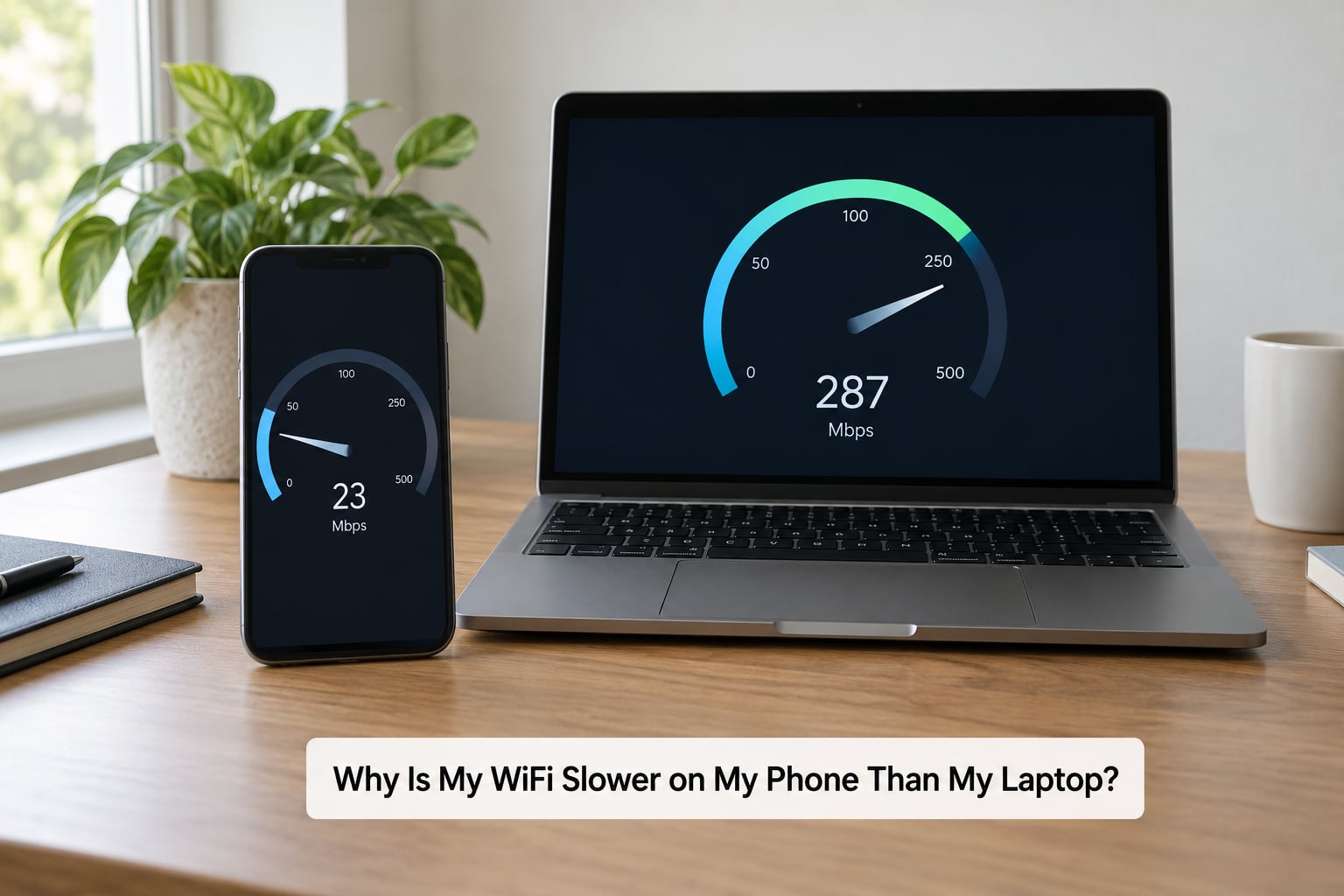
A large gap between the two devices means the problem is device-specific, not the router. That points at the band the phone joined, its Wi-Fi radio and antennas, its background traffic, or a setting like a VPN or private DNS.
Measure properly before you touch anything. Put the phone and the laptop in the same room, within a metre of each other, and run both tests back to back against the same server.
Look at two numbers, not one. Download speed in Mbps tells you throughput. Ping in milliseconds tells you latency, which is how long a single click takes to get an answer.
Under about 40 ms is responsive, 40 to 80 ms is fine for most work, and anything above 100 ms feels laggy even when the Mbps number looks fine. Many people who think their Wi-Fi is slow are actually complaining about latency while watching a video buffer.
How to tell it worked: you now have two comparable numbers from the same spot and server. If the laptop hits 180 Mbps and the phone hits 22 Mbps, keep going. If both land within about 10 Mbps of each other, the router and your internet plan are doing fine and the phone was just in a bad spot.
Check Which Wi-Fi Band Your Phone Is Using
Most home routers broadcast two bands under the same network name: 2.4 GHz and 5 GHz. The 2.4 GHz band travels further and punches through walls better, but it is crowded and slower. The 5 GHz band is faster and cleaner, but its range is shorter.
This is the single most common cause. Your laptop often lands on 5 GHz, your phone latches onto 2.4 GHz, and the two look like the same Wi-Fi on screen.
On Android, open Settings, tap Wi-Fi, then tap the network name to see its details. Depending on your phone brand you will see the band listed as the frequency, with 2.4 GHz shown around 2.4 GHz or 2.412 to 2.472 GHz, and 5 GHz shown around 5 GHz or 5.18 to 5.825 GHz. Samsung phones and many Xiaomi models show a frequency value directly on the network details screen.
On iPhone, Settings gives you Wi-Fi, then a small info button next to your connected network. You will see the channel and the band (a, b, c, or sometimes shown as 2.4 or 5 GHz) but not the link speed, which is why a speed test app is the practical substitute on iOS.
The cleanest fix is to split the two bands into separate network names in your router settings. Your phone then remembers which one it prefers instead of letting the router guess for it. If your router has band steering enabled and your phone is stuck on the slow band, separating the names fixes it outright.
How to tell it worked: the phone shows the 5 GHz frequency in the network details, and the speed test number climbs noticeably while standing in the same spot.
Move Closer to the Router and Remove Interference
A phone is often held far from the router while a laptop sits on a desk right next to it. That alone can explain the whole difference.
Distance is not the only factor. Walls, floors and closed doors eat signal, and so do a few common household devices. Microwaves, cordless phones, wireless doorbells, baby monitors and Bluetooth gear all sit in or near the 2.4 GHz range and can interfere with it.
A crowded apartment makes it worse, because every neighbour’s router is broadcasting on overlapping channels. That shows up as a phone that is fine at 2 a.m. and terrible at 8 p.m.
Run a quick signal test. Check the dBm reading in a Wi-Fi analyzer app at your normal spot, then walk to the far end of the router and check again. Roughly speaking, -50 dBm is excellent, -67 dBm is a good target for video and calls, and anything below -75 dBm will feel slow.
You do not need a new router yet. Moving the router to a central, elevated spot, away from a cabinet or a microwave, fixes a surprising number of complaints on its own.
How to tell it worked: the dBm reading improves by 10 or more when you move closer, and the speed test number rises with it. If the signal is strong and the speed is still poor, signal strength is not your problem and you can move to the next step.
Restart Wi-Fi and Reset Network Settings
A stale or corrupted network profile is a quiet culprit. People often fix a long-running slow connection on a phone by forgetting the network and joining it again, and by toggling airplane mode for a few seconds.
On Android, swipe down to open quick settings, tap Wi-Fi to turn it off, wait ten seconds, and turn it back on. Then tap your network name, choose Forget, and reconnect with the password.
If that does not do it, go to Settings, System, Reset options, Reset Wi-Fi, mobile, and Bluetooth. On Samsung phones the path is Settings, General management, Reset, Reset Wi-Fi and Bluetooth settings. Resetting network settings wipes saved passwords and clears the profile, so expect to re-enter the password.
On iPhone, tap Settings, then Wi-Fi, then tap your network name and choose Forget This Network. To reset everything at once, open Settings, General, Transfer or Reset iPhone, then Reset, then Reset Network Settings. Passcodes are returned to factory settings afterwards, so know yours before you tap it.
Restart the router too, but do not reset its settings. Unplug the power, wait thirty seconds, plug it back in, and wait two to three minutes for everything to rejoin. Holding the button on the back for ten seconds wipes the configuration, including your Wi-Fi password, which is almost never what you want.
How to tell it worked: after forgetting and rejoining, the phone pulls a fresh IP address and a fresh band assignment. If the speed jumps, the old profile was the problem.
Check for Phone-Specific Limits
Past this point the causes are specific to the phone, and none of them affect the laptop.
Battery saver. On Android, Settings, Battery, Battery Saver, then turn it off. On iPhone, Settings, Battery, then Low Power Mode off. Power saving modes throttle background activity and, on some phones, cap radio performance. Test with it off before you dismiss it.
Background data. Cloud photo backup, app updates and messaging app backups are the usual culprits. On Android, Settings, Apps, Special app access, Data usage, Background data usage, and look for anything large. On iPhone, Settings, General, Background App Refresh, and switch it off temporarily.
VPN and private DNS. A VPN adds an encrypted hop and slows the phone measurably, and users report the fix being instant once they switch it off. On Android, Settings, Network and internet, Private DNS, then set it to Automatic or Off. Note that a Private DNS setting of a specific hostname overrides your provider’s DNS entirely.
Automatic switching to mobile data. Android’s Wi-Fi Assistant and iPhone’s Wi-Fi Assist can quietly hand your connection to the mobile network when the Wi-Fi signal looks weak, and then your speed test result is a cell tower result, not a Wi-Fi one. On Android, Settings, Network and internet, Wi-Fi, then Wi-Fi Assistant, set it to Off. On iPhone, Settings, Wi-Fi, then Wi-Fi Assist, set it to Off. If full signal bars are showing and speeds are low, check this first.
Outdated software. Wi-Fi drivers ship with the OS. On Windows, Device Manager, Network adapters, right-click the adapter, Update driver. On a phone, install any pending system update, and keep router firmware current as well.
How to tell it worked: with background data and VPN off, a speed test run while nothing else is downloading should come within about 20 percent of the laptop’s result.
Test on Another Network and Contact Your Provider
You have one decisive test left: take the phone somewhere else on Wi-Fi. A friend’s house, a café, your workplace. Ask them for the password and run the same speed test.
If the phone is fast on another network, the router is the problem, not the phone. If the phone is slow there too, the phone is the problem. If it is slow everywhere including on mobile data, the SIM or the phone’s radio is at fault.
One more check on the home router: some routers apply per-device quality of service rules, and some ISPs shape traffic. A free second test on a different connection, such as a phone hotspot, tells you whether your provider is capping your line.
When you do contact the provider, give them specific numbers rather than a complaint. Tell them the plan speed, the wired or laptop result, the phone result on the same network, and the times of day it happens. Ask whether anything is being shaped on the line.
Forum threads on networking and ISP subreddits describe shaping as real but rare, and usually only after every local cause has been ruled out.
How to tell it worked: a slow result on two different Wi-Fi networks plus a slow result on mobile data means the phone’s radio or network hardware, and the free fixes are done.
Common Mistakes
Most people end up fixing the wrong thing because of how they measured. These are the mistakes I would bet money on.
Confusing signal strength with speed. Four bars only tells you how loud the radio signal is. It says nothing about throughput, and a congested channel can give you full bars and terrible speed.
Testing at different times on different servers. A speed test at 9 p.m. on one server and at 10 a.m. on another tells you nothing. Same time, same server, same room.
Changing both devices at once. If you restart the router and reset the phone in the same five minutes and the speed improves, you have learned nothing. Change one variable per test.
Forgetting to test nearby. Lots of people run the test on the couch in the back bedroom and then compare it with a laptop that has been sitting next to the router.
Treating one result as conclusive. Run the test three times. Speed varies, and a single unlucky sample has started a lot of unnecessary router replacements.
Buying new hardware first. Forum users almost always regret this. Free fixes first, new gear last.
Common Mistakes and Quick Fixes
Here is the symptom-to-cause-to-fix version of everything above, so you can scan it instead of reading the whole article.
| Symptom | Likely cause | Fix | Device affected |
|---|---|---|---|
| Phone slow everywhere, laptop fine | Phone on 2.4 GHz | Split the bands into separate network names, reconnect | Phone |
| Slow only in the far room | Distance and walls | Move the router, add a mesh node | Phone mostly |
| Slow in the evening only | Neighbouring routers on the same channel | Change the 2.4 GHz channel in the router admin page | All devices |
| Fine bars, poor speed | Interference or congestion | Move the router away from microwaves and cordless phones | All devices |
| Speed dropped after an update | VPN, private DNS or battery saver | Switch each one off and retest | Phone |
| Slow only while photos sync | Background data | Pause backup and app updates, then retest | Phone |
| Result jumps around wildly | Phone silently on mobile data | Turn off Wi-Fi Assistant or Wi-Fi Assist | Phone |
| Slow on every network | Router or provider | Restart router, test on a hotspot, call the ISP | All devices |
A few extra tips that save time later. Separate the 2.4 GHz and 5 GHz network names if your phone keeps picking the slow band, and give 5 GHz that name on your most-used devices. Check router firmware for updates in the admin page, since fixes for band steering and channel selection often land there. If your router sits in a corner or behind a TV, a mesh node in the middle of the house fixes more complaints than any setting. And keep the phone in a hand or on a table near the router when you are testing, then judge your normal spot separately.
Frequently Asked Questions
Why is my WiFi slower on my phone than my laptop?
Usually the phone joined the 2.4 GHz band while the laptop got 5 GHz, and the phone also has smaller antennas and a slower Wi-Fi radio. Background downloads, a VPN, private DNS or battery saver can cut it further. Run the same speed test on both devices in the same spot to confirm, then check the band in your phone’s network details.
Should I use 2.4 GHz or 5 GHz on my phone?
Use 5 GHz whenever you are close to the router. It is faster and far less crowded, which matters most in an apartment where neighbouring routers overlap. Switch to 2.4 GHz only when you are several rooms away or the 5 GHz signal is unreliable. The simplest setup is two separate network names so your phone can choose.
How far does 5 GHz WiFi reach?
In a normal home, 5 GHz holds a good signal through about one or two rooms, roughly 15 to 30 metres from the router. 2.4 GHz typically reaches two to three times further. Walls, floors and metal appliances shorten both. If the phone is slow only in the far rooms, that distance is the likely cause and a mesh node is the usual fix.
Is it using my mobile data instead of WiFi?
Very often, yes. Android Wi-Fi Assistant and iPhone Wi-Fi Assist hand the connection to the mobile network when the Wi-Fi signal looks weak, so a speed test returns a cell tower number while full bars are showing. Turn both features off, then compare the phone’s result on Wi-Fi against its result on mobile data for the same page.
Are iPhones slower than Android phones on WiFi?
No, not as a general rule. Both platforms behave the same way, and both are limited far more by antenna size, the band they joined and background activity than by the operating system. What differs is visibility: iOS does not expose link speed in Settings, so you need a speed test or analyzer app to see what the radio negotiated.
When is it the router or the provider’s fault?
It is the router when every device slows down in the same spot at the same time, especially in the evening. It is the provider when a wired connection is also slow, when a speed test on a phone hotspot is much faster, or when the slowdown follows a schedule such as peak hours. Give the provider both numbers and the times of day when you call.
Conclusion
Start with the free measurement. Put the phone and the laptop side by side near the router, run the same speed test on both, and check the ping as well as the download number. That one test tells you whether you have a phone problem at all.
If the gap is large, check which band the phone joined and split your network names so it stops drifting to 2.4 GHz. Then forget the network and reconnect, turn off battery saver, VPN and private DNS, and pause any background sync. Test again in the same spot.
Only after all of that is it worth thinking about hardware. Move the router somewhere central if the phone is slow in far rooms, update its firmware, and consider a mesh node for a big house. And if the phone is slow on a second Wi-Fi network and on mobile data too, stop tweaking settings and talk to your provider with both numbers in hand.