To check if an app is spying on you Android, work through four places in order: run a malware scan in Google Play Protect, read every app’s permissions, sort battery and mobile data usage by app, then review Device Administrator and Accessibility Service grants. Add a scan of your installed app list and any targeted ads that match conversations you never had on the phone. The whole inspection takes about fifteen minutes, and none of it requires a paid scanner.
One thing first, because it decides whether you should panic. Tracking and spying are different problems with different fixes. Most apps on your phone are not spying on you in the sense of sending your conversations to another person, they are collecting identifiers for advertising, which is a legal grey zone you can opt out of. Spyware and stalkerware are the opposite: an app built to read your calls, messages, location or microphone and hand it to a specific person, usually a partner, family member or employer.
Separating the two matters. Panic-revoking permissions at random is the single most common way people break their own apps, and a phone with twenty apps suddenly demanding location access again is a worse privacy problem than the one they started with.
Table of Contents
- What You Need
- Step-by-Step: How to Check If an App Is Spying on You Android
- 1. Check the App in Google Play Protect
- 2. Review the App’s Permissions
- 3. Check Battery Usage for Unusual Activity
- 4. Look at Mobile Data and Wi-Fi Usage
- 5. Inspect Accessibility, Device Admin, and VPN Access
- 6. Search for Warnings and Read Reliable App Information
- 7. Revoke Access, Disable Background Activity, or Uninstall
- Common Mistakes
- Frequently Asked Questions
- Can I tell if an Android app is spying on me just by battery usage?
- Does Google Play Protect detect spyware and malicious apps?
- Which Android permissions are most dangerous for privacy?
- What should I do if I accidentally installed a suspicious app?
- Is it safe to use an antivirus app downloaded outside Google Play?
- How do I stop an app from using my camera, microphone, or location?
- Conclusion
What You Need
You need the phone itself and roughly fifteen quiet minutes. If the app is one you signed into with a Google account, you also need that account’s password, because a stranger who got into it can add apps you never downloaded.
Take screenshots before you change anything. The settings screens themselves are evidence, and once you uninstall you cannot see what an app had access to. Screenshots stay in your gallery or cloud account, so decide where you want them before you start.
If you suspect a partner or family member installed something, you need a different plan. Use a computer or a phone you control instead of the suspect device, and understand that removing apps leaves a visible trace in the Play Store history and in Google Play services data. Steps for that situation are further down.
Step-by-Step: How to Check If an App Is Spying on You Android
1. Check the App in Google Play Protect
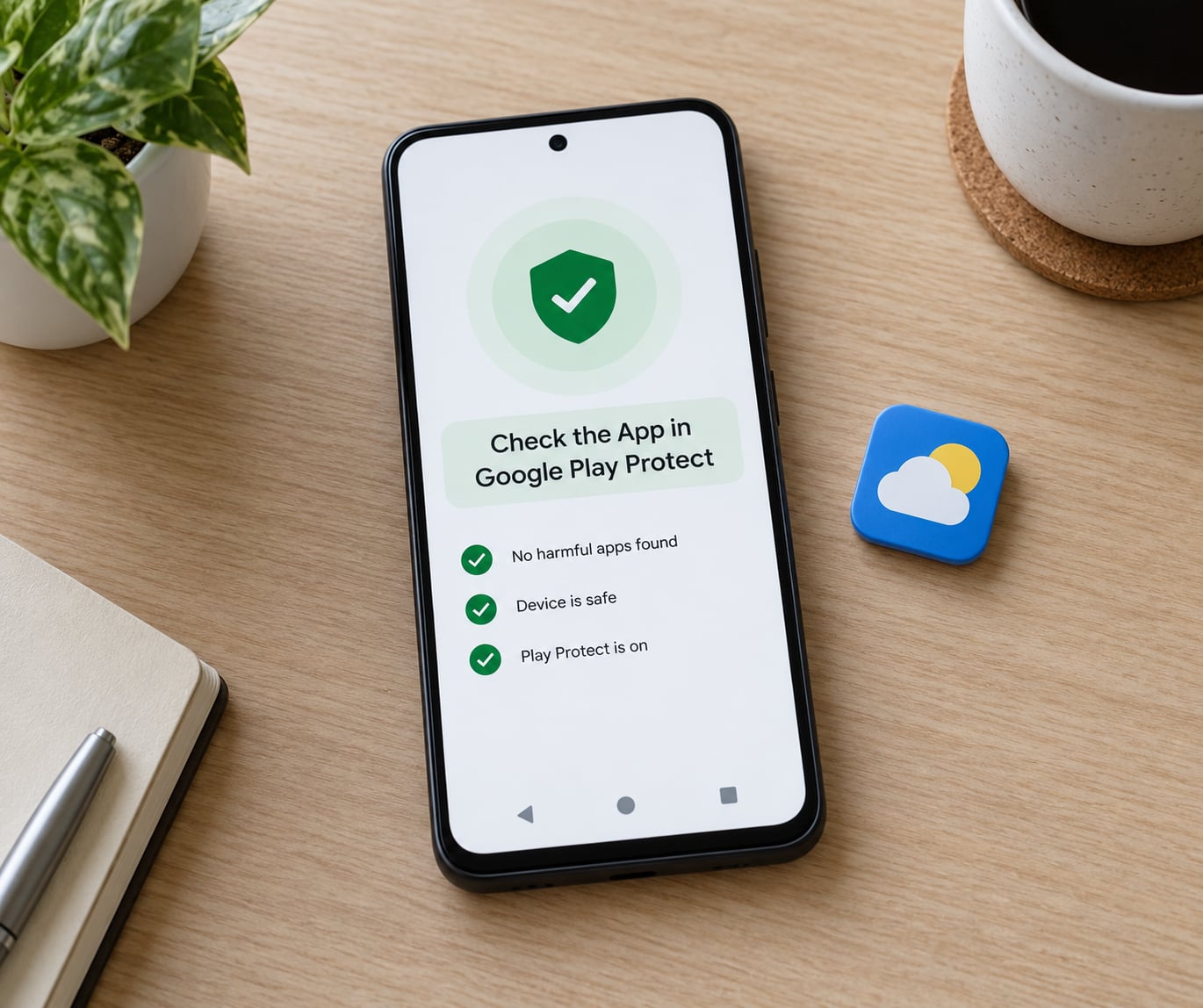
Start with the built-in scanner, because it is free, it updates itself through the Play Store, and it already knows the signatures of known malicious apps. On Android 12 and later, open Google Play, tap your profile icon at the top right, choose Play Protect, then tap Scan. On older versions Play Protect runs in the background and you tap Scan anyway to run it on demand.
Read the result carefully, because what the screen says matters more than a green tick. Play Protect can report no issues found, which means it found nothing it recognises, not that the app is clean. A warning about a specific app with options to uninstall, deactivate or send the app to Google is a real finding. Tap Deactivate rather than dismissing, and note the app name and developer before you close the screen.
Each manufacturer also keeps its own scanner, and on those phones it is often the faster route:
| Phone | Where the built-in scan lives |
|---|---|
| Standard Android 13 and later | Settings, then Security and privacy, then More security settings, then scan now |
| Samsung One UI 6 | Settings, then Security and privacy, then Scan device |
| Xiaomi MIUI 14 and HyperOS | Open the Security app, tap Virus scan, then Scan |
| Google Pixel | Google Play, profile icon, Play Protect, Scan |
On Xiaomi and Redmi phones the Security app is on the home screen or in the tools folder, not inside Settings, which is the detail most guides leave out and the reason readers on those phones assume the feature is missing.
Before you scan, make sure Play Protect itself is switched on and up to date. In Play Protect settings the toggle should read On, and under Play Protect certification the device should say Device is certified. If either is off or missing, someone has disabled protection, and that is a finding in itself.
2. Review the App’s Permissions
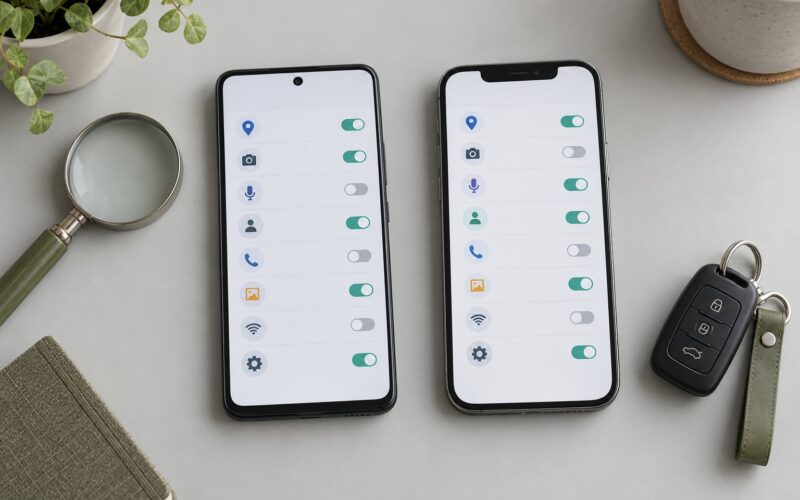
Permissions are where a surveillance app does its real work. Open Settings, then Apps, then See all apps, tap the app you are suspicious of, then Permissions. On Samsung phones it is Settings, then Apps, tap the three dots and choose App permissions. On MIUI and HyperOS open the Security app, tap Privacy, then Permission manager, then the Permissions tab.
Read what each permission exposes and ask whether a normal user of that app would need it. A flashlight app with microphone and contacts access is not a flashlight app. Permissions come in two levels on modern Android, allow while using the app and allow all the time, and only-using is usually the safer choice when it still works.
| Permission | What it exposes | Normal use | Red flag |
|---|---|---|---|
| Microphone | Audio from calls, conversations and the room | Voice assistants, call apps, dictation | Granted to a game, browser or launcher |
| Camera | Photos and live video at any time | Messaging, scanners, video apps | Granted to a wallpaper or tool app |
| Location, background | Position even when closed | Maps, delivery, ride and weather apps | Granted to apps you cannot name |
| Accessibility service | Screen content, taps, keystrokes, remote control | TalkBack, real remotes, password managers | Any remote access or utility app |
| Notifications | Contents of every message and alert | Almost everything | Combined with Device Admin, a surveillance pattern |
| SMS and calls | Your message and call history | Messaging, dialers, backup tools | Granted to an app you did not install deliberately |
Android 12 and later also show a green dot or a camera and microphone pill in the top right corner whenever an app opens those sensors. Reddit users in r/AndroidQuestions and r/privacy describe this as the only trustworthy signal for is it using my mic right now, because it is enforced by the operating system and an app cannot quietly remove it. Settings, then Security and privacy, then Privacy dashboard lists which sensors each app has touched and when.
Some spyware deliberately abuses Accessibility access instead of the microphone. Because Accessibility lets an app read what is on screen and tap buttons, a remote access tool can operate your phone entirely without ever touching the camera permission. That is why the next section matters.
3. Check Battery Usage for Unusual Activity
Unusual battery drain is a clue, not proof. Open Settings, then Apps or Battery depending on your phone. Standard Android is Settings, then Battery, then Battery usage, with a three-dot option to switch to the last 24 hours rather than since last charge. Samsung is Settings, then Battery, then Battery usage. MIUI and HyperOS are Settings, then Battery, then Battery usage, and the Security app shows the same figures under Battery.
Sort by usage and look for an app sitting near the top that you barely open. Constant background activity by an app you use once a day is the pattern worth investigating. Permissions screens tell you more precisely, since each app now shows whether it is allowed to run in the background, and on newer versions Settings, then Apps, then the app, then Battery shows background activity and wakelock figures.
A phone that gets warm in a pocket, dies before lunchtime or charges slowly all day usually points at high background activity rather than at anything specific. A game rendering at high frame rates, a navigation app holding a GPS fix in a poor signal area, a video call left running, and an always-on display can each do the same thing.
4. Look at Mobile Data and Wi-Fi Usage
Data usage separates an app that is busy on your phone from one that is busy sending things out. Open Settings, then Apps, tap the app, then Mobile data. Standard Android also has Settings, then Network and internet, then Internet, then Data usage for a system-wide view with a time filter.
The number that matters is background data. If an app you use occasionally is sending hundreds of megabytes in the background, it is uploading something, and on a surveillance app those uploads are the point. Check the same period on Wi-Fi against mobile data, because an app that behaves differently when you are on Wi-Fi may be avoiding scrutiny.
Switching on the built-in data saver for one day gives you a clean test without touching anything. Open an app and use it for a few minutes. If the behaviour changes the moment data saver caps background transfers, you have found an app that wants to transmit when you are not looking.
5. Inspect Accessibility, Device Admin, and VPN Access
This is the step most guides skip and the one stalkerware depends on. On standard Android the path is Settings, then Security and privacy, then Special app access, which holds Accessibility, Device admin apps, Notification access and Install unknown apps. Samsung uses Settings, then Security and privacy, then Special app access as well, with some items under Security and privacy directly. MIUI and HyperOS keep these under Security, then Privacy, then Authorization or Special permissions, and the exact grouping shifts between releases.
Paths move between Android versions and manufacturers, so if you cannot find an entry, search your Settings app for the name rather than assuming the feature is gone.
Read each list for anything you do not recognise or installed yourself. Device Administrator access means an app can lock the screen, wipe data, and stop itself being uninstalled until you revoke that access first. Accessibility access means an app can read everything on screen and tap anything, which is how commercial remote access tools and monitoring software operate with almost no visible sign. Notification access lets an app read and dismiss every alert on your phone.
Some entries are legitimate. Google Play Services uses Accessibility on many phones, TalkBack is the screen reader for blind users, and password managers need it to read logins. Remote access names such as AnyDesk, TeamViewer and AirDroid belong to real products that are legal and useful, so a clean-looking entry is not automatically a problem, but it deserves a reason.
VPN access is the fourth one to check. A VPN app reads and reroutes all your traffic. If one is installed that you never chose, remove it before you start trusting anything else on the phone.
How to tell an installed app apart from a real system app: open the Play Store search and look the name up. Anything pretending to be a Play Store or system component that has no Play Store listing was not installed through the store, which is the single most useful filter for finding hidden apps.
6. Search for Warnings and Read Reliable App Information
Search the app name with terms like privacy, spyware, data sharing, scam, permissions or review. What you want is the developer name, the privacy policy and any reputable security research that names the app. Read a privacy policy the way a sceptic would: what data is collected, is it shared with third parties, can it be turned off, and does deleting your account delete the data.
Be sceptical of the sources themselves. A forum post is useful evidence when many independent people describe the same behaviour, and useless when someone is arguing in the comments. Stick to official developer pages, well-known security researchers and stores with real review volume.
One targeted-ads test is worth running, and it costs nothing. Turn off personalisation in Settings, then Google, then Ads, then Delete advertising ID on Android 12 and later, or opt out of ad personalisation on older versions. If the ads that echo things you said out loud disappear, an advertising identifier was being tied to that conversation. That is ad tracking, and it is a privacy problem, but it is not someone reading your messages.
7. Revoke Access, Disable Background Activity, or Uninstall
Work from least to most destructive. Changing a permission back to ask every time is reversible and costs nothing. Disabling background activity and notifications in the app’s Battery settings stops it transmitting when closed. Clearing storage in Storage settings removes cached files only, which is harmless but rarely helps.
Uninstalling is the real fix for an app you do not trust. On Xiaomi and HyperOS, MIUI sometimes hides the uninstall option behind the three-dot menu inside the app’s own page, and toggle Uninstall for all users is there too. Leave it off, because that option is also used by some remote management tools.
If the app will not uninstall, it holds Device Administrator access. Go back to Special app access, Device admin apps, open that entry and press Deactivate or Remove, then uninstall normally.
If the app came from outside the Play Store, uninstalling removes it but leaves the APK in your downloads folder. Delete it there too, and turn off Install unknown apps for the browser or file manager it came through, in Settings, then Apps, then Special app access.
If you suspect your Google account was used to install things, change the password, sign out of all sessions under Security, and switch on two-step verification.
Common Mistakes
The most common mistake is treating battery drain as proof. Dozens of ordinary causes produce the same symptom, and a navigation app stuck on a weak signal will out-drain a surveillance app any day. Use drain as a prompt to check permissions, never as the finding itself.
The second is treating ad tracking as spyware. Ads that react to what you said in the room are unsettling and real, but they come from an advertising identifier, and deleting it fixes the problem. A monitoring app does not care about ad settings at all, and it works through Accessibility or Device Admin rather than through ads.
The third is clearing everything before you have looked. Uninstalling first deletes your only view of what the app held. Screenshot the permissions page, the battery figures, the special access lists and the Play Protect warning before you remove anything.
The fourth is installing an antivirus app from a pop-up or a random link. The scam is always the same: a page says your phone is infected, offers a free scanner, and installs the very malware it describes. Only use scanners from the Play Store or a security vendor you already trust, and remember that a free scanner can only match known malware.
The fifth is believing a clean scan proves anything. Play Protect is good at known threats and blind to a commercial monitoring app that never appears on a threat list. A clean result narrows the problem, it does not close it.
While you are here, clear up the dialer codes. The *#62 and *#21 sequences are not a tapping test. On most phones *#62 is an engineering or service code with no consumer function and produces either nothing or an error message, and *#21 is a settings code tied to some regional builds. Neither one reports a wiretap, a hidden app or a listening microphone. Forum users assume they are secret diagnostics because they are circulated in that way online. If you want to know whether the phone is transmitting, aeroplane mode and the background data figures in step 4 will tell you something real.
Aeroplane mode is worth keeping in your kit as a test. Turn it on, then use apps and watch whether anything behaves differently. Interruptions that stop the moment the network drops point to something transmitting, though several legitimate apps do the same.
To reduce the chance of any of this, install from the Play Store only, update the system and apps promptly, remove apps you stopped using, reset the advertising ID every few months, check permissions after each major update, and keep Play Protect switched on. On a work phone you cannot wipe, at least review the special access lists, since that is where an employer-installed tool will show up.
Frequently Asked Questions
Can I tell if an Android app is spying on me just by battery usage?
No. Battery drain is a prompt, not a verdict. Navigation, video, video calls, always-on displays and weak-signal GPS all drain heavily with no data collection involved. Use the drain figures to find apps you barely open, then check whether those apps hold microphone, camera, background location, Accessibility or Device Administrator access. That permission check is what turns a hunch into a finding.
Does Google Play Protect detect spyware and malicious apps?
It detects known malware, unwanted apps and apps from unrecognised developers, and the on-demand scan also checks for suspicious behaviour patterns. It cannot detect a commercial monitoring app that was installed with your cooperation, because such apps are often legitimate Play Store apps behaving within Android rules. A clean Play Protect result rules out the threats it knows about and nothing more.
Which Android permissions are most dangerous for privacy?
Accessibility service comes first, because it can read your screen and tap anything without any separate permission. Next are microphone, camera and allow-all-the-time background location, since together they expose calls, conversations and where you are. Device Administrator access is dangerous for a different reason: it lets an app block its own uninstallation. Notification access and SMS round out the list.
What should I do if I accidentally installed a suspicious app?
Start with Settings, then Apps, then Special app access, and revoke any Device Administrator, Accessibility or VPN entry it holds. Then uninstall it from its app page, delete any APK left in your downloads, and turn off install unknown apps for the browser or file manager involved. Run a Play Protect scan, change your Google account password, and switch on two-step verification if you signed in on the app.
Is it safe to use an antivirus app downloaded outside Google Play?
No. A pop-up saying your phone is infected, or an APK sent through a message or link, is the standard delivery method for the malware it describes. Install security tools only from the Play Store or directly from a vendor you already trust, and never tap a warning page that offers a free scan in exchange for installing something. Play Protect covers the known-malware case well on its own.
How do I stop an app from using my camera, microphone, or location?
Open Settings, then Apps, then See all apps, tap the app, then Permissions, and switch the camera, microphone or location entry to Deny or Ask every time. If the app will not work that way, uninstall it. On MIUI and HyperOS use the Security app, then Privacy, then Permission manager. On Samsung One UI, tap the three dots on any apps screen and choose App permissions.
Conclusion
Four actions handle most cases, in this order. Run Play Protect and your manufacturer’s own scan, then read the permissions of any app you do not recognise, then sort battery and mobile data usage to find apps busy in the background, then check Accessibility, Device Administrator and VPN entries in Special app access. Screenshot each screen before you change anything.
If the behaviour has no innocent explanation, revoke the permissions first, disable background activity, and uninstall the app. If someone who may be watching installed it, work from another device and read the removal order above before you touch anything.