Slow charging on an Android phone is nearly always one of five things: a charging port packed with pocket lint, a cable or charger that cannot deliver enough wattage, a weak power source, a phone too hot to charge fast, or software blocking fast charging. Work through the steps below in order and most cases resolve in about twenty minutes.
Before you buy anything, measure what is actually happening. Note the battery percentage, plug the phone in, wait ten minutes, and check the percentage again. That number is your baseline for every test that follows.
Table of Contents
- What You Need
- How to Fix a Phone That Charges Slowly: Step-by-Step
- 1. Check for heat, swelling, or an unsafe battery
- 2. Measure the charging rate after 10 minutes
- 3. Test a known-good wall outlet and charger
- 4. Check the charging cable and connector
- 5. Clean the charging port carefully
- 6. Restart the phone and retry charging
- 7. Update Android and check battery settings
- 8. Rule out overheating, heavy use, and background apps
- 9. Compare the results and arrange service if needed
- Common Mistakes
- Frequently Asked Questions
- Why is my phone charging slowly even when the screen is off?
- How long should an Android phone take to charge?
- Does charging a phone overnight damage the battery?
- Can a slow-charging problem be caused by a software update?
- What should I do if my phone becomes very hot while charging?
- Does charging slowly mean the battery is already worn out?
- Conclusion
What You Need
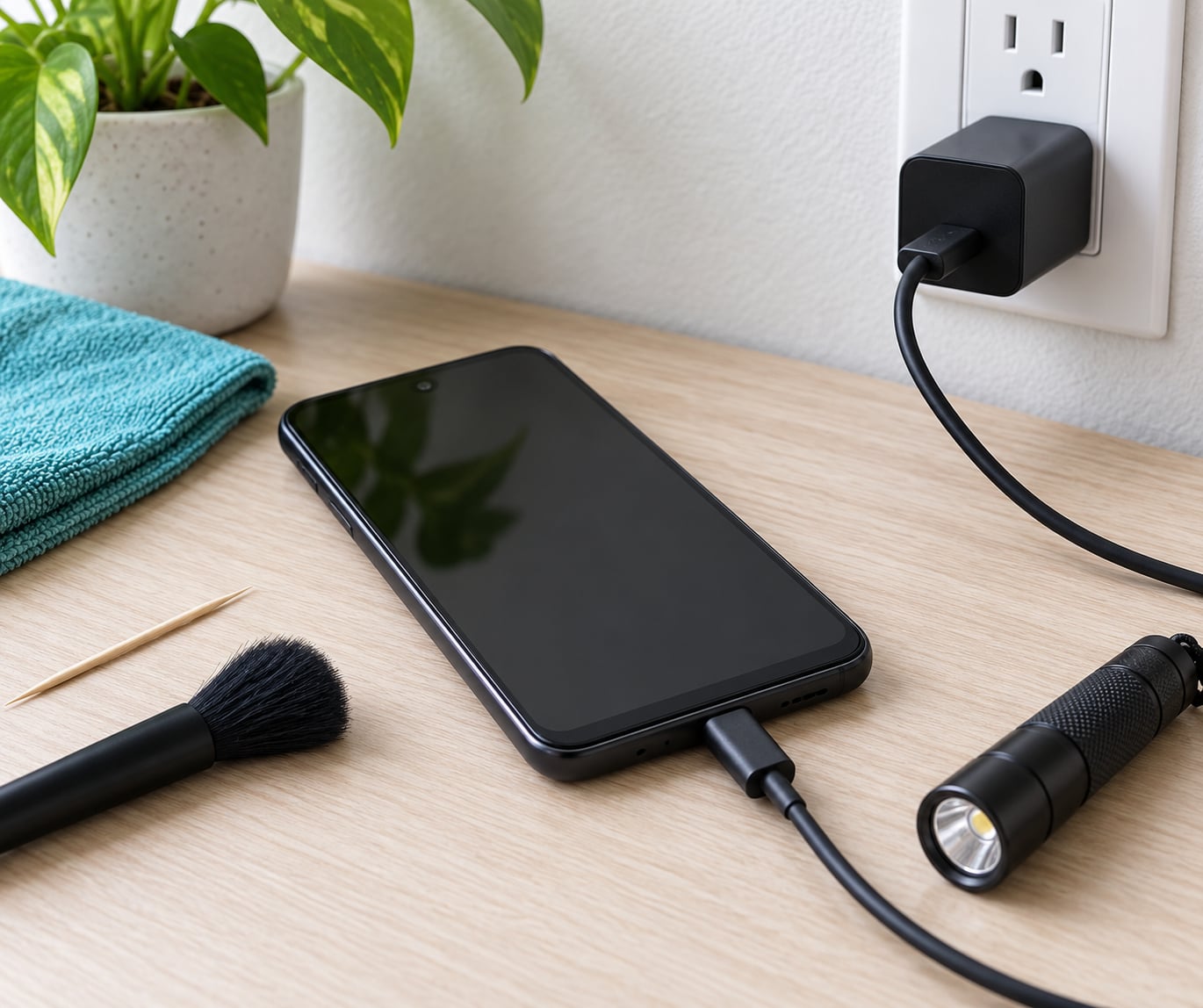
Gather these before you start so you are not hunting for a flashlight in the dark with a dead phone:
- Your phone and its model number (Settings > About phone)
- The original charger or one rated for the phone’s fast-charging spec
- A second, known-good compatible cable
- A different wall outlet in a different room
- A flashlight
- A soft cleaning brush or a wooden toothpick (optional but useful)
Never put metal objects into a charging port. Skip needles, paperclips and compressed air, which can drive debris deeper or damage the port contacts, and do not use liquid cleaners, alcohol or moisture of any kind inside the port.
How to Fix a Phone That Charges Slowly: Step-by-Step
Run these in sequence rather than jumping around, because each step assumes the ones before it already passed. Change one variable at a time, or you will not know which one fixed it.
1. Check for heat, swelling, or an unsafe battery
Look at the phone before you charge it. A swollen lithium-ion battery shows up as a screen that lifts off the frame, a back panel that bulges or refuses to lie flat on a table, or a device that rocks when placed on a flat surface.
Stop using and stop charging the phone immediately if the screen lifts, the back is swollen, the device is unusually hot without heavy use, the battery gives off an odd smell, or you hear any hissing. A swollen battery needs professional service, not a DIY replacement — puncturing a swollen lithium cell can cause a fire.
Success indicator: the phone lies flat, stays cool to the touch when idle, and shows no lift or gap around the screen.
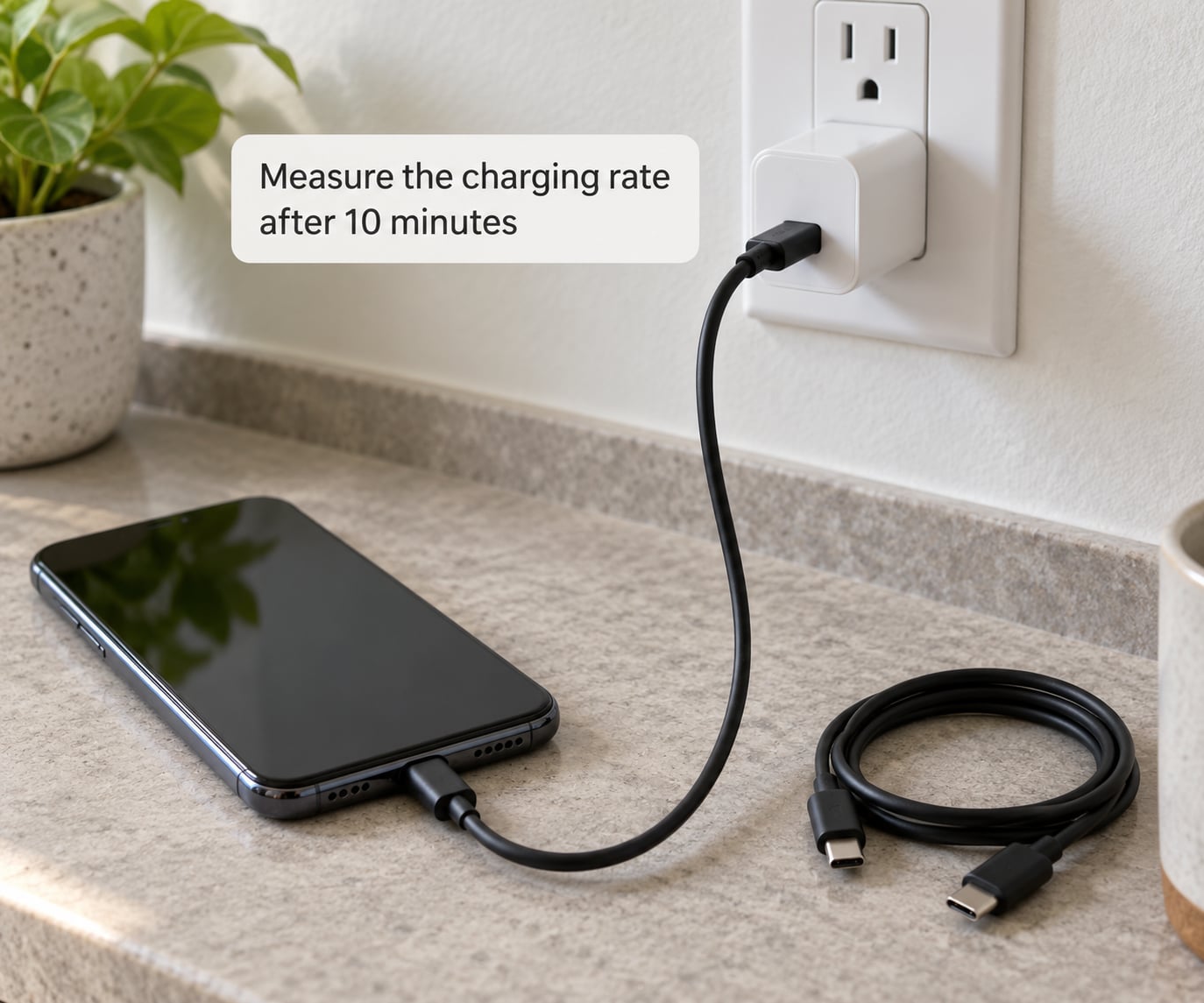
2. Measure the charging rate after 10 minutes
Start at any battery level between 10% and 60%. Plug the phone in, leave it alone for ten minutes, then check the percentage. On Android you will find the numbers under Settings > Battery > Battery usage; menu names differ by skin, so Xiaomi, Samsung, Google Pixel and other Android versions may label it slightly differently.
Write down the gain. A phone on a 25W charger typically gains roughly 20% or more in ten minutes from a low starting point, while a phone stuck at the 5W fallback usually gains only a few percent. Expect the curve to flatten above 80% — charging speed tapers on purpose near full to protect battery life, so test low rather than at 90%.
You will also see a fast-charging symbol on the lock screen or a notification when a high rate negotiates successfully. If that symbol is missing, the handshake is failing, which narrows the fault to the cable, charger, port or power source.
3. Test a known-good wall outlet and charger
Move the whole setup to a different wall outlet, ideally in another room, and repeat the ten-minute measurement. If charging speeds up there, your original outlet or the wiring behind it is the problem.
Next, try a second compatible charger rated for the phone. Use a manufacturer-approved charger or a reputable USB Power Delivery unit rather than a laptop port, an unpowered USB hub, a cheap unbranded adapter or a power bank sharing its output between two devices. A charger that works perfectly can still negotiate only 5W when it is too weak, overheated, or drawing from a low-output source.
Success indicator: the missing fast-charging symbol comes back, or the ten-minute gain roughly triples.
4. Check the charging cable and connector
Cables are the cheapest link in the chain and the most common failure. Test the current cable in a different device, and test the phone with a known-good compatible cable. Inspect the cable for a bent connector, a strain-relief that splits open, visible braid or insulation damage near either end, and a plug that feels loose in the socket.
Understand the limits before you judge it. A USB-A port on a laptop or older wall adapter tops out around 5W to 12W depending on the spec, while USB-C to USB-C with USB Power Delivery is what unlocks 18W and above. Some cheap cables are charge-only or data-only and carry no e-marker chip, so they cannot safely pass higher currents.
Retire any cable whose connector heats up, disconnects intermittently, or exposes bare metal. Success indicator: the same phone, charger and outlet now show the fast-charging symbol.
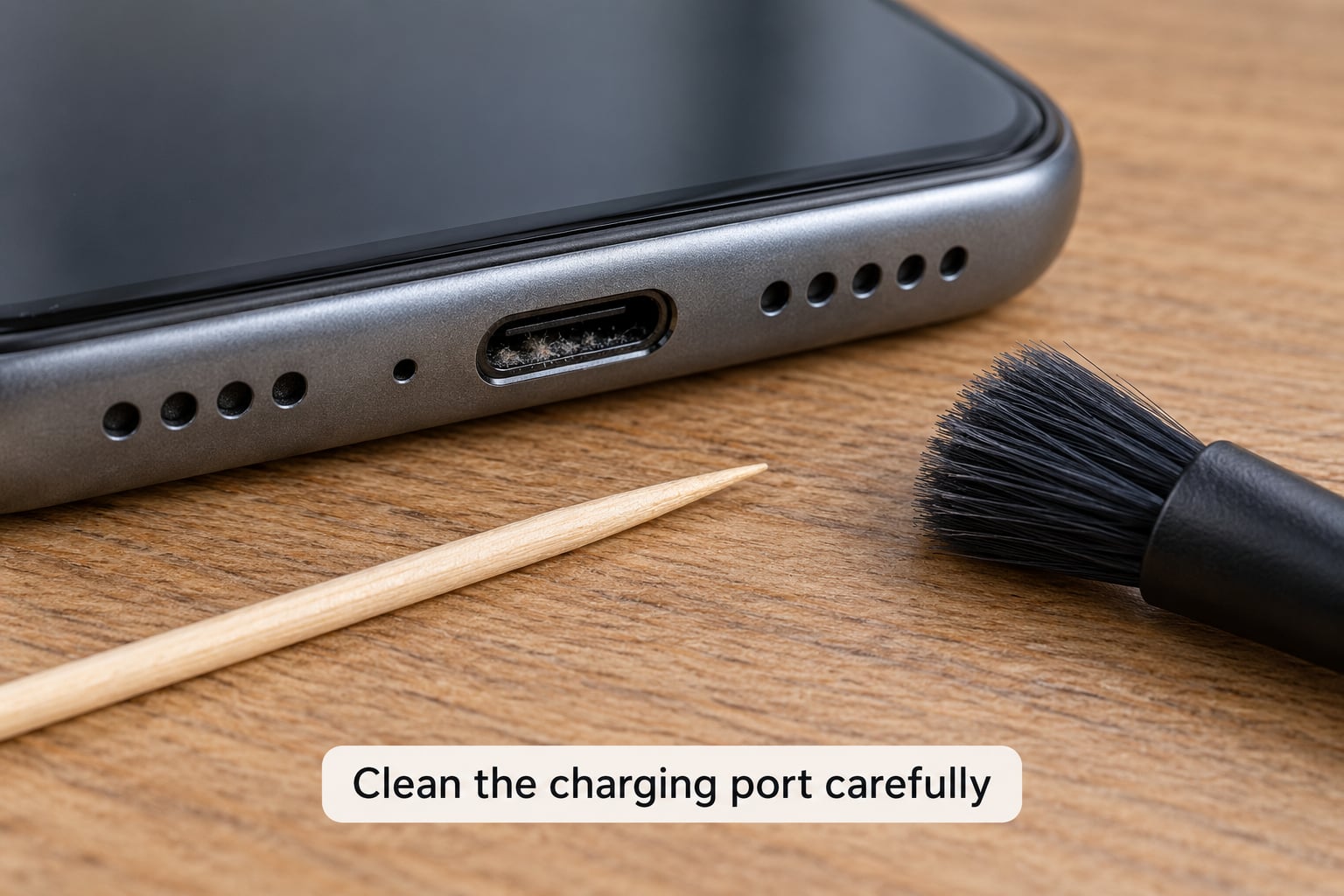
5. Clean the charging port carefully
Lint compaction is the single most common cause of a phone that suddenly charges slowly. It happens gradually, so you rarely notice the day it starts.
Power the phone off completely, then hold it under a flashlight and look straight into the port. Signs of trouble include visible fuzz or grit, a plug that sits unusually loose in the socket, or charging that only starts when you press the plug in at an angle.
Take a wooden toothpick or a soft nylon brush and gently work the debris out toward you. Work from the outside of the port inward, never the reverse, and never scrape hard enough to feel metal. Do not use needles, tweezers, compressed air or liquid of any kind.
Success indicator: debris comes out and charging picks up immediately, or the plug suddenly fits snugly.
6. Restart the phone and retry charging
A stuck background service can hold the phone in a low-power charging state. Hold the power button and choose Restart, wait for the full boot, then plug in and repeat the ten-minute measurement.
If the problem came back right after an update, try a full shutdown instead: hold the power button, choose Power off, wait thirty seconds, then reconnect the charger. Some Android versions also boot into safe mode — hold the power button during startup and continue holding Volume Down when the logo appears — which loads the phone without third-party apps. If charging improves in safe mode, an app is interfering.
A restart only sticks if the underlying software problem goes away, so treat improvement here as a clue rather than the fix.
7. Update Android and check battery settings
Install any pending system and security patch: on Android 12 and newer the path is usually Settings > System > Software update or Settings > System > System update. Exact names and locations vary by Android version and phone manufacturer, so look for the closest equivalent on your handset.
Then check what the battery settings are doing. Battery saver mode and Adaptive Battery both cut charging performance while enabled. Open Settings > Apps > See all apps, select an app, and review its battery setting for background restrictions if the phone runs hot while plugged in.
On Xiaomi and Redmi handsets, an enabled USB debugging option under Developer options is widely reported to quietly drop charging to the slow rate — switch it off and retest. On Samsung, look under Device Care > Battery > More battery settings and confirm fast charging options are switched on rather than toggled off by a recent update. Turn off any charging limit or battery protection mode you did not set yourself.
8. Rule out overheating, heavy use, and background apps
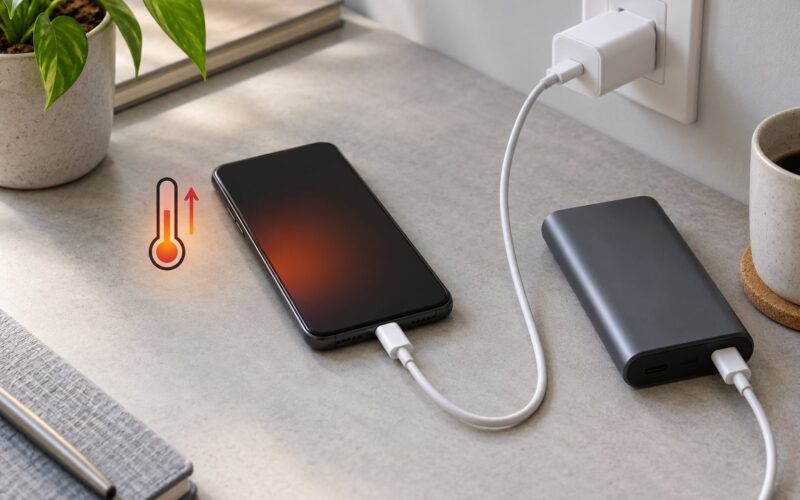
A hot phone charges slower by design. Video recording, navigation, gaming, video calls, a weak signal draining the radio, and a warm room all trigger thermal throttling that reduces the charging rate.
Close demanding apps, take the case off, move out of direct sun, and leave the phone in a cooler room for fifteen minutes before plugging in. Test airplane mode briefly to see whether the phone was burning power hunting for signal. Never put a phone in a refrigerator or freezer, since condensation causes far more damage than heat.
Success indicator: the fast-charging symbol returns once the phone is cool and idle.
9. Compare the results and arrange service if needed
Read your ten-minute numbers against each test. Normal but slower-than-new charging often just means the charger or cable is the limiting factor. Better speed on a different cable points to accessory wear. Better speed at a different outlet points to the power source. Better speed immediately after cleaning confirms a clogged port.
If charging stays slow with a clean port, a known-good cable, a rated charger and a proven outlet, the fault is likely inside the phone — a worn charging port flex, a degraded charging circuit, or an aged battery. Non-removable batteries are not a DIY job, so take it to an authorized repair provider.
Stop troubleshooting and go straight to service if the port feels loose or moves when you plug in, the phone charges only at a specific angle, the battery is swollen, or the charging temperature is unusual. Check your warranty first, since a port flex may be covered.
Common Mistakes
These are the moves people make that waste time or make things worse:
- Using a low-wattage adapter. A 5W plug will always be slow. Match the charger to the phone’s rated fast-charging wattage.
- Charging through a low-power hub. Unpowered USB hubs and many laptop ports deliver a trickle. Plug into the wall.
- Leaving lint around the port. A case that traps debris or a pocket full of dust makes a clean port dirty again. Clean it periodically.
- Changing several things at once. Swapping cable, charger and outlet together tells you nothing about which one worked.
- Using metal tools or needles. They can scratch the contacts or short the port, turning a cleaning job into a repair bill.
- Trying random repair apps. Third-party “phone repair” utilities rarely fix charging hardware and can install unwanted software. Diagnose with the steps above instead.
- Ignoring a swollen battery. A bulge is a safety limit, not a nuisance. Stop charging and get it serviced.
Change one variable per test and record the ten-minute gain each time. A short note on paper — outlet, cable, charger, percentage before, percentage after — turns a frustrating afternoon into a two-minute decision.
Frequently Asked Questions
Why is my phone charging slowly even when the screen is off?
A dark screen does not guarantee fast charging, because the phone still has to negotiate its rate with the charger. A clogged port, an underpowered adapter or a hot device limits the rate regardless of the display. Check for the fast-charging symbol, and compare the battery percentage ten minutes after plugging in. If the gain is a few percent with the screen off, the bottleneck is hardware or power, not the display.
How long should an Android phone take to charge?
A modern phone with a rated fast charger should reach roughly 50% in about 25 to 30 minutes and a full charge in 45 to 70 minutes, depending on capacity and wattage. Older or lower-wattage phones can take two hours or more. Charging also slows deliberately above 80% to protect battery life, so judging speed from a full battery is misleading. Measure from a starting point below 60%.
Does charging a phone overnight damage the battery?
Modern phones manage overnight charging automatically, holding near full and topping up as needed. The bigger factor is heat, since charging warm for hours speeds up long-term wear. If your phone runs hot under a pillow or inside a thick case overnight, move it somewhere ventilated. Keeping the battery between roughly 20% and 80% most of the time slows degradation more than any single overnight charge.
Can a slow-charging problem be caused by a software update?
Yes. A faulty update can leave a background service running, keep battery saver or a charging-limit mode switched on, or in some Xiaomi and Redmi models drop the rate when USB debugging is enabled under Developer options. Restart first, then install any pending system patch and re-check the battery settings. If the slowdown began right after an update, mention the timing when you visit a service centre.
What should I do if my phone becomes very hot while charging?
Unplug it and let it cool somewhere ventilated and dry. Do not use it, do not put it in a refrigerator, and do not charge it again until it feels normal. Heat under load plus charging is a common cause of slow charging in the first place, so retry in a cooler room with the case off and heavy apps closed. If the phone stays hot while idle and unplugged, stop using it and have the battery checked by an authorized repair provider.
Does charging slowly mean the battery is already worn out?
Not always. Slow charging most often points to the port, cable, charger or power source rather than the battery itself. A worn battery usually shows different symptoms: the phone dies quickly, shuts down at a high percentage, or swells. Test charging speed with a clean port, a known-good cable and a rated charger before assuming the cell is finished. If speed stays low through all of those, the battery or charging circuit deserves a professional check.
Conclusion
If you want to fix a phone that charges slowly, start here: unplug it if anything feels hot or swollen, then work down the list — baseline measurement, different outlet, different charger, different cable, clean the port, restart, update, cool it down, retest.
If it is still slow after all of that with known-good accessories, the problem is inside the phone. Let an authorized repair provider check the port flex, the charging circuit and the battery, and keep your warranty details handy.