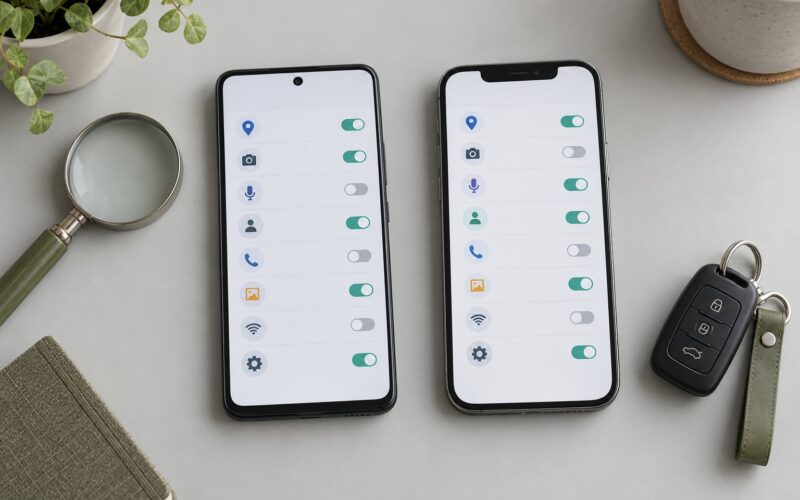
Google stores your searches in two separate places on a phone: against your Google Account, and inside the browser on the device. To learn how to delete Google search history on phone, you have to clear both, and each takes under a minute once you know the menus.
The account side lives in the Google app and on the My Activity page. The device side lives in Chrome or Safari. Most people clear one and assume they are finished, then wonder why their searches are still sitting there.
Table of Contents
- What You Need
- Step-by-Step
- Delete Google Search History on Android with the Google App
- Delete Google Search History on iPhone with the Google App
- Delete Search History in Chrome on Your Phone
- Check Deletion and Automatic History Controls
- Common Mistakes
- Frequently Asked Questions
- Can I delete only my recent Google searches without removing my entire history?
- Will deleting Google Search history on my phone also remove it from my computer?
- Why are my Google searches still visible after I delete them?
- Does clearing Chrome history delete my Google Search history?
- How do I stop Google from automatically saving future searches?
- Can I recover Google Search history after deleting it?
- Conclusion
What You Need
All you need is the phone you use for searching and access to the Google account you search with. No downloads, no third-party cleanup apps, no computer.
Before you start, know which platform you are on. Android and iPhone use the same Google app, so those instructions are identical. The browser step differs, because Android users usually run Chrome while iPhone users may run Chrome or Safari.
One more thing worth checking first: which Google account is signed in on the phone. Tap your profile picture in the Google app and look at the email address at the top. Deleting history from the wrong account is the single most common reason searches survive a cleanup.
Step-by-Step
There are three separate routes. Run all three if you want the phone genuinely clean, then confirm the result.
Delete Google Search History on Android with the Google App
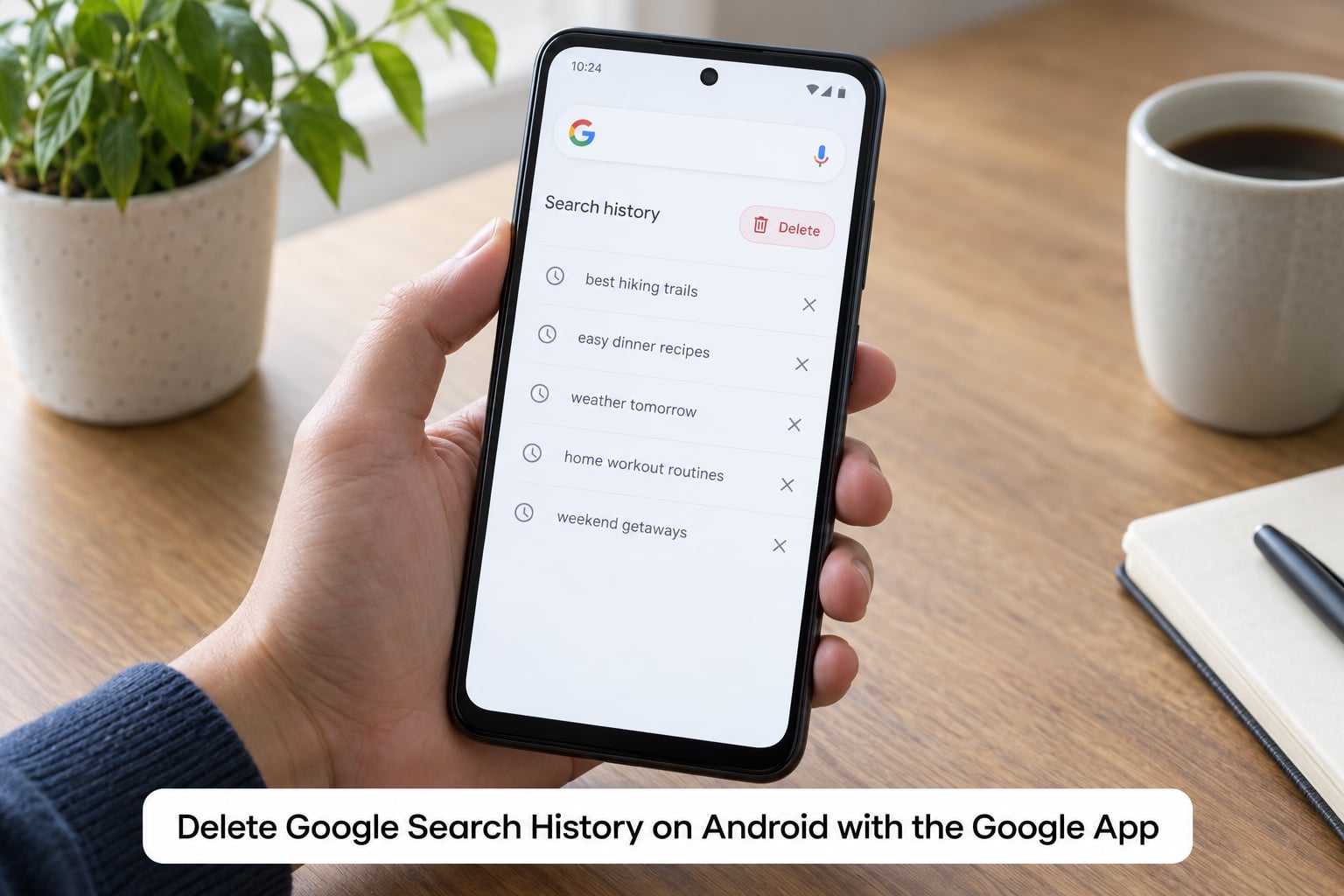
- Open the Google app on your home screen. Do not use the browser for this one.
- Tap the profile picture icon in the top right corner.
- Tap History, then Delete on the row of options that appears.
- Choose a time range: Last hour, Last day, Last 3 months, Last 18 months, Last 36 months, All time, or Custom range.
- Tap Delete in the confirmation box and wait. The list refreshes to empty.
To remove one entry instead, press and hold it in the History list and choose Delete, or tap the three-dot menu on the row and select Delete from Search history.
On Xiaomi, Redmi and POCO phones running MIUI or HyperOS the same path works, but the app often keeps a cached copy of its suggestions. If terms keep autocompleting afterwards, go to Settings, Apps, Google, Storage and tap Clear cache. Samsung One UI users occasionally get a Samsung Internet history screen instead, because that browser keeps its own separate log.
Menu labels shift slightly between app versions, so on some builds you will see Delete activity by rather than plain Delete. Same screen, same result.
Delete Google Search History on iPhone with the Google App
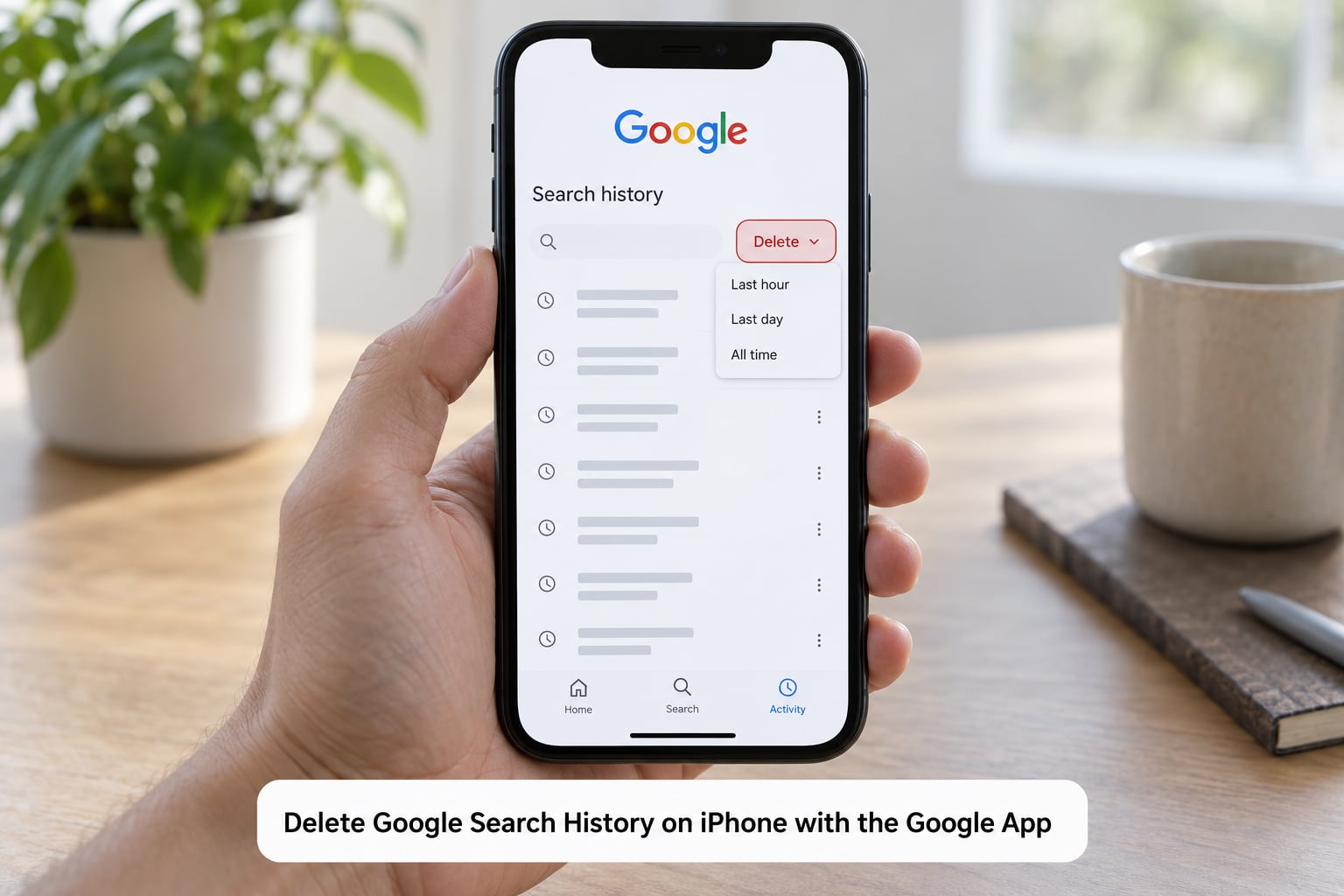
The Google app is identical on iOS, so the route is the same: open Google, tap your profile picture in the top right, tap History, then tap Delete. Pick your time range, confirm with Delete, and the list empties.
If you sign in to the Google app with an Apple ID that has no Google account attached, only local searches are stored on the device and nothing syncs. Sign in properly before you delete, otherwise you will clear a partial record and wonder why entries reappear after signing in.
Older iPhone installs sometimes label the page Your data in Search rather than History, with Delete activity by underneath. Tapping through lands in the same place.
Delete Search History in Chrome on Your Phone
Chrome browsing history is a separate store from Google Search activity. Clearing Chrome does not empty My Activity, and clearing My Activity does not empty Chrome.
- Open Chrome and tap the three-dot menu in the top right.
- Tap History. The list is grouped by day, and each entry can be removed individually with its X.
- Tap Clear browsing data at the bottom of the list.
- In Advanced, tick Browsing history and Cookies and site data. Tick Cached images and files too if you want the thumbnails gone.
- Choose a time range, All time if you want a proper reset, then tap Clear data.
On an iPhone using Safari the path is Settings, then scroll to Safari, tap Clear History and Website Data, and confirm. That clears Safari only; Chrome on the same iPhone keeps its own history.
Use this step whenever you want search suggestions to stop showing old terms, because Chrome autocompletes from its local cache rather than from the account record.
Check Deletion and Automatic History Controls
Reopen the Google app History page. An empty screen is the confirmation. If entries are still there, the account or the time range was wrong, so repeat with All time selected.
To stop the record growing again, open your Google Account, tap the profile picture, choose Data and privacy, then Activity controls, then Web and App Activity. From there you can pause recording, switch it off, or choose Turn off and delete activity, which clears what is already stored as well as stopping the future. Turning recording off on its own does not touch the data Google already holds.
Leaving recording on but setting Auto-delete to 3, 18 or 36 months is the softer option. Everything older than the window is deleted on a rolling basis, so you keep recent search habits without keeping an archive.
Location History, YouTube watch history and Timeline sit on separate toggles in the same Activity controls screen. Switch them individually if they are the parts you actually want gone.
Common Mistakes
Almost every complaint about this process comes down to one of the following.
You picked the wrong time range. Delete activity by defaults to something narrower than people assume. All time is the setting that clears everything, and it is easy to walk away after deleting Last 3 months and assume the job is finished.
You cleared one store and not the other. Searchers on support forums describe this loop constantly: My Activity looks empty, then Chrome still lists the same searches, or the reverse. Both need clearing.
A second Google account is signed in. Family phones and work phones often carry two accounts. Open the profile picture menu and check every account listed before declaring the deletion successful.
You were signed out. Searches made while signed out live only on that device and cannot be deleted from the My Activity page, because the account never recorded them.
You expected deleted searches to vanish from other devices or from an ad profile. Clearing on the phone does affect other devices signed into the same account, but it does not retroactively fix ad personalisation already stored in your Google Account. That lives in My Ad Center and has to be reset separately.
Suggestions survived the cleanup. Autocomplete terms are cached locally. Clearing the Google app cache on Android, or deleting and reinstalling the Google app on iPhone, is what actually clears the leftover words.
Deleting search history does not remove autofill entries, saved passwords and passkeys, payment methods, Find My Device, or your Location History and YouTube history. Those are separate stores with separate controls, and expecting one delete button to cover them is the most common misunderstanding there is.
On Xiaomi, Redmi and POCO devices, check the Security app as well as the Google app. MIUI and HyperOS layer their own cleaner and browser history on top, and clearing only Google leaves that layer untouched.
If your searches still appear after a clean sweep, wait a few minutes and reopen the app. Sync between your account and the device is usually fast but not instant, and a stale list during that window looks exactly like a failed deletion.
Frequently Asked Questions
Can I delete only my recent Google searches without removing my entire history?
Yes. In the Google app, open your profile icon, tap History, then tap Delete and choose Last hour, Last day, or Last 3 months instead of All time. You can also remove single entries with the Delete option on that row. Narrower ranges leave older searches untouched, which is the setting to use before selling or handing over a phone.
Will deleting Google Search history on my phone also remove it from my computer?
Account activity syncs, so anything you delete through the Google app or My Activity disappears from every device signed into that same account, desktop included. Locally stored browser history does not sync that way. Clear Chrome or Safari on the computer separately if you want its list gone too.
Why are my Google searches still visible after I delete them?
Usually one of four things: you were reading Chrome history instead of account activity, a second Google account is signed into the app, the search bar is showing cached suggestions, or the sync has not caught up yet. Confirm the email address in your profile menu, clear the Google app cache, then delete again with All time selected.
Does clearing Chrome history delete my Google Search history?
No. Chrome browsing history is stored on the device, while Google Search activity is stored against your account in My Activity. Clearing one leaves the other intact, which is why searches reappear in the Google app after you clear the browser. To remove both, clear the account activity first, then clear browsing data.
How do I stop Google from automatically saving future searches?
Open your Google Account, tap your profile picture, choose Data and privacy, then Activity controls, then Web and App Activity. Switch it off there, and pick Turn off and delete activity if you also want the stored record gone. For a lighter touch, keep recording on and set Auto-delete to 3, 18 or 36 months.
Can I recover Google Search history after deleting it?
Usually not. Deleted activity is kept temporarily and then permanently erased, with no support path to restore it. A search term may still appear in autocomplete because it is common or still cached on the device, but the dated activity list itself is gone. Deleting in smaller batches over time is the safest habit if you might want some of it back.
Conclusion
The fastest route is four taps: open the Google app, tap your profile picture, choose History, then tap Delete, pick All time and confirm. Follow it with Chrome’s Clear browsing data, then check Activity controls if you want history to stop coming back.
If anything remains, check which Google account is signed in, clear the Google app cache, and give sync a few minutes before trying again.