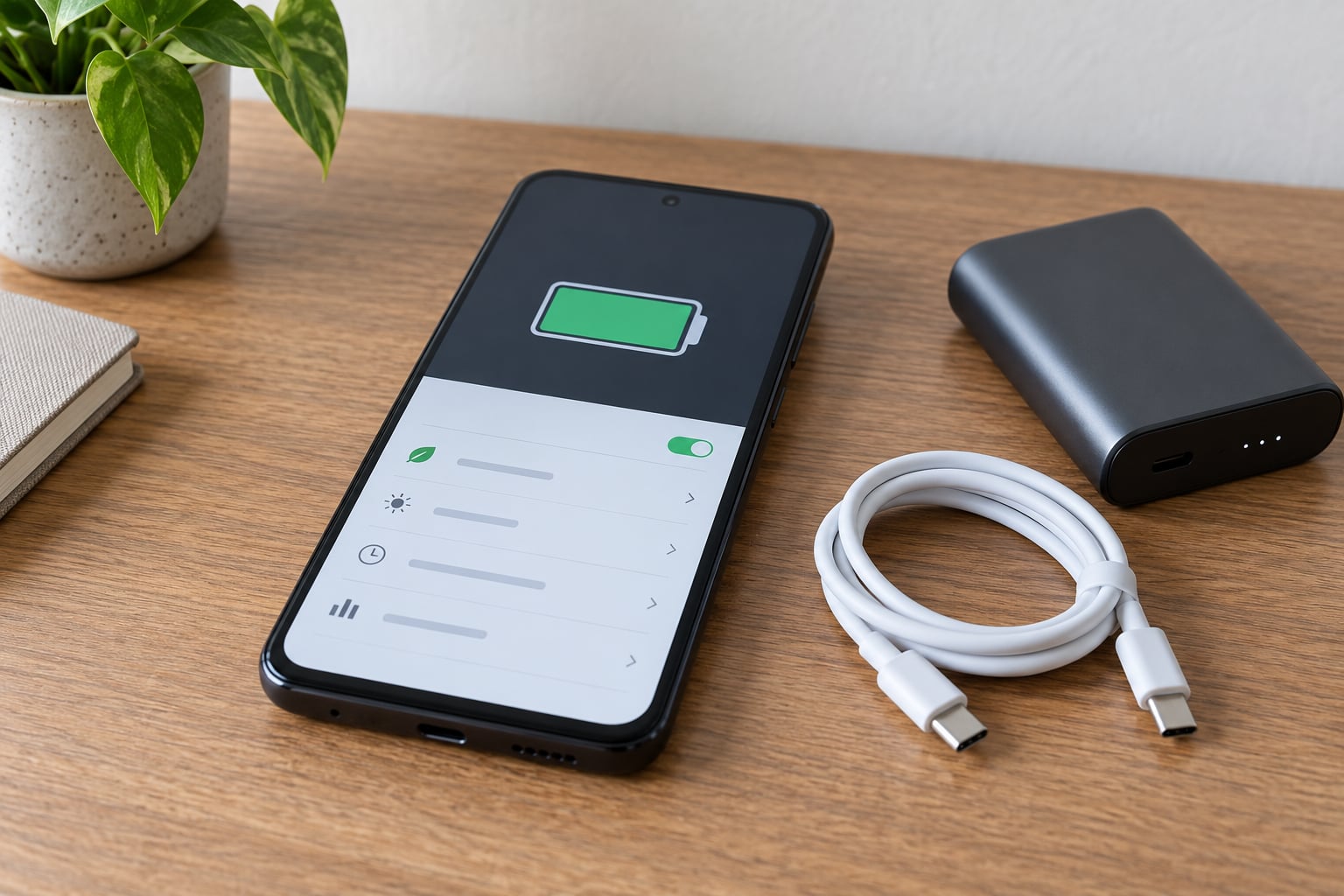
Battery saver mode is a built-in power-saving state that cuts how much energy your phone uses: it caps processor speed, pauses background sync, dims the display and limits location access. That trade buys you hours of runtime at the cost of speed and live features.
Used well, it is an emergency buffer you switch on before a long travel day and switch off once you are near a charger. Used badly, it sits on permanently and leaves you wondering why Maps froze and why your phone feels like it belongs to 2016.
This guide walks through how to use battery saver mode effectively on Android, Samsung and Xiaomi devices: the exact menu paths, how to pick the right power saving level, and which companion settings are actually worth your time. Paths below reflect Android 15, Samsung One UI 6 and Xiaomi HyperOS as of 2026; names shift a little between versions, so I have included the closest equivalents.
Table of Contents
- What You Need
- Step-by-Step: How to Use Battery Saver Mode Effectively
- Open battery settings and find battery saver
- Choose the right battery-saving level to use battery saver mode effectively
- Set the automatic trigger so you never have to think about it
- Check which apps are using the most battery
- Pair battery saver with basic settings
- Know when to turn battery saver off
- Common Mistakes
- Frequently Asked Questions
- Is it good to keep battery saver mode on all the time?
- Does battery saver mode really save your battery?
- Can I turn on battery saver mode at 100%?
- What drains the phone battery the most?
- Does battery saver mode stop notifications or disable GPS?
- Is it better to charge to 80% or 100%?
- Conclusion
What You Need
That is genuinely it. A charged or partly charged Android phone, and about five minutes. You do not need a charger, a new battery, or any third-party app.
The only real stumbling block is naming. Samsung calls the same idea Power saving mode, Xiaomi puts it under Battery & performance on many models, and on some older Android versions the switch lives behind a three-dot menu instead of sitting on the Battery screen. Nothing is broken if you cannot find it under the exact label your search suggested.
Before you enable anything, check two things. Swipe down twice for Quick Settings and note your current battery percentage and whether a charger icon is showing. Then open the battery screen and glance at the top drainer, so you have a before picture to compare later.
| Phone | Where battery saver lives |
|---|---|
| Google Pixel and most Android phones | Settings > Battery > Battery Saver, with the level options underneath |
| Samsung Galaxy (One UI 6) | Settings > Battery > Power saving mode, plus Battery > Battery and device care for limits |
| Xiaomi and Redmi (HyperOS) | Settings > Battery & performance > Battery saver, also pinned in Quick Settings |
| iPhone | Settings > Battery > Low Power Mode |
On any of them you can also skip the menus entirely and pull the battery tile down from Quick Settings. That toggle is the fastest path when you are already out of the house at 12%.
Step-by-Step: How to Use Battery Saver Mode Effectively
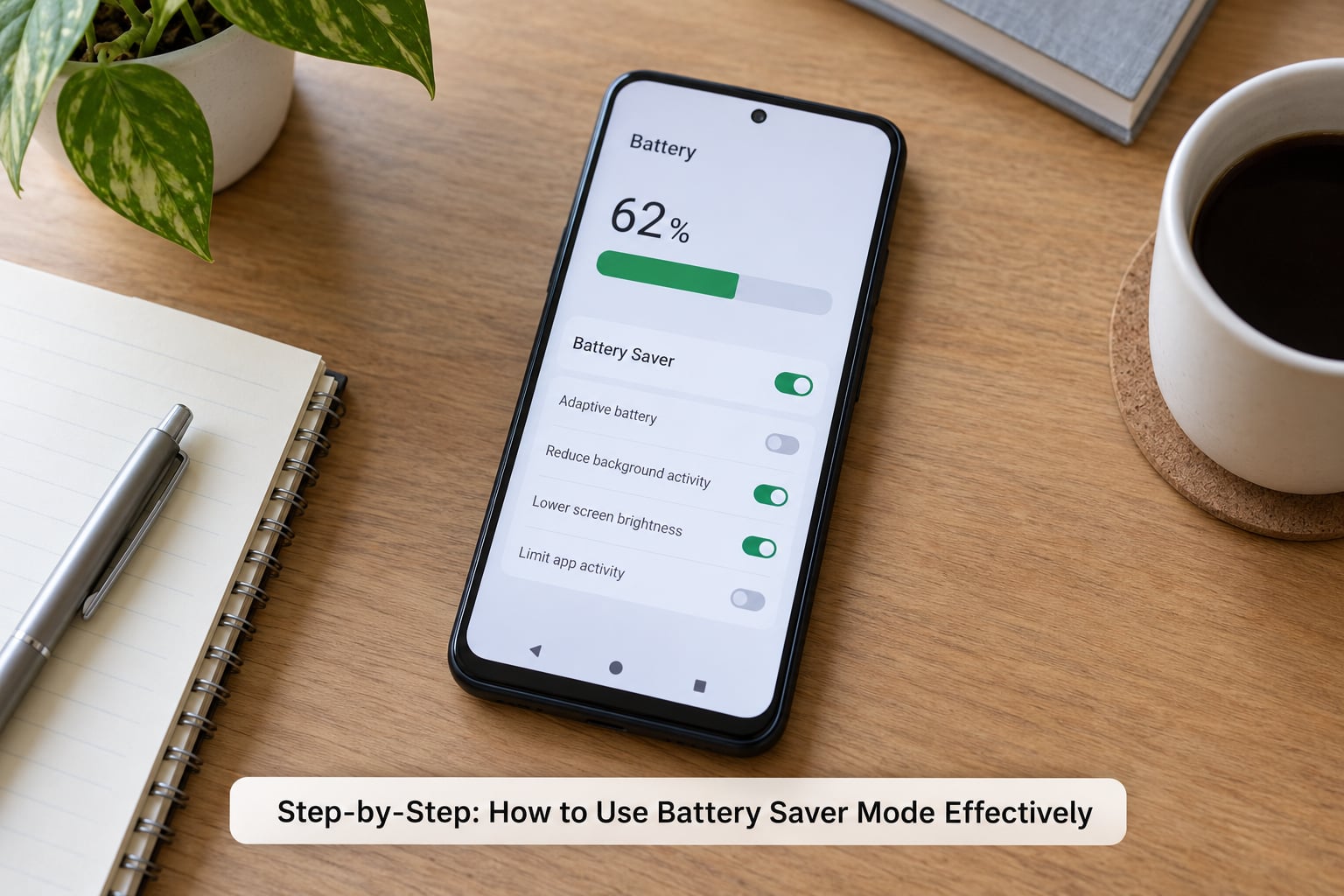
Working through this in order takes about five minutes and saves you guessing later.
Open battery settings and find battery saver
On most Android phones, open Settings, tap Battery, and you will see a Battery Saver switch near the top of the screen. On Samsung, the same switch reads Power saving mode. On Xiaomi and Redmi devices running HyperOS, go to Settings > Battery & performance > Battery saver, which sits above the charging and battery health options.
You know it is on when the switch turns a different colour and a low-power or leaf icon appears in the status bar. If nothing changes after you tap it, check that you did not tap the grey text label instead of the switch itself, which is an easy mistake on Pixel devices.
Choose the right battery-saving level to use battery saver mode effectively
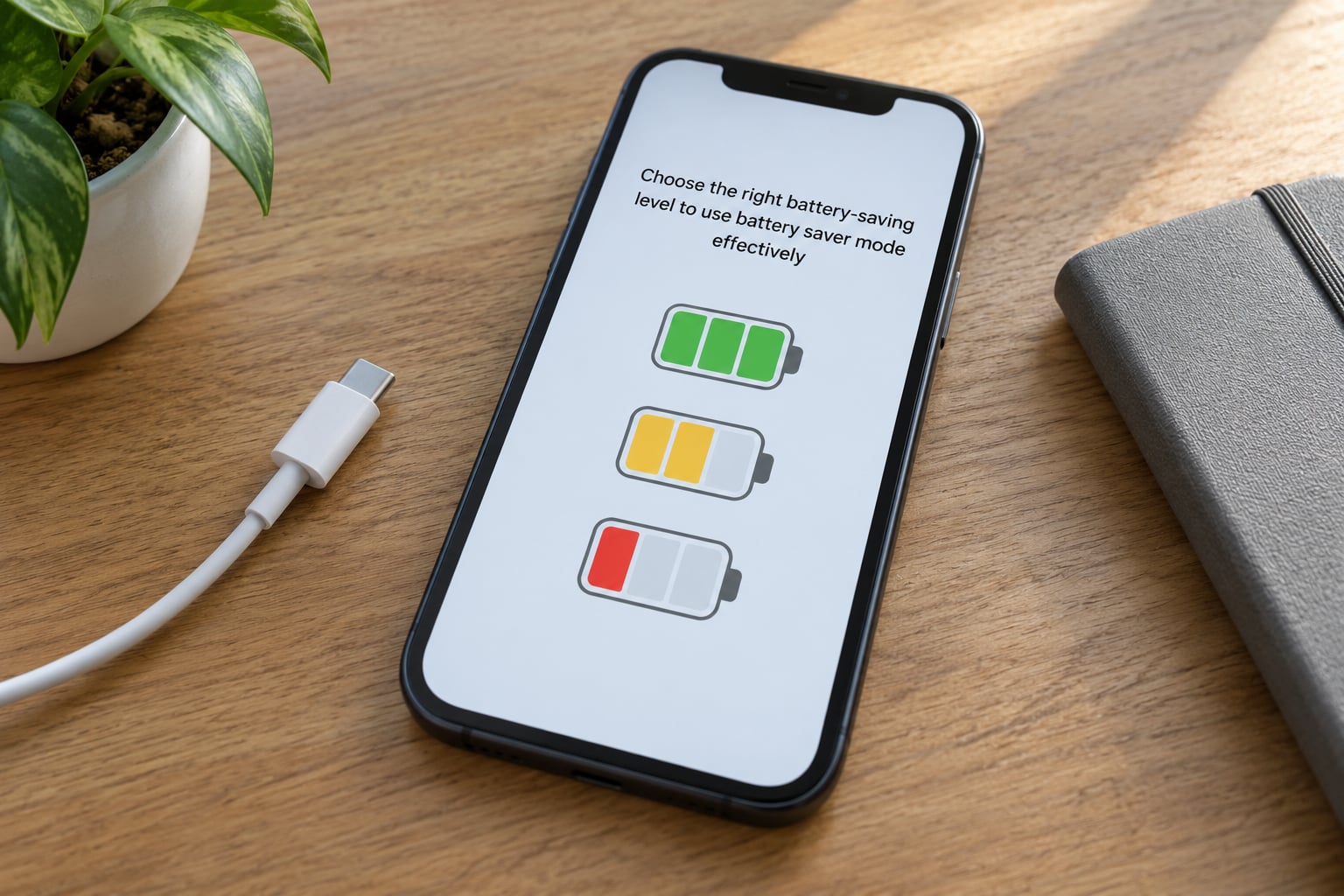
Adaptive, Balanced and Maximum (called Extreme on some devices) are not the same switch. Adaptive watches what you use and steps down only when it judges you need to. Balanced applies a fixed set of restrictions. Maximum strips back harder: animations slow, background work is suspended more aggressively, and some visual effects get dropped.
Maximum gives you the most runtime and the most complaints. Samsung users on r/samsung describe setting power saving around 30% and finding the phone noticeably sluggish but acceptable as a short emergency measure, which is a good description of what Balanced should feel like instead.
Set the automatic trigger so you never have to think about it
Turn on the battery level option beneath the switch and pick a percentage. Stock Android offers 5, 15 or 20; Samsung lets you choose from a wider range of levels; HyperOS uses the same scheme. Around 20% keeps you working without noticing the restriction, and 30% is the number most people in the Samsung communities settle on.
Two details worth knowing. You can enable it manually at any level, including a full battery, but Android switches it off automatically while charging. And a threshold set too high, say 50%, means you spend a lot of the day in a slower phone for very little benefit.
Check which apps are using the most battery
Battery saver reduces the cost of background activity, but it cannot fix one app burning a quarter of your charge. Open Settings > Battery > Battery usage (Samsung calls this App battery usage and puts it under Battery and device care) and sort by the last 24 hours.
Look for anything above roughly 10% that you do not recognise. The usual culprits are navigation, camera, video calls and mobile game streaming, all legitimately heavy. The ones to act on are apps that sit high without you opening them, which usually means a chat app syncing photos or a shopping app refreshing a feed.
For an offender, decide rather than guess: restrict background activity, update it in case a fix landed, or uninstall it. On Samsung, Background usage limits gives you Put unused apps to sleep and Deep sleeping apps. On Xiaomi, per-app Battery strategy offers Optimised, Restrict background and Never ask again.
Pair battery saver with basic settings
Battery saver on its own is a moderate win. A few companion settings make it a much larger one, and most take under a minute each.
- Adaptive brightness. Already on by default on most phones, but confirm it in Display settings. A screen running at full brightness in daylight is the single biggest drain on any phone.
- Shorter screen timeout. Fifteen to thirty seconds adds up across a long day.
- Dark mode. On AMOLED and OLED panels, dark pixels draw less power. The saving is smaller than most guides claim but it costs nothing.
- Always-on display. A detailed settings thread on r/GalaxyS21 put the screen-off cost of this feature at roughly 0.25 to 0.50% per hour, which adds up to a meaningful overnight chunk.
- Location and Bluetooth. Location services running constantly is a heavy background load. Turn Bluetooth off when it is not paired to anything.
- Background activity limits. Useful, but restrict selectively. Do not restrict anything you rely on for alerts you actually need, including messaging, mail and your banking app.
One myth to drop while you are in there. Swiping apps off your recent list saves nothing. Those apps are already frozen; closing them costs battery and time and breaks nothing. The people arguing about it in the r/samsung threads are right.
Know when to turn battery saver off
Some tasks need the performance headroom, so switch back to Adaptive or Balanced before them: gaming, video recording, camera work, hotspot tethering and turn-by-turn navigation.
Navigation is the one people get caught by. Location and Maps updating can be throttled hard enough that your position lags behind reality on a route you have not driven before. Tapping into the map while battery saver is on usually wakes the app up, but do not rely on that. Start the drive, confirm your location is tracking live, and only then put the phone down.
Once you are back within reach of a charger, take it off battery saver rather than leaving it at Maximum through a full night. Charging clears the low-power state automatically on every major brand, but a phone that spends every night throttled is a phone that feels slow every morning.
Common Mistakes
Expecting battery saver to fix a worn battery. If your phone dies in four hours on a full charge, that is capacity loss, not a software setting. Android 12 and later expose battery information under Battery > Battery information on many devices, and Samsung shows the same under Battery and device care. Below roughly 80% health, a replacement is the real fix.
Leaving Maximum mode on permanently. This is the complaint that drives most people to switch it back off. If you find yourself doing things twice because animations stutter, move to Adaptive.
Mistaking throttling for a fault. A phone that feels sluggish at 15% with battery saver on is behaving normally. Check the battery screen before assuming something broke.
Ignoring heat. A phone that is warm to the touch, especially while charging, deserves attention. Do not use it under a pillow, and do not keep it in direct sun while running low power mode. Swelling, an odd smell or a screen that lifts is a stop-using-it-now situation, not a settings problem.
Charging with unsuitable hardware. A worn or unbranded cable can refuse to negotiate proper charging, and leaving the phone at 100% overnight at high temperature ages the cells faster than any setting you will ever toggle.
Restricting apps blindly. Battery saver with sensible restrictions helps. Battery saver plus every app set to Restricted means missed messages and no alerts at all. Restrict by what drains in your usage screen, not by what looks suspicious.
Frequently Asked Questions
Is it good to keep battery saver mode on all the time?
No. Battery saver mode is meant as a short buffer, not a permanent setting. Left on continuously it caps processor speed, slows animations, delays background sync and can throttle location access, so navigation and messaging get unreliable. Most people do best with Adaptive or Balanced as the default and Maximum only for a long day with no charger in sight.
Does battery saver mode really save your battery?
Yes, and the number depends on what else is running. Expect a modest gain in everyday use and a large one when combined with dimmer screen settings, shorter timeout and restricted background apps. A phone that idles overnight usually loses around 5 to 15% while sleeping, and low power mode plus those settings can cut that noticeably. It will not rescue a battery that has already degraded.
Can I turn on battery saver mode at 100%?
You can. The switch is available at any battery level, so turning it on with a full charge is perfectly allowed and Android will honour it. Two things to remember: Android switches battery saver off automatically while the phone is charging, and running it at full charge gives you the performance cost with none of the runtime benefit, since you already have the reserve.
What drains the phone battery the most?
The display, by a wide margin, especially on AMOLED and OLED phones at high brightness. After that come apps syncing in the background, location services running constantly, weak cellular signal that forces the radio to work harder, and always-on display. Open Settings u0026gt; Battery and check your usage screen, which names your top three drainers in about ten seconds and tells you whether the problem is a screen setting or one app.
Does battery saver mode stop notifications or disable GPS?
It can do both, which is the part that catches people out. Background sync is restricted, so some apps deliver notifications late or only when you open them. Location access is limited on Maximum mode, so Maps navigation may lag on a route you have not driven before. Turn battery saver off before starting navigation, and keep messaging apps out of any background restrictions you set.
Is it better to charge to 80% or 100%?
For long-term battery health, stopping around 80% is gentler, because the last stretch of a charge is the most demanding on the cells. Most phones ship with something that does this for you: Samsung has Protect battery, iOS has Optimized Battery Charging, and Android has Adaptive Charging. None of that makes 100% wrong for an occasional full charge, so top up fully when you need the range and stop worrying about it.
Conclusion
Turn on Adaptive or Balanced now and set your trigger around 20 or 30%, so the phone protects itself on the days you forget. Then open the battery usage screen tomorrow morning and deal with whatever sits at the top of the list. If that app is legitimate, leave battery saver on Balanced for the rest of the day and switch it off before you start navigating or gaming.
If you are still learning how to use battery saver mode effectively, Balanced is the safest place to stay and the easiest level to judge performance against. Most people settle there and never touch the setting again.
Last reviewed for Android 15, Samsung One UI 6 and Xiaomi HyperOS in 2026.