Knowing how to tell if your phone has malware comes down to two checks: look for the behaviour it causes, then run the built-in scanner. The signs show up as mobile data you never used, pop-ups outside the browser, apps you do not remember installing, and battery drain that no longer matches how you use the phone. Behaviour on its own never confirms anything, so budget about ten minutes.
One thing worth clearing up first. A true self-replicating phone virus, the kind that copies itself from device to device, is genuinely rare. What people actually run into is malware: adware, trojans, spyware, and unwanted apps that behave badly. That distinction matters, because it changes what you should look for and which fixes actually work.
Menu names below follow stock Android and HyperOS as closely as I can get them. Samsung One UI, Xiaomi HyperOS, and other skins rename a few things, and the paths moved slightly in recent Android versions, so treat the label as a guide and the location as the truth.
Table of Contents
- What You Need Before You Start
- How to Tell if Your Phone Has Malware: 7 Android Steps
- Step 1: Check for Obvious Warning Signs
- Step 2: Review Recently Installed Apps and Permissions
- Step 3: Run Google Play Protect and Learn How to Tell if Your Phone Has Malware for Real
- Step 4: Scan With the Phone’s Built-in Security Tool
- Step 5: Check Browser Behaviour and Account Activity
- Step 6: Remove Suspicious Apps and Strengthen Protection
- Step 7: Decide Whether the Phone Is Clean or Needs More Help
- Common Mistakes That Make the Check Harder
- Frequently Asked Questions
- Can I tell if there is a virus on my phone?
- Is Google Play Protect enough to find malware?
- How do I clean malware off my phone?
- Do I need to factory reset my phone to remove malware?
- How do I know if my virus warning is real or a fake pop-up?
- Can iPhones get malware?
- Conclusion
What You Need Before You Start
Four things make this check go smoothly:
- A recent backup. If you end up uninstalling apps or, in the worst case, resetting the phone, you want your photos and messages recoverable first.
- Your screen lock PIN or pattern. Some settings stay hidden until the phone knows it is you.
- A stable internet connection. Play Protect checks its database online, and account checks need the network.
- About fifteen minutes of quiet. The checks are quick, but switching between Settings, the Play Store, and your Google account interrupts you if you rush it.
That is genuinely all. You do not need to buy a scanner to find out whether something is wrong, and you should not install one yet. Free built-in checks come first because antivirus apps frequently ask for accessibility access or a paid subscription just to run a single scan.
How to Tell if Your Phone Has Malware: 7 Android Steps
Step 1: Check for Obvious Warning Signs
Start with what changed, not with what you suspect. Open each of these and judge whether the change is real:
- Battery usage. Settings > Battery > Battery usage. A single app sitting far above the rest, especially one you rarely open, is worth investigating.
- Mobile data. Settings > Connections or Network > Data usage. Unexpected megabytes usually mean background syncing, ad loading, or a crypto miner.
- Pop-ups outside the browser. Full-screen ads while you are reading a message or sitting on the home screen point to adware, not a website problem.
- Unfamiliar apps. Swipe through your app drawer looking for anything you cannot place.
- Messages you did not send. If contacts report spam texts or links coming from your number, something is sending mail with your account.
- Charges you did not make. Check your bank app and any subscription list.
- Search or homepage changes. A different start page, extra search engine, or browser extensions you never added.
Now the honest part. Battery drain on its own is not proof. In community threads on r/techsupport and r/antivirus, the most common resolution for a phone losing most of its charge in a few hours is an ageing battery, a runaway background app, or a failing phone, not malware. Treat a symptom as a reason to look, not as a verdict.
Step 2: Review Recently Installed Apps and Permissions
Audit before you scan. That order shows up constantly in the advice people give each other, and it makes sense: the install is the event that caused the problem, so the install list is the evidence.
Sort your apps by install date. On stock Android, long-press an app in the drawer and choose App info, or open Settings > Apps and use the sort control at the top. Anything installed in the last few weeks deserves a name you recognise and a reason you remember installing it.
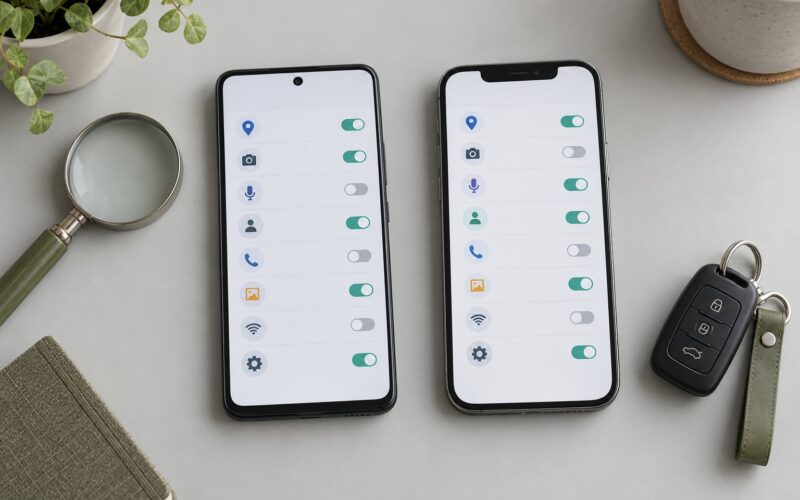
Then open the app info screen and read App permissions. The ones that matter most:
- Accessibility. Legitimate apps rarely need it. It can read everything on screen and tap anything, which makes it the favourite tool for banking trojans and stalkerware.
- Device administration. Grants the power to lock or wipe the phone. Almost no normal app needs it.
- Notification access. Lets an app read every notification, including one-time codes for logging in.
- Camera, microphone, location. Fine for a camera app. Questionable for a flashlight or wallpaper tool.
Revoke anything you cannot justify. To see all permission grants in one place, use the permission manager in Settings, which lists access by type rather than by app.
Step 3: Run Google Play Protect and Learn How to Tell if Your Phone Has Malware for Real
This is the part that produces an actual answer. Open the Google Play Store, tap your profile icon in the top right, choose Play Protect, then Scan. The screen should say something like No threats found. That is a real result, not a guess.
Two things to verify while you are in there. Under Play Protect settings, confirm the basic protection toggle is on. And check which apps have been scanned recently, because Play Protect lists recent app activity and anything marked as not available in your country or installed from outside the store.
If it reports a threat, read the whole screen before tapping anything. Play Protect offers to uninstall the app and may offer to disable the device administrator it installed. Both are reasonable next moves, but take a screenshot first if you might need to show someone what happened.
One limit worth knowing: Play Protect scans apps. It does not deeply audit every permission on your phone, and a clean result does not clear you if someone installed an app you personally trust that behaves like a trojan. Play Protect flags a lot of sideloaded APKs, cracked games, and modded apps. In most reported cases that is a true positive about the source, not a false alarm about the phone.
Step 4: Scan With the Phone’s Built-in Security Tool
Every manufacturer ships its own scanner, and it is free. The route is usually Settings > Security or Settings > Device care:
- Xiaomi and HyperOS: open the Security app, then Virus Scan, then Scan. Options to scan for grey-market apps appear on the same screen.
- Samsung One UI: Settings > Apps > Smart Manager, then the Security section, then Scan now. Device care also reports battery and memory issues that are not malware at all.
- Stock Android: the Play Protect step above is the whole story.
Run it, then read the result the same way. A clean scan plus no behavioural changes is a genuine all-clear.
Do not install an unfamiliar cleaner app just because the phone feels slow. Slowness is a hardware and software problem, and the cleaner apps that promise to fix it are, more often than not, the adware you were trying to remove. A reputable third-party scanner such as Malwarebytes, Bitdefender, or AVG is fine as a second opinion after the built-in checks, provided you decline the accessibility permission it will ask for during setup.
Step 5: Check Browser Behaviour and Account Activity
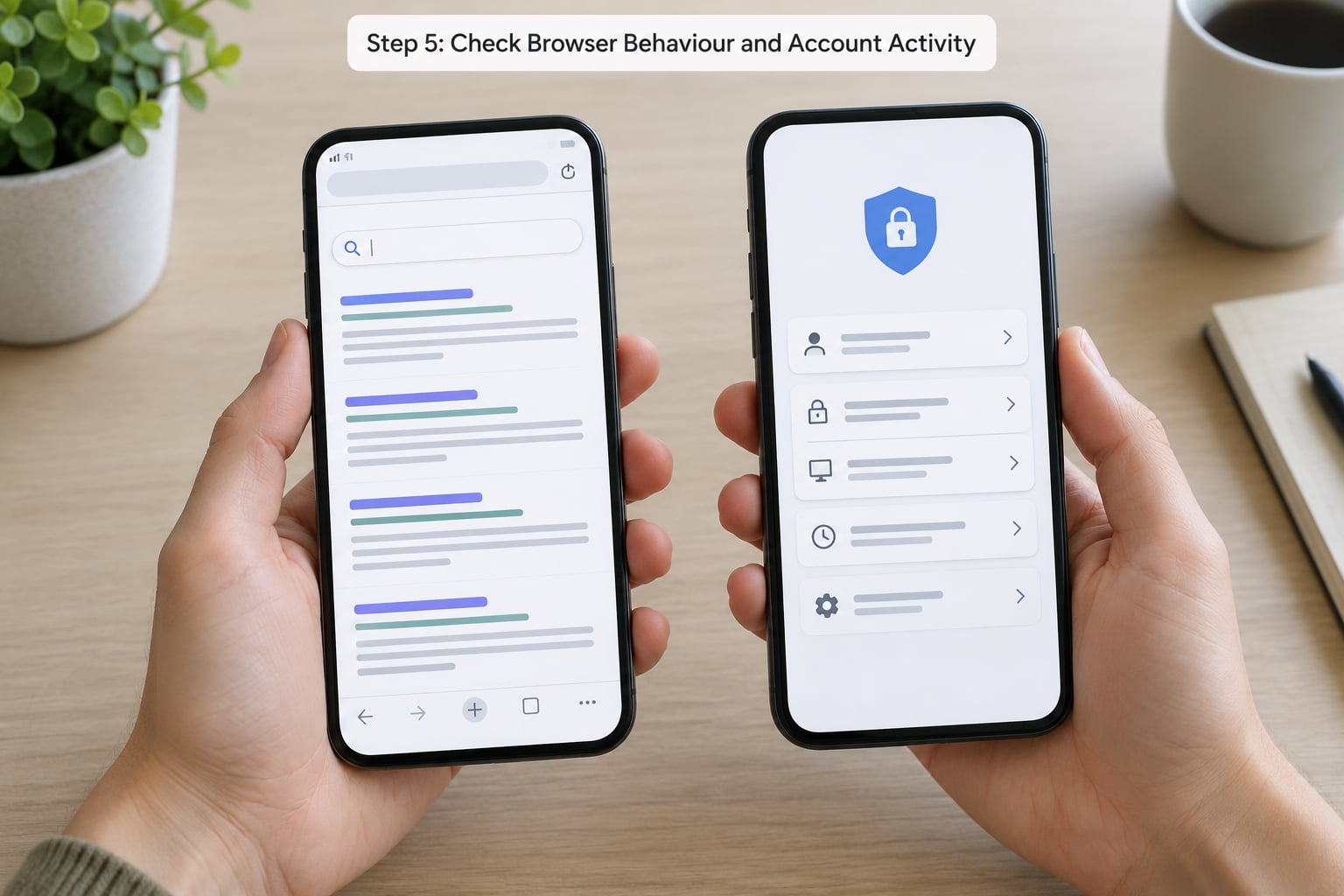
Redirects and a changed homepage come from a different direction than app-based malware, so check them separately. Open your browser and look for a search engine or homepage you did not pick, extensions you did not add, or pages opening on their own.
In Chrome, check what has changed under Settings > Privacy and security > Site settings, and look at Settings > Extensions. Clear the browsing data for suspicious sites, and reset search engines under Settings > Search engine. On other browsers the equivalent is usually a clear data or reset option in the settings menu.
Then open your Google account at myaccount.google.com and go to Security. Three places matter: Recent security activity, Your devices, and Passwords. Anything signed in from a place you were not, or a device you do not recognise, is a stronger signal than any battery graph.
If you suspect someone is spying on you specifically, look at Permissions in the same Security section and check Location history and activity. Unknown devices, unfamiliar recent activity, and an unfamiliar device admin app together point at stalkerware installed with physical access rather than a random infection. Stalkerware is a different problem, and it needs different handling.
Step 6: Remove Suspicious Apps and Strengthen Protection
Work in this order. Rushing past the account steps is how people end up infected twice.
- Turn on airplane mode so nothing on the device can talk to a server while you work.
- Uninstall the suspicious app from its App info screen, or disable it if uninstall is blocked.
- Revoke its permissions, and turn off Accessibility and Device administrator access for anything you removed.
- Change important passwords from a different, clean device, not this phone. Sign out of sessions afterwards and switch on two-step verification.
- Update Android and the Play Store, then re-run Play Protect.
- Review recurring payments in case an app subscribed you to something.
Do not factory reset yet. If you get to that point, back up first and restore carefully, because restoring from a backup that included the malicious app reinfects the phone. Photos and contacts are usually safe to restore; sideloaded apps and their data are not.
Step 7: Decide Whether the Phone Is Clean or Needs More Help
A restart often settles a genuinely stuck app or a bad update. If symptoms disappear afterwards, keep an eye on battery and data for a week rather than declaring a cure.
A built-in scanner resolving the issue means the tool did its job: app removed, Play Protect clean, behaviour back to normal.
Get outside help when the picture is bigger than the phone. Signs include money moving without your approval, accounts you do not control, settings you cannot reach, a device administrator you cannot remove, or an unfamiliar device on your Google account that stays there after a password change and sign-out. A factory reset with a clean restore is reasonable at that point, and for confirmed stalkerware, replacing the device is the only certain fix.
Final verification, once you have made changes: run Play Protect, re-check battery usage after two full days, and watch data usage. Then revisit myaccount.google.com to confirm nothing new has signed in.
Common Mistakes That Make the Check Harder
Treating battery drain as proof. An ageing battery or one runaway app will drain a phone just as fast. Use the battery usage screen to identify the specific app, then compare against what you know about your own use.
Downloading a random cleaner. Many cleaner apps on the Play Store exist to display ads, and several ask for accessibility access so they can show you ads on other apps. Check with the built-in scanner first.
Deleting evidence before backing up. Screenshot the Play Protect warning, note the app name and install date, and confirm your photos are backed up before you uninstall anything.
Changing one password and stopping there. If a trojan ran on the phone, treat every session as exposed. Change the main password from a clean device, sign out everywhere, and turn on two-step verification.
Resetting before securing accounts. A reset wipes the device, not the account takeover. Secure your Google and email accounts first, then reset.
Ignoring linked devices and signed-in sessions. A phone can be clean while a compromised session lives on another device. Check Your devices on a regular basis, not only when something looks wrong.
Not knowing which app started it. Once you uninstall the suspect, the clue is gone. Note the date and the app name first.
Prevention is dull and effective. Install from the Google Play Store only. Skip permissions you do not understand, especially Accessibility and Device admin. Keep the system updated, use two-step verification, avoid unknown links in texts, and treat any free public WiFi network as untrusted.
Frequently Asked Questions
Can I tell if there is a virus on my phone?
Symptoms point to a problem, but they do not confirm malware on their own. Sudden data use, pop-ups outside the browser, unfamiliar apps, and drain that does not match your use are all reasons to check. Confirmation comes from the scanner. Run Google Play Protect on Android, or your manufacturer security app, and read the result.
Is Google Play Protect enough to find malware?
For most Android phones, yes. Play Protect checks installed apps against its database and removes known threats, and it is free and always on. What it does not do is audit every permission on the device or catch an app that behaves maliciously while looking legitimate. Pair the scan with an app install audit and a look at your Google account device list.
How do I clean malware off my phone?
Start in airplane mode, uninstall the suspicious app, revoke its permissions, and turn off any Accessibility or Device administrator access it was granted. Then change your important passwords from a different, clean device and switch on two-step verification. Update Android and the Play Store, run Play Protect again, and check your bank and subscription list.
Do I need to factory reset my phone to remove malware?
Usually not. Removing the offending app and revoking its permissions clears most infections, and a scanner confirms it. Reserve a reset for cases where the phone stays misbehaving after removal, when settings are locked, or when malware came from a rooted or sideloaded system. Back up first, and never restore the malicious app from that backup.
How do I know if my virus warning is real or a fake pop-up?
A genuine alert comes from your operating system, your Play Store, or your security app, and it looks like a system screen. A fake one appears in the browser, shouts about problems, and pushes a phone number or a download. Never call a number from a pop-up. Close the browser, clear its data, and run Play Protect to see what is actually there.
Can iPhones get malware?
Genuine self-replicating viruses on iOS are rare, and apps come only from the App Store unless the device is jailbroken. The realistic iPhone risks are fake virus warning pages, aggressive subscription traps, and configuration profiles used for monitoring. Check Settings u0026gt; General u0026gt; About for unknown profiles, and Settings u0026gt; Privacy u0026gt; Tracking for unfamiliar apps.
Conclusion
The first thing to do is open your app list, sort by install date, and read the permissions on anything you do not recognise. Then run Google Play Protect and read the result properly. If it comes back clean and the behaviour has settled, you are fine.
Keep in mind that unusual behaviour alone does not mean malware. An old battery, a heavy app, and a bad update all look similar from the outside. If the signs persist after removal, or if accounts and money are involved, take it further than a scanner and get specialist help.