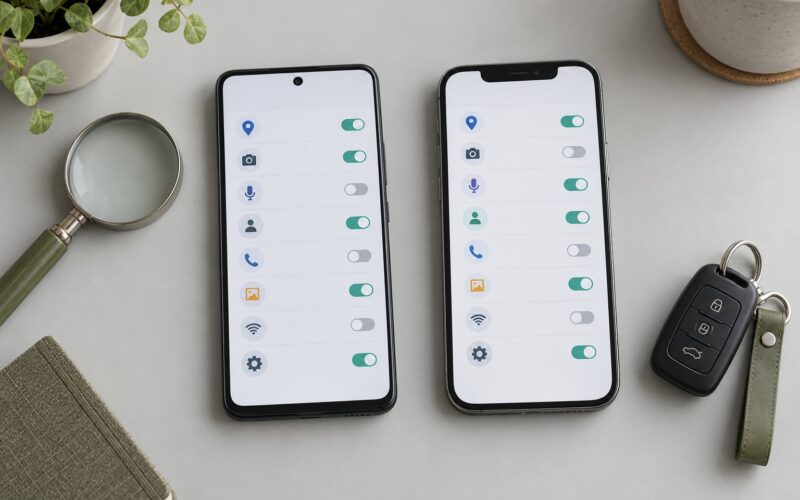
To lock individual apps on Android, open the built-in app control on your phone (usually Settings > Security or Privacy > App Lock), set a PIN, pattern, password or fingerprint, then tick the apps you want protected. Most Samsung, Xiaomi, OnePlus, Oppo, Realme, Vivo and Huawei phones have this built in, and none of it needs root or an extra install. Google Pixel, Motorola and other unmodified Android phones do not, so those users install a locker from the Play Store instead.
Before you start, know this is not one switch on Android. Each maker ships its own version under a different name, so the path on a Redmi is nothing like the path on a Pixel. The whole job takes about five minutes once you find the right menu.
Table of Contents
- What You Need
- Step-by-Step
- Step 1: Find out whether your phone has a built-in app lock
- Step 2: Lock an app on Xiaomi, Redmi or Poco
- Step 3: Lock an app on Samsung, OnePlus, Oppo, Realme, Vivo or Huawei
- Step 4: Use an app-lock app when your phone has no built-in lock
- Step 5: Set a PIN or biometric for app access
- Step 6: Verify the app is really locked
- Step 7: Lock everything instead of one app
- Common Mistakes
- Frequently Asked Questions
- Can I lock apps behind a password on Android?
- Does Samsung have a built-in App Lock?
- Can I lock apps with my fingerprint on my Xiaomi phone?
- How do I lock apps if my phone has no built-in app lock?
- How do I lock apps so I can’t use them?
- What is the best app lock app for Android?
- Conclusion
What You Need
Three things, really:
- A working screen lock. Every built-in app lock borrows your existing PIN, pattern, password or fingerprint. If your phone has no screen lock yet, set one first in Settings > Security.
- The app you want protected. Knowing whether it is a banking app, your gallery or a social feed changes which method you pick.
- A rough idea of your Android skin. Samsung One UI, Xiaomi HyperOS or MIUI, OnePlus OxygenOS, Oppo and Realme ColorOS, Vivo Funtouch OS, Huawei EMUI, or Google’s own Android build.
If your phone has no built-in app lock, you also need room to install one utility from the Play Store. That is the only case where an extra app is involved.
Step-by-Step
Step 1: Find out whether your phone has a built-in app lock
Search Settings for “App Lock”, “App Locker” or “App Encryption”. If your phone answers with a list of apps you can tick, you are done looking. If the search returns nothing, check the brand table below.
| Brand | Android skin | Exact settings path | What it is called |
|---|---|---|---|
| Samsung | One UI | Settings > Security and Privacy > Secure Folder, or Settings > Apps > Lock Apps | Secure Folder / Lock Apps |
| Xiaomi, Redmi, Poco | HyperOS or MIUI | Settings > Apps > App Lock | App Lock |
| OnePlus | OxygenOS | Settings > Utilities > App Locker (OnePlus 12 and later: Settings > Security > App Lock) | App Locker |
| Oppo, Realme | ColorOS, Realme UI | Settings > Security > App Lock | App Lock |
| Vivo, iQOO | Funtouch OS, OriginOS | Settings > Security > App Encryption | App Encryption |
| Huawei | EMUI, HarmonyOS | Settings > Security > App Lock | App Lock |
| Google Pixel, Motorola | Unmodified Android | None. Use Digital Wellbeing or a Play Store locker | No built-in option |
Menu names shift between versions and regions. On a Samsung One UI 6 phone the feature may sit under Apps rather than Security and Privacy, and on some Xiaomi builds the toggle is called App lock with a lowercase L. If a path here does not match, use the Settings search box and move on.
Step 2: Lock an app on Xiaomi, Redmi or Poco
On HyperOS and MIUI the App Lock screen is well built and needs no extra software.
- Open Settings > Apps > App Lock.
- Enter your screen lock PIN, pattern or password when prompted. You can also set a separate password here if you want app access to differ from opening the phone itself.
- Tap the toggle at the top right of the App Lock page to turn the feature on.
- Scroll the app list and tick every app you want protected. Banking, wallet, email, gallery and cloud storage are the usual picks.
- Open each app from the launcher. The lock prompt should appear every time.
Below the list you will find two options worth knowing: Lock recently used apps, which catches apps you opened in the last few minutes even if you forgot to tick them, and Lock all apps, which turns the barrier on everywhere. Xiaomi also lets you choose fingerprint instead of a PIN, so a single touch opens the app.
Step 3: Lock an app on Samsung, OnePlus, Oppo, Realme, Vivo or Huawei
The shape of the task is identical on these phones: set the credential first, then tick apps.
- Samsung: Open Settings > Security and Privacy > Secure Folder, or Settings > Apps > Lock Apps on newer builds. Secure Folder moves a copy of the app into a separate encrypted space with its own password and, optionally, its own Google account. Lock Apps is the simpler option because the app stays where it is, keeping its icon, widgets and notifications intact.
- OnePlus: Settings > Utilities > App Locker. On OxygenOS 13 and later look under Settings > Security > App Lock instead.
- Oppo and Realme: Settings > Security > App Lock, then choose which apps and which verification methods (password, fingerprint, face) apply.
- Vivo: Settings > Security > App Encryption > Phone Encryption, then tick the apps and set a password.
- Huawei: Settings > Security > App Lock > Apps, confirm with your fingerprint, then choose which apps are covered.
Samsung deserves a word of caution, and Reddit users have said this often. Secure Folder duplicates the app rather than guarding it in place, so shortcuts, widgets and notification badges can behave oddly afterwards. Samsung’s own Lock Apps function is the closer match to what most people actually want.
Step 4: Use an app-lock app when your phone has no built-in lock
Pixel, Motorola and other phones running Google’s unmodified Android have nothing in Settings. Two options cover it.
Digital Wellbeing is already on the phone and limits rather than locks. Go to Settings > Digital Wellbeing > App limits > Manage apps > pick an app, set a daily time limit, and when the time runs out the app greys out and asks for a PIN. Turn on Do Not Disturb or Focus mode to pause every distracting app at once for a couple of hours. Both are fine for self-control and mild limits. Neither stops a determined person who wants in, and neither protects a banking app from someone holding your already-opened phone.
A third-party locker is the real answer when you want a PIN or fingerprint in front of one specific app. Widely used options include AppLock by DoMobile Lab, Norton App Lock and MaxLock.
How to set one up:
- Install the locker from the Play Store, using a developer you recognise.
- Create your PIN or pattern immediately, before adding any apps.
- Grant the Accessibility permission it asks for. This is how it detects that another app is opening. There is no way around it.
- Tick the specific apps you want covered, not everything, so you can undo one cleanly if it misbehaves.
- Test the lock, then restart the phone and test again.
The Accessibility permission is the part people get wrong. That grant lets the locker see every app you open and read screen content, which is a real trade-off. Use a publisher with a real company behind it, check the permission screen afterwards in Settings > Apps > Special app access > Installed apps, and revoke it the day you stop needing the locker. Good lockers also hide notification content for covered apps; if yours does not, turn notifications off for those apps by long-pressing their icon > App info > Notifications.
Step 5: Set a PIN or biometric for app access
Pick your credential deliberately, because it is what stands between you and your own data.
- PIN: six digits or more, not your birthday. Nobody brute-forces a good PIN on a phone that is already open.
- Pattern: quick with one hand, but a smudged screen reveals the shape. Clear it often.
- Password: strongest, most annoying to type on every launch of a messaging app.
- Fingerprint or face: the easiest daily option where supported. It works on Xiaomi App Lock and on Samsung Secure Folder, and most lockers on the Play Store accept it too.
Two rules. Never reuse your phone unlock code as the app lock code if a child or anyone else knows it, and never write it on the handset. There is no recovery email for a forgotten app lock PIN, so if you are locking your banking app, memorise it or store it in a password manager.
Step 6: Verify the app is really locked
Do not assume the toggle worked. Check it properly:
- Open the protected app from the launcher. The prompt should appear immediately.
- Close it, reopen it a second time. Some lockers only fire once per session if a permission is missing.
- Restart the phone and try again, which is the test that catches most broken setups.
- Pull down the notification shade and check nothing sensitive from that app is showing.
If no prompt appears, the usual reasons are that the locker lost its Accessibility permission after a system update, that the app was added to the battery optimisation exemption list and is being restored differently, or that you opened it from a notification or the share sheet instead of the icon. Those entry points bypass plenty of locks, which is exactly why hiding notification content matters.
Step 7: Lock everything instead of one app
If your goal is to lock all apps rather than one, there are better tools. Samsung’s Secure Folder moves a whole list of apps into an encrypted space with a separate password. Xiaomi’s Second Space is the equivalent: a second desktop with its own apps, data and Google account, hidden behind its own lock. For a child, Google Family Link sets app limits and approval times across their device. For a shared tablet or a phone you hand over for ten minutes, Screen Pinning is unbeatable: open the app, tap the Recents button, tap the app’s icon in the middle of the screen, and the phone will not navigate anywhere else until you press Back and the navigation combo together.
Common Mistakes
Using a work profile instead of an app lock. A Work Profile, set up under Settings > Security > Work Profile, isolates work apps into a separate profile with its own PIN. It is a genuinely strong boundary, but it works by moving apps out, not locking them in place, and it is aimed at company-managed separation rather than personal privacy. For personal apps it is the wrong tool.
Forgetting the PIN. App lock PINs cannot be reset from anywhere. There is no recovery address and no support line for a built-in feature. Before you set one, put it in a password manager, and take the time to learn it rather than writing it on a sticky note.
Locking the wrong account or profile. Xiaomi and Samsung support multiple user profiles and, on Samsung, a second Google account inside Secure Folder. If the app was never added, or was added from a different account, the launcher icon you are testing is not the one being guarded.
Applying a time limit when you meant a permanent lock. Both Samsung’s Lock Apps and Xiaomi’s App Lock offer timed behaviour, so an app set to lock after midnight simply opens the next morning. That is fine if it is what you wanted and a surprise if it is not. Re-read the toggle before you leave the settings page.
Installing an untrusted locker. A locker with Accessibility access can see every app you open. Stick to established publishers, read the permission list before you accept, and turn off anything else the app requests that you cannot explain. Sideloaded APKs from file sites are the ones to avoid.
Ignoring notification previews. Locking the WhatsApp icon while leaving message text on the lock screen defeats the purpose entirely. Turn off notifications, or set them to hidden content, for every app you lock. This is the most common complaint from people who already use an app lock and wonder why it feels pointless.
Not re-testing after an update. A major Android update or a switch between Android versions can quietly revoke Accessibility permission or reset a security app’s exemptions. Put a reminder in your calendar to re-test one protected app after each big system update.
None of this needs root, and you should not let anyone talk you into rooting a phone just to lock an app. Every method above works on a phone exactly as it came out of the box.
Frequently Asked Questions
Can I lock apps behind a password on Android?
Yes. Every built-in app lock and every reputable locker asks you to create a PIN, pattern, password or fingerprint on first use, then requires it each time the protected app opens. On Xiaomi go to Settings u0026gt; Apps u0026gt; App Lock, on Samsung to Settings u0026gt; Security and Privacy u0026gt; Secure Folder or Settings u0026gt; Apps u0026gt; Lock Apps. Some makers let you use a separate app lock code instead of your phone unlock code.
Does Samsung have a built-in App Lock?
Samsung has two related features. Secure Folder under Settings u0026gt; Security and Privacy moves apps into a separate encrypted space with its own password, while Lock Apps under Settings u0026gt; Apps leaves apps where they are and simply demands a PIN, password or fingerprint before they open. Lock Apps is the closer match to a per-app lock because icons, widgets and notifications keep working normally.
Can I lock apps with my fingerprint on my Xiaomi phone?
Yes, and it is the default option on many builds. Open Settings u0026gt; Apps u0026gt; App Lock, authenticate with your screen lock, then switch the unlock method from PIN to fingerprint. Once you enable it, any enrolled finger can open the protected app. Keep the PIN as a fallback in case a wet or dirty finger fails recognition, since fingerprint checks occasionally refuse when that happens.
How do I lock apps if my phone has no built-in app lock?
Google Pixel and Motorola phones ship without a per-app lock. Open Settings u0026gt; Digital Wellbeing u0026gt; App limits u0026gt; Manage apps and set a daily limit per app, which locks it after a set time but not permanently. For a real PIN barrier, install a locker such as AppLock by DoMobile Lab or Norton App Lock from the Play Store, grant it Accessibility access, then tick the specific apps you want to protect.
How do I lock apps so I can’t use them?
Digital Wellbeing is the built-in tool for locking yourself out. Go to Settings u0026gt; Digital Wellbeing u0026gt; App limits u0026gt; Pick apps to limit, choose Instagram or TikTok, and set a daily allowance. When the time runs out the app is greyed out until tomorrow. For a temporary all-app block, use Focus mode in the same screen and schedule it to start and stop automatically, for example after 10pm.
What is the best app lock app for Android?
AppLock by DoMobile Lab, Norton App Lock and MaxLock are the ones most people end up with, and any of them will do the job. Judge them on whether they support fingerprint unlock, whether they hide notification content, and whether they request permissions beyond Accessibility. Avoid anything that demands Device Administrator or contacts access with no clear reason, and revoke its Accessibility grant the moment you stop using it.
Conclusion
Start with your phone’s own settings. Search Settings for App Lock, App Locker or App Encryption, set a credential you will remember, protect the one app that matters most, and open it from the launcher to confirm the prompt appears. Then restart the phone and check once more, and turn off notification previews for that app so the lock is worth anything. Updated for 2026.