Yes, you can disable bloatware on Android without root. On a phone you did not unlock, you can stop a pre-installed app from running, updating and syncing by disabling it for your own user profile through ADB, a wireless debugging app like Shizuku, or your manufacturer’s own settings. Nothing is deleted from the system partition, and every change is reversible.
Bloatware means software the phone maker or carrier put on the device before you bought it. You never downloaded it, in most cases you cannot uninstall it the normal way, and a surprising number of these apps keep running in the background, waking the CPU and syncing over mobile data. The word covers carrier apps, Amazon and Netflix pre-loads, Microsoft Office and LinkedIn, duplicate Google apps, AR try-on apps, partner setup wizards and a lot of vendor extras that no reviewer ever mentions.
The distinction that matters most: disable and uninstall are different operations, and neither one deletes a file from the system partition. Disabling hides the app and stops it running. Uninstalling for your user removes it from your profile so it does not even appear in the app drawer. Both leave the original APK sitting in read-only storage, which is exactly why you can bring it back with one command later.
It takes about ten minutes on average for the whole job, most of which is setup. You do not need to unlock your bootloader, so your warranty stays intact and banking apps keep working in almost every case. What follows covers the same order I would use on a new phone, from the two-minute Play Store method to the full ADB route.
Table of Contents
- What You Need
- Step-by-Step
- How to Disable Bloatware on Android Without Root
- Disable Preinstalled Apps with Your Phone’s Built-In Settings
- Use Shizuku or Wireless ADB Without Root
- Use ADB on a Computer for More Control
- Check What You Removed and Restore It If Needed
- Common Mistakes
- Frequently Asked Questions
- Do I need to root my Android phone to disable bloatware?
- What is the difference between uninstalling and disabling an app?
- Will an Android update bring back bloatware I removed?
- Is Shizuku safe if I do not root my phone?
- Which system apps should I never disable?
- How do I remove an app that does not have an uninstall button?
- Conclusion
What You Need
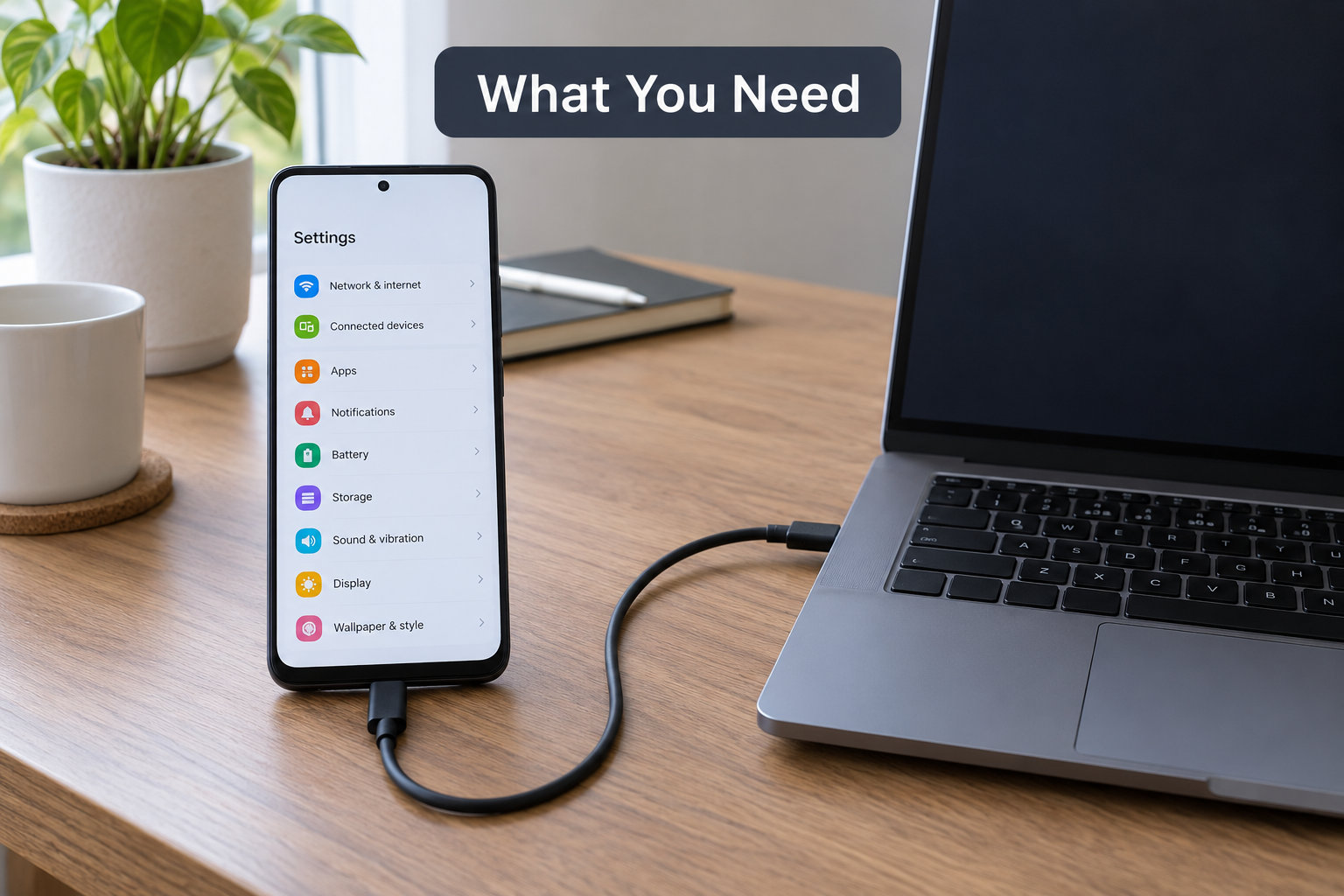
Everything depends on which route you pick, and each one needs a different short list.
- Nothing but the phone. For the Play Store method and the built-in settings method, you need the handset, its Settings app and Google Play. That is the whole list.
- The phone plus Developer options. For Shizuku and wireless ADB, you need the phone and Android 11 or later, because wireless debugging was added in Android 11.
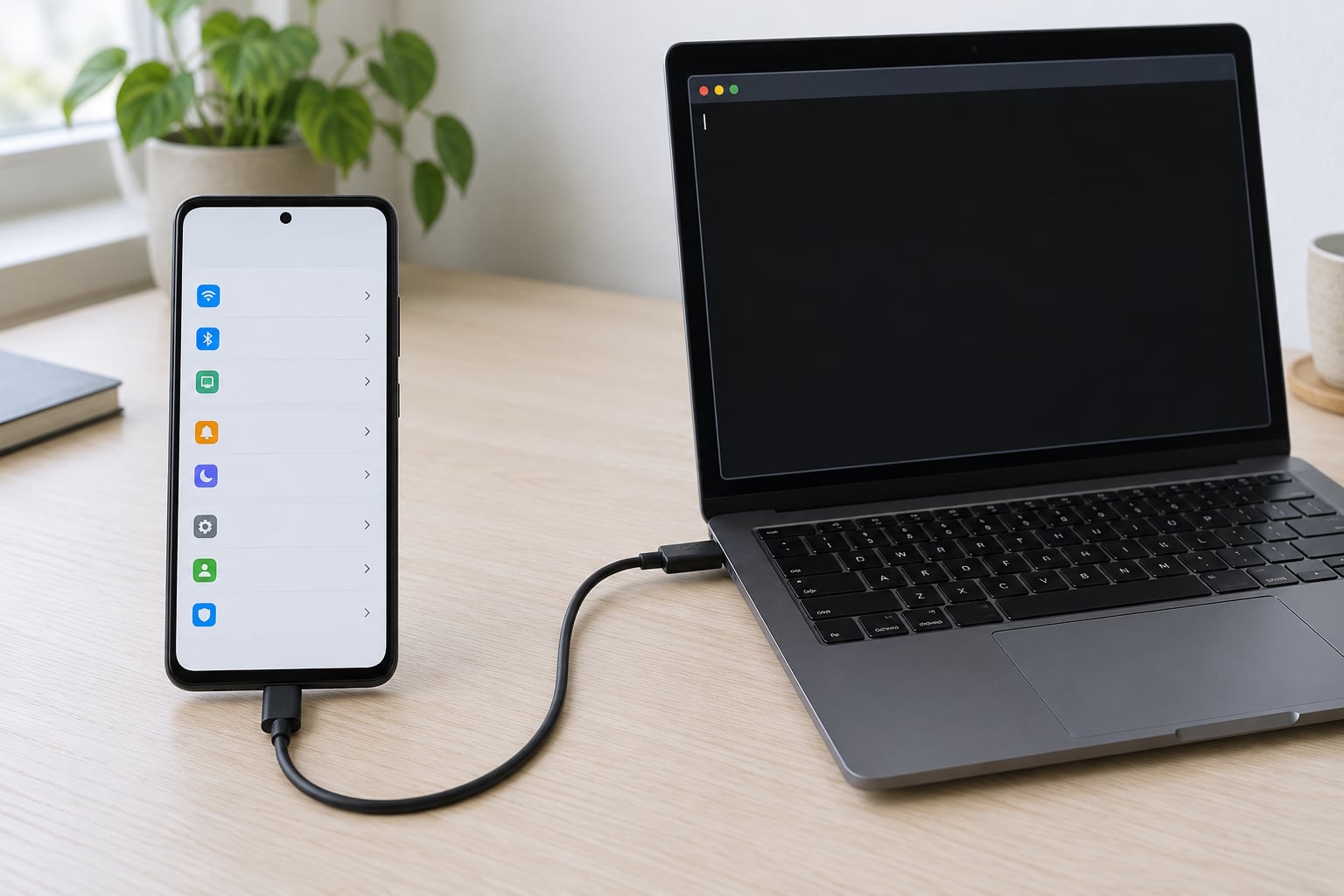
- A computer and platform-tools. For the wired ADB route, you need a Windows, macOS or Linux machine with Android platform-tools installed and a USB data cable.
- A backup. Nothing here is destructive, but record your package names before you change anything so you can reverse the change later.
Turn on Developer options before you need them. On most phones it is Settings > About phone > Build number, tapped seven times. You may be asked for your PIN. Developer options then appear as a new entry at the bottom of Settings, and inside it you will find USB debugging and, on Android 11 and later, Wireless debugging.
One honest warning before you start, because it is the thing that surprises people. Banking apps and streaming apps check for tampering through Play Integrity, the system that replaced SafetyNet. Disabling a Google or system package can, in some configurations, cause those apps to refuse to run. Nobody sane tells you to debloat before they have confirmed their banking app works, so open it once, confirm it loads, and know how you would undo anything you change.
Step-by-Step
How to Disable Bloatware on Android Without Root
This is the method to try first. Open the Google Play Store and search for the app you want gone, for example an Amazon, Netflix or Office pre-load. Tap Uninstall on the app page, confirm, and it is removed from your phone. If you change your mind, install it again from the same page.
Plenty of pre-installed apps show no Uninstall button at all. Those cannot be removed from the Play Store, and for them you use the app info screen instead. Go to Settings > Apps > [app name], tap the three-dot menu at the top right, and choose Uninstall if it is offered, or Disable if it is not. How you get there differs by phone: on Xiaomi, Redmi and POCO you may need to tap the app drawer icon in the top right corner first and then choose Manage apps, because the Settings list does not show every system app by default.
Confirm with a simple check. If the app vanished from your app drawer after a restart, it is gone from your profile. If the button on its app info page now reads Enable, Android has marked it as disabled and it will not run, update or sync in the background.
Disable Preinstalled Apps with Your Phone’s Built-In Settings
Every manufacturer ships its own version of the same menu, and knowing the exact path saves a lot of hunting.
- Samsung (One UI): Settings > Apps, tap the three-dot menu, choose Show system apps, tap the app, then Disable at the bottom. On Galaxy phones the Uninstall button often appears for apps like Microsoft Office and LinkedIn but not for Samsung’s own Bixby suite.
- Xiaomi, Redmi and POCO (MIUI and HyperOS): open the app drawer grid icon, tap Manage apps, select the app, then Disable. Some Xiaomi pre-loads offer Uninstall and return to stock cleanly.
- Motorola: Settings > Apps > [app], then Disable near the bottom.
- OnePlus (OxygenOS and ColorOS builds): Settings > Apps > App management, open the app, then Disable or Uninstall updates.
Some built-in utilities refuse to be disabled because Android or the manufacturer depends on them. Those are the apps you leave alone, and the list later in this guide covers them by package name.
Use Shizuku or Wireless ADB Without Root
If you do not want to plug the phone into a computer, wireless debugging gives you the same power from the handset itself. Open your browser and install Shizuku from its official GitHub releases page. It is a helper app, not a root tool, and it only holds permission while a wireless debugging session is active.
Open Settings > Developer options > Wireless debugging and turn it on. If your Android version supports pairing, tap Pair device with pairing code and note the six-digit code and port. In Shizuku, choose Start via wireless debugging, enter the port and the code, then confirm the pairing prompt on the phone. Tap Start via IP address next and enter the IP address and port shown on the wireless debugging screen. Shizuku should now show as running.
With Shizuku running, open a package-management interface that supports it, such as an on-device app inspector or a Shizuku-compatible debloater. Search the app list for your target, tap it, and choose Uninstall (user 0) or Disable. If nothing happens, Shizuku lost authorization after a reboot, which is expected: reopen it and start the wireless debugging session again. Wireless debugging also switches itself off when you disconnect, so the same three or four taps are needed each time.
Use ADB on a Computer for More Control
This is the route that unlocks every app, and it is the one worth learning. It takes longer once, then every future removal is a single line.
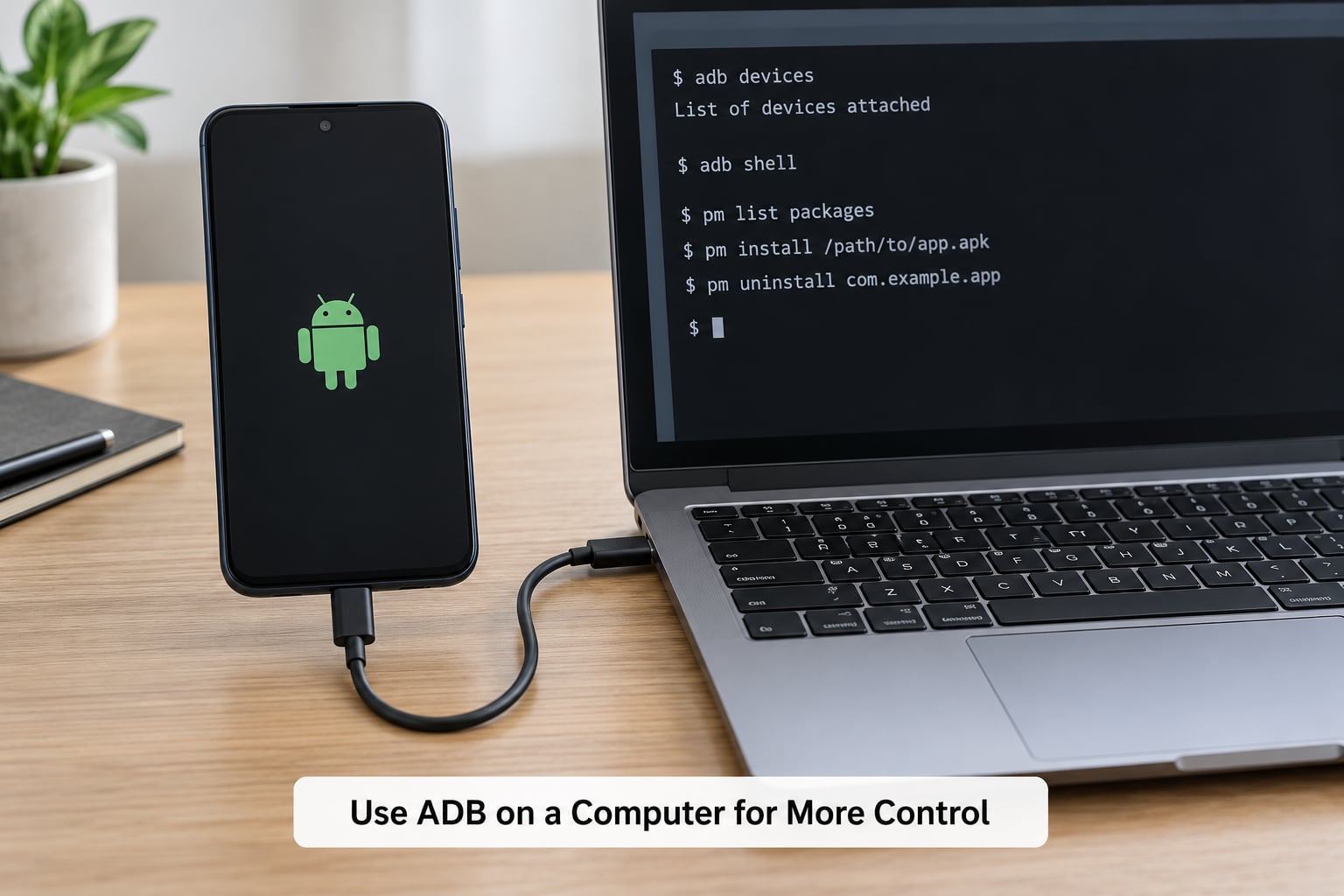
1. Install platform-tools. Download Android platform-tools from Google’s developer site. On Windows, unzip the folder and add its full path to your system PATH, or run adb from inside the folder. On macOS or Linux, move the folder somewhere permanent, open a terminal inside it, and run chmod +x adb.
2. Turn on USB debugging. Go to Settings > Developer options > USB debugging and switch it on.
3. Connect and authorise. Plug the phone in with a data cable, unlock it, and accept the RSA fingerprint prompt. Some phones hide this prompt, so pull the notification shade and tap Authorize USB debugging. Check the connection:
adb devicesYour device should appear with the word device beside it. unauthorized means the prompt was never accepted; offline usually means a stale cable or a locked screen.
4. Find the package name. The easiest route is Settings > Apps > [app] > three dots > App info, where the package name appears at the bottom. Otherwise list everything and search:
adb shell pm list packages | grep bixby5. Disable it. This is the command most guides stop at:
adb shell pm disable-user --user 0 com.example.app6. If you want it fully gone from your profile, use the stronger variant. It hides the app rather than leaving a disabled entry, and it is still reversible:
adb shell pm uninstall -k --user 0 com.example.appThe –user 0 part is doing all the work. It applies the change to the primary user profile only, which is why nothing is deleted from the system partition and why the app comes back after a factory reset. If a command returns nothing useful, the common reason is that the app does not allow debugging access, and there is no rootless way around that one.
Check What You Removed and Restore It If Needed
Most of the anxiety around this comes from people who are not sure what changed. There are three places to look.
- Disabled apps: Settings > Apps, open the three-dot menu, tick Show system apps and then Show disabled apps. Every entry you have disabled sits there with an Enable button.
- Apps removed for your profile: the same menu filtered by Not installed, or the Play Store page, where a reinstall button has replaced Uninstall.
- Test the phone before you do anything else. Make a call, open the camera, check Bluetooth, location and Wi-Fi, and open your banking app.
To bring something back with ADB, re-enable the package:
adb shell pm enable com.example.appFor an app removed with uninstall -k –user 0, use adb shell cmd package install-existing com.example.app, which restores the package for your profile without reinstalling the APK. If Shizuku is your route, some debloater apps have an Unblock all packages button that reverses every change in one tap. If something did not restore cleanly, a restart usually settles it.
Common Mistakes
Touching something the system needs. A phone that feels broken after a long list of removals is almost always the result of disabling a core package. Android System, the setup wizard, the EFS partition package, Bluetooth, the radio interface layer, the keyboard, security patches and the updater should never be touched. If your phone misbehaves, re-enable them before anything else, which is why the recovery command above matters.
Assuming Disable is permanent. It is not, on any Android version. Everything here is a per-user setting, and a factory reset, or a major version upgrade on some manufacturers, puts the apps back exactly where they started. Anyone promising a permanent rootless deletion is describing something Android does not do.
Losing Shizuku authorization after a reboot. This is by design. Reopen Shizuku and start the wireless debugging session again. Some versions have a start-on-boot option, but it needs wireless debugging to be switched on first, so it cannot run before you unlock the phone once.
Selecting the wrong USB mode. A phone set to charge-only will not accept ADB commands. Choose the file transfer option in the USB notification, and use a cable that carries data. Cheap charge-only cables are the single most common reason adb devices returns an empty list.
Not seeing a newly installed app. When an app you installed does not appear, it is usually because you hid it with a restricted profile or a launcher filter. Check the app drawer filters and your work profile.
Breaking calls, camera, location, Bluetooth or authentication. These features lean on packages that look expendable but are not. If calls fail after a change, re-enable the phone and SIM-related packages first, then reboot. If your banking app refuses to open, re-enable Google Play services and Play Protect before concluding anything else.
Removing Google Play system components by accident. Play Store, Play Services, Play Protect and the Google framework are not bloatware. Removing them breaks app installs, updates and most third-party apps.
A few habits keep this safe. Change one app at a time and test between changes rather than running a forty-line script blind. Write the package name into your notes before you run anything. Keep the phone on charge and backed up during your first session. And if a package name is not on a list you trust, leave it alone, because leaving an extra app costs you nothing while a broken phone costs you a lot.
Frequently Asked Questions
Do I need to root my Android phone to disable bloatware?
No. Every method here works on a stock phone with a locked bootloader. Disabling and uninstalling for your user profile are permissions the Android package manager already grants to any user over USB debugging or wireless debugging. Rooting adds power you do not need, and it is what breaks banking apps and warranty terms in the first place.
What is the difference between uninstalling and disabling an app?
Disabling marks the package as inactive for your user profile: it disappears from the app drawer, stops running in the background and stops updating, but an Enable button remains on its app info page. Uninstalling for user 0 goes further and removes it from your profile entirely, so it does not appear anywhere. Neither deletes the APK from the system partition.
Will an Android update bring back bloatware I removed?
A factory reset definitely brings it back, because nothing was deleted from the system partition. A major version upgrade can restore some packages on certain manufacturers, and any app you removed with the uninstall command tends to return after an update. Disabling is the same story. Keep a list of the package names you changed and reapply it after a major upgrade.
Is Shizuku safe if I do not root my phone?
Shizuku is an accessibility-free ADB helper that relays commands over a wireless debugging session. It does not grant root, does not modify the system partition and cannot survive a reboot without your approval. It does need USB debugging or wireless debugging switched on, so treat it like any other tool that talks to your phone and install it only from its official GitHub releases.
Which system apps should I never disable?
Leave Android System, the setup wizard, the EFS package, Bluetooth, the radio interface layer, your keyboard, security patches, the system updater, Google Play Store, Google Play services and Google Play Protect alone. Removing or disabling these causes broken calls, cameras, location, Bluetooth, app installs and banking apps. If you are unsure about a package name, skip it.
How do I remove an app that does not have an uninstall button?
Open Settings, go to Apps, turn on Show system apps, select the app and use the Disable button at the bottom of its app info page. That is enough to stop it running. If you want it gone from your profile as well, use adb shell pm uninstall -k –user 0 with its package name, which hides it without deleting anything permanent.
Conclusion
The safest order runs from least to most power: try the Play Store Uninstall button, then the Disable button on the app info screen or your manufacturer’s own app manager, then Shizuku over wireless debugging, and keep wired ADB for the apps nothing else touches. Nothing on this list requires root, nothing deletes a file from the system partition, and every step has an undo command.
Start by opening Settings > Apps, switching on Show system apps, and writing out the names of the pre-installed apps you never use. Disable one that is clearly non-essential, restart the phone, and use it for a day or two before touching anything else. That is the whole job, and doing it slowly is the difference between a cleaner phone and a phone that needs a factory reset.