To organize phone photos into albums, open your gallery app, tap Albums, create a new album, name it, then select the photos you want inside it. On most Android phones that takes about two minutes, and the same basic flow works whether you use Google Photos, Samsung Gallery or Xiaomi Gallery.
The part that catches people out is what an album actually is. It is not a folder, it is not a copy of your photos, and it is not a backup. It is a saved list of pointers to photos that still live in your camera roll.
That single fact explains most of the confusion around albums. Google Photos has albums but no folders, photos can sit in several albums at once, and removing a photo from an album never touches the original file. This guide walks through the tap paths on each major Android gallery, then covers the automatic albums, hidden items and the recovery steps for photos that seem to vanish.
Table of Contents
- What You Need
- Step-by-Step
- How to Organize Phone Photos into Albums in Google Photos
- How to Organize Phone Photos into Albums in Samsung Gallery
- How to Organize Phone Photos into Albums in Xiaomi Gallery
- Automatic Albums for Events, Places, and Faces
- Shared, Hidden, and Archived Photos
- Common Mistakes
- Quick Organization Tips
- Frequently Asked Questions
- Do albums in Google Photos and Samsung Gallery free up phone storage?
- Can I delete photos from my phone but keep them in an album?
- Where do I find photos that disappeared from the main gallery?
- Why does Google Photos have albums but no folders?
- Can I reorder the photos inside an album?
- How do automatic albums decide which photos to group?
- Conclusion
What You Need
You need three things: a phone with some free storage, the gallery app that came with the phone or Google Photos, and permission for that app to read your library.
Check free storage first. Organizing does not add to your library, but a nearly full phone makes the apps sluggish, and a backup will stall until there is room.
Google Photos needs a Google account. Samsung Gallery works offline with no account, though Gallery Cloud sync and Secure Folder want a Samsung account. Xiaomi Gallery works without one too, but its cloud sync option requires a Xiaomi account.
Worth knowing before you start: an album does not duplicate anything. Adding 50 photos to an album costs zero extra megabytes, because the album only stores references to the originals in your camera roll.
Delete the original photo and it disappears from every album that referenced it. Remove a photo from one album and it stays in your camera roll and in every other album. That is the single most useful thing to know before you start deleting anything.
Step-by-Step
How to Organize Phone Photos into Albums in Google Photos
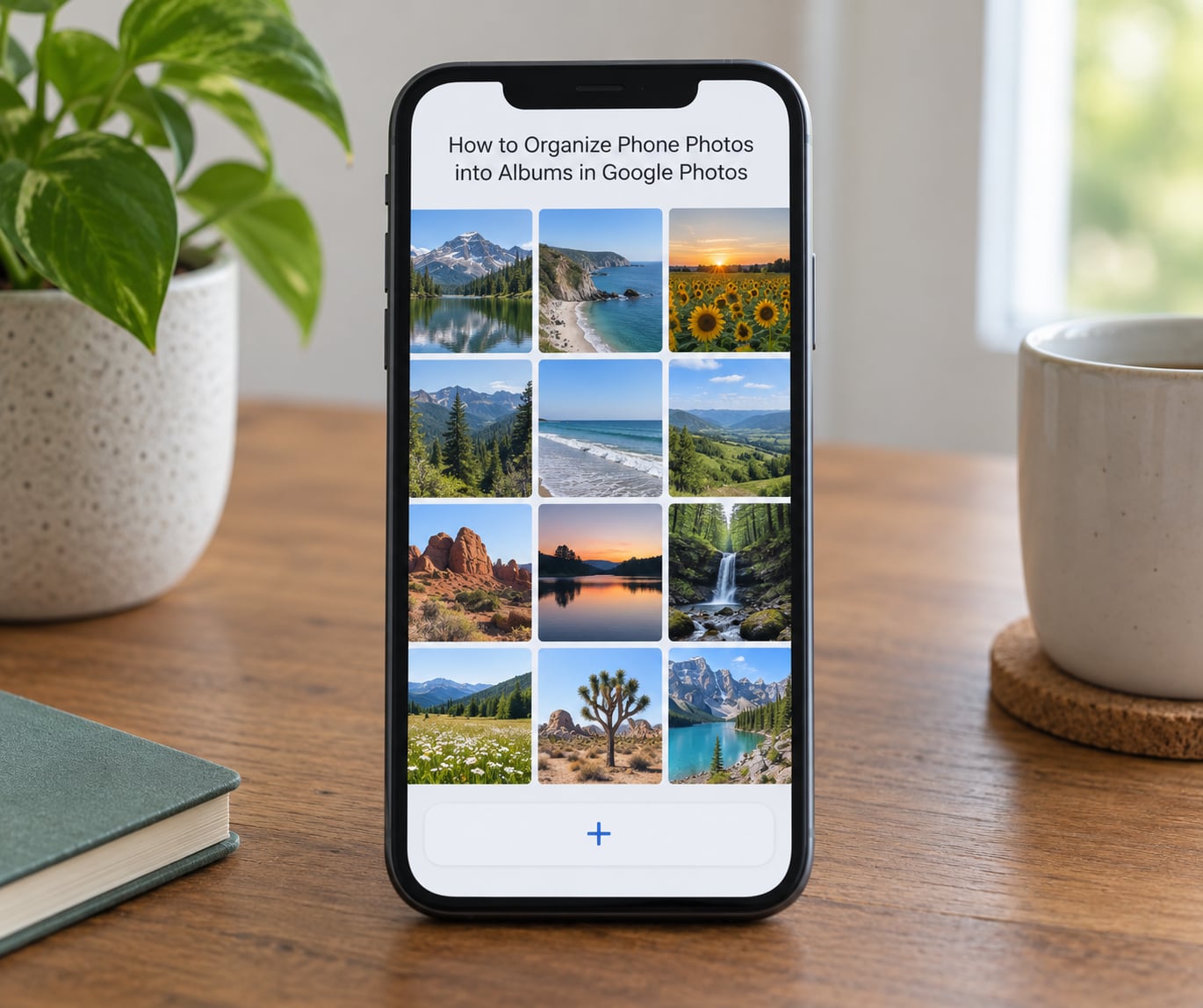
To organize phone photos into albums in Google Photos, open the app, tap Albums at the bottom, then tap the plus icon. Give the album a name, tap Select, pick your photos, and tap Done.
That is the whole manual flow. Google Photos shows albums in reverse order of when you last touched them, so a new album jumps straight to the top of the list.
Here is the longer version, including the part most guides skip:
- Open Google Photos and tap Albums on the bottom bar.
- Tap the + icon in the top right.
- Choose New album. On iPhone the same option is reached from the plus icon and reads Create album.
- Type a name. Keep it short and searchable, like Lisbon 2026 or Family.
- Tap Select and long-press the first photo to start selecting. Tap Done when you are finished.
- Open the album and check the photo count in the header.
Menu wording shifts between app versions. If you cannot see New album, look for Create album, or check whether you are on the Collections tab instead of the Photos tab.
For an album that updates itself, leave Add photos automatically switched on when you create it. Every new photo shot with a person in it joins that album automatically, which is how the useful albums build themselves after a holiday.
There is one behaviour that catches nearly everyone out. Tap Clean up inside the album and Google Photos will offer to delete photos that are also in your camera roll, on the logic that the album already holds a copy. Do not accept it unless you have verified your backup is running and complete, because the album entry is a reference, not a separate copy.
To turn backup on, tap your profile picture, then Photos settings, then Back up & sync, and switch backup on. Check the quality setting at the same time. Original quality keeps full resolution; Storage saver compresses to about 16 megapixels and is fine for everyday shots but not for large prints.
If the Clean up prompt already removed originals, check Library at the bottom left, then Recently deleted. Backed-up items stay there for 60 days, unbacked ones for 30.
How to Organize Phone Photos into Albums in Samsung Gallery
In Samsung Gallery you create albums from the Albums tab at the bottom, tap +, and choose Create album.
Then follow this order:
- Tap Create album and give it a name.
- Tap Add photos.
- Scroll to the images, long-press the first one, tap the rest you want.
- Tap Add or Save to finish.
To move images that are already in the camera roll, go back to the Camera tab, long-press a photo to enter selection mode, tap the More button in the bottom bar, then choose Move to album and pick your destination.
Moving and copying are different here. Move removes the photo from the camera roll. Copy leaves it where it was and adds it to the album. If you want your camera roll untouched, choose Copy to album.
Samsung Gallery can sync through Gallery Cloud using your Samsung account, which keeps albums available on other Samsung devices. Sync is off by default on many phones, and if the toggle looks greyed out that usually means you are signed out of a Samsung account or on mobile data with the sync setting restricted.
Secure Folder lives in a separate, hidden area with its own password. Anything inside it is not backed up with the rest of the gallery, so if you lose the phone or uninstall the app without migrating it first, those photos are gone. Migrate through Settings on the Secure Folder screen before you ever wipe a device.
How to Organize Phone Photos into Albums in Xiaomi Gallery
Xiaomi Gallery puts albums on the second tab, labelled Albums, with an Organize option in some versions that also handles screenshots, duplicates and blurry shots in bulk.
The path runs like this:
- Open Gallery and tap the Albums tab.
- Tap + or the Create new album option.
- Name the album.
- Long-press the first photo, then tap the rest. Tap OK or Save.
Cloud sync in Xiaomi Gallery is the toggle at the top of the Albums tab, and it needs a signed-in Xiaomi account. When it is off, albums exist only on that device.
Worth flagging: many Xiaomi, Redmi and POCO phones now ship with Google Photos as the default gallery, sometimes with the Xiaomi Gallery still installed under a different name. Check which one opens when you tap your camera roll icon, and check for a Mi Gallery or Gallery Go entry in your app drawer. The layouts differ enough between HyperOS versions that the labels above may read New album instead of Create new album.
Automatic Albums for Events, Places, and Faces
Automatic albums fill themselves, and they save more time than any manual sorting session.
In Google Photos, tap Search at the top and browse People, Places or Things. People groups faces together and names them once you confirm; Places groups shots by location; Things groups by object, so a search for shoes or cake returns every photo containing one.
The system gets it wrong sometimes. Similar-looking relatives get merged and children get labelled as adults, and the fix is the same every time: open the group, tap Not this person or Add more photos, then correct the name. People who check this every few weeks say accuracy visibly improves after two or three rounds.
Some suggested albums appear without you asking, covering dates, places, screenshots, videos and duplicates. The date and place ones are usually editable, meaning you can add to them or turn off the automatic adding. The screenshots and duplicates suggestions are driven by the operating system and often cannot be edited, only dismissed.
Samsung and Xiaomi galleries offer a smaller version of this, mostly screenshots, duplicates and grouped events. Neither matches Google Photos face grouping, and it is worth saying so plainly rather than pretending the options are equivalent.
Shared, Hidden, and Archived Photos
These four things are regularly confused with albums, and they behave very differently.
A favorite is a star you apply to one photo. It marks that photo across the whole library. An album is a group you named. An archived photo is hidden from the main grid but stays searchable and still syncs. A hidden photo in the locked folder is locked behind a password.
Archiving is the one to reach for when you want a clean camera roll without losing anything. Long-press the photo, tap the archive icon, and it disappears from the Photos tab. It is still there in the Library under Archive.
To share an album, open it in Google Photos, tap Share, turn on Shared album, then send the link. Anyone with the link and the password you set can add their own photos, which works well for a wedding or a group trip where everyone shot something worth keeping.
To find a photo that has vanished, check three places in order: Library, then Archive, then Recently deleted. Backed-up deletions sit for 60 days, unbacked ones for 30, and once that window closes the file is unrecoverable. That timing is why I check backup status before I delete anything.
Common Mistakes
Here are the problems that come up again and again, each with the fix.
Expecting an album to free up storage. It never will, because albums store no image data. To actually free space, open Library, tap Free up space or Manage storage, and let the app clear items already backed up. That leaves cloud-only photos that will not open without a connection.
Losing photos after tapping Clean up. Check Recently deleted straight away and restore from there before the window closes.
Creating the same album twice. Often the photos went in but the album name was never confirmed. Open the new album and check the count at the top before you close it.
Confusing favorites with albums. A star does not group anything. It only marks a single photo.
Photos vanishing after a gallery reinstall. Albums you created locally can be rebuilt from the cloud copy, but albums that only ever existed on the device will not reappear. Sync is what protects album structure, not just photos.
Not finding archived or recently deleted items. They are not in the Photos tab at all. They sit under the Library tab, which is where people forget to look.
Menu labels that do not match the guide. Google Photos moves labels between releases. When a step does not look right, check the three-dot menu on the screen you are actually on rather than trusting an older screenshot.
Quick Organization Tips
A few habits keep a library manageable once the first pass is done.
Name albums the same way every time. A numeric prefix sorts them reliably everywhere: 01 Family, 02 Trips, 03 Documents. Without the numbers you are scrolling a single alphabetical list anyway.
Keep screenshots and receipts apart from real photos. In Google Photos, Search, then Screenshots, then select all and add them to a folder-backed album. It is the fastest way to reclaim a surprising amount of storage.
Run a duplicates check once, not weekly. Tap Library, then Free up space to see the duplicate and blurry groups the system has already identified. Review before deleting anything.
Set up one shared family album rather than passing individual photos around in chats. Everyone adds to it, nobody has to remember to forward things.
Use the People grouping as your real filing system for faces. It is the only approach that scales past a few thousand photos, because it keeps working as the library grows instead of needing a rebuild.
One last thing worth being blunt about. Albums are for finding and sharing. They are not backup, and they do not survive a factory reset. Keep backup switched on, and treat the album structure as something you could rebuild tomorrow from photos that are safe.
Frequently Asked Questions
Do albums in Google Photos and Samsung Gallery free up phone storage?
No. An album only stores a reference to photos that already live in your camera roll, so creating one adds nothing to your storage. To actually free space, open Library in Google Photos and tap Free up space, or Manage storage in Samsung Gallery, and let the app clear items it has already backed up. Those photos then open from the cloud instead of the device.
Can I delete photos from my phone but keep them in an album?
Yes, as long as backup is finished first. In Google Photos, back up everything, then use Free up space to remove the local copies while the album keeps pointing at the cloud versions. You will need a connection to view them. If backup was not complete, use Free up space carefully since it only clears what has already uploaded.
Where do I find photos that disappeared from the main gallery?
Open the Library tab, then check Archive for items you archived and Recently deleted for removed ones. Backed-up deletions stay for 60 days in Google Photos and unbacked ones for 30, so restoring is possible as long as you act inside that window. Samsung and Xiaomi galleries use similar Recently deleted and Archive areas.
Why does Google Photos have albums but no folders?
Albums in Google Photos work like labels rather than folders. One photo can belong to many albums at once and there is no nesting, so a folder-style hierarchy is not available. The common workaround is to fake structure with numbered names, such as 01 Family and 02 Trips 2026, which keeps related albums grouped and sortable at the top of the list.
Can I reorder the photos inside an album?
Not on Android. Google Photos and Samsung Gallery sort album contents by capture date and there is no manual drag-and-drop option, and neither app lets you sort by file name. Apple Photos on iPhone added manual ordering in later releases, but Android galleries have not followed. If the sequence matters, keep it in a separate video or slideshow rather than fighting the album sort order.
How do automatic albums decide which photos to group?
They read the data already attached to each photo: faces detected by on-device machine learning, location from geotags, dates, and the type of file. Suggested albums covering dates, places, screenshots and duplicates then appear on their own. Face grouping needs confirmation from you before it labels someone, and it makes mistakes with similar-looking relatives until you correct it a few times.
Conclusion
Open the gallery you actually use, create one album named Events or Family, and add ten photos to it. Ten is enough to prove the flow works without turning into a weekend.
Then check that backup is on before you delete anything, because an album is an arrangement of references rather than a second copy of your photos. Organize first, verify the sync, clean up after.