If you want to know how to stop apps from opening on startup Android phones launch at boot, the fix takes about a minute per app: long-press the app icon, tap App info, tap Battery, and choose Restricted. Every manufacturer renames that menu somewhere, though, so the Xiaomi, Samsung and Pixel paths differ. Pick the section that matches your phone below.
The four fastest fixes, in order:
- Open Settings and go to Apps.
- Tap the app you want to stop.
- Tap Battery in the app info screen.
- Select Restricted instead of Unrestricted.
On Samsung One UI, use Battery > Background usage limits > Never sleeping apps instead. On Xiaomi, Redmi and Poco running HyperOS or MIUI, the toggle is at Settings > Apps > Permissions > Autostart.
Table of Contents
- What You Need
- Step-by-Step: How to Stop Apps From Opening on Startup
- 1. Disable the App’s Battery Activity
- 2. Turn Off the App’s Background Activity
- 3. Remove the App from Battery Optimization Exceptions
- 4. Xiaomi, Redmi and Poco: Auto-Start Controls
- 5. Samsung, OnePlus, Oppo, Realme, Vivo and Huawei Controls
- 6. Stop Apps From Opening on Startup Because of Links and Other Apps
- 7. Restart and Test the Change
- Common Mistakes
- Frequently Asked Questions
- Does restricting an app stop its notifications?
- Do I need root to stop apps from opening on startup?
- What do I do if there is no autostart option on my phone?
- How do I stop apps from running in the background on my Xiaomi phone?
- Which apps should I never restrict?
- Why does my Android phone keep killing background apps?
- Conclusion
What You Need
Nothing to download and no root. Every control described here sits inside the Android settings app, which means you can undo any of it the same way.
The paths below cover Android 12 through Android 16. Menu labels move between versions and between skins, so if a toggle is not where I say it is, search Settings for the word in bold and you will land on the same screen.
It also helps to know which problem you actually have, because the fix differs:
- The app opens by itself right after a reboot. Use the battery and autostart controls below.
- The app opens every time you tap a link in another app. That is a default-app problem, handled in step 6.
- The app starts quietly in the background with no visible window. That is background activity, handled in steps 2 and 3.
- The app opens when you plug in the charger or connect a headset. Some apps respond to those events and only a restricted setting or uninstall stops them.
Step-by-Step: How to Stop Apps From Opening on Startup
1. Disable the App’s Battery Activity
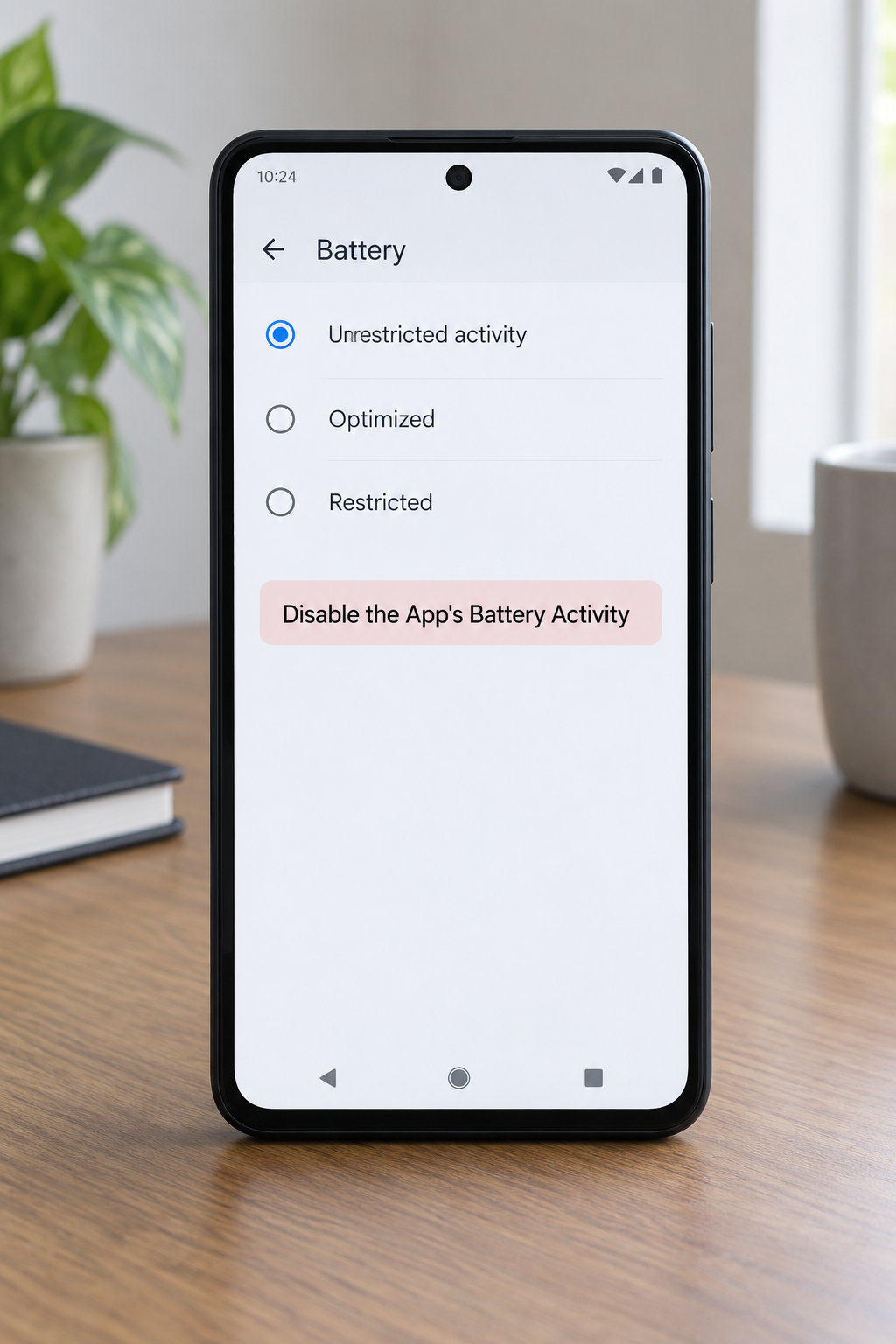
This is the fix most guides miss, and it is the one that works on every phone. Battery usage inside an app’s info screen has three options: Optimized, Unrestricted and Restricted. Restricted is the strictest, and it stops the app waking itself up once you close it.
To get there, press and hold the app icon on your home screen, tap App info, then tap Battery. Change Unrestricted to Restricted. If you do not have a home screen icon, go the long way: Settings > Apps > See all apps, tap the app, tap Battery.
How to confirm it worked: wait a few hours, then open Settings > Apps > See all apps and look under Running. An app you restricted should not be sitting there after you have closed it deliberately.
2. Turn Off the App’s Background Activity
Some Android versions and skins expose a second switch on the same Battery screen, called Allow background activity, Run in background or Background activity. Switch it off while you are in there.
On Pixel phones and several One UI versions this toggle is simply missing, which is normal. If your app’s Battery page offers only Optimized, Unrestricted and Restricted, skip ahead.
3. Remove the App from Battery Optimization Exceptions
Many apps ship with an exemption from battery saving, which means Android will never put them to sleep even after you restrict them. Take the exemption away.
Go to Settings > Apps > Special app access > Battery optimization (on some phones it is under Special app access directly, or under Apps > App management). You get a list with Not optimized on top. Tap the app you are working on and change it to Optimize.
If the app never appears in that list, it was never exempt and you can ignore this step.
4. Xiaomi, Redmi and Poco: Auto-Start Controls
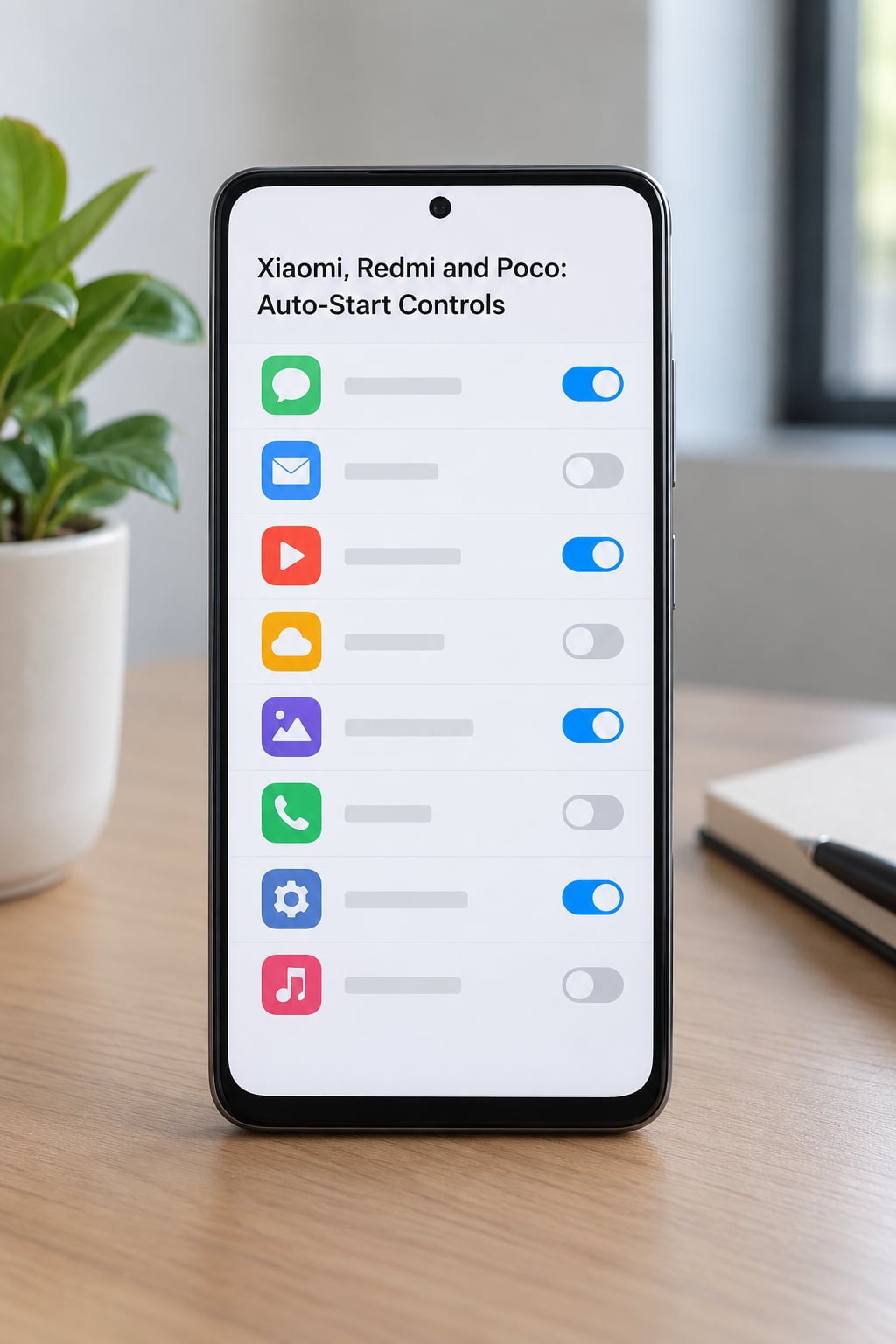
HyperOS, which replaced MIUI on current Xiaomi, Redmi and Poco phones, has the most aggressive autostart behaviour of any skin and also the clearest control. The path is Settings > Apps > Manage apps, pick the app, then Autostart. Some HyperOS builds put it one level deeper, at Permissions > Autostart.
Turn off Autostart, and while you are in the same screen turn off the secondary options. Those are Secondary launch and Run in background. Autostart alone often leaves the app able to revive itself through a shortcut.
Turning autostart off does not uninstall the app or remove its icon. You still open it by tapping it, and notifications keep arriving on most builds. Xiaomi community users report that restricting most apps this way leaves normal messaging working fine.
5. Samsung, OnePlus, Oppo, Realme, Vivo and Huawei Controls
Here is the same fix under each brand name. The path column is what you search for in Settings if the menu has moved.
| Phone and skin | Where to look | Toggle to turn off |
|---|---|---|
| Samsung Galaxy, One UI | Battery > Background usage limits | Remove it from Never sleeping apps, or add it to Deep sleeping apps |
| Xiaomi, Redmi, Poco, HyperOS or MIUI | Apps > Manage apps > Autostart | Autostart, Secondary launch, Run in background |
| Google Pixel, AOSP | App info > Battery | Change Unrestricted to Restricted |
| OnePlus, OxygenOS | Apps > App management > Auto launch | Auto launch and Battery optimization |
| Oppo and Realme, ColorOS | App management > Auto launch | Auto launch, then set Battery usage to Optimized |
| Vivo and iQOO, OriginOS or Funtouch OS | Battery > Background power management | Allow background activity |
| Huawei and Honor, EMUI, HarmonyOS or MagicOS | Battery > App launch | Auto-launch, Secondary launch, Run in background |
Samsung deserves a note because it is the most asked about. One UI splits apps into Deep sleeping apps, Sleeping apps and Never sleeping apps, and the Never sleeping list is the one doing the damage. Move the offender into Deep sleeping and it stays installed and usable while losing its right to run on its own.
6. Stop Apps From Opening on Startup Because of Links and Other Apps
Sometimes the app is not starting at boot at all. You tap a link inside a message and a shopping or social app takes over. That is Android’s link handling, and no battery setting will fix it.
Go to Settings > Apps > Default apps > Opening links. Pick the app that keeps hijacking your links and turn off Open supported links for the sites you do not want it handling. The same screen also controls app links, which is where a messaging app decides that any text it thinks is a phone number belongs to the dialer.
Next, check permissions. In the app’s info screen, tap App permissions and switch off anything the app does not need to do its job, such as allowing it to open other apps or display over others. Revoking permissions is the step that backfires most often, so do it last.
Third, if the app reappears after every reboot because something restores it, check whether your phone has a restore or dual-app profile running. Carrier-installed apps often sit inside a profile that re-enables autostart when the profile starts.
7. Restart and Test the Change
Restart the phone, which is the only fair test for a boot launcher. Skip it and you are checking a phone that has not gone through boot.
Once it comes back, open each restricted app manually and check that it still works. Then leave the phone alone for a few hours. After that, open Settings > Apps > See all apps and look at the Running list and the Battery usage graph. An app that no longer appears there is genuinely staying stopped.
Boot time is the other measure. If your restart noticeably hung before and speeds up now, the changes took.
Common Mistakes
Looking in the wrong menu. Plenty of guides still describe paths from Android 11 and earlier. Search Settings for Battery optimization or Background activity rather than following an old menu tree.
Confusing notifications with autostart. You can keep notifications working and still stop background work, as long as you use Restricted rather than blocking notifications in App permissions. Turning off the notification permission is what silences messages, not what fixes boot launching.
Leaving battery optimization switched off. Unrestricted is the default for many installed apps, and it quietly overrides everything else you set. Step 3 is the one people skip.
Restricting an app that needs to run. Messaging, alarm and calendar apps, VPN clients, banking and payment apps, antivirus, accessibility services, wearables and companion apps, and anything you use to receive calls. Restrict these and you get missed alarms, dropped calls and sign-out notices.
Assuming the fix is permanent. System updates and app updates can restore an autostart toggle to its default. Re-check the two or three apps you care about after a major update.
Expecting force stop to be permanent. Force stop ends the app right now and does nothing to its permissions. It restarts at the next boot or the next scheduled job. Use it to test whether a restricted app really stays closed, not as the fix.
Going into Developer options. Background process limit and Don’t keep activities are powerful and global. They affect every app, they break things in ways that are hard to trace back, and No background processes can stop your phone delivering calls. Leave them alone unless you already know why you need them.
To undo anything: go back to the same screen and set the battery option to Unrestricted, remove the app from any Never sleeping or sleep list, and turn Autostart and the secondary launch toggles back on. Force-stopped apps restart the next time you tap them.
Frequently Asked Questions
Does restricting an app stop its notifications?
Usually not. The Restricted battery option stops an app waking itself up, but it leaves its notification channel alone, so messages and alerts still arrive through Google’s push service. What silences notifications is switching off the notification permission or channel in the app’s permissions. If you want fewer background runs but still get messages, restrict the battery setting and leave permissions untouched.
Do I need root to stop apps from opening on startup?
No. Root is only needed for tools that freeze or hide apps at the system level, such as Greenify or Startup Manager. Everything in this guide lives in the standard settings app on Android 12 through 16, and every change can be reversed without rooting. If a forum post tells you to install a booster app to take control of autostart, that app becomes the thing starting itself at boot.
What do I do if there is no autostart option on my phone?
AOSP and Google Pixel phones have no dedicated autostart toggle, and that is normal rather than a fault. Use the per-app controls instead: App info, then Battery, then Restricted, and make sure the app is not under Optimize or Not optimized in Special app access. If your phone is not a Pixel but also has no autostart menu, your skin has likely renamed it, so search Settings for Auto launch or Background power management.
How do I stop apps from running in the background on my Xiaomi phone?
Open Settings, then Apps, then Manage apps, and choose the app. Turn off Autostart, then turn off Secondary launch and Run in background in the same screen. On some HyperOS builds the toggle sits under Permissions instead of App info. Setting the app’s battery usage to Restricted as well stops the remaining background work. The app stays on your phone and opens normally when you tap it.
Which apps should I never restrict?
Leave your messaging and phone apps, alarm and calendar apps, VPN clients, banking and payment apps, antivirus, accessibility services, watch and car companion apps, and anything that has to play audio or handle calls. These depend on background execution to do their job, and restricting them causes missed alarms, dropped calls, failed payments and security warnings. Safe candidates for restriction are social feeds, shopping apps, games and video apps.
Why does my Android phone keep killing background apps?
That is the opposite problem, and it is usually deliberate. Battery optimization, Doze mode and App Standby buckets put apps you rarely open into Rare or Never buckets and freeze them once the screen is off. To keep an app alive, set its battery option to Unrestricted, remove it from the Never sleeping list on Samsung, and turn its battery optimization to Don’t optimize in Special app access. Too many exemptions will drain your battery overnight.
Conclusion
Start with the per-app setting that works everywhere: App info, Battery, Restricted. Then check the manufacturer menu for your brand, since Samsung’s Never sleeping apps and Xiaomi’s Autostart override it, and clear any battery optimization exemption. If the app is opening because you tapped a link, the answer is in Default apps and Opening links instead. Restart the phone, confirm the app stays closed, and re-check after your next big system update.