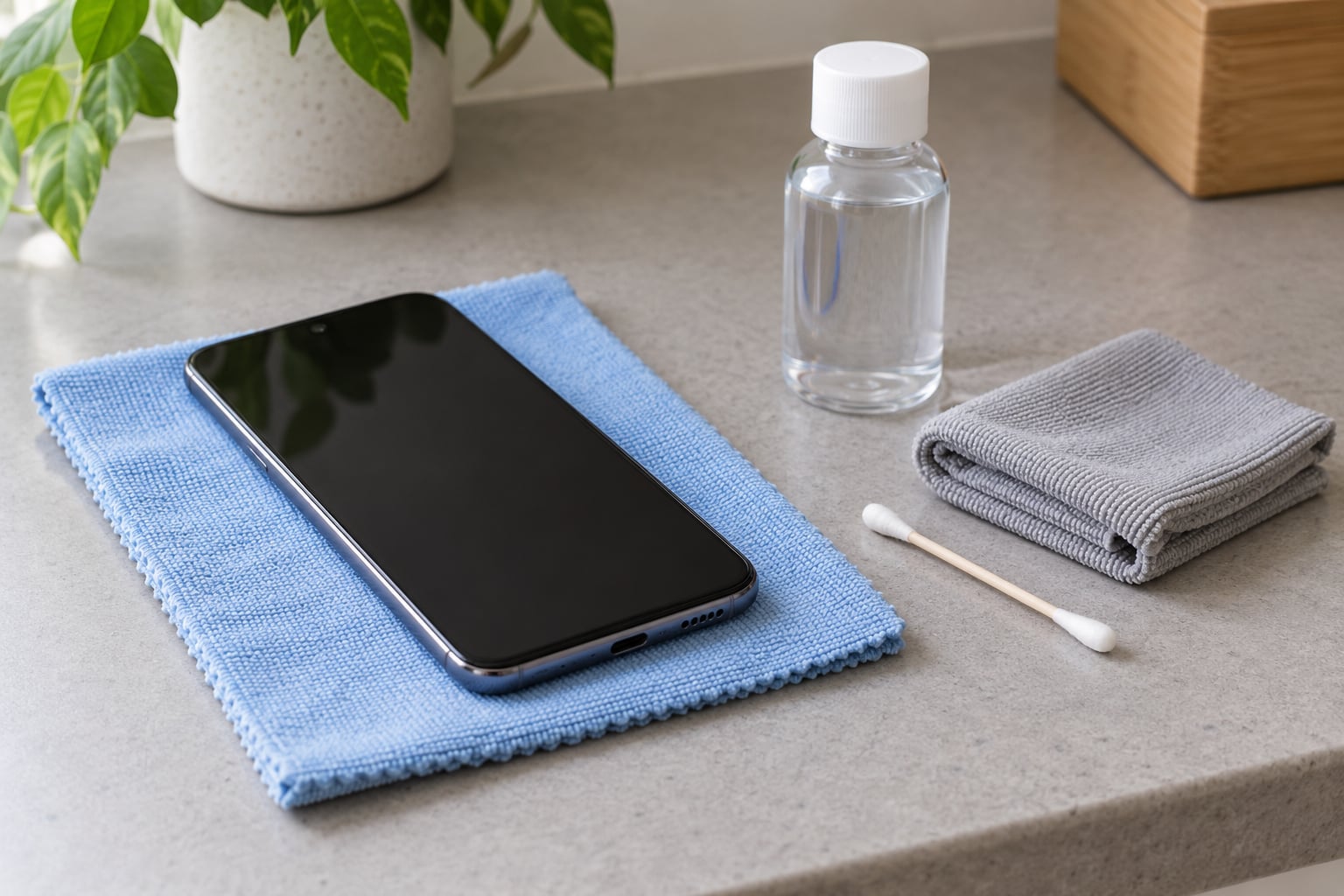
Power your phone off, take the case off, and wipe the screen with a soft lint-free microfiber cloth — dry first for dust, then lightly dampened with 70% isopropyl alcohol or distilled water applied to the cloth, never sprayed onto the phone. Finish with a dry pass using a clean section of the same cloth. The whole job takes about two minutes.
That is the entire method, and it works because it keeps liquid away from openings and keeps grit from being dragged across glass. The risk on most Android phones is not the glass itself but the thin oleophobic coating on top of it, the film or tempered glass protector sitting over that, and the ports along the bottom edge. Damage any one of the three and you will feel it.
Updated October 2026. Manufacturer guidance from Apple and Samsung both point at the same two materials, so nothing below needs special hardware or a proprietary spray.
Table of Contents
- What You Need
- Step-by-Step: How to Clean a Phone Screen Without Damaging It
- Step 1: Prepare the Phone and Screen
- Step 2: Wipe the Screen Gently and Clean Without Damaging It
- Step 3: Clean Edges, Ports, and the Case Carefully
- Step 4: Dry and Check the Result
- Common Mistakes
- Frequently Asked Questions
- Can I use alcohol to clean my phone screen?
- What is the safest way to clean a screen protector?
- Can I spray cleaner directly onto my Android phone?
- How often should I clean my phone screen?
- What should I use to clean fingerprints and smudges?
- Can I clean my phone while it is charging?
- Conclusion
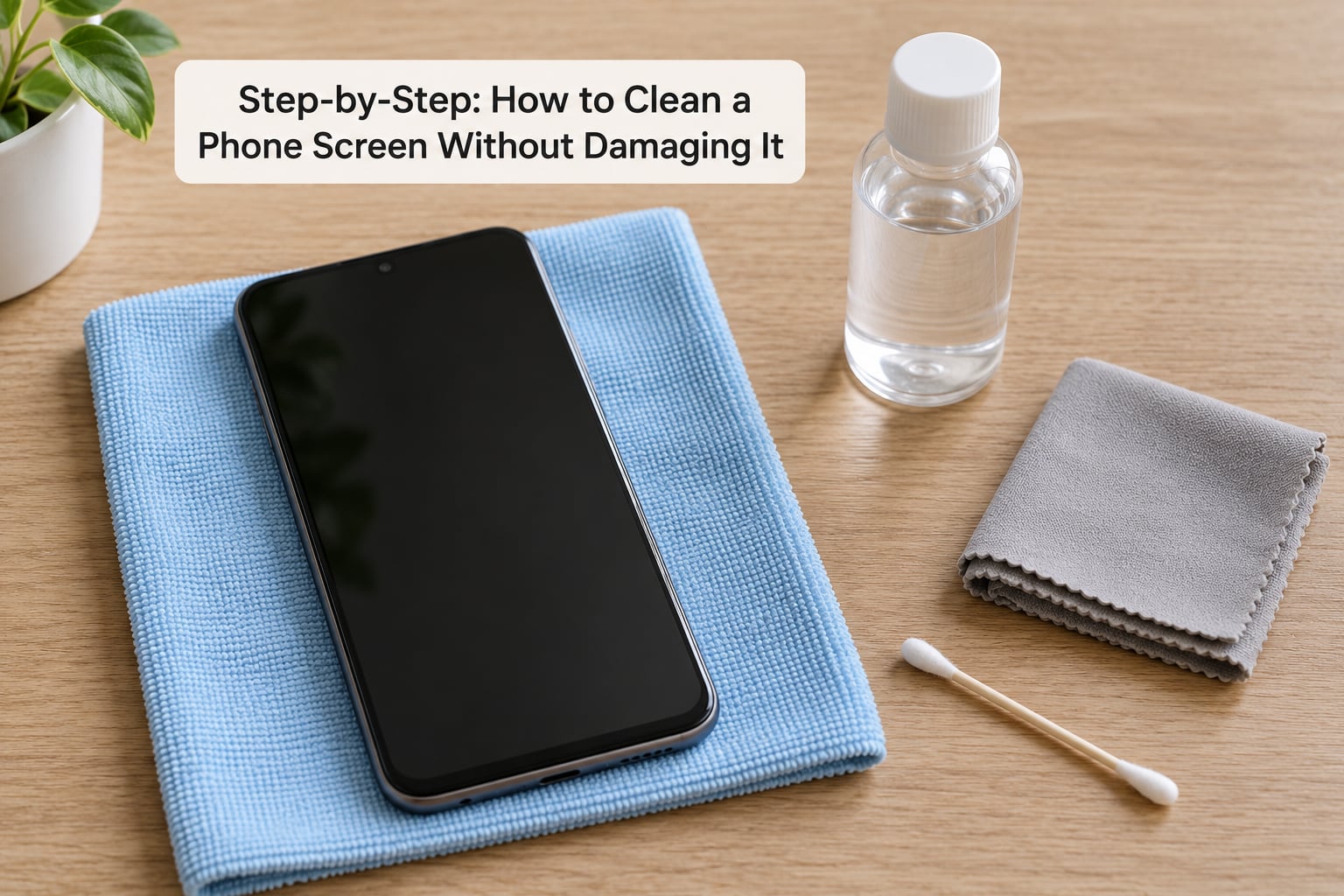
What You Need
Three things, and the order you use them matters more than the brand of any of them.
A lint-free microfiber cloth. This is the one item worth spending a little on. Microfiber fibres are fine enough to lift skin oils and dust off the surface instead of grinding them into it. Check the cloth under a light before you start — forum users point out, correctly, that a cloth which has been dropped on a counter transfers grit straight onto the screen.
70% isopropyl alcohol or distilled water. Apple and Samsung both name 70% isopropyl alcohol in their own cleaning guidance, which settles most of the arguments you will read online about whether alcohol is safe. Distilled water is the gentler option and works fine for everyday smudges. Plain tap water carries dissolved minerals that leave streaks once they dry, so it is not ideal.
A soft-bristled brush and a few cotton swabs. A clean toothbrush with soft bristles, or a dedicated detailing brush, gets dust out of the bezel corners and speaker grilles. Cotton swabs handle the charging port and speaker mesh.
Keep these away from the screen: window cleaner such as Windex, ammonia-based products, bleach, acetone and nail polish remover, hand sanitizer, wet and dry baby wipes, paper towels, and compressed air. Each of those has a specific reason, and I cover the damage mechanisms below.
Step-by-Step: How to Clean a Phone Screen Without Damaging It
Step 1: Prepare the Phone and Screen
Power the phone off completely rather than locking the screen. That stops accidental touches waking apps, removes any chance of liquid reaching live circuitry, and lets you see smudges better in an unlit screen. Unplug it if it is charging.
Take the case off. The case is usually the dirtiest object in this whole routine, and its edges are exactly where grit collects. Look at the screen in good light before touching it — if you can see loose dust or a sandy speck, that dust is what causes scratches once you start wiping.
If you can see grit, remove it first with the soft brush or by lightly dabbing with a dry corner of the cloth. Rubbing a dusty screen with a damp cloth is how micro-scratches happen.
Before going further, work out what is on top: bare glass, a tempered glass protector, a PET film, or a hydrogel sheet. Each behaves differently, and most Android phones ship with a thin factory film that people often mistake for the screen itself.
Step 2: Wipe the Screen Gently and Clean Without Damaging It
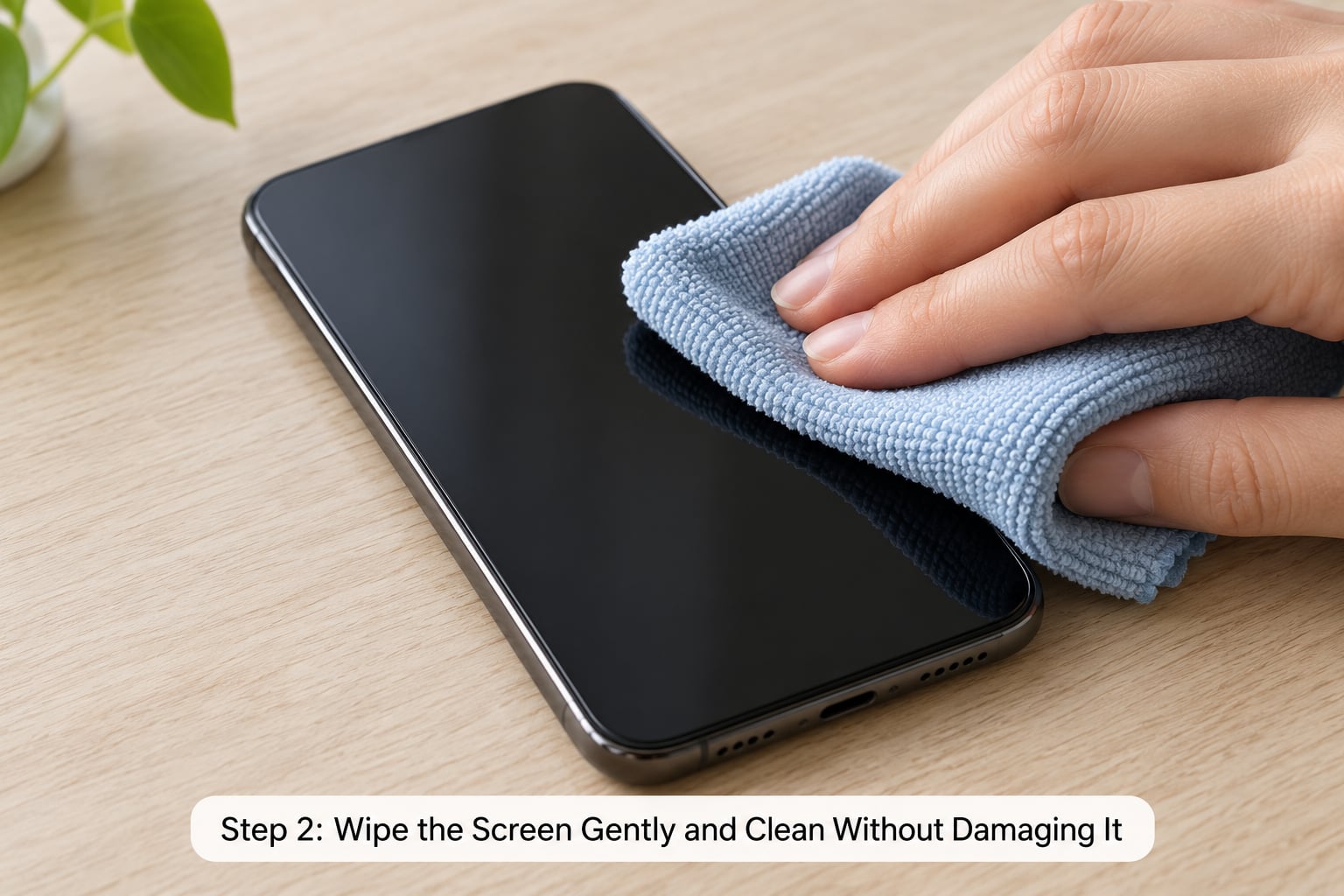
Put a small amount of liquid on the cloth, not on the phone. The cloth should be damp, not wet — if you can squeeze a drop out of it, it is too wet. Wringing out a soaked cloth is fine; spraying the screen is not.
Wipe in short, controlled strokes from one edge to the other. Small circular motions are what most guides suggest and they work well on a well-protected screen, but straight strokes across the display give you more control over where the cloth goes and are less likely to push grime into a corner.
Keep the pressure light. You are moving a film of liquid, not polishing glass, and the whole point is not to abrade the oleophobic coating. When the cloth starts dragging or leaving streaks, turn it over to a clean section rather than pressing harder.
Use 70% isopropyl alcohol for stubborn grease and for disinfecting, distilled water for a light daily wipe. Above 70% concentration you gain nothing useful and start degrading films, adhesives and some protector coatings, so skip the 91% stuff.
Step 3: Clean Edges, Ports, and the Case Carefully
Fold the cloth to a clean edge and run it along the bezel where glass meets frame. That seam collects pocket lint and it is where the greasy film builds up until it spreads across the display.
For the speaker grilles and the USB-C port, use the soft brush on a dry surface. Hold the phone with the opening facing downward so debris falls out rather than further in, and never push liquid into a port with a swab or a cloth.
The case gets cleaned separately. Take it off, wipe the inside with a damp cloth, and pay attention to the corners and the crease where the case meets the phone — those traps collect more than you would expect. Let it air-dry fully before it goes back on, since a wet case against a clean screen leaves marks.
Wipe the camera lenses with a dry or barely damp cloth only. If there is a visible grit speck, brush it off first; rubbing a lens with dirt on it is a quick way to haze it permanently.
Step 4: Dry and Check the Result
Let the phone air-dry for a minute with the case off. 70% isopropyl alcohol evaporates quickly and leaves no residue; distilled water needs a little longer, especially in the speaker mesh.
Turn the screen on and look for haze, streaks or cloudy patches. Streaks usually mean the cloth needed one more dry pass rather than more moisture. On AMOLED panels any leftover film shows up strongly against blacks, so check a dark image as well as a light one.
Then confirm the basics: touch responds normally across the whole display, brightness is unchanged, and charging works once the port is dry. If an under-display fingerprint sensor is slow to read, that is usually grime rather than hardware — clean the sensor area with a dry pass and try again before assuming the worst.
Common Mistakes
Almost every damaged screen I get asked about traces back to one of these, and each has a specific reason it causes harm rather than just being off-limits.
| Substance or technique | What it actually does | Safe substitute |
|---|---|---|
| Windex or window cleaner | Ammonia and surfactants strip the oleophobic coating and can haze the display | 70% isopropyl alcohol or distilled water |
| Bleach and disinfectant wipes | Hypochlorite etches glass and eats rubber seals and adhesives around the frame | Isopropyl alcohol applied to a cloth |
| Hand sanitizer | Ethyl alcohol concentration varies by brand, plus fragrances and thickeners leave a gummy film | 70% isopropyl alcohol |
| Baby wipes | Moisture soaks into the display and alcohol-free formulas rub grit around rather than lifting it | Microfiber with distilled water |
| Acetone and nail polish remover | Attacks coatings, plastics and the adhesives holding the screen together | Nothing — use isopropyl alcohol |
| Paper towels | Cellulose fibres leave micro-scratches that catch light | Lint-free microfiber |
| Spraying liquid on the phone | Moisture runs under the display bezel and into ports, risking short circuits and microphone damage | Always apply liquid to the cloth |
| Cleaning while powered on | Stray taps trigger actions and liquid reaches live circuitry | Power off and unplug first |
| Toothpaste or baking soda | Abrasive particles scratch the glass permanently | Nothing — they do not repair scratches |
| Compressed air | Drives grit and moisture deeper into ports and seams | Soft brush on a dry phone |
Wiping a dusty screen is the mistake people defend least. The dust is the abrasive. Brush or dab it away first and the wiping stage becomes safe.
A smudge that will not come off is usually a damaged patch, not dirt. When a cloudy spot survives two careful passes with alcohol on a clean cloth, the coating on that area is already etched. Repeated scrubbing makes it worse. The practical fix is a screen protector over the top, which is exactly the part designed to be replaced.
A greasy screen comes back within hours when the phone is bare. Skin oils simply re-deposit. If you handle the phone with food or moisturiser hands, a case plus a protector stops the problem at the source instead of making you clean twice a day.
On phones with under-display fingerprint sensors, a layer of grime reads as a failing sensor. A dry cloth pass over the sensor area usually fixes it. If the sensor still misfires after that, check the case and protector for a misalignment rather than assuming the hardware is gone.
On frequency, a daily wipe for fingerprints and a weekly deeper clean for ports and the case is plenty. Over-cleaning is a real risk: every aggressive pass wears the coating thinner, and the screen stays smudgier than it would have if you had left it alone.
Frequently Asked Questions
Can I use alcohol to clean my phone screen?
Yes, and it is the recommendation from the manufacturers themselves. Apple and Samsung both name 70% isopropyl alcohol in their published cleaning guidance, applied to a soft lint-free cloth rather than sprayed on the screen. That exact concentration matters: it cuts grease well and evaporates cleanly. Stronger solutions such as 91% or pure alcohol give no benefit and can degrade films, adhesives and some screen protectors.
What is the safest way to clean a screen protector?
Treat the protector the same way as the screen. Cleaners built for bare glass are fine on tempered glass, but PET film and hydrogel protectors can haze or swell with repeated alcohol, so distilled water on a microfiber cloth is the gentler choice for those. Never peel a glass protector off to clean underneath — the adhesive is not designed for removal and the shards are a real hazard.
Can I spray cleaner directly onto my Android phone?
No. Liquid sprayed on a phone runs under the display bezel and down into the charging port, speaker openings and microphone grille, where it can short out circuitry or leave the mic muffled. Always put the liquid on the cloth until it is damp but not dripping, then use the cloth to wipe the screen, never the other way round.
How often should I clean my phone screen?
Once a day for fingerprints is plenty, and a weekly pass over the ports, speakers and case covers the slower buildup. More frequent than that is where you start wearing through the oleophobic coating, and the screen smudges more than ever. If someone has been ill and you want to disinfect, a 70% isopropyl alcohol pass handles that without any extra frequency.
What should I use to clean fingerprints and smudges?
A microfiber cloth lightly dampened with distilled water handles ordinary fingerprints in one pass. For heavier grease or a disinfecting pass, use 70% isopropyl alcohol on the same kind of cloth. Follow either with a dry pass using a clean section of the cloth, since most visible streaks are just liquid left to dry unevenly rather than anything still on the glass.
Can I clean my phone while it is charging?
Not worth the risk. Power the phone off and unplug it first. While it is charging, current is flowing through the charging port and a damp cloth near a connector is the one scenario where moisture and live electronics meet. A powered-off screen is also easier to judge for smudges, and nothing will register your accidental taps mid-wipe.
Conclusion
Start by powering the phone off and taking the case off. Wipe with a barely damp lint-free microfiber cloth — dry first if there is visible dust, then with 70% isopropyl alcohol or distilled water for grease and disinfection — and keep every drop of liquid on the cloth rather than the phone so nothing runs under the bezel or into the charging port.
Skip the paper towels, window cleaner, baby wipes and toothpaste. Give the ports and the case a weekly pass with a dry brush, and stop when the screen is clean rather than when it feels like you could go one more round. That is how to clean a phone screen without damaging it, and it holds for two minutes at a time for years.