If you’re wondering how to pick a stylus for note taking, start with the device you already own and work outward: confirm the pen actually pairs with that tablet or phone, then decide whether you need pressure sensing and palm rejection or whether a battery-free capacitive pen will do everything you ask of it. Most disappointing pens are not bad pens, they are pens bought in the wrong order.
The order matters because compatibility is locked in at the hardware level. An active pen talks to the digitizer inside a specific screen using a protocol that device understands, and no amount of button mashing will make an incompatible pen register. Get that wrong and the pen is a paperweight. Get it right and the rest of the decision is about feel, which you can actually test.
This guide walks through the seven factors that decide the outcome, in the order they should be checked: your note-taking style, the tip, pressure and palm rejection, device compatibility, comfort and latency, battery type, and budget. It works for Android tablets, iPads, touchscreen laptops and Chromebooks alike, because the decision logic is the same even when the pen names are not.
Table of Contents
- How to Pick a Stylus for Note Taking: Start With Your Device
- How to Pick a Stylus for Note Taking for Your Note-Taking Style
- Choose a Tip Shape and Material That Fits Your Notes
- Check Pressure Sensitivity and Palm Rejection
- Confirm Compatibility with Your Tablet or Android Phone
- Prioritize Comfort, Accuracy, and Low Latency
- Decide Whether You Need Rechargeable or Battery-Free Styluses
- Set a Budget Based on the Features You Actually Need
- Test the Shortlist Before Buying
- Frequently Asked Questions
- Do I need an active stylus for note taking?
- What stylus tip is best for writing on a tablet?
- Does pressure sensitivity improve handwritten notes?
- Is a cheap stylus good enough for everyday note taking?
- Can I use one stylus with multiple Android devices?
How to Pick a Stylus for Note Taking: Start With Your Device
The short version: match the pen to the screen first, then match the tip and grip to the way you write. An active stylus with pressure sensing and palm rejection is the right choice for long handwritten notes, sketching and annotation. A passive capacitive stylus is enough for tapping, scrolling, highlighting and signing documents, and it never needs charging.
Before you compare anything else, answer one question honestly: how many hours a day does the pen touch the screen? Under an hour of reading and signing points one way. Two or three hours of dense handwriting points the other way, because fatigue and palm smudges only appear in long sessions.
| How you take notes | What to pick | Why |
|---|---|---|
| Reading and annotating PDFs | Passive capacitive or entry-level active pen | Few hours a day, mostly highlighting and short comments |
| Full lecture or meeting notes | Active pen with palm rejection and low latency | Long sessions, hand rests on the screen, small handwriting |
| Sketching, maths, diagrams | Active pen with pressure and tilt | Line weight and shading matter more than speed |
| Signing forms on the go | Passive capacitive pen, ideally a flat tip | Travel, no charger, no pairing |
| Two or three devices | Multi-device active pen or one pen per ecosystem | Cross-platform support is rare and worth checking early |
How to Pick a Stylus for Note Taking for Your Note-Taking Style
Your handwriting decides the tip. Small, fast, slanted script needs a fine tip that holds a line without digging in, because a broad tip turns letters into blobs at that speed. Large, slow printing does the opposite: a broader tip lays down more ink per stroke and lets you build shading without pressing harder.
Where the notes live matters just as much. Notes typed straight into a note app on a phone are short and infrequent, so a passive pen is plenty. A full page of lecture notes written on a tablet held in one hand is a different job entirely, and it is the job that punishes a slippery barrel or a tip that wobbles under load.
Sketching changes the priority again. Pressure response and tilt detection turn a line into a shape, and a pen with a soft rubber tip glides better on a matte screen protector than a hard plastic one. If you are annotating over an existing PDF rather than drawing from scratch, tracking accuracy on small targets usually matters more than pressure levels.
Choose a Tip Shape and Material That Fits Your Notes
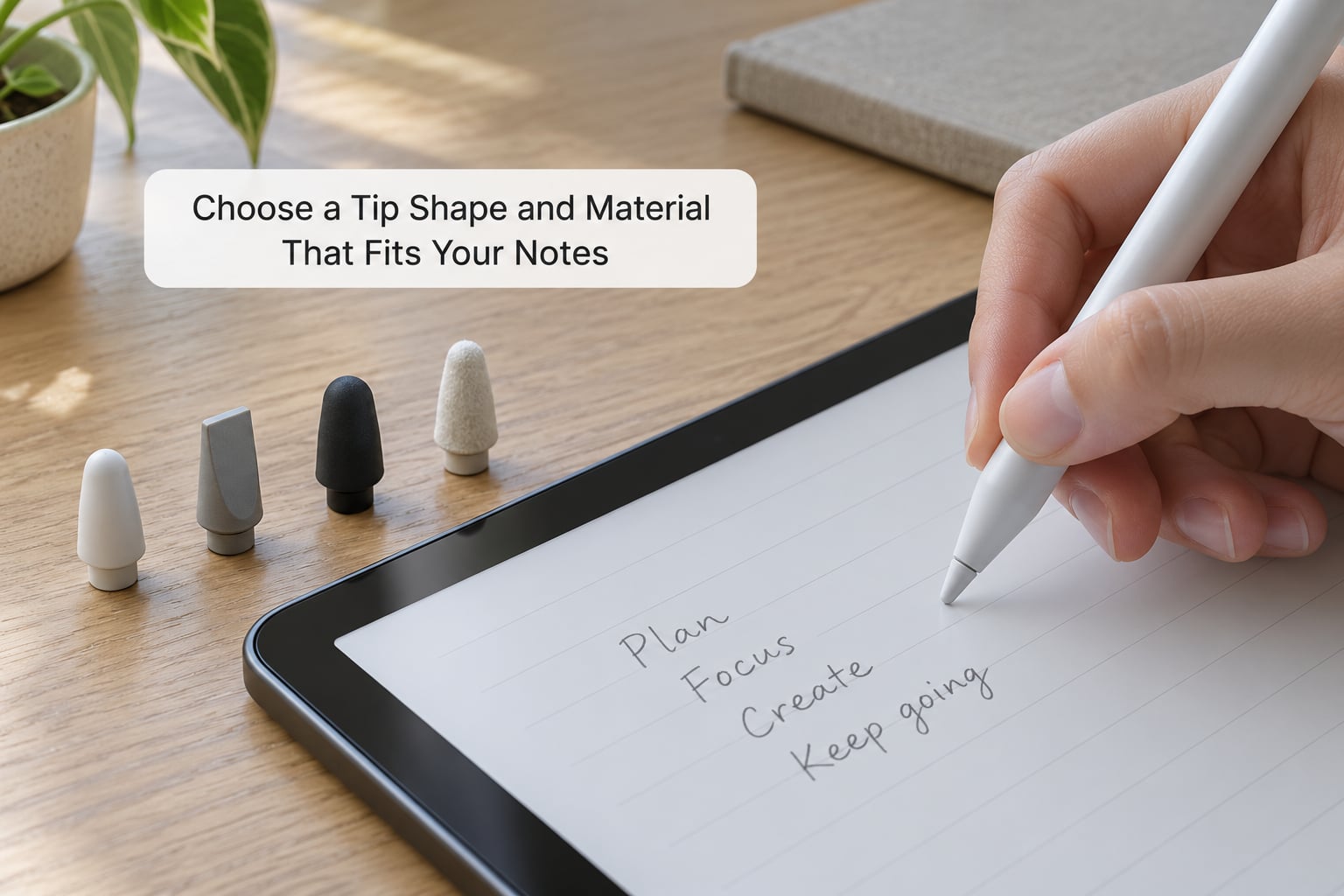
Three tip shapes cover almost all note taking: conical, elliptical and rounded. Conical tips, the most common, behave like a ballpoint and suit ordinary writing. Elliptical tips present a broader contact area at a shallow angle, which makes thin lines at low tilt and thicker marks when you roll the pen over. Rounded tips, common on cheaper pens, glide smoothly but give you less control over line start and stop.
| Tip shape | Writing feel | Best for | Watch out for |
|---|---|---|---|
| Conical | Ballpoint-like, balanced | Everyday notes and annotation | Broad versions blob at speed |
| Elliptical | Thin at shallow tilt, wider rolled over | Fine handwriting and shading | Less forgiving of a sloppy grip |
| Rounded | Soft glide, low friction | Sketching and casual markup | Less precise line control |
Material matters for durability and for your screen. Hard plastic tips last longer and glide with almost no friction, which feels fast but gives the digitizer little to grip and can produce skipping on matte protectors. Rubber and silicone tips grip the glass well and glide with visible friction, which feels controlled and shows a slight lag while the tip catches up. Fibre tips sit between the two and are the most forgiving if you bounce around between device types.
A worn tip is the quiet reason pens start skipping. Reviewers on r/stylus and r/tablets describe a pen that suddenly produces faint, broken lines months after purchase, and the fix is usually a replacement tip rather than a new pen. Check that tips are sold for your exact model before you commit, because that is where ownership quietly gets expensive.
Check Pressure Sensitivity and Palm Rejection
Palm rejection matters more than pressure sensitivity for note taking. Resting the side of your hand on the screen is the default position for most right-handed writers when notes are placed right of centre, and without rejection you get unwanted marks, zooms and pans at the worst moment. A pen that reports pen input separately from touch input can ignore the hand and follow only the tip.
That said, rejection is not a switch you set once. It depends on how the pen is held, how flat the hand rests and which app is drawing the canvas. People who grip a tablet more loosely, or write with their non-dominant hand, tend to see more false positives. Test the way you actually write rather than the way the packaging photo demonstrates.
Pressure sensitivity is a line-weight feature. Counters of 2,048 and 4,096 levels are common on active pens and the practical difference between them is small for handwriting; both are far more than a page of text needs. Tilt detection, which lets the pen shade like a pencil rolled in your fingers, matters for sketching and diagrams. If you write prose and sign forms, treat both as optional.
Confirm Compatibility with Your Tablet or Android Phone
Active pens are device-locked in a way that surprises people. The manufacturer’s pen uses that brand’s protocol, and the tablet’s digitizer is built to listen for it. Samsung’s S Pen will not register on an iPad, and an Apple Pencil will not register on most Android tablets, because the pairing happens in hardware and firmware, not in an app.
| Device family | Native pen option | What third-party options exist |
|---|---|---|
| iPad | Apple Pencil generations matched to specific models | Universal capacitive pens; Bluetooth pens with per-model setup |
| Samsung Galaxy Tab and Galaxy Note | S Pen, often bundled or built into the device | Bluetooth EMR-compatible pens, Air Commanders sold separately |
| Xiaomi Pad series | Smart Pen and Focus Pen models | Capacitive pens for annotation; Bluetooth pens need per-model setup |
| Amazon Fire tablets | Fire Max Pencil, sold for Fire Max models | Capacitive pens for basic markup |
| Huawei MatePad | M-Pencil models | Capacitive and some Bluetooth third-party pens |
| Windows Surface and pen tablets | Surface Pen family using Microsoft Pen Protocol | Any MPP pen from other makers |
| Chromebooks and touchscreen laptops | None standard | Passive capacitive pens for tapping and signing |
Passive capacitive pens sidestep the whole problem because they only mimic a fingertip, so they work on any capacitive touchscreen. The cost is that they give you no pressure, no tilt and usually no palm rejection, because the screen cannot tell the pen from your hand.
Bluetooth connection is where most pairing complaints live. Users on r/stylus and xdaforums describe cheap pens that pair with a phone but never appear in a tablet’s input list until firmware is updated or the tablet is rebooted. If your intended pen connects over Bluetooth, look for the exact pairing steps for your model before you buy, and check whether it supports more than one paired device at a time.
Note-taking apps add their own layer. A pen can work perfectly in the manufacturer’s native notes app and behave differently in a third-party one, because palm rejection and hover features are often implemented at the app level. If you already use a specific app, verify that it supports pressure and tilt before you pay for those features.
Prioritize Comfort, Accuracy, and Low Latency
Latency is the delay between the pen moving and the ink appearing, and readers feel it long before they can measure it. The tell is simple: with low latency the ink flows from under the tip, and with noticeable latency the ink chases the pen, so quick strokes come out slightly behind your hand. Rough guidance from long-form device forums puts anything above about 60 milliseconds as clearly visible, while under 20 milliseconds feels immediate.
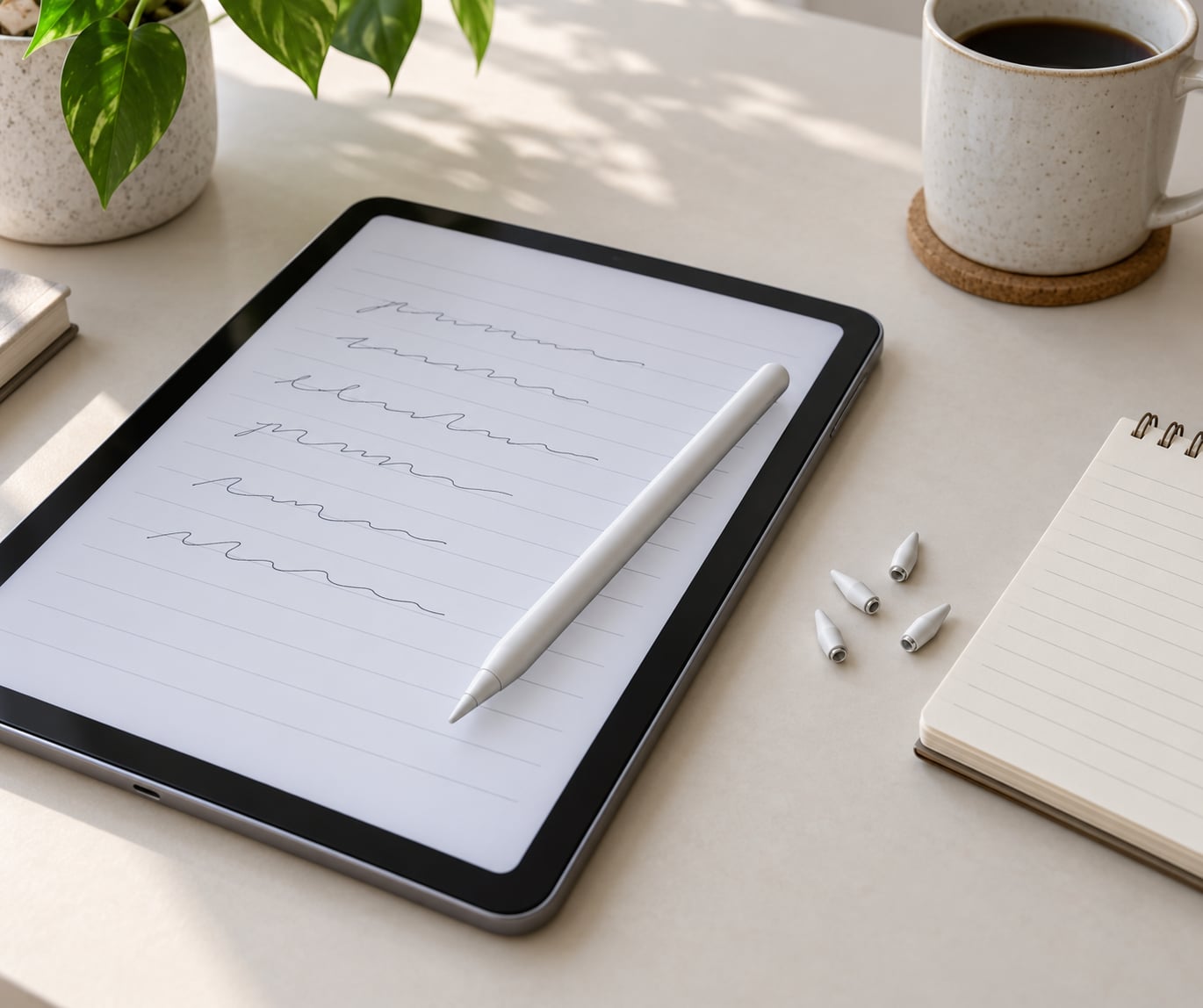
For fast note taking, run a zigzag test rather than reading a spec sheet. Draw a rapid row of sharp horizontal and diagonal strokes in the app you intend to use and look for skips, wobble along straight lines and vertical streaks on slow parts of the stroke. Those artifacts usually point at tip wear, a low-quality tip or a digitizer that struggles at speed, not at the app.
Grip and balance matter more over an hour than people expect. A tapered barrel suits small hands, a straight barrel suits larger grips, and a knurled or rubberised section keeps the pen from sliding when your hand is damp. Weight balance close to the nib makes fast strokes steadier than a tip-heavy pen, which tends to wobble at the end of a long line.
For long sessions, a low-friction tip against a bare glass screen feels easier on the wrist than a high-friction one, because you stop pushing. If your device has a matte protector, the opposite applies: grippier rubber tips behave better on those surfaces and reduce the skipping that hard plastic tips produce.
Decide Whether You Need Rechargeable or Battery-Free Styluses
Passive capacitive pens need no power at all, which removes charging from the decision entirely. Active pens split into two families: replaceable-cell models that run for months on a single AAAA, and rechargeable models that dock magnetically or charge over USB-C and typically need topping up every week or two.
Battery anxiety is a stated deal-breaker in note-taking communities. People on r/tablets repeatedly ask for a pen that lasts a week on one charge or needs no charging, because a dead pen at the start of a lecture is worse than no pen at all. Rechargeable models also add a failure mode: the cell degrades over years, and pairing can drop out after an app update until firmware is refreshed.
Portability favours passive or replaceable-cell pens, since you can toss one in a bag and forget it. Nothing is lost on pressure or tilt, though. If you want both the long battery and the sensor suite, a replaceable-cell active pen is usually the calmer choice for a student, while a docked rechargeable pen suits someone who writes daily in the same spot and charges overnight.
Set a Budget Based on the Features You Actually Need
Budget bands work better than numbers here, because pen prices move around constantly. What changes between them is the feature set, and only two features do most of the work for handwritten notes.
| Band | What you typically get | Worth it if | Skip if |
|---|---|---|---|
| Entry passive capacitive | Battery-free, no pressure, no tilt, basic palm behaviour | You highlight, sign and tap | You write full pages daily |
| Mid-range active | Pressure levels, palm rejection, tilt, Bluetooth, replaceable tips | You take handwritten notes or annotate often | You write less than an hour a day |
| Premium manufacturer pen | Same sensor class plus tight app integration, hover, magnetic docking, eraser gesture | You already own that brand’s tablet and use its apps | You want one pen for several brands |
| Pen tablet with screen | A display built for handwriting, usually with pressure and tilt | Drawing and maths are a serious hobby | You mostly read and sign |
Spending more only improves the experience when it buys something you can feel: lower latency, reliable palm rejection, a replaceable tip system that costs little, or automatic charging in the dock. A higher pressure-level count, a squeeze gesture and a premium box do nothing for a page of lecture notes. Where the price gap is small, the manufacturer’s own pen usually wins on integration; where it is large, the mid-range active tier is the value pick.
Count the ongoing cost too, since a passive pen plus a set of tips can undercut an active pen over two or three years of use. Ask two questions before buying: are replacement tips available for this model, and are they sold in multi-packs. If tips are hard to find for your brand, that is a maintenance trap, not a saving.
Test the Shortlist Before Buying
Five minutes of writing tells you more than any spec sheet, and every major retailer has a display model you can pick up. Use your own device if you can, since a stylus that misbehaves on a demo unit is a stylus that misbehaves on your screen.
- Fast zigzag. Draw a rapid row of sharp diagonals in your note app. Look for skips, straight-line wobble and any point where the ink trails behind the tip.
- Small handwriting. Write a line at your normal size and slant. If letters close up or the line drifts sideways, the tip is too broad or the tracking is too loose for you.
- Palm rest. Rest the side of your hand flat on the screen the way you actually hold the tablet, then write a full paragraph. Check underneath your hand afterwards for stray marks.
- Buttons and shortcuts. Test double-tap to switch tools, eraser and any side button in your actual app, since apps often remap or ignore them.
- Charging and pairing. Confirm the pen appears in your device’s input or Bluetooth list, dock or charge it fully, and note how long it takes to reach a usable charge.
If a pen fails inside the return window, work through this order before blaming the hardware: restart the device, update the pen’s firmware and the app, then test in the manufacturer’s native notes app. That sequence, repeated constantly on support forums, separates genuine pen faults from app bugs and pairing quirks more often than not.
One last habit keeps notes legible for years. Wipe the tip with a dry cloth, keep it away from alcohol-based cleaners and screen protectors with unusual coatings, and replace the tip the moment strokes start breaking up rather than forcing pressure onto a worn nub.
Frequently Asked Questions
Do I need an active stylus for note taking?
Only if you write more than short annotations. An active stylus with pressure sensing and palm rejection pays off during long handwritten sessions, sketching and signature work. A passive capacitive pen is battery-free and works on any capacitive touchscreen, which makes it the right choice for highlighting, scrolling, signing forms and occasional underlining. Decide by session length rather than by feature count.
What stylus tip is best for writing on a tablet?
A fine conical tip suits most handwriting because it behaves like a ballpoint and keeps letters open at speed. Elliptical tips give thin lines at a shallow angle and broader marks when the pen is rolled, which helps small print and shading. Rounded tips glide most smoothly and feel easiest for sketching. Soft rubber or silicone tips grip the glass and reduce skipping on matte screen protectors.
Does pressure sensitivity improve handwritten notes?
For plain prose, barely. Pressure sensing controls line weight, which matters for shading, diagrams, maths and sketching rather than for readable text. Counters of 2,048 and 4,096 levels both exceed what a page of writing needs, so the practical difference between them is small. Palm rejection has a far bigger effect on note quality, because it stops your resting hand from drawing stray marks.
Is a cheap stylus good enough for everyday note taking?
Yes, for reading, highlighting, signing and short typed notes, where a passive capacitive pen is genuinely enough. Cheap pens fall short in long handwritten sessions, where skips on fast strokes, a slippery barrel and missing palm rejection become obvious. The most common early failure is a worn tip, so check that replacement tips exist for whichever model you buy before worrying about sensor specifications.
Can I use one stylus with multiple Android devices?
Passive capacitive pens work on every device with a capacitive screen, which makes them the simplest cross-device option. Active Bluetooth pens often support two paired devices, but switching is usually a deliberate button action rather than automatic, and compatibility is still locked to each manufacturer’s protocol. If you move between tablets from different brands regularly, one pen per ecosystem is more reliable than a single universal active pen.
If you take one thing from this, make it your device. Confirm the pen protocol, then judge the pen the only way that counts: write a full page at your normal speed with your hand resting where it naturally rests, and see how it feels. That single test settles tip choice, palm rejection and latency in about two minutes, and it is far more reliable than any spec sheet. Updated for October 2026.