Most GPS drift on a running watch comes down to signal environment and one forgotten sync, not broken hardware. To make GPS more accurate on a running watch, sync it so the satellite almanac refreshes, switch on every satellite system it supports, wear it snug above the wrist bone, and get a clean lock outdoors with the display facing up before you start. Work through the fixes below in order and most runners see the track tighten on the very next run.
Here is the short version. A runner in Sydney posted about r/Garmin with 10.46 km recorded against 11.54 km actually covered, roughly 10% inflation that turned a 5:13/km pace into a reported 5:46/km. The same watch was fine in a large park. That gap is the whole story of this guide.
Table of Contents
- What You Need
- Step-by-Step
- 1. Move to an open area and restart the watch
- 2. Update the watch software and firmware
- 3. Reset the GPS data when the watch supports it
- 4. Check positioning mode and workout settings
- 5. Improve the signal during the run
- 6. Compare a new run with a known route
- How Much Error Is Normal?
- Common Mistakes
- Frequently Asked Questions
- Why does my running watch GPS show the wrong route?
- Should I use multi-band GPS for more accurate tracking?
- How do I reset GPS data on my running watch?
- How long should a running watch take to find GPS?
- Can my phone improve the GPS accuracy of my running watch?
- When should I contact the manufacturer about inaccurate GPS?
- Conclusion
What You Need
You need four things, and you probably already own all of them: the watch itself, the phone or computer you use to sync it, a clear outdoor spot for testing, and the manufacturer’s companion app.
Before you change anything, confirm which app owns your watch. Most accuracy problems come from updating only the phone app and never opening the desktop software on the same account. Menu names also differ a lot between brands and even between models in the same range, so find your row below before you hunt through menus.
| Brand | Sync app or software | Where positioning settings usually live |
|---|---|---|
| Garmin | Garmin Express on Windows or Mac, Garmin Connect on the phone | Settings > System > Satellites, or the satellite options inside a running activity profile |
| Apple | Watch app on iPhone | No GNSS toggle on most models; location access for Workout is set in iPhone Settings > Privacy > Location Services > Apple Watch |
| Samsung | Galaxy Wearable app on the phone | Watch Settings for location permission, plus workout options inside Galaxy Wearable; some Galaxy Watch models take position from the paired phone |
| Huawei | Huawei Health app | Device settings > positioning options, where supported models list GPS, GLONASS, Galileo and BeiDou |
| COROS | COROS app | Device settings for satellite mode, often labelled All systems, with multi-band on supported models |
| Polar | Polar Flow app or Flow web service | Device settings > Positioning, offering GPS only, GPS and GLONASS, or multi-frequency |
Names shift with firmware versions and new models land every year, so treat this as a map rather than a contract. If your model is missing from the list, the setting you want is the one that mentions satellites, positioning, GNSS, location or sensors.
Step-by-Step
Work in this order. The first steps cost two minutes and fix most cases, so do not jump to step six when step one has not been tried.
1. Move to an open area and restart the watch
Buildings, trees and terrain distort position fixes, and a watch that has been sitting indoors will often hold onto a poor cached solution. Power the watch off, leave it down for thirty seconds, then power it back on and take it outside before you do anything else.
Stand somewhere with clear sky and no tall structure within a few metres. Hold the watch still with the display facing up, do not tap the screen, and wait. You are looking for the signal indicator to fill in and change colour: orange usually means you can start, green means a better fix. Polar’s own documentation describes a minimum of four satellites for a fix and tells users to wait for the green indicator before setting off, and that same advice transfers to every other watch.
How you can tell it worked: the lock happens in seconds rather than a minute or two, and your first 30 seconds of track no longer sit 20 metres to one side of the path you are actually running.
2. Update the watch software and firmware
The single most repeated fix across the Garmin forums threads on this topic is a sync that loads the latest satellite almanac. The almanac is a cached map of where the satellites are expected to be; an out-of-date copy slows acquisition and can leave the watch solving for position with stale information.
Connect the watch to your computer and run Garmin Express, or open Garmin Connect on the phone and let it sync. The equivalent action on other ecosystems is opening Huawei Health, Galaxy Wearable, the COROS app, Zepp, or Polar Flow and confirming the watch shows an up-to-date sync rather than a stale one.
Check for a firmware update at the same time, install it, and let the watch restart. Firmware updates regularly touch satellite acquisition and the position algorithm, so skipping them means running last year’s fix on this year’s hardware.
How you can tell it worked: the watch locks noticeably faster the morning after a sync, and the first fix of the day no longer takes noticeably longer than the tenth.
3. Reset the GPS data when the watch supports it
If your watch keeps a cached satellite solution, clearing it forces a fresh solve. Menu labels vary, so look under System, Sensors, Location, Positioning, Recovery or Reset, then choose something along the lines of reset GPS, clear satellite data or restore defaults.
On many models this sits next to a hardware self-test or a system recovery option, so read the description before you tap. Clearing satellite data removes cached orbital information but does not touch your activity history or settings, and it should be followed by a fresh outdoor run rather than an indoor one.
How you can tell it worked: after the reset, the first lock outdoors takes noticeably longer than normal and then settles into a clean track. A slow first lock after a reset is expected, not a fault.
4. Check positioning mode and workout settings
Open the positioning setting and turn on every satellite constellation your watch offers. Most models list some combination of GPS, GLONASS, Galileo and BeiDou, and using all of them gives the receiver more satellites to work with, which directly improves geometry in places where the view is blocked.
Multi-band is a different feature and worth separating from the rest. Multi-system means several constellations on one frequency; multi-band, sometimes called dual-frequency, means receiving the same constellation on two frequencies, which helps most in cities and under trees where reflected signals arrive late. If your watch offers multi-band, turn it on for runs through dense areas.
Next, check the activity profile and recording rate. Running profile is right for an easy run, while sampling modes such as Garmin’s UltraTrac record more aggressively for trails and untracked routes. Set the recording interval to every one second rather than a longer sampling gap, since sparse points leave straight corners where you actually turned.
Also confirm the watch is recording an outdoor run rather than an indoor or treadmill profile. Indoor profiles deliberately ignore GPS entirely, and a watch still broadcasting indoors will track whatever it can hear.
How you can tell it worked: your track gains points at the rate you chose, corners appear rounded rather than cut, and the distance no longer inflates on the same streets where it used to.
5. Improve the signal during the run
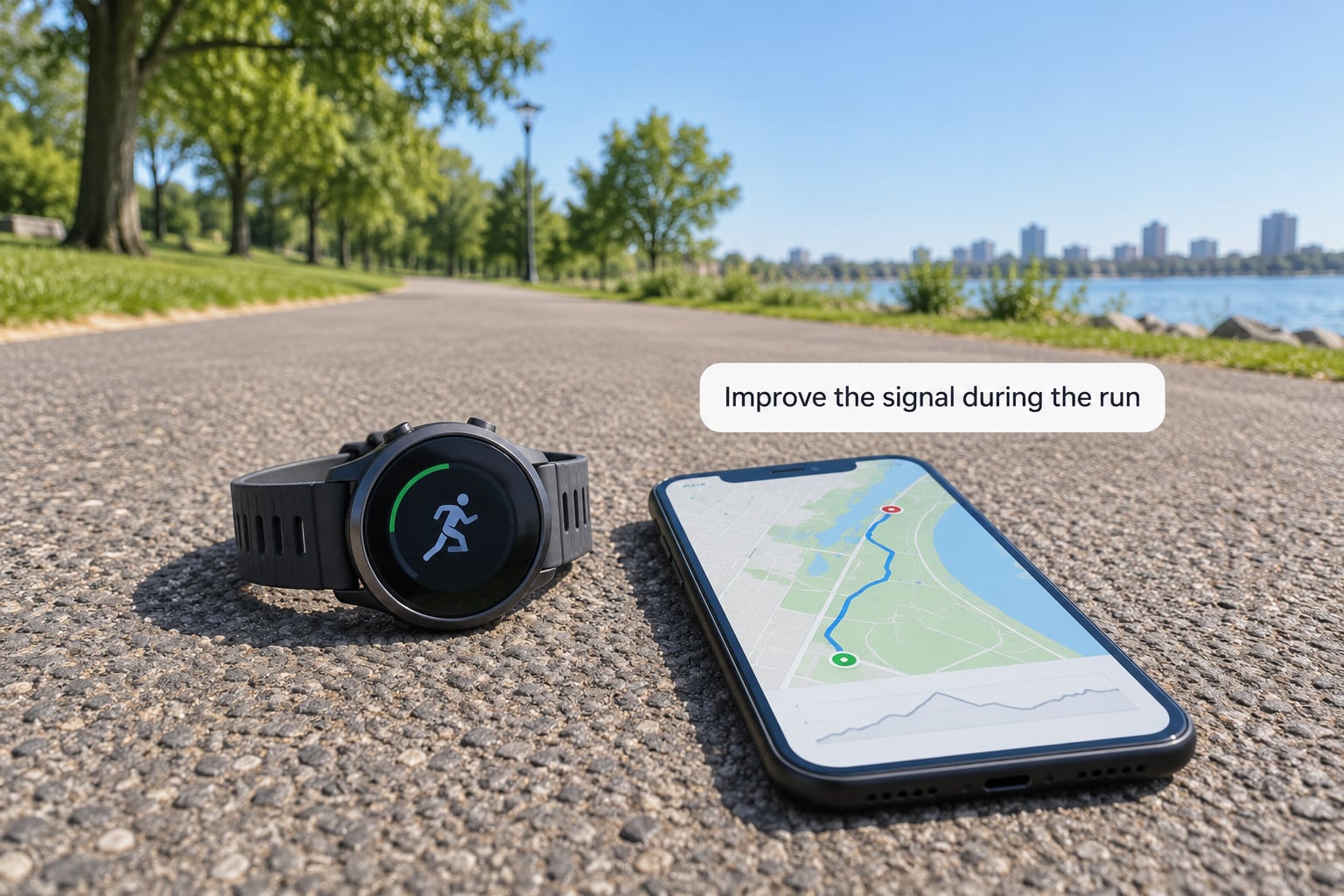
Fit matters more than runners expect. Wear the watch snug, just above the wrist bone on the forearm, where the strap does not slide during arm swing. A loose watch moves across the skin and the antenna changes angle constantly, and movement also corrupts the optical heart rate reading while you are at it.
Keep the back of the watch and the underside of the band clean. Dried sweat and a film of sunscreen put a layer between the antenna and the sky.
Leave metal alone during the run. Phone armbands, car keys on a wrist lanyard, zipped pockets over the watch and bike handlebar mounts all sit close enough to distort the signal. If you must carry a phone on the wrist, put it on the other arm.
Watch for power-saving modes. Some watches and phones throttle or disable satellite hardware in low power or battery saver, and a few disable the GPS chip altogether below a certain battery level. Check which of those is active before a long run.
Start in the open. If your route begins in a courtyard or between apartment blocks, walk to the street or the park gate first, then press start. The first thirty seconds are where most of the drift gets baked in.
How you can tell it worked: the distance recorded for a loop that should be exactly 1 km lands within a few metres, and your heart rate reading is steadier at easy pace.
6. Compare a new run with a known route
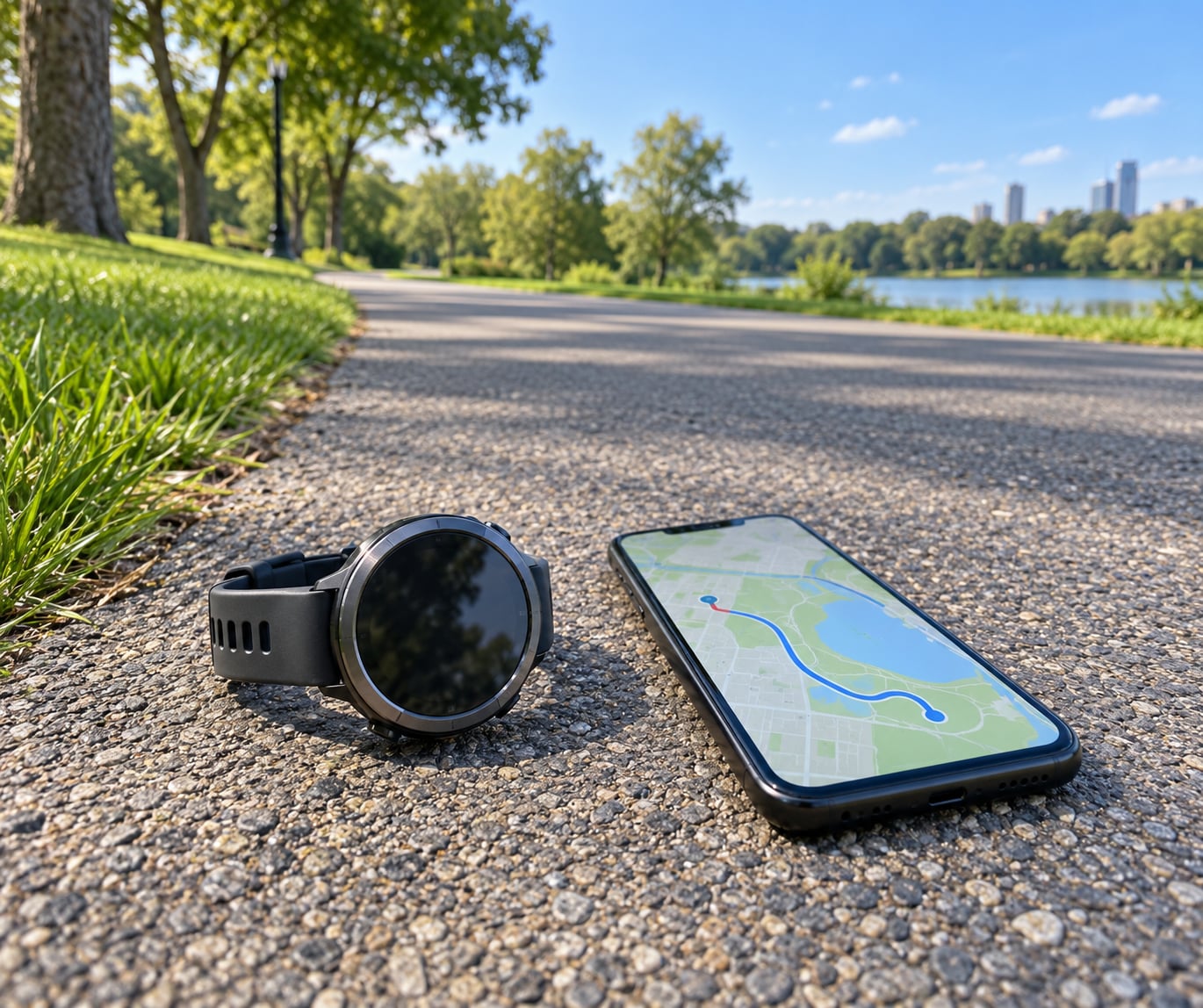
Do not judge accuracy by vibes. Pick a short, repeatable route you have measured yourself, ideally 1 km or 400 m on a path with clear sky, and run it after the fixes. Compare the watch total against the measured distance and work out the percentage difference. There is no point learning how to make GPS more accurate on a running watch if you cannot measure the result afterwards.
Overlaying the finished track in Strava, Garmin Connect or the COROS app makes the shape of the error obvious. A track that sits tight on the path is fine. A track with straight lines cutting corners, little loops where you stood still, or a sudden jump to the other side of the river is a GPS artefact rather than a real deviation.
Users in the Garmin forums compared a Forerunner 945 LTE on GPS plus GLONASS against an Instinct 2X on multi-band over the same route, and the multi-band track was visibly tighter while the 945 wandered a little. A separate thread on running watches and phones noted that a straight measured line agrees far better than an oval track, because on a curve any small sideways error accumulates into distance fast.
So run your baseline twice on a straight path first, and only then test a loop or a track session. If a persistent gap survives all six steps on open ground with every constellation enabled, the cause is hardware: antenna placement, a failing patch antenna, or a watch whose age has outpaced its chip.
How you can tell it worked: two runs on the same route land within about 1% of each other and within about 1 to 3% of the measured distance, and the tracks overlay almost on top of each other.
How Much Error Is Normal?
Around 1 to 3% is a reasonable expectation for a consumer running watch under ordinary conditions, and that range moves with the environment more than with the brand. One retailer blog makes the common comparison of roughly plus or minus three feet for a watch against plus or minus six feet for phone apps, which is the reason most runners eventually stop using their phone for distance. If you want to know how to make GPS more accurate on a running watch before you spend money on new hardware, the six steps above are the whole routine.
| Environment | Typical distance error |
|---|---|
| Open field, park path, clear sky | Under 1% |
| Suburban street with a wide sky view | 1 to 2% |
| Dense city with tall buildings (urban canyon) | 3 to 10% |
| Dense forest canopy | 2 to 5% |
| Mountain valley or gorge | 2 to 6% |
| Indoors with an indoor profile | Not measured by GPS |
Error in a city is not always inflation. Watch your shape as well as your number: shortcut lines across a hairpin turn mean undercounting, while a jittery saw-tooth track means overcounting. A track that repeats a segment or loops back on itself is the classic signature of a positioning artefact rather than a wrong step count.
Race courses are set with this in mind. Course certifiers measure a line and lay the course a few feet off the true measured line, because they know a watch will not follow it exactly. That offset is a deliberate concession to the hardware, not a mistake.
When GPS is genuinely the wrong tool, an accelerometer footpod is the usual answer. Footpods such as the Stryd measure stride directly and hold up under trees and buildings, which is why runners doing tempo work on repeating loops or racing in heavy urban terrain buy one. The trade-offs are real: more cost, another device to charge and pair, and usually no elevation data. A chest strap improves heart rate accuracy, not distance, so it solves a different problem.
Common Mistakes
These are the errors that keep showing up in threads and comments, and each has a simple fix.
- Testing indoors. A watch held near a window or on a treadmill track will wander by design. Any accuracy test has to happen outdoors under open sky.
- Updating only the phone app. The almanac and firmware often arrive through the desktop tool, Garmin Express for Garmin, or through a full wireless sync rather than a background app refresh.
- Wearing the watch loosely. A strap with a finger’s width of slack moves the antenna around. Snug, above the wrist bone, every run.
- Pressing start before the lock is solid. Starting on an orange indicator records a solution built from too few satellites. Wait for green.
- Leaving satellite systems switched off. A watch locked to a single constellation has fewer satellites to choose from exactly where you need them most.
- Expecting software to repair damaged hardware. Updates improve the algorithm. They cannot fix a peeling antenna connector or water damage.
A few habits that keep the gains in place. Sync the watch every few days rather than once a month, because the almanac goes stale. Record at one-second intervals for anything where the route matters. Keep a second activity profile set to multi-band for city and trail runs and leave it switched on. And re-run the baseline test after any firmware update, because a changed algorithm can move your error in either direction.
Frequently Asked Questions
Why does my running watch GPS show the wrong route?
Buildings, trees and terrain block and reflect satellite signals, so the watch receives late and duplicated copies of the same position. It stitches those noisy points into a line, which produces shortcut corners, tiny loops and inflated distance. Keeping every satellite system enabled, wearing the watch snug, waiting for a green lock outdoors and recording every second all reduce the effect. Some error in a dense city is physical, not a fault.
Should I use multi-band GPS for more accurate tracking?
Yes, if your watch offers it. Multi-band, often called dual-frequency, receives the same satellite system on two frequencies, which lets the watch discard reflected signals that arrive late. That matters most in cities, under tree canopy and in valleys. On open ground with clear sky the gain is small. Note that multi-band is not the same as multi-system: turning on GPS, GLONASS, Galileo and BeiDou adds satellites, multi-band adds a second frequency.
How do I reset GPS data on my running watch?
Look under System, Sensors, Location, Positioning, Recovery or Reset, then choose an option such as reset GPS, clear satellite data or restore defaults. On many models it sits next to a hardware self-test. This clears the cached satellite solution and orbital data, but not your activities or settings. Run it outdoors, not indoors, and expect the next lock to take longer than usual before it settles.
How long should a running watch take to find GPS?
With open sky, a fresh almanac and all satellite systems on, a lock usually takes under 30 seconds and often a few seconds. Give it a minute or two if it is a cold start after being off for days, and longer after a reset, in a city, or with a weak battery. Watch vendors recommend waiting for the green signal indicator rather than the orange one, which is your cue that the fix is good enough to run on.
Can my phone improve the GPS accuracy of my running watch?
Not directly. The watch has its own antenna and its own GNSS chip, and it does not borrow a fix from the phone. What the phone does is sync settings, deliver firmware and refresh the satellite almanac, and that indirectly improves acquisition. Some Samsung Galaxy Watch models take position data from the paired phone rather than the watch itself, which is worth checking if you own one.
When should I contact the manufacturer about inaccurate GPS?
Contact them when a persistent gap survives the full routine: all six steps done, all satellite systems on, watch worn snug, firmware current, and a repeatable baseline route showing several percent error under open sky on two separate runs. Also reach out if the track jumps to an impossible location mid-run, the watch will not lock at all outdoors, or accuracy changed suddenly after a drop. Expect support to ask for the activity file first.
Conclusion
Start with the two-minute jobs. Power the watch off and on outside, run a full sync so the satellite almanac refreshes, install any firmware update, then confirm every satellite system is enabled and the recording interval is one second. After that, reset the GPS data if your model offers it and test a known 1 km route under open sky.
If you still see several percent of error on that baseline, work through the profile settings, wear position and start location before you consider new hardware. Finding how to make GPS more accurate on a running watch is mostly a matter of giving the receiver a clean signal and fresh orbital data, which any watch can do.