TV audio out of sync with video happens when the sound reaches you a fraction of a second before or after the picture, so voices stop matching mouths. In most cases the fix is a settings change, not new hardware: check whether Bluetooth is in the chain, power-cycle everything, reseat the HDMI cable, and then adjust the AV Sync or Lip Sync slider on your television. Most people are done within fifteen minutes.
It is worth knowing which direction your mismatch runs. Audio that lags behind the picture is the common case and almost always fixable with the sync slider, because the slider can only delay sound. Audio that leads the picture is harder, because most TVs and soundbars offer no negative value, so you have to remove the delay upstream instead. That single distinction decides which half of the steps below you need.
Menu names differ between manufacturers and between platform versions, so treat the labels below as landmarks rather than exact wording. On Samsung it is AV Sync under Sound, on LG it is Sound Out sync adjustment, on Sony Bravia it is Audio Delay, and on Fire TV it is AV Sync Tuning. The path changes more often than the idea does.
Table of Contents
- What You Need
- Step-by-Step
- Step 1: Check Whether the Delay Comes From Bluetooth
- Step 2: Restart the TV and Every Connected Device
- Step 3: Check HDMI and Physical Connections
- Step 4: Update TV, Streaming and Audio Software
- Step 5: Disable Audio Post-Processing Features
- Step 6: Match the Audio Format and HDMI Settings
- Step 7: Reset Audio, Video and Smart TV Settings
- Step 8: Test Another Cable, Port, App, or Device
- Common Mistakes
- Frequently Asked Questions
- Why can’t I set a negative audio delay on my TV?
- Why is audio out of sync on Netflix but fine everywhere else?
- Does switching my TV to PCM fix lip sync, and what do I lose?
- Why does my soundbar keep delaying the audio?
- Why did audio go out of sync after a firmware update?
- Conclusion
What You Need
Before you touch a single setting, gather what you already own. Diagnosing sync means isolating one link at a time, and you cannot isolate a link you cannot reach.
- The television remote. Most sync settings sit two or three menus deep, and the physical remote still works when the app does not.
- The remote for every source device. A streaming stick, set-top box, game console or Blu-ray player each has their own audio output settings, and the wrong one is often the culprit.
- The HDMI cable running between the TV and the source, plus a spare if you have one. A cable that is not rated for your resolution or refresh rate can cause handshake problems that look like sync drift.
- A Bluetooth device to test with, if you use one. Wireless headphones or a paired Bluetooth speaker are the usual reason audio trails the picture by a noticeable fraction.
- Ten minutes of content with constant speech. A talk show, a news channel or an interview works far better than a film, because lips are moving and visible most of the time.
- The app or channel that is out of sync. Note whether it is one app, one input, or everything. That note saves an enormous amount of guessing later.
Also decide how you will judge success before you start. Play something with steady dialogue, and watch a face rather than the whole screen. Human vision locks onto movement, so a face in the corner of a large screen can look synced when it is not.
Step-by-Step
The order below runs from cheapest and least risky to most invasive. Change one thing at a time and re-test after each, because a fix that works is only useful if you know which change caused it.
Step 1: Check Whether the Delay Comes From Bluetooth
Bluetooth is the most common source of a visible audio delay, and the easiest to rule out. Roughly 40 to 200 milliseconds of lag is normal for that link, depending on the codec your phone and headphones negotiate. That is enough to make dialogue feel detached from the picture.
Do the fastest test first: switch the TV to its built-in speakers and play the same content. If sync snaps back the instant you leave the Bluetooth device, the problem is the wireless link, not the television. Do not bother with the sync slider in that case, because you would be papering over a delay that the hardware is adding every frame.
To fix a Bluetooth problem, disconnect and re-pair the headphones or speaker, and pair them again with the TV rather than through a phone. Where the TV offers a choice of codec, pick aptX, aptX HD or LDAC if your device supports one; they run far tighter than the default SBC codec. If the delay persists, a wired connection through the headphone jack or an optical transmitter removes the variable entirely.
Bluetooth lag also tends to get worse when the headphones are nearly out of battery, and it can vanish when a second Bluetooth device is talking to the same transmitter. Worth checking both before you move on.
Step 2: Restart the TV and Every Connected Device
A full power cycle clears the majority of cases that have no obvious cause. Not the quick restart from the remote either; the one where the TV goes to sleep and comes back. That leaves the audio processor in the same state it was in, which defeats the purpose.
Unplug the TV, the soundbar or receiver, the streaming device and any set-top box. Leave them for sixty seconds so the internal supply discharges properly, then reconnect the TV first and power it up. Bring the rest back one at a time, waiting for each to settle before starting the next.
Some models have a soft reset that goes further. On Samsung, Settings then General then System then Reset. On LG, the power button on the remote held for about ten seconds. On many sets, holding the physical power button on the TV for 30 seconds while it is plugged in discharges the capacitors. The result is a settings reset without losing your apps or accounts.
After the reboot, test before changing anything. A surprising share of cases are gone at this point, because the mismatch was a stalled handshake rather than a wrong value.
Step 3: Check HDMI and Physical Connections
HDMI handles audio and video in one cable, and the two can be renegotiated differently if the link is unstable. Reseat both ends firmly, then look at the port itself. A slightly loose or bent connector is enough to make a link fall back to a lower mode.
Try a different HDMI port on the TV. Ports differ in features even within the same television, and one port may negotiate eARC or a higher refresh rate while another does not. Move the source device to the matching port rather than assuming the new port is the problem.
Next, swap in a known-good cable. Long runs, thin cables and cables that arrived with a streaming stick are frequent offenders. Cheap cables are usually fine at 1080p and marginal at 4K with high refresh rates, and a marginal link shows up as intermittent audio dropouts or a delay that comes and goes. A cable certified as Ultra High Speed handles 4K at high refresh rates and 4K HDR without argument.
Confirm the television is displaying the input you think it is. An old device left on HDMI 1 while you are watching something on HDMI 2 produces a menu response delay that looks a lot like audio drift. Change inputs with the source button on the remote and check that the on-screen label matches the device you are adjusting.
Step 4: Update TV, Streaming and Audio Software
Audio sync bugs get patched. Updating the television, the streaming app and any soundbar firmware is one of the cheapest fixes available and one of the most frequently skipped.
- Samsung: Home then the gear icon, then Support, then Software Update, then Check Now. A phone notification when a pending update is ready.
- LG: the house icon, then All Settings, then General, then Device Maintenance, then Check for Updates.
- Sony Bravia: the Home key or the Help key on the remote, then Software Update.
- Google TV and Fire TV: Settings, then System or Device Preferences, then About, then System Update. Fire TV devices also update through Settings then Applications then Manage Installed Applications, choosing Amazon Fire TV Stick and checking for updates.
- Roku TV: Home, then Streaming Stick 4K or your Roku device, then Update, then Check for updates. Restarting the device afterwards is part of the process.
- Apple TV and streaming apps: Settings, then Update, then Update Software. Inside Netflix, Prime Video, Disney+ and the BBC iPlayer, open the app settings and clear the cache while you are there.
Restart each device after installing. More than a few sync problems on Fire TV Stick and Roku devices are cleared by a full app update followed by a proper reboot rather than by any setting change.
One warning before you update: some firmware releases reset the audio settings, including sync values and the digital output format. Note down your current values first, and expect to re-apply them if they do not survive.
Step 5: Disable Audio Post-Processing Features
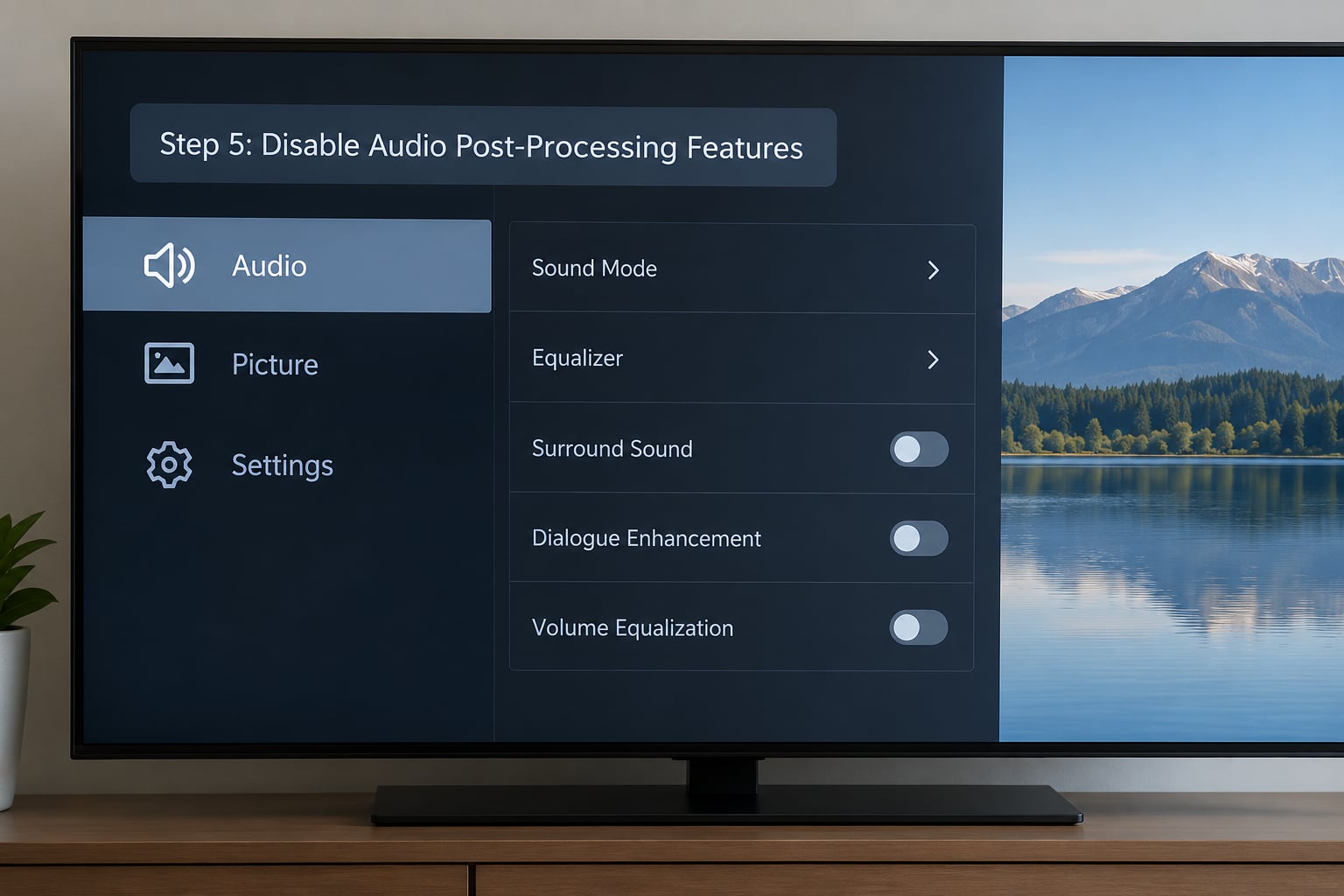
Sound enhancement is designed to be heard, and it costs latency to run. On a soundbar, a receiver or a TV, virtual surround, night mode, dialogue mode, dynamic range compression and auto volume leveling each add a little processing time. Add four of them together and the dialogue drifts noticeably late.
Turn every one of them off, then test. The settings are scattered, so expect a few minutes of menu diving:
- Samsung: Sound then Sound Effects, then switch off Virtual Surround and Adaptive Sound. Expert Audio Settings holds the equaliser and a Dialogue mode that should also go.
- LG: Sound then Sound Out, then AI Sound Processor off, and Sound Effects then Virtual Surround off.
- Sony Bravia: Sound then Sound Effects, and clear any setting that is not Standard.
- Soundbars in general: a Night Mode, Dialogue or Clarity mode, often on a physical button or a row of tiny LEDs on top, not in the main menu.
- AV receivers: turn off any Lip Sync or Auto Lip Sync correction, and set the delay field to 0 or Auto for this test.
The same reasoning applies to picture processing, because video runs on the same timeline. Motion interpolation, a Game Mode on a television, and HDR tone mapping all add or remove a frame. If your audio improves once you drop the TV into its most basic picture mode, the delay is on the video side. AVS Forum members chasing sync drift on Samsung S95D and S95F sets report the same thing: turn off all sound enhancements and listen in straight stereo.
A direct answer to a common question: yes, you can usually have both surround sound and correct sync, but only after you have found which processing stage is adding the delay. Turning enhancements off is a diagnostic test, not a permanent sacrifice.
Step 6: Match the Audio Format and HDMI Settings
The digital audio output format is the most effective fix when the delay is consistent, and it is also the one people are most afraid of. The reason is that changing it to PCM usually removes surround and Atmos, so the trade-off needs stating plainly.
Here is roughly how much latency each connection type adds. These are typical figures rather than guarantees, but the order of magnitude is stable enough to diagnose from.
| Connection or processing step | Typical added latency | Notes |
|---|---|---|
| HDMI ARC | Under about 20 ms | Almost never the cause on its own |
| HDMI eARC | Under about 20 ms | Adds pass-through of Atmos and DTS, plus a second negotiation step that can misbehave |
| Optical (S/PDIF, TOSLINK) | Low, roughly 10 to 20 ms | Compresses to Dolby Digital; no control over the delay |
| Bluetooth with aptX | Around 40 to 80 ms | Usually the first fix to try on wireless |
| Bluetooth with SBC | Up to about 200 ms | The default codec, and the most common visible lag |
| Soundbar or AVR enhancement processing | From tens to a few hundred ms | Varies wildly by feature and brand; disable to find out |
| TV picture processing in game mode or with motion interpolation | About one frame or more | Can make video early rather than audio late |
Where to find the format setting: on Samsung it is Sound then Audio Output then Digital Audio Out Format, with options like PCM, Bitstream and Pass-through. On LG it is Sound then Sound Out then Digital Audio Output, where choosing PCM Stereo also disables the audio processing that adds delay. On Sony it is Sound then Audio Out, and on Fire TV it is Settings then Display and Sounds then Audio, where Digital Audio Format sits next to AV Sync Tuning. On Roku TV, Audio then Digital Audio Output, or the same option inside the TV’s own menu on a Roku TV model.
The settings worth testing:
- PCM or LPCM Stereo: the TV decodes audio itself and sends plain stereo. Almost no extra latency, and you lose surround and Atmos. Use it to confirm the format is the cause.
- Bitstream or Dolby Digital: the TV passes the encoded stream to the soundbar, which adds the processing delay but keeps surround. Choose this for the best sound, then compensate with the sync slider.
- Pass-through mode: some TVs will decode Dolby Digital Plus or Atmos on their own even in bitstream mode, which can add delay. Turning pass-through off sometimes resolves sync and sometimes costs you Atmos, so test it and listen.
- eARC versus plain ARC: if sync is only broken over eARC, switch the television to plain ARC, or the soundbar to ARC instead of eARC. You lose Atmos and object-based audio passthrough but usually regain correct timing.
Then handle HDMI-CEC. Anynet+ on Samsung, SIMPLINK on LG, BRAVIA Sync on Sony, Control Link on Toshiba and CEC itself elsewhere all try to control volume and power across devices, and a failed or slow handshake adds delay. Turn CEC off on both ends, restart, and test. If sync returns, you can leave it off; if you rely on a single remote for volume, turn it back on and look for a control-transfer delay setting instead.
Step 7: Reset Audio, Video and Smart TV Settings
Once you know the cause, resetting the individual audio and picture settings clears the accumulated mess of half-finished attempts. Do this selectively rather than starting with a full reset.
Most sets keep a reset for just the picture: Samsung uses Picture then Picture Advanced Settings then Reset, and LG uses the picture icon then All Picture Settings then Reset. The sound equivalent sits nearby under Sound. Resetting only what you changed keeps your apps, logins and streaming preferences intact.
For the platform itself, clear the cache rather than the data. Clearing data on a streaming app removes your sign-in, and clearing the whole platform cache can sign you out of everything at once. A factory reset belongs at the end of this list, not the start: it erases picture calibration, audio settings, app logins and recordings, and it fixes surprisingly few sync problems on its own.
Know when a full reset is justified: the problem follows the television to every input and every app, other inputs are fine, and the settings you changed have produced no change in sync. If you reach that point, back up your account passwords, record your calibration settings, then reset.
Step 8: Test Another Cable, Port, App, or Device
The last step is isolation. You change exactly one component and watch what happens, and the result tells you where to look for a repair quote or where to point a warranty claim.
Work down this list one item at a time:
- Play the same content from a different app on the same input. If only one app is wrong, the problem is a stream or a platform bug.
- Play live television and then a streaming app. If only live channels drift, the problem is upstream at the broadcaster or the set-top box, not in your TV.
- Move the source to another HDMI port, and try an optical cable if the soundbar supports one.
- Connect the same source device to a different television, or connect a different source to your television. Whichever device changes behaviour is the faulty one.
- Test with the soundbar removed and the TV speakers in use.
Live UHD channels are the classic false alarm. Users on r/skytv and other forums report the same behaviour repeatedly: sync drifts on specific broadcast channels, a channel change or an app restart clears it, and nothing at home fixes it. Lowering the stream resolution sometimes helps because it reduces decode load. When the mismatch follows a channel rather than a device, you are looking at a provider-side encoding fault.
The same pattern shows up in live streams. On r/PleX and r/appletv, a quick rewind and fast-forward restores sync, which confirms a buffer problem in the stream rather than a hardware fault. If jumping forward 30 seconds fixes it, note that and use it as your temporary workaround.
Common Mistakes
Most people lose an evening to the same handful of avoidable errors. Each of these is easy to correct once you recognise it.
- Adjusting picture settings first. If you spend an hour in calibration menus while Bluetooth headphones are still paired, you will end up with a beautifully calibrated TV and the same lag. Rule out the connection type before anything else.
- Moving the sync slider in the wrong direction. If the sound arrives early, adding delay makes it worse. Watch a face closely and work out which way to move before you touch the control.
- Expecting a negative value on the slider. Most TVs and soundbars allow only 0 to about 250 ms of added delay. There is no negative setting, which is the single most common unresolved complaint in home theatre and OLED forums.
- Changing five settings at once. Then a problem that is now fixed has no identifiable cause, and you cannot undo the one change that caused a new problem. One setting, one test.
- Skipping the firmware update. Sync bugs are patched regularly, and an update costs five minutes. Note your audio settings first, because some updates reset them.
- Leaving HDMI-CEC on while debugging. Volume control fighting between two devices adds delay that looks like sync drift. Switch CEC off during the test, then decide whether to restore it.
- Ignoring a marginal cable. A cable that struggles at 4K with high refresh rates produces intermittent dropouts and handshake retries. Swap it before you start changing settings again.
- Assuming optical or eARC fixes everything. Neither carries a sync control of its own. An optical connection from a TV to a soundbar or receiver typically gives you no manual adjustment at all, so it can remove a variable without solving the problem.
- Doing a factory reset first. It is slow, it signs you out of everything, and it rarely fixes sync on its own. Work down the ordered steps instead.
One more thing worth knowing: if your audio is ahead of the picture, no slider will help. You need to remove latency from the chain. The most effective route for soundbars is an audio bypass option, sometimes labelled Match Screen and Sound, which skips the soundbar’s own processing and passes the signal straight through. LG owners report that enabling it fixes sync and greys out the manual adjustment, which confirms it bypasses the processing chain rather than correcting it. On a television, the equivalent is a low-latency mode such as Instant Game Response, which disables most picture processing and is reported to fix TV-speaker delay, though it does cost some picture quality. Setting the app to stereo and the digital output to PCM also works, at the price of surround sound.
Once it is fixed, write the values down. A sync fix that is wiped by the next update is a fix you will have to rediscover, and the values you saved are exactly what you will need.
Frequently Asked Questions
Why can’t I set a negative audio delay on my TV?
Most TVs and soundbars only allow positive delay, typically 0 to about 250 milliseconds, because the slider exists to make audio later, not earlier. If your audio arrives before the picture, look for an audio bypass or Match Screen and Sound option on the soundbar that skips its processing chain, enable a low-latency picture mode on the television, or reduce processing by setting the digital output to PCM. Optical connections usually give you no manual adjustment at all.
Why is audio out of sync on Netflix but fine everywhere else?
A per-app problem means the delay comes from the app or its stream rather than from your TV or soundbar, and a global TV sync setting will not reliably fix it. Clear the app cache and update the app, then check whether switching the stream to stereo or changing the digital audio output to PCM fixes it. If only live broadcast channels drift while apps stay in sync, the fault is usually upstream with the broadcaster or set-top box.
Does switching my TV to PCM fix lip sync, and what do I lose?
PCM usually fixes lip sync because the television decodes the audio itself and sends plain stereo with almost no added processing delay. The trade-off is real: you lose Dolby Atmos, surround sound and usually pass-through, so the soundbar falls back to stereo. Treat it as a diagnostic test first. If it confirms the format is the cause, switch back to bitstream and correct the remaining delay with the AV Sync or Lip Sync slider.
Why does my soundbar keep delaying the audio?
Soundbars and receivers add delay through virtual surround, night mode, dialogue enhancement, dynamic range compression and automatic volume levelling, and each one runs its own processing stage. Turn all sound enhancements off and retest. If a low-lag or bypass mode is available, such as Match Screen and Sound or an audio pass-through setting, enable it to skip the processing chain entirely. Then use the manual sync control to add back any remaining delay.
Why did audio go out of sync after a firmware update?
Firmware releases sometimes reset the audio configuration, including the digital output format, eARC and pass-through settings, the sync value and any sound enhancements you had turned off. The mismatch is not new, it is back to defaults. Re-apply your saved values after every update, and take a photo of the audio menu so you can restore it in a minute rather than re-testing from scratch.
Conclusion
Start with the three cheapest checks: rule out Bluetooth, power-cycle the television and every connected device, then reseat or swap the HDMI cable. Most lip sync problems stop there, and the rest narrow down quickly once you isolate one cable, port, app or device at a time.
If the sound arrives late, the AV Sync or Lip Sync slider on your television will fix it. If it arrives early, the slider cannot help, so remove the delay at its source with an audio bypass, a low-latency picture mode, or a switch to PCM. Change one thing, test, and only then move to the next.