Most soundbar audio delay is fixed in the TV’s audio menu, not on the soundbar itself. Set the digital audio output to PCM, turn off virtual surround and dialogue enhancement, then use the audio delay or lip-sync slider to nudge the sound until the mouths match the words. Most people finish in about ten minutes.
Here is the order that works: swap the TV’s output format first, shut down the sound processing second, adjust the delay number last. Doing it the other way round usually wastes an evening, because the delay slider on its own chases a moving target when the sound format keeps changing.
Do this first if you want the shortest path:
- Change the audio format. In the TV menu, set Digital Audio Output Format (or Digital Audio Out) to PCM instead of Bitstream, Dolby Digital or Pass-through.
- Turn off processing. Set sound mode to Standard or Music, and switch off virtual surround, dialogue enhancement and any night mode.
- Use the delay slider. Move it in 10 ms steps while a familiar film plays, until the lips land on the words.
Table of Contents
- What You Need — and How Much Delay Actually Matters
- Step-by-Step: How to Fix Soundbar Audio Delay
- Step 1: Check whether the delay is even coming from the soundbar
- Step 2: Reconnect the cables and check the routing
- Step 3: Power cycle everything in the right order
- Step 4: Change the TV audio and lip-sync settings
- Step 5: Adjust streaming, gaming and Bluetooth settings
- Step 6: Update or reset the soundbar
- Step 7: Test every common source before you call it fixed
- Common Mistakes That Slow the Fix Down
- Frequently Asked Questions
- Why is my soundbar audio delayed compared with the TV picture?
- How do I fix lip sync on a Samsung, LG, Sony, or TCL television?
- Does Bluetooth cause more audio delay than HDMI or optical audio?
- Can I manually adjust the audio delay on a soundbar?
- Should I reset my soundbar before trying other troubleshooting steps?
- What should I do if soundbar audio delay remains on every source?
What You Need — and How Much Delay Actually Matters
You need very little: the TV remote, the soundbar remote, and whatever cable carries the sound between them. HDMI, optical or a coax digital cable will do, so long as you know which one is in use. A phone recording the screen is genuinely useful for spotting the drift, and a notepad for writing down settings before you change them.
No specialist tools, no apps, no opening anything up. If a guide tells you to buy a hardware box before it has told you to change one menu setting, ignore it.
Before you start changing anything, it helps to know what counts as broken. Human hearing and vision lock together remarkably well for short gaps and fall apart quickly after that.
| Measured delay | What it looks like | Worth fixing? |
|---|---|---|
| 0-40 ms | Imperceptible on dialogue. Common on live TV and sports broadcasts. | Usually fine. |
| 40-100 ms | Mild. You notice it in quiet scenes and on hand gestures, not on fast dialogue. | Worth fixing if it bothers you. |
| 100-250 ms | Clearly visible. Lips trail the words and it reads as a wrong dubbed voice. | Yes. This is the range most people report and search for. |
| Over 250 ms | Feels broken rather than out of sync. Something in the chain is buffering audio. | Yes, and expect the fix to take longer. |
Most TVs expose an adjustable range of roughly 0 ms to 250 ms, which matches what owners describe as typical. On r/hometheater, people chasing lip sync report the soundbar itself adding around 200 ms while the TV speakers stay perfectly in step, which is a useful clue: if TV speakers are fine and the soundbar is late, the soundbar or the format is at fault.
One more thing worth checking early: is the audio early or late? Sony’s own support documentation is built around exactly that question, and it saves time because the two directions have different causes. Audio running late usually points to bitstream decoding, surround processing or a cable handshake. Audio running early points to the TV adding its own delay, or to a source device already compensating for a delay that has now disappeared.
Step-by-Step: How to Fix Soundbar Audio Delay
Step 1: Check whether the delay is even coming from the soundbar
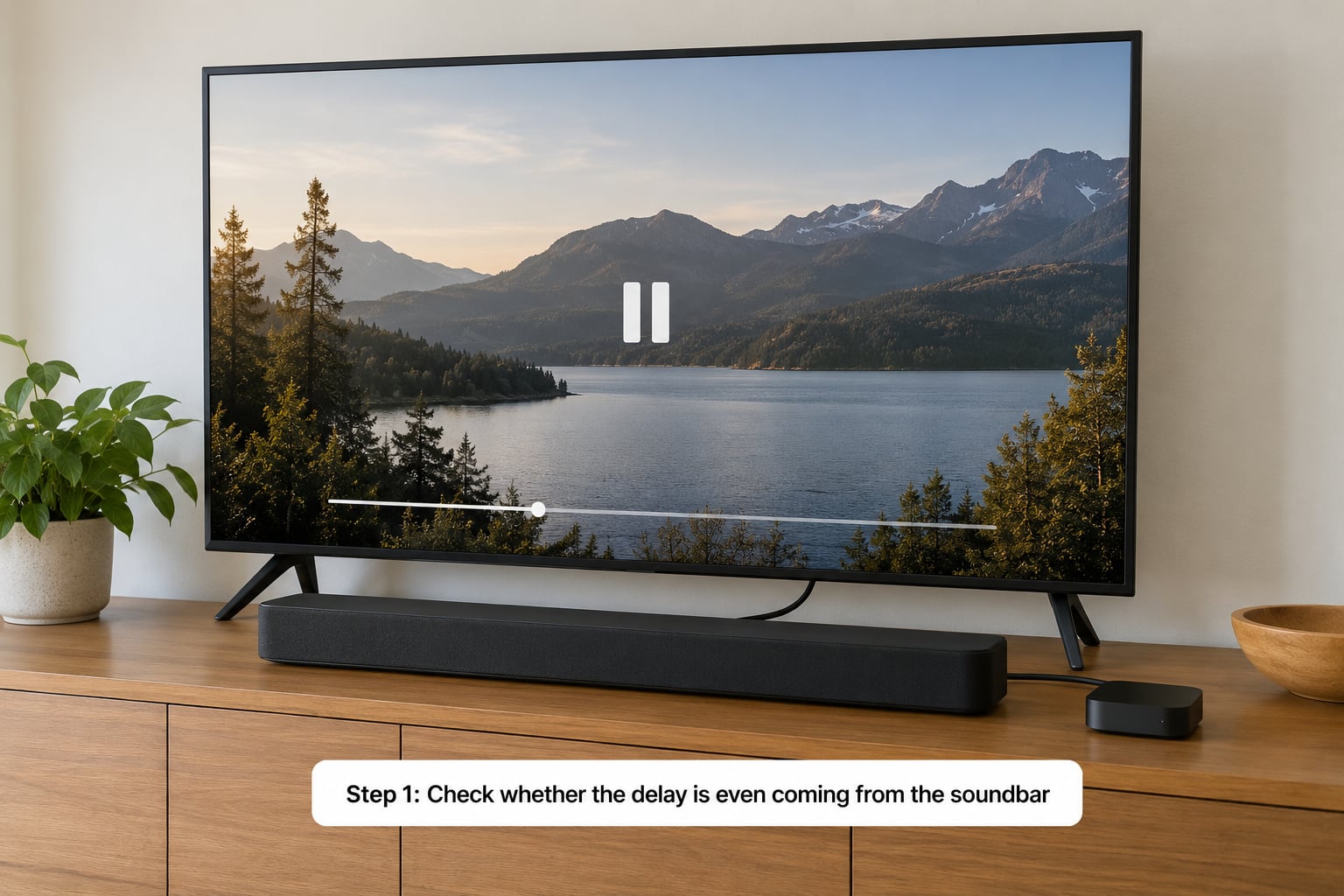
Play the same content from the source, but with the TV speakers on instead of the soundbar. If the TV speakers are in sync and the soundbar is late, the problem sits in the soundbar, the cable or the audio format.
If both are late in the same way, the delay is upstream. A streaming app with its own processing, or a broadcast that arrived late, will do that, and no amount of soundbar tweaking will fix it.
Then try a second source. Switch between a streaming app and live TV. Owners on r/Soundbars and r/hometheater frequently find the delay shows up on one app and not another, sometimes on YouTube but not on a live broadcast, which points straight at the streaming box rather than the TV.
If the delay is different on different apps, note that down. It changes what you fix later, and it tells you a static delay value on the soundbar will never hold.
Step 2: Reconnect the cables and check the routing
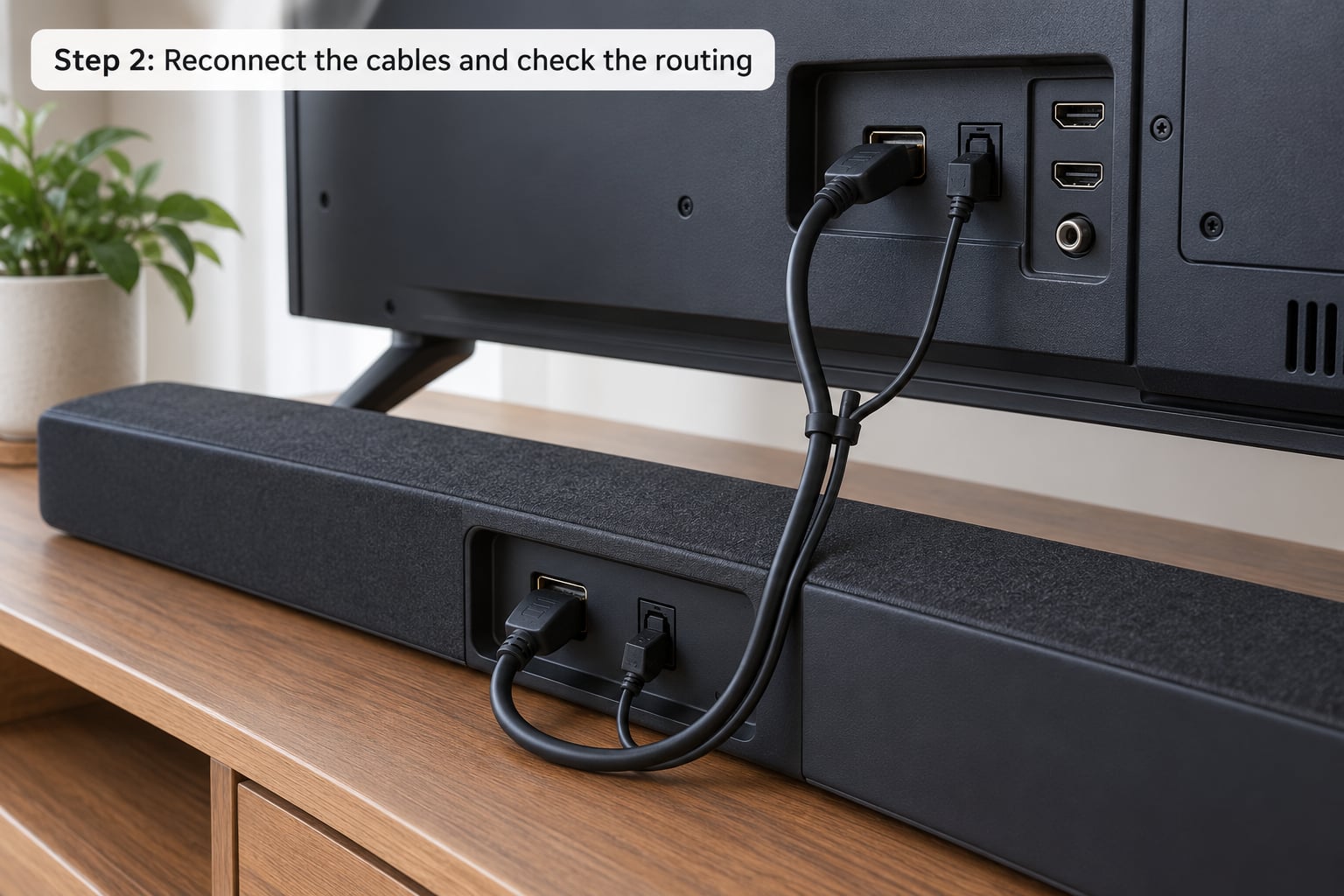
Unplug both ends of the cable and plug them back in properly. A HDMI connector that only half-seated is a surprisingly common cause of odd behaviour, including handshake problems that show up as intermittent audio delay.
Then check what is connected to what. There are two legitimate arrangements and one common mistake.
| Connection | Typical behaviour | Watch out for |
|---|---|---|
| TV HDMI ARC/eARC to soundbar | Simplest wiring. Carries Atmos over eARC. | eARC adds a little processing and some owners report more lag over eARC than plain ARC. |
| TV optical out to soundbar | Very low lag, and it drops out of the equation whenever the TV is doing the processing. | No lossless or Atmos over optical on most soundbars. |
| Source HDMI straight into the soundbar | Removes the TV from the audio chain entirely. Often the cleanest sync of all. | You lose the TV’s on-screen menus and some picture formats. |
| The mistake: source to TV, then TV to soundbar, with the TV still processing | Extra hops for the audio to sit in. | Plugging a cable into the wrong port, or leaving a second device in the chain. |
On Sony soundbars, the official fix for out-of-sync sound includes this exact point: play the source from the soundbar’s HDMI input rather than passing it through the TV first.
A cheap HDMI cable can cause audio issues, though rarely the kind that produce consistent delay. Failing handshakes, EDID confusion and CEC commands going to the wrong device are the usual symptoms, and those can be mistaken for a delay problem. If the picture is also glitching, treat the cable as suspect before you touch any menus.
Step 3: Power cycle everything in the right order
Turn the TV off at the wall, not just to standby. Then the soundbar, then the streaming box or console. Wait about 30 seconds on the first one and plug them back in the other way round: source first, then soundbar, then TV.
That order matters because the TV sends setup information to whatever is plugged into it. Powering the soundbar on last lets it receive that information properly, which is how many soundbars learn to wake up with the TV and take the right input.
Give it a full minute to settle. A surprising share of “delay” complaints are fixed at this point, because the devices had negotiated a poor configuration and nobody restarted the chain to renegotiate. If the soundbar has never been power-cycled after a firmware update, do this first.
Step 4: Change the TV audio and lip-sync settings
This is the step that fixes most cases, and it is almost always a TV setting rather than a soundbar setting.
Set the digital audio output format to PCM. In plain terms: with PCM the TV has already turned the audio into something the soundbar can play directly, so nothing has to be decoded on the way. With Bitstream or Dolby Digital the TV hands over a compressed soundtrack that the soundbar must unpack, and that unpacking adds a buffer that you feel as lag.
The trade-off is honest and worth stating: PCM on the TV output usually means no Dolby Digital or Dolby Atmos coming from the TV. Many soundbars still produce a wide, spacious sound in PCM because they process the channel layout themselves, but you are trading away the object-based effects. If Atmos matters to you more than perfect sync, keep bitstream and fix the delay with the slider instead.
Menu names differ by brand and model year, so match the closest wording.
| Brand | Where to look | What to change |
|---|---|---|
| Samsung | Settings > Sound > Additional Sound Settings > Digital Audio Output Format | Switch from Bitstream to PCM. Sound mode and bass sync live further down the same menu. |
| LG | Sound > Sound Out, then Sound > Sound Sync | Turn Sound Sync on, then look for Audio Delay on newer webOS models. Check the HDMI ARC vs optical setting here too. |
| Sony / BRAVIA | Sound > Settings > Audio Out, and Sound > A/V Sync | Set A/V Sync to Audio Delay and use the slider. Turn Pass through mode off while testing. |
| TCL | Settings > Sound, then look for Soundbar Sync or lip sync | Enable the sync option where it exists; on many TCL sets the adjustable delay lives on the soundbar instead. |
Once the format is right, open the lip-sync or A/V sync setting and move the audio delay in 10 ms increments. Pick something with clear close-up dialogue, because action scenes hide a small error. If the sound is early rather than late, look for a negative range; some sets call it Video Delay instead, which moves the picture rather than the sound.
Officially, TV audio delay adjustments usually top out around 250 ms. Owners of older Samsung sets reported dropping a built-in delay of 300 ms down to about 20 ms to get their systems back in step, so it is worth checking whether your TV is adding delay of its own.
Step 5: Adjust streaming, gaming and Bluetooth settings
Streaming boxes add their own processing layer. On Apple TV, turning Match Frame Rate off fixes lag for a lot of people, and it costs you very little. Fire TV and NVIDIA Shield users report the opposite pattern: some apps are fine and others drift, which again means the fix belongs on the streaming box, not the TV.
For consoles, check whether your TV’s Game Mode or Game Mode Pro is doing picture processing that makes the video race ahead of the sound. Some sets handle the audio side better with it off. On Sony sets, look at the Post process setting in the same area.
Bluetooth is the worst offender by a wide margin. It buffers heavily, and with standard codecs you can lose well over 100 ms before a single sample arrives. If your sound is fine over HDMI and awful over Bluetooth, you have already found the answer.
A few things help within Bluetooth: get the phone or tablet as close as practical, turn off any extra phone processing, and check whether the source offers a low-latency codec. aptX Low Latency exists for exactly this reason, though not every phone or soundbar pair supports it. There is no universal app that fixes Bluetooth delay, because the buffer sits inside the devices, not inside software.
Step 6: Update or reset the soundbar
Check for a firmware update on both the TV and the soundbar. Soundbar makers fix sync bugs in updates surprisingly often, and lip-sync handling has improved a lot in recent years. A soundbar that needed a 300 ms delay five years ago may not need it now.
If your soundbar has an auto lip sync feature, turn it on before you start dialling numbers. It measures the delay and compensates for you, which is helpful but not magic: it can only correct what the source device tells it. If your source does not report a delay value, auto sync does very little, and the manual slider is the honest answer.
Factory reset is the last resort, not the second step. Write down your current settings first, including the delay value you settled on, because a reset wipes all of it. The reset procedure itself is usually a specific button combination held for ten seconds while the unit is powered, and it varies by model, so check the manual for your exact unit.
One warning from the forums, and it applies to Sony and other sets: pass-through mode on some TVs silences the Google Assistant and TalkBack accessibility features. If you use voice navigation or a screen reader, avoid pass-through mode or re-enable accessibility afterwards.
Step 7: Test every common source before you call it fixed
Play live TV, a streaming film and a game before you stop. Sync that works on one source often drifts on another, because each one uses a different audio format and a different amount of buffering.
Then watch for five minutes rather than thirty seconds. Delay that creeps back over time is a drift problem, usually caused by a source that adjusts its own timing, and a fixed delay value will not hold it. In that case, look at the streaming device’s frame-rate matching rather than the soundbar.
Keep a note of what you changed and what it improved. If you need to go back, that note is worth more than memory, especially once you start trying settings one at a time.
Common Mistakes That Slow the Fix Down
Changing five settings at once. If sync improves you will not know what fixed it, and when it drifts back you cannot undo selectively. Change one thing, test, then move on.
Resetting before you record anything. A factory reset throws away working settings along with the broken ones. Photograph the menu screens first.
Overlooking Bluetooth. People spend hours in TV menus while their phone is quietly streaming over a codec with a large buffer. Check the source before you check the picture settings.
Leaving pass-through mode on. Pass-through hands the raw soundtrack to the soundbar, which keeps Atmos but adds the decoding lag you were trying to remove. It is a useful diagnostic: turn it on, test, turn it off. If pass-through is the problem, you have found the cause in ten seconds.
Assuming a soundbar with no delay slider is hopeless. Move up the chain instead. Set the delay on the TV, or route the source into the soundbar’s own HDMI input so there is nothing to synchronise.
Reaching for a hardware box too early. External ARC correction boxes and HDMI extractors do solve stubborn cases, and a few owners on r/Soundbars treat them as a last resort that worked when nothing else did. They are the right answer after the settings, not before them.
Frequently Asked Questions
Why is my soundbar audio delayed compared with the TV picture?
Audio is decoded and buffered as it travels from the source through the TV to the soundbar, and each stage adds time. Compressed formats such as Dolby Digital and Dolby Atmos need decoding inside the soundbar, and features like virtual surround or dialogue enhancement add more. That is why switching the TV output to PCM and turning processing off fixes most cases before you touch the soundbar at all.
How do I fix lip sync on a Samsung, LG, Sony, or TCL television?
On Samsung, open Settings, Sound, Additional Sound Settings and set Digital Audio Output Format to PCM. On LG, use Sound, Sound Out and switch Sound Sync on, then look for Audio Delay. On Sony BRAVIA, open Sound, Settings, Audio Out and set A/V Sync to Audio Delay. On TCL, check Sound settings for Soundbar Sync. Names vary by model year, so match the closest option you see.
Does Bluetooth cause more audio delay than HDMI or optical audio?
Yes, by a wide margin. Bluetooth buffers audio heavily before playback, and standard codecs can add well over 100 ms compared with a wired connection. Low-latency codecs such as aptX Low Latency reduce it when both devices support them. If your soundbar is perfectly in sync over HDMI and badly out of sync over Bluetooth, the connection type is the answer and no TV setting will change it.
Can I manually adjust the audio delay on a soundbar?
Most soundbars with an HDMI or optical input offer a delay control, usually through the remote or a phone app, and TV delay sliders typically range from 0 to about 250 ms. If your soundbar has no adjustment at all, set the delay on the TV instead. If the TV has none either, connect your streaming box or console straight to the soundbar so there is no chain to synchronise.
Should I reset my soundbar before trying other troubleshooting steps?
No. Resetting wipes every working setting along with the broken ones, and it erases the record of what was configured before. Work through connections, input selection, the PCM format change, the delay slider and sound processing first. Reset only after firmware is up to date and you have written down your current settings, and remember the button combination differs by model.
What should I do if soundbar audio delay remains on every source?
Check whether it is early or late, since the direction changes the diagnosis. Persistent delay across every source usually means hardware rather than settings: try a different HDMI cable, try optical instead of ARC or eARC, or route the source directly into the soundbar. If delay is identical on TV speakers and on the soundbar, the fault is upstream in the source device or its app.
Start in the TV’s sound menu, not on the soundbar. Set the digital audio output to PCM, switch off surround and dialogue processing, then nudge the delay slider until the lips line up. If the delay is still there on every source, change the connection rather than the settings, and if it survives that, the hardware is the next place to look.