The fastest way to reduce mobile data usage on Android is to find the three apps eating your allowance, switch on Data Saver, then cut background data for everything else. Add a warning at 80 percent of your plan and a hard limit, and the bill stops being a surprise. The whole job takes about fifteen minutes.
I do this on my own phone every couple of months, usually after a cycle where I wondered where the data went. Nine times out of ten the answer is a podcast app downloading episodes over mobile data, a video call, or an app that started backing up photos in the background.
Android tracks all of it, and the tracking screen is genuinely good. It just hides behind a few taps that change name depending on your phone. Below are the exact paths for stock Android 12 to 16, Samsung One UI, Google Pixel and Xiaomi MIUI or HyperOS.
Table of Contents
- What You Need
- Step-by-Step: How to Reduce Mobile Data Usage on Android
- 1. Check Which Apps Use the Most Mobile Data
- 2. Turn On Data Saver
- 3. Restrict High-Usage Apps Individually
- 4. Disable Wi-Fi Assist and Automatic Network Switching
- 5. Limit Streaming, Downloads and High-Resolution Media
- 6. Control Backup, Photo Sync and App Updates
- 7. Set an Alert and Verify the Reduction
- What Drains the Most Data and How Much Is Normal
- Common Mistakes
- Frequently Asked Questions
- Will reducing mobile data usage on Android make the internet faster?
- Does turning off background data stop WhatsApp messages, calls and notifications?
- Why does my phone still use mobile data when Wi-Fi is connected?
- How do I find which apps are using mobile data on a Xiaomi phone?
- Should I set a data limit or warning on my Android phone?
- Can I reduce mobile data without installing another app?
- Conclusion
What You Need
No apps, no computer, no rooting. Every control needed is already inside Android’s Settings app on your phone.
What you do need to know is your monthly data allowance, the day your billing cycle resets, and whether your phone carries two SIMs. Android meters each SIM separately, so a dual-SIM device can show you two different usage screens worth comparing.
Menu wording shifts a little between Android 12, 13, 14, 15 and 16, and more between Samsung One UI and Xiaomi HyperOS. I have given the path for each so you can find your version quickly.
Step-by-Step: How to Reduce Mobile Data Usage on Android
1. Check Which Apps Use the Most Mobile Data
Open the per-app breakdown first, because every other step is guesswork until you know where the data goes.
On stock Android, go to Settings > Network & internet > SIMs > [your SIM] > App data usage. Samsung One UI puts it at Settings > Connections > Mobile network > Data usage. Pixel follows stock: Settings > Network & internet > Data usage. On Xiaomi MIUI and HyperOS, tap Settings > Connection & sharing > Data usage, then choose the SIM.
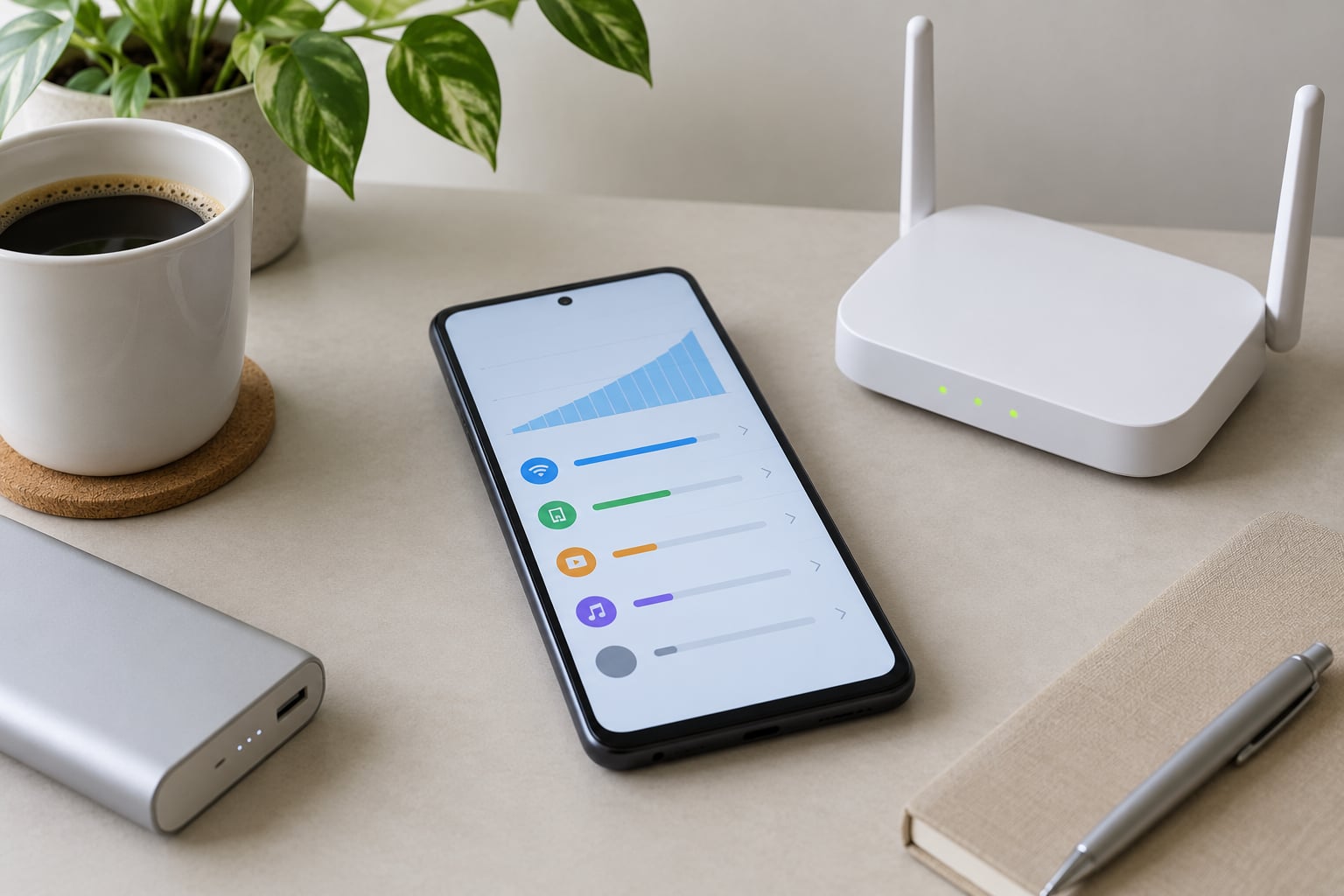
Sort by mobile data, not total, and read the current billing period at the top of the chart. Tap any app and Android splits it into foreground (you were looking at it) and background (you were not). That split tells you which fix applies.
One caution from my own phone: do not clear an app’s cache or data before you read this screen. Clearing resets its history, and you lose the evidence of which app was the problem. Reset statistics are useful later, but read first, reset second.
On r/AndroidQuestions and r/Pixel6aUsers, this single step is the one that solves most cases. Sorting the screen and finding one app at the top is how people catch a culprit they had no idea was running.
2. Turn On Data Saver
Data Saver is Android’s built-in throttle, and it is the single biggest switch most people never flip.
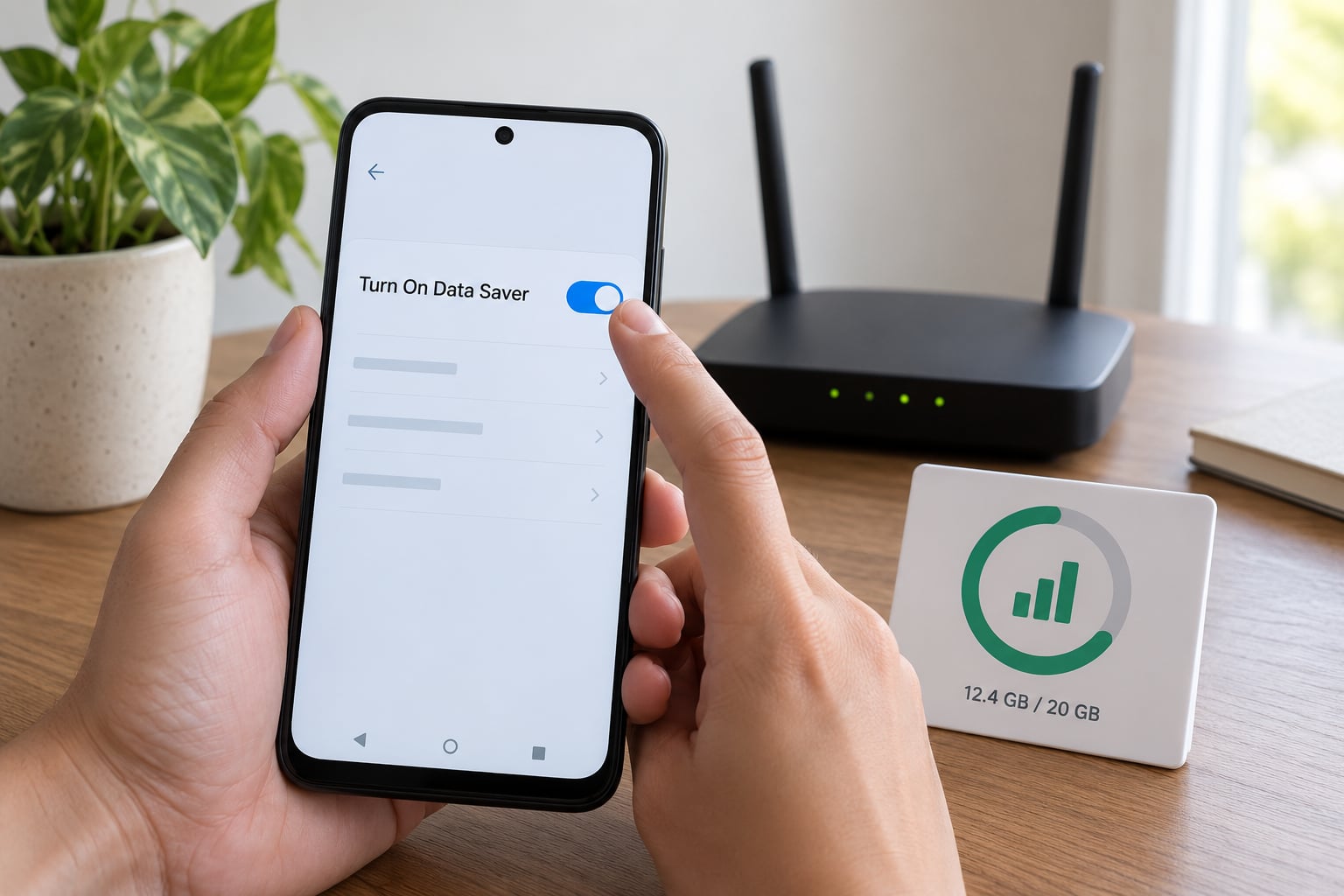
Stock Android and Pixel: Settings > Network & internet > Data Saver > Turn on. Samsung One UI: Settings > Connections > Data Saver. Xiaomi MIUI or HyperOS: Settings > Connection & sharing > Data usage > Data saver, or search “data saver” in the Settings search bar if the wording differs on your build.
Data Saver stops apps from using mobile data in the background, blocks automatic downloads, and cuts background syncing. It is not a firewall: apps you open yourself still work normally and still use data.
You can tell it worked when a small Data Saver icon appears in the status bar or a message sits under your Wi-Fi and mobile icons saying data is being saved. Check that before you close Settings.
The trade-off is real. Email and chat apps can wait until you open them, and some push notifications arrive late. For most people that is a fair deal. For anyone relying on a work chat or a family tracker, add those apps to the Data Saver exception list, or leave Data Saver off during your working hours.
3. Restrict High-Usage Apps Individually
Data Saver is a blunt tool. Turning off background data for one specific app is the precise one.
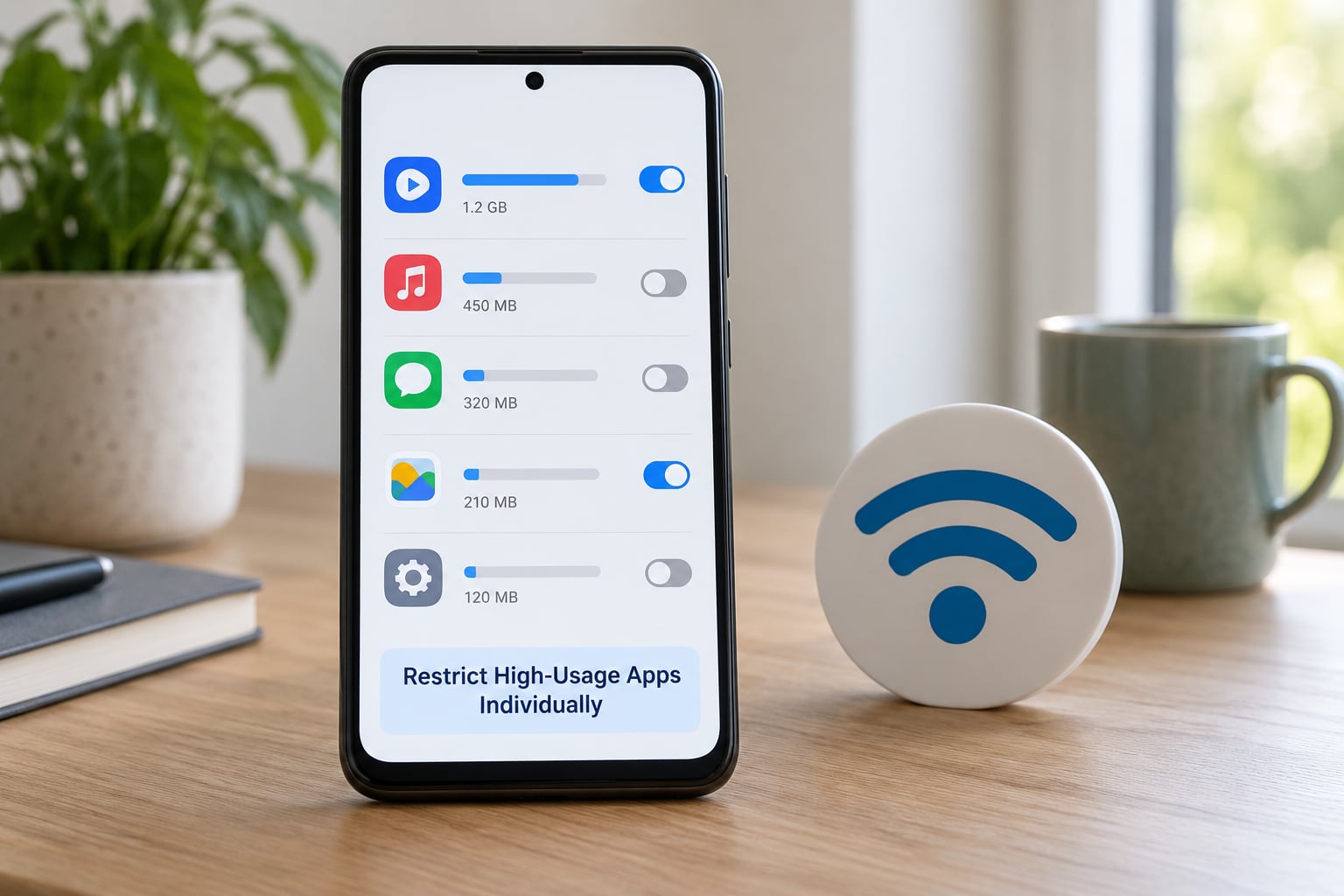
Stock and Pixel: Settings > Apps > See all apps > [app] > Mobile data. Samsung: Settings > Apps > [app] > Mobile data, with the same background and unused-data toggles. Xiaomi: Settings > Apps > Manage apps > [app] > Mobile data, where HyperOS also offers Wi-Fi and roaming switches.
You get three useful controls here: a background data toggle, a Wi-Fi-only option, and a data warning limit for that app. Set the warning at a sensible number, such as 500 MB a month, and Android notifies you before the app gets expensive.
Be careful which apps you restrict. Messaging, video calling, VPN clients, banking apps and security updates can break quietly when background data is switched off, and a banking app that cannot reach its server is a headache to sort out. Check each app’s requirements before you restrict it, and restrict the obvious culprits first: video, music, social feeds and cloud storage.
Users on community.oneplus.com and xdaforums regularly recommend uninstalling an app entirely instead of restricting it. If you never open it and it eats 2 GB a month, removing it is simpler than managing a toggle.
4. Disable Wi-Fi Assist and Automatic Network Switching
Yes, your phone can quietly spend mobile data while sitting on Wi-Fi, and this is where a lot of people get caught.
Wi-Fi Assist, Network Suggestion, Dual SIM mobile data and the old “mobile data always active” option all let Android raise the mobile radio to speed up connections or keep a second line alive. The radio wakes, apps start syncing, and the usage screen shows data you never knowingly used.
On stock Android and Pixel, tap the connected Wi-Fi network in Settings > Network & internet > Internet and turn off Wi-Fi Assistant and Network suggestion. Samsung: Settings > Connections > Wi-Fi > Wi-Fi Assistant. Xiaomi: Settings > Wi-Fi > Wi-Fi Assistant, plus the mobile data always active option under connection settings on some HyperOS builds.
Feature names and locations move between Android versions and brands, so if you cannot see one of these, search “assistant” and “always active” in your Settings search bar. On dual-SIM phones also check which SIM is allowed to use mobile data, since that is a separate setting.
5. Limit Streaming, Downloads and High-Resolution Media
Video is where most data goes, by a wide margin. Even at standard quality a full hour of streaming can eat close to a gigabyte.
| Activity over mobile data | Typical usage per hour |
|---|---|
| Video streaming, standard quality | 0.7 to 1 GB |
| Video streaming, HD | 2 to 3 GB |
| Video call with camera on | 0.5 to 1.5 GB |
| Music streaming | 50 to 120 MB |
| Navigation with live routing | 80 to 200 MB |
| Social media scrolling with autoplay | 200 to 500 MB |
| Photos uploaded to cloud backup | 3 to 5 MB per photo |
These are ballparks, not promises, since quality settings and signal strength move the numbers a lot. Use them to rank your own habits rather than to predict an exact bill.
In-app controls are where the real savings sit. In YouTube, tap the profile icon, then Quality, and pick Low or Standard. In Spotify, switch Streaming quality to Low or Normal under Settings, then download playlists on Wi-Fi instead. In Netflix, drop the download quality setting. In WhatsApp or Telegram, open Settings > Storage and set media auto-download to Wi-Fi only, and cap the document limit.
In Chrome, open Settings > Site settings > Data Saver, or switch to a browser built around compression. Users on r/browsers point to Brave most often for mobile browsing on a limited plan.
For the file manager, avoid downloading installers, ZIP archives and photo dumps while on mobile data. If an update has to happen now, it can wait for Wi-Fi.
6. Control Backup, Photo Sync and App Updates
Backup tools are quiet, but a phone with a 128 MP camera can push several gigabytes of photos in a single night.
In Google Photos, tap your profile icon > Mobile data usage and set Backup to Wi-Fi only, or turn backup off while on mobile data entirely. In Google Drive, open Settings > Network > Data usage and set the upload preference to Wi-Fi only. For chat apps, look for a similar Wi-Fi-only switch in their storage or data settings.
App updates are the other half. In the Play Store, tap your profile icon > Settings > Network > Auto-update apps, and pick Wi-Fi only. Samsung and Xiaomi phones can also update system apps over mobile data from their own update settings, so check there as well.
Before you reach your data threshold, open the things that need to sync and let them update on Wi-Fi. Ten minutes of sorting it out on home Wi-Fi beats a mid-month surprise.
7. Set an Alert and Verify the Reduction
Restrictions without a limit are just good intentions. Android has two controls that stop a bad month becoming a bad bill.
A data warning is a notification at the number you choose, and a hard limit pauses mobile data completely when the number is reached. On stock Android, open Settings > Network & internet > SIMs > [SIM] > Data warning & limit, tap the warning, set it to around 80 percent of your allowance, then set the limit to the full amount. Samsung places this under Connections > Mobile network > Data usage settings. On Xiaomi, look for the data usage screen under Connection & sharing and check the limiter options on your build.
Your carrier’s own app often has cycle-specific controls that Android does not, including a per-day cap and rollover notifications. Set those too, since a prepaid plan can be cut off at the network level regardless of your phone settings.
Verification is simple. Come back in two or three days, open the same per-app screen, and check that the restricted apps sit still while the ones you are actively using still climb. If the totals are flat, the change held. If one app is still climbing, its background toggle did not take, or it is downloading through a different route such as a hotspot share.
What Drains the Most Data and How Much Is Normal
Most people asking what drains data the most are already guessing video. That guess is usually right, and the next guess, hidden background syncing, is usually second.
The categories worth checking first are video streaming and video calls, automatic photo and chat backups, social feeds with autoplay enabled, podcast and music downloads, navigation with live routing, and your own hotspot if you tether. A single month of hotspot use can outpace a month of everything else combined, because the other devices bill their traffic to your phone.
On the “how many GB is normal” question, there is no single right number, so here are ranges by profile. They are general figures for everyday phone use, not measurements from your device.
| Usage profile | Typical monthly mobile data | What it looks like |
|---|---|---|
| Light | 2 to 5 GB | Messaging, some music, Wi-Fi at home and work most of the day |
| Average | 8 to 15 GB | Daily video clips, regular navigation, a few video calls |
| Heavy | 20 to 40 GB | Long video streaming, frequent calls, cloud photo backup |
| Video-heavy | 60 GB and up | Streaming on the commute, HD downloads, tethering a laptop |
If you are on a light or average profile and your phone is reporting heavy numbers, something is running that you are not using. That is when the phantom system entry tends to show up.
Users on r/AndroidQuestions and r/GalaxyS8 often report a large entry labelled Android OS in the usage screen that they cannot map to anything they do. It covers system-level traffic: Quickstep animations, Settings processes, search indexing and background system services, none of which appear as their own app row. You cannot block it directly, and network-blocking tools such as NetGuard do not stop it either, because it is not one app.
What you can do is shrink the rest of the system traffic. Keep the system up to date, because security and stability patches are worth the data, and let the main updates happen on Wi-Fi. Then look for one app pulling a gigabyte on its own, since that entry is where the real waste usually hides.
Common Mistakes
Switching off background data for everything. You will break push notifications across chat, mail and work apps, and you will spend an evening fixing it. Restrict the top three offenders only, then leave the rest alone.
Restricting an essential app by accident. Calling, banking, VPN and security apps can misbehave quietly when background data is blocked. Check what an app needs before you restrict it, and undo the change if sign-ins start failing.
Treating Data Saver as a hard block. Data Saver throttles background use; it does not stop you using data in an app you open. It is a habit fix, not a firewall.
Deleting app data before reading the usage screen. Clearing data wipes the very record you needed. Read the breakdown, then clear.
Ignoring the hotspot and the second SIM. Tethered devices and a secondary line can move a lot of data without appearing in the app you were investigating. Both show up in the same usage screen, on the matching SIM row.
Changing ten settings and never checking again. Most settings silently revert when an app updates itself. Come back after a few days, compare the totals, and confirm the restricted apps stayed flat.
One habit worth keeping: repeat this whole review at the start of every billing cycle, not once a year. Five minutes at the start of a cycle is much cheaper than discovering the problem on day twenty.
Frequently Asked Questions
Will reducing mobile data usage on Android make the internet faster?
Not directly. Lowering your data use usually speeds things up indirectly, because fewer apps competing for the same mobile connection means less congestion and fewer stalled requests. If pages still load slowly after the network is quiet, the problem is signal strength or carrier coverage, not your data allowance. Cut the usage first, then judge the speed.
Does turning off background data stop WhatsApp messages, calls and notifications?
It can delay them. Calls still connect normally, but an app with background data off may only refresh when you open it, so messages and notifications arrive late or in batches when you next check. Regular phone calls are unaffected. If reliable delivery matters, leave background data on for that app and restrict the video, music and social apps instead.
Why does my phone still use mobile data when Wi-Fi is connected?
Several features raise the mobile radio even on Wi-Fi. Wi-Fi Assistant, Network suggestion, Dual SIM mobile data and mobile data always active all exist to speed up or maintain connections, and any of them can push traffic over cellular. Turn those off in your Wi-Fi and network settings, and check whether a second SIM is allowed to use mobile data while the first is on Wi-Fi.
How do I find which apps are using mobile data on a Xiaomi phone?
Open Settings, tap Connection and sharing, then Data usage, and choose the SIM you want to inspect. The list sorts by mobile data over the current billing period, and tapping any app splits it into foreground and background use. For a single app, go to Settings, then Apps, Manage apps, pick the app and open Mobile data to toggle background use.
Should I set a data limit or warning on my Android phone?
Set both. A warning at roughly 80 percent of your allowance gives you time to switch to Wi-Fi and fix the problem, while a hard limit pauses mobile data so nothing can slip past it. On a prepaid or shared family plan, also set a cap in your carrier app, since the network can suspend a line independently of anything set on the phone.
Can I reduce mobile data without installing another app?
Yes, and that is the better route. Data Saver, per-app background toggles, Wi-Fi-only backup, app update preferences and the data warning and limit are all built into Android and your carrier app. Third-party network blockers can add per-app control over cellular, but they cannot stop system-level Android OS traffic, so they are a supplement rather than a replacement.
Conclusion
Start with the usage screen, not the settings. Open the per-app data breakdown for your billing cycle, note the total, and identify the top three apps using mobile data. That single list tells you which of the seven steps above actually matters for your phone.
Turn on Data Saver, restrict background data for those three apps, switch Wi-Fi Assistant off, and set a warning at 80 percent of your allowance. After that, look again in a few days. A flatter usage screen is the proof that it worked.