Yes, a password-protected personal hotspot is generally safer than public Wi-Fi, because your traffic travels over your carrier’s encrypted cellular network and you decide who joins. Learning how to use WiFi hotspot from your phone safely takes about five minutes to set up, and the only real difference between devices is the menu wording.
Updated for 2026. Whether you are a traveller plugging a laptop in at a station, a remote worker on unreliable home broadband, or someone getting a tablet online in the car, the setup is the same idea every time: name the network, lock it with a strong password, connect, then turn it off.
Table of Contents
- What You Need
- Step-by-Step
- How to use WiFi hotspot from your phone on Android
- How to connect to the hotspot on Android
- How to turn on a personal hotspot on iPhone
- How to connect and disconnect safely
- Secure the hotspot before sharing it
- Common Mistakes
- How to avoid security and data-cost mistakes
- Frequently Asked Questions
- Is it safe to use a personal WiFi hotspot?
- Does using a phone hotspot use mobile data?
- Can others detect that I am using my phone as a WiFi hotspot?
- How much data does a personal hotspot use?
- Why is the WiFi hotspot option missing from my phone settings?
- Conclusion
What You Need
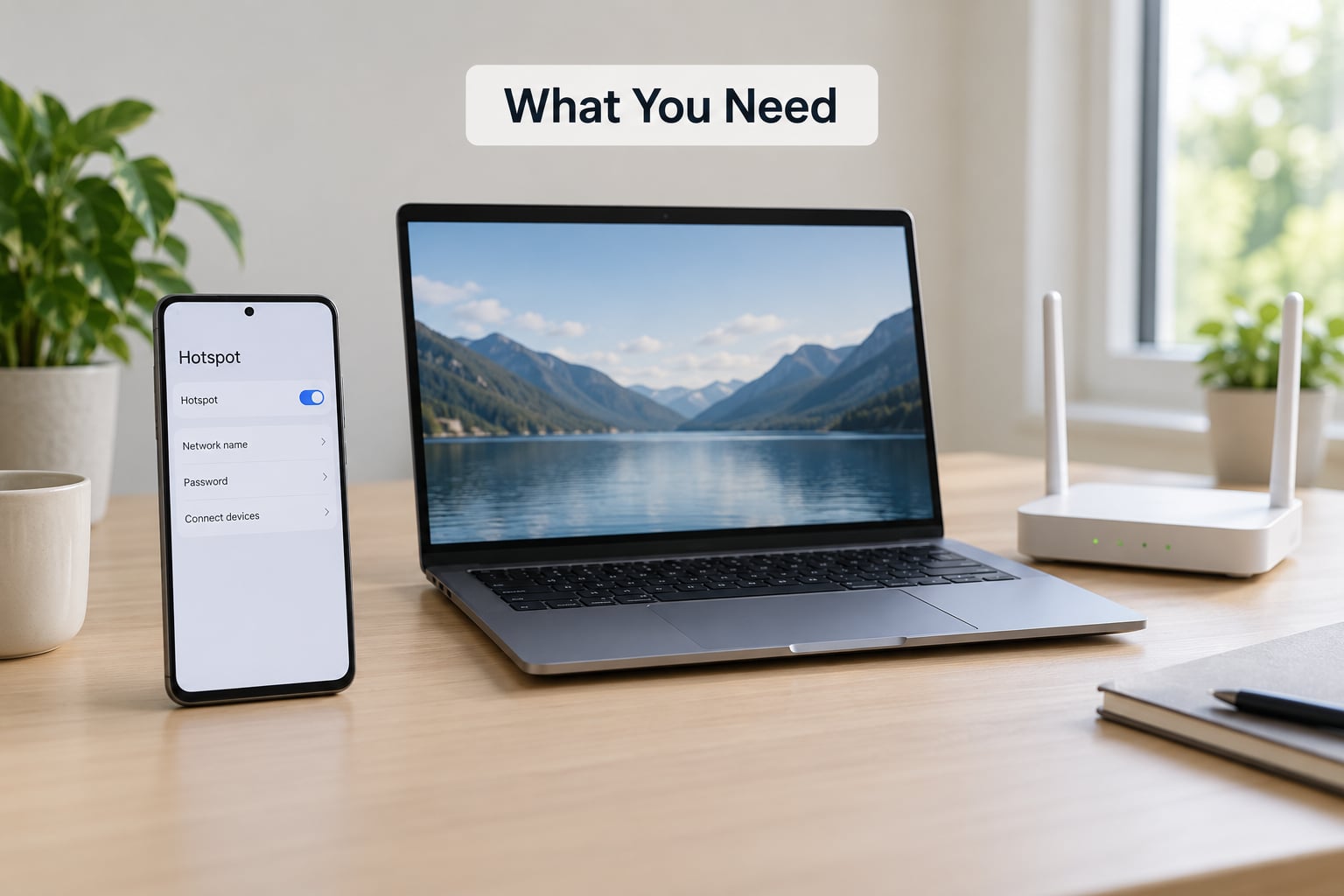
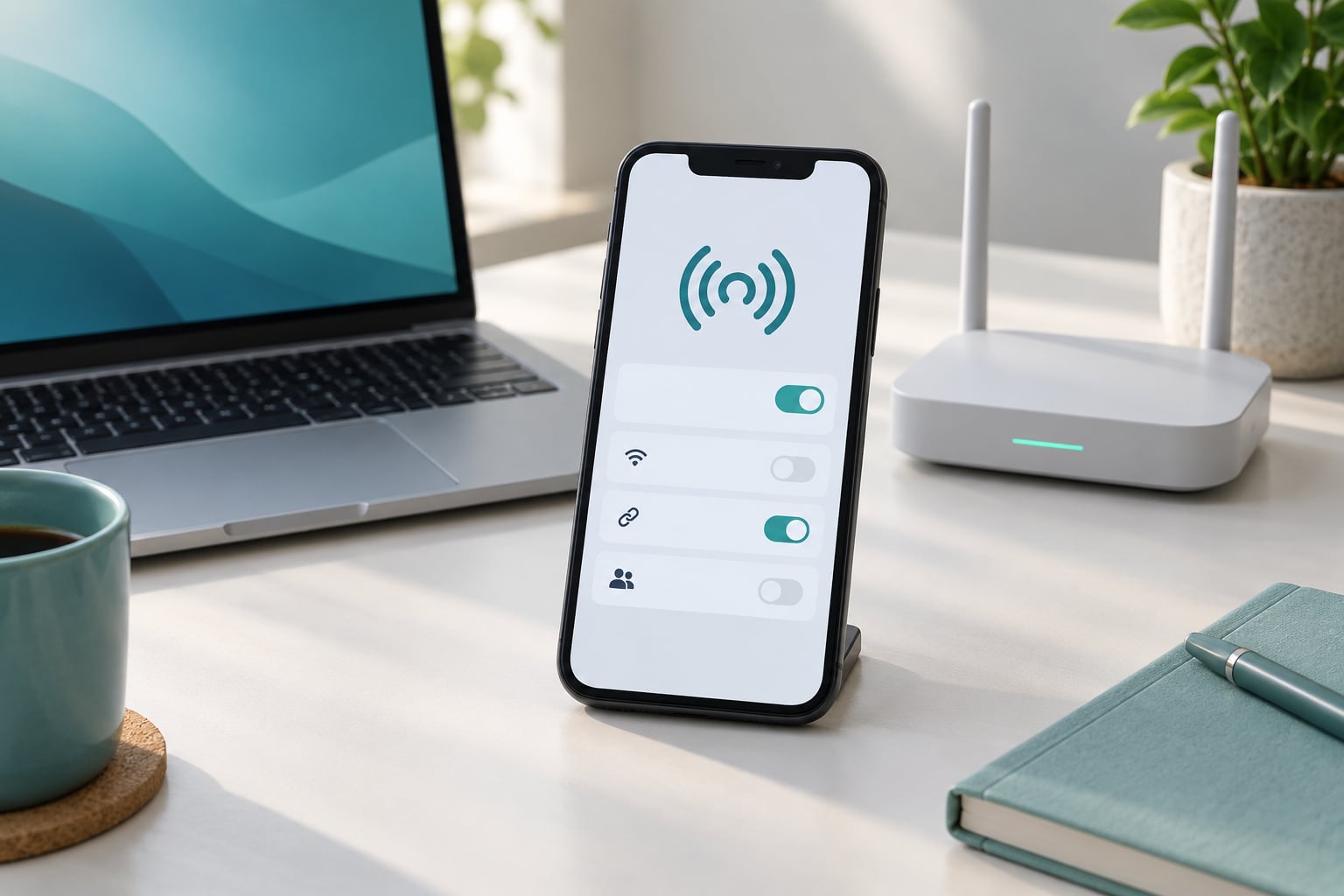
A mobile hotspot turns your phone into a small Wi-Fi router. Other devices join that network name, the SSID, and browse the internet through your phone’s mobile data instead of a fixed line.
Before you start, check you have:
- A phone with a cellular plan that includes mobile data, plus enough of it for what you plan to stream or browse.
- A battery that can carry the session. Hotspotting transmits continuously and drains the phone far faster than normal use.
- A second device to connect: a laptop, tablet, second phone, e-reader, or game console.
- An optional VPN app if you need to reach work networks or want an extra tunnel between your device and the internet.
Hotspot support, speed, and tethering limits come from your carrier, phone model, plan, and location. Some cheaper plans throttle hotspot traffic after a set amount of data, and some carriers disable the feature entirely on certain plans.
Step-by-Step
Here is the short version: confirm your plan allows tethering, open the hotspot menu, name the network, set a password you have never used anywhere else, connect your device, and turn the hotspot off when you finish. The detailed paths follow.
How to use WiFi hotspot from your phone on Android
On stock Android 14 through 16, go to Settings, then Network & internet, then Hotspot & tethering, then Wi-Fi hotspot. Flip the top switch to on. Android 15 and later also expose the same switch from the Quick Settings panel, so pull the shade down twice and tap the hotspot tile.
Before you switch it on, open the same menu and change the network name and password. A default name like your phone model tells a stranger which device to walk closer to. Tap the edit or gear icon next to the Wi-Fi hotspot toggle, replace the network name with something neutral, and set a password of at least twelve characters.
You can tell it worked by the small Wi-Fi or tethering icon in the status bar and by the connected-device count in that same settings screen. If the count shows a device you did not connect, change the password straight away.
Where the hotspot lives depends on the maker’s skin, and where the password is set usually sits one level deeper:
- iPhone: Settings > Cellular > Personal Hotspot, with the password in the Password field on that same screen.
- Samsung Galaxy (One UI): Settings > Connections > Mobile Hotspot and Tethering, then Configure Mobile Hotspot to edit the name and password.
- Google Pixel: Settings > Network & internet > Hotspot & tethering > Wi-Fi hotspot, using the edit icon beside the toggle.
- Xiaomi, Redmi, Poco (HyperOS / MIUI): Settings > Connection & sharing > Portable hotspot, then Set up Portable Hotspot.
- Older Android builds: Settings > Tethering & portable hotspot, or Mobile network > Mobile hotspot.
How to connect to the hotspot on Android
On the phone or tablet that needs internet, open Settings and tap Wi-Fi. Your hotspot network appears in the list within a few seconds. Tap it, type the password, and check that the word Connected shows underneath.
If the network never shows up, the hotspot switch is probably off, or you are too far from the phone. Restart the Wi-Fi toggle on both devices before digging further. If you connected once and need to reconnect later, tap the saved network, choose Forget, then enter the password again.
Open a webpage to confirm real internet access. A connected status only means the device joined the network; it does not always mean traffic is flowing.
How to turn on a personal hotspot on iPhone
On a current iPhone, open Settings, tap Cellular, then Personal Hotspot. Switch Allow Others to Join to on. You will see the hotspot network name and the Wi-Fi password field directly on that screen.
Change the password to something unique before you share it. Just underneath, iOS offers Maximum Compatibility, which uses the older WPA2 settings instead of the stronger default. Leave it off unless you are connecting to a device that genuinely refuses WPA3, such as an older printer or camera.
The Personal Hotspot screen also has a switch for Cellular Data and, on newer models, a choice of which cellular line to share when your phone carries two. Confirm it worked by pulling down Control Center or checking the status bar, where a connected-person icon or tethering symbol appears.
How to connect and disconnect safely
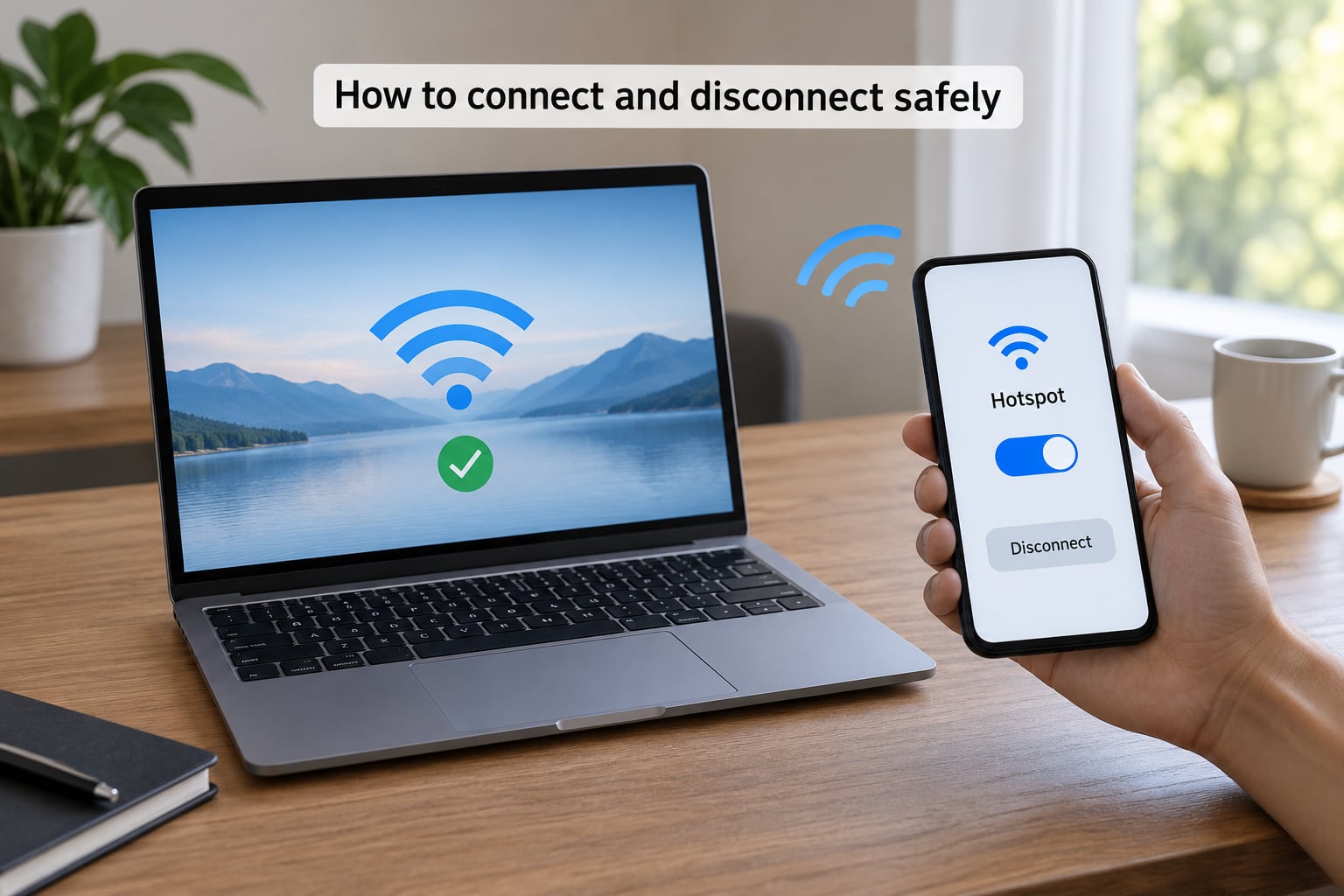
On Windows, click the network icon in the taskbar, pick your hotspot name from the list, and choose Connect. The same pattern works on macOS, ChromeOS, tablets, and most game consoles, where the network appears under Wi-Fi settings just like it would at home.
Afterwards, check who is still connected. On Android, return to Hotspot & tethering and look at the connected devices list; tap an unfamiliar entry and choose Block. On iPhone, open Personal Hotspot again to review the connected list and switch Allow Others to Join off, which ends sharing immediately.
Send the password to the person joining you through a direct message rather than saying it out loud in a shared space. That cuts the guessing game, which is how most unwanted connections happen.
Secure the hotspot before sharing it
Use WPA2 or WPA3 encryption, which on Android lives under the security setting inside the hotspot configuration. Never leave the network open. An open hotspot lets anyone nearby join, and people nearby may be trying exactly that.
Make the password something you have not used on your home Wi-Fi, your email, or anywhere else. Twelve characters or more beats eight characters with a capital letter and a number.
Rename the network to something that does not identify you. Avoid your full name, your employer, and the model of the phone.
Keep the phone’s operating system updated, because hotspot bugs get patched in system updates. If you need to do serious work over the connection, run a VPN on the connected device, not just on the phone sharing the data. On Android you can also set a Private DNS hostname in Settings, Security, or Privacy.
One honest limit: hotspot encryption protects the wireless hop between your phone and the device you connected. It does not make a look-alike login page trustworthy, so keep an eye out for any site asking for bank details.
Common Mistakes
Almost every hotspot problem is one of five things: the menu is hidden, the device cannot see the network, the password is wrong, no data is flowing, or the phone ran hot and throttled the connection.
If the hotspot control is missing or unusable:
- Hotspot option greyed out: usually no mobile data, a plan that blocks tethering, or the maximum number of clients already joined. Confirm data is active, check your carrier allowance, and disconnect extra devices.
- Option missing entirely: a work or school profile often restricts tethering. Check with your administrator, and on iPhone verify Cellular data is not switched off.
If the connection misbehaves:
- Network not visible: usually a radio or software glitch on either device. Toggle Wi-Fi on both, move closer, then forget the saved network and rejoin.
- Authentication failed: a wrong password, or a character lost to autocorrect. Re-enter the password slowly and check for capital letters and symbols.
- Connected but no internet: carrier throttling or a local cellular outage. Test the phone’s own browser, restart the hotspot, and check your data allowance.
- Slow speeds: congested cell coverage, or a client stuck on the 2.4 GHz band. Move near a window and connect on 5 GHz where available.
- Phone gets hot: the radio is working hard while powering another device. Plug the phone in, lift it off soft surfaces, and take the case off.
How to avoid security and data-cost mistakes
Battery drain is the complaint that comes up most in long work sessions. Phones that overheat and start shutting functions down inside an hour while powering a console are common enough that it is worth planning around. The fix is unremarkable: keep the phone plugged in, stand it on a hard surface, and give it airflow.
Hotspotting is not what ruins a battery overnight, but long hot sessions do accelerate wear. Owners usually see somewhere around six to seven hours of screen-on time on mobile data, noticeably less than on Wi-Fi, which is what to expect before a long trip.
On the data side, watch usage in Settings, Mobile data or Network usage. Video calls, streaming, and game downloads eat through an allowance quickly, so check your plan before a long trip.
Then the habits worth repeating: share the password privately, verify the network name before joining, skip online banking and card payments unless you have a VPN, and switch the hotspot off when nobody is connected.
Frequently Asked Questions
Is it safe to use a personal WiFi hotspot?
Yes, if you lock it down. A personal hotspot sends traffic over your carrier’s encrypted cellular network and only accepts devices holding your password, which is safer than an open airport or cafe network. Risks appear when you use a weak password, leave the hotspot on in public, or enter banking details on a look-alike login page. Turn it off when you finish.
Does using a phone hotspot use mobile data?
Yes. Every connected device uses your phone’s mobile data allowance, not a separate budget. Light browsing is modest, but video calls, streaming, software updates, and game downloads consume a lot quickly. Check your usage counter while connected and watch your plan for any tethering cap, since some carriers throttle hotspot traffic once a threshold is reached.
Can others detect that I am using my phone as a WiFi hotspot?
Nearby devices can see the network name, but they cannot join without the password. Anyone within range may attempt to connect, which is why a WPA2 or WPA3 password matters. Review the connected devices list in your hotspot settings periodically, and block or ignore unfamiliar entries. Renaming the network to something neutral hides which device is sharing.
How much data does a personal hotspot use?
It depends entirely on what the connected device does. Browsing and email are light, while video calls and streaming are among the heaviest activities and can use several gigabytes in an hour. Gaming consoles downloading updates can use as much as a large software update. If you work from your phone regularly, read your plan’s hotspot terms before travelling.
Why is the WiFi hotspot option missing from my phone settings?
Most often your plan does not include tethering, mobile data is switched off, or a work or school profile restricts the setting. On iPhone, an active cellular plan is required before Personal Hotspot appears. On Android, check that mobile data is on and that you are under any device limit. If none of that applies, restarting the phone usually restores the menu.
Conclusion
Before you walk out the door, run this list once: your carrier plan allows tethering, the hotspot is set to WPA2 or WPA3, the password is at least twelve characters and unused elsewhere, the network name gives nothing away, only your own devices are connected, you know where your usage counter lives, and the toggle goes off when you are done.
That is the whole job. Five minutes of setup buys you a private, encrypted connection that beats most of the public Wi-Fi you would otherwise be hunting for.