A factory reset permanently erases every app, photo, message and setting stored on an Android phone and returns it to the state it was in when it left the factory. To safely factory reset an Android phone you work in three stages: back up what matters, remove the accounts that will lock a new owner out, then run the built-in Erase all data command from Settings. Nothing in that process can be undone.
The reset itself takes somewhere between five and thirty minutes depending on how full the phone was and which version of Android it runs. The part people regret is never the wipe. It is the photo that never synced, the authenticator app nobody backed up, or the Google account still attached to a phone that was supposed to go to a friend. This guide walks through the preparation first, then the exact menu paths for Samsung, Pixel, stock Android, Motorola and Xiaomi/Redmi, then what to check once the phone comes back up.
Menus below cover Android 12 through Android 16. Every manufacturer renames things slightly, and a Pixel will not look exactly like a Galaxy or a Redmi, but the logic is identical on all of them. Where a label differs I list both.
Table of Contents
- What You Need
- Step-by-Step: How to Safely Factory Reset an Android Phone
- 1. Back Up Photos, Messages, and Important Files
- 2. Protect Accounts, Locks, and Important Apps
- 3. Choose the Correct Factory Reset Method
- 4. Review the Erasure and Start the Factory Reset
- 5. Complete Setup and Verify the Reset
- Common Mistakes
- Quick Tips to Avoid Data Loss and Lockouts
- Frequently Asked Questions
- Will a factory reset delete everything on an Android phone?
- Do I need to remove my Google account before resetting the phone?
- Can I factory reset an Android phone without backing it up?
- Does factory reset delete apps, photos, and contacts?
- What should I do if my Android phone is stuck on the factory reset screen?
- Conclusion
What You Need
Gather these before you open Settings. The reset will not pause halfway to let you fetch a password from another device.
- The charger and a cable. A reset draws more power than normal use, and a phone that dies mid-wipe can land in recovery mode with no obvious way forward.
- Your Google account email and password, plus any two-step verification codes you need to generate later.
- Your Samsung account, Xiaomi account, Google Smart Switch password or other brand account signed in on the phone.
- Your lock screen PIN, pattern or password. You will need it to confirm the wipe and, later, to turn the phone on.
- Enough free battery to finish without a cable. Above half is comfortable.
- A reliable internet connection, because setup after the wipe needs Wi-Fi or mobile data to finish.
- A place for the backup — a laptop with a USB cable, or cloud storage that already has your photos and contacts synced.
- A secure note of your account details that is not on the phone you are about to erase.
Allow 15 to 30 spare minutes after the wipe. Phones with Android 12 and newer often restart a second time to install a fresh system update during first-time setup, and some models prompt for a second pass of Google sign-in. Budget for it rather than planning to hand the phone over ten minutes later.
You also need to know what you are doing with the phone, because the account steps differ. Keeping the phone and passing it to someone else are two different jobs.
Step-by-Step: How to Safely Factory Reset an Android Phone
The order below matters. Back up first, secure accounts second, reset third, verify fourth. If you are keeping the phone, skip only the account removal in step 2. If you are selling, gifting or recycling it, do not skip it.
1. Back Up Photos, Messages, and Important Files
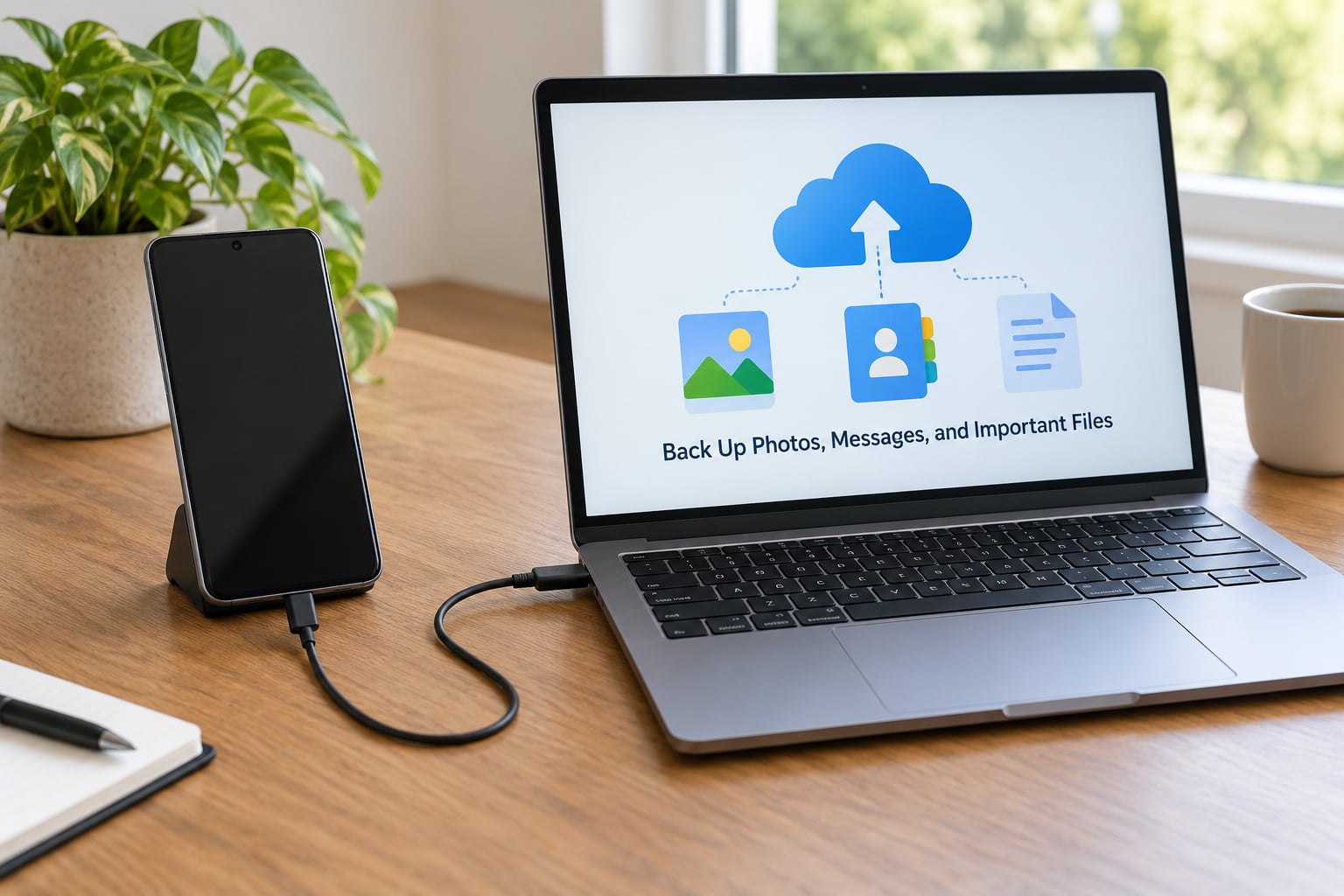
Open Google Photos and confirm the backup is finished. The app shows a cloud icon with a checkmark on each photo when it has synced, so scroll through a few recent items rather than trusting the setting alone. Do the same in Google Drive for anything you saved there yourself.
Contacts need a separate check. Open Contacts, tap your account at the top, and make sure sync is switched on. Open the same contacts list on your laptop or another signed-in device to confirm the names and phone numbers actually arrive. A Google backup can complete for years without contacts if that toggle was never turned on.
WhatsApp is the one people miss. Chat history lives in the app’s own folder, not in the Google backup, unless you used Google Drive backup inside WhatsApp settings. Open WhatsApp, go to Chats, then Backup, and run a Google Drive backup if one is available. The same applies to Signal, Telegram and Viber local histories. If a conversation only exists on the phone, copy it now.
Authenticator apps deserve their own paragraph. Google Authenticator, Authy, Microsoft Authenticator and banking apps hold codes that are not stored in a photo backup. Open each one, screenshot the QR code setup or the account list, and export or write down the recovery codes the app gave you at setup. Without those, a reset can lock you out of an email account that owns everything else.
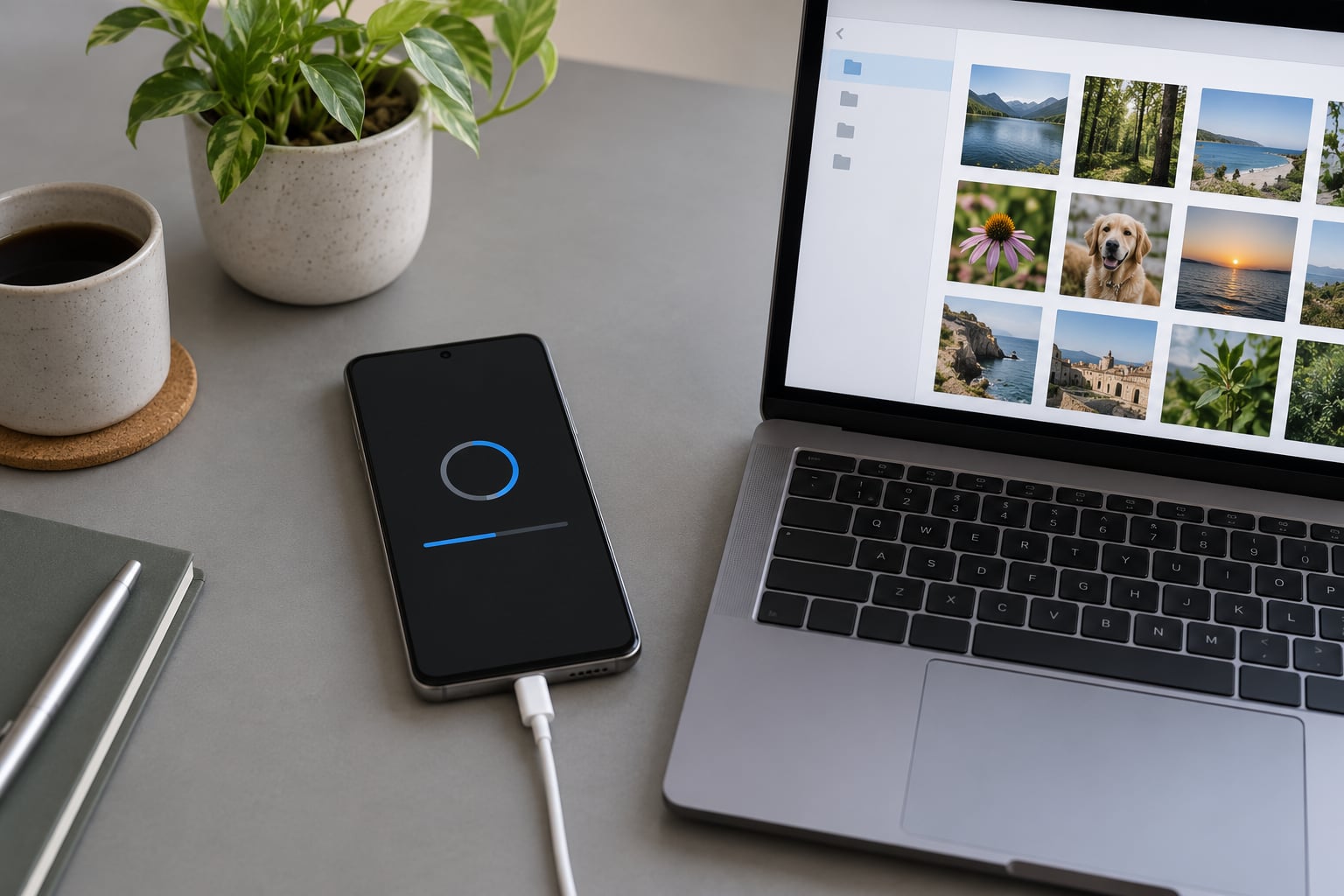
For downloaded files, check the Downloads folder and any offline maps, playlists or game data you cannot easily recreate. For a proper second copy, connect the phone to a laptop by USB, choose file transfer mode, and drag across the DCIM, Pictures, Documents and Download folders. Confirm you can open a few files from the laptop copy before you wipe anything.
Step one is finished when you can open a photo, a contact and a message from somewhere other than the phone.
2. Protect Accounts, Locks, and Important Apps
This is where most factory resets turn into an argument with the next owner. Factory Reset Protection, usually shortened to FRP, is a Google security feature: if a Google account was still signed in when the phone was wiped, the next person who tries to set it up is asked for that account’s email and password before they can use the phone at all.
If you are keeping the device, stay signed in and move on. If you are selling, trading in or gifting the phone, remove every account first, and remove them one at a time so each removal finishes before you start the next.
To remove the Google account, open Settings, tap Accounts, choose the Google account, then Remove account. Tap the option to delete data when Android offers it. On Samsung phones the same path is Settings, then Accounts and backup, then Manage accounts. On Xiaomi and Redmi devices it is Settings, then Accounts and sync, then Google, then Manage Google accounts. Watch for the confirmation that asks whether you want to delete the account from the device.
Samsung and Xiaomi accounts need the same treatment. Open Settings, Accounts and backup, Manage accounts on a Galaxy, and sign out of the Samsung account before the reset. On Xiaomi and Redmi, the equivalent is Settings, Accounts and sync, then the Xiaomi account, then Sign out. Leaving either of those attached reproduces the FRP problem on the brand’s own servers.
Now deal with the small things that get forgotten. Note down any Wi-Fi passwords you will need later, save your eSIM details or the QR code your carrier gave you for a physical SIM, and pull your carrier account password out of the phone before it goes. If you use a mobile wallet, remove the cards from Google Pay and your bank’s app first. Disable Find My Device, or release the device from your Google account, so the phone is not remotely locked after setup.
Here is what you are choosing between, and it is worth reading twice before confirming anything.
| Erased by a factory reset | Survives a factory reset |
|---|---|
| Photos and videos stored only on the phone | Anything already synced to Google Photos or Google Drive |
| WhatsApp and Signal chat history | Files kept in Google Drive |
| Authenticator app entries and their codes | Contacts, if Google Contacts sync was switched on |
| Downloaded files, offline maps and app data | A physical microSD card, which is not touched by the reset |
| App logins, saved passwords and Wi-Fi networks | The SIM card in the tray, and a carrier eSIM profile once you re-download it |
| Home screen layout, wallpapers and system settings | Your Google, Samsung or Xiaomi accounts, which stay on the server |
| Bluetooth pairings and paired devices | Files held on your computer from the USB copy |
Note the microSD line. A card in the tray is hardware, not storage the phone owns, so its contents usually come through a factory reset untouched. If you plan to sell the phone, physically remove the card first so the buyer never inherits your files.
3. Choose the Correct Factory Reset Method
There is exactly one reset command you want: the one that erases all data. Settings is the place to find it. Open Settings, tap the search icon at the top, and type reset. Search results are usually shorter and more reliable than scrolling a long menu that changes with every update.
Use the path below for your phone. Do not use a shortcut that formats the SD card or resets network settings. Those leave your accounts and data in place, which means the reset did nothing useful and you did it twice.
| Phone or brand | Path to Erase all data |
|---|---|
| Samsung Galaxy | Settings, General management, Reset, Erase all data, then Erase all data under the heading |
| Google Pixel and stock Android | Settings, System, Reset options, Erase all data and reset, then Erase all data |
| Motorola | Settings, System, Reset options, Erase all data and reset |
| Xiaomi and Redmi | Settings, General settings, Reset, Erase all data. MIUI and HyperOS may also hide it under Additional settings, Backup and reset |
| OnePlus and Oppo | Settings, Additional settings, Reset, Erase all data, Reset settings, Erase all data |
| Generic Android | Settings, System, Reset options, Erase all data and reset |
Older Samsung phones label the same menu System, then Reset, or they put it under General management only on newer One UI versions. On any device, searching Settings for factory reset finds the correct entry even when the menu tree differs. Android 12 to 16 and heavily customised skins can rename Reset options to something like Reset device or Phone reset, but the destination is the same.
Expect two confirmation screens. The first explains what will be erased. The second asks you to type your PIN or password and asks you to confirm. Read the first screen rather than swiping past it, because that list is the record of what is about to go.
4. Review the Erasure and Start the Factory Reset
The first confirmation screen lists what the phone will remove: all apps and their data, all accounts signed in to the device, system settings, downloaded content and media stored locally. It will also tell you whether the phone will be downloaded again, which matters if the device is nearly out of storage or your connection is slow. That is a warning, not an error. Resetting a phone with a few hundred megabytes free can fail or take far longer than it should.
On the second screen, enter your PIN, pattern or password and confirm. The phone shuts down, shows a black screen, and the manufacturer logo usually appears for a moment before returning. That sequence is normal. A screen that goes black with no logo for more than a few minutes, or a logo that stays for twenty minutes with no movement, is where battery and patience start to matter.
Some phones display a data-erasing screen with a spinning progress bar. Some show nothing at all for a few minutes. Do not press buttons during this stage. A reset that is genuinely running normally takes about five minutes on a mostly empty phone and up to thirty on one that was heavily used. If you are working through how to safely factory reset an Android phone and the screen looks frozen, that range is the first thing to check before you assume something broke.
If the phone was bought second-hand and you cannot prove you own it, stop here and read the FRP warning in step 2 again. Wiping a phone with someone else’s account still attached does not make it usable to you, and it destroys the previous owner’s ability to remove it themselves.
5. Complete Setup and Verify the Reset
A wiped phone restarts into the Hello or Get Started screens rather than your home screen. That first boot can take several minutes. Keep the phone plugged in or well charged, because some models restart once more to install a system update after setup begins.
Work through the screens: choose your language, connect to Wi-Fi, run the data restore if you want your backed-up photos and contacts back, and sign in to the same Google account you verified earlier. The restore can take an hour or more on a large photo library, so let it finish before you judge it.
Reinstall the apps you actually use from the Play Store rather than restoring everything blindly. Restoring every app at once brings back old settings, old logins and old notification behaviour, which is often the very problem that prompted the reset.
Then test before you trust it. Place a call and send a text. Open the camera and take a photo. Try the fingerprint reader and face unlock, since biometric data can behave oddly after a fresh setup. Open your authenticator app and confirm a code generates. Check that your banking app opens and that mobile payments can see your cards. Anything that fails here is far easier to fix now than a week from now.
Budget a few minutes. An update running during setup can leave the phone temporarily unresponsive, and pulling the battery at that point is how people turn a routine reset into a genuine problem.
Common Mistakes
Resetting before the backup finished. Google Photos and WhatsApp both back up in the background, and both show progress you can miss. Open the backup screen on each app and confirm it says complete before you wipe. A USB copy to a laptop takes ten minutes and removes the doubt entirely.
Formatting only the SD card. This is the most common near-miss. Formatting a memory card empties the card and does nothing else, leaving every app, photo and account exactly where they were. Look for the wording Erase all data or Factory reset on the screen before you tap.
Leaving the Google account on a phone you are selling. This is the mistake that produces the most expensive emails. Remove the account, wait for the removal to finish, and only then run the reset. The same applies to Samsung and Xiaomi accounts.
Ignoring authenticator apps. Two-factor codes for your main email account may live only on the phone you are erasing. Screenshot the account list or the recovery codes now, and keep them somewhere you will find them after setup.
Resetting a phone with almost no storage left. Android needs room to unpack the system update. If Settings shows storage in the red and the phone will not finish a normal reset, free a few gigabytes first or remove apps you can reinstall later.
Assuming contacts and chats were in the Google backup. The Google backup covers a defined list of data. Contacts only travel if Contacts sync was on. WhatsApp history only travels if you ran its own backup. Verify both from a second device rather than trusting the label.
Buying a FRP-locked phone and expecting to wipe your way out. A wipe cannot defeat the lock. If a used phone demands someone else’s Google account at the welcome screen, do not buy it.
Quick Tips to Avoid Data Loss and Lockouts
- Write your Google email, password and two-step method on paper or in a password manager before you start, not in a note on the phone.
- Keep the phone plugged in through the wipe and the first ten minutes after it.
- Stay online. A factory reset with no connection still works, but app reinstall and account verification will not until you reconnect.
- Wait for every sync indicator to report complete, then open one photo and one contact from a different device to confirm.
- Check more than one folder. People look at Google Photos and forget that screenshots, saved PDFs and chat attachments live elsewhere.
- Ignore every other option on the Reset menu. Network, app and connectivity resets solve narrower problems and cost you time.
- Remove the microSD card and the physical SIM before you hand the phone over.
- For a phone that will not boot at all, recovery mode is the fallback: hold Power plus Volume Down, then use the volume keys to highlight Wipe data or Factory reset and confirm. Combination keys differ by brand, so search for your model’s recovery mode combination rather than guessing.
- Resetting does not fix failing hardware. A battery that cannot hold charge, water damage or dying flash storage will behave the same way after a clean install.
Frequently Asked Questions
Will a factory reset delete everything on an Android phone?
It removes everything stored in the phone’s internal storage: apps and their data, accounts, photos, messages, downloaded files, passwords and settings. What survives depends on where a copy already lives. Cloud-synced photos, Google Drive files and synced contacts come back during setup, and a microSD card is usually untouched. Anything only on the phone, including WhatsApp history and authenticator apps, is gone.
Do I need to remove my Google account before resetting the phone?
Remove it only if you are selling, gifting, trading in or recycling the phone. If the account is still signed in when the wipe happens, Factory Reset Protection asks the next user for that account’s password before the phone can be set up. On a phone you are keeping, stay signed in so your data restores normally. Remove Samsung, Xiaomi and other brand accounts the same way.
Can I factory reset an Android phone without backing it up?
Yes, the phone will reset and erase its contents. The risk is that anything not stored somewhere else cannot be recovered, because a factory reset is not a recoverable action on the device. Photos, chat histories and authenticator codes that only exist on the phone are the ones people miss. If your goal is to fix a software problem, try clearing a single app’s cache or restarting first.
Does factory reset delete apps, photos, and contacts?
Apps and their data, locally stored photos and contacts all get erased. Contacts are the exception worth understanding: if Google Contacts sync was switched on, your backup includes them and they return during setup. If sync was off, they are simply gone. Photos stored only on the device are deleted, while photos already synced to Google Photos come back when you sign in during first-time setup.
What should I do if my Android phone is stuck on the factory reset screen?
Leave it alone first. A reset can take thirty minutes on a heavily used phone, and some models restart a second time to install an update. If nothing changes for a full hour with the phone plugged in, hold Power plus Volume Down to enter recovery mode, then choose Wipe data or Factory reset from the menu. That restarts the wipe without touching your backups or accounts.
Conclusion
Start by proving you can get your data back. Open your Google Photos backup, check one contact from another device, confirm your WhatsApp history is stored, and screenshot your authenticator accounts. If those four checks pass, you know how to safely factory reset an Android phone without losing anything that matters: pick the Erase all data path for your brand and follow it.
Remove the Google, Samsung or Xiaomi account first only when the phone is leaving your hands, and take the microSD card with you. If you are keeping the device, stay signed in, restore from backup and test your calls, camera, unlock and authentication apps before you close the box. Ten minutes of checking now is much cheaper than a wiped phone with no way back.