Lock screen ads almost always come from one of two places: the wallpaper or lock screen service your phone maker installs, or an app holding notification and overlay permissions. To turn off ads on Android lock screen, set that wallpaper service to None in Settings, then revoke notification access and uninstall whatever keeps pushing pop-ups. The whole job takes about five minutes and every step can be undone.
Here is the quickest fix for Samsung phones, since that is the most common search:
- Open Settings and tap Wallpaper and style.
- Tap Change wallpapers, then Wallpaper services.
- Select None so no service can supply lock screen content.
- Tap Apply to confirm.
- Lock and unlock the phone to check the result.
On older One UI versions the same toggle sits at Settings > Lock screen > Wallpaper services.
Ads show up because phone makers fund cheaper devices partly through advertising, and the sponsored content is bundled with a feature most people never open. A full-screen takeover hides your clock and notifications, so every phone pickup costs you an extra swipe, and the service keeps downloading fresh ad artwork in the background.
Table of Contents
- What You Need Before You Start
- Step-by-Step: How to Turn Off Ads on Android Lock Screen
- Identify What Is Showing the Ads First
- Turn Off Ads in Android Settings
- Turn Off Google Discover and News Ads
- Disable Ads on Xiaomi, Redmi, and POCO Phones
- Change the Lock Screen on Samsung and Other Launchers
- Stop Ads From Specific Apps
- Verify the Ads Are Gone
- Common Mistakes to Avoid
- Frequently Asked Questions
- Is it safe to turn off the lock screen wallpaper service?
- How do I turn off ads on an older Android phone?
- How do I stop lock screen ads from coming back?
- Why do ads keep popping up when I unlock my phone?
- Why are Xiaomi phones full of ads?
- How do I find the app causing pop-up ads on Android?
- Conclusion
What You Need Before You Start
You need three things, and all of them are already on the phone.
- The phone with the ads on it, unlocked so you can reach Settings.
- The model and Android version, found at Settings > About phone > Android version. Menu labels change between models, so knowing this saves you hunting through the wrong menus.
- A couple of minutes per method, plus patience for a reboot if you test safe mode later.
Know upfront that switching the wallpaper service off also removes the rotating wallpapers, news cards, weather summaries and clock styles that came with it. None of that touches your photos, your PIN, your fingerprint or face unlock, and you can switch the service back on whenever you want.
Step-by-Step: How to Turn Off Ads on Android Lock Screen
Identify What Is Showing the Ads First
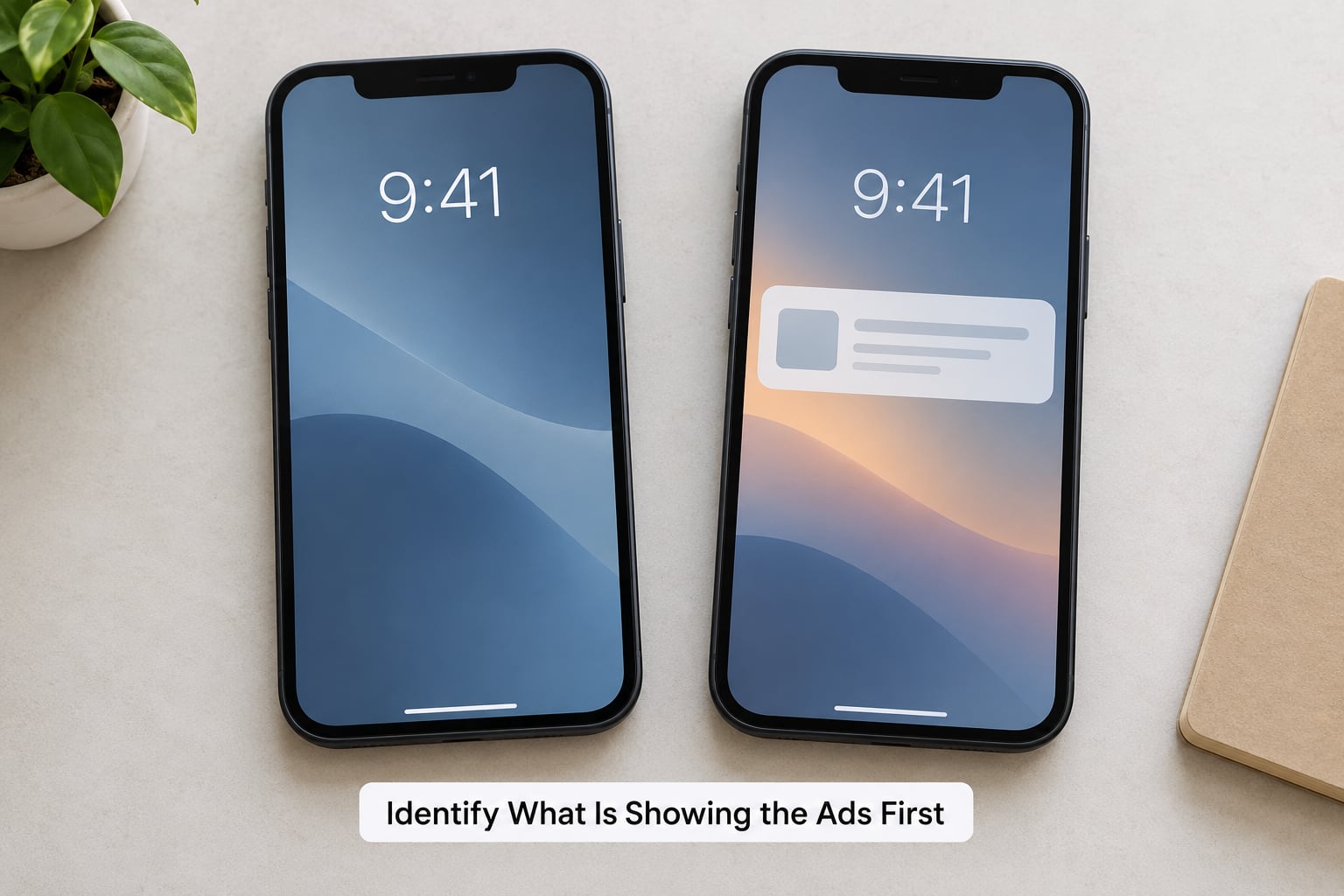
Diagnose before you change anything, because the fix is completely different depending on what you are looking at.
| What you see | Likely source | Where the fix lives |
|---|---|---|
| A full-screen sponsored card, wall or news tile replacing your wallpaper | The OEM wallpaper service (Glance on Samsung, Wallpaper carousel on Xiaomi, Motorola lock screen content) | Settings > Wallpaper and style |
| A headline feed or weather card at the bottom of the lock screen | Google Discover or At a Glance | Google app or Settings > Home screen |
| A banner that slides in over whatever app you are using | An app with the appear on top permission | Settings > Apps > special app access |
| Ad cards in the notification shade, often after unlocking | A promotional notification | Settings > Notifications, then the app toggle |
| Nothing on the lock screen, but ad windows open on their own | A third-party app pushing overlays or launching itself | Safe mode test, then uninstall |
Two clues help you narrow it down. Full-screen cards that change when you pick up the phone are almost always the wallpaper service. Ads that arrive on a timer while you are inside another app are almost always a third-party app, and those are the ones worth removing properly.
Notification history settles the ambiguous cases. Go to Settings > Notifications > Notification history and look at what actually arrived overnight, because that shows the sending app instead of guessing.
Turn Off Ads in Android Settings
The stock Android path removes sponsored wallpapers and style content, and the labels shift a little depending on your version.
- Open Settings and tap Wallpaper and style (on Pixel and some builds: Settings > Wallpaper & style).
- Choose Change wallpaper or Change wallpapers.
- Under Wallpaper services or Lock screen services, pick None.
- Tap Apply.
Next, stop the personalised promotions tied to your account. On Samsung that is Samsung Account > Security and privacy > Customization Service, where you turn off customisation and personalised promotions and confirm with Agree. This reduces the volume of ads across the system rather than clearing the lock screen on its own.
Samsung also has a blunt instrument under Device Care. Open Device Care > Storage or Battery, tap the three-dot menu in the corner and turn on Block apps with excessive ads. Basic blocking silences known offenders, while Intelligent Blocking is the stricter option that restricts apps repeatedly flagged for ads. Useful, but broader than you want if you only dislike the lock screen.
Turn Off Google Discover and News Ads
Discover feeds arrive as cards on the lock screen and as a swipe-up feed on the home screen, which is why some people think the fix failed when ads move.
- Open the Google app and tap your profile picture in the top right.
- Choose Discover feed settings (older builds: Settings > Google > Discover settings).
- Set Show Discover feed on the lock screen to Off.
- Set Show Discover feed on the home screen to Off as well.
- Turn off any Web and App Activity-style switches you are happy to lose.
Pixel owners who use the At a Glance widget handle it differently: press and hold the home screen, tap Home settings, then switch At a Glance off and choose a plain widget instead.
Disable Ads on Xiaomi, Redmi, and POCO Phones
Xiaomi serves sponsored lock screen cards through its wallpaper carousel, so this is the same fix wearing different labels.
- Open Settings and tap Wallpaper & style.
- Tap Wallpaper carousel and select None, then confirm with Apply.
- If the card still appears, go back and open Lock screen settings; on some HyperOS builds the toggle is labelled Glance lock screen and also needs to be set to None.
- For Xiaomi promotions inside apps, go to Settings > Passwords & security > Privacy > Ad services, then switch off the personalised ad options there.
GetApps is a separate preinstalled store that pushes its own ads. You can disable it at Settings > Apps > GetApps, where Xiaomi usually leaves an Other permissions or Autostart switch. It cannot be uninstalled, but it goes quiet once its permissions are revoked. On some regional builds the option is hidden, which is the part that drives people looking for a permanent removal.
Change the Lock Screen on Samsung and Other Launchers
Motorola keeps its content options inside the lock screen itself, not in Settings. Swipe up on the lock screen, tap the three-dot menu in the corner, choose Settings, then select I want my old lock screen and confirm. Motorola users on r/motorola describe that exact path as the fix for their ads, which is why copied Samsung instructions do nothing on that phone.
On Oppo and Realme, open Settings > Wallpaper & style and turn off the lock screen magazine, then pick a static wallpaper for the lock screen style. The exact wording varies by ColorOS version, so if you do not see it, use the search box at the top of Settings and type magazine.
Third-party launchers are a bigger swap. Nova, Lawnchair and similar apps have no ad feed at all, so installing one removes the category of problem. That is a heavier change than most people need, so treat it as the option after the settings route fails.
Stop Ads From Specific Apps
Overlay banners and promotional notifications come from installed apps, and the settings live under special access rather than the normal app page.
- Open Settings > Apps and tap the three-dot menu, then Show system apps if the offender is preinstalled.
- Sort or filter by Last used to see which apps ran around the time the ads appeared.
- For overlay ads: Settings > Apps > Special app access > Display over other apps, and turn the permission off for anything suspicious.
- For notification ads: Settings > Notifications > All notifications, open the app and switch off its notifications. Samsung users can also do this per category under Notification categories.
- Clear the app’s data or uninstall it. Long-press the app icon, tap App info > Uninstall.
Some developers ask for appear on top the first time you open their app, disguised as a setup step. If you did not knowingly enable a floating window, decline it. Watch the same list after every install; it is the single most common route for constant pop-ups on Android.
For ads inside the browser rather than on the lock screen, Chrome has Settings > Site settings > Pop-ups and redirects. Samsung Internet has Sites and download > Block pop-ups, plus an Ad Blockers menu with a suggested blocker.
Verify the Ads Are Gone
Lock and unlock the phone twice, then leave it face down for a few minutes and check again. The wallpaper service often re-applies its card on the next wake cycle, so one unlock is not a fair test.
After that, check the two places the fix can leak. Confirm no sponsored card sits on the lock screen, then swipe to the home screen to see whether the ads moved into a Discover feed instead. If everything is clean, you are done.
Still there? Run a safe mode test. Hold the power button, then press and hold Power off on the screen and tap Safe mode. Everything third-party stays off in that mode, so an ad that still appears points to the operating system, and an ad that disappears points to an app you installed.
Common Mistakes to Avoid
A few mistakes send people in circles, and most of them come from good instructions written for a different phone.
- Changing the wallpaper instead of the service. Picking a new image leaves the feed running, so the ad returns at the next wake.
- Copying the Samsung path onto a Xiaomi or Motorola. Wallpaper carousel and the lock screen three-dot menu are the equivalents there.
- Disabling the wrong Google app. Turning off Discover’s home screen feed leaves the lock screen card untouched, and the other way round.
- Granting permissions too broadly. Blocking every app that can draw over other screens can break floating keyboards, screen recorders and system dialogs. Block the offenders, not all of them.
- Assuming an update will keep your fix. Some users report a wallpaper service returning after a software update. Re-check the toggle a week after each major install.
Prevention is mostly habit. Check permissions at install time instead of granting what the app asks for, remove clean-up and wallpaper utilities you installed once and forgot about, and revisit the wallpaper service setting after each major system update.
Frequently Asked Questions
Is it safe to turn off the lock screen wallpaper service?
Yes. Setting Wallpaper services or Wallpaper carousel to None only stops the sponsored content feed. Your photos, PIN, fingerprint and face unlock keep working, and the always-on display clock stays. The only loss is the rotating wallpapers, news cards and weather summaries that service supplied. You can switch it back on in the same menu whenever you miss them.
How do I turn off ads on an older Android phone?
Older versions use shorter menu names. On Samsung, look at Settings u0026gt; Lock screen u0026gt; Wallpaper services instead of Wallpaper and style, and expect Samsung Internet rather than Chrome for browser blocking. On Android 9 and 10 era Xiaomi phones the path is Settings u0026gt; Wallpaper u0026amp; style u0026gt; Wallpaper carousel. If your phone has no wallpaper service at all, the ads are coming from an app, so use the last-used and special app access route instead.
How do I stop lock screen ads from coming back?
Most returns happen after a major software update, which can restore the default wallpaper service setting. Check Settings u0026gt; Wallpaper and style u0026gt; Change wallpapers u0026gt; Wallpaper services once a month, and re-check the Discover feed settings after each system install. On Xiaomi also confirm Wallpaper carousel is still set to None. Keeping app permissions tidy matters too, because overlay ads return whenever you install an app that requests display over other apps.
Why do ads keep popping up when I unlock my phone?
Unlock is when the wallpaper service refreshes, so a sponsored card often appears exactly at that moment. If the ad arrives as a banner over other apps instead, it is an app using the appear on top permission. Check Notification history to see who sent anything overnight, then revoke overlay access under Settings u0026gt; Apps u0026gt; Special app access u0026gt; Display over other apps. Both causes are removable and neither indicates a fault with the phone.
Why are Xiaomi phones full of ads?
Advertising revenue helps keep the hardware price down on budget and mid-range models, so several preinstalled components carry sponsored placements. The main sources are the Wallpaper carousel on the lock screen, GetApps pushing its own store promotions, and ad services inside system apps such as Settings, File Manager and the browser. Turning off Wallpaper carousel and the ad service options in Privacy removes most of it, and each switch is reversible.
How do I find the app causing pop-up ads on Android?
Sort your apps by last used in the Google Play Store, then cross-check against Settings u0026gt; Notifications u0026gt; Notification history to see what actually sent notifications overnight. Turn off Display over other apps for any app you do not recognise as a floating tool. If the ads persist, boot into safe mode, which disables third-party apps; an ad that vanishes in safe mode belongs to an app you installed, and one that stays is coming from the system.
Conclusion
Start by identifying the source, not by changing settings at random. A full-screen sponsored card means the wallpaper service, so set Wallpaper services or Wallpaper carousel to None; a banner over other apps means an app with overlay permission, so revoke it and uninstall the offender. Then lock and unlock twice to confirm the ad is gone.
Write down your phone model and Android version before you start. Menu names differ across Samsung One UI, Xiaomi HyperOS and MIUI, Motorola and Oppo builds, and they shift again with each 2026 update, so knowing your exact version tells you which instructions actually apply to you.