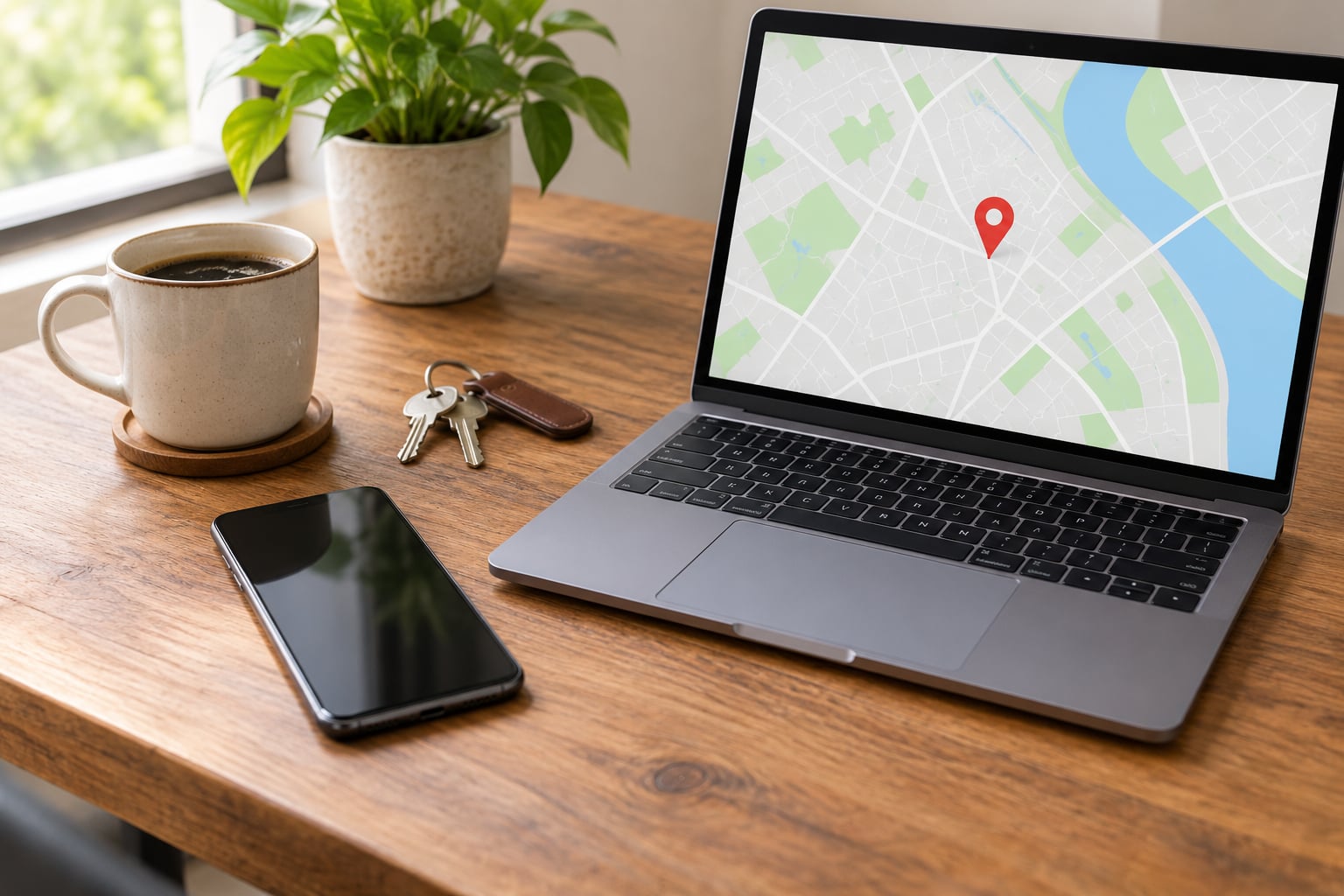
Yes, an Android phone can usually be located from another device, and learning how to find a lost Android phone takes about as long as making a cup of coffee. Open android.com/find in any browser, sign in with the Google Account that is on the missing phone, and you can see its location, ring it, lock it, or erase it. The first thirty minutes are when phones are most often recovered.
Google renamed Find My Device to Find Hub, which is why most guides you find are showing you a menu that no longer exists. I’ll use the current names and give the exact paths for Google, Samsung and Xiaomi phones, plus what to do when the phone is off, flat, or in airplane mode. Menu labels shift a little between manufacturers and Android versions, so I’ll flag where that happens rather than pretend one path fits every handset.
First, the short version:
- Sign in: open android.com/find and use the Google Account signed into the lost phone.
- View location: tap the phone on the map and read the timestamp before you believe the pin.
- Play a sound: rings at maximum volume for about five minutes, even if the ringer is silenced.
- Secure device: locks the screen, adds your contact message, and signs out of Google apps.
- Erase data: permanent, and tracking stops the moment the wipe finishes.
Table of Contents
- What You Need
- Step-by-Step
- How to find a lost Android phone with Google Find My Device
- How to find a lost Android phone with the manufacturer service
- How to check the location and confirm the phone is responding
- How to lock, ring, or protect the missing phone
- What to do if the phone is offline or cannot be located
- Common Mistakes
- Frequently Asked Questions
- Can I find my Android phone if it is offline?
- How accurate is Find My Device on a lost Android phone?
- What should I do if my lost Android phone is locked or stolen?
- Do I need Find My Device enabled before losing my phone?
- Should I erase my lost Android phone immediately?
- Can I find an Android phone without accessing my Google account?
- Conclusion
What You Need
A second device is non-negotiable. A laptop, a tablet, a work computer, or a borrowed phone all work, and the browser route needs nothing installed.
You also need the Google Account that is signed into the missing phone, not the one you happen to be browsing with. If the phone has more than one Google account on it, check each one until the handset appears in the device list. Knowing its password solves most of this, but if the phone itself stored that password or your two-factor codes, jump to the account protection steps further down before you get stuck.
- The Google Account on the phone with its password, or a passkey or backup code if you set one up.
- A working internet connection on the device you are searching from, and on the missing phone if it still has one.
- The screen lock already set on the phone. Secure device and Mark as lost refuse to run without a PIN, password, or pattern. A phone with no screen lock cannot be remotely locked.
- The manufacturer account, if it is a Samsung or a Xiaomi, Redmi or POCO. Both brands run their own service alongside Google’s, and the manufacturer one is often the only option that works offline.
- Your carrier name, account number, and the IMEI if you recorded it. The IMEI is the one thing you cannot retrieve from a device you no longer have, so find it now if you can.
Step-by-Step
How to find a lost Android phone with Google Find My Device
Start with the two-minute checks before you touch any software. Call the number and send a text saying where you found it. Check the spots where phones actually end up: the sofa cushions, coat pockets, car cup holders, the bathroom or kitchen floor, and the charging cable. Then open a browser on the other device and go to android.com/find.
You will land on a Google sign-in page. Sign in with the account on the missing phone. The handset shows up in a device list with its name, a map pin, and a status line. If nothing appears, the account you used is not the account on the phone, or Find My Device was never switched on. Walk away and try the next account.
If you do have access to the phone, or you want to check the setting on a device you are still holding, the current path on most Android versions is Settings > Security & privacy > More security settings > Find My Device. Samsung keeps it under Google Play services options or Security and privacy, and some Xiaomi and OnePlus builds hide the network toggle under Location instead. The toggle must be on, and the device must be visible to the Find Hub network for offline detection to work.
How do you know it worked: the account on the phone appears in the device list with a dot on the map and a last-updated time. If the list is empty, you are signed into the wrong account.
How to find a lost Android phone with the manufacturer service
Every phone runs Google’s service, but Samsung and Xiaomi each ship a second one that sees things Google does not. Worth trying both, in this order.
Samsung Galaxy. Go to findmymobile.samsung.com and sign in with the Samsung account on the phone. The web page gives you Ring, Lost mode, Track location, Extend battery life, Back up, and Retrieve calls and messages, which pulls up to 50 recent items. On the handset the same tools live in the SmartThings Find app. Offline finding uses nearby Galaxy devices to detect your phone’s Bluetooth signal, so it can register a location even with no network. Track location can refresh every 15 minutes, and Extend battery life trades accuracy for longer tracking. If the phone is in Lost mode, Google Play Protect stops reinstalling apps, which is what stops a thief from setting the device up fresh.
Xiaomi, Redmi and POCO on MIUI or HyperOS. Open the Mi Home app and look for Mi Find My Device, or search for Find my device in the phone’s settings, which is separate from the Google toggle. You need the Mi account signed into that phone. Mi Home shows the location on a map and lets you ring the handset or play a sound through it, and on many models it still reports a last-known point when the phone is offline. Use it alongside android.com/find rather than instead of it, since the two services update on different schedules.
How do you know it worked: the map shows a device name you recognise, and a timestamp from the last few minutes rather than a date you remember losing the phone on.
How to check the location and confirm the phone is responding
Read the panel before you read the map. A pin without context is worse than no pin, because people chase a stale point for an hour.
- Last updated time. This is the single most important field. Updated two minutes ago means the phone is online and talking. Updated yesterday at 6pm means that is where it was, and it may not be there now.
- Battery level and connection state. Google shows a charging or connection indicator that hints at whether the phone is on Wi-Fi or mobile data.
- Offline label. If the phone is off, out of battery, in airplane mode, or has no signal, the service shows the last position it received rather than a live one.
- The accuracy circle. The shaded radius around the pin is the real size of the guess. A circle covering a city block means it is guessing, not that your phone is moving around.
Google combines GPS, nearby Wi-Fi networks, cell towers, and the device sensors. It also runs a crowdsourced network: Android phones around the world anonymously report encrypted recent locations of devices they can sense. That is why a phone that is out of battery sometimes still produces a position hours later. Give the crowdsourced result the same respect you would give a rumour.
Prefer to do this on a second Android phone? The Find Hub app on any signed-in device works, and so does android.com/find in its mobile browser. The map is smaller but the controls are identical.
How to lock, ring, or protect the missing phone
Order matters. Play the sound first, because if the phone is ten metres away in your own house, you are done and none of the rest is needed.
Play a sound rings the handset at maximum volume for roughly five minutes, and it works when the ringer is on silent. If you are connected to Bluetooth speakers or a car, it may play there instead, so mention the sound out loud before you start. The one trick people reach for at home: say “OK Google, where are you” or “OK Google, play music on Spotify” out loud, and a phone in a drawer with voice assistant access enabled will answer back.
Secure device, sometimes labelled Mark as lost, locks the screen with the PIN or password already set, shows a message and phone number on the lock screen, and signs the phone out of your Google Account and Google Wallet. On current Pixel phones the related Theft Protection tools work together: Theft Detection Lock locks the phone if someone removes the SIM card or forces a factory reset, Offline Device Lock locks it when it goes offline for a long stretch, and Remote Lock lets you lock it from android.com/lock using only the phone number and your Google account, with no password entry. That last one is the answer when you are helping a friend or cannot remember your own password.
On the lock screen message, put a real phone number and one clear sentence. Offering a modest reward for its return is what tips some finders into handing it in, and it costs you nothing if it stays put.
Here is what each remote action actually does. Run them in this order, and erase last, never first.
- Play a sound. Rings at full volume for about five minutes and changes nothing on the device. Fully reversible.
- Secure device. Locks the screen, shows your message, and signs the phone out of Google and Wallet. Reversible with your account password.
- Extend battery life. Switches to low-power tracking with fewer updates and a longer runtime. Reversible.
- Erase data. Factory resets the phone the next time it connects. Not reversible, and tracking ends the moment the wipe finishes.
Do not confront anyone. A live location is not a guarantee the person holding the phone is friendly or even nearby, and nobody recovers a phone by turning up at the pin. Hand the location and the IMEI to the police instead.
What to do if the phone is offline or cannot be located
If the phone is powered off, out of battery, in airplane mode, or has no network, no live location exists. You get the last known point and you move to the steps that work without one.
Get the IMEI. The IMEI is the 15-digit number that identifies the hardware. If the phone is still in your hands, dial *#06# and the number appears on screen. Otherwise, open your Google Account, go to Devices, and open the device details page for the phone, or check the box or the receipt it came in. If you already photographed it, the job is done.
Call the carrier and ask for the line to be suspended and the IMEI added to the stolen-device block list. Most carriers will do this from your account details alone, and some require the police report number first. Understand the trade-off: over-cellular location updates stop once the line is cut, so if you are certain the phone is in your own home or nearby, locate and secure it before you call. Once the phone is genuinely gone, block it and take the loss.
File a police report with the IMEI or serial number and the date and place of the loss. The report number is what the carrier and the insurer want next, and in the US, UK, Canada and Australia it is also how a device gets added to the national stolen-phone block lists.
Protect the account. Change the Google Account password, run the security checkup at myaccount.google.com/security-checkup, sign out other sessions, and remove any cards from Google Wallet. If the lost phone was your authenticator or held your Google Password Manager codes, this is where people get locked out of everything: sign in from a browser, and when the code request comes, choose a different way to sign in and use a backup code or a recovery contact. Set a recovery phone number before you need one.
If Find Hub was never switched on, location is off the table and you are left with the carrier block, the police report, and change the locks. Google Maps location sharing only helps if you had already shared your live location with someone. Third-party trackers such as Prey or AirDroid only work if they were installed and signed in beforehand, so they are not a rescue plan for today.
If the phone comes back, a Secure device lock can be reversed from your account with the password you just set. If it was wiped instead, the Google account credentials required for the setup screen were removed when you secured it, which is the point.
Common Mistakes
Searching from the phone itself. You cannot, it is the thing that is missing. Use a laptop, a tablet, or a borrowed handset, and use the web address rather than hunting for an app to install.
Treating the pin as the truth. Check the last-updated timestamp before you leave the house. A pin from yesterday is not where your phone is now.
Signing in with the wrong Google Account. Plenty of people have two. Check the account list on the missing phone, or the Devices page on every account you own, before concluding Find My Device is broken.
Forgetting the screen lock requirement. A phone with no PIN cannot be secured remotely. If yours had no lock, your only path is the carrier block and the police report.
Locking before you try to ring it. A locked phone still rings, so this is mostly about sequence. But do try Play sound on anything you think is nearby before you trigger a lock, because a recovered phone needs no lock at all.
Erasing too early. A remote erase is permanent, it usually will not run while the phone is offline, and you will never be able to track it afterwards. It belongs at the end of the list, usually right after you have ruled out every chance of recovery.
Skipping the manufacturer service. A Samsung or Xiaomi phone often has a location that Google cannot see, because the manufacturer tool keeps reporting from a different source. Check both.
Suspending the carrier line too early. It is irreversible in practice and can cut off cellular location updates. Locate first, suspend after.
Leaving the account open. A phone signed into your Google Account is a mailbox, a password manager, and a payment method. Change the password and revoke sessions on day one, even if the phone turns up in a drawer tonight.
Frequently Asked Questions
Can I find my Android phone if it is offline?
You may see its last known location, but an offline phone cannot update its position until it reconnects to a network. Google also runs a crowdsourced network, where nearby Android devices anonymously report where they sense your phone, so a stale point can still turn up hours later. Keep the Find Hub app open, check the timestamp before you act on it, and treat the pin as a clue rather than a live feed.
How accurate is Find My Device on a lost Android phone?
It is an estimate built from GPS, nearby Wi-Fi networks, cell towers and the device sensors, shown inside a shaded circle that represents the real uncertainty. Outdoors with a clear view of the sky it is often accurate to a few metres. Deep inside a building, in a basement, or on a weak network, the circle can cover a whole street. The last-updated time tells you how much to trust it.
What should I do if my lost Android phone is locked or stolen?
Do not confront the finder. Use Find Hub or your manufacturer’s service to mark the device lost, lock the screen, and put a contact number on the lock screen. Then get the IMEI to the police, suspend the carrier line, and block the IMEI. Changing your Google password and removing Google Wallet cards stops anyone who already has the phone from reaching your account or payments.
Do I need Find My Device enabled before losing my phone?
Remote location, the lock, the sound and the erase all need Find My Device to have been switched on, signed into a Google Account, and set to be visible on the network. If it was never enabled there is no location to retrieve, whatever app you install afterwards. The current path on most Android versions is Settings, Security and privacy, More security settings, Find My Device.
Should I erase my lost Android phone immediately?
Usually not. Play a sound, check the location, and secure the device first. A remote erase cannot be undone, usually will not run while the phone is offline, and once the wipe completes you can never track it again. Erase only when the phone is confirmed stolen, your account is already protected, and recovery no longer looks likely.
Can I find an Android phone without accessing my Google account?
Not the location. Google’s tools need the account signed into the phone, because that account is what the phone reports to. A manufacturer service can help if the device was registered to a Samsung or Xiaomi account you can sign into. Remote Lock at android.com/lock works with the phone number alone for locking a phone, but it will not show you where it is.
Conclusion
Open android.com/find on a device you trust, sign in with the Google Account from the missing phone, and read the timestamp next to the pin before you act on it. If the phone is nearby, play the sound and go and get it. If it is not, secure the device with a lock screen message and your number, then protect the account by changing the Google password and removing your cards.
Once the phone is confirmed missing or stolen, get the IMEI to the police, suspend the carrier line and block the number. That is the point of no return, so do it after you have used every tracking option, not before.