Clearing the cache on an Android phone takes about fifteen seconds per app: open Settings > Apps > See all apps, pick the app, tap Storage & cache, then tap Clear cache. No cleaner app, no computer, no root. The button sits in a slightly different spot on every brand, so what follows covers Samsung, Xiaomi, Redmi, Poco, Pixel and stock Android.
Before you start, know what you are deleting. Cache is the scratchpad an app uses to avoid re-downloading the same images and files every time you open it. Clearing it is safe, it just means the app rebuilds that scratchpad on next launch. Photos, downloads, chats and saved logins are not part of it.
Table of Contents
- What You Need
- Step-by-Step: How to Clear Cache on Android Phone
- Clear Cache on Samsung Phones
- Clear Cache on Xiaomi, Redmi and Poco Phones
- Clear Cache on Google Pixel and Stock Android
- Clear Browser and Google App Cache
- Check Results and What to Do If Cache Is Missing
- Why Some Caches Refill Within Minutes
- Common Mistakes
- Frequently Asked Questions
- Will clearing cache on an Android phone delete my photos or messages?
- Does clearing cache remove my saved passwords and login details?
- How often should I clear the cache on my Android phone?
- Why is the Clear cache option missing on my Android phone?
- Should I clear cache or clear all data when an app keeps crashing?
- Will clearing cache fix a full Android phone or improve battery life?
- Conclusion
What You Need
You need the phone, its Settings app, and about two minutes. That is genuinely the whole equipment list.
One thing to sort out first: cache, app data and storage are three different buttons in Android, and only the first one is harmless on a routine basis. Getting this wrong is how people lose photo thumbnails, offline maps and logins.
- Clear cache deletes temporary files the app made to load faster. The app rebuilds them quietly. Settings, accounts, photos, messages and downloads stay exactly where they are.
- Clear data or Clear storage wipes everything that app knows: preferences, offline content, drafts, sometimes tokens that log you out. The app then behaves like a fresh install.
- Clear all data on some Xiaomi and Samsung screens is a renamed version of the second option, not a milder one. Read the confirmation dialog before tapping.
Also check the Settings search bar before you start hunting. Typing “cache” in the search field jumps straight to the relevant page on most Android 11 and newer phones, and it works the same across brands.
Step-by-Step: How to Clear Cache on Android Phone
The general sequence is the same everywhere, and the labels change more than the logic does.
- Open Settings and tap Apps (on some phones it is Applications).
- Tap See all apps to get the full alphabetical list.
- Tap the app you want to clear.
- Tap Storage, Storage & cache or App storage, depending on the skin.
- Tap Clear cache and confirm.
- Repeat for the next app, or scroll back to Settings and use the bulk option in the Storage section.
Open the app afterwards. If it loads cleanly, the cache did its job. If it still stutters, jump to the escalation ladder further down: force stop, then clear data, then reinstall.
Clear Cache on Samsung Phones
On One UI the path is Settings > Apps > tap the three-dot menu in the top right > Show system apps or See all apps > tap the app > Storage. The Storage screen shows a bar split into cache, app data and total, with Clear cache underneath it.
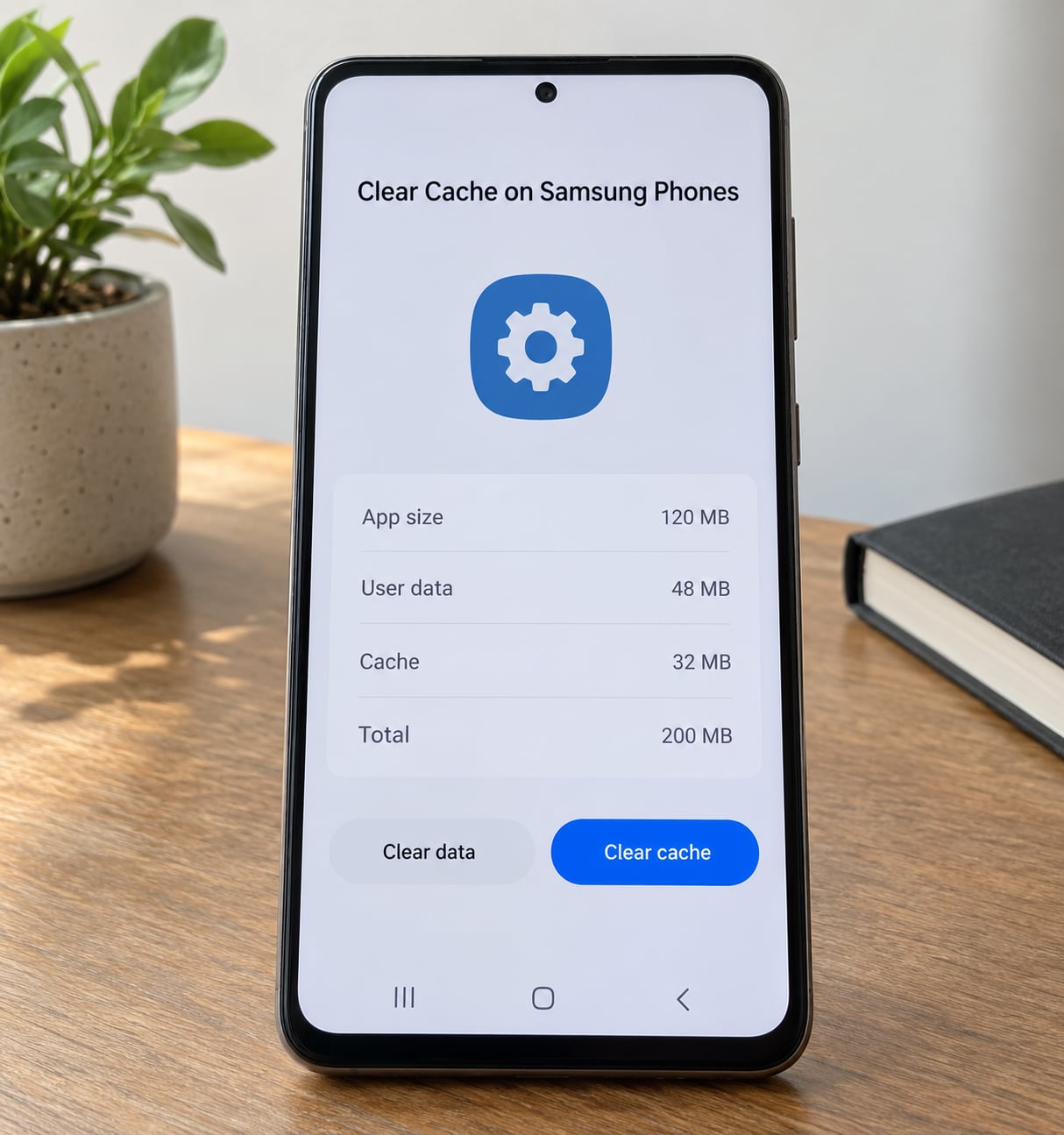
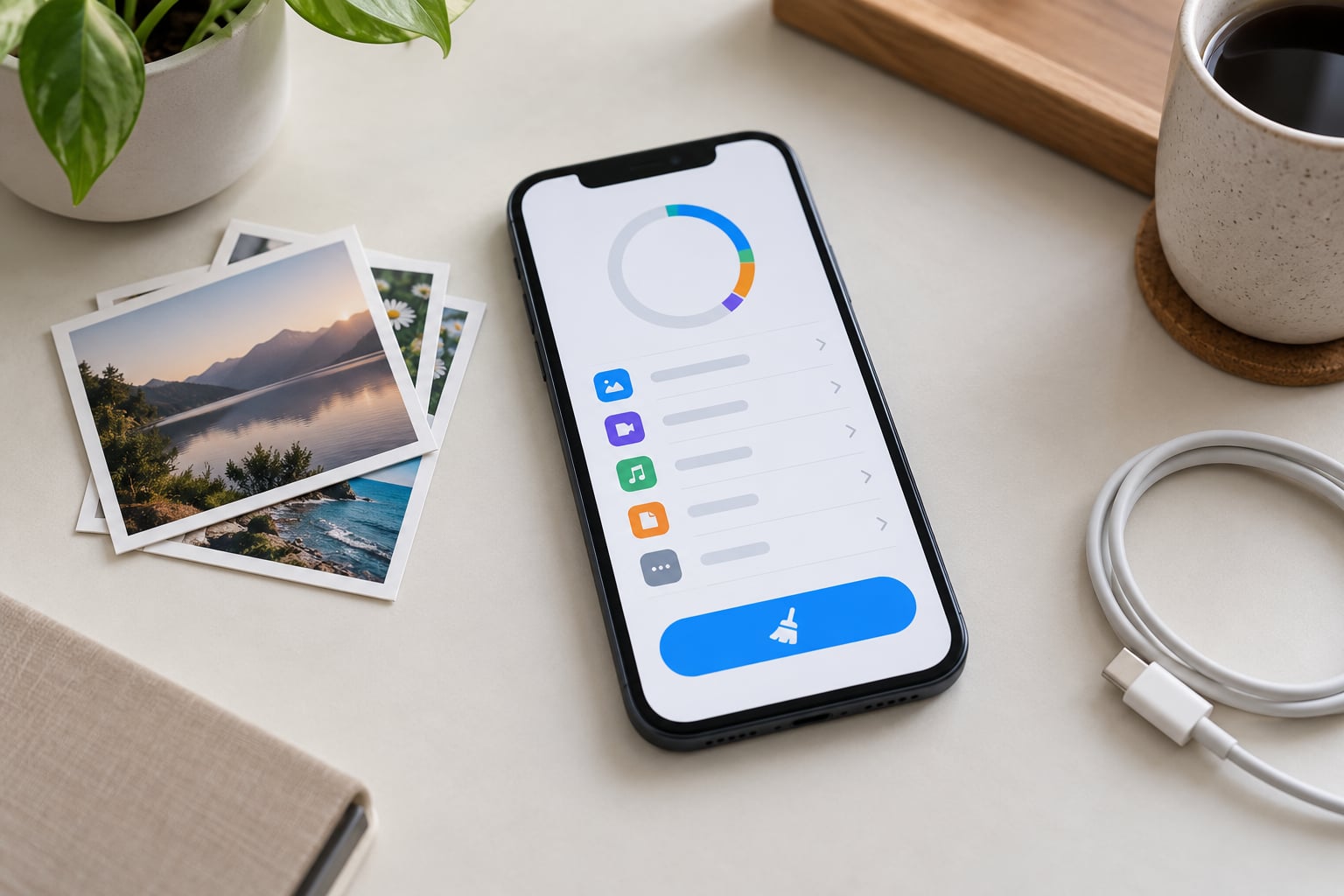
Samsung also keeps a bulk route in Settings > Device Care > Storage, where a Clean now button and a Cached data entry handle the whole phone. Whether Clean now appears depends on the One UI version and whether a recent firmware update added it back. Older One UI builds buried the same option under Settings > Storage > Cached data.
For Chrome on a Samsung, open the browser, tap the three dots > History > Clear browsing data, then pick a time range. Choose Cached images and files and tick Cookies and site data only if you want to sign out of sites.
Clear Cache on Xiaomi, Redmi and Poco Phones
MIUI and HyperOS put it under Settings > Apps > Manage apps. Tap the app, tap Clear cache at the bottom of the app info page, then confirm. On the same page many Xiaomi builds also show Clear all data, which is the destructive option.
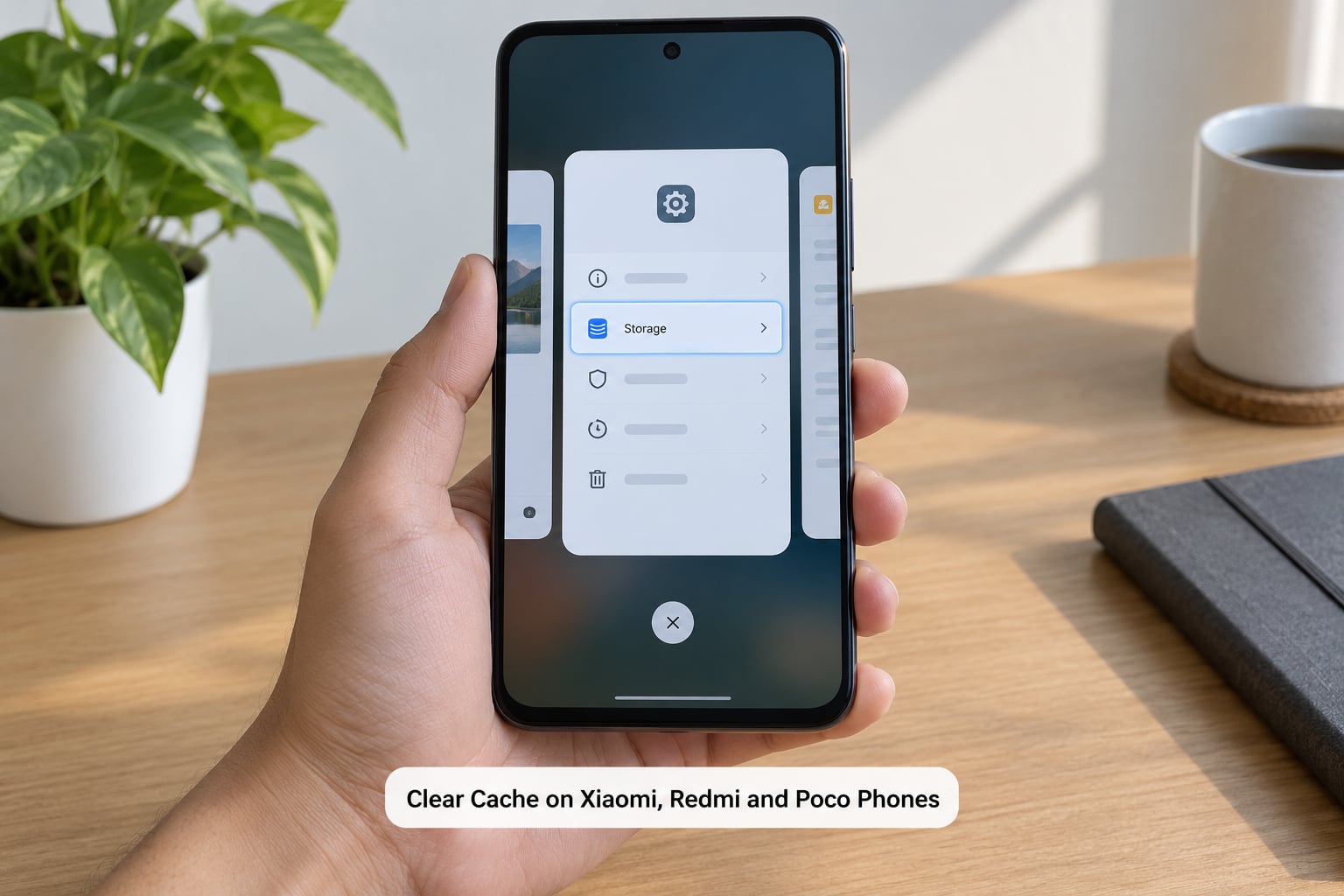
There is a faster route for the whole phone: open the Security app, tap Storage or Device care, and use the one-tap cleanup entry. The cleaner version of this is the Clear cache item inside Security, which touches app caches without touching app data. Beware the adjacent Clean up option, which can remove downloaded media and other files you may want.
Many Redmi and Poco owners coming from older MIUI versions find the path moved twice. If Manage apps is missing, use the Settings search box for “cache” and pick the result under Apps.
Clear Cache on Google Pixel and Stock Android
Pixel and other stock builds use the cleanest version of the path: Settings > Apps > See all apps > app > Storage & cache > Clear cache. Confirmation text tells you how much space came back.
Pixel removed the one-tap clear-all that some skins still offer, so clearing in bulk here means working down the list one app at a time. The system-level equivalent lives at Settings > Storage > Cached data on builds that expose it, labelled Cached data or Temporary files depending on the Android version.
Clear Browser and Google App Cache
In Chrome, tap the three dots > History > Clear browsing data. The dialog offers Cached images and files, Cookies and site data, and a time range. Clear the last 15 minutes while you browse and use All time when a site keeps serving a broken page.
Bookmarks, saved passwords and autofill entries normally survive, because Chrome syncs them to your Google account. Cookies and site data do not survive, so clearing those signs you out of every site in that profile. If you use several Chrome profiles, clear the one you actually use, or you will be looking at the wrong history and think nothing happened.
The Google app is the usual suspect for a cache that seems to refill instantly. Settings > Apps > Google > Storage > Clear cache removes the thumbnails, and the next background sync re-downloads them. It is not a failed clear, just a very fast rebuild.
Check Results and What to Do If Cache Is Missing
Reopen the app you cleared. Faster cold start, no stale page, no crash on launch, all good signs. For a number, reopen Settings > Storage and compare the Cached data figure with what it was before.
If Clear cache is missing, greyed out or absent entirely, work through these in order.
- System apps show cache only after you enable Show system apps in the three-dot menu of the Apps screen.
- Some managed or work-profile phones hide app details entirely. That is your IT department’s policy, not a fault.
- A few apps expose no Clear cache button on stock Android, only Clear storage. Nothing is broken; that app simply has no separate cache.
- On Xiaomi and Poco, options in Security are sometimes greyed out while the app runs in the background. Force stop it first.
- After a major system update, the menu can shift for a week or two as the skin settles. Search “cache” in Settings until it moves back.
- On an old or restricted build, the last resort is recovery mode: power off, hold Volume Down plus Power, use the volume keys to pick Wipe cache partition, then confirm. This touches only the system cache, never your photos, though it does force a restart and all running apps close.
Why Some Caches Refill Within Minutes
Apps that sync in the background rebuild their cache as part of normal work. The Google app re-fetches search thumbnails, WhatsApp re-reads media you scroll past, mail clients re-index message previews, and streaming apps reload artwork. Clearing those repeatedly is a treadmill, and the numbers you see afterwards reflect live sync rather than a failed delete.
For those apps, clear the cache when something looks wrong, then stop. If they behave, the size on the storage screen is simply what that app costs right now.
Common Mistakes
Tapping Clear data by mistake. It sits near Clear cache on most screens and looks similar. The fix is simple: read the confirmation dialog, and if it mentions sign-in, downloads or settings, you are on the wrong button. Tap back.
Using Clear all data to free space. It works, then costs you an afternoon of logging back into everything. Clear cache frees the temporary files, which on media-heavy apps is usually the bigger share anyway. Reach for Clear data only after cache has failed.
Deleting photos, videos or downloads. These are not cache. They sit in the Files or Gallery app, and any prompt offering to remove them is doing something different from clearing cache. Decline it.
Assuming cache clearing removes malware or viruses. It does not. Cache files are inert temporary data, and a malicious app rebuilds its cache in seconds. Removing a bad app means uninstalling it or using a security scan, not clearing storage.
Clearing the wrong browser profile. Chrome on Android supports multiple profiles, each with its own history, cache and logins. Clear the profile you use daily, and check the profile switcher if nothing seems to change.
Clearing cache on apps that should not have it touched. Google Play services, System UI, Android System, your keyboard and your launcher can all behave oddly if their cache is wiped. Leave them alone unless you are deliberately troubleshooting, and even then, force stop first.
Expecting cache to solve a full storage drive. Cache is usually a few gigabytes on a heavy phone. Photos, video downloads, chat media and unused apps are what actually fill a drive. When a phone runs out of space, sort the Storage screen by size and deal with the biggest entries first.
Installing a cleaner app for this. Many of them show alarming warnings and push you toward clearing things you did not want cleared. Android already does the job in Settings, and a cleaner app asking for accessibility access is a bad trade for fifteen seconds of work.
Two habits keep the problem away. Clear the cache of a single app the moment it starts misbehaving, rather than wiping everything weekly. And force stop the app before clearing its cache, which stops background sync from refilling the files while the dialog is still open.
Frequently Asked Questions
Will clearing cache on an Android phone delete my photos or messages?
No. Cache holds temporary files an app reuses to load faster, such as thumbnails and cached page elements. Photos, videos, messages, downloads and documents live in separate folders and are untouched. The option to remove them appears only in file-cleanup features, not in Clear cache. If a prompt mentions deleting photos, you have tapped a cleanup or storage-management option instead.
Does clearing cache remove my saved passwords and login details?
Usually not. Saved passwords, autofill entries and bookmarks sync to your Google account and normally survive a cache clear. What does log you out is clearing cookies and site data in the browser, or choosing Clear data on an app, which removes stored tokens. Clearing app cache alone keeps accounts signed in, though some apps ask you to sign in again after an update anyway.
How often should I clear the cache on my Android phone?
Only when something is wrong. A slow-launching app, a page that will not refresh, or a phone that has genuinely run low on space are good reasons. Weekly or monthly blanket clearing is unnecessary, because apps rebuild their cache within minutes. If a cache keeps refilling, clearing it again does nothing. A restart and an app update solve far more problems than a routine wipe.
Why is the Clear cache option missing on my Android phone?
A few reasons are normal. System apps hide their cache until you enable Show system apps in the three-dot menu of the Apps screen. Work and managed devices restrict app details by policy. Some apps have no separate cache and only offer Clear storage. On Xiaomi, Redmi and Poco, options grey out while an app runs in the background, so force stop it and try again.
Should I clear cache or clear all data when an app keeps crashing?
Clear cache first. It is reversible in effect, since the app simply rebuilds temporary files. If the app still crashes, force stop it and try an update, then clear data as the next step, knowing you will lose settings and offline content for that app. Reinstalling is the final move. Work up that ladder instead of wiping everything at the first sign of trouble.
Will clearing cache fix a full Android phone or improve battery life?
Sometimes for storage, rarely for battery. Cache is a small share of a full drive compared with photos, video and chat media, so a big storage win usually means sorting by size instead. On battery, clearing cache mainly helps a misbehaving app that keeps waking the phone, rather than extending runtime on its own. Low storage itself can slow a phone, so freeing space can help indirectly.
Conclusion
Start with the one app that is misbehaving, not the whole phone. Force stop it, clear its cache, and reopen it. If that fixes nothing, restart the phone, then update the app, and reinstall it only as a last resort.
Keep Clear data for later in that sequence, and leave Google Play services, System UI and your launcher alone. On a phone that is genuinely full, sorting the storage screen by size will free more space than any cache clear. That is how to clear cache on Android phone work: a small, targeted tool kept in the drawer until you need it.