Most Android boot loops are fixed in under ten minutes, and the fix that works nine times out of ten is boring: force a restart, unplug everything, charge the phone properly, and boot into Safe mode. Anyone asking how to fix an Android stuck on boot screen can work through these in order. Only when those fail should you touch Recovery mode or reflash firmware. Here is the order I work in, and the point where your data is genuinely at risk.
A boot loop means the phone never finishes starting. You get the Samsung logo, the Google logo, or the Android mascot, then it restarts and shows the same screen again, sometimes forever. The steps below are graded from harmless to destructive, so stop as soon as your phone comes back and you have not skipped ahead.
Table of Contents
- What You Need
- Step-by-Step: How to Fix Android Stuck on Boot Screen
- 1. Force-restart the phone
- 2. Disconnect accessories and fully charge the battery
- 3. Boot into Safe mode
- 4. Check for a stuck or corrupt app
- 5. Reset network, app, and system settings
- 6. Use Recovery mode to clear the cache or choose another system
- 7. Remove the update that caused the problem
- 8. Reinstall official firmware or arrange professional repair
- Button combinations by brand
- Common Mistakes
- Frequently Asked Questions
- Will fixing an Android phone stuck on the boot screen delete my data?
- How long should I leave a phone charging before trying another fix?
- Why is my Android still stuck on the boot screen after a software update?
- Can a third-party app prevent Android from finishing startup?
- When should I take a boot-looping phone to a repair center?
- Conclusion
What You Need
Gather these before you start. Most fixes need nothing more than a charger and a steady hand, but the later ones need a computer.
- A charger and a cable you know works, ideally a different cable from the one the phone lives on daily.
- Your screen PIN, pattern or password, because Safe mode and Recovery can both ask for it on a secure phone.
- Confirmation of whether a recent backup exists, and where it is. Check cloud backup first, since Recovery wipes usually take the local copy with them.
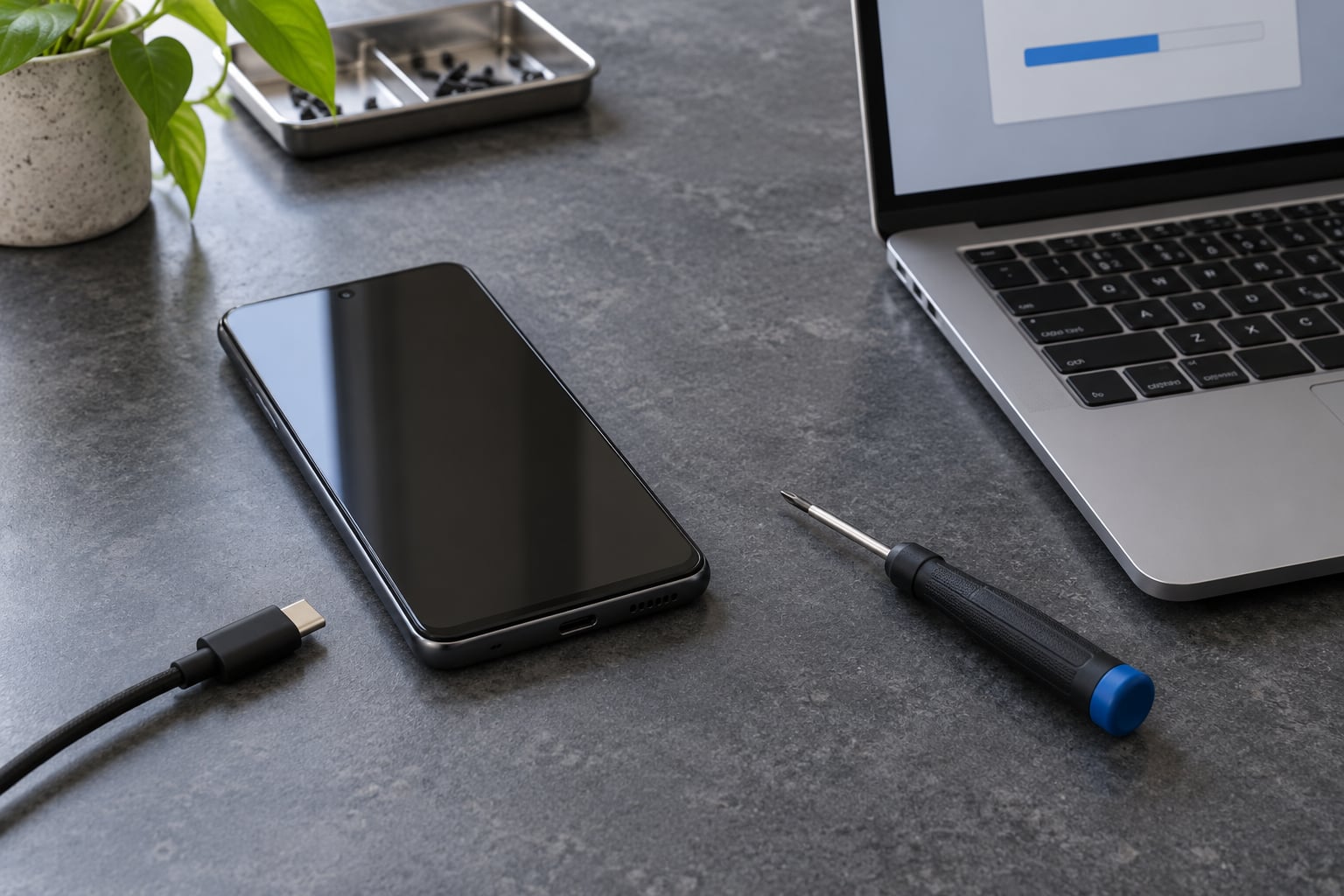
- A computer with a working USB port and cable for the firmware steps in fix eight.
- A written note of the exact brand, model and Android version, plus what happened right before the phone froze.
That last item matters more than it sounds. A loop that began minutes after a system update behaves differently from one that started after rooting or replacing a screen, and the note saves you from trying fixes that cannot work. Menu paths also shift between brands, so I flag Samsung and Xiaomi differences as we go.
Step-by-Step: How to Fix Android Stuck on Boot Screen
Work top to bottom. Each stage assumes the one above it failed.
1. Force-restart the phone
Hold the Power button for about 10 to 20 seconds. On most Android phones the screen will blank and the phone will restart on its own, which is the quickest way to fix an Android stuck on boot screen.
If nothing happens, hold Power and Volume Up together for at least 10 seconds, then release both when the logo appears. On older Samsung models with a physical Home button, the working combination is Power, Volume Down and Home held together. Phones that ignore both sequences sometimes need the battery to run flat first, which is why fix two comes before fix three.
You know it worked when the phone reaches the lock screen or home screen. If it loops back to the logo, that is a clear failure signal and time to move on.
2. Disconnect accessories and fully charge the battery
Plug the phone in with a known-good cable and adapter for at least 30 minutes, even if the charging icon shows some charge already. A deeply drained battery often cannot deliver the current spike needed to boot, which looks identical to a software fault.
Then test it with nothing attached. Unpair Bluetooth earbuds and watches, unplug USB drives, docks, game controllers and any connected display, and pull the SIM and SD cards out if the phone has removable ones. A corrupt card is a real and underappreciated cause of loops.
Success looks like a normal startup with no logo loop. If it only boots while the charger is connected, the charging port or flex cable is the suspect and step eight applies.
3. Boot into Safe mode
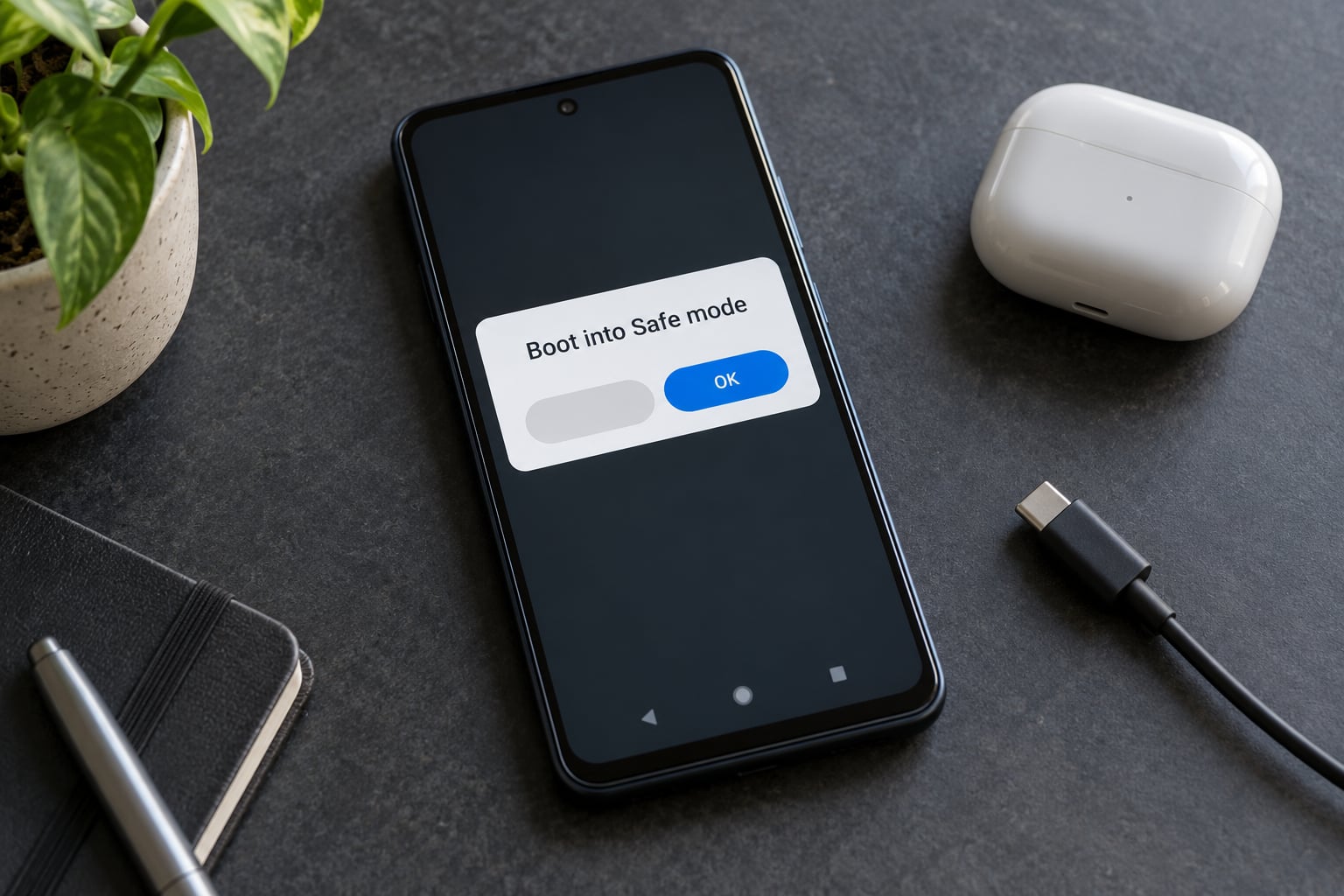
Safe mode loads only the apps Android ships with, so a boot loop caused by a corrupt third-party app disappears in seconds. Press and hold Power, tap and hold Touch and hold to power off, and release your finger when the screen changes, then confirm restart in Safe mode. If that menu does not appear, hold Power until the phone shuts down, then press Power and hold Volume Down until the logo appears.
Samsung uses the same Power and Volume Down hold from a powered-off state, so if you are on a Galaxy you can skip the tap-and-hold menu. On Pixel phones, holding the Power button during startup asks whether you want to start in Safe mode, and confirming restarts without third-party apps.
Confirm Safe mode is active by checking for the Safe mode label in a corner of the lock screen or notification shade. Once you have identified the offender, restart normally and fix the app in step four.
4. Check for a stuck or corrupt app
If the phone boots in Safe mode, the problem is almost certainly software you installed or updated recently. Start normally, then open Settings, Apps, See all apps and sort by recently updated. Uninstall the newest ones first, especially anything that runs at startup, holds a device admin permission or came from outside the Play Store.
If you would rather not uninstall yet, open the app entry and use Clear storage. Clearing cache is free of side effects and clears temporary files. Clear storage removes app data, so sign-in credentials and local settings are gone but the app stays installed.
Samsung users also get an Uninstall for all users option, which removes the app for every profile on the phone. Use it first as a test, then reinstall from the Play Store. Restart normally afterwards, and if the loop returns you have a second app to deal with rather than a mystery.
5. Reset network, app, and system settings
For a phone that starts but hangs, go to Settings, System, Reset options and run Reset Wi-Fi, mobile network and Bluetooth. It forgets saved networks and pairings without touching a single file.
On Samsung the same controls sit under Settings, General management, Reset, and Xiaomi places them under Settings, System, More settings, Reset options. Labels move around between versions, so look for Reset rather than a menu name.
For runaway apps, open Settings, Apps and clear cache across the lot, or use the built-in battery or storage manager to find anything unusual. Reset all settings is the bigger hammer: it restores network, app, display and accessibility preferences to factory defaults while leaving photos, messages and downloads untouched. Restart when it finishes.
The success test is simple. If the phone starts normally after a settings reset, a corrupted preference was the cause. If it still loops, move to Recovery.
6. Use Recovery mode to clear the cache or choose another system
Recovery mode is a separate, minimal system that runs before Android loads. On most phones you hold Power and Volume Up until the logo appears, then keep holding Volume Up until a broken-jar icon or the word Recovery shows up. Release, and use Volume Up and Down to move through the menu with Power to confirm. There is no touchscreen and no keyboard here, so navigate entirely with the buttons.
Choose Wipe cache partition or its newer equivalent, confirm, wait for it to finish and select Reboot. Clearing cache deletes temporary system files and never touches personal data.
Two warnings. Many current Samsung, Google and Xiaomi models use A/B seamless update partitions and offer no cache partition at all, so if your menu has no wipe cache option, that is normal and not a fault. Second, do not confuse wiping cache with wiping data: Wipe data factory reset or Factory reset removes everything, and on an encrypted phone it can leave the data partition unreadable rather than simply empty. Use that only when steps one to five have failed and you have a backup.
7. Remove the update that caused the problem
If the loop started right after a system update, Recovery usually offers Use Advanced preferences, then Restore previous system, or in some versions an explicit Roll back option. Selecting it reinstalls the last working build. Confirm carefully when it warns that data will be erased, because rollback on encrypted storage often means losing access to your files even when the phone boots again.
Pixel phones take a different route. Rather than rolling back, they use the built-in Android Rescue and device flashing process in a computer browser to install a full factory image, which resets the phone completely. That is a reinstall, not a rollback, so treat it as a step-eight action.
Do not attempt a rollback when the phone has been rooted, has had a custom recovery installed, or refuses to unlock the bootloader. Mismatched signing keys and locked bootloaders turn a recoverable loop into a brick.
8. Reinstall official firmware or arrange professional repair
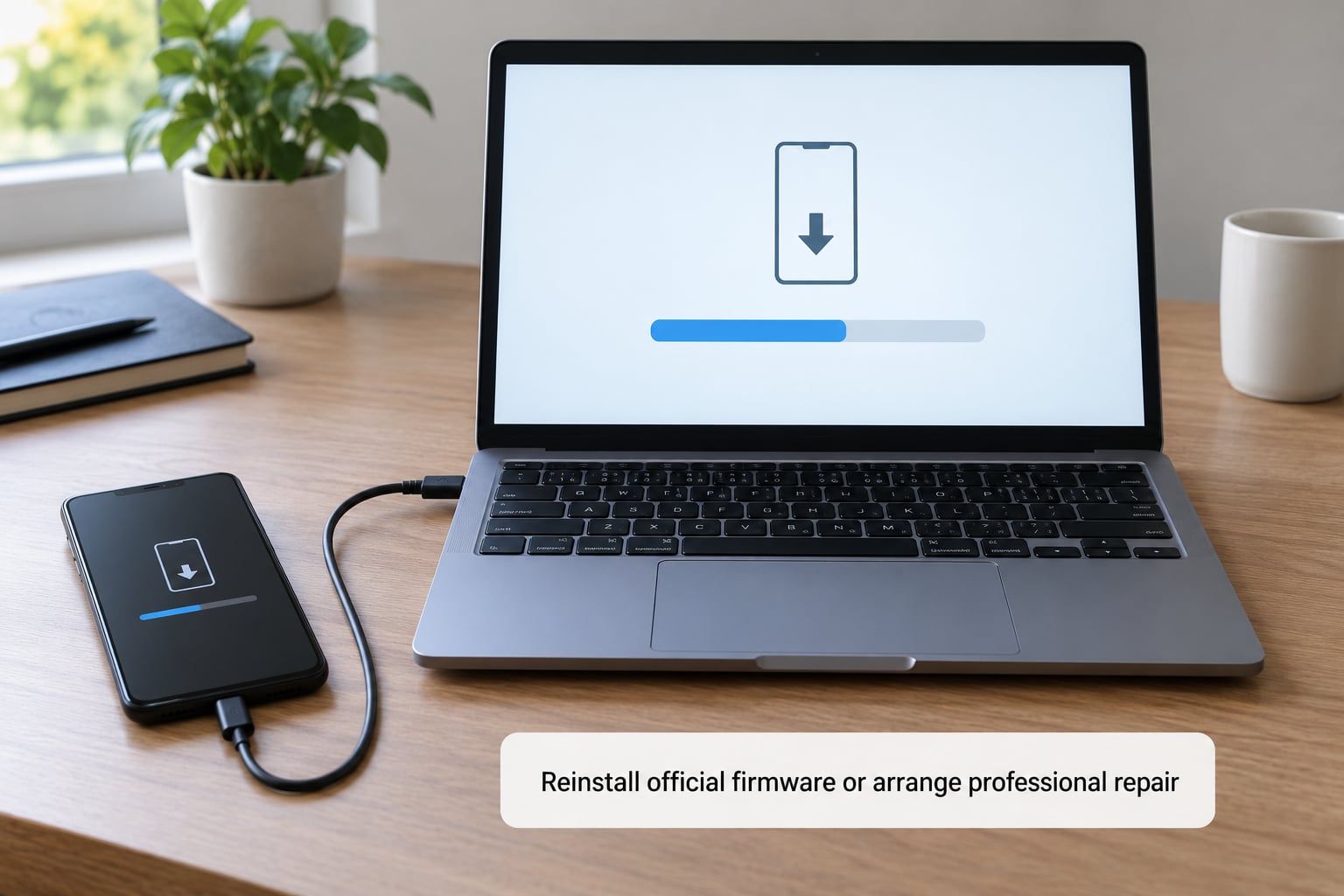
This is the last software option and the first one where your files are gone. Download the manufacturer’s own tool on a computer, install official firmware for your exact model and region, and follow the on-screen flash process with the phone in the mode that tool expects, usually Fastboot or Download mode. Keep the cable steady and never unplug mid-flash; an interrupted write leaves a phone that cannot start at all.
Some Pixel models expose software repair and device reset options in a computer browser, which fetch and reinstall the image for you without a separate tool. Flashing with an unlocked bootloader wipes the device, and unlocking the bootloader itself already wipes it, so read what the tool says before you confirm.
Stop and see an authorized service centre when the phone fails after a clean software recovery, when it refuses to charge, when the battery swells or gets unusually hot, or when it only boots while plugged in. Those point to the storage chip, charging port or power flex, and no amount of reflash will help.
Button combinations by brand
These are the sequences to hold from a powered-off state unless noted. Getting them slightly wrong usually means nothing happens, which is harmless.
| Brand | Recovery mode | Fastboot or bootloader | Safe mode |
|---|---|---|---|
| Samsung | Power + Volume Up + Home | Power + Volume Down + Home | Power, then hold Volume Down at logo |
| Google Pixel | Power + Volume Up | Power + Volume Down | Hold Power during startup and confirm |
| OnePlus | Power + Volume Up | Power + Volume Down | Power, then hold Volume Down at logo |
| Xiaomi / Redmi | Power + Volume Up | Power + Volume Down, hold to confirm | Power, then hold Volume Down at logo |
| Motorola | Power + Volume Up, then Volume Down | Power + Volume Up | Power, then hold Volume Down at logo |
| Huawei | Power + Volume Up until the menu appears | Power + Volume Up, then continue holding Volume Up | Power, then hold Volume Down at logo |
| Oppo | Power + Volume Up | Power + Volume Down | Power, then hold Volume Down at logo |
| Vivo | Power + Volume Up | Power + Volume Down | Power, then hold Volume Down at logo |
Huawei and some Vivo models show a menu first with several choices, so read the screen before confirming anything. If your phone has a case on, take it off before pressing buttons; a stiff case can swallow the combo entirely.
Common Mistakes
Most failed attempts come from one of these, and each has a simple corrective action.
- Reinstalling the same update that caused the loop. Stop repeating the update. Use rollback in Recovery or install an earlier official build instead.
- Wiping data before checking backups. Open cloud backup and confirm the last successful sync date. Wiping without one is the most common way people lose photos permanently.
- Downloading recovery files from file-sharing sites. Use stock recovery only. Files named recovery.img or system.img from unknown sources are how phones end up with two operating systems and no working one.
- Unplugging during a firmware flash. Let the progress bar finish. If it must be cancelled, use the tool’s own cancel function rather than pulling the cable.
- Ignoring a hot or swollen battery. A battery that bulges the back panel is a fire risk. Stop charging, stop using the phone and get it serviced immediately.
- Assuming every loop is a hardware fault. Most are software. Check what changed before the freeze, because a failed update behaves nothing like a failing storage chip.
- Expecting fastboot commands to work from Recovery. ADB is intentionally disabled when data is encrypted, so commands fail until the phone reaches Fastboot. That is a security design, not a broken cable.
For after the phone comes back: confirm cloud backup is running and check the date of the last one. Install pending system updates one at a time rather than all at once, so a bad update is easy to identify. Clear app data for anything that crashed during the loop. And if the phone is older than four or five years, a failing battery that drops voltage under load can trigger phantom loops; a battery check at a service centre settles that question in minutes.
Frequently Asked Questions
Will fixing an Android phone stuck on the boot screen delete my data?
Force restart, a full charge, Safe mode, removing a problematic app, resetting settings and clearing the cache all keep your photos, messages and files. Wipe data factory reset, rolling back an update on an encrypted phone, unlocking the bootloader and reinstalling firmware do erase everything, so confirm a cloud backup before you touch any of those.
How long should I leave a phone charging before trying another fix?
Give it at least 30 minutes on a charger and cable you know works. A deeply drained battery often cannot deliver the current needed to boot, which looks exactly like a software fault. If the phone still will not start after a full charge, the cause is not the battery level, and moving on to Safe mode or Recovery is the useful next step.
Why is my Android still stuck on the boot screen after a software update?
An interrupted or faulty update can leave system files that cannot load, so the phone restarts before Android finishes starting. Roll back to the previous build from Recovery where the option exists, or reinstall official firmware from a computer. Phones with an encrypted data partition are the hardest case, because the update may have locked the files rather than deleting them.
Can a third-party app prevent Android from finishing startup?
Yes, and it is one of the most common causes. An app with a corrupted update, excessive permissions or files on an SD card can stall the boot sequence. Booting into Safe mode disables all third-party apps, so if the phone starts normally there, uninstall the most recently updated apps one at a time until the loop stops.
When should I take a boot-looping phone to a repair center?
Take it in when software recovery has failed cleanly, when the phone refuses to charge, when it only boots while plugged in, or when the battery is hot or swollen. Those symptoms point to the charging port, power flex or storage rather than Android. A technician can also read the error codes a fastboot connection exposes, which a software-only approach cannot.
Conclusion
Start with a forced restart, then disconnect every accessory, give the phone a solid 30 minutes on a known-good charger, and test in Safe mode. Those four steps resolve the majority of Android phones stuck on the boot screen and cost you nothing but a few minutes.
Before you wipe data, roll back an update or reflash anything, confirm your backup is current and in the cloud. If the phone still loops after a clean Recovery attempt, or if charging behaviour has changed, take it to an authorized service centre rather than buying another tool. Data on an encrypted, corrupted phone is usually not recoverable by software, and anyone promising otherwise is selling something.