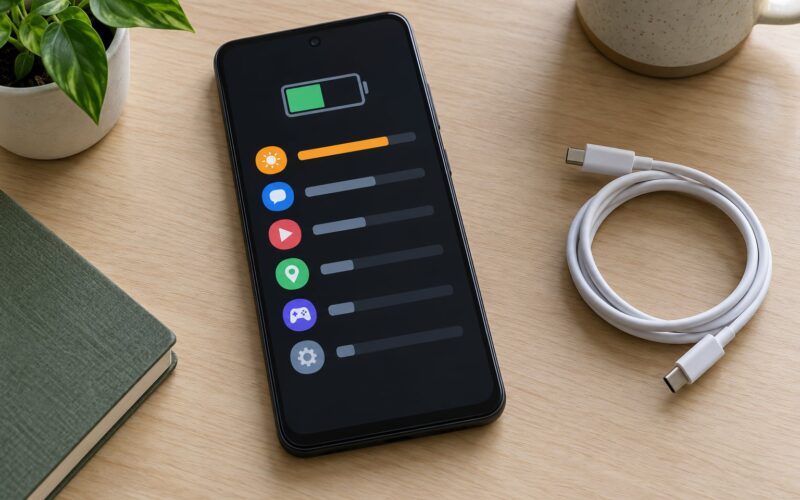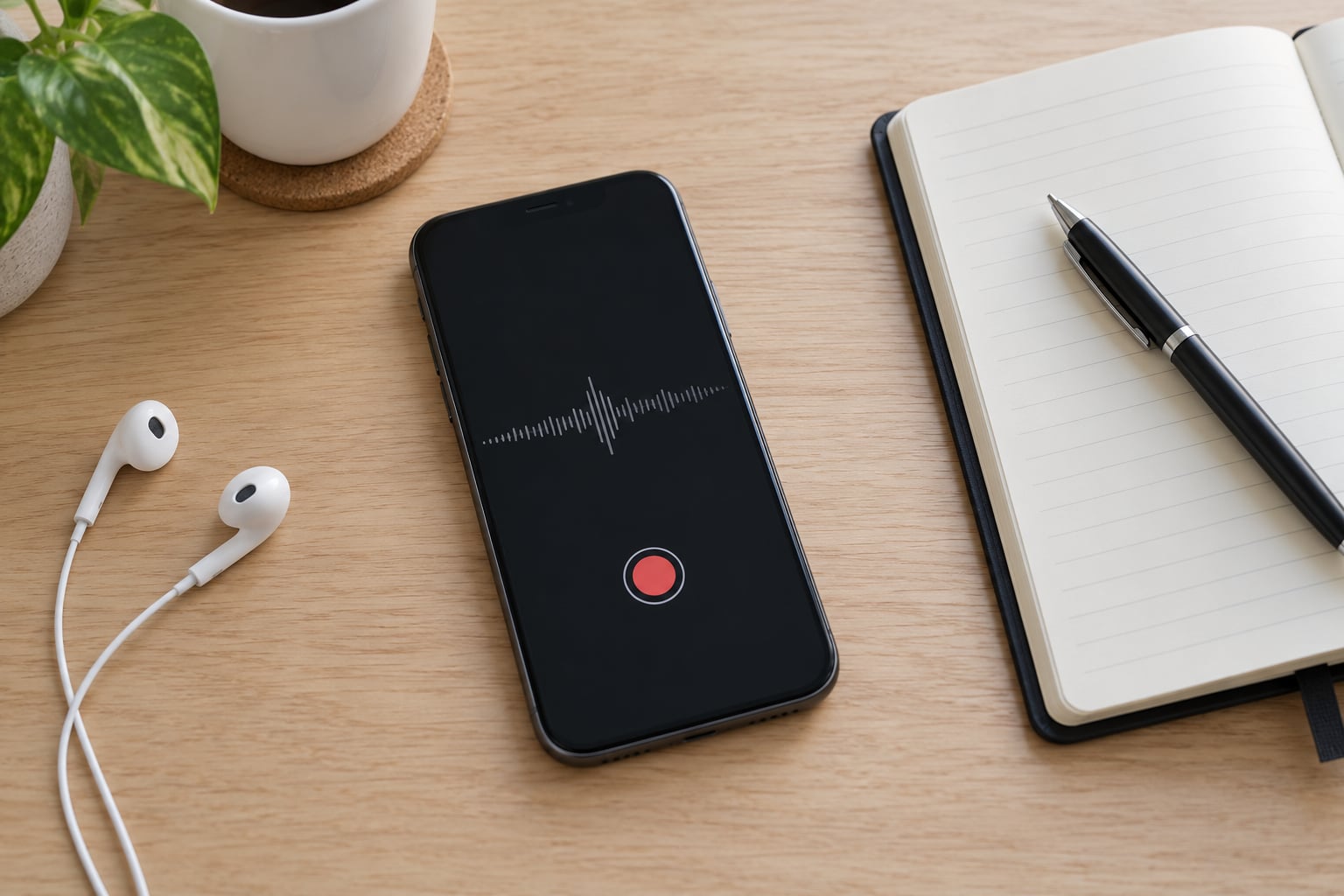
To screen record on Android with sound, swipe down twice to open the full Quick Settings panel, tap the Screen record tile, pick an audio source, and press Start. Android 11 and later capture internal app audio as Device audio, or pick Microphone or Both when you narrate. A three-second countdown runs, then the file saves to Gallery.
The whole thing takes under a minute once you know where the tile hides. The one detail people miss is that the audio source defaults to None on many phones, so you get a perfectly good video with no sound at all.
Table of Contents
- What You Need
- Step-by-Step: How to Screen Record on Android with Sound
- How to Screen Record on Android with Sound Using Internal Audio
- How to Record Your Voice While Recording the Screen
- How to Record Android Screen with Both Internal and Microphone Sound
- Where to Find and Share the Recording
- How to Fix Missing or Silent Audio
- Common Mistakes
- Frequently Asked Questions
- When you screen record on Android, is there sound?
- How do I screen record with no sound?
- Can Android screen recording capture internal audio?
- Where are screen recordings saved on Android?
- How long can you screen record on Android?
- How do I screen record on Android and record my voice at the same time?
- Conclusion
What You Need
Nothing to buy. You need Android 11 or newer, since Google put the built-in Screen recorder into the Quick Settings panel with that release. Older builds simply do not have the tile, and the route below will not find it.
Also worth checking before you start:
- Free storage. A 1080p recording runs roughly 200 to 400 MB per minute, so a long clip fills up fast.
- Microphone permission if you plan to narrate. Without it the microphone option records nothing.
- The app open on screen. Android records what is displayed, so open the app before you swipe down.
- Headphones if you narrate while device audio plays, otherwise the mic picks the speaker back up and you get echo.
For a first attempt, record something small. Five seconds tells you almost everything about whether your audio setup works before you commit to a ten-minute tutorial.
Step-by-Step: How to Screen Record on Android with Sound
- Open the app or screen you want to capture.
- Swipe down once for notifications, then swipe down a second time (or use two fingers) to expand Quick Settings into the full panel.
- Tap the Screen record tile. If you cannot find it, keep reading below the steps.
- Choose your audio source: None, Device audio, Microphone, or Both.
- Set resolution and frame rate if you care about file size. 1080p at 30 fps is the sensible default.
- Turn on gesture indicators if you want taps visible, then tap Start.
- A three-second countdown runs. Do your thing, then tap the floating stop button or the red status-bar notification.
The key is that you pick the audio source before the countdown, not after. Users on forum threads fix silence over and over by picking Microphone or Both up front, after already giving up on a take that was never going to have sound.
If the Screen record tile is missing entirely, swipe down for the full Quick Settings panel, tap the pencil or Edit button, scroll to inactive tiles, and drag Screen record into the visible row. The tile is present by default on Android 11 and later, it is just often pushed off the first screen.
How to Screen Record on Android with Sound Using Internal Audio
Internal audio means the sound your phone is playing: music, game audio, a video, a notification chime. In the audio chooser it is usually labelled Device audio. Some manufacturers say media sounds, system sound, or System audio instead. All four names mean the same thing, and this is the setting most people are hunting for when they search how to screen record on Android with sound.
Once Device audio is selected, anything the phone plays through its own output is captured. Pixel owners confirm the built-in recorder handles internal audio on Google phones, and a Galaxy S21 running Android 13 was reported working with Spotify on the stock recorder. So the feature is not limited to a handful of devices, and it is not new either. It has been part of stock Android for years.
Two manufacturer notes:
- Samsung puts the same recorder in Quick Settings, and One UI also offers a separate Game Plugins route (Game Booster, then Game recording) aimed at gameplay.
- Xiaomi with MIUI or HyperOS keeps the tile but the Quick Settings order differs, so it may sit further right than on a Pixel. Edit the panel and drag it somewhere you can reach.
One honest limit: DRM-protected apps refuse internal audio capture. Netflix, Spotify, Disney+, banking apps and most live-TV services block it at the app level, so the recording is silent no matter how you set the recorder. Community consensus in the Android help forums is blunt about this, the block sits inside the app and no recorder setting reaches it.
How to Record Your Voice While Recording the Screen
Pick Microphone as the audio source and the built-in recorder captures your narration instead of the phone audio. Hold the phone about six inches from your mouth and speak at normal volume. Quiet room, closer mic, less gain to fight with later.
If the Microphone option is greyed out or you record and your voice is nowhere in the file, the permission is missing. Open Settings, then Privacy, then Microphone, and look for the screen recorder or the recording entry in the list. Switch it on, then start a new recording. Permissions are read when the recorder starts, so a recording already in progress will not pick up the change.
Test with five seconds of narration before you record anything longer. Play the file back on the phone itself, not on a computer, so you are hearing what the microphone actually captured.
How to Record Android Screen with Both Internal and Microphone Sound
Both is the setting for narrated tutorials, walkthroughs, and support clips where a customer needs to see the problem and hear what you are describing. Select Both and the file gets app audio plus your voice in one track.
Two things go wrong here. The first is echo: if the phone is playing audio out of the speaker while your mic records, the microphone hears the speaker again. Headphones solve it completely. The second is level balance, one quiet source against one loud source leaves you either shouting or inaudible. Turn the device media volume down a few notches before you start and keep your voice steady.
Watch the playback for drift too. If your voice slips out of sync with the video over a long recording, the phone is dropping frames under load, so close background apps first.
Where to Find and Share the Recording
The file lands in Gallery, usually in an album called Screen recordings, sometimes under a Movies folder inside Gallery. On Samsung it is usually in the Screen recordings album, and Xiaomi keeps it in the Gallery recorder folder. If your Gallery app is set to group by date, open the capture you just made and it will be at the top.
To share it, open the file and use the share icon, then pick the app you want. To trim the dead air at the start, most Gallery apps have an Edit or Trim tool that cuts without exporting a new copy. Nothing needs a separate video editor unless you want titles or effects.
How to Fix Missing or Silent Audio
Work down this list in order, it stops at the first one that fits.
- The audio source was None. The most common cause by a wide margin. The default on many phones captures video with no track. Set Device audio, Microphone, or Both before tapping Start.
- Media volume was at zero. Device audio follows the media volume slider. Check it during the recording, not after.
- The app blocks capture. Netflix, Spotify, Disney+, banking and some streaming apps protect their audio. Nothing to fix here, the recording will stay silent.
- Bluetooth routing. With earbuds or a car stereo connected, media audio may route to the headset while the recorder captures the phone mic. Disconnect Bluetooth or set the output back to the phone.
- Microphone permission was denied. Grant it in Settings, Privacy, Microphone, then start a fresh recording.
- The audio cracks or stutters. Users report this appears after a system update. A full restart of the phone clears it in most cases, so try that before installing anything.
- It stopped working after an update. Android has tightened internal audio capture rules more than once. Check whether an update added a new capture restriction for that app, and test the same app in the recorder.
Common Mistakes
Recording first, choosing audio after. The recorder locks its audio source at the countdown. Switching afterwards does not add a track to the file you already captured. Set it before you tap Start.
Looking for a sound setting while recording. The audio chooser is not inside the recording screen. Stop, change the source, start again.
Granting the wrong permission. Screen recording itself and microphone access are separate. Allowing display or media projection does not grant the mic, and you will get a file with no narration.
Capturing a protected app and blaming the phone. If the app is on the DRM list, expect silence. Record a different screen to confirm the recorder still works.
Ignoring storage. Long recordings at high resolution can fill storage mid-take and end the file early. Clear space before a serious capture.
Narrating without headphones. The speaker bleeds into the microphone and your narration echoes. Cheap wired earbuds are enough to prevent it.
One more that shows up constantly: checking the file in a chat app or file manager that shows no audio indicator. Some of those previewers are unreliable. Open the recording in the Gallery video player or VLC to confirm whether audio is really there.
Frequently Asked Questions
When you screen record on Android, is there sound?
Yes, on Android 11 and later, but only after you choose an audio source. Open Quick Settings, tap Screen record, and pick Device audio for what the phone plays, Microphone for your voice, or Both. The default on many phones is None, which records a silent video. The choice is locked in when the three-second countdown starts.
How do I screen record with no sound?
Stop the recording, then start again with an audio source set. Open Quick Settings, tap the Screen record tile, choose Device audio, Microphone, or Both, and tap Start. If it is still silent, check that media volume is above zero and that Bluetooth is not routing audio to earbuds. Protected apps such as Netflix and banking apps block internal audio entirely.
Can Android screen recording capture internal audio?
The built-in recorder on stock Android, Samsung One UI, and Xiaomi MIUI and HyperOS captures internal audio when Device audio is selected. Some apps refuse this because of DRM copyright protection, and a few games and emulators also block it. If internal audio stops working right after a system update, restart the phone, which clears the crackly audio many users report.
Where are screen recordings saved on Android?
In the Gallery app, usually in an album named Screen recordings. On some phones the file sits in a Movies folder inside Gallery instead, and Xiaomi keeps recordings in a dedicated recorder folder. Open Gallery and sort by date to find the newest clip. The file is a standard MP4, so you can share it directly from the Gallery share button.
How long can you screen record on Android?
Most phones have no fixed time limit on the built-in recorder, so recording stops when storage runs out or the battery dies. A 1080p clip typically uses 200 to 400 MB per minute. Recording high-resolution video at length is hard on the battery too, so keep a charger nearby for anything longer than a few minutes.
How do I screen record on Android and record my voice at the same time?
Choose Both as the audio source before you start. The recording then captures what the phone plays plus your microphone. Wear headphones so the speaker audio does not feed back into the mic, turn the media volume down slightly so your voice is not buried, and record a five-second test clip first to check the balance.
Conclusion
The fastest reliable route is the same on every Android phone: open the app, swipe down twice for Quick Settings, tap Screen record, choose Device audio (or Both when narrating), and hit Start. That audio choice is the whole trick, and it has to be made before the countdown starts.
Record five seconds with internal audio and play it back before you film a tutorial, a walkthrough, or a bug report for a developer. If it has sound, you are set. If it is silent, walk down the fixes above and you will usually find the cause in under a minute. Updated for 2026.