To use split screen on Android, open the first app, tap the Recents button or swipe up and hold, tap the app icon on that app’s preview card, choose Split screen or Open in split screen view, then pick the second app. That is the whole process, and it takes about ten seconds on any phone running Android 7.0 Nougat or newer.
If you have owned an Android phone for years and never tried this, you are in a very large group. One Reddit thread that ranked on page one for this query was simply titled “I didn’t know my android phone had split screen all this time in 8 years.” The feature ships on almost every modern handset, and almost nobody goes looking for it.
Split-screen mode lets you run two apps at the same time, one in the top half of the display and one in the bottom half, separated by a divider you can drag. Below are the exact taps, the different menu paths for Samsung, Pixel, Xiaomi and other skins, and the fixes for the reasons it sometimes refuses to work.
Updated for 2026. Instructions here cover stock Android and the main manufacturer skins; menu labels shift between versions, so check the brand section if a name differs on your phone.
Table of Contents
- What You Need
- Step-by-Step
- 1. Open the Recent Apps Screen
- 2. Select the First App
- 3. Tap the Split-Screen Icon to Start Two Apps
- 4. Choose the Second App
- 5. Adjust the Divider and Focus
- 6. Use Common Brand-Specific Menu Paths
- 7. Save, Pin, or Close the Split-Screen Pair
- Common Mistakes
- Frequently Asked Questions
- How do I enable split screen on my Android phone?
- Which Android apps support split screen?
- Why is the split-screen button missing or gray?
- Can I use split screen in portrait orientation?
- How do I save a pair of apps for split screen?
- What is the difference between split screen and a pop-up window?
- Conclusion
What You Need
Split screen arrived in Android 7.0 Nougat and works on essentially every Android phone and tablet made since. You do not download anything, and there is no toggle buried deep in Settings that you must find first.
A few things do matter before you start:
- Two apps that support multi-window. Not every app allows it. Secure Folder, most banking apps, some streaming apps and several camera and video editors refuse outright.
- Enough free memory. Two apps at once is heavier than one. On a cheap phone with 2 GB of RAM the second pane can stutter or reload itself.
- Gesture navigation or three-button navigation. Both reach the same menu, but the route to Recents differs, and this is the single biggest reason people think the feature is missing.
On tablets and foldables the feature usually works better than on phones because there is more room for each pane. Phones with very small screens still split fine, though both halves get cramped when you type.
Step-by-Step
The method below works on any Android device running Android 7.0 or later. If you already know the three-tap version, jump to step 5 for resizing and step 7 for closing the pair.
1. Open the Recent Apps Screen
Open the app you want first. Then get to the Recents screen, also called the app switcher.
If you use gesture navigation, swipe up from the middle or bottom of the screen and hold for a moment, then release, or swipe up and stop at the halfway point so the cards appear. If you use three-button navigation, tap the square Recents button, usually the middle of the three. On older three-button layouts, a long swipe up from the square button also works.
Whichever route you use, you should see a row or grid of app preview cards. You can tell it worked because the cards are larger than usual and each one carries an app icon in its corner.
2. Select the First App
Find the card for the app you want in the top pane, and tap the app icon on the card, not the app name and not the preview image. The icon opens a small menu with the options for that app.
You are looking for Split screen, Open in split screen view, or sometimes Open in pop-up view. If the tap opens the app again instead of showing a menu, you hit the card itself, so try the corner icon.
If no icon appears on the card at all, that app does not support multi-window. Nothing is wrong with your phone.
3. Tap the Split-Screen Icon to Start Two Apps
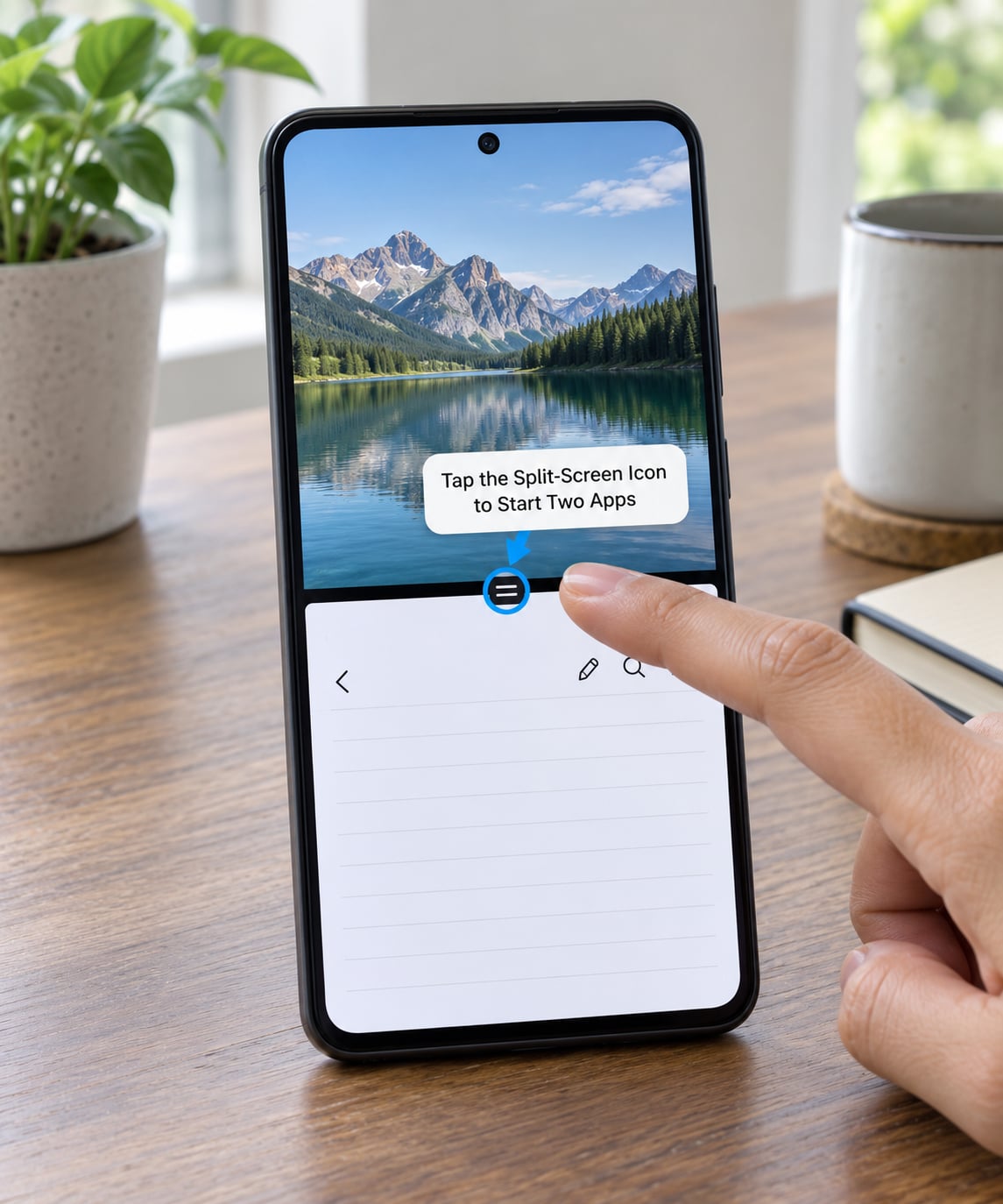
Tap Split screen or Open in split screen view in the menu. Your first app drops into the top half of the display, shrunk into a pane, and the bottom half opens an app picker.
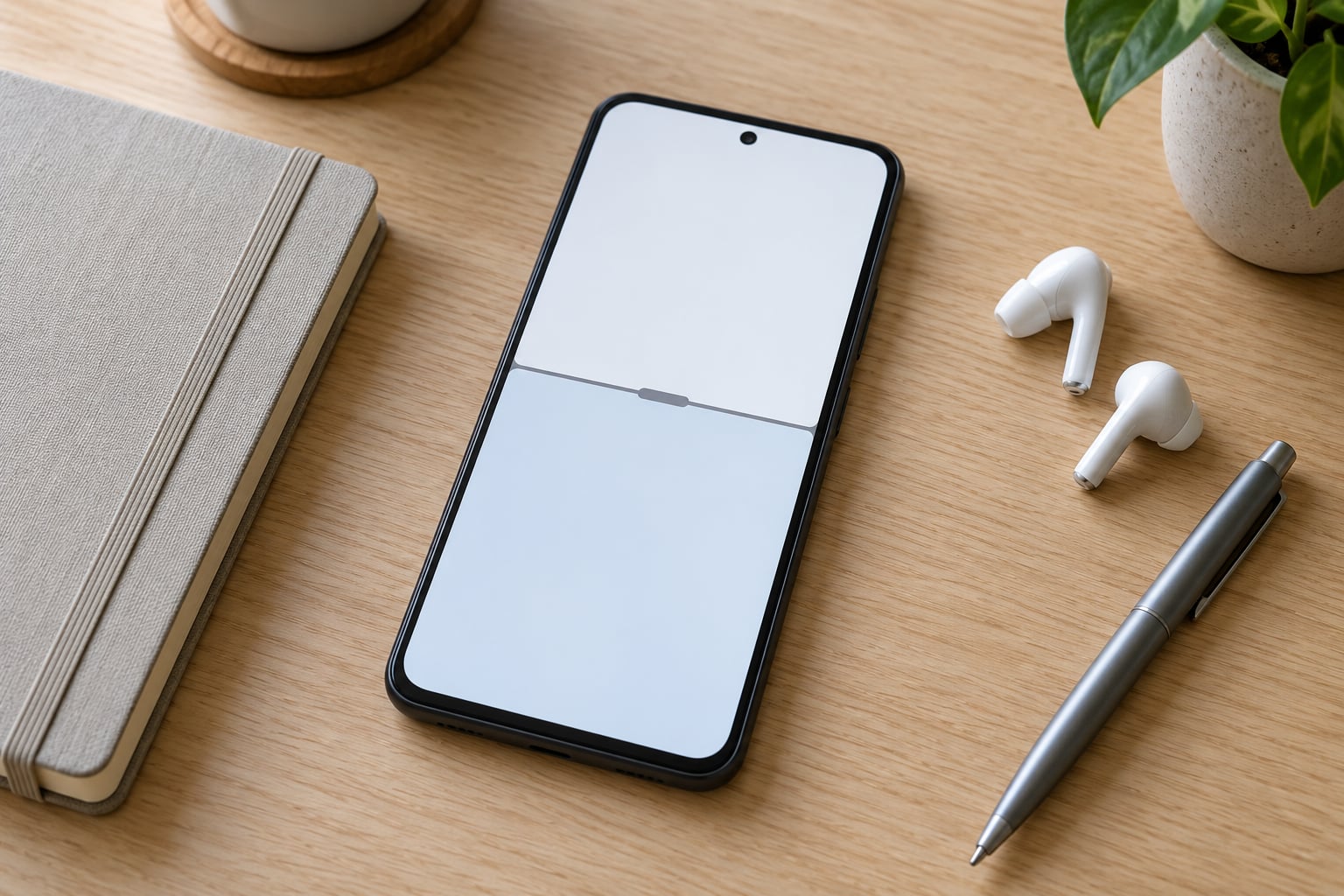
You can tell it worked because one app now occupies the upper pane and there is a thin divider line with a small handle across the middle of the screen. The app picker at the bottom scrolls through your recent and installed apps, but only the ones compatible with split screen show up as usable choices.
4. Choose the Second App
Pick the second app from the picker. It fills the lower pane and you now have both apps running at once, with the divider between them.
You can also choose from Recents while the picker is open, or from the dock on some launchers. A few skins show a suggested-apps strip instead of a full list, usually the two apps you used most recently in split screen.
If the app you want is missing from the picker, it is not split-screen compatible. That is the app’s own choice, and no setting on your phone will change it.
5. Adjust the Divider and Focus
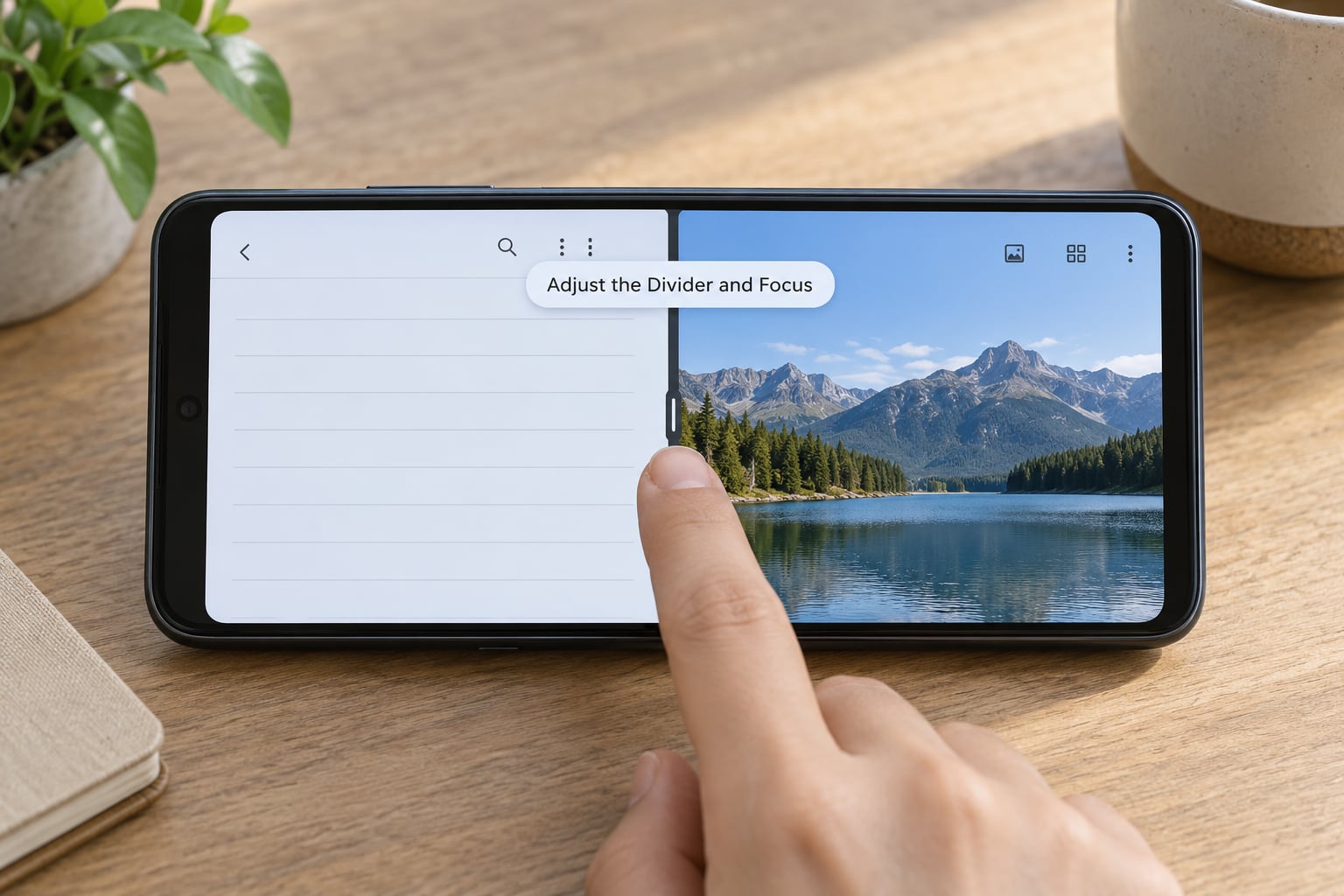
Drag the divider handle up or down to change how much space each app gets. Many apps let you drag straight from a window edge to slide it past the other pane, and some set a minimum height you cannot cross.
Tap inside a pane to give it focus, which is what decides where your typing, scrolling and copy-and-paste gestures go. On a phone with three buttons, pressing the square Recents button while in split screen cycles which pane has focus. Pressing it again and swiping the divider away closes the pair entirely.
If you have a Bluetooth keyboard attached, Alt+Tab is not bound to Android by default, so use the Recents button or gesture to move focus between panes instead.
You can also open a single app as a floating window instead. Long-press the app icon in the picker and choose Pop-up view, or Floating window on Xiaomi. That gives you a small draggable card over a full-screen app, which suits quick reference apps better than split screen does.
6. Use Common Brand-Specific Menu Paths
Samsung calls the feature Multi Window and gives you extra options the stock menu does not have. Open Recents, tap the app icon on a card, and you will see Split screen plus Pop-up view and Split screen with three apps on tablets. The same menu on a Galaxy Tab can add a third and fourth app in one go. Samsung also has Edge Panel, a slide-out strip you pull in from the screen edge to run a third app beside your two; on some tablets Edge Panel is unavailable while two-app split screen is active, which catches people out.
On a Galaxy phone or tablet you can also go to Settings, tap Advanced features or Apps, and look for Multi window, where you can turn the feature off entirely or lock a pair of apps to the recent-apps button.
Google Pixel and other stock Android devices use the plainest path: Recents, tap the app icon, choose Split screen. On recent Pixel versions, long-pressing an app icon in Recents and dragging it to the top or bottom of the screen drops it straight into a pane.
Xiaomi and Redmi call the floating option floating window rather than pop-up view. The path is Recents, tap the app icon, then choose Split screen or Floating window. MIUI and HyperOS also add their own recent-apps list under the app switcher, so check the row of square thumbnails if the usual menu is not where you expect it.
OnePlus and Oppo run a modified stock interface where split screen sits in the same Recents app-icon menu, with floating window and pop-up view alongside it. Motorola is close to stock, with the same app-icon route and no extra window modes.
Two older navigations still turn up: swipe up and hold to enter Recents on pre-Android 11 devices, and long-press the Recents square on Android 10 and earlier to jump straight into split screen for the foreground app.
7. Save, Pin, or Close the Split-Screen Pair
Coming back to your pair is usually one tap. Tap Recents while you are in split screen and the pair appears as a single card; tap it and both panes return exactly as you left them, including the divider position on most devices.
Samsung lets you pin a pair to the navigation bar. Turn on Pin split screen in Settings, then open two apps in split screen and tap the pin icon in the divider. Tapping the navigation button afterwards jumps straight back into that pair.
To swap apps, drag one pane’s app out to the other side of the divider, or close one pane and open a replacement in the empty half. Swiping a pane’s app card away from the divider closes that app. Swiping the divider to the very top or bottom closes both and leaves one app full screen.
Rotating the device keeps the pair running and the panes swap orientation together. Some apps restart when they change size, and a few reset to full screen when you rotate, so expect a brief flicker on less polished apps.
Common Mistakes
No split-screen option in the app menu. On most phones this means you tapped the preview card instead of the app icon in its corner. On Samsung, check that Multi window is switched on in Settings. Some Xiaomi and Huawei skins disable the option when certain battery saver or focus modes are running.
The option is greyed out. Usually the app does not support multi-window, and the menu shows that state rather than hiding it. Secure Folder, most banking apps and a good number of video and streaming apps behave this way.
“This app does not support split-screen view.” That message is the app refusing, not a fault. Try a floating window or picture-in-picture instead, since those use a different code path and far more apps allow them.
One app jumps to full screen by itself. You probably swiped from the very edge or used a gesture that the active pane treated as a navigation swipe. Use slower drags near the middle of the screen, and check Settings for a gesture-navigation tutorial if you keep doing it.
Both apps close when you switch. On lower-end phones the system kills the second app under memory pressure. Close background apps you do not need and leave a few GB free.
The pair disappeared after a restart. The pair survives as long as both apps stay in Recents. Clear Recents, or let a heavy app push them out, and the shortcut is gone. Pinning the pair on Samsung protects against that.
Split screen stopped responding after you turned animations off. This one surprises people. If Accessibility, then Remove animations, or Developer options, then animation scales are set to off or removed, the window transition never completes and split screen quietly fails. Turn window animation scale back on to 1x and try again.
The divider will not move. Apps are allowed to declare a minimum and maximum height. If one app refuses to shrink further, that is the app setting its own limits, not a hardware problem.
Frequently Asked Questions
How do I enable split screen on my Android phone?
There is no setting to switch on. Open your first app, tap the Recents button or swipe up and hold, tap the app icon on that app’s preview card, then choose Split screen or Open in split screen view. Choose your second app from the picker and it fills the other half. On Samsung the menu label is Multi Window and the same tap path applies.
Which Android apps support split screen?
There is no public list, and support is decided by each developer. Browsers, notes apps, chat apps, most email clients, Maps, YouTube and Settings generally allow multi-window. Banking apps, Secure Folder, camera apps, some streaming services and a number of games refuse. If an app has no icon on its Recents card, it will not open in split screen, and no phone setting changes that.
Why is the split-screen button missing or gray?
If the option is missing entirely, you most likely tapped the preview card instead of the app icon in its corner, or your manufacturer has the feature switched off. Samsung hides it when Multi window is disabled in Settings. If the option is greyed out, the app itself does not support multi-window. Disable any battery saver or focus mode first, since those also block it on some skins.
Can I use split screen in portrait orientation?
Yes, and portrait is the default on most phones. Each app gets roughly half the display, which suits chat beside notes or a video beside a browser. Turned sideways, each pane gets more room and suits reading plus video. Rotating while a pair is open keeps it running and swaps the panes between orientations together, though some apps restart when they change size.
How do I save a pair of apps for split screen?
Open the two apps in split screen, then tap Recents. The pair shows up as one card, and tapping it reopens both halves with the divider where you last set it. The pair only lasts while both apps remain in Recents. On Samsung, turn on Pin split screen in Settings and tap the pin icon in the divider to keep a shortcut on the navigation bar.
What is the difference between split screen and a pop-up window?
Split screen divides the display into two equal or resizable halves, so both apps share the space. A pop-up window, called a floating window on Xiaomi and Redmi, floats as a small draggable card over a full-screen app. Use split screen for two apps you read or type in equally, and a floating window for a calculator, timer or chat you glance at while doing something else.
Conclusion
Three moves and you have it: open your first app, tap the app icon on its Recents card and choose Split screen, then pick your second app. Drag the divider to size both panes, and tap Recents to come back to the pair later.
If the option is not where you expect it, check step 6 for your brand. Samsung says Multi Window, Xiaomi says floating window, and a disabled animations setting can block the feature quietly. The combinations worth trying first are a video above a chat thread, and a browser beside your notes or a document.