To get more bass on a Xiaomi phone, open Mi Sound in your sound settings, switch the equalizer on, and raise the lowest one or two bands by 2 to 4 dB each — then check that vocals still sit clearly in front of the mix. That takes about five minutes, and it works far better than the stock Bass Boost preset most people try first.
Most phones ship with a tone setting that adds weight to the low end but dulls everything else at the same time. A deliberate low-shelf boost at the 60 to 120 Hz band does a cleaner job, and this guide on how to use EQ settings for better bass covers the exact taps, the numbers, and how to confirm the result on your own ears.
Table of Contents
- What You Need
- Step-by-Step: How to Use EQ Settings for Better Bass
- Enable Mi Sound and Choose an Equalizer
- Set a Balanced Starting Point
- Boost Low Frequencies Without Muffling the Sound
- Check the Preset, Device, and App Differences
- Save and Confirm the Bass Improvement
- Common Mistakes
- Common Mistakes
- Frequently Asked Questions
- Where is the equalizer on a Xiaomi phone?
- Does the same EQ work for Bluetooth earbuds on Xiaomi?
- How much bass boost is safe on a phone?
- Why does boosting bass cause distortion?
- What should I do if Mi Sound has no equalizer?
- Conclusion
What You Need
You need a Xiaomi phone or another Android handset, a music source, and about five minutes with the volume turned down to roughly half. Nothing else — the equalizer is built into the phone.
Before you start, check which sound menu your firmware uses. On current HyperOS builds the route is Settings > Sound & vibration > Sound effects > Mi Sound. Older MIUI releases and some regional builds label the same screen Audio quality instead. A few models also expose the equalizer through the Google Play services audio effects menu rather than Mi Sound.
What the equalizer cannot do is appear where your firmware did not put it. Some budget models ship with no system equalizer at all, and some carrier-locked versions ship with Mi Sound partially disabled. I will cover that case near the end, along with the third-party options that fill the gap.
Step-by-Step: How to Use EQ Settings for Better Bass
Enable Mi Sound and Choose an Equalizer
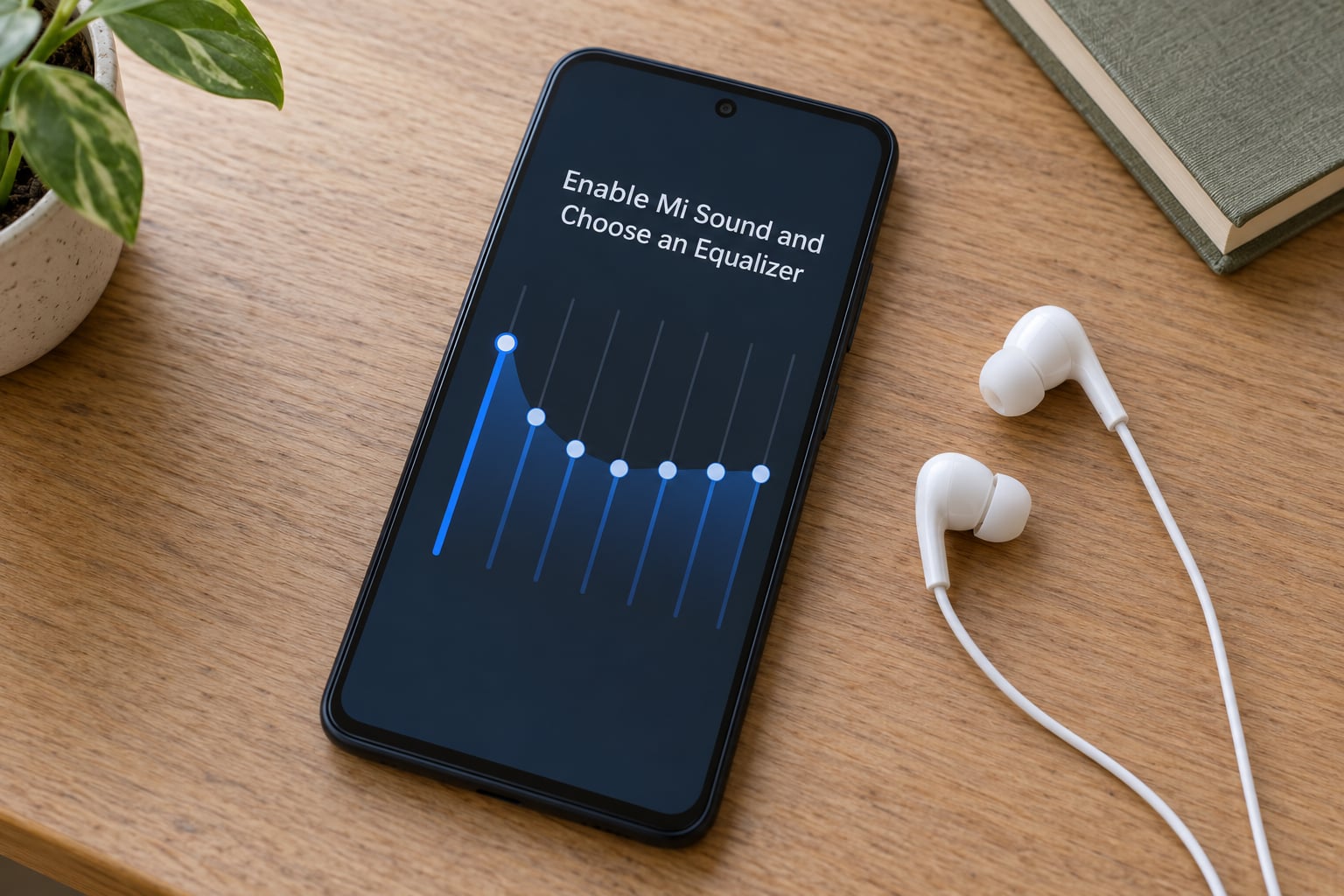
Open Settings, tap Sound & vibration, then Sound effects, and choose Mi Sound. Inside Mi Sound, turn on the Equalizer toggle first — on many builds the band sliders stay greyed out and unresponsive until that switch is flipped.
Once it is enabled, you get a choice between a preset drop-down (Bass Boost, Bass Booster, Dance, Rock and similar) and a custom band view. Pick the custom view. The presets stack several filters at once and are the usual reason bass boosts turn into mud on Xiaomi phones.
Note whether the interface shows five bands, ten bands, or named frequencies like 62 Hz and 250 Hz. Five-band models put the whole curve in your hands with fewer controls; ten-band models give finer steps but tempt you into raising everything at once.
Set a Balanced Starting Point
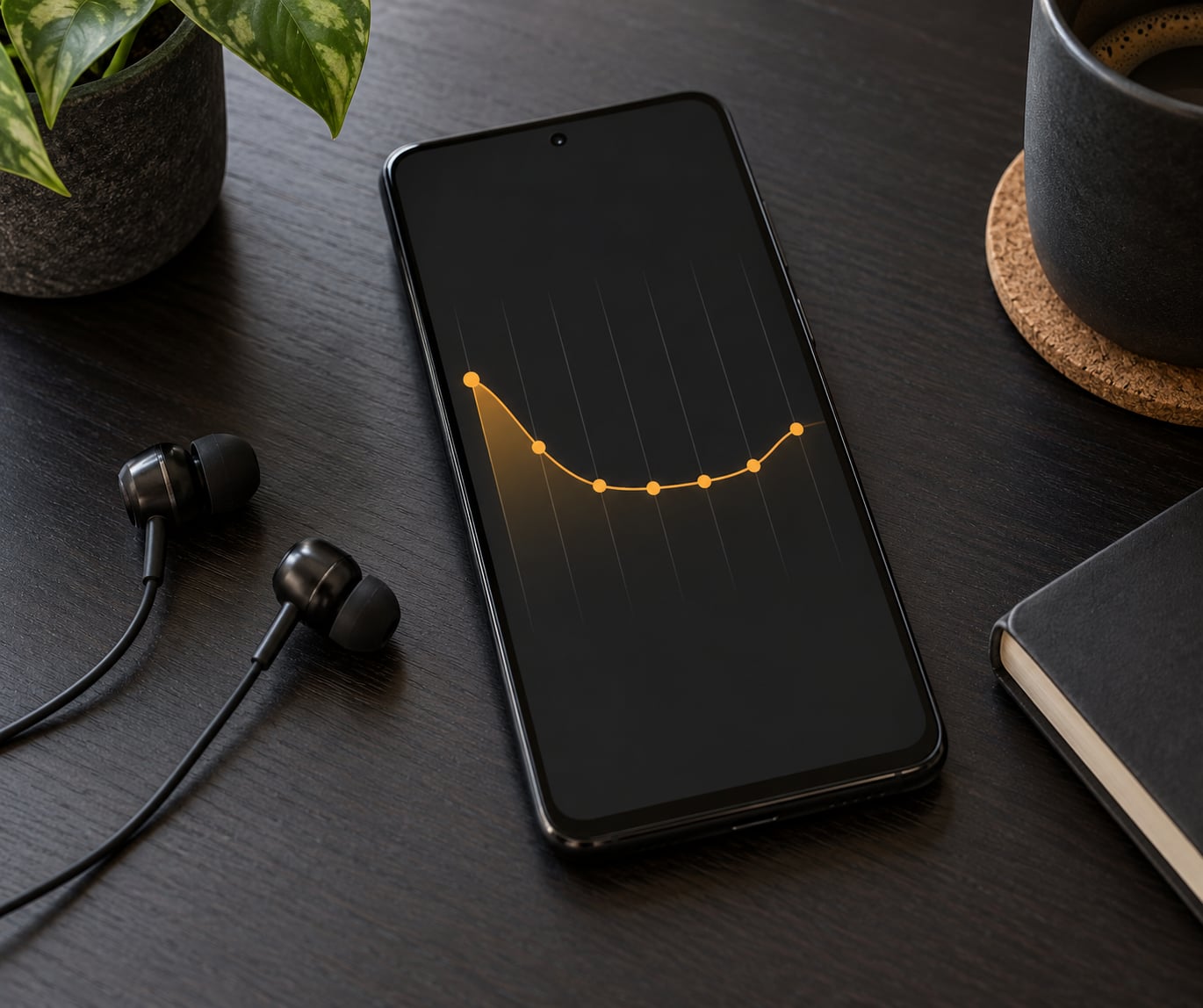
Start with every band at zero and only then make small moves. This baseline keeps a phone’s own tuning intact while adding low end gently.
| Band | Start value | What it does |
|---|---|---|
| Lowest band (usually 60 Hz) | +2 dB | Adds weight to kick drums and bass lines |
| Second band (120 to 250 Hz) | +1 to +2 dB | Adds body and warmth to guitars and voices |
| Low midrange (400 Hz to 1 kHz) | 0 dB | Leave flat to keep vocals audible |
| Midrange (1 to 4 kHz) | 0 dB | Leave flat for clarity and intelligibility |
| Treble (6 kHz and above) | 0 dB | Leave flat unless the mix sounds dull on top |
Those frequency labels are approximate. A phone with ten bands may show 31, 62, 125, 250 Hz and up, while a five-band model lumps everything under 250 Hz into one slider. Treat the numbers as guidance for the shape of the curve, not as exact filter centres.
You will hear the change immediately. If you hear nothing at all, move to the next step and check the band is actually enabled — a greyed slider is the single most common reason for a failed bass boost.
Boost Low Frequencies Without Muffling the Sound
The trick to bass that feels powerful instead of foggy is separating three ranges. Sub-bass below 60 Hz adds rumble and physical sensation on headphones and large speakers, but phone speakers are physically too small to reproduce it, so a big sub-bass boost on a phone’s own speaker mostly gets filtered back out. Bass from 60 to 250 Hz is where warmth, punch and body live. Low mids from 250 to 500 Hz are where muddiness lives too.
So raise the 60 Hz band by another 1 dB, listen, then raise 120 or 250 Hz by 1 dB. Repeat in single-decibel steps rather than dragging a slider to its maximum. Each step should be an obvious improvement; if it is a small one, stop.
Verify with three kinds of material. A track with a strong lead vocal tells you whether the low end has swallowed the voice. A track with a punchy kick drum tells you whether the bass has definition or just blur. And one song you know well tells you whether the whole balance still feels natural, because familiarity is the fastest way to hear an imbalance.
If the vocals start to disappear, the low mids have crept up too. Drop the 250 to 500 Hz band by 1 to 2 dB while leaving your bass boost in place — that single cut is what people mean when they describe the fix as bass plus clarity.
Check the Preset, Device, and App Differences
The stock Bass Boost preset on Xiaomi phones is the most common complaint in the forums, and the pattern repeats consistently: the preset raises several low bands at once, so the result sounds thicker but less clear than a custom curve. It is not broken, it is just blunt. Once you know the band values, you will probably never go back to it.
Band counts, frequency labels and available presets differ across Xiaomi models, MIUI and HyperOS versions, and regional builds. Two phones from the same generation can expose different presets, and headphone-specific behaviour may add its own processing on top of the equalizer when wired earbuds are connected.
Per-app behaviour is the next thing to check. Xiaomi’s Mi Sound equalizer is system-wide, so it applies to music apps, video apps, games and the browser speaker alike. Streaming apps that ship their own in-app equalizer, such as Spotify’s custom mode, can override the system one for that app only. If you tune Mi Sound and hear no change in a specific app, that app has taken over the signal chain.
Bluetooth is different again. Whether a Bluetooth codec’s output honours your equalizer curve depends on the phone, the codec and the earbuds, and Bluetooth profiles commonly apply their own compensation. If the effect sounds weaker over Bluetooth than over wired earbuds, that is usually the cause, not a mistake in your values.
As a clearly labelled alternative, third-party apps give deeper control when your firmware has no usable system equalizer: Poweramp Equalizer for a parametric EQ with per-app control and AutoEQ import, Wavelet as a lighter option that also reads AutoEQ results, and XEQ as a simple, reliable ten-band graphic equalizer with a bass booster. These run as regular audio apps, so they affect the apps they support rather than the whole system.
Save and Confirm the Bass Improvement
Most custom band views have a save button or an option to add the curve as a preset. Save it with a name you will recognise, because you will want to A/B against it later.
Then play three or four genres rather than one. Bass-heavy electronic music shows whether the boost is strong enough; acoustic and vocal tracks show whether the midrange survived; a podcast or spoken-word clip is a good check that speech has not turned boomy.
Keep the volume moderate for this test. Distortion is far easier to hear at a lower volume, and there is no point proving a curve is safe at a volume you would never listen at.
Watch for four symptoms: crackling on loud moments, a distant or muffled vocal layer, notes that bloom and blur during sustained bass, and the sense that you need more volume to hear the same detail. If you notice any of them, back the largest boost down by 1 or 2 dB before changing anything else.
Revert one change at a time when hunting a problem. Turning everything off and re-raising bands blindly wastes more time than it saves, and it hides which band was actually causing the trouble.
Common Mistakes
These are the errors that show up most often during the tuning pass itself. Each one has a specific correction rather than a general “turn it down” answer.
Pushing every low band is the first. Raising 60, 120, 250 and 400 Hz all at once stacks gains in an overlapping region and the sum sounds far heavier than any single number suggests. Raise one band at 1 dB steps and leave anything above 250 Hz flat until the low end is right.
Confusing headphone mode with an equalizer is the second. A headphone optimisation toggle applies a fixed profile the moment earbuds are connected and can undo the careful curve you just drew. Set your bands, then check whether a mode toggle exists and whether you want it on.
Applying duplicate boosts causes the third. Running Mi Sound at +4 dB while the music app’s own equalizer adds another +3 dB gives a +7 dB stack that clips on loud passages. Pick one place to do the boosting and keep the other flat.
Using unsafe volume levels is the fourth. Turning the phone up to maximum to hear a subtle bass boost is what turns a clean curve into crackling distortion. Judge the effect at half volume, then set your real listening level afterwards.
Finally, assuming one bass setting suits every source. A bass-heavy electronic preset will sound wrong on a spoken podcast and vice versa. Keep a second, flatter preset for voice-heavy content rather than compromising one curve for both.
Common Mistakes
Even a correct menu path produces disappointing results if the curve or the hardware works against you. These are the problems that show up after the initial tuning, with the fix for each.
| Mistake | What it sounds like | Fix |
|---|---|---|
| Boosting the low mids | Vocals sound far away, mix feels foggy | Cut 250 to 500 Hz by 1 to 2 dB |
| Too much gain at high volume | Crackling on loud chorus or chorus-like moments | Turn the volume down while tuning, keep total boost under about 6 dB |
| Poor ear-tip seal | Bass boost seems to do nothing | Re-seat tips or change tip size before touching the EQ |
| Using sub-bass on the phone speaker | Boomy, hollow, no real improvement | Focus boosts at 60 to 250 Hz for built-in speakers |
| Stacking app and system EQs | Sudden distortion on loud passages | Flat the in-app equalizer, tune only in Mi Sound |
| Boosting with Bluetooth only | Effect weaker than over wired earbuds | Test over a wired connection to judge the curve |
| No reset path | Saved profile you cannot undo | Note your starting values before changing anything |
A poor ear-tip seal deserves its own mention because it causes more frustration than any setting. Bass is the first thing lost when air leaks around a tip, and no amount of gain replaces the low frequencies that never reach your ear. If a +4 dB low-shelf boost sounds like nothing happened, reseat the tips before adding another decibel.
When you switch between the phone speaker and earbuds, expect to re-tune. A boost that flatters a small speaker often sounds excessive on headphones, which have far more low-end headroom. Keeping two saved presets — one for the speaker, one for earbuds — saves the guesswork every time.
Treat dedicated bass-boost effects the same way. Xiaomi phones expose extra effects alongside Mi Sound, and running a bass enhancer on top of a tuned low shelf doubles up on the same frequencies. Use one or the other, and give the tuned curve priority.
And if a setting is not obviously better after two or three 1 dB moves, reset it to flat and start over. A flat baseline with a single low-shelf boost beats a complicated curve you never quite trust.
Frequently Asked Questions
Where is the equalizer on a Xiaomi phone?
On most Xiaomi phones it sits at Settings u0026gt; Sound u0026amp; vibration u0026gt; Sound effects u0026gt; Mi Sound. Some MIUI and HyperOS builds label the same screen Audio quality instead. Turn on the Equalizer switch before touching any band sliders, since they stay inactive until it is enabled. If neither label appears in your sound settings, your firmware has no system equalizer and you will need a third-party app.
Does the same EQ work for Bluetooth earbuds on Xiaomi?
Often, but less predictably than over a wired connection. Bluetooth codecs and some earbuds apply their own processing after the equalizer, which can flatten or partly undo your curve. That is why a boost that sounds obvious on wired earbuds can barely register over Bluetooth. Tune and verify on a wired connection if you have one, then make small Bluetooth-specific adjustments after that.
How much bass boost is safe on a phone?
For most listeners, a total gain of 4 to 6 dB across the low bands is plenty, provided you raise them in 1 to 2 dB steps rather than all at once. Set the phone volume to around half while you tune, because clipping is easy to miss at maximum volume. If loud passages start to crackle, back off the largest boost by 1 or 2 dB before adding anything else.
Why does boosting bass cause distortion?
Distortion usually means clipping: the boosted low frequencies push the signal past the maximum level the output stage can handle. The three usual triggers are too much total gain, playing at very high volume, and stacking a system equalizer on top of an in-app one. Lower the volume, cut the largest boost by 1 or 2 dB, and check that only one equalizer is active.
What should I do if Mi Sound has no equalizer?
Check Sound u0026amp; vibration again for an Audio quality entry, since some builds use that label instead of Sound effects. If there is genuinely no system equalizer, install a third-party app such as Poweramp Equalizer for parametric control, XEQ for a simple ten-band graphic equalizer, or Wavelet for quick bass and treble shaping. These affect the apps they support rather than the whole system.
Conclusion
The first thing to do is small: open Mi Sound, enable the equalizer, set the lowest band to a modest +2 dB and the band above it to +1 or +2 dB, then listen at moderate volume. If the result stays clean and balanced, raise the 60 Hz band another decibel and check again.
Keep everything above 250 Hz flat until the low end is right, because that is where mud and lost vocal clarity come from. And remember that this whole guide is a starting point, not a finished curve — your earbuds, their seal and your preferred genres will decide how far you push.