Most smart home gear only has a 2.4 GHz radio, so the whole job is giving it a 2.4 GHz network it can actually see. Connect smart devices to 2.4 GHz Wi-Fi only by splitting the bands on your router (or turning off 5 GHz entirely), pinning your phone to the 2.4 GHz network, then pairing the device while it sits next to the router. Ten minutes, no special hardware — unless your router has no 2.4 GHz band at all.
The reason so many devices refuse 5 GHz is boring economics. A 2.4 GHz radio costs a fraction of a dual-band one, runs far less power, and reaches through walls better, so a plug or a sensor that must last two years on a coin cell gets built with one band only.
Pairing also works in a way that surprises people. During setup the device broadcasts its own temporary Wi-Fi hotspot. Your phone joins that hotspot and hands over your home network name and password, then the device reboots onto your network. If your phone sits on 5 GHz, your router merges both bands under one name, or the security mode is WPA3-only, the handoff never happens and the device just blinks forever.
Table of Contents
- What You Need
- Step-by-Step
- How to Connect a Smart Device to a 2.4 GHz Network
- Set Up 2.4 GHz-Only Wi-Fi on Your Router
- Common Mistakes
- Frequently Asked Questions
- Why do smart devices need a 2.4 GHz Wi-Fi network?
- Can I use the same Wi-Fi name for 2.4 and 5 GHz?
- How do I connect a smart device if I cannot see the 2.4 GHz network?
- Can I connect a smart device to Wi-Fi before setting up its app?
- Will a mesh Wi-Fi system work with smart devices?
What You Need
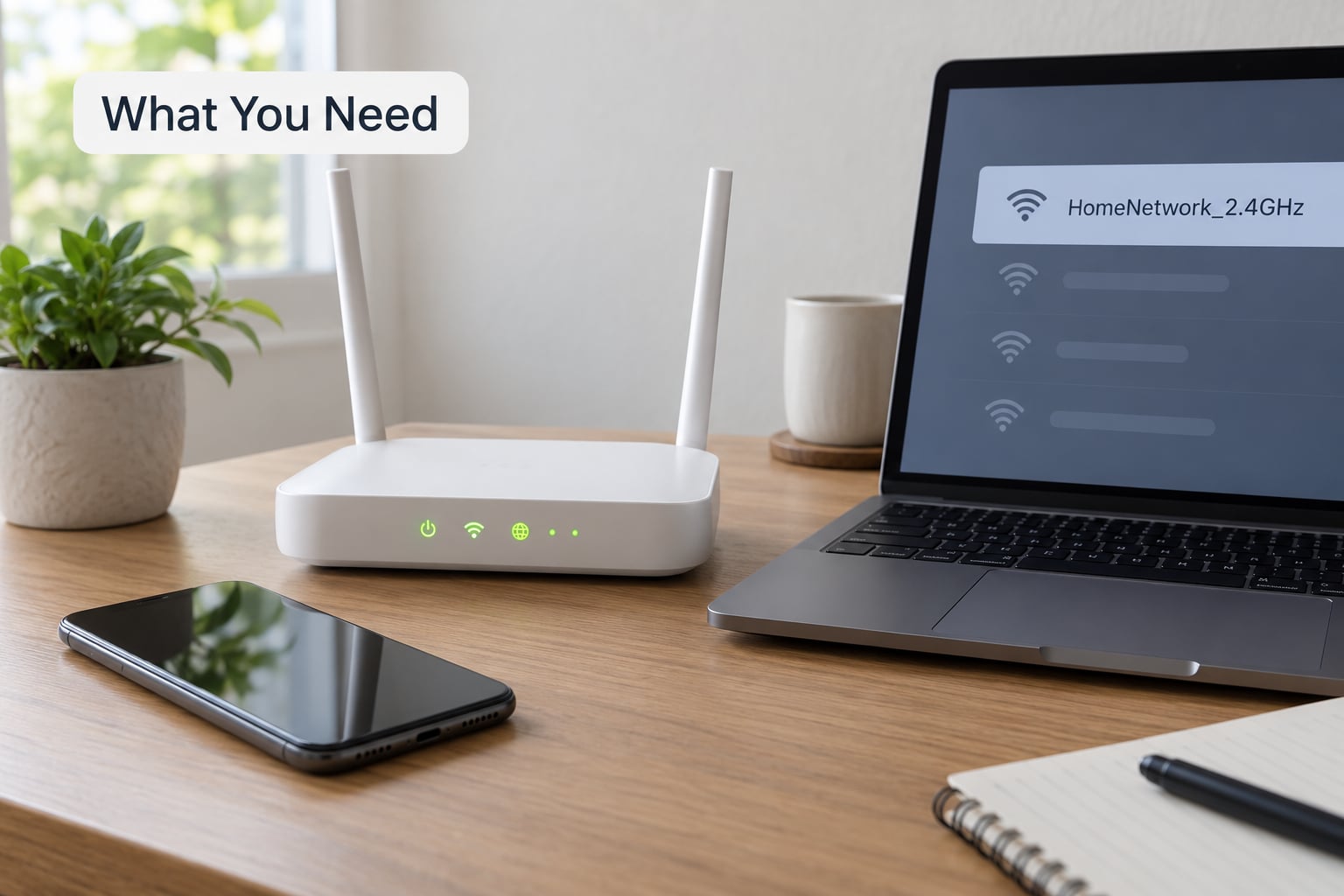
- A router that broadcasts 2.4 GHz. Check the label on the bottom or the admin page first. Almost every dual-band and mesh router has it; a few 5 GHz-only and Wi-Fi 6E routers do not.
- A smart device that supports 2.4 GHz. The box or the spec page should say 802.11b/g/n. If it lists 5 GHz too, you have more room to manoeuvre.
- A phone or tablet running the manufacturer’s app, with Bluetooth and location permissions switched on.
- Your Wi-Fi name and password, typed exactly — including capital letters.
- Optional: a mesh node or range extender, and a spare older router you can run in access point mode.
Two prerequisites decide whether anything else on this page matters: the router has to broadcast 2.4 GHz, and the device has to speak it. If either fails, no amount of retrying in the app will help.
Step-by-Step
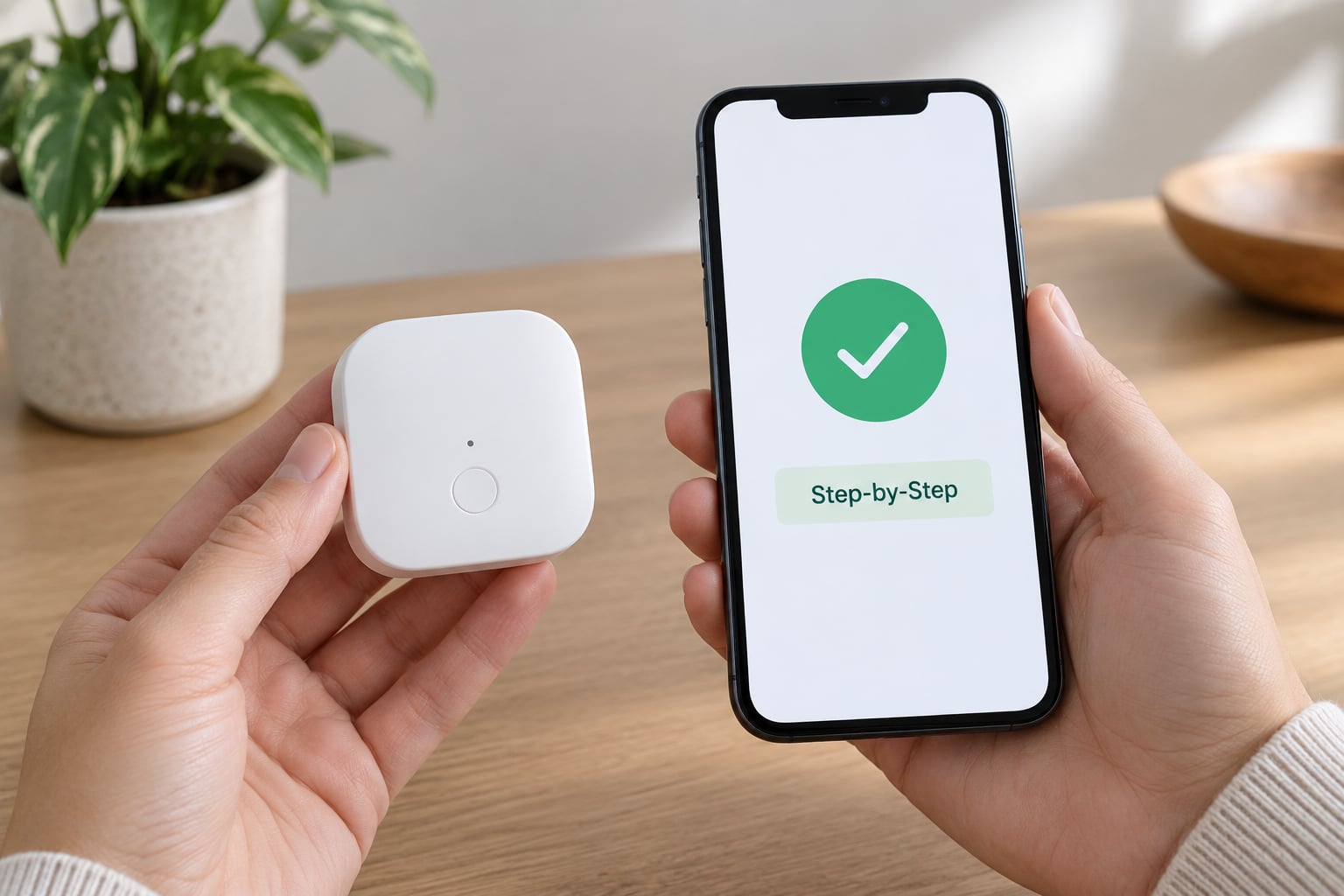
- Confirm your device supports 2.4 GHz. Look for 802.11b/g/n on the box or in the app’s device list. Thread, Zigbee and Z-Wave sensors never touch Wi-Fi at all, so skip them.
- Log into your router and split the bands. Turn off band steering, Smart Connect or any merged-SSID setting so 2.4 GHz and 5 GHz have different names. Details in the next section.
- Set security to WPA2-PSK/AES or WPA2/WPA3 mixed mode. WPA3-only locks out a lot of older smart firmware.
- Put your phone on the 2.4 GHz network. Tap the separate 2.4 GHz name in your Wi-Fi list and type the password. If the bands share one name, forget the network first so it re-associates cleanly.
- Open the manufacturer app and add the device. Choose the setup option that asks for a Wi-Fi name and password, not the one that says “smart pairing” or “nearby device”.
- Put the device in pairing mode — usually a button press, three to five power cycles until it blinks fast, or holding a pairing button.
- Pair it next to the router first. Once the app confirms the device joined, move it to its real spot.
Every app labels things differently. One says “2.4G Wi-Fi”, another says “Smart Device Network”, a third just shows a list of networks with the bands merged. The underlying process does not change: the app pushes your SSID and password to the device, the device reboots, and it reappears on your network.
How do you know each step worked? After step 3 your phone should see two separate network names. After step 5 the app should list your 2.4 GHz network as the one it will use. After step 7 the device’s status changes from “connecting” to “online” or “ready”, usually within a minute. Anything less means the handoff failed, not the device.
How to Connect a Smart Device to a 2.4 GHz Network
On Android, open Settings, tap Wi-Fi, and long-press your network name to forget it. Reconnect using the password from the router label, then check the connection details — many phones now show the band you landed on. Samsung phones also expose a “Wi-Fi assistant” or compatibility mode toggle that keeps the phone from hopping to 5 GHz.
On iOS, open Settings, Wi-Fi, tap the (i) next to your network, choose Forget This Network, then reconnect. iOS generally keeps you on whichever band has the stronger signal, so if both bands share one name, splitting them on the router is the fix that works on both platforms.
Once connected, open the app, add the device, and enter the network name and password yourself rather than letting the app pick from a list. Typing it by hand catches the two mistakes that break almost every setup: a capital letter dropped, and a network name with a trailing space.
Watch for the confirmation screen that says the device is connected, then let it sit for a minute before you touch anything. If it sits on “configuring” and never finishes, the device got the credentials and could not reach your router — usually a WPA3-only setting or a distance problem.
Set Up 2.4 GHz-Only Wi-Fi on Your Router
Sign in to your router’s admin page, usually at an address like 192.168.0.1 or 192.168.1.1, then look for the wireless settings. What you are hunting for is any control that merges the two bands or pushes clients toward the faster one. The names change constantly: Band Steering on TP-Link and Netgear, Smart Connect or Smart Wi-Fi on Netgear, Smart Connect on Linksys, dual-Wi-Fi on some Xiaomi routers, Use the same SSID for both bands on Xfinity.
Turn those off, then give each band its own name — something like Home-2.4 and Home-5. If your router will not let you rename them separately, uncheck the shared-SSID box and let it generate two names. Write them down; you will type the 2.4 GHz one repeatedly.
Set the security mode to WPA2-PSK/AES, or WPA2/WPA3 transition mode if the router offers it. WPA3-only is the single most common reason a device refuses a network it can clearly see. The tradeoff of running a 2.4 GHz-only network for your whole home is speed on phones and laptops in the rooms nearest the router, so most people keep both bands and just give the smart devices their own name.
Guest networks and IoT VLANs are the wrong home for first-time pairing. Both commonly enable client isolation, which blocks your phone from reaching the device’s temporary setup hotspot. Pair on the main network, then move it if you have isolation working properly afterwards.
Common Mistakes
These are the causes behind almost every failure, roughly ordered by how often they turn out to be the real problem.
- Selecting the 5 GHz band. If the phone hops to 5 GHz while the app is open, the handoff breaks. Split the SSIDs and leave the phone on 2.4 GHz during setup.
- WPA3-only security. Switch to WPA2/WPA3 transition or plain WPA2.
- Wrong password or wrong case. Type it manually instead of relying on the app’s network list.
- Guest network or client isolation on. Turn it off for pairing.
- Device too far from the router. Pair in the same room, then relocate it.
- Pairing mode never entered. Three to five fast power cycles usually does it.
- A 5 GHz-only router. Check the hardware label; you need a 2.4 GHz source.
- DHCP pool exhausted or MAC filtering on. Large smart homes fill the default lease range, and filtering silently rejects the new device.
- Hidden SSID or special characters. Some firmware cannot parse emoji or unusual symbols in a network name. Stick to letters and numbers.
- Phone permissions denied. Auto-denied location access on Android stops the app scanning for the setup hotspot, and it fails with no error at all.
The fastest diagnostic I know: put your phone on a 2.4 GHz hotspot and try setup again. If the device joins the hotspot, the hardware is fine and the problem is your router settings. Aqara doorbell owners on the community forums hit exactly this — a 2.4 GHz hotspot works while the home network refuses.
On crowded homes, set the 2.4 GHz channel manually to 1, 6 or 11 at 20 MHz width. Those are the only non-overlapping choices, and picking a fixed channel stops devices that connect from dropping offline minutes later.
Two habits prevent repeat failures. Keep the smart network password in a password manager, because changing it later drops every device with no way to update them remotely. And when you swap routers, clone your old network name and password onto the new one so everything reconnects on its own.
If your mesh system offers no way to show a separate 2.4 GHz network, the community consensus is to add a cheap older router in access point mode with its own 2.4 GHz-only name. Users on r/homeautomation report it resolves the large majority of stubborn connection problems.
Frequently Asked Questions
Why do smart devices need a 2.4 GHz Wi-Fi network?
Most plugs, bulbs, sensors, locks and doorbells ship with a single-band 2.4 GHz radio. It costs less than a dual-band chip, uses far less power and travels further through walls, which matters for a device that runs on a small battery or sits in a cupboard. A 5 GHz radio would cost more and reach less, so manufacturers skip it.
Can I use the same Wi-Fi name for 2.4 and 5 GHz?
You can, and most modern routers do it by default, but it blocks most smart setup flows. With one merged name your phone cannot tell which band it is on, and a 2.4 GHz-only device may refuse a network that is being steered to 5 GHz. Give the bands separate names during setup. You can merge them again later if you like.
How do I connect a smart device if I cannot see the 2.4 GHz network?
Check the router label for a second network name, since many routers hide the 2.4 GHz SSID behind a default. If both bands really are merged, split them in the wireless settings and reconnect. Also confirm the network is not hidden, that guest isolation is off, and that your phone is not connected to a guest network or a VPN.
Can I connect a smart device to Wi-Fi before setting up its app?
For hub-based devices, yes: the hub joins your network first, then sensors join the hub over Zigbee, Z-Wave or Thread and never touch Wi-Fi. Direct Wi-Fi devices are the opposite — most need the app to push the network name and password during a short pairing window, because there is no screen on the device to type into.
Will a mesh Wi-Fi system work with smart devices?
Mesh works, but most systems advertise one name for every band and hide the band-splitting controls behind a Smart Connect setting. Turn that off to expose a separate 2.4 GHz network. If your mesh firmware will not separate the bands, add an older 2.4 GHz router in access point mode with its own name, which is the fix regulars recommend.
Start with the router, not the device: split the two bands, set WPA2 mixed mode, and get your phone sitting on 2.4 GHz. Then pair the device in the same room as the router and move it once the app says online. If that fails, switch your phone to a 2.4 GHz hotspot for one more attempt — if the device joins there, the problem was your router settings the whole time. Steps checked and updated for 2026.