You can change your Wi-Fi password in about ten minutes without touching a single cable: open your router’s local settings page in a browser, sign in with the administrator details printed on the router, find the wireless security section, type a new passphrase, and save. Every device on the network drops off when you save, so the second half of the job is reconnecting your phone, laptop, TV and anything smart.
If you have never touched these settings, the whole thing feels more technical than it is. It is one login form and one text field.
Table of Contents
- How to change your Wi-Fi password in five steps
- What You Need
- Three passwords that are not the same thing
- Step-by-Step
- Identify the Router or Gateway and Check Its Label
- Connect to the Correct Wi-Fi Network
- Open the Router Settings and Sign In
- Change Your Wi-Fi Password in the Router Settings
- Reconnect Devices Using the New Password
- Update the Password on a Smartphone App or ISP App
- Test the Network and Confirm the Change
- Common Mistakes When You Change Your Wi-Fi Password
- Entering the Wi-Fi password in the admin login box
- The label is gone or the admin details were changed
- Changing the network name at the same time as the password
- Picking the wrong security mode
- The browser rewrites your password
- Forgetting the extenders, mesh nodes and access points
- Writing a password that is too easy
- Skipping the security steps while you are already there
- Frequently Asked Questions
- Can I change my Wi-Fi password without the router?
- What is the difference between the Wi-Fi password and the router admin password?
- Why did all my devices disconnect after I changed the Wi-Fi password?
- How do I change the Wi-Fi password on an ISP-provided router?
- Why is my new Wi-Fi password not working on my Android phone?
- Conclusion
How to change your Wi-Fi password in five steps
- Connect your phone or computer to the Wi-Fi network you are changing, not to mobile data.
- Open a browser and type the router address into the bar. It is usually 192.168.1.1 or 192.168.0.1.
- Sign in with the administrator username and password printed on the label on the bottom of the router.
- Open the Wireless, Wi-Fi, WLAN or Wireless Security menu and enter a new password in both password fields.
- Click Save or Apply, wait for the router to reboot, then reconnect each device with the new password.
That list is the whole process. The sections below fill in the details for each step, including what to do when the login screen rejects you.
What You Need
Four things, and you probably already have three of them.
- The router itself (or the ISP gateway box on your wall). You need physical access to read the sticker underneath.
- A phone or computer already joined to that Wi-Fi network, with a browser open.
- The current administrator details, which live on the label, not on the Wi-Fi password.
- A new password in mind. Write it down somewhere before you type it, because you will be entering it on several devices in a row.
Three passwords that are not the same thing
This is where most people get stuck. There are usually three separate credentials in play, and typing the wrong one into the login box is the single most common reason the process fails.
| Credential | What it opens | Where it comes from |
|---|---|---|
| Wi-Fi password (passphrase) | Your wireless network. Devices use it to join. | You choose it. It is on the Wi-Fi sticker or in the router’s wireless settings. |
| Router administrator password | The settings page at 192.168.1.1 or similar. | Printed on the router label. Often “admin” with a blank or “password” entry. |
| ISP account password | Your provider’s app or customer portal, which may in turn control the router. | Set when you signed up with the provider. |
Your Wi-Fi password is not your router password. The first one gets your phone online, the second one gets you into the settings page.
One safety note before you start: change the password only, and leave the network name alone. If you rename the network at the same time, every device has to be reconfigured twice, and half the things that break are the ones you then can’t find on the list.
Step-by-Step
Identify the Router or Gateway and Check Its Label
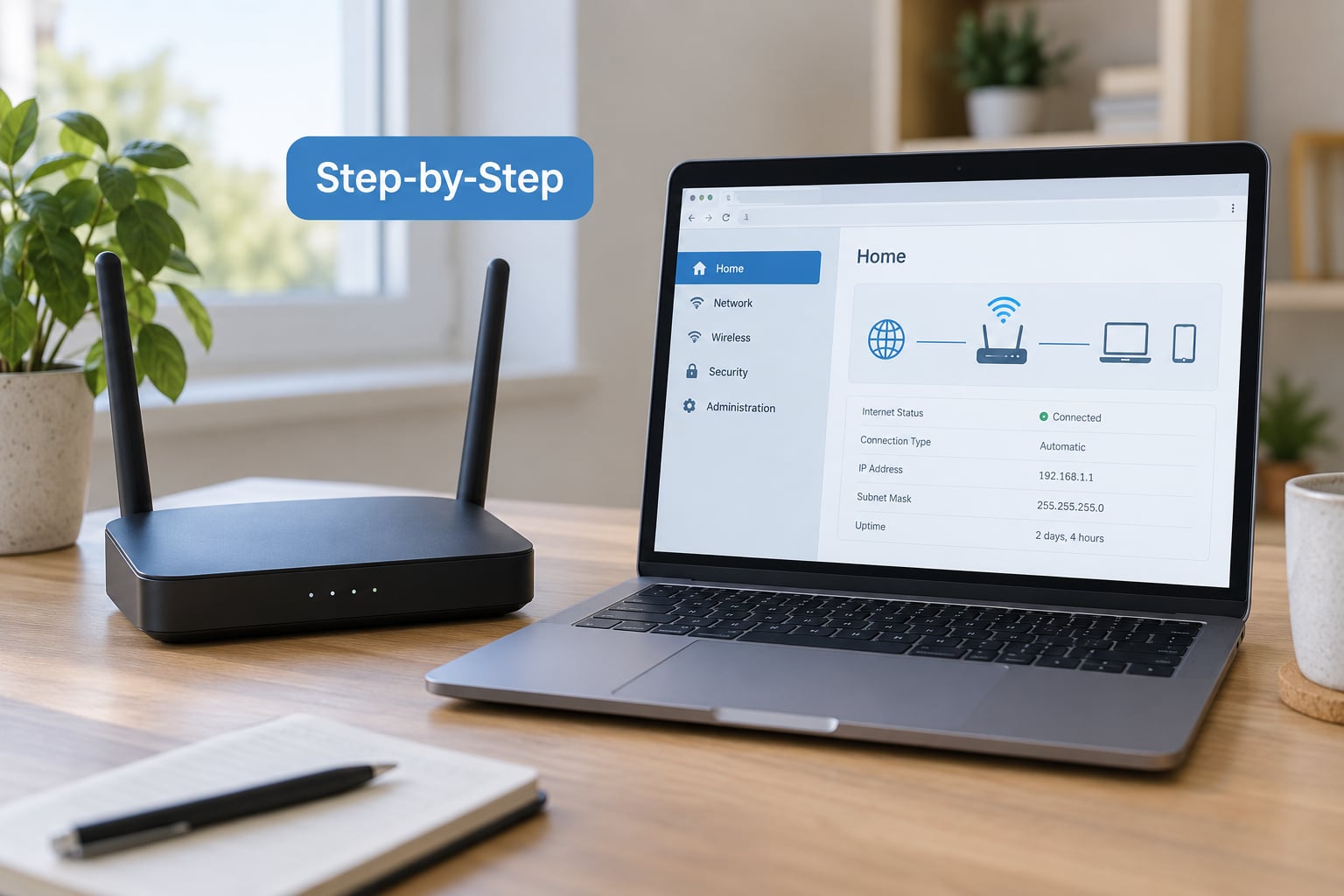
Find the box that actually broadcasts your network. In most homes it is the router supplied by your internet provider, sitting near a wall socket, often stacked on top of a smaller box.
Turn it over or slide the label out and read it. You are looking for three things: the login address, the administrator username, and the administrator password. Many labels also print the Wi-Fi password separately from the admin details, sometimes under a barcode or a line of text meant to be scanned into a QR code.
If the sticker has been painted over, scratched off or replaced, your provider’s support line can tell you the login address for the model. That is worth one call before you start guessing.
Connect to the Correct Wi-Fi Network
Your phone or computer must be on the Wi-Fi network you are about to change, and only on that network. Mobile data silently takes over whenever signal is weak, and a page opened over mobile data will never reach your router.
Turn off mobile data and any VPN on the device for the duration. Also check that you are not on a guest network. Guest networks run on the same hardware but are managed separately, and changes made there do not affect your main network.
If you are tethered to a phone’s hotspot, unplug the tether. You cannot reach the router through someone else’s connection.
Open the Router Settings and Sign In
Open a desktop or mobile browser and type the router address into the address bar. Press enter and wait; the settings page takes a few seconds to load the first time.
These addresses cover most routers in homes today:
| Login address | Where you’ll see it |
|---|---|
| 192.168.1.1 | Most common default, used by many TP-Link, Netgear and ISP-supplied routers |
| 192.168.0.1 | D-Link, Netgear and several ISP gateways |
| 10.0.0.1 | Some ISP-provided equipment |
| 192.168.1.254 | A number of provider-branded gateways |
| tplinkmodem.net | Many TP-Link models |
| routerlogin.net | Netgear models |
| dlinkrouter.local | D-Link models |
None of these is universal. If the page will not load, check the router label first, then look up your router’s default gateway on your device: on Android, open Wi-Fi settings, tap the connected network, and read the router address; on Windows, run “ipconfig” in Command Prompt and look at the default gateway line.
When the login form appears, enter the administrator username and password from the label. Usernames are usually “admin”. Passwords are usually “admin”, “password”, or blank on older gear. If the form rejects it, see the mistakes section below, because the cause is almost never the Wi-Fi password you just typed.
Change Your Wi-Fi Password in the Router Settings
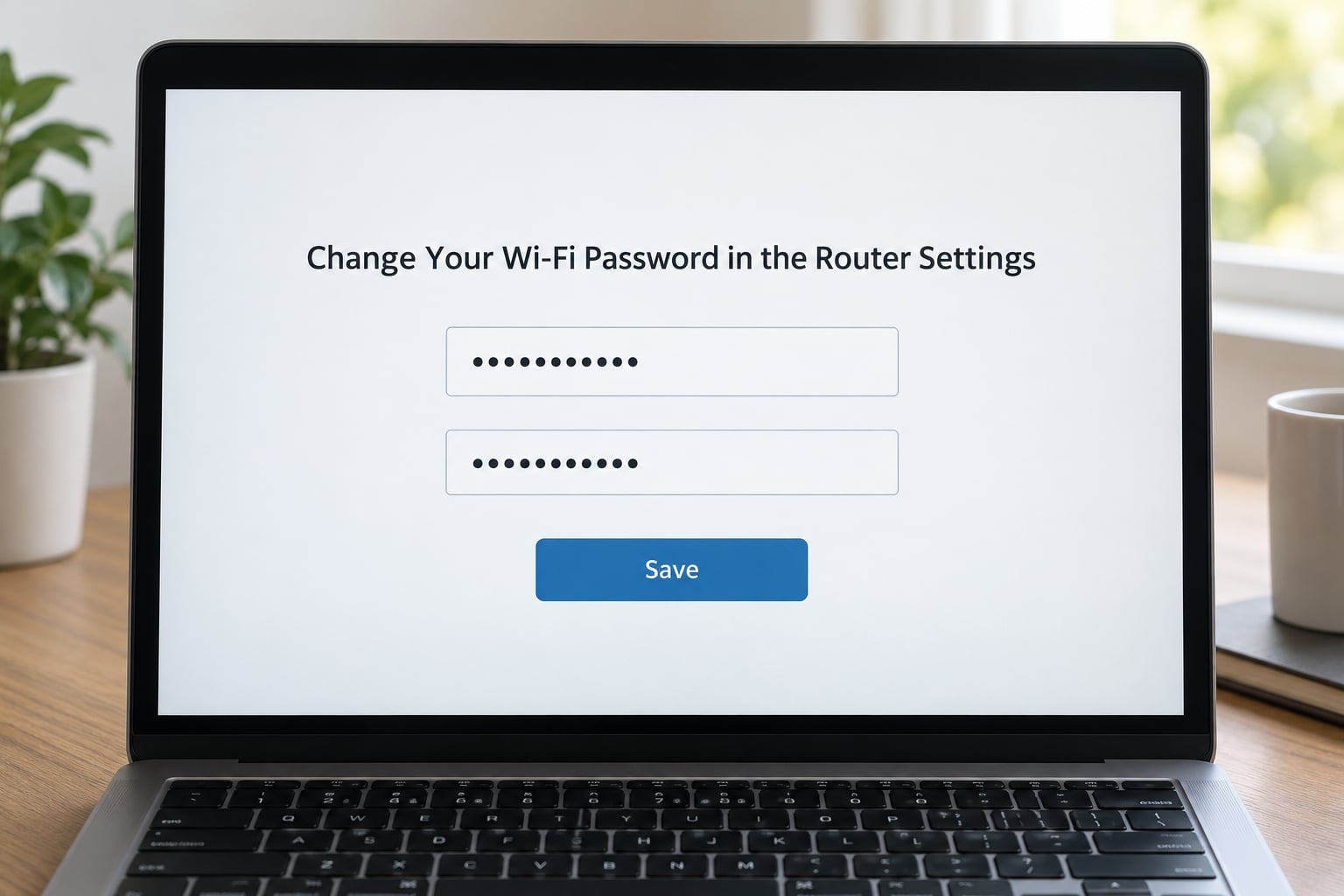
Once inside, look for a menu called Wireless, Wi-Fi, WLAN or Wireless Settings. Depending on the interface it sits at the top level or under Advanced, Network or Settings. Some routers split it into 2.4 GHz and 5 GHz sections, each with its own password.
Find the field labelled Password, Passphrase, Network Security Key or Pre-Shared Key. Type your new password into it, then type it again into the confirmation field underneath. Some routers show a “Show password” eye icon so you can confirm the characters match, which is worth using once.
While you are in this menu, two other settings are worth a look:
- Wireless security mode. Pick WPA2-Personal or WPA3 if they are offered. WEP is broken, and “WPA2/WPA3 mixed” keeps older smart bulbs and printers working.
- WPS. Turn it off if it is enabled. WPS is a push-button pairing shortcut that has nothing to do with setting a password, and leaving it on weakens the network.
Click Save or Apply. Some routers ask you to confirm the reboot; accept it. The router restarts, its lights cycle, and every connected device is dropped. That is normal, not a failure.
The exact menu names differ by brand, so here is where the password field usually lives:
| Brand | Typical path to the Wi-Fi password |
|---|---|
| TP-Link | Wireless > Wireless Settings, then Password next to the network name |
| Netgear | Advanced > Setup > Wireless Settings, in the Security section |
| D-Link | Setup > Manual Wireless Network Setup, next to Wireless Security Mode |
| ASUS | Wireless > Professional, in the Authentication section |
| Linksys | Wireless > Basic Wireless Settings, in the Security field |
| Xiaomi | Commonly set in the Xiaomi Home app rather than the web page |
| Huawei | Home Wi-Fi settings in the provider app or Smart Life app |
Reconnect Devices Using the New Password
Work through your devices one at a time, starting with the one you are reading this on. On most systems the old network is still saved with the old password, so it will keep trying and failing.
Android. Open Settings, tap Wi-Fi, tap the network name, choose Forget, then tap it again and enter the new password. The same three taps work on most Android phones regardless of maker, though the wording on Samsung and Xiaomi devices is occasionally “Forget network”.
Windows 11 and 10. Click the Wi-Fi icon in the taskbar, right-click the network, choose Forget, then reconnect from the list and type the new password. If your PC joined via Ethernet or a hidden network, you will need to re-enter it in Settings, Network and internet, Wi-Fi.
iPhone and iPad. Tap the info icon beside the network name, then Forget This Network. Rejoin from Settings, Wi-Fi and enter the new password when prompted.
Smart TVs, printers, consoles and cameras. These are the ones people forget, and they are usually the reason someone thinks the change failed. Most just need to be taken off the old network and re-added with the new password using their own settings menus. Printers from the last several years can usually be re-joined from a computer instead, which is faster.
Smart home and IoT devices. Bulbs, plugs, cameras and hubs often store the old password in their own app. Change it in three places: the router, the device’s app, and the hub or hub account. In the Xiaomi Home app and the Smart Life app, the network password is under the hub or device settings rather than the account password, which are different credentials again.
Update the Password on a Smartphone App or ISP App
Some routers have no useful web page at all. If your provider supplied the box, or you use a mesh system or a phone-managed router, the app is the normal route.
Open the app your router came with, such as the Xiaomi Home app, or your provider’s app such as Xfinity, CenturyLink or My Verizon. Sign in, find the Wi-Fi network settings, and change the password in the field marked Passphrase or Wi-Fi password. Save, and the change is pushed to the router from outside your home network, which is the one real advantage of this method.
Read this part before you go further: the app route is only worth using if you already know how to get back in. If the app can change the Wi-Fi password but you cannot find the administrator details anywhere, you could end up able to join the network but unable to manage it. On an ISP-supplied gateway, the admin login is sometimes locked entirely, which makes the provider app the only option you have.
Test the Network and Confirm the Change
Confirm the change worked in this order, and stop worrying once the last point passes.
- Load a couple of pages on your phone. If they come back fast, the router is fine.
- Check that the new password is the one your device actually uses by forgetting the network and re-entering it from scratch.
- Try the old password once. It should fail. If it still connects, your change did not save and you need to look again.
- Open the connected devices or DHCP client list in the router page and see what is listed. Anything you do not recognise is a reason to change the password again and update your router firmware.
If your devices reconnect on their own without asking for the password, they probably never dropped off, which usually means the new value never saved.
Common Mistakes When You Change Your Wi-Fi Password
Almost every failure in this process falls into one of the patterns below.
Entering the Wi-Fi password in the admin login box
You type the network password where the login form wants the administrator details, and it fails every time. These are different credentials. The sticker tells you which is which: the administrator password unlocks the settings page, the Wi-Fi password is what other devices use to join.
The label is gone or the admin details were changed
Do not go straight to the reset button. First try the provider’s support line, or check any documentation the provider sent when they installed the connection. If a reset is the only route, hold the small recessed reset button for about ten seconds until the lights change, and understand what you are losing: port forwarding rules, static IP assignments, parental control schedules, custom hostnames and any firmware settings. You keep your internet connection itself; the reset only wipes the router’s configuration.
Changing the network name at the same time as the password
Doing both at once means reconnecting every device twice and losing the reference you would normally use to find the right network. Change the name another day, if at all. Forum threads are full of people who locked themselves out by renaming the SSID and password together.
Picking the wrong security mode
Selecting WPA3-only breaks older devices without telling you why. Select WPA2/WPA3 mixed mode, or WPA2-Personal if your gear is old. Never select WEP or disable security entirely to make something connect.
The browser rewrites your password
Password managers and browsers sometimes auto-fill or auto-correct the passphrase field, and the value that gets saved is not the one you typed. This is a common cause of “I changed it and nothing works”. Turn off autofill for that field, paste the password in from a plain text editor so you can see the characters, and use the eye icon to confirm both entries match before saving.
Forgetting the extenders, mesh nodes and access points
Range extenders and mesh nodes normally follow the router after a reboot. Some standalone extenders keep their own password, so they drop off silently. Each node you add needs the new password entered on the node itself, usually through a button on it or its own admin page. If you added a second access point in a room, it has a separate login too.
Writing a password that is too easy
Not “password1”, and not your street name with a year on the end. Four unrelated words run together beat a short complicated string, because people can actually remember them. Keep it somewhere safe rather than on a sticky note on the router.
Skipping the security steps while you are already there
While the settings page is open, do four extra things. Change the administrator password from its printed default. Turn off WPS. Run any firmware update the page offers. If you have guests, put them on the guest network with a separate password so they never touch your main one. A few minutes now covers the access routes people actually exploit.
Frequently Asked Questions
Can I change my Wi-Fi password without the router?
Only if something else manages the router for you. ISP gateways, mesh systems and app-based routers can usually be changed through the provider app or the manufacturer’s app, which pushes the change to the router remotely. A standalone router with no app needs you to open its settings page from a device already joined to the network. What you cannot do is set a Wi-Fi password for a network you do not control.
What is the difference between the Wi-Fi password and the router admin password?
The Wi-Fi password is the network security key your phone and laptop use to join the network. The router admin password unlocks the settings page, so you can change the Wi-Fi password in the first place. They are usually two different strings, and both are printed on the router sticker. People get locked out constantly by typing the Wi-Fi password into the admin login box, which will never work.
Why did all my devices disconnect after I changed the Wi-Fi password?
Because the router drops every device when it applies the new setting and reboots. Anything holding the old passphrase will sit there trying to reconnect until you remove the saved network and re-add it with the new one. Start with the phone you are using, then work through laptops, TVs, printers and smart-home devices. Expect to spend twenty minutes on the smart-home gear if you have any.
How do I change the Wi-Fi password on an ISP-provided router?
Most providers give you two routes. Open the router’s settings page in a browser and use the administrator details from the sticker, or sign in to your provider’s app and change the passphrase there. Some gateways lock the admin login and leave the app as the only route. If the label has been removed, your provider’s support line can give you the login address for the model.
Why is my new Wi-Fi password not working on my Android phone?
Three usual reasons. Your phone still has the old network saved, so it is not asking you for anything. You typed the new password into the wrong case or with a trailing space. Or your browser or password manager altered the field before the router saved it. Forget the network on your phone, check the characters with the eye icon in the router page, then reconnect using the exact same string.
Conclusion
Start in the router’s local settings page on a device already joined to the network, and log in with the administrator details from the sticker rather than the Wi-Fi password.
The moment you save, reconnect your phone first, then your laptop, then everything else. Do not forget the TVs, printers and smart-home hubs, because those are the ones that will silently sit offline.
And pick something long and unique rather than reusing a password you have typed a hundred times elsewhere. Four unrelated words joined together is plenty.