If WiFi keeps disconnecting on Android, the fix is usually one of four things: a stale saved network, a battery-saving feature quietly switching the radio off, auto-switch to mobile data, or a mismatch between your phone and the router band. Toggle Wi-Fi off and on, forget the network and rejoin it, then reset Wi-Fi, mobile and Bluetooth settings in that order. Most cases are solved in under five minutes.
Updated for October 2026. Menu paths below follow standard Android on a Pixel; Samsung One UI and Xiaomi MIUI or HyperOS rename some of these screens, and I flag the differences where they matter.
Before changing anything, work out how your drop behaves. A phone that drops on every network while your laptop stays connected is a device problem. A phone that drops on one network and nowhere else is a router problem. Guessing wrong is how people end up resetting a phone that was never broken.
Table of Contents
- What You Need
- Step-by-Step: How to Fix WiFi Keeps Disconnecting on Android
- 1. Check Whether WiFi Keeps Disconnecting Only on Android
- 2. Turn Wi-Fi Off and On Again
- 3. Forget and Reconnect to the Network
- 4. Restart the Android Phone or Tablet
- 5. Disable Wi-Fi Calling If the Signal Is Unstable
- 6. Check Wi-Fi Settings for Smart-Saving or Network Switching
- 7. Move Closer to the Router and Check Signal Strength
- 8. Check for Wi-Fi Drops Caused by Apps or Android Updates
- 9. Reset Network Settings on Android
- 10. Update Android, Router Firmware or Check the Router
- Common Mistakes
- Frequently Asked Questions
- Why does my Android Wi-Fi keep disconnecting even when other devices stay connected?
- Should I disable Wi-Fi calling if my Android Wi-Fi disconnects?
- What does resetting Android network settings remove?
- How do I know whether the problem is my Android phone or my router?
- Why does my Android Wi-Fi disconnect only when I am away from home?
- When should I contact my carrier or internet provider?
- Conclusion
What You Need
You need the Android phone or tablet that drops, and nothing else to start. A restart and a forget-and-rejoin require no tools at all.
Before you start, have these ready:
- The Wi-Fi network name and password, in case the profile has to be recreated.
- Router access: the model name, the admin page address and the admin password, usually on a label on the router.
- A second device that uses the same network, so you can test whether the drop is device-specific.
- A second network to test on, such as a phone hotspot or public Wi-Fi, for the isolation test in step 1.
Wi-Fi analyser apps exist but are not needed. The signal indicator in your status bar is enough for most cases, and connection tools tend to keep a background service running that can interfere with the thing you are trying to measure.
Step-by-Step: How to Fix WiFi Keeps Disconnecting on Android
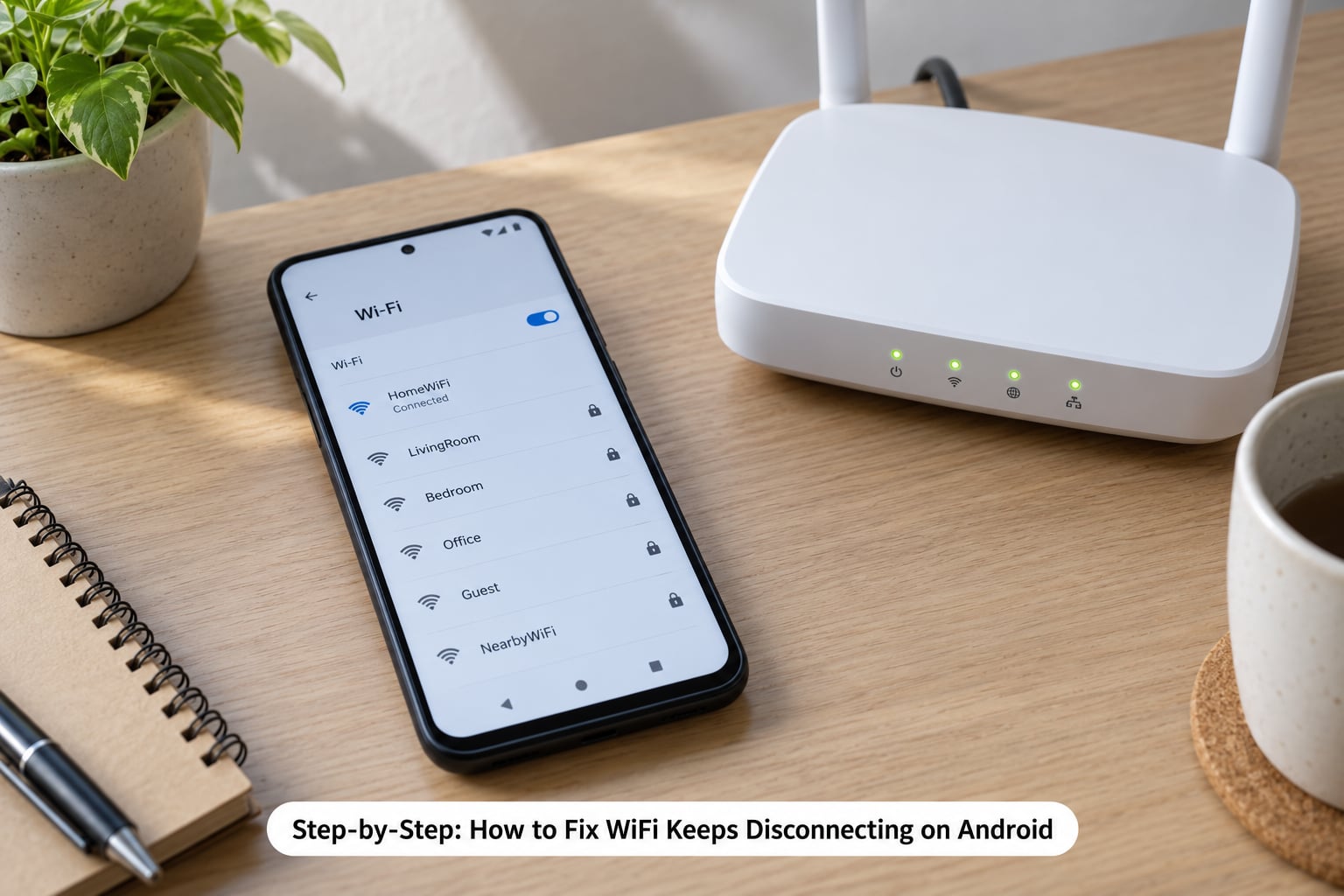
Work down this list in order and stop when the drops stop. Each step tells you how to tell whether it worked.
1. Check Whether WiFi Keeps Disconnecting Only on Android
Before fixing anything, find out whether the Android device is the only one affected. This single test saves more time than every setting change combined.
Note when the drop happens and match it to the pattern below:
- Only this phone drops, other devices are fine. The problem is on the phone: a saved network profile, a background app, a battery setting or the Wi-Fi radio itself.
- Every network drops, including hotspots and public Wi-Fi. Almost certainly device-side, and steps 8 through 10 are where the answer lives.
- One network drops only. Router-side: wrong band, congested channel, encryption mismatch or a stale DHCP lease.
- Drops only with the screen off or at night. A sleep or power-saving behaviour. See step 6.
- Started right after a system update. Likely a driver or firmware bug. See step 8.
- Says connected but no internet. The phone is associated with the router but traffic is not getting through, usually a DNS or DHCP problem.
The isolation test takes a minute. Turn on a hotspot from another phone and connect the problem device to it. If it holds steady on the hotspot, your router or your broadband line is involved. If it drops there too, the phone is the suspect.
2. Turn Wi-Fi Off and On Again
Pull down the notification shade and tap the Wi-Fi tile twice, or open Settings, tap Network and internet, then Wi-Fi, switch it off, wait ten seconds and switch it back on.
On Android 12 and later, the menu label is sometimes Internet instead of Wi-Fi, but the toggle does the same thing. Tap your network name to reconnect, then load a page. If the connection holds for an hour or more without dropping, you are finished.
3. Forget and Reconnect to the Network
A saved network profile goes stale when a password changes, the router is replaced, or the phone stores an old band or security mode it can no longer negotiate. Forgetting it rebuilds that profile from scratch.
On standard Android: Settings, Network and internet, Wi-Fi, tap the network name, then Forget. On Samsung One UI: Settings, Connections, Wi-Fi, tap the gear icon beside your network, then Forget. On MIUI and HyperOS: Settings, Wi-Fi, press and hold your network name, then Forget network.
Rejoin with the password and test. Two details catch people out here. If you cannot see the password anywhere, ask the router admin page or set a new one. If the network is hidden, use Add network and type the name and password manually.
Also delete old networks you no longer use. A phone that drops and then silently jumps to a neighbour’s saved network or an old café network is usually reacting to a stale entry, and pruning the list fixes that reassociation behaviour.
4. Restart the Android Phone or Tablet
A restart clears a stuck radio state that toggling Wi-Fi does not. Hold the power button, then choose Power off, wait until the screen goes black, and power the phone back on rather than swiping it to sleep.
Test the connection before doing anything else. This is the fastest universally-cited community fix for a random drop, and it resolves a surprising share of cases on its own. If the phone drops again within days, keep going down the list instead of repeating it.
5. Disable Wi-Fi Calling If the Signal Is Unstable
Wi-Fi calling sends your calls and texts over your broadband connection when reception is poor, then hands them to the mobile network when that path weakens. The handover reads on your phone as a Wi-Fi drop even though the Wi-Fi radio never disconnected.
Find it at Settings, Network and internet, Mobile network, Wi-Fi calling, then switch it off. Samsung puts it under Settings, Connections, Call settings, Wi-Fi calling. Carrier naming varies, so look for Wi-Fi calling, Wi-Fi HD calling or HD voice.
Test by making a call in the spot where the signal is weak, then by using mobile data at the same spot. If calls hold and the phone still drops Wi-Fi, Wi-Fi calling was not the cause and you can leave it back on.
6. Check Wi-Fi Settings for Smart-Saving or Network Switching
This is where most overnight drops live. Several features can move your phone off Wi-Fi without telling you.
- Wi-Fi power saving, often inside Battery, Saver or Battery optimisation. Set Wi-Fi to unrestricted.
- Auto-switch to mobile data, under Network and internet, Wi-Fi, three-dot menu, Network preference. Turn it off, or turn on Ask before switching so you get a prompt instead of a silent handover.
- Wi-Fi assistant on Samsung under Settings, Connections, Wi-Fi, then More Wi-Fi settings. It can switch the radio off to save power and reconnect later.
- Connection optimizer or adaptive Wi-Fi, which hands off to mobile data on congested networks. Users on Samsung have traced repeated drops to Wi-Fi-control apps, including the Samsung Members app, by searching Settings for Wi-Fi control and switching the offending app off.
- Disconnect on sleep or keep Wi-Fi on during sleep, an OEM toggle that One UI and MIUI or HyperOS both expose.
- Dual SIM network switching, which can move the data path mid-session.
Set the Wi-Fi sleep option to stay on, then leave the phone face down overnight and check whether you are still connected in the morning.
7. Move Closer to the Router and Check Signal Strength
Weak signal produces exactly the symptom you are chasing. Open a page while standing next to the router and then again in the room where the drops occur. A page that stalls when you walk through a far room points at coverage, not settings.
The bars in the status bar show the connection to the access point, not whether the internet works behind it. Four bars on a congested network can deliver less than two on a clean one. Use them as a rough guide only.
Walls, floors and closed doors eat 2.4 GHz far more than 5 GHz, which is why 5 GHz connections often disappear in the next room. Take the case off for a minute as a test, since some cases block the antenna, and move the router off the floor and away from metal objects, TVs and closed cupboards.
8. Check for Wi-Fi Drops Caused by Apps or Android Updates
If the drops started right after a system update, suspect the Wi-Fi driver first. The fix for post-update drops is usually the next update, and in the meantime a reset of network settings (step 9) often settles it.
If the timing points elsewhere, isolate suspects one at a time rather than uninstalling everything:
- VPN clients, which hold a connection and re-route traffic.
- Private DNS settings under Settings, Network and internet, Private DNS, which can fail to resolve while the phone still claims to be connected.
- Data-saver, antivirus or Wi-Fi control apps that manage connections in the background.
- A work or school profile, which can enforce its own network and VPN rules.
- Streaming and backup apps that churn data when the connection resumes.
Disable one, run the phone normally for a day, and only then decide whether it was the cause. Uninstalling four apps at once tells you nothing.
9. Reset Network Settings on Android
This rebuilds every network profile on the phone and clears the radio’s stored state. It is the fix for a profile that keeps going wrong no matter how many times you rejoin it.
Go to Settings, System, Reset options, then Reset Wi-Fi, mobile and Bluetooth. Samsung: Settings, General management, Reset, Reset Wi-Fi and Bluetooth. Xiaomi: Settings, Connection and sharing, Reset Wi-Fi, mobile and Bluetooth. You will be asked to reconnect, so keep the password handy.
Here is exactly what it does and does not erase:
- Erased: saved networks and their passwords, Bluetooth pairings, and any VPN configuration stored on the device.
- Not erased: photos, apps, messages, files and your Google account. It is not a factory reset and nothing personal is deleted.
- To recover: reconnect to each network in turn and re-pair your Bluetooth devices.
Two advanced settings in the same area are worth trying first. Under your network, tap Advanced, then Privacy, and change randomised MAC address to Device MAC, which is the fix for drops that began after Android 11 on networks that authenticate by device identity. And set IP settings to Static instead of DHCP if the drop always follows a fresh connection.
10. Update Android, Router Firmware or Check the Router
Start with the phone: Settings, System, System update, then install any pending security and system update. Wireless driver fixes ship in these, and they resolve more drop cases than any setting change.
Then the router. Reboot it by unplugging the power for thirty seconds, and check the admin page for firmware updates. While you are there, change the wireless channel if you are in a crowded building, since apartment blocks pile up on the same channels and a congested network makes the network vanish from the list entirely. One user on a home networking forum traced stubborn 5 GHz drops to a channel change. If your router offers both bands under one name, split them into separate network names so you can pick the band your phone can hold.
Finally, ask whether the hardware is failing. A phone that drops on every network including hotspots, after a reset, updates and every setting change, points at the Wi-Fi chip rather than software. Owners of several Samsung models reported exactly this, where a service centre reflash helped briefly and the fault returned. At that stage, warranty or a service centre is the honest answer rather than more settings.
Common Mistakes
These waste the most time and occasionally cost data.
- Factory resetting first. It is the last resort, not the first move. Back up everything, then use it only after the network reset and the hotspot isolation test have both failed.
- Editing APN settings. Access point names change mobile data behaviour and have nothing to do with Wi-Fi association. Random APN edits cause real connection problems.
- Treating the Wi-Fi bars as proof of internet. They show the link to the router, nothing about DNS or whether traffic passes.
- Using the wrong reset option. Resetting the wrong entry, or expecting Reset Wi-Fi, mobile and Bluetooth to erase apps, sets false expectations. It never deletes photos or apps.
- Blaming an app without isolating it. Disable one suspect at a time and give the phone a full day before judging it.
- Forgetting the case. A thick or metal-backed case sitting against the antenna cuts signal, and the phone keeps trying to hold a link it can no longer maintain.
Frequently Asked Questions
Why does my Android Wi-Fi keep disconnecting even when other devices stay connected?
When every other device holds the connection, the network and router are fine and the fault sits on the phone. The usual causes are a stale saved network profile, Wi-Fi power saving or an adaptive Wi-Fi feature, a VPN or data-saver app, and randomised MAC addressing. Forget the network and rejoin, then check Settings for Wi-Fi power saving and auto-switch to mobile data before resetting network settings.
Should I disable Wi-Fi calling if my Android Wi-Fi disconnects?
Only if the drops happen during or right after calls, or in areas with weak mobile reception. Wi-Fi calling hands your voice traffic to the mobile network when the broadband path weakens, and that handover looks like a Wi-Fi drop even though the radio never disconnected. Turn it off at Settings, Network and internet, Mobile network, Wi-Fi calling, then test a call in the spot where you lose signal.
What does resetting Android network settings remove?
Reset Wi-Fi, mobile and Bluetooth erases saved networks and their passwords, Bluetooth pairings, and VPN configurations stored on the phone. It does not delete photos, apps, messages or files, and it does not remove your Google account. After the reset you need to reconnect to each network with its password and re-pair your Bluetooth devices, so keep the details nearby.
How do I know whether the problem is my Android phone or my router?
Turn on a hotspot from another phone and connect the problem device to it. If the connection holds on the hotspot, the router, its channel choice or your broadband line is involved. If it drops there too, the phone is at fault. Comparing against a second device on your own network confirms the same thing from the other direction, and takes about a minute.
Why does my Android Wi-Fi disconnect only when I am away from home?
Away from home your phone is moving between weak signals and networks it does not own, so the drop is usually coverage rather than settings. Check whether it happens at the office, a shop or anywhere, or only at one location. On Wi-Fi, three-dot menu, Network preference, turn off auto-switch to mobile data or enable ask before switching, so the phone asks rather than dropping silently.
When should I contact my carrier or internet provider?
Contact your provider when other devices on the same network also drop, when speeds are poor on every device, or when the lights on the router or modem show an error. Contact your carrier separately if Wi-Fi calling fails, mobile data is unstable, or calls cut out, since that runs on their network. Once every device drops, a router reboot and a provider check are the right next steps.
Conclusion
Start by deciding whether the drop belongs to one Android device or to the whole network, because that single answer narrows everything else. Then toggle Wi-Fi, forget the network and rejoin it, and restart the phone properly.
If it still drops, work through the sleep and power-saving settings, the apps and updates behind it, and finally the network reset. When the phone drops on every network including a hotspot after all of that, stop changing settings and contact your carrier, your provider or the warranty service.