To check data usage per app on Android, open Settings > Network & internet > Data usage > App data usage, then tap any app to see its total, background share, and how much of it came over mobile versus Wi-Fi. On a Samsung phone the same screen sits under Settings > Connections > Data usage. The whole thing takes about a minute and needs no root, no extra app, and no computer.
The one detail worth knowing up front: the number Android shows covers your current data cycle, which on most phones resets on the day your carrier bill does. Look at it early in the cycle and you get a clean baseline to compare against.
Table of Contents
- What You Need
- How to Check Data Usage Per App Step by Step
- Check Data Usage by App on Samsung Android
- Check Data Usage by App on Pixel and Other Android Phones
- Review an App’s Mobile and Wi-Fi Usage
- Stop an App from Using Mobile Data in the Background
- Common Mistakes
- Frequently Asked Questions
- Where can I check data usage per app on Android?
- Does Android show Wi-Fi data usage separately from mobile data?
- What does background data mean on Android?
- Will clearing an app’s data show how much mobile data it has used?
- Which Android app is using the most mobile data?
What You Need
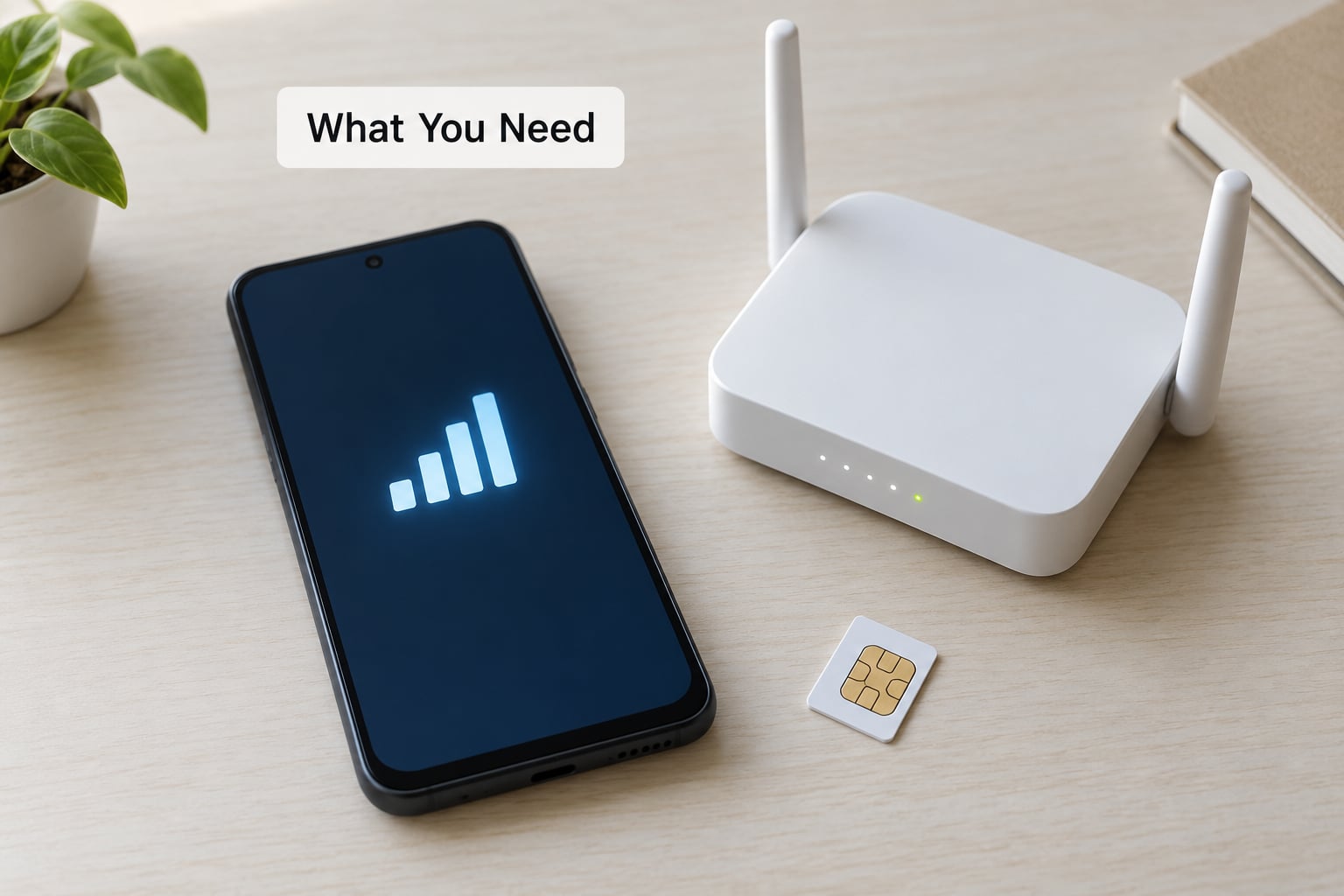
Just the phone in your hand. No root access, no third-party monitoring app, no cable to a laptop.
A few things are worth having in mind before you start:
- The Settings app. Every version of Android ships with it, and every manufacturer keeps it somewhere findable.
- An active mobile data plan if you want to see cellular numbers. On a Wi-Fi-only tablet the mobile side of the screen is simply blank.
- A Wi-Fi network you have already used if you want to compare Wi-Fi against mobile. Wi-Fi usage appears under its own heading once you’ve connected at least once in this cycle.
- A rough idea of your billing date. Android measures from the start of your data cycle, not the first of the month, and the two often differ.
If you search the Settings app for “data usage” instead of hunting through menus, most Android builds jump you straight to the right screen. That single trick saves a lot of the back-and-forth described below.
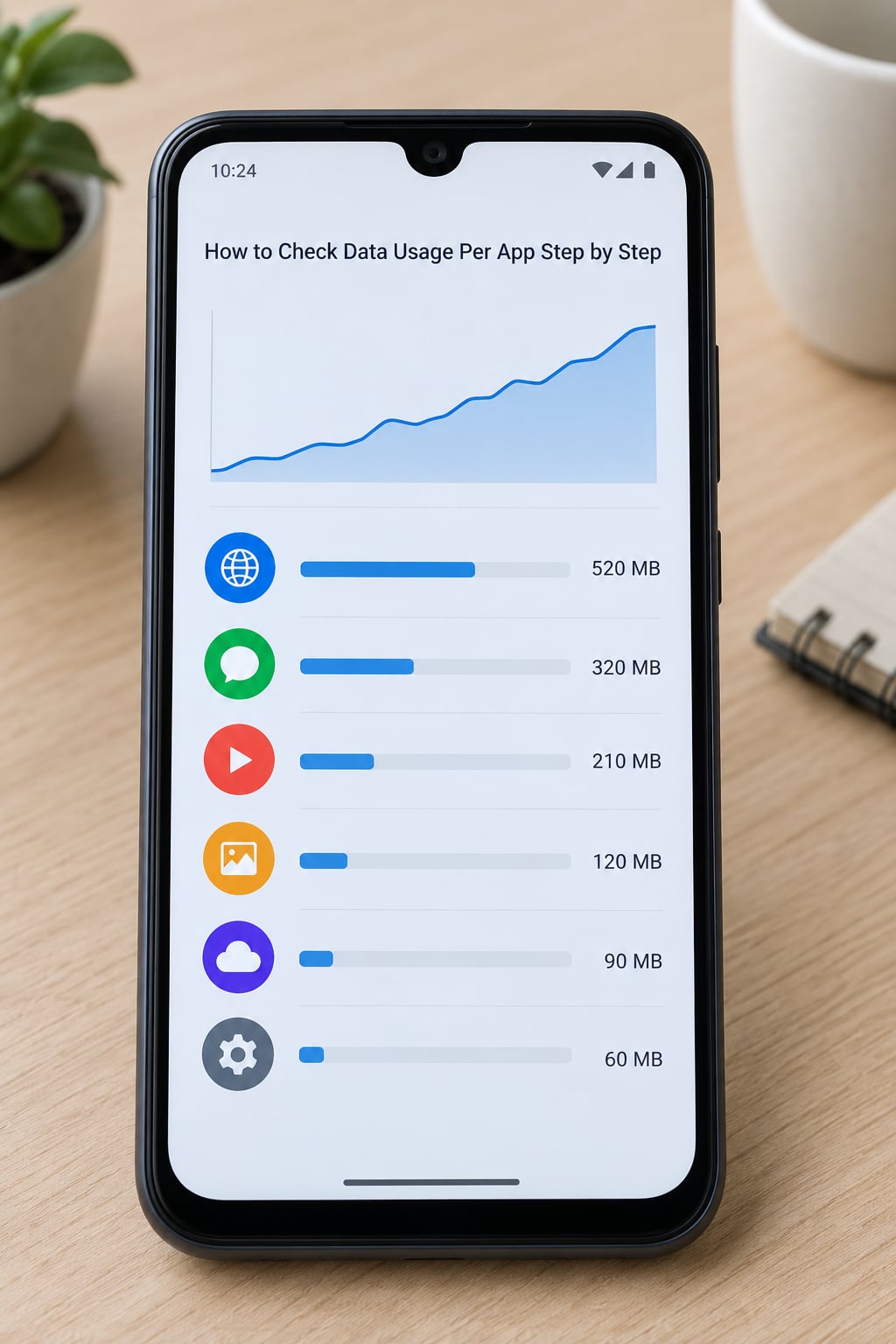
How to Check Data Usage Per App Step by Step
Check Data Usage by App on Samsung Android
Samsung’s One UI renames a lot of things, including this screen. On Galaxy phones and tablets, tap the gear icon, then Connections > Data usage.
Samsung splits the page into two halves. Mobile data usage sits at the top, Wi-Fi data usage below it, and a graph of the last 30 days runs across the top of each. Scroll under either heading and you get the app list for that specific network type, already ranked from heaviest to lightest.
Tap an app name and its detail page opens, showing the total it used over mobile and, in some One UI versions, a second Wi-Fi total underneath. Further down that page are three toggles: unrestricted data, background data, and mobile data. Samsung users on older One UI builds report the Wi-Fi breakdown missing entirely, which is a known limitation of that skin rather than something broken on your end.
Check Data Usage by App on Pixel and Other Android Phones
On a Pixel and most other phones running Google’s own Android, the path is Settings > Network & internet > Data usage. Some builds route through Settings > Connections > SIMs > App data usage instead, so if one menu is missing, search Settings for “data usage” and take whichever result appears.
Other manufacturers use their own wording for the same screen:
- Xiaomi, Redmi, Poco (HyperOS and MIUI): Settings > Connection & sharing > Data usage. On some builds it is Settings > Apps > Data usage instead, where the list mixes app size with network usage.
- OnePlus, OPPO, Realme (OxygenOS, ColorOS): Settings > Network & internet > Data usage > Data control > Data usage.
- Motorola: Settings > Network & internet > Data usage, with an App data usage submenu.
Whichever skin you land on, the layout is the same shape: a graph, a list of apps sorted by consumption, and a per-app screen underneath. If your phone has two SIMs, the summary page shows which SIM carried your mobile data in the cycle, but the per-app list generally merges both SIMs into one figure.
Review an App’s Mobile and Wi-Fi Usage
Tap an app row and four things matter. The first is the headline total for the period shown at the top of the data usage screen, and that period is something you can change. Swipe the period selector or tap the cycle dropdown to switch between a rolling view and your billing cycle.
The second is the background figure. Android splits every app into time spent in the foreground, where someone is actively using it, and background time, where it syncs, checks mail, downloads updates, and pushes notifications. A podcast app using 4 GB with 3.9 GB of it in the background tells you something quite different about how you use it.
The third is which network carried it. Entries marked mobile count against your plan cap; Wi-Fi entries do not. The fourth is attribution. Anything routed through a VPN is usually billed to the VPN app rather than to whatever it is tunnelling, which is why streaming sometimes shows up under an unexpected name.
One caveat: not every Android build gives you a per-app Wi-Fi breakdown. Samsung shows both, many other skins show only mobile totals, and a few show a combined Wi-Fi and mobile figure, which is where most of the confusion starts.
Stop an App from Using Mobile Data in the Background
Modern Android removed the old per-app mobile data on/off switch. What remains are three levers, and you are usually better off using one rather than all three.
The first lever is Background data, found inside each app’s data usage detail page. Turning it off blocks cellular syncing while leaving the app fully functional on Wi-Fi. Notifications stop arriving, mail stops refreshing, downloads queue until you are on Wi-Fi again, and any streaming app will simply refuse to play.
The second is Unrestricted data, which defaults to on. Switching it off tells Android to hold that app back when Data Saver is on. If you use Data Saver constantly and one app keeps eating your allowance anyway, this is the toggle you want.
The third is Data Saver itself, found in Settings under Network or Data usage depending on the skin. It blocks background data across every app at once, and apps get flagged with a Restricted signal icon when they try to reach the network. You can make an exception for any app from within its own detail page.
A word of caution before you start switching things off. Messaging, email, and dialer apps are genuinely useful on mobile data, and disabling their background use means you will miss messages until you find Wi-Fi. System components such as Play services and the Play Store also draw mobile data for app updates, and cutting those off means your phone silently stops updating anything.
Common Mistakes
Looking at the wrong time period. The default view is often a rolling window, not your billing cycle. If your carrier says you have used 8 GB and Android says 3, you are probably comparing two different periods rather than seeing a bug.
Reading a combined figure as mobile. Some skins merge Wi-Fi and mobile into a single number per app. Check whether your screen has separate Wi-Fi and mobile headings before assuming anything about your plan cap.
Expecting the app list to equal the total. This is the complaint that comes up most, and the arithmetic usually still makes sense once you know what is missing. Android measures data per app process, while the total at the top of the screen also counts traffic from the radio itself, tethering, Bluetooth, system updates, and any traffic your carrier attributes to the SIM. Users on r/AndroidHelp regularly report seeing 1.5 GB on the carrier side while every app row adds up to a few hundred megabytes.
Forgetting the VPN layer. If a VPN is running, its app is usually credited with the traffic. Turning the VPN off and comparing two cycles is the fastest way to confirm that.
Trusting the wrong number. Your carrier’s app is the source of truth for billing, because it measures what crossed the network. Android’s per-app list is the better tool for deciding what to restrict. When the two disagree, the carrier wins for billing questions and your phone wins for troubleshooting.
Restricting an app without reading what it does. Turning off background data for a banking or password manager app can break push alerts and, in some cases, two-factor logins.
Looking for history that does not exist. Digital Wellbeing keeps about ten days of screen-time history and no longer carries a data total at all, so it cannot substitute for the data usage screen. The per-app data list also resets with your cycle, so take a screenshot or jot down the numbers if you are building a picture over time.
Frequently Asked Questions
Where can I check data usage per app on Android?
Open Settings and look for Network u0026amp; internet, then Data usage, then App data usage. On Samsung phones the route is Settings u0026gt; Connections u0026gt; Data usage instead. Xiaomi and Redmi devices often place it under Connection u0026amp; sharing, while OnePlus, OPPO and Realme put it under Network u0026amp; internet u0026gt; Data control. Searching Settings for data usage works as a shortcut on most builds.
Does Android show Wi-Fi data usage separately from mobile data?
Often, but not always. Samsung’s One UI gives you a separate Wi-Fi data usage section with its own app list and graph. Many other Android builds show only mobile totals per app, and a few merge Wi-Fi and mobile into a single combined figure that can easily be misread as cellular use. Check whether your screen has two distinct headings before drawing conclusions about your plan.
What does background data mean on Android?
Background data is anything an app transfers while it is not in front of you: syncing email, checking for notifications, downloading updates, refreshing feeds and uploading photos. It is why an unused app can still use hundreds of megabytes a month. Turning background data off in an app’s data usage page stops cellular transfers for that app, but notifications, syncing and streaming all stop with it until you reconnect to Wi-Fi.
Will clearing an app’s data show how much mobile data it has used?
No. Clearing an app’s data erases its settings and content so it starts fresh, which makes its future usage look smaller rather than revealing past usage. It also signs you out of the app. To see how much mobile data an app has used, open the data usage screen and tap the app name, and check the period selector so you are viewing the full billing cycle.
Which Android app is using the most mobile data?
The data usage screen sorts apps from heaviest to lightest, so the top row is your answer for the current period. Streaming services, video chats and photo backup tools usually top the list. Remember to check the period selector first, and to look under a VPN app if you use one, since tunnelled traffic is often credited there rather than to the app generating it.
Start by opening your data usage screen right now, before you change anything. You get a clean baseline for this cycle, and once you know which apps sit at the top you can decide whether a background data switch or Data Saver is worth the trade-off. Revisit the same screen a week later and the comparison does all the work for you.