If you want to know how to make a phone battery last longer at night, start with the number on your screen in the morning. Losing 1-8% across eight hours of sleep is normal standby drain on a modern phone; losing 20-30% means something is genuinely broken, either a rogue app or an ageing cell.
The fixes below take about fifteen minutes to set and cost nothing. They focus on Android first, because menu names differ a lot between manufacturers, and every step names the exact path so you can follow it without guessing.
Before anything else, turn on your power-saving mode, check which app actually used the most battery overnight, and switch off the wireless connections you do not need while you sleep. That combination solves most cases.
Table of Contents
- What You Need
- How to Reduce Overnight Battery Drain Step by Step
- 1. Turn On Battery Saver or Adaptive Battery
- 2. Identify What Is Draining the Battery
- 3. Limit Background Apps and Notifications
- 4. Reduce Overnight Location, Sync, and Connectivity Activity
- 5. Adjust Display and Alarm Reliability
- 6. Restart and Complete an Overnight Test
- Common Mistakes That Wipe Out Overnight Battery
- Frequently Asked Questions
- Should I leave my phone charging overnight?
- Why is my phone battery draining so fast overnight?
- Does battery saver mode stop my alarm from working?
- How can I reduce battery drain on a Xiaomi phone?
- How do I find out which apps are using the most battery?
- When does overnight battery drain mean I need a new battery?
- Conclusion
What You Need
Nothing. You need the phone itself, the charger you already own, and about fifteen quiet minutes. No special app, no cleaning kit, no new cable.
The steps cover Android, and the paths come from stock Android, Xiaomi HyperOS and MIUI, Samsung One UI, and Google Pixel. Apple users will find the equivalent setting names noted where they differ. Exact menu labels shift with every software release, so if a path ends in a slightly different word, look for the same concept nearby.
How to Reduce Overnight Battery Drain Step by Step
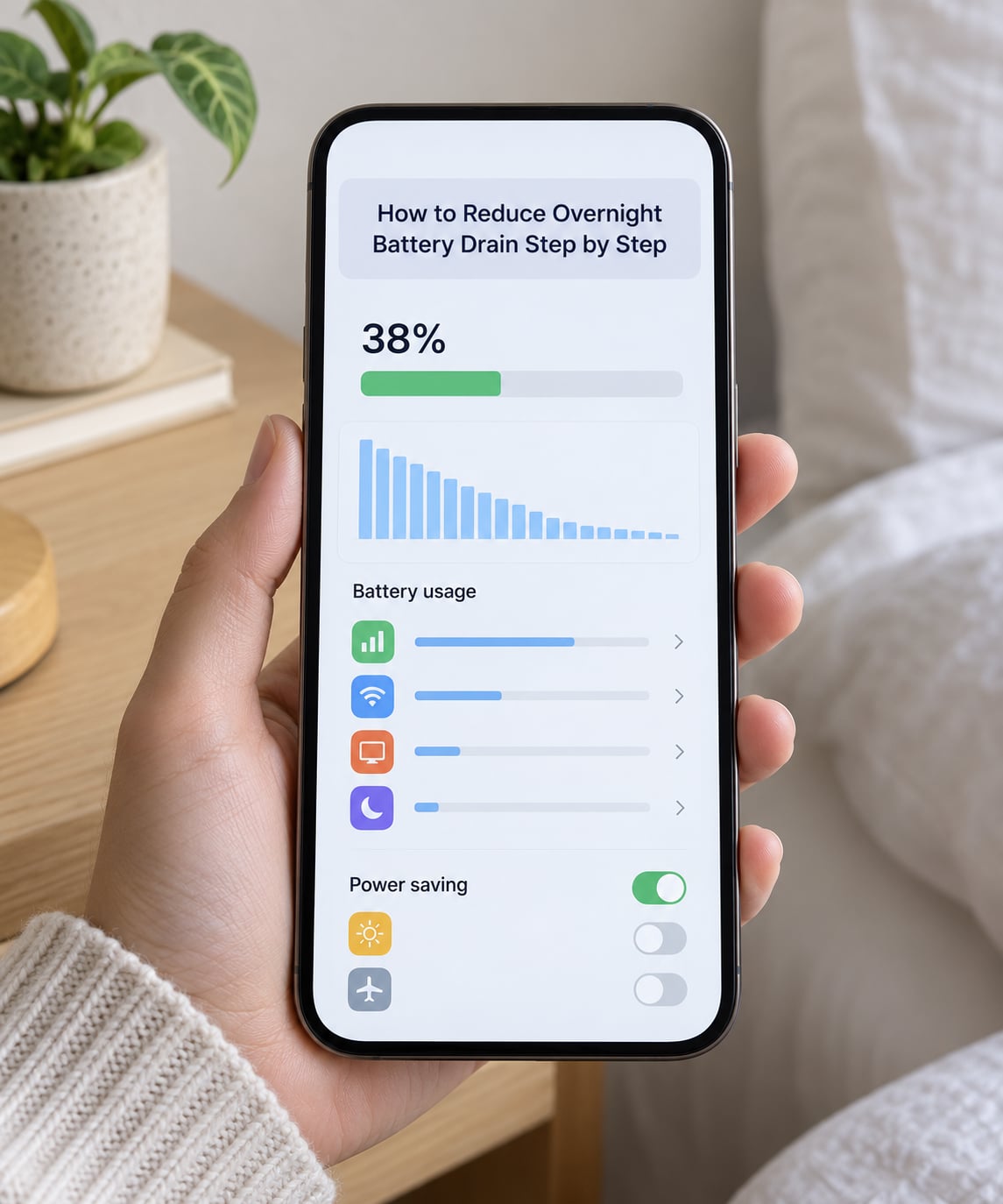
Work through these in order, because each step tells you something about the next one. Finish with the overnight test so you know whether your changes actually worked.
1. Turn On Battery Saver or Adaptive Battery
Battery Saver switches the phone into a lower-power profile that throttles background activity, slows automatic downloads, and dims the screen. Adaptive Battery goes further by putting rarely used apps into restricted buckets.
- Stock Android: Settings > Battery > Battery Saver, then turn it on.
- Xiaomi HyperOS and MIUI: Settings > Battery > Battery saver, then choose Optimised mode rather than the strictest setting.
- Samsung One UI: Settings > Battery and device care > Battery > Battery mode, then pick Adaptive or Optimised.
- Pixel: Settings > Battery > Adaptive Battery.
On most phones you can also schedule it, so the saver switches on at a set time and switches itself off in the morning. On Xiaomi, that schedule lives under Battery > Battery saver > Schedule. Leave the alarm, calls, and anything using two-factor codes untouched, and expect some scrolling to feel slightly less instant.
2. Identify What Is Draining the Battery
Open the battery screen and read it like a bill. On stock Android and Pixel, go to Settings > Battery > Battery usage. On Xiaomi, Settings > Battery > Battery usage, or open the Battery app from the home screen. Samsung puts it at Settings > Battery and device care > Battery > Battery usage.
Sort by usage since last full charge and look at the top three entries. If a single app sits well above the others and you barely use it, force stop it, clear its storage, and switch its background activity to Restricted. On Xiaomi, also check Autostart, because apps allowed to start on their own are a common hidden drain.
Two entries confuse people. Cell standby or Network standby means the radio itself is working, usually because the signal is weak. A second entry called Shared UID or Google Play services usually points to background sync rather than anything you can close.
3. Limit Background Apps and Notifications
Chat apps, shopping apps, and social feeds keep waking the phone to check for new content. On stock Android, Settings > Apps > see all apps, open the app, then Battery, and pick Restricted. Samsung calls the same option Put app to sleep under Settings > Apps. Xiaomi adds Autostart and Sleeping apps, where you switch off autostart for anything you do not open daily.
Trim notifications too. Settings > Notifications > Notification categories, then turn off the handful that only ever interrupt you at night. Do Not Disturb or Bedtime mode, scheduled from the same screen, silences the rest without touching connectivity.
Never restrict your alarm, calls and messages, two-factor authentication apps, banking apps, or your smartwatch or sleep tracker. Breaking the morning alarm to save 3% is a bad trade, and OnePlus community fixes that restrict Play Services wake-up access need the same care.
4. Reduce Overnight Location, Sync, and Connectivity Activity
Location is the quiet one. Settings > Location, then per app, change permission to Only while using the app rather than All the time. Apps you never open to map are the worst offenders.
Turn off Bluetooth and Wi-Fi calling in the quick settings panel before bed if you are not using a watch or headset, and stop auto-sync in the account settings of whichever cloud service you back up to. Wi-Fi scan while off and mobile data auto-restart both restart radios you meant to leave quiet.
If your signal is weak in the bedroom, that alone explains a lot. The modem raises its transmit power to hold a connection, and it keeps retrying all night. Airplane mode or scheduled Doze removes that work entirely, and on Samsung it can be automated under Modes and Routines. The catch is honest: airplane mode can delay messages and may stop a smartwatch syncing in the morning, so schedule it to switch off before your alarm rather than leaving it on all night.
5. Adjust Display and Alarm Reliability
The screen is where most of the avoidable drain hides. Turn off Always-on display in Settings > Display, drop the screen timeout to 15 or 30 seconds, and let adaptive brightness do its job instead of leaving it pinned high. On OLED panels, dark mode saves a smaller amount than people expect, but it costs nothing.
Some phones offer a genuine bedtime schedule: Settings > Digital Wellbeing > Bedtime mode, or Bixby Routines on Samsung, which can dim the screen, drop the brightness, and enable Do Not Disturb on a timer. Set the end time a little after your alarm so it lifts before you need it.
Check the alarm before you rely on any of this. Open Clock, confirm the alarm is on and the volume is above zero, and turn off any in-app alarm that has its own notification permission. In one reported case, a reader who automated a bedtime routine saw overnight drain fall from 13-15% to around 6% once Wi-Fi, mobile data, and recent apps were handled on a schedule.
6. Restart and Complete an Overnight Test
Restart the phone, note the battery percentage on the lock screen, plug it in or leave it as you normally do, and go to sleep. In the morning, compare the two numbers before you open a single app.
Keep a three-night drain diary: time, percentage at bedtime, percentage at wake, and what you changed. Three nights is enough to tell whether a change helped or whether something changes the moment you look away. Software moves quickly, and the path under Settings > Battery in 2026 may not match what is on your screen, so verify the settings again after a major update rather than assuming they are still correct.
Common Mistakes That Wipe Out Overnight Battery
Restricting the alarm or your messaging apps. You save a few percent and lose the reason you own the phone. Revert it and restrict only what you do not need.
Leaving location on All the time for one app. Set it back to Only while using the app, which is the fix in about nine cases out of ten.
Trying to fix drain by reinstalling every app. That does nothing to the radio, the sensors, or the battery itself. Read the usage screen first and only act on the name it shows.
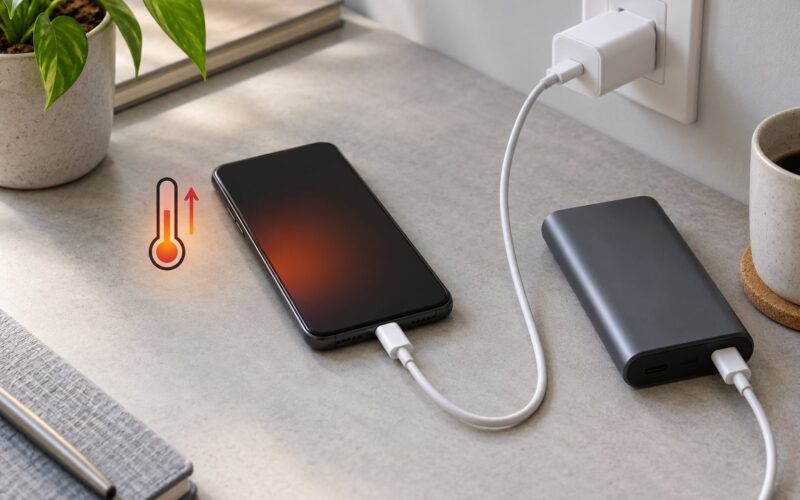
Charging under a pillow or on a soft surface. Heat builds up while charging overnight, which is the real battery enemy. A hard nightstand surface and airflow matter more than any charger setting.
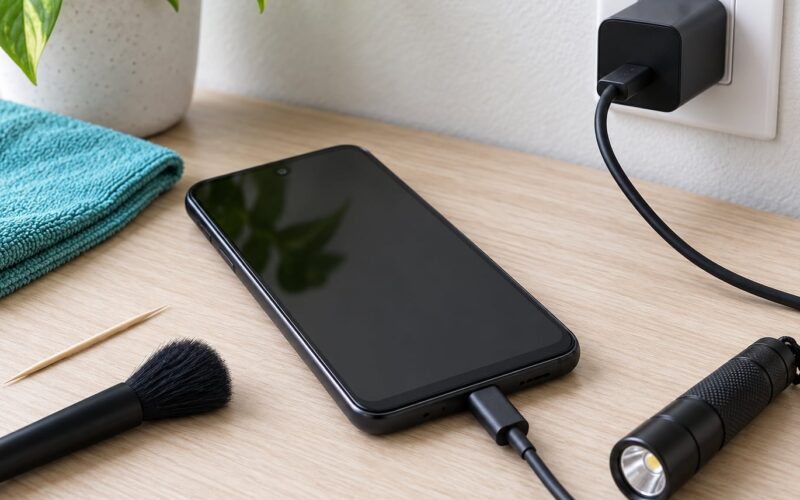
Ignoring the port. Pocket lint blocks charging and makes a phone drop charge while plugged in. A gentle clean with a dry, soft brush fixes more mystery drain than any setting.
Expecting a swollen or degraded battery to be fixed by software. If maximum capacity sits under 80%, or the phone is warm and the back is bulging, no setting will bring it back. Get the cell replaced.
Frequently Asked Questions
Should I leave my phone charging overnight?
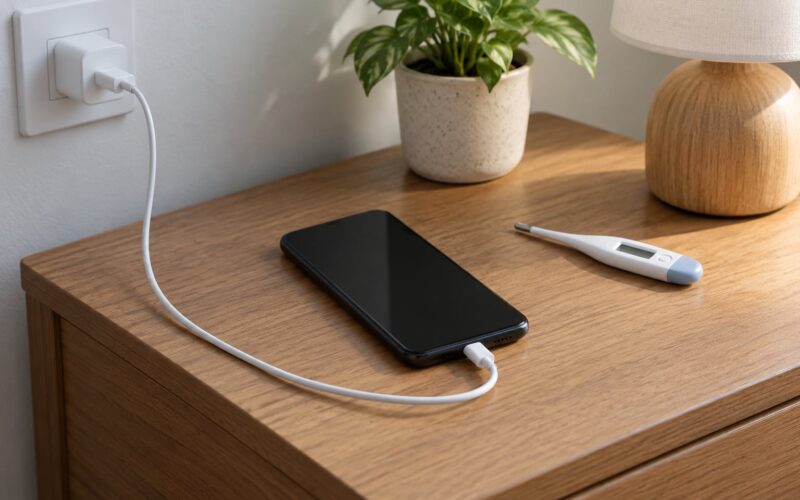
Charging overnight is generally fine, and modern phones slow charging near full to reduce stress on the cell. On iPhone, Optimized Battery Charging pauses at 80 percent and finishes before you usually wake. On Xiaomi and Samsung, look for Battery protection or Adaptive Charging to cap it lower. The real risk is heat, not duration, so keep the phone on a hard surface with airflow rather than under a pillow or blanket.
Why is my phone battery draining so fast overnight?
The usual causes are a weak or missing cellular signal, chat and social apps syncing in the background, location services running at All the time, always-on display, and vendor services such as Play Services or MIUI background components. A large overnight drop right after a security update often means re-indexing, which settles down after a few days. If the usage screen shows nothing unusual, a worn battery is the next suspect.
Does battery saver mode stop my alarm from working?
No. Battery Saver, Low Power Mode, Do Not Disturb, and Bedtime mode all keep alarms running, and airplane mode usually keeps them too. What airplane mode does affect is calls, messages, and anything that syncs over Wi-Fi or mobile data. The bigger risk is your own settings, such as a Do Not Disturb schedule that accidentally silences the Clock app. Confirm the alarm is enabled with volume above zero before you rely on it.
How can I reduce battery drain on a Xiaomi phone?
On HyperOS and MIUI, open Battery under Settings and enable Battery saver, preferably in Optimised mode rather than the strictest setting, then schedule it overnight. Next, go to App info for the drain-heavy apps and turn off both Battery saver exceptions and Autostart. Location permissions set to All the time and any always-on display or wallpaper carousel are the next things to disable. Xiaomi also ships extra vendor components, so the usage screen is where you confirm what is actually active.
How do I find out which apps are using the most battery?
Open the battery screen and look at usage since the last full charge. Stock Android, Xiaomi, Samsung One UI, and Pixel all sort this list for you, with the percentage and estimated screen-on time shown per app. Anything at the top that you did not open in person is your target: restrict its background activity, turn off autostart, and clear its cache. Ignore vendor entries such as Cell standby unless your signal is weak.
When does overnight battery drain mean I need a new battery?
Treat it as a hardware problem when the drop stays above roughly 10 percent across several nights after you have restricted the top drain app, or when maximum capacity reads under 80 percent. A phone that shuts down unexpectedly at 20 percent, runs warm while idle, or whose back panel is lifting also needs service rather than settings changes. Stop using it immediately if the screen or back is bulging, because a swollen cell is a safety issue.
Conclusion
The first thing to do takes two minutes: switch on battery saver, open the battery usage screen, and find the single biggest overnight consumer. Restrict that one app, turn off the wireless radios you do not need, and run the overnight test.
If the morning number is still 1-8%, your phone is behaving normally. If it is dropping 20-30% every night with nothing obvious in the usage list, that is a battery-health problem, and a replacement will fix what no setting can.