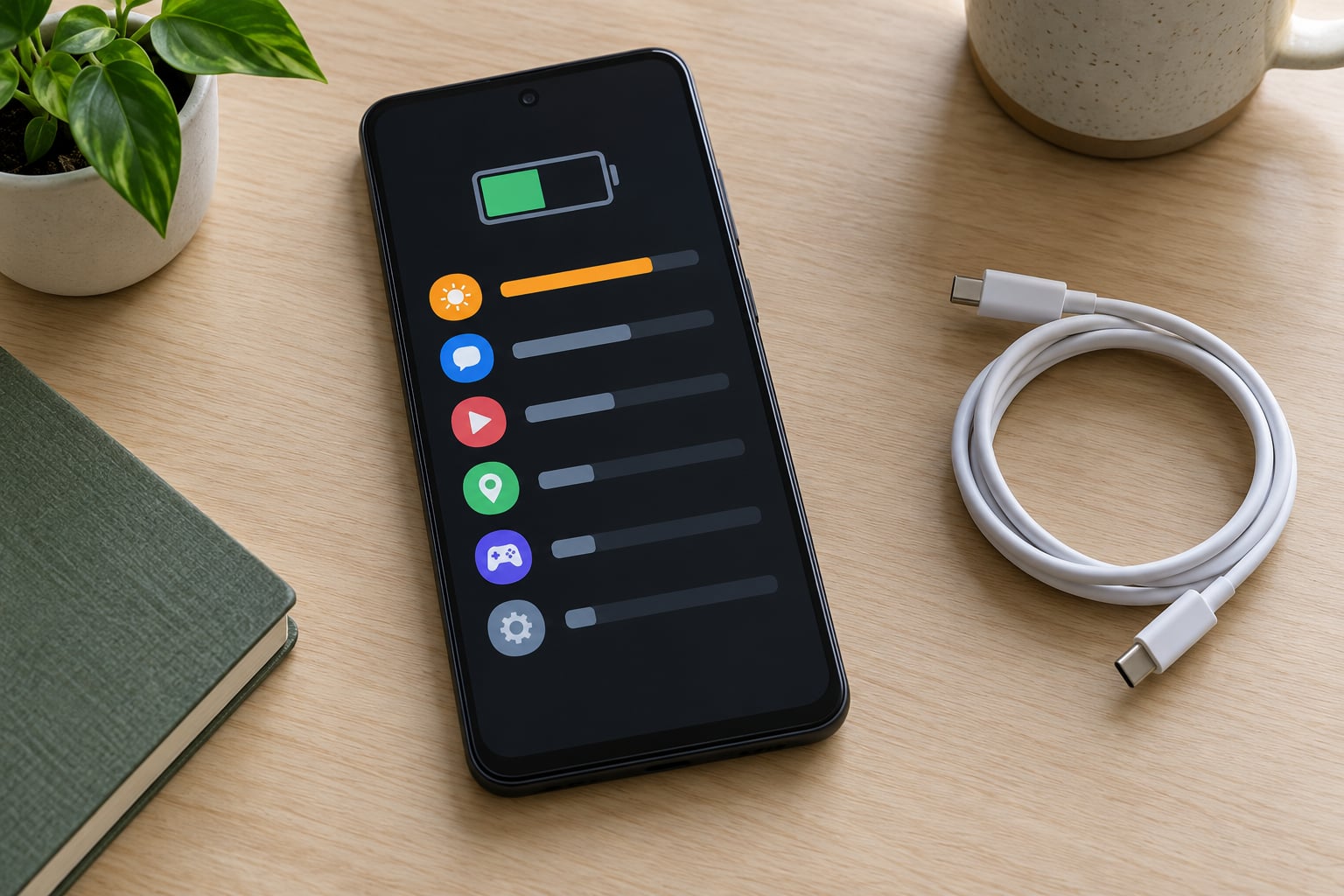
To see which app is draining battery on Android, open Settings > Battery > Battery usage and read the list top to bottom, because it sorts every app and system process by the share of power it used since your last full charge. On Samsung and Xiaomi phones the same information lives under Battery and device care > Battery usage and Battery > Battery check-up respectively. It takes about a minute, needs no apps, and works without root.
The catch is that the list lies a little. A messaging app at the top often means you spent two hours in it, not that it is broken, and the app quietly eating your charge while the phone sits in your pocket usually sits further down the screen with a small number next to it.
Table of Contents
- What You Need
- Step-by-Step: How to See Which App Is Draining Battery
- Step 1: Check usage since your last full charge
- Step 2: Sort apps by battery use
- Step 3: Separate foreground use from background drain
- Step 4: Look for spikes since the phone was charged
- Step 5: Test the top app after making a simple change
- Step 6: Confirm the result and take action
- Common Mistakes
- Frequently Asked Questions
- Which Android app is using the most battery?
- How do I find which apps drain battery in the background?
- Why does one app use more battery on my phone than it does for other people?
- Should I uninstall the app that shows the highest battery usage?
- How much battery drain is normal over one day?
- Can a faulty phone battery make an app appear to drain more power?
- Conclusion
What You Need
Nothing to install. You need your phone, its lock screen PIN, and about five minutes of normal use since the last full charge so the numbers mean something.
Charge to at least 80 percent before you start reading the list, and avoid checking in the ten minutes straight after plugging in. Android resets its battery statistics when it sees a full charge, so a list opened immediately after charging shows almost nothing and will send you down the wrong path.
Know which skin your phone runs, because the labels differ:
- Stock Android, Pixel, OnePlus, Oppo, Motorola, Realme: Settings > Battery > Battery usage
- Samsung One UI: Settings > Battery and device care > Battery > Battery usage, sometimes labelled Battery usage (Activity)
- Xiaomi, Redmi, Poco on MIUI or HyperOS: Settings > Battery > Battery check-up, with per-app controls under Battery > App battery saver
- iPhone: Settings > Battery > Battery & Charging > tap the chart, then View All Battery Usage
Step-by-Step: How to See Which App Is Draining Battery
Step 1: Check usage since your last full charge
Open the battery usage screen and look at the top of the list first. Each row shows one app or system process with the percentage of your battery it consumed, plus its time active. That percentage covers everything since the phone reached full charge, which is usually the best window you will get for a first look.
The highest number is not automatically the problem. A video app at 24 percent after three hours of watching is doing its job. What you are hunting for is an app high on the list with a small amount of time active, because that combination means it burned power without earning it.
Step 2: Sort apps by battery use
On stock Android the list is already sorted by percentage, highest first, and tapping a row opens a detail view with three columns: time active in the foreground, time in the background, and the CPU wake-up count.
On Samsung, scroll inside the battery usage screen to find the sort control and pick Battery usage rather than the default CPU or memory sort. On Xiaomi, MIUI and HyperOS the list lives in Battery > Battery check-up, and tapping an app gives you a bar split into screen on and screen off use.
| Phone or skin | Where battery usage lives |
|---|---|
| Pixel, OnePlus, Motorola, stock Android | Settings > Battery > Battery usage |
| Samsung Galaxy, One UI | Settings > Battery and device care > Battery > Battery usage (Activity) |
| Xiaomi, Redmi, Poco (HyperOS) | Settings > Battery > Battery check-up, then Battery > App battery saver for controls |
| Xiaomi, Redmi (older MIUI) | Settings > Battery > Battery usage, plus Settings > Apps > Autostart |
| iPhone and iPad | Settings > Battery > Battery & Charging > View All Battery Usage |
Step 3: Separate foreground use from background drain
Now compare what happened while the screen was on with what happened while it was off. Screen-on use is expected. Screen-off use is where problems live, because a phone sitting in a pocket with the display dark should barely move.
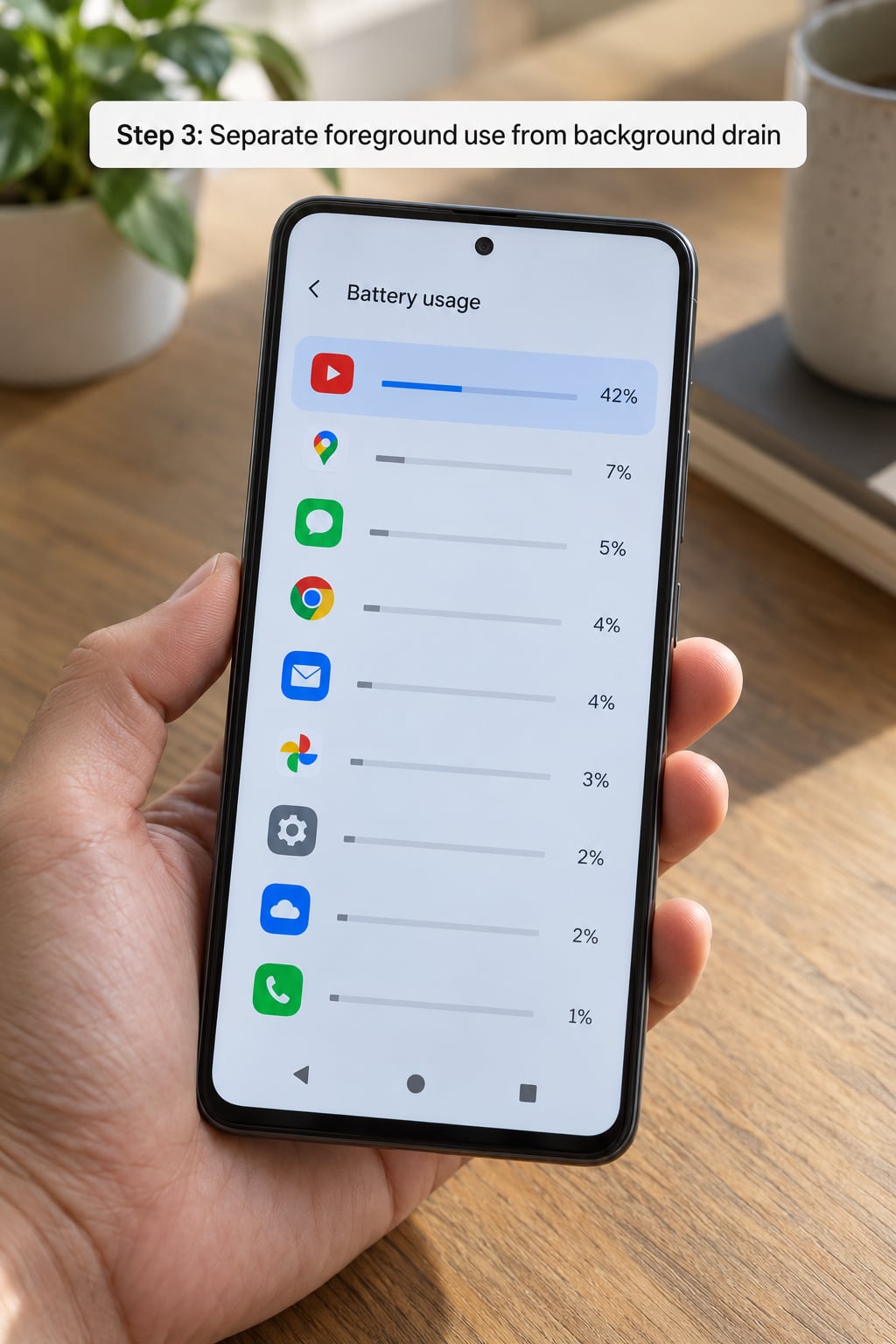
Two examples make the difference obvious. A navigation app at 9 percent after forty minutes of driving is fine. The same app at 9 percent after twenty minutes total, most of them with the screen off, is not. A chat app sitting at 11 percent with 95 percent of that in the background while the phone was idle is the classic offender.
On Pixel and other stock builds, tap the app row and read the foreground and background columns side by side. On iPhone, the detail screen shows the same split as time in foreground versus time in background.
Step 4: Look for spikes since the phone was charged
Totals hide the interesting part. A map app at 8 percent across the whole day sounds harmless until you realise six of those points went into the twenty minutes you were navigating. The battery usage screen on stock Android keeps a history graph of your battery level over the last day and the previous day, and tapping a spike shows what was running at that moment.
Xiaomi and Redmi owners get a similar timeline in Battery > Battery check-up, where each bump in the chart expands into a list of the apps active at that time. Samsung shows the same kind of graph under Battery usage > Last 24 hours.
This is how you catch a VPN, a third-party keyboard, or a background sync job that only misbehaves when you leave the house and it loses a stable signal. Most readers who search how to see which app is draining battery never scroll down to this graph, which is a shame, because it answers the question in one glance where the percentage list takes twenty minutes of cross-referencing.
Step 5: Test the top app after making a simple change
Pick one suspect and change one thing about it, then leave the phone alone for a few hours. The cheapest fix is a restart: open the app, swipe it away from the recents list, then pull down the notification shade and hit Force stop. That is a temporary move and the app will start again when you open it, which is exactly what you want for a test.
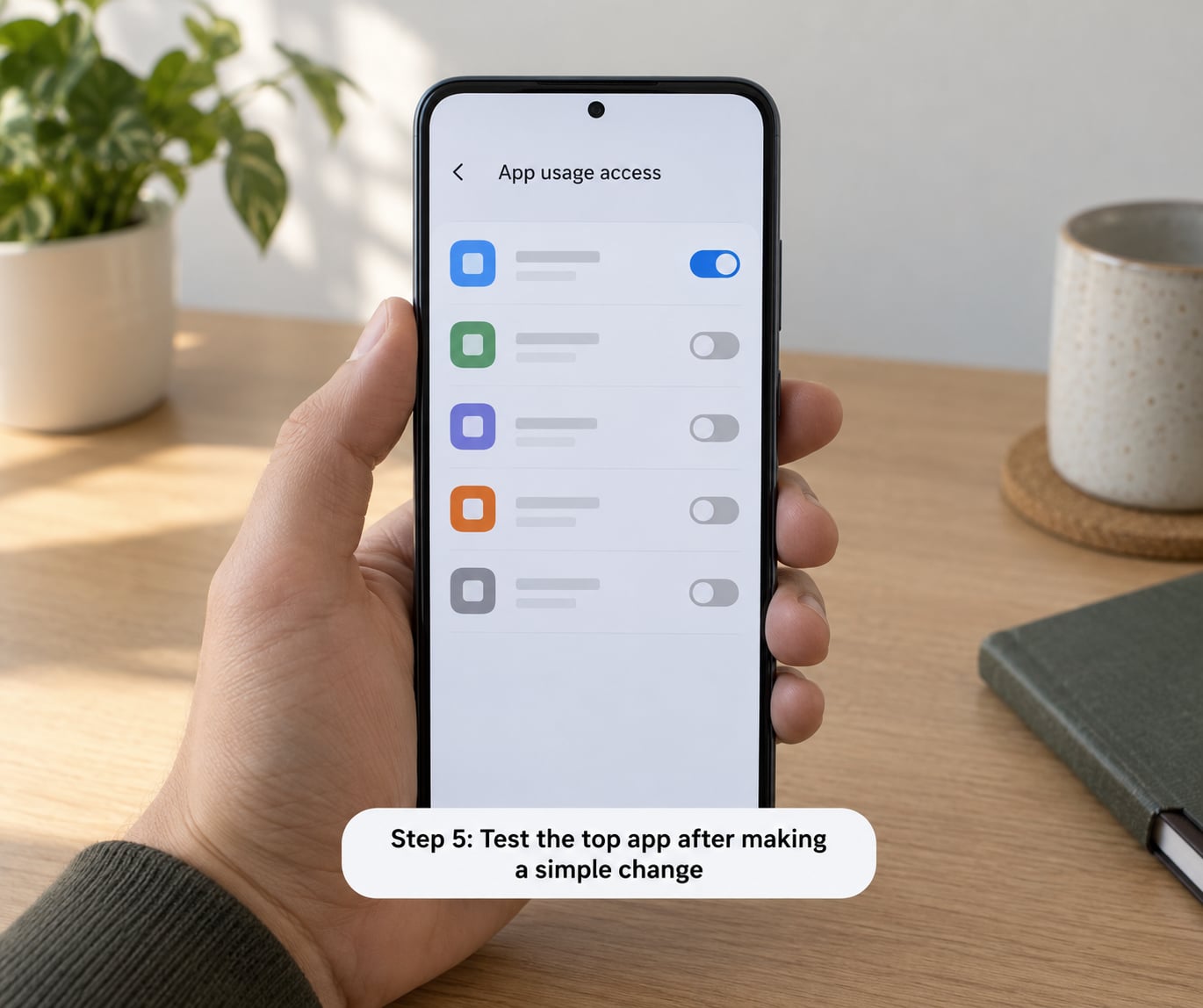
If the drain continues, revoke what it does not need. Open Settings > Apps > see all apps > your app > App battery usage and switch it from Unrestricted to Optimized. That blocks background activity while keeping notifications working. If you never use it for calls or turn-by-turn navigation, set Location to Allow only while using the app, and turn off Background activity under permissions.
On Xiaomi, the same idea sits under Battery > App battery saver, where each app gets No restrictions, Optimized or Restricted. Restricted is the harshest setting and it will break push notifications, alarms and background sync until you switch it back. Xiaomi also runs a Background autostart list under Settings > Apps > Autostart that decides which apps may relaunch themselves.
Install a current update for the app before you judge it, and test again under the same conditions. Comparing a Tuesday morning reading to a heavy Sunday of gaming tells you nothing.
Step 6: Confirm the result and take action
After a day or two with the change in place, open the same screen again and compare the two periods. Here is roughly what the numbers look like on a healthy phone:
| Situation | Normal drain | Worth investigating |
|---|---|---|
| Screen on, texting, browsing | 6 to 10 percent an hour | Over 14 percent an hour |
| Screen on, video call | 10 to 15 percent an hour | Over 20 percent an hour |
| Screen off, idle all day | 1 to 3 percent an hour | Over 5 percent an hour |
| Whole day, mixed normal use | 30 to 50 percent | Over 70 percent with light use |
Uninstall an app when it keeps draining after a restart and an update, and when you barely use it. Update or restrict it when you do use it but something specific is eating power. Ignore it when the number is high but the active time matches how much you actually used it.
Watch for the entries that are not apps at all. Voice calls bundles VoLTE, WhatsApp, Telegram and network searching into one line. System UI draws the screen and status bar. Mobile network covers the modem searching for signal. Google Play Services is a shared component that many apps depend on, so its force stop button is usually greyed out. If you cannot tap force stop or uninstall, that is the reason: the entry is part of the system, and restricting it breaks other apps.
Community regulars on XDA and the Xiaomi forums point out the same thing: these single-point indicators are rough, and some drain is simply how the phone works. Judge the shape of the list, not any one row.
Common Mistakes
Judging only by total percentage. A 20 percent app you opened for three hours is healthy. A 7 percent app that ran all night with the screen off is the real problem. Always pair the percentage with active time and the foreground or background split.
Checking right after charging. Android resets the statistics on a full charge. Wait until you have used the phone normally for several hours, then look.
Force stopping system processes. Entries like System UI, Mobile network and Google Play Services cannot be safely stopped. Their buttons are greyed out for a reason, and forcing them causes dropped calls, missing notifications and a phone that redraws everything in dark mode at the worst moment.
Stripping permissions too aggressively. Switching an app to Restricted on Xiaomi or Samsung kills background sync and alarms along with the drain. Optimized is the setting most people actually want. Test one change at a time so you know which one did anything.
Assuming a hot phone proves one app is faulty. Heat tracks total workload, not blame. A warm phone after a video call says nothing about which app to remove. Check the battery list before touching anything.
Turning on ultra battery saver and forgetting. On Xiaomi and Redmi, the ultra battery saver tile in the notification shade stops background activity and can leave accessibility services disabled. Turn it off from Settings > Battery and confirm notifications come back.
Beyond the menu, the usual suspects are location services left on permanently, auto-sync pushing photos all day, a screen timeout set to fifteen minutes, and mobile data searching for a signal in a weak spot. Toggle those four and most mild complaints go away.
Frequently Asked Questions
Which Android app is using the most battery?
Usually the screen itself. On most phones the display and System UI sit at the top of the list because the screen is on for most of the day. Behind them come navigation apps, video and camera apps, and anything holding a GPS or Bluetooth connection. If you want the answer for your own phone, open Settings, tap Battery, then Battery usage, and read the first five rows.
How do I find which apps drain battery in the background?
Open the battery usage screen and tap each app in turn. Look at the background time and wake-up count next to the percentage. An app with a high share of background time, many wake-ups, and few minutes of actual screen use is the one to restrict. On Xiaomi, check Settings, then Apps, then Autostart as well, since HyperOS controls self-relaunching separately.
Why does one app use more battery on my phone than it does for other people?
Battery reporting scales to your own usage and your own settings. A brighter screen, a higher refresh rate, weaker signal, a cooler room, or an older battery all change the number for the same app. Someone testing on a new device with a strong signal will always see less drain. Compare your phone against itself over two days, not against a review.
Should I uninstall the app that shows the highest battery usage?
No, not on the first pass. Highest percentage usually means most used. Restart the app, install any pending update, revoke location and background permissions, and switch it to Optimized, then re-check after a day. Uninstall only if the drain persists and you rarely open the app. Uninstalling something you rely on daily solves nothing and costs you your data.
How much battery drain is normal over one day?
For light use, losing 30 to 40 percent across a full day is normal on a healthy battery. Heavy use, navigation, and long video calls can push that to 60 or 70 percent. Consistent losses above 80 percent with the screen on for only two or three hours usually point at a background app or an ageing battery. Check the per-hour rates in the table above for a cleaner comparison.
Can a faulty phone battery make an app appear to drain more power?
Yes. As a battery ages, it delivers less charge for the same work, so the percentage falls faster even when nothing changes in software. Symptoms are a phone that dies suddenly, a swollen back, a screen that flickers, or drain that got noticeably worse over a few months with no new apps installed. If the phone gets hot while idle at high charge, stop using it and get the battery checked.
Conclusion
Start by opening the battery usage screen and reading the list since your last full charge, not the total. Then focus on apps with heavy screen-off or background use and very little active time, because that is where hidden drain lives. Test one change at a time, give it a day, and compare the same screen again before deciding anything.
Most people who solve this end up uninstalling one app they had stopped using months earlier. The rest fix it with a single permission. Both take longer than reading an article, which is why the built-in menu is the only tool you really need.
Everything above comes back to a single screen: Settings, then Battery, then Battery usage, read over a full day’s normal use. That is how to see which app is draining battery on any Android phone without installing a single thing.