You can turn on dark mode on Android through the Settings app or the Quick Settings panel, and on most phones it takes under a minute. The exact menu labels differ a little between Samsung, Xiaomi and Google’s Pixel, which is why generic instructions so often send people hunting. Here is every path, plus what to do when the switch is greyed out or has vanished.
Updated for 2026. Paths below cover Android 13 through Android 16 on Pixel and Google’s Android, Samsung One UI, Xiaomi MIUI and HyperOS, and the ColorOS, OxygenOS and Motorola interfaces. Menu names shift between versions, so I note where a label has changed.
Table of Contents
- What You Need
- Step-by-Step: How to Turn on Dark Mode on Android
- Use the Android Settings App
- Turn On Dark Mode on a Samsung Galaxy Phone
- Turn On Dark Mode on a Xiaomi, Redmi or Poco Phone
- Turn On Dark Mode on a Google Pixel
- Turn On Dark Mode on Other Android Phones
- Make Dark Mode Automatic
- Turn On Dark Mode for Specific Apps
- If Dark Mode Is Not Available
- Common Mistakes
- Frequently Asked Questions
- Why won’t my phone let me select dark mode?
- Why isn’t dark mode working on my Android phone?
- How do I get out of dark mode on an Android?
- How do I turn dark mode on for just one app?
- How do I force dark mode on apps that don’t support it?
- Does dark mode save battery on an AMOLED display?
- Conclusion
What You Need
Nothing to buy and nothing to install. Dark mode has been built into Android since version 9 and turned into a proper system-wide switch in Android 10, so any phone still receiving updates has it somewhere in Settings.
The catch is the wording. Pixel says Dark theme. Samsung nests it under Dark mode settings. Xiaomi calls it Dark mode in a Display menu that reorganised itself between MIUI and HyperOS. OnePlus, Oppo, Realme, Motorola, Vivo and Honor each use their own arrangement again. That inconsistency is the reason this question fills so many forum threads.
| Brand and interface | Exact menu path | Scheduling option |
|---|---|---|
| Google Pixel and stock Android | Settings > Display > Dark theme | No, Light and Dark only |
| Samsung Galaxy (One UI) | Settings > Display > Dark mode settings | Sunset to sunrise, Dusk to Dawn, Custom |
| Xiaomi, Redmi, POCO (MIUI) | Settings > Display > Dark mode | Schedule with start and end time |
| Xiaomi, Redmi, POCO (HyperOS) | Settings > Display > Dark mode | Schedule with start and end time |
| OnePlus, Oppo, Realme (OxygenOS and ColorOS) | Settings > Display > Dark mode | Sunset to sunrise, Custom, Battery saver |
| Motorola, Honor, Vivo | Settings > Display or Screen brightness | Sunset to sunrise on most models |
One prerequisite is worth checking before you start: update the phone. Settings paths for dark mode have changed across versions, and some Xiaomi and POCO firmware builds dropped or greyed out the toggle until a later update restored it.
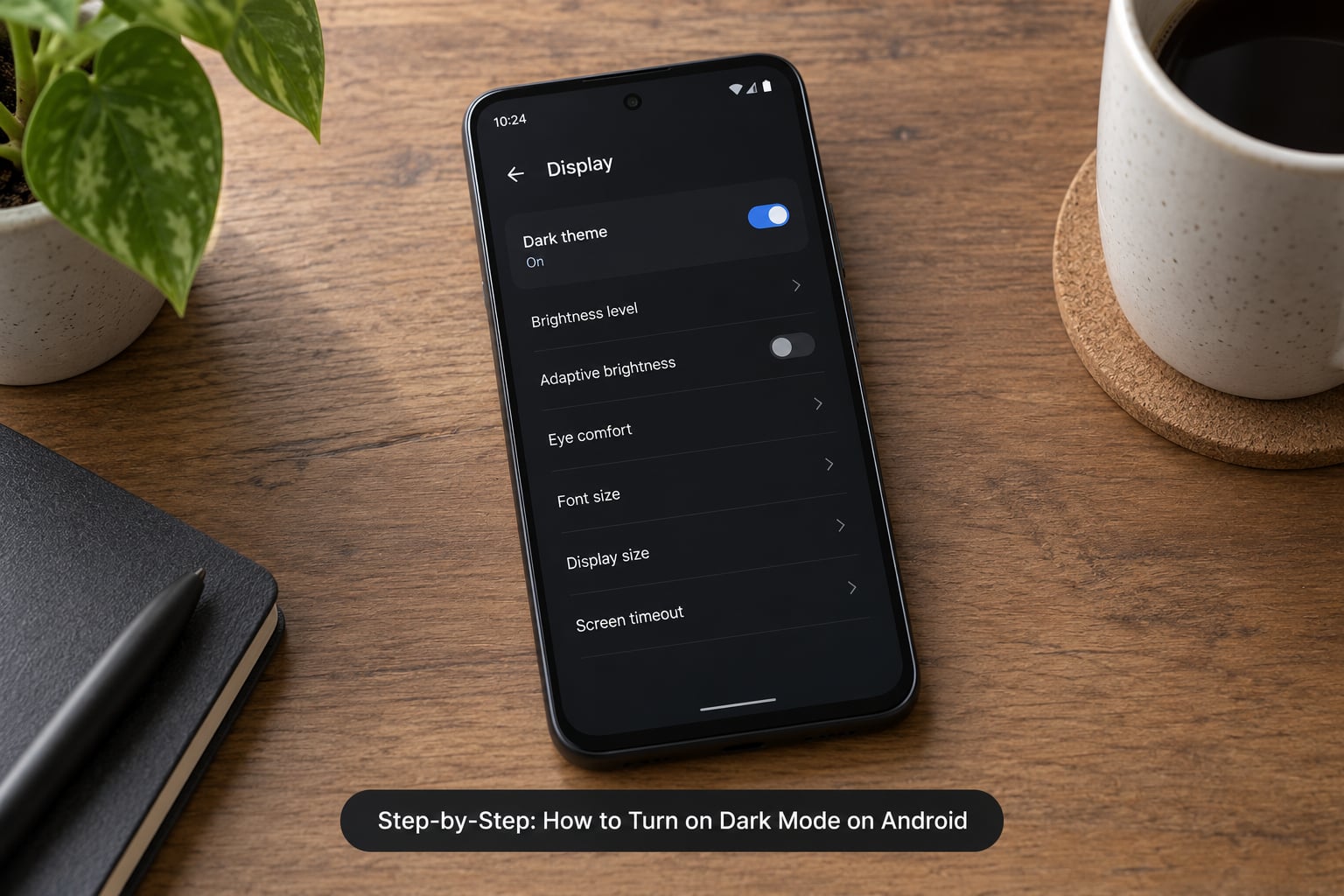
Step-by-Step: How to Turn on Dark Mode on Android
Use the Android Settings App
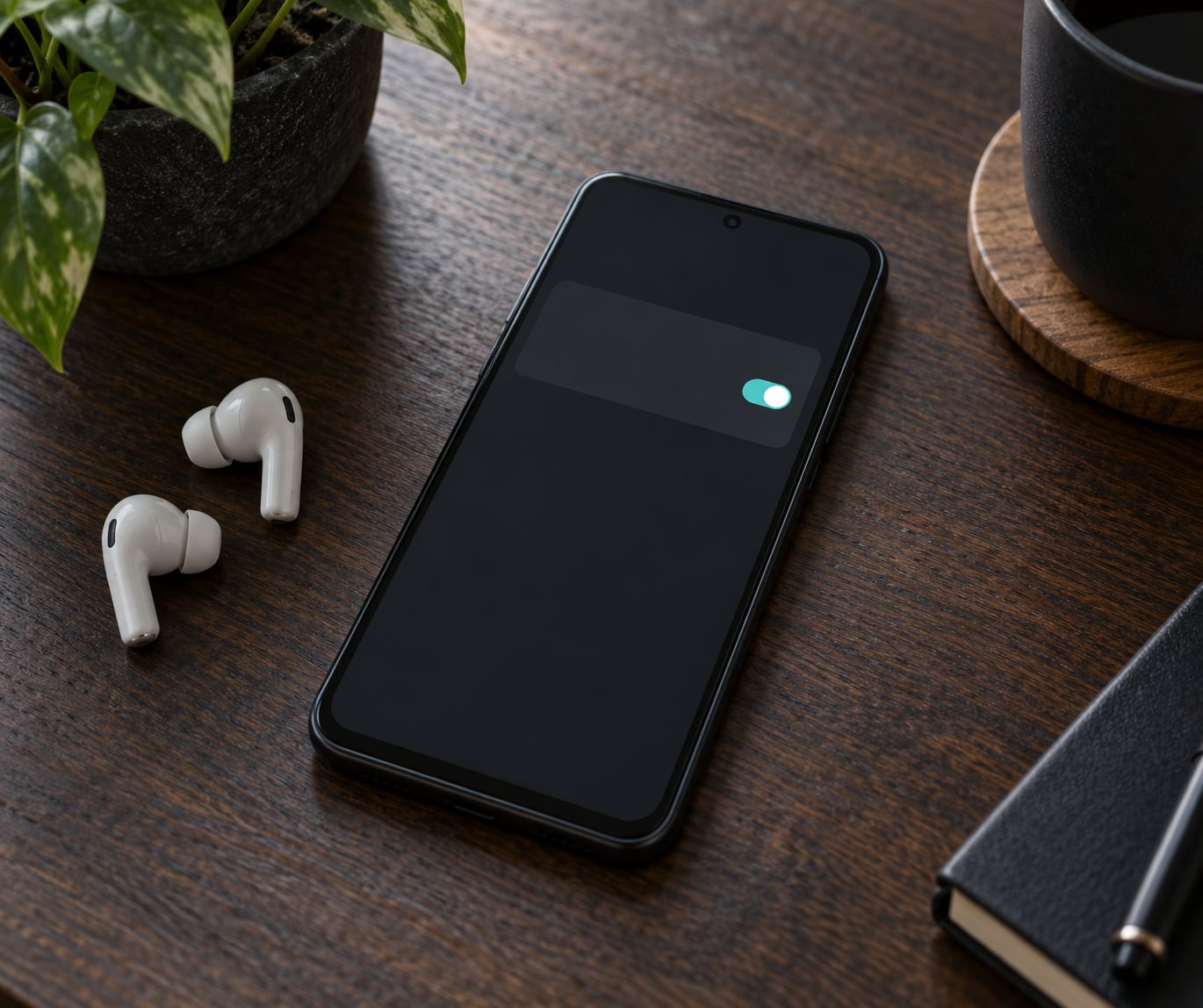
The Settings app route is the one that works on every Android phone. Open Settings, tap Display, and switch on Dark theme (called Dark mode on most other brands).
The screen changes immediately, no restart needed. If your phone has a dark theme option that also controls app icons and wallpapers, you will see extra choices underneath the switch, such as an Apply to wallpaper toggle on Samsung.
You can also reach the same switch in two taps. Swipe down from the top of the screen to open the notification shade, expand the panel with a second swipe, then tap the Dark theme or Dark mode tile. If that tile is not in your panel, tap the pencil or edit icon at the bottom of the expanded panel and drag it in.
Turn On Dark Mode on a Samsung Galaxy Phone
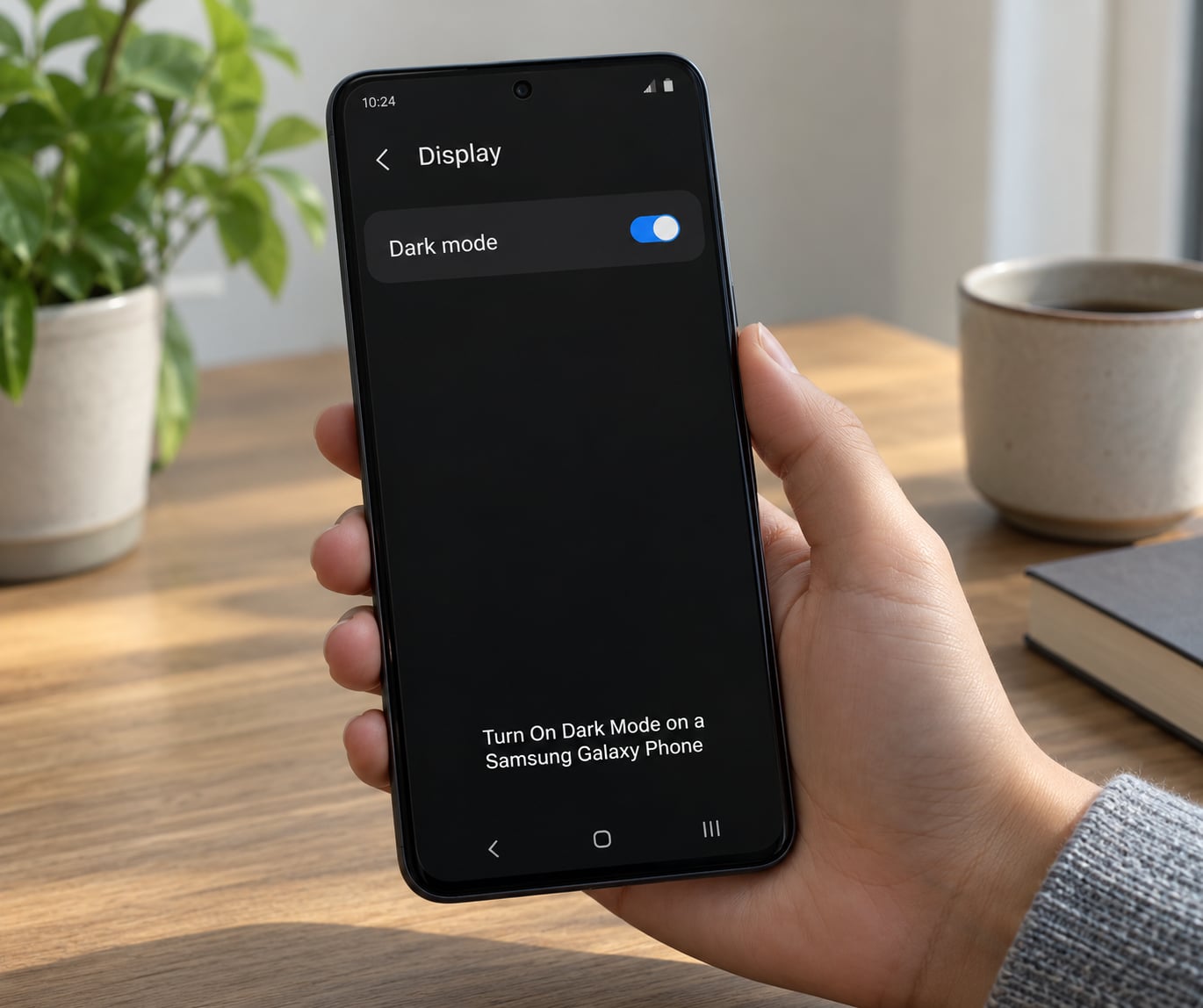
On One UI, the switch sits under its own submenu. Go to Settings > Display > Dark mode settings, then turn the Dark mode toggle on.
Samsung also gives you scheduling inside that same screen. Tap Activate on schedule and choose Sunset to sunrise, Dusk to Dawn or Custom schedule. Dusk to Dawn works off your location, so turn location services on first, otherwise it never fires.
Newer One UI builds also expose a dark mode tile in Quick Settings, so you can flip it from the shade without opening Settings at all. Galaxy Tab tablets follow the identical path as Galaxy phones.
Turn On Dark Mode on a Xiaomi, Redmi or Poco Phone
On MIUI and HyperOS the toggle is in the Display menu: Settings > Display > Dark mode. Flip the switch, then set Schedule if you want it to change with the time of day.
Two things catch people out on these phones. First, MIUI keeps some apps light even in dark mode because those apps ship without a dark theme. Second, if Battery saver is on, it takes over the dark mode setting and greys out your own choice, which is the single most common “dark mode won’t switch” complaint in Xiaomi communities. Turn battery saver off and the switch comes back.
Some MIUI and HyperOS builds hide the option entirely after an update. Users on those versions generally had to wait for the next firmware release to get it back, so if the toggle is missing, check Settings > About phone for a system update first.
Turn On Dark Mode on a Google Pixel
Pixel is the plainest path of all: Settings > Display > Dark theme, then tap the switch. You get two choices, light or dark, and no scheduling toggle.
If you want it automated, open Settings > Battery > Adaptive Battery and enable Adaptive dark theme, which follows your screen brightness habits. Otherwise add the dark theme tile to Quick Settings for one-tap switching.
Turn On Dark Mode on Other Android Phones
On OnePlus, Oppo and Realme, look under Settings > Display > Dark mode, where the scheduling options include a battery saver trigger. Motorola puts it under Display or Screen brightness, sometimes labelled Night display or Dark theme depending on the model.
Huawei and Honor devices without Google services use Settings > Display > Dark mode in their own interface, and Vivo places it in the Display menu alongside brightness. If a brand label differs from the ones above, search Settings for “dark” and the toggle will surface immediately.
Make Dark Mode Automatic
Scheduling is built into the display menu on most brands. Pick Sunset to sunrise if you want it to follow your local sunset and sunrise, or set a Custom schedule with a start and end time that matches your routine.
On OnePlus, Oppo and Realme you can also set it to switch on with Battery saver. That is convenient but it is also the setting that locks out your manual choice on some devices, so it is worth remembering you can switch back.
If a schedule option is greyed out, location services are usually the cause. Android needs your position to know when the sun sets.
Turn On Dark Mode for Specific Apps
Most apps that support a dark theme have their own switch. Open the app, find its appearance setting, and pick dark. Gmail is under Settings > Theme, YouTube is under Profile > Appearance, and Instagram and WhatsApp have a dark mode option in their own settings menus.
The system setting and the app setting interact in a way that confuses a lot of people. While your phone is in system dark mode, an app’s own dark mode option often greys out, because the app is already dark. Switch the phone to light mode and the app’s option becomes selectable again, which is the workaround Reddit and Discord users land on.
For apps with no dark theme at all, newer Android versions include Expanded dark mode, which automatically generates a dark version of the app’s light colours. It works without root, though some apps end up looking washed out rather than properly designed.
If Dark Mode Is Not Available
If the setting is missing entirely, the phone is almost certainly on Android 9 or older, or a work or school profile is restricting it. Check Settings > About phone to see your Android version and whether an update is waiting.
If the option is there but greyed out, three causes account for nearly all of it. Battery saver is forcing its own preference, a parental or device management profile is controlling display settings, or you have Override force-dark enabled in Developer Options and the system is waiting on that.
Older Android versions offer partial dark mode through Accessibility > Color inversion, but that is a different feature and it inverts everything, including photos and videos. It is a fallback, not a substitute.
Common Mistakes
Confusing Night Light with dark mode. Night Light and Samsung’s Eye Comfort Shift strip blue light from the screen but keep a light background. If you wanted a black interface, you are in the wrong menu. Night Light lives in the same Display settings, often under a warmer-sounding label.
Battery saver locking your choice. Turn on battery saver and many Xiaomi, Samsung and OnePlus devices take control of the dark mode switch, forcing it on or off and greying out the manual toggle. Switch battery saver off, set your theme, and turn battery saver back on if you need it.
Expecting every app to follow. Photos and videos are never inverted. Some apps ship with a light-only theme and stay bright until the system forces them. That is a compatibility issue, not a failed setting.
Running an old Android version. Before Android 10, dark mode was partial and many apps ignored it. If your phone has not been updated in years, that is the likely explanation.
Leaving a per-app override in place. An app set to light while the system is dark can make it look as though the system setting failed. Reset that app to System default and check again.
Forcing dark mode in Developer Options. Settings > Developer options > Override force-dark darkens apps that refuse, but developers call some apps broken under it. To reach Developer Options, tap Build number in About phone seven times. Use it for a stubborn app, then switch it back off.
Frequently Asked Questions
Why won’t my phone let me select dark mode?
Most often battery saver is holding the switch. On Xiaomi, Samsung and OnePlus devices, battery saver overrides your dark mode preference and greys out the manual toggle. Turn battery saver off, set Dark mode to on, then turn battery saver back on. A work or school device profile that manages display settings can do the same thing.
Why isn’t dark mode working on my Android phone?
Check three things in order. First, confirm the system switch is on at Settings u0026gt; Display u0026gt; Dark theme, because a single app set to Light will override it. Second, that app may simply have no dark theme, in which case Expanded dark mode or Developer Options u0026gt; Override force-dark will force it. Third, an app that stopped following dark mode after an update often fixes itself when you clear its cache and data.
How do I get out of dark mode on an Android?
Open Settings u0026gt; Display and switch Dark theme or Dark mode back off, or tap the quick settings tile if you added one. Also check that battery saver is not forcing dark mode back on. For a single app that stayed dark, open its own appearance settings and choose the light or system default option.
How do I turn dark mode on for just one app?
Keep the phone in light mode and switch dark mode inside that one app. Open the app, find its appearance, theme or display setting and choose dark. Apps like Gmail, YouTube, Instagram and WhatsApp all have their own option. If the app’s dark mode setting is greyed out, that is because your system is already dark, so set the system back to light first.
How do I force dark mode on apps that don’t support it?
Tap Build number in Settings u0026gt; About phone seven times to unlock Developer Options, then scroll to Override force-dark and turn it on. This applies a generated dark theme to apps with no dark mode of their own. The trade-off is real: some apps render badly with washed-out colours or unreadable icons, so switch it off if an app starts looking wrong.
Does dark mode save battery on an AMOLED display?
Less than most guides claim. On AMOLED and OLED screens, black pixels genuinely switch off, so a dark interface does draw less power. But dark mode is rarely pure black, and the difference between pure black and a dark grey background is smaller than the popular 60 percent figure suggests. Screen brightness and time on the phone matter far more than the theme.
Conclusion
Open Settings, tap Display, and switch on Dark theme or Dark mode. That single step answers how to turn on dark mode on Android for almost every phone, and the quick settings tile gets you there faster once you add it.
If your phone is a Samsung, the path runs through Dark mode settings under Display, where you can also set a sunset-to-sunrise schedule. Xiaomi, Redmi and POCO users go to Settings > Display > Dark mode and should check that battery saver is not holding the toggle.
And if the setting is greyed out or missing entirely, work through the troubleshooting list above before assuming something is broken. More often than not, battery saver or a pending system update explains it.