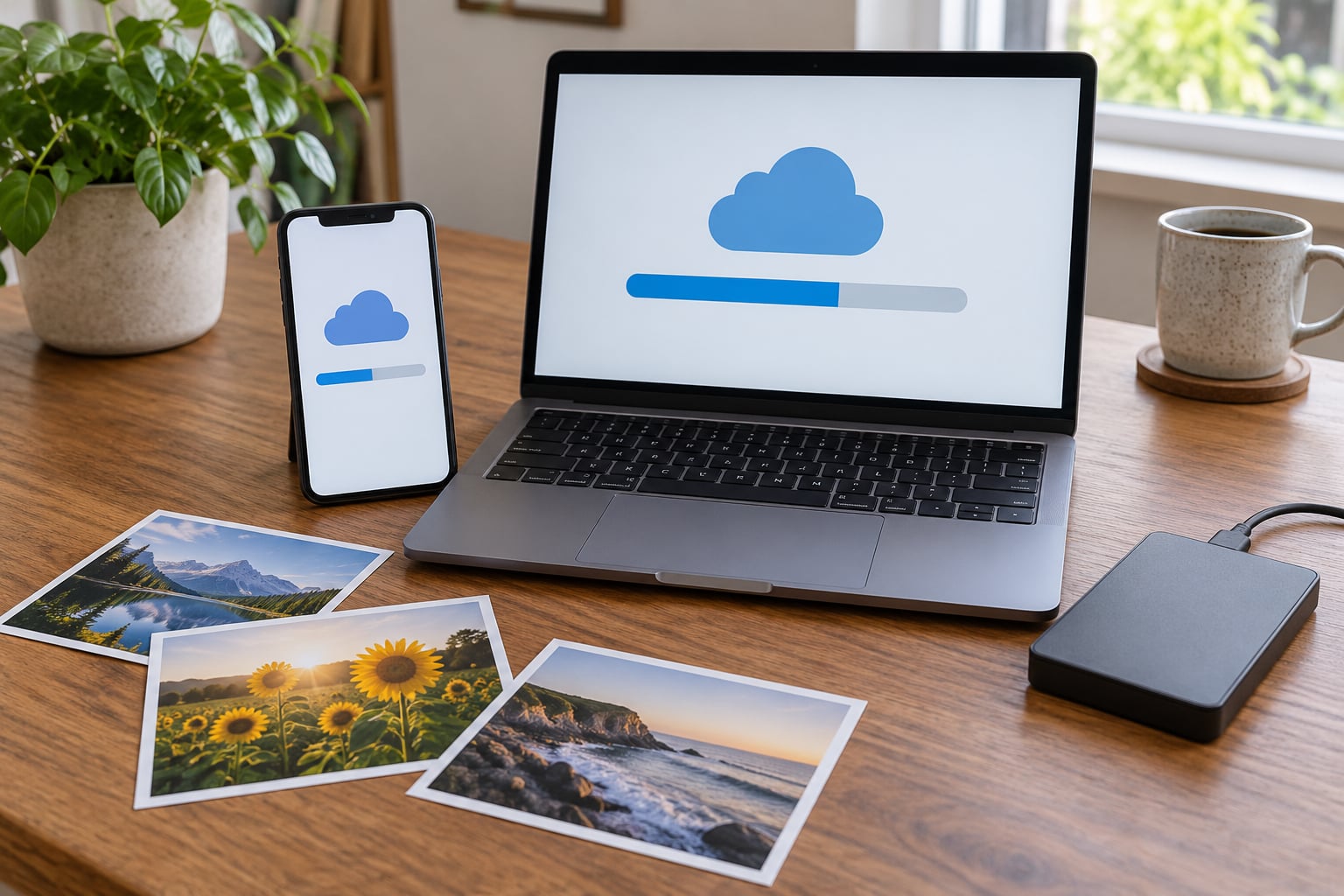
To free up iCloud or Google Photos space, open the storage screen your service actually uses — Settings > [Your Name] > iCloud > Manage Account Storage on Apple, or photos.google.com/quotamanagement on Google — find the biggest item at the top, and delete it only after the backup status shows it is already safely stored in the cloud. Twenty minutes and a laptop handle most cases. The fiddly part is that you are looking at three different counters, and cleaning the wrong one changes nothing.
That last point causes most of the frustration in this topic. A phone can be full while iCloud has room. A Google account can be full while the phone is nearly empty. And a photo can be deleted from your phone and still be sitting in Recently Deleted or Trash, still counting against the quota. Get the counters straight first and the rest is straightforward.
Table of Contents
- What You Need
- Step-by-Step: How to Free Up iCloud or Google Photos Space
- Check iCloud Storage on iPhone, iPad, or Mac
- Remove Large Files and Old iPhone or iPad Backups
- Free Up Google Photos and Google Account Space
- Change Photos Backup and Sync Settings
- Common Mistakes
- Verify That Space Has Been Freed
- Frequently Asked Questions
- Do I need more iCloud storage if I have Google Photos?
- How much iCloud storage is free?
- How do I know if my cloud storage is full?
- How do I store photos on iCloud to save phone storage?
- How do I clear up space on my Google account?
- I accidentally tapped Free up space in Google Photos. Are my photos gone?
- Conclusion
What You Need
Before you tap anything, you need four things in place.
- A device you can unlock. An iPhone, iPad or Mac for iCloud; an Android phone (including Xiaomi and HyperOS models) or any device with the Google Photos app for Google.
- A browser. Chrome or Safari on a laptop gives you the clearest storage breakdown for both services, and it is the only way to see old device backups.
- Your account password and a second factor. Deleting a backup or a large batch of files sometimes asks you to re-authenticate. If you cannot get past that screen, you cannot delete anything.
- Twenty to forty minutes, plus more if you have years of photos. And ideally an external drive if you want a safety copy before a big deletion.
One more thing worth deciding up front: which service actually holds your library. Plenty of people have half their photos in each, which is why the same photo can appear to take up space in two places. On an iPhone, open Photos and check whether iCloud Photos is switched on. On Android, Google Photos is the default and iCloud is irrelevant unless someone enabled it manually.
Step-by-Step: How to Free Up iCloud or Google Photos Space
Check iCloud Storage on iPhone, iPad, or Mac
On iPhone and iPad, open Settings, tap your name at the top, then iCloud, then Manage Account Storage. The bar chart underneath shows which categories eat your quota, and tapping a category opens it directly.
On a Mac, click the Apple menu, then System Settings, then your name, then iCloud, then Manage Account Storage. Same data, bigger screen, easier to read.
In a browser, sign in to icloud.com and choose iCloud Storage. This is the only place that lists every backup with its date and device name, so it is the right view when you need to remove an old iPhone or iPad backup.
Read the list from largest to smallest before deleting anything. On most accounts the order is photos and videos first, then device backups, then Messages attachments, then iCloud Drive, then Mail. Backups are the most commonly missed item — people assume one backup exists and never look for the other four sitting behind it.
Two rules before any deletion. First, confirm the sync or backup state: a green iCloud checkmark next to a photo, or the word Synced in the backup status line, means the copy in the cloud is complete. Second, remember that the quota counter can take minutes to catch up. If you delete 20 GB and the bar has not moved, that is not proof that you failed.
Remove Large Files and Old iPhone or iPad Backups
Go to icloud.com > iCloud Storage > Backups, and delete every backup that is not for a device you still own and actively use. Each one is typically several gigabytes, and they stack up invisibly.
Check what is inside a backup before you remove it: tap it to see the device name, the last backup date, and a rough size. Delete a backup of a phone you gave away, sold, or replaced two years ago. Keep the most recent backup of the phone in your hand right now.
Never delete the only backup of your current phone before a major event — before an upgrade, a repair visit, or a long trip. A backup is insurance, and it is the one thing on this list you cannot recreate from cloud alone once it is gone.
For files rather than backups, open the iCloud Drive section in the Files app on iPhone or iCloud Drive on Mac. Sort by size and look for installers, disk images, video project files and old PDFs. Anything you have already installed once and could download again is a safe candidate.
Photos and videos are usually the real weight. A modern phone takes photos of several megabytes each and videos that can run into gigabytes, especially in high-quality or ProRes modes. Deleting 500 old videos can free more than everything else on this list combined.
Here is the honest side-by-side, because the two services behave differently in ways that matter:
| Behaviour | iCloud Photos (Apple) | Google Photos |
|---|---|---|
| Which quota it fills | iCloud storage quota | Google account storage quota |
| Phone storage setting | Optimize iPhone Storage | Free up space on this device |
| What it removes locally | Full-size originals, keeps thumbnails | Local copies, cloud originals stay |
| Deleted items kept for | 30 days in Recently Deleted | 60 days in Trash |
| Recovery if you tap it by accident | Photos > Recently Deleted, still intact | Photos > Trash, still intact |
| Backup switch | iCloud Photos toggle | Backup toggle |
That table answers the question that shows up most often in forums: no, Google Photos does not fill your iCloud quota, and iCloud does not reduce your Google account total. They are separate counters. Having both running just means paying for, or managing, two libraries.
One detail people miss on Apple: iCloud backup and iCloud Photos are not the same thing. Turning iCloud Photos off does not switch off backups, and a device backup still holds a copy of your photo library at the moment it last ran. That is often why iCloud still looks full after you deleted everything from the Photos app.
Free Up Google Photos and Google Account Space
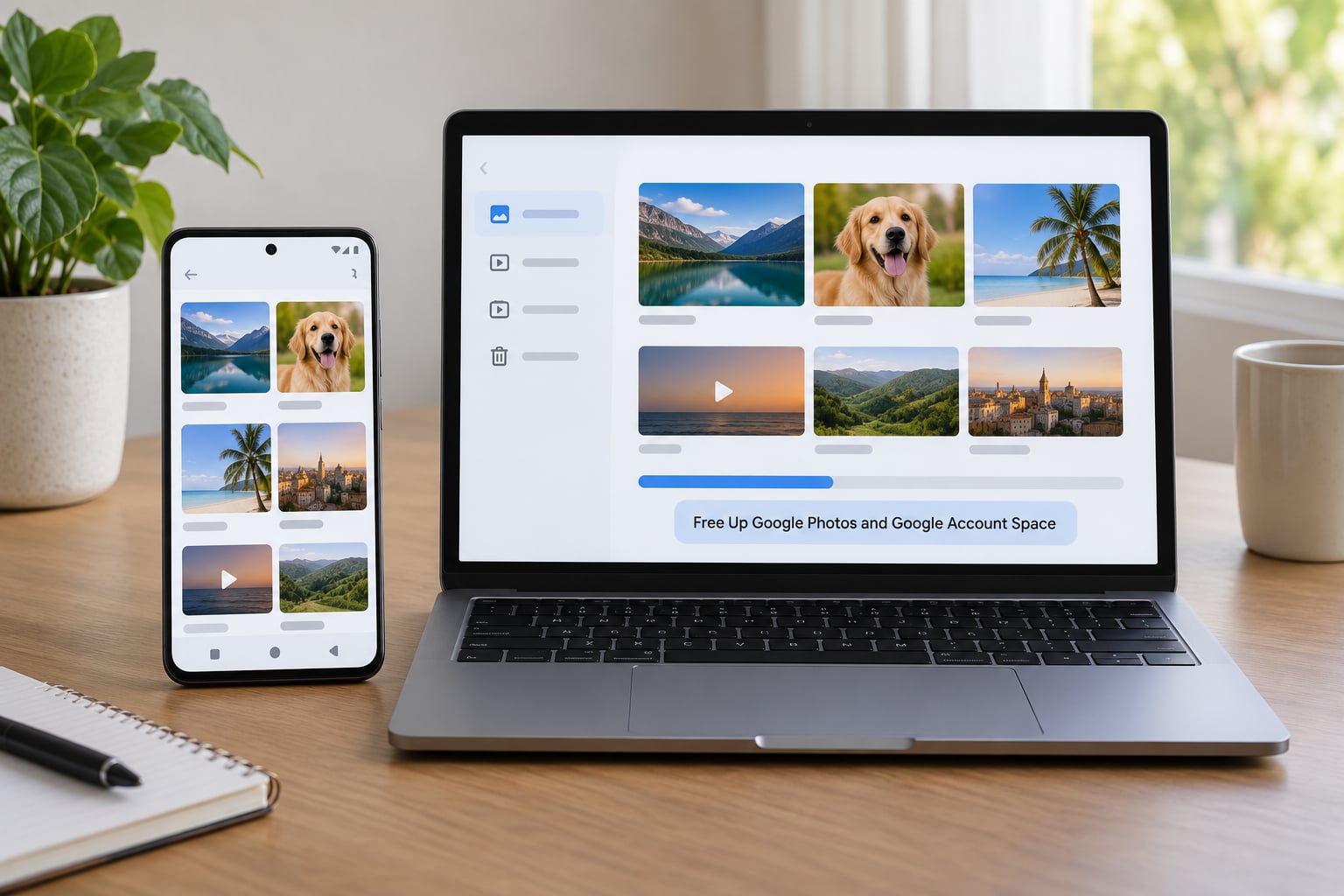
On Android, including Xiaomi, Redmi and Poco phones running HyperOS, open the Google Photos app, tap your profile icon at the top right, then Library, then the storage bar at the top of the screen. That opens Manage storage, which splits your library into Photos, Videos and Favorites with a total count at the top.
The one-tap cleanup is at the bottom of that screen: Free up space on this device. Tap it and Google Photos removes local copies of photos and videos that are already backed up, leaving small versions on the phone.
Read this part twice, because this is where data-loss panic comes from. The button only removes the copy on this phone. The full-size original stays in your Google Photos library and will come back the next time you open it while online. If you tapped it with a weak connection, some items may still be waiting to upload — go back, confirm the top of the screen no longer shows an uploading or pending state, then try again.
Deleted items do not vanish immediately. They sit in Photos > Trash for 60 days, and they still count against your quota the whole time. Tap Trash, then Empty trash. The same applies to the Locked Folder: it is hidden from your main grid but it is not free, so clear anything you no longer want there.
Photos are rarely the only thing filling a Google account. Open one of these and check the total:
- one.google.com/storage in a browser, for the full breakdown across Drive, Gmail, Photos and WhatsApp.
- Gmail — search for large attachments using the search options, filter by size, and delete big PDFs and spreadsheets you have already filed elsewhere.
- Google Drive — shared drives and files owned by other people count against your quota, which is why the number can look wrong. Sorting by size finds them fast.
- WhatsApp, Telegram and Discord — chat media is the quiet giant on most Android phones and it fills the Google account too on some setups.
On the phone side, settings differ by brand but the logic does not. On stock Android, open Settings > Apps > see all apps, then check each app’s storage usage. On Xiaomi and HyperOS phones it is Settings > Storage, where you get a category view and a cleanup tool. The Files app on most Android phones also shows Gallery, Videos and Download folders by size, which is often where stray video recordings sit.
Change Photos Backup and Sync Settings
The settings change does more work than most deletions, and it is what keeps the space from refilling. On iPhone, open Settings > Photos and switch on Optimize iPhone Storage; full-resolution originals stay in iCloud and the phone keeps only a small version, reloading on demand when you view them.
Switching back to Download and Keep Originals will fill your phone again as soon as you are on Wi-Fi, so treat that choice as a deliberate one rather than a default.
On Android, open Google Photos > profile icon > Photos settings > Backup > Backup quality. Storage saver keeps a smaller local copy while uploading the original; Original quality keeps everything full size on the phone. Storage saver is the one to pick if phone space is the problem.
If you need a break from uploading entirely — before a trip with no signal, or while you are actively clearing space — turn Backup off, do your deletions, then turn it back on and let the library catch up before you wipe anything.
Two clean-up albums deserve a look. In iOS Photos, scroll to Utilities and open Duplicates: iCloud finds near-identical shots and merges them for you, keeping the best copy. Screenshots and Live Photos accumulate quietly for years and are usually safe to clear in batches after a scan.
In Google Photos, the same idea is the Duplicates and Similar section inside Manage storage. There is also a Screenshots album you can review as a block.
Common Mistakes
These five mistakes account for most of the failed cleanups I see described in Apple and Google support threads.
Deleting from the wrong app. Removing a photo from the iOS Photos app when Google Photos also has a copy backed up, then wondering why it reappears later. Decide which library is the master before you start. If both apps are on the same phone, turn off syncing in one of them.
Deleting before the backup finished. This is the only mistake with real consequences. Wait for the green checkmark, the Synced status, or the end of the uploading state in Google Photos. A library that is still uploading is a library that can lose items.
Forgetting Recently Deleted or Trash. Space stays used until you empty those albums, and that is why plenty of people delete everything and still see the same total. Thirty days on iOS, sixty days in Google Photos.
Assuming a local delete clears every copy. Deleting a photo from your phone when it exists in iCloud, Google Photos and a backup means it will come back from one of them. Nothing is wrong. Pick one place to keep originals.
Trusting the number straight away. Sync lag, an iCloud process still optimizing, or a device backup still running will all leave the bar sitting still for a while. Give it time before you start deleting more.
Verify That Space Has Been Freed
Close and reopen the storage screen, or pull to refresh in the browser. Compare the new total against what it was before, and check the same counter in the second place you looked at — deleting on the phone will not move the iCloud or Google total, and that is expected.
Give sync an hour or two. If iCloud Photos just switched to Optimize iPhone Storage, the phone thins out gradually as it replaces full-size files with thumbnails rather than all at once.
Then spot-check that nothing important broke. Open five photos from different years, including one taken a month ago, and confirm each loads properly. Check that Messages history is intact if you touched attachments, and that your current device still shows a recent successful backup.
If a number refuses to move after that, look in three places: Recently Deleted or Trash not emptied, a device backup that regenerated because the phone is still actively backing up, and Other or System Data, which absorbs leftover fragments and clears itself over a few days. If System Data sits stubbornly high, restarting the device and leaving it plugged in overnight usually nudges it down.
Frequently Asked Questions
Do I need more iCloud storage if I have Google Photos?
Only if the backup running is the iCloud one. Google Photos fills your Google account quota, and iCloud backup or iCloud Photos fills the Apple quota, so they never share space. Many iPhone owners keep Google Photos as their library and turn iCloud Photos off, which stops photos consuming iCloud quota. Your most recent device backup still includes the photo library at the moment it ran.
How much iCloud storage is free?
Apple includes 5 GB of iCloud storage free with every Apple Account, and that space covers backups, iCloud Photos, iCloud Drive, Mail and Messages. Anything beyond that sits on a paid tier. Free space is shared across every device on the account and any Family Sharing members, which is why one old iPad backup can eat the whole allowance.
How do I know if my cloud storage is full?
On iPhone, open Settings, tap your name, choose iCloud, then Manage Account Storage — the bar turns red when you are at the limit. For Google, open photos.google.com/quotamanagement in a browser or Manage storage inside the Google Photos app. For phone storage itself, open Settings General iPhone Storage, or Settings Storage on Android. These are three separate counters and each fills separately.
How do I store photos on iCloud to save phone storage?
Turn on iCloud Photos at Settings [Your Name] iCloud Photos, then open Settings Photos and choose Optimize iPhone Storage. Full-resolution originals stay in iCloud while the phone holds only a small version that scales up when you view it. The phone frees space gradually as the swap happens, so give it a while and keep the phone on Wi-Fi and power.
How do I clear up space on my Google account?
Open one.google.com/storage to see every category, then work down the biggest: clear Photos Trash and the Locked Folder, sort Drive by size and remove files other people shared with you, and search Gmail for large attachments using the size filter. Empty the Gmail spam and trash folders too, since both still count. Finish with WhatsApp and messaging apps, which quietly hold onto a lot of media.
I accidentally tapped Free up space in Google Photos. Are my photos gone?
No. That button removes the local copy on that phone only, and only for items already uploaded. The full-size originals remain in your Google Photos library. Open any photo while connected and it re-downloads at full quality, which uses phone space again until you switch Backup quality to Storage saver. Deleting from the library is different — that goes to Trash and stays recoverable for 60 days.
Conclusion
Start by opening the storage dashboard for the service you actually use, and read the categories from largest to smallest before touching anything. Old device backups and long videos are usually where most of the space is hiding.
Then confirm the backup status before you delete a single item, switch on Optimize iPhone Storage or Storage saver so the freed space does not refill overnight, and empty Recently Deleted or Trash so the reduction actually registers. Give the sync an hour or two, then reopen the same screen and check that your photos still open. If they do, you have learned how to free up iCloud or Google Photos space the right way, and nothing else needs buying.